How to fix
OneDrive error 0x8004de81
on Windows
Resolve OneDrive error 0x8004de81 on Windows 10 or 11 effortlessly. Get expert-tested solutions for a seamless experience, fixed in minutes!

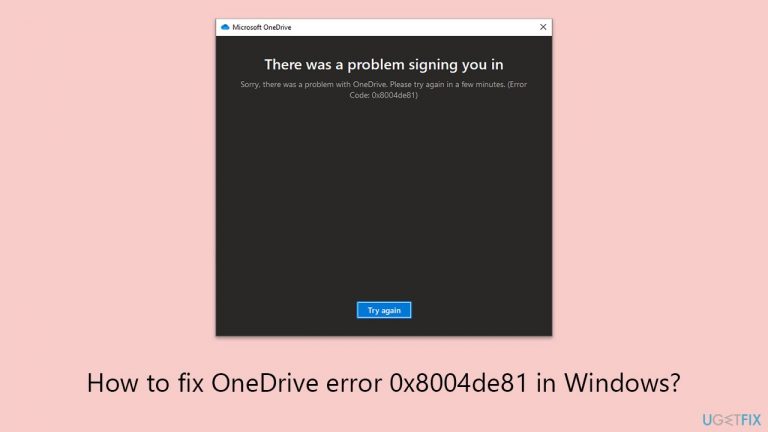
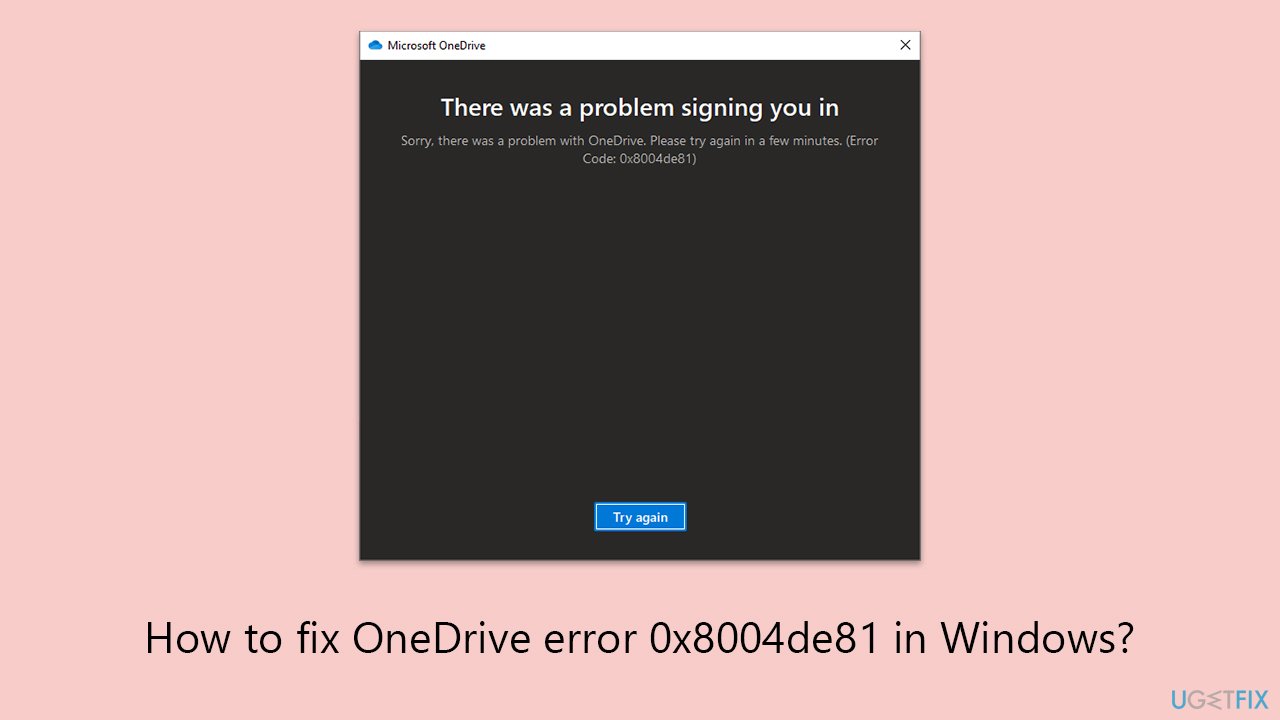
What causes How to fix OneDrive error 0x8004de81 in Windows?
- Network connection issues
- Incorrect account settings
- Outdated application versions
- Synchronization issues with account credentials
- Token refresh process errors
Repairs Windows system files, removes malware, and restores a clean OS state — without reinstalling.
Hi, I recently encountered an error message while trying to sign into my OneDrive account on my Windows 10 PC. The error code displayed is 0x8004de81, and it prevents me from accessing my files stored on OneDrive. I've tried restarting my computer and signing in again, but the problem persists. Could you provide any solutions or workarounds to fix this error?
When attempting to access OneDrive, users might occasionally encounter the sign-in error 0x8004de81. This error is not just a minor inconvenience; it signifies a deeper issue within the system or network configuration that prevents successful authentication and access to OneDrive services. Our goal is to shed light on the possible causes and the nature of this error to help users and IT professionals better understand and troubleshoot it effectively.
The error code 0x8004de81 often arises due to several underlying factors that can disrupt the normal operation of OneDrive. Primarily, it could be attributed to network connection issues that hinder the OneDrive app from communicating with its servers. Additionally, incorrect account settings or outdated application versions can contribute to this problem, preventing the user from signing in successfully.
In some instances, this error may also indicate a more complex situation involving the synchronization of account credentials between the local device and OneDrive's online services. When the credentials do not match or when there's an error in the token refresh process, OneDrive might be unable to verify the user's identity, leading to the 0x8004de81 error.
When trying to fix OneDrive error 0x8004de81, common solutions include checking account settings, updating the OneDrive application, and making sure the network is stable. Below we provide detailed instructions that will guide you through this process. If problems are more deeply rooted within your operating system, we recommend trying a PC repair tool [d1], which can address any underlying Windows issues automatically.
Fix 1. Run troubleshooters
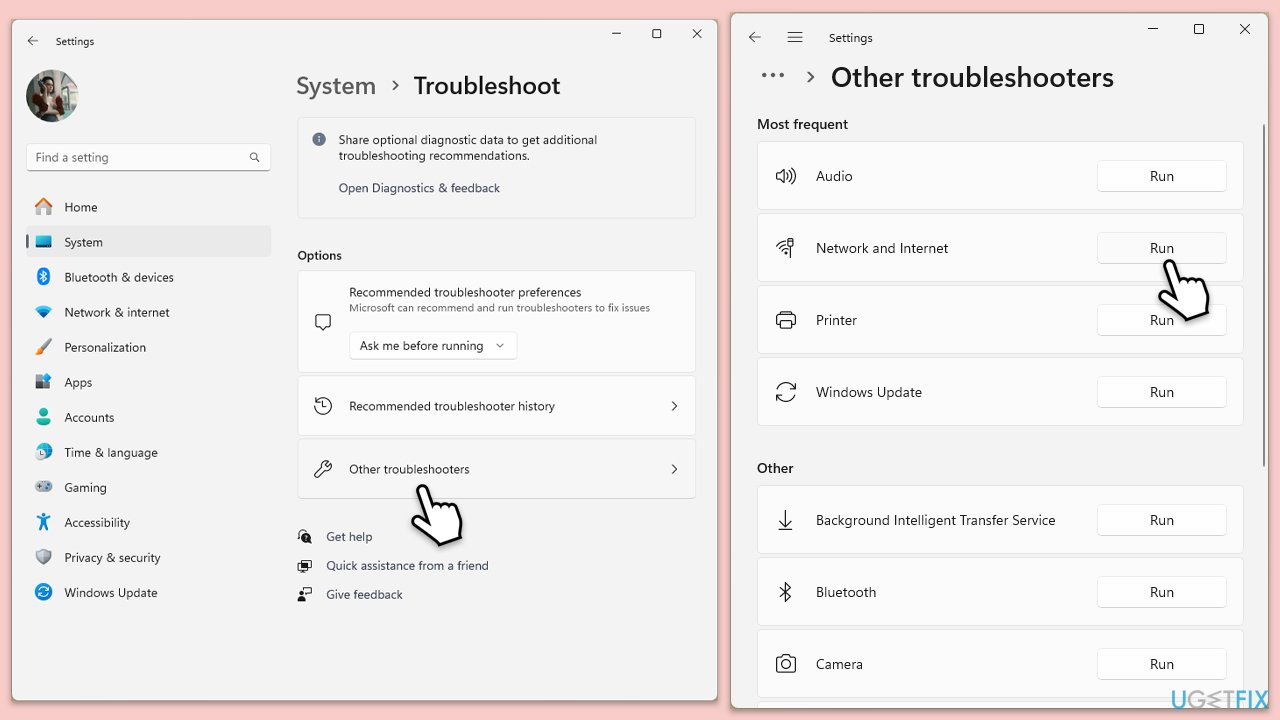
First and foremost, you should check whether you have problems with the app itself and the internet connection. For that, you can start with the built-in troubleshooters:
- Type Troubleshoot in Windows search and press Enter.
- Select Additional troubleshooters/Other troubleshooters.
- Find Windows Store Apps from the list and select Run the troubleshooter/Run.
- Then, run Network & Internet troubleshooter.
- Wait till the process is finished and apply the offered fixes.
- Restart your device.
Fix 2. Update OneDrive
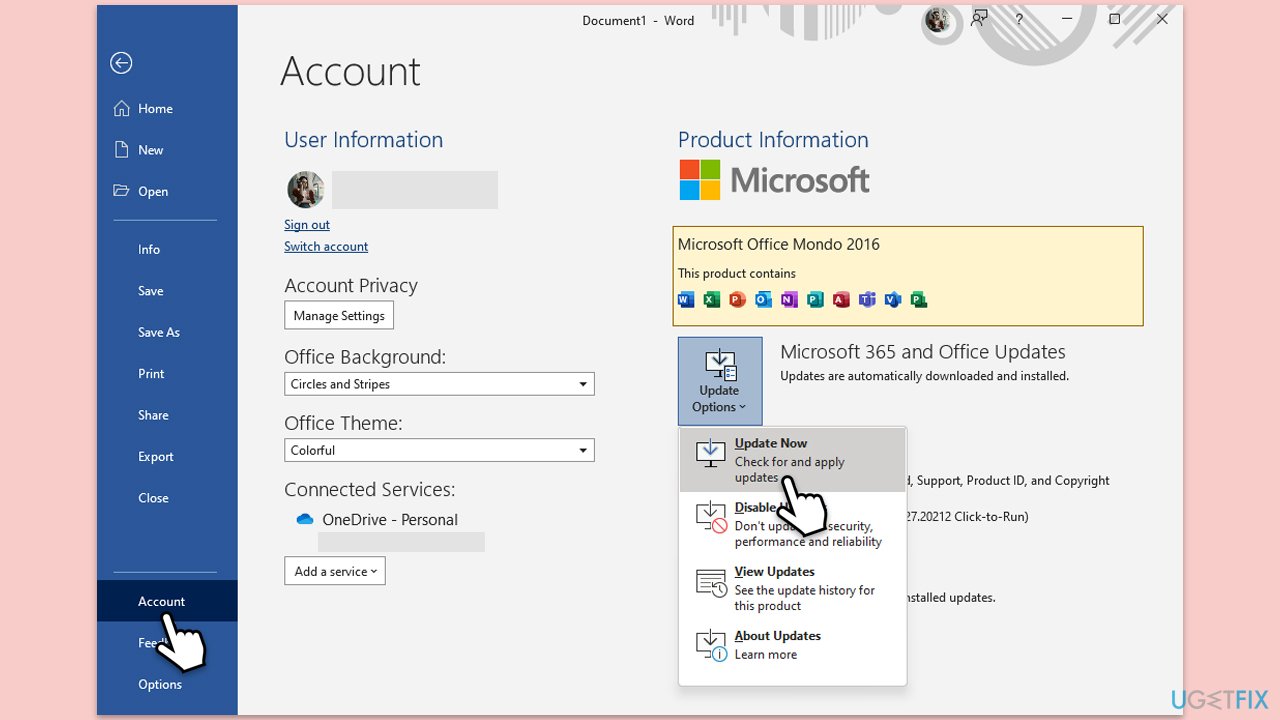
Usually, OneDrive updates automatically. But in case it doesn't, you can always use any other Office app to update the whole package. Follow these steps:
- Open any Office app, such as Microsoft Word, and navigate to File.
- From the file menu, select Account.
- Under Product Information, locate and click on Update Options.
- From the dropdown list, select Update Now. The program will then check for available updates and install them.
Fix 3. Reset OneDrive
Resetting OneDrive can resolve issues by refreshing your account settings and file synchronization without losing data.
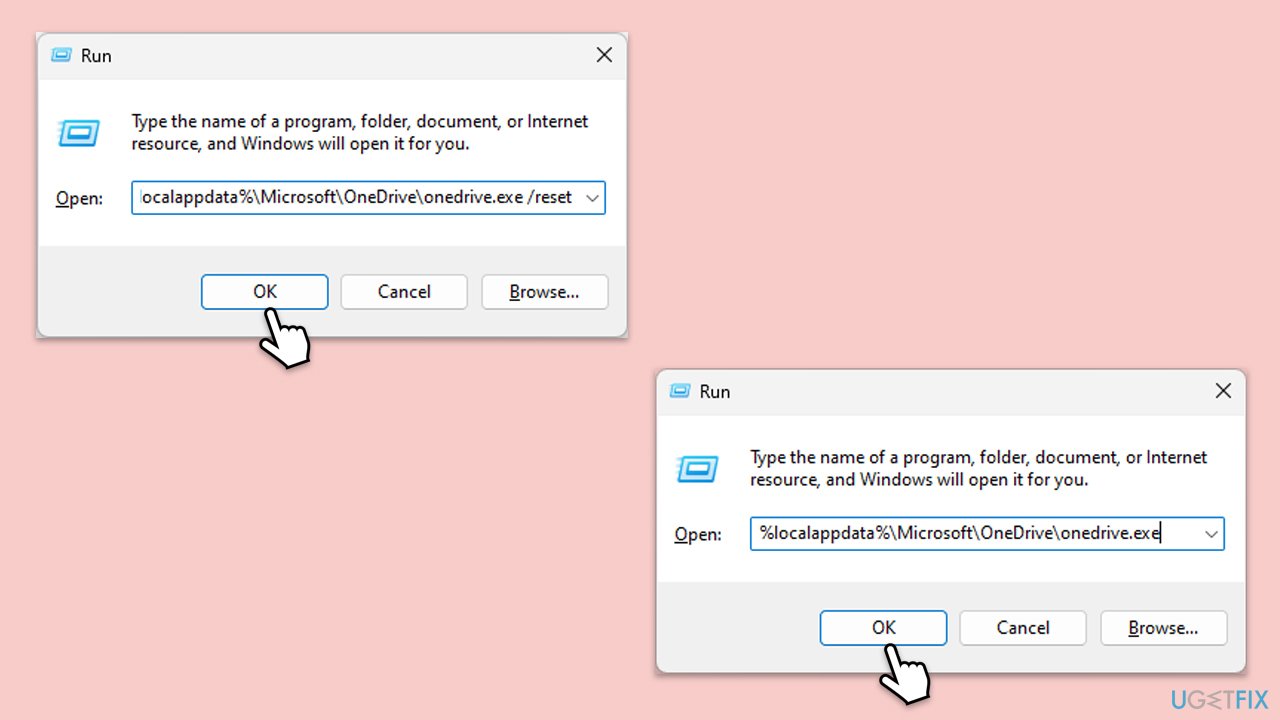
- Press Win + R on your keyboard.
- When the Run window opens, copy and paste the following text into it:
%localappdata%\Microsoft\OneDrive\onedrive.exe /reset
(use %programfiles(x86)%\Microsoft OneDrive\onedrive.exe /reset instead if you get an error here) - Press Enter or click OK.
- After this command is executed, the app should be reset, and OneDrive should open.
- If it doesn't, wait a few minutes, then open the Run window again and use the following command:
%localappdata%\Microsoft\OneDrive\onedrive.exe - Press Enter.
Fix 4. Reset your internet connection
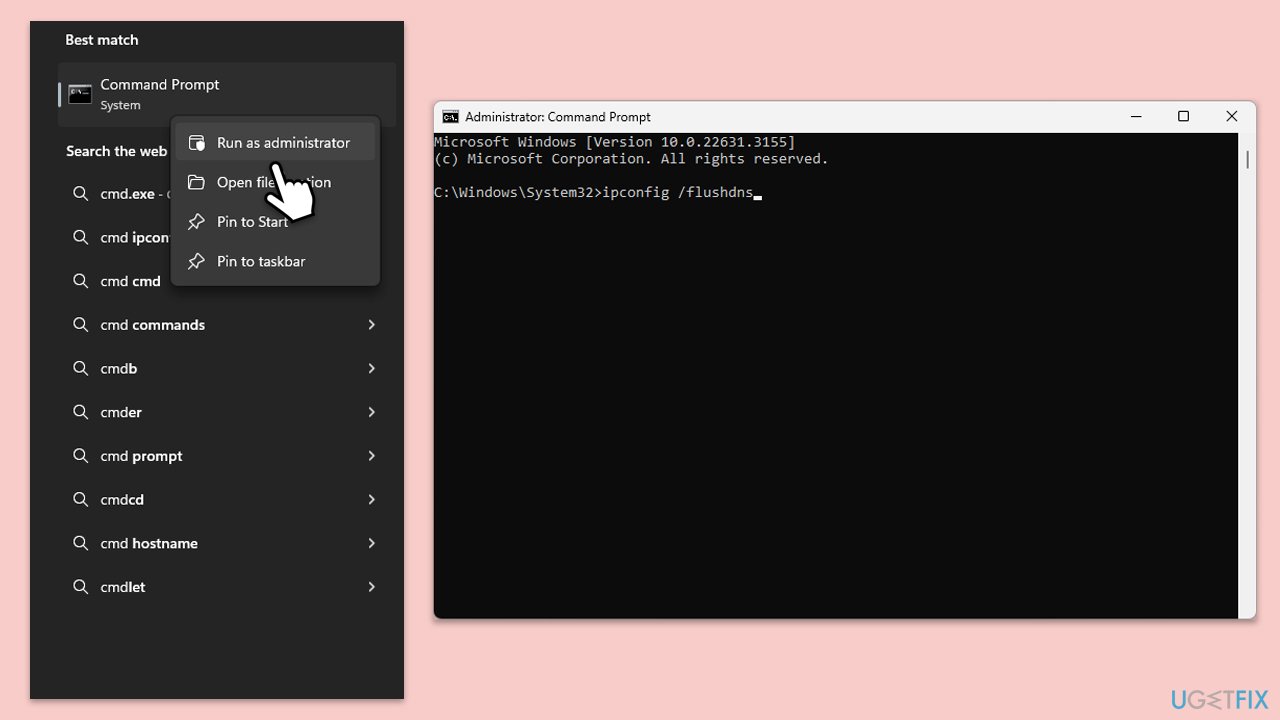
- Type cmd in Windows search.
- Right-click on the Command Prompt result and select Run as administrator.
- Copy and paste each of the following commands, pressing Enter every time:
ipconfig /flushdns
ipconfig /registerdns
ipconfig /release
ipconfig /renew
netsh winsock reset - Restart your system.
Fix 5. Disable firewall or antivirus temporarily
Sometimes, firewall or antivirus software can block OneDrive from signing in.
- Open your antivirus or firewall settings from the system tray or Control Panel.
- Look for an option to temporarily disable them.
- Try signing into OneDrive again. If successful, add an exception for OneDrive in your firewall or antivirus settings before re-enabling it.
Fix 6. Re-link your OneDrive
Signing out and then back into your OneDrive account can refresh your session and resolve sign-in issues.
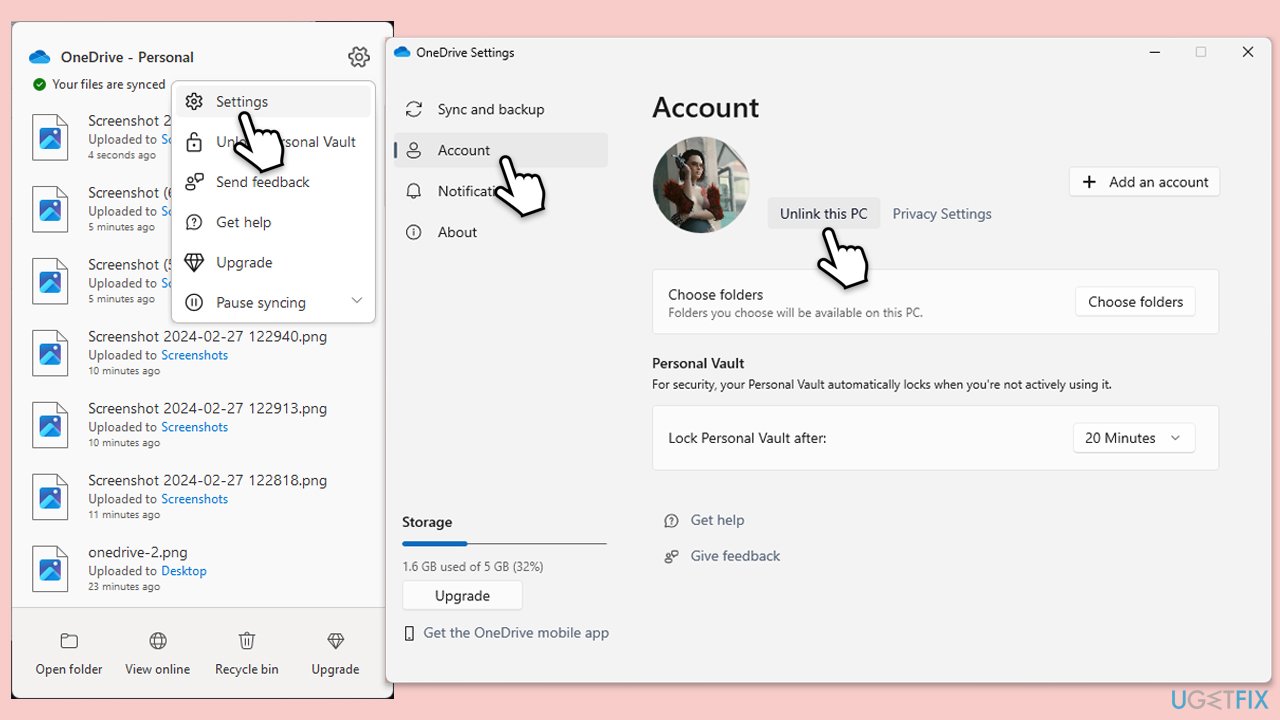
- Click on the OneDrive icon in the system tray.
- Go to Help & Settings and then choose Unlink this PC.
- When prompted, confirm with Unlink this PC.
- After signing out, sign back in with your credentials.
Fix 7. Reinstall OneDrive
You can always opt for an advanced method of OneDrive reinstall. Here's how:
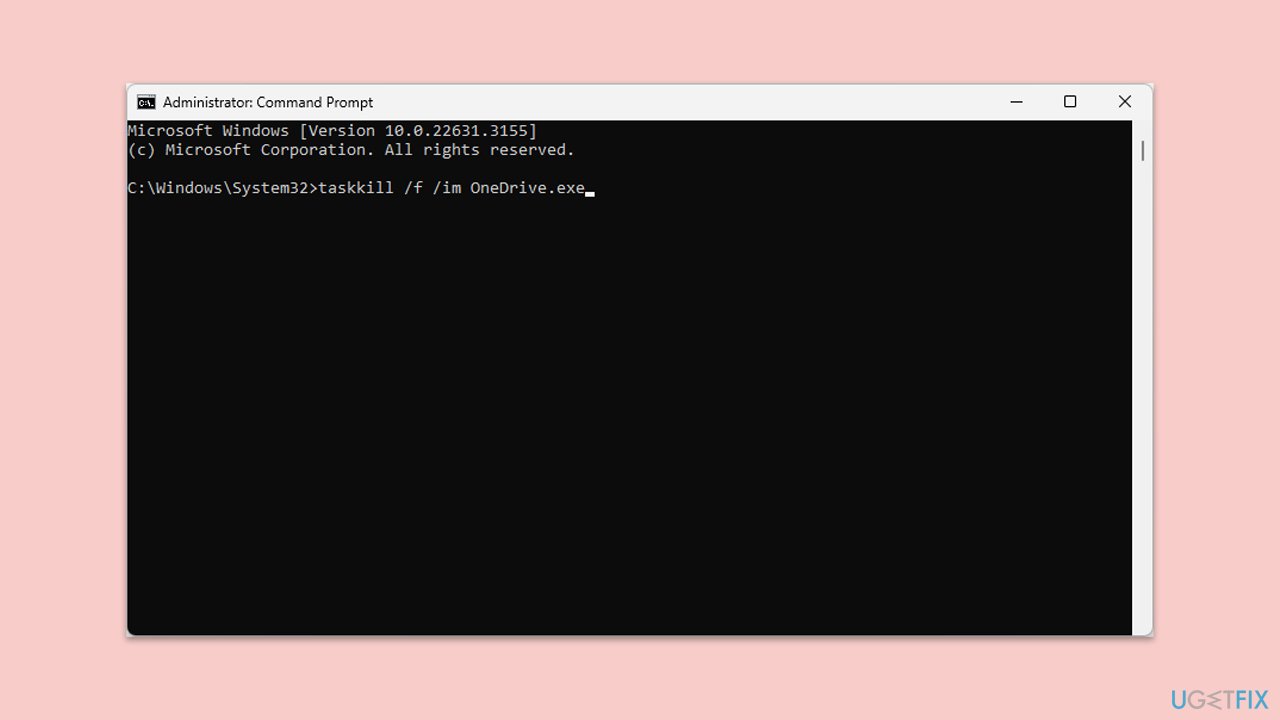
- Open Command as administrator.
- Type in the following and press Enter to terminate any leftover OneDrive processes:
taskkill /f /im OneDrive.exe - If you are using 64-bit Windows, use the following command and hit Enter:
%SystemRoot%\SysWOW64\OneDriveSetup.exe /uninstall - If you are using 32-bit Windows, use the following command and hit Enter:
%SystemRoot%\System32\OneDriveSetup.exe /uninstall - After that, restart your PC.
- Reinstall OneDrive from the official Microsoft website.
Bottom line
To fix the OneDrive error 0x8004de81, users should check their account settings, update the OneDrive application, and ensure a stable network connection. If these solutions do not resolve the issue, consider using a PC repair tool to address any underlying Windows problems.
Frequently asked questions
The OneDrive error 0x8004de81 indicates a problem with your Microsoft account, often related to connectivity issues or account settings that prevent proper synchronization.
To fix this error, try signing out of OneDrive and then signing back in, or check your internet connection to ensure it is stable.
Yes, ensure that your Windows 11 firewall or antivirus settings are not blocking OneDrive, and also verify that your Microsoft account is active and properly configured.




Report an issue
What's wrong with this guide? We review every report and update or remove content.
Report received — thank you. We'll review and fix it.
You need a free account to submit a report.
Be the first to comment