How to fix
OneDrive error 0x8004de85
on Windows
Resolve OneDrive error 0x8004de85 in Windows 10 and 11 effortlessly with expert solutions that ensure smooth file syncing. Fixed in minutes!

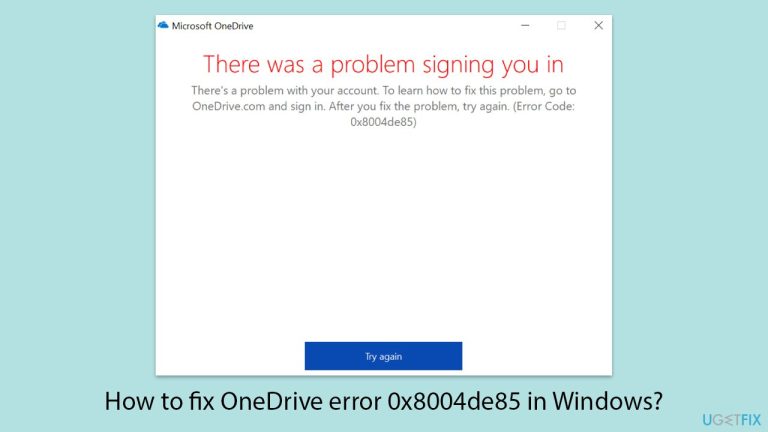
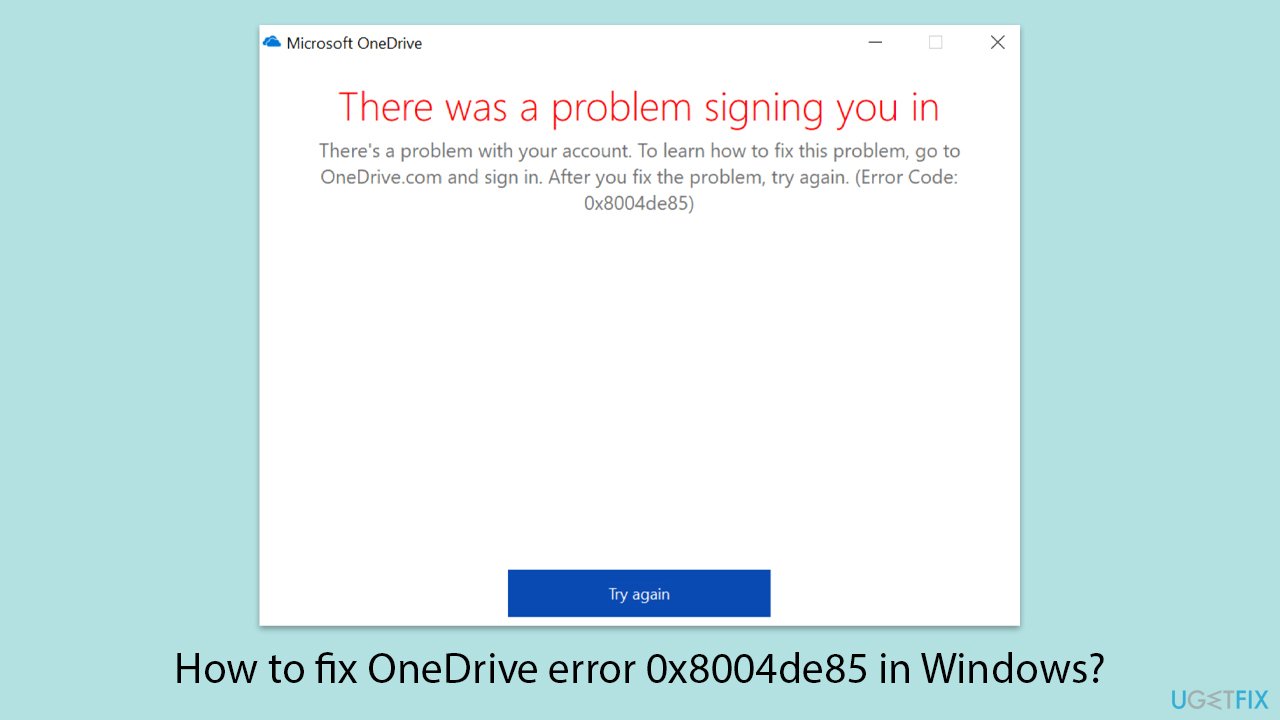
What causes How to fix OneDrive error 0x8004de85 in Windows?
- Account mismatch between personal and work/school accounts
- OneDrive does not authenticate credentials
- Account is no longer allowed on the system
- OneDrive license has expired
- Wrong account credentials entered
Repairs Windows system files, removes malware, and restores a clean OS state — without reinstalling.
Hey there, I got a syncing problem with OneDrive. Whenever I try to sync my files with my organization, I get an error that something went wrong and the error code is 0x8004de85. Very frustrating.
Error 0x8004de85 is one of many problems with OneDrive that keeps Windows users from signing in to their account. In this case, OneDrive will continuously ask the user to sign in but fails to actually do so, resulting in unsynchronized files. Other users reported issues like it seems the OneDrive account is missing or is unable to connect to my files.
Especially frustrating if one needs OneDrive for either work or school, such disruption can impede access to some very important documents. Some of the leading causes of this 0x8004de85 error involve some sort of account mismatch, whereby OneDrive cannot distinguish properly between a personal Microsoft account and either a work or school account.
One failure could come when somehow OneDrive does not authenticate credentials or an account is no longer allowed on its system, hence the sign-in cannot proceed with an attempt. Also, sometimes a person faces this problem when the OneDrive license has expired; he loses his permission for cloud storage.
Several methods might come into use here. First, verification has to be done to ensure that the right account is being used, because signed-in credentials with the wrong account can cause authentications to fail.
If OneDrive does not recognize the account, then resetting the application might help the service reconnect with a fresh data cache. Users with a work or school account can try checking if the account still has an active license within OneDrive.
As the causes of OneDrive error 0x8004de85 may vary, troubleshooting may include a few steps. If so, utilizing an automatic Windows repair application [d1] may light up with hidden system issues that have been causing OneDrive malfunction.
Fix 1. Verify the correct account is being used
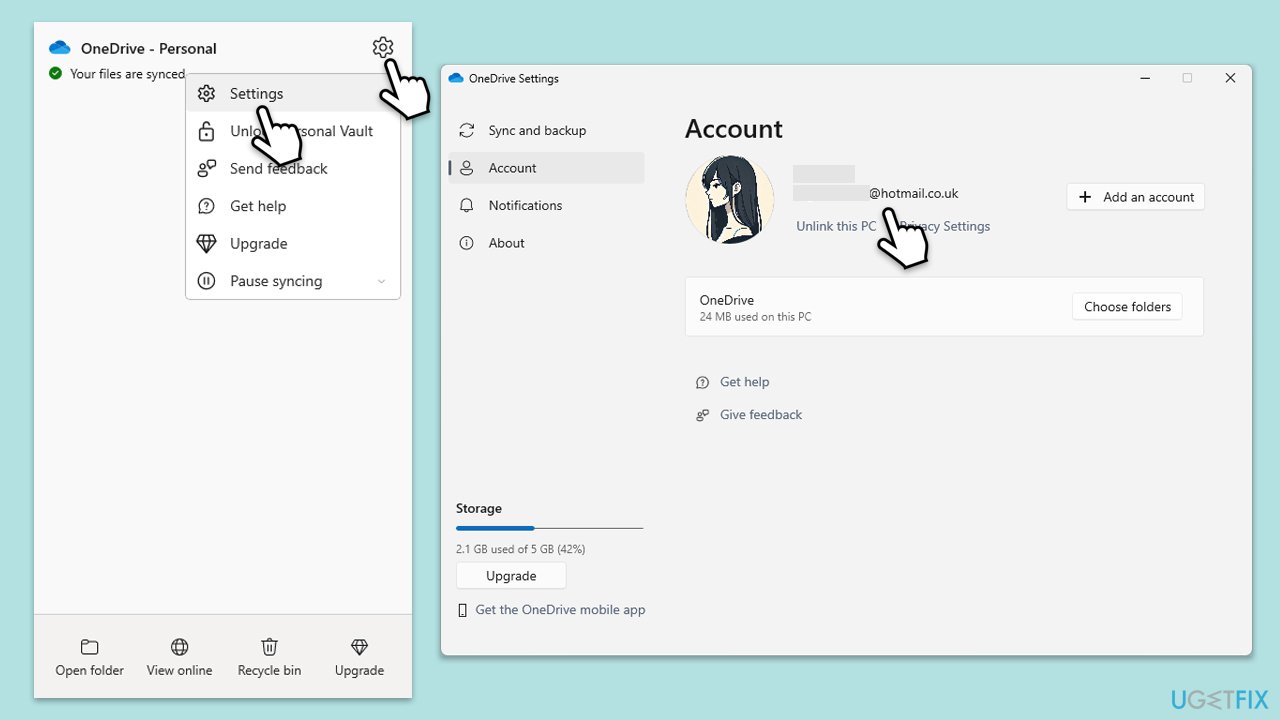
OneDrive error 0x8004de85 often occurs when the wrong Microsoft account is used for sign-in. Ensuring that the correct credentials are entered can resolve authentication failures.
- Click on the OneDrive icon on in your system tray.
- Select Help & Settings > Settings.
- Check which account is currently signed in.
- If the wrong account is being used, click Sign out and close OneDrive.
- Reopen OneDrive and sign in with the correct Microsoft account, making sure to use the right credentials for either a personal or work/school account.
Fix 2. Reset OneDrive
If OneDrive is not recognizing the account or failing to sign in, resetting the application may resolve the issue by clearing stored credentials and configurations.
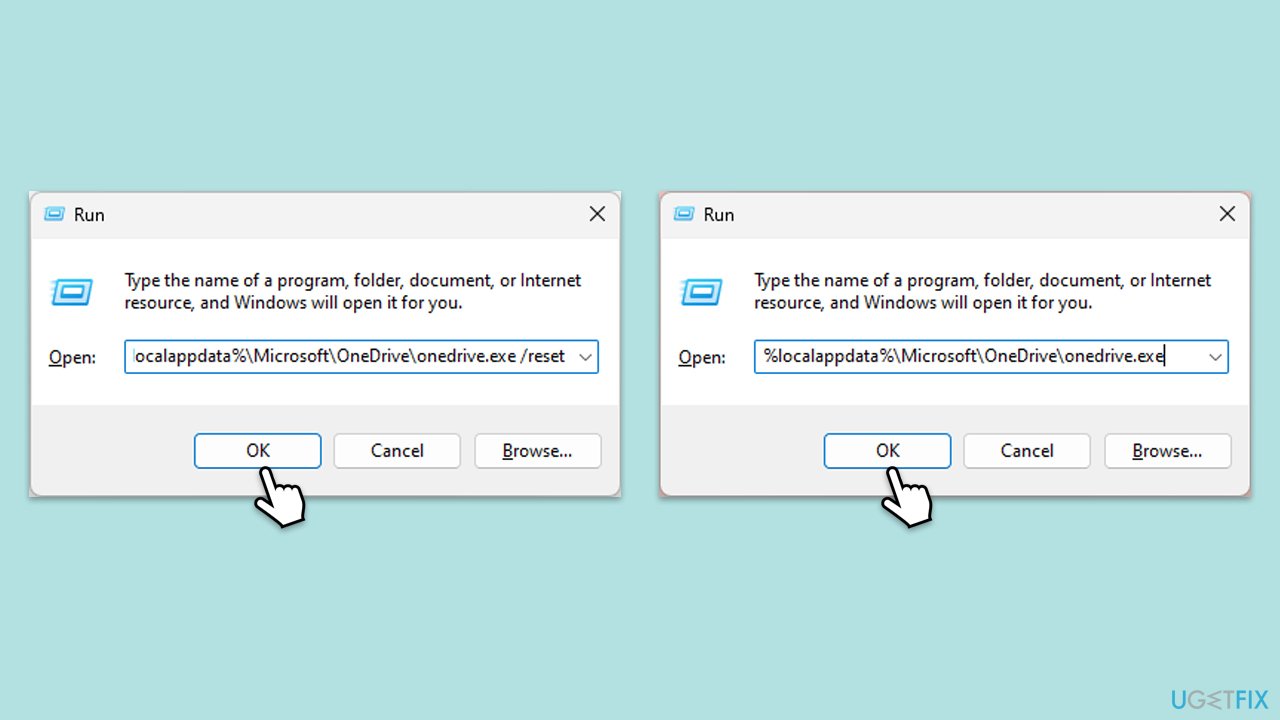
- Press Win + R on your keyboard.
- When the Run window opens, copy and paste the following text into it:
%localappdata%\Microsoft\OneDrive\onedrive.exe /reset
(Note: you might get an error here. In that case, use %programfiles(x86)%\Microsoft OneDrive\onedrive.exe /reset or C:\Program Files (x86)\Microsoft OneDrive\onedrive.exe /reset instead) - Press Enter or click OK.
- After this command is executed, the app should be reset, and OneDrive should open.
- If it doesn't, wait a few minutes, then open the Run window again and use the following command:
%localappdata%\Microsoft\OneDrive\onedrive.exe - Press Enter.
Fix 3. Reinstall OneDrive
If resetting OneDrive does not work, reinstalling the application may help restore missing or corrupted files that could be causing the 0x8004de85 error.
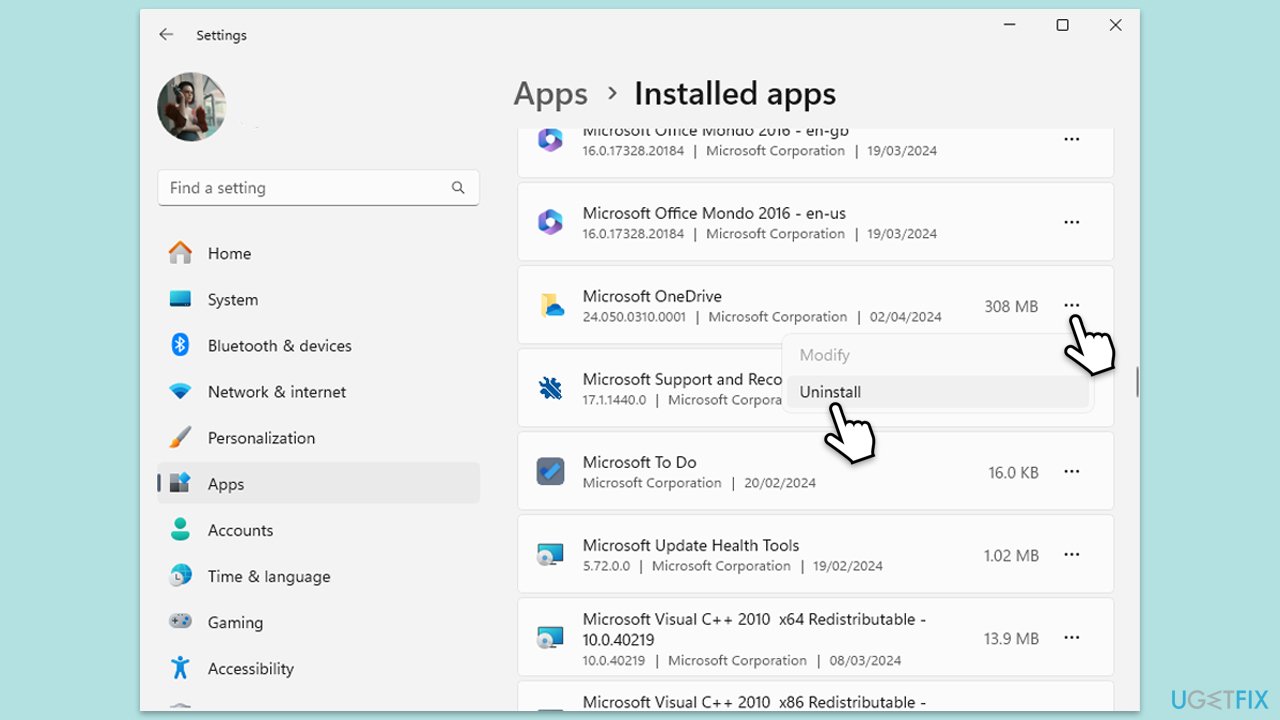
- Right-click on Start and pick Apps and Features/Installed apps.
- Scroll down and find Microsoft OneDrive.
- Click Uninstall and follow the prompts to remove the app.
- Next, open File Explorer and make sure Hidden items are visible.
- Navigate to the following locations and delete all contents from OneDrive folders located in the following directories (replace USERNAME with your username):
C:\Users\USERNAME\AppData\Local\
C:\Users\USERNAME\AppData\Local\Temp
C:\Users\USERNAME\AppData\LocalLow\Temp
C:\Windows\Temp - Restart your system.
- Once rebooted, open your browser and go to the official Microsoft site to download OneDrive.
Fix 4. Remove and re-add the work or school account
If the error persists, removing the affected account from Windows and re-adding it may help fix authentication issues.
- Right-click on Start and pick Settings.
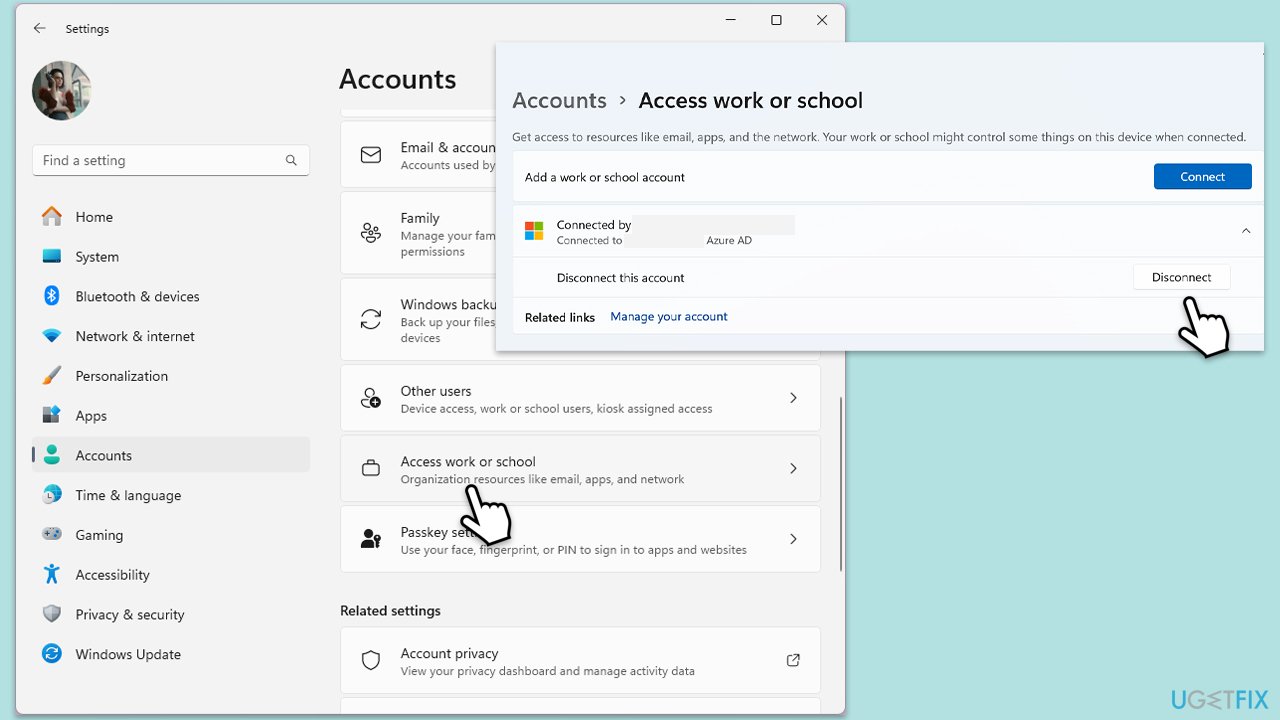
- Click on Accounts.
- Select Access work or school.
- Click on your account and then Disconnect.
- Navigate to C:\users\USERNAME\AppData\Local\Packages (replace USERNAME with your actual username).
- Delete the contents of the folder.
- Restart your computer.
- Return to Access work or school and connect the relevant account.
Fix 5. Check OneDrive license status (for work and school accounts)
For users with a work or school account, an expired or missing OneDrive license can prevent access. Verifying that the account has an active license may resolve the issue.
- Sign into Microsoft 365 Admin Center using an administrator account.
- Go to Users > Active users and find the affected user.
- Click on the user and check assigned licenses.
- Ensure that OneDrive for Business is listed as an active service.
- If the license is missing, reassign it or contact IT support for assistance.
Fix 6. Clear cached OneDrive credentials
Corrupted credentials stored in Windows Credential Manager may prevent OneDrive from signing in. Removing them forces OneDrive to create a fresh authentication session.
- Close OneDrive.
- Type Control Panel in Windows search and press Enter.
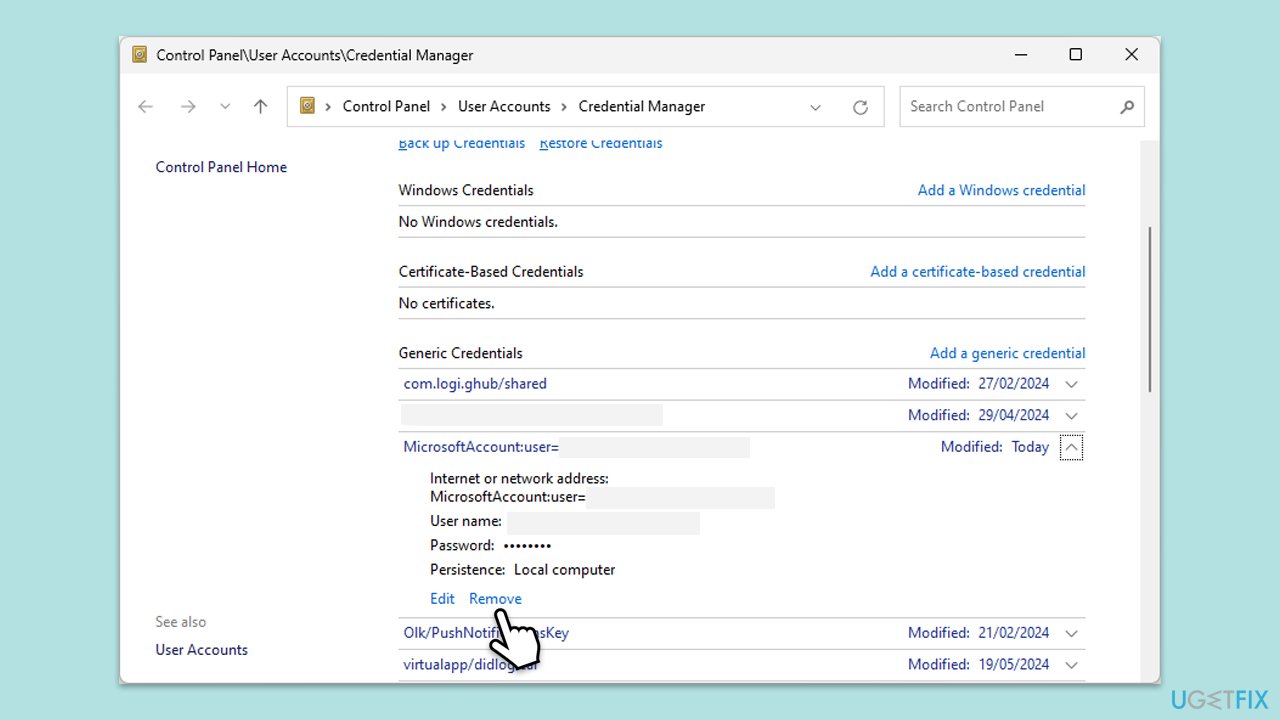
- Go to User Accounts > Credential Manager.
- Go to the Windows Credentials section.
- Scroll down to the Generic Credentials section.
- Remove all OneDrive credentials as required.
Fix 7. Check for system updates
Ensuring Windows is fully updated may resolve compatibility issues that cause OneDrive sign-in failures.
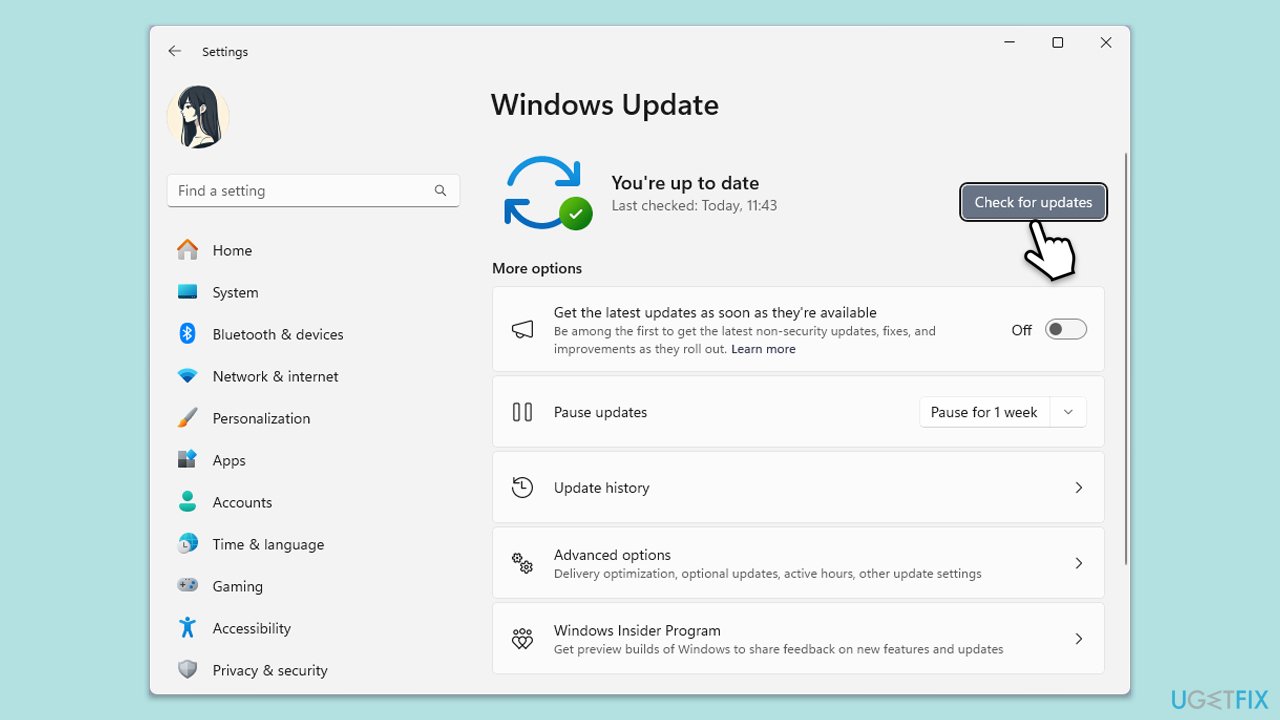
- Type Updates in Windows search and press Enter.
- Here, click Check for updates.
- Wait till Windows downloads and installs all the files.
- If optional updates are available, install them as well.
- Restart your PC and test OneDrive.
Fix 8. Perform a Clean Boot
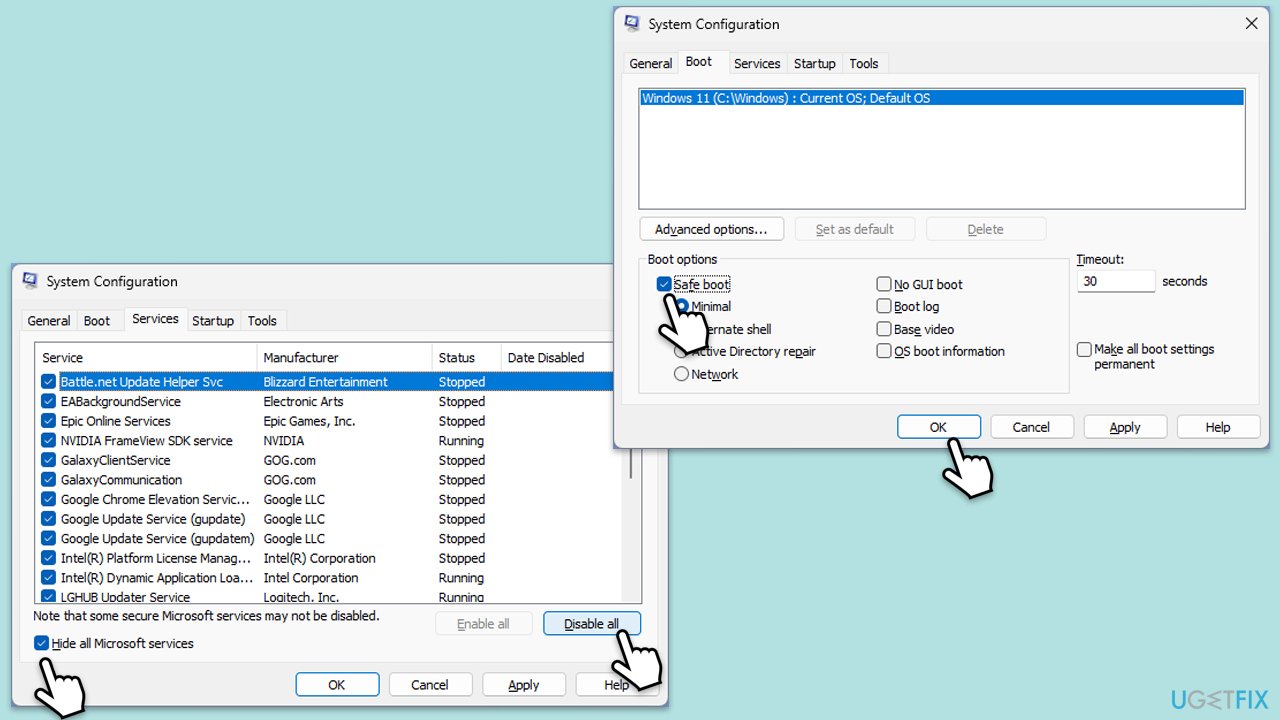
Third-party applications or background services may interfere with OneDrive’s authentication process. Performing a clean boot starts Windows with only essential services, helping to identify if another program is causing the issue.
- Type msconfig in Windows Search and press Enter.
- Click on the Services tab and check the Hide all Microsoft Services box.
- Click Disable all to disable non-Microsoft services, then click the Startup tab.
- Open the Task Manager, disable all startup items, and close the Task Manager.
- Go to the Boot tab and mark the Safe boot option.
- Click OK on the System Configuration window and restart your computer.
- Restart the computer.
Bottom line
To fix OneDrive error 0x8004de85, verify that the correct account is being used and reset the application if necessary. Users should also check if their work or school account has an active license. If these methods do not resolve the issue, consider utilizing an automatic Windows repair application.
Frequently asked questions
This error typically occurs due to network connectivity issues, incorrect account settings, or outdated OneDrive applications in Windows 10 or Windows 11.
To fix this error, ensure that your internet connection is stable, sign out and sign back into your OneDrive account, and verify that you have the latest version of OneDrive installed.
Yes, resetting OneDrive can often resolve error 0x8004de85 by clearing any corrupted cache or settings; you can do this by executing 'onedrive.exe /reset' in the Run dialog.




Report an issue
What's wrong with this guide? We review every report and update or remove content.
Report received — thank you. We'll review and fix it.
You need a free account to submit a report.
Be the first to comment