
How to fix OneDrive error 0x8004def4 in Windows?

Prefer to fix it yourself? The manual steps follow.
- 6methods
- 5 to 30 minutes
- Intermediate
Applies to The OneDrive sync app on Windows 11 and Windows 10, with a personal Microsoft account or a work or school account
6 methods in this guide
Two weeks ago OneDrive stopped syncing my files and I received error 0x8004def4. What can I do to fix it?
OneDrive error 0x8004def4 appears when the OneDrive app on your PC cannot sign in or start syncing, with Sorry, there was a problem with OneDrive. Microsoft names three causes: two OneDrive apps installed at once, OneNote notebooks synced the wrong way, and a folder name conflict. Check for a second OneDrive app first, then reset OneDrive.
Restart the PC once, as the message asks. If 0x8004def4 returns, press Start, type apps:onedrive and check whether two OneDrive apps are installed: Microsoft says the Store app and the sync app together cause this code (Fix 1). With one app only, reset OneDrive (Fix 2). If OneNote notebooks sit in your OneDrive folder, move them through OneNote (Fix 3).
| Error | 0x8004def4 in a Microsoft OneDrive window: Sorry, there was a problem with OneDrive with Please restart your computer. If the problem persists, please reinstall OneDrive. (Error Code: 0x8004def4) |
|---|---|
| Where it appears | When the OneDrive sync app starts and signs in, or when it tries to sync after the sign-in. Sync stops until the cause is gone. |
| Main cause | Microsoft lists three: the OneDrive Store app installed next to the OneDrive sync app, OneNote notebooks synced through the OneDrive folder instead of OneNote, and a folder name conflict. |
| Fastest fix | Uninstall every OneDrive app found with apps:onedrive and install the current sync app (Fix 1), or reset OneDrive with onedrive.exe /reset (Fix 2). |
| Also written as | 8004def4, error code: 0x8004def4, OneDrive error code 0x8004def4, OneDrive Fehlercode 0x8004def4, OneDrive エラーコード 0x8004def4. |
| Affects | The OneDrive sync app on Windows 11 and Windows 10. Microsoft's troubleshooting article for the code is written for OneDrive for Business, its error code page for every account type. |
| Vendor status | A known code with a Microsoft article (last updated 14 July 2025) and an entry on the OneDrive error codes page. No OneDrive update is named as the fix. |
| Your files | Safe. Microsoft says you do not lose files by unlinking or uninstalling OneDrive; onedrive.com still shows them. |
| Time to fix | 5 minutes for Fix 1 and Fix 2, up to 30 minutes for a clean reinstall. |
Facts checked on 15 October 2026. Steps written for Windows 11 (25H2 and 26H2) and Windows 10 22H2 with the current OneDrive sync app.
What OneDrive error 0x8004def4 means
Error 0x8004def4 means the OneDrive sync app hit a problem it could not get past on its own, so it stopped signing in or syncing. Microsoft files it under sign-in errors, but the causes it names are about what OneDrive finds on the PC, not about your password.
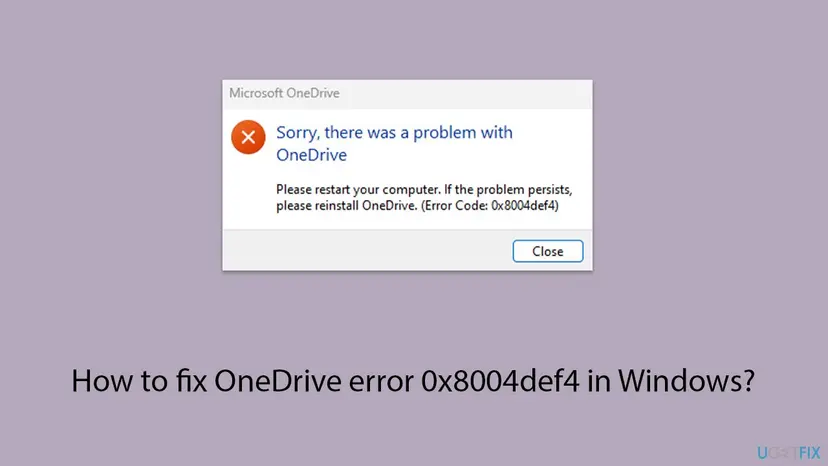
- The message: a Microsoft OneDrive window with Sorry, there was a problem with OneDrive and the line Please restart your computer. If the problem persists, please reinstall OneDrive. (Error Code: 0x8004def4).
- When: right after Windows starts, when OneDrive opens, or when you sign in to OneDrive for the first time on this PC.
- What stops: the cloud icon does not sync, new files do not upload and online-only files cannot be opened from File Explorer.
- Spellings people search: 0x8004def4, 8004def4, error code: 0x8004def4 and the German and Japanese forms. All are the same error.
The two Microsoft pages do not say which of the three causes is the most common. The order on this page puts the cause you can check in one minute first, and the fixes that take longer later.
Why OneDrive shows 0x8004def4: the causes and their fixes
Every cause below comes from Microsoft's own pages for this code. The first three are named by Microsoft; the last two cover a damaged OneDrive setup, which Microsoft's resolution handles with a reset and a reinstall.
| Cause | Typical sign | Fix |
|---|---|---|
| The OneDrive Store app is installed next to the OneDrive sync app. | apps:onedrive in Start shows more than one OneDrive. | Fix 1 |
| OneDrive's settings on this PC are damaged. | Only one OneDrive app, onedrive.com works in a browser. | Fix 2 |
| A OneNote notebook was put into the OneDrive folder by hand. | Notebook folders or .one files sit in your OneDrive folder. | Fix 3 |
| A folder name conflict in the synced folders. | Often a work or school account with shared libraries. | Fix 4 |
| An old or changed account sign-in. | Your password changed, or OneDrive offers an old account. | Fix 5 |
| A damaged OneDrive installation. | Reset does nothing, or OneDrive does not open. | Fix 6 |
Sign in at onedrive.com in a browser with the same account. If that fails too, the account needs attention first: reset the password, or ask your IT admin about a work account. If the web works, the fixes below apply.
How to fix OneDrive error 0x8004def4
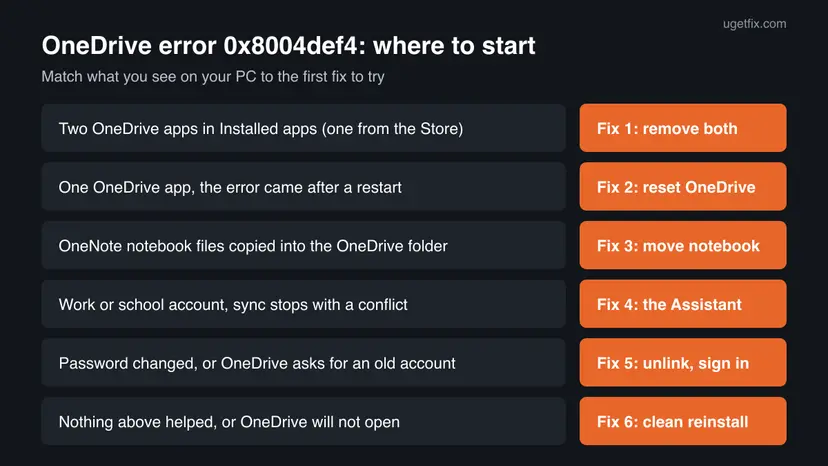
Restart the PC once first, as the message asks. If the error comes back, Fixes 1 and 2 take a few minutes and cover the most common setups. Fixes 3 and 4 are for OneNote notebooks and work accounts, Fixes 5 and 6 are the last steps.
| What you see or what your PC has | Start with |
|---|---|
apps:onedrive in Start shows two OneDrive apps. | Fix 1 |
| One OneDrive app, onedrive.com works in a browser. | Fix 2 |
| OneNote notebooks were copied into the OneDrive folder. | Fix 3 |
| A work or school account with shared libraries stops syncing. | Fix 4 |
| You changed your password, or OneDrive asks for an old account. | Fix 5 |
| Reset did nothing, or OneDrive will not open. | Fix 6 |
Fix 1. Remove the OneDrive Store app and keep one OneDrive sync app
10 minutesLow riskEveryone, first. It takes a minute to check whether two OneDrive apps are installed.
Microsoft's OneDrive error codes page says 0x8004def4 can appear when you use the OneDrive sync app while the OneDrive Store app is installed. Its fix is to uninstall all versions of OneDrive and then install the latest sync app.
- Quit OneDrive: select the cloud icon, the gear Help & Settings, then Pause syncing > Quit OneDrive.
- Press Start and type
apps:onedrive. Windows lists every installed app with OneDrive in its name. - If more than one OneDrive is listed, right-click each one and select Uninstall. Do the same with a single entry: Microsoft's fix removes all versions.
- You can also check Settings > Apps > Installed apps (Windows 10: Apps & features) and uninstall every OneDrive entry there.
- Restart the PC.
- Download the OneDrive sync app from Microsoft's OneDrive download page, run it and sign in.
- When OneDrive asks for the folder location, choose your old OneDrive folder so unchanged files are not downloaded again.
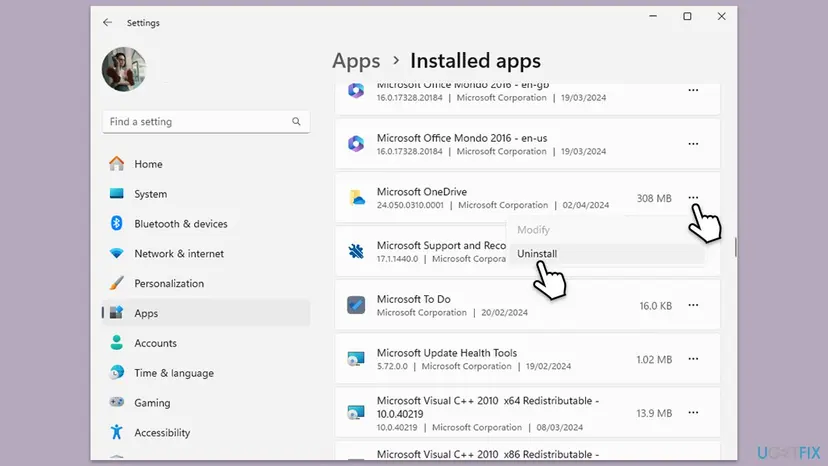
Microsoft says you do not lose files or data by uninstalling OneDrive. The files stay in the OneDrive folder on the PC and in the cloud, where onedrive.com shows them.
It worked if: Only one OneDrive app is installed, it signs in and the cloud icon shows that your files are up to date.
If not: If only one OneDrive was installed and the error stays, go to Fix 2.
Fix 2. Reset OneDrive and sign in again
5 minutes, then a full syncLow riskOnly one OneDrive app is installed, and the same account works on onedrive.com.
Microsoft's article for 0x8004def4 says to reset OneDrive when the cause is not a sync conflict. A reset clears OneDrive's settings on this PC and disconnects the sync connections, so the next start begins from a clean state.
- Open the Run box. Press the Windows key and R at the same time.
- Reset the Microsoft Store cache. Type the command below and select OK. A blank Command Prompt window opens and closes, then the Microsoft Store opens. Close it. This is the first step in Microsoft's instructions. If OneDrive still does not sync, continue.
wsreset.exe - Run the OneDrive reset command. Press the Windows key and R again. Copy the command below, paste it into the box and select OK.
%localappdata%\Microsoft\OneDrive\onedrive.exe /reset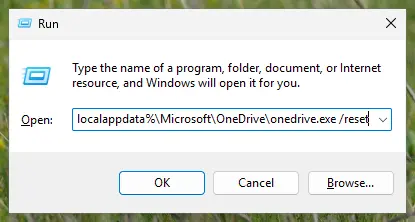
Type the reset command in the Run box and select OK. Screenshot: Windows 11 26H2. - If Windows cannot find it, try the second path. If you see a message that starts with Windows cannot find, open the Run box again and use this command instead.
C:\Program Files\Microsoft OneDrive\onedrive.exe /reset - If that fails too, try the third path. If you still see Windows cannot find, use this command. If none of the three works, the OneDrive sync app is not installed on this PC.
C:\Program Files (x86)\Microsoft OneDrive\onedrive.exe /reset - Start OneDrive again. Select Start, type OneDrive in the search box and select the OneDrive desktop app. OneDrive then starts a full sync.
These steps were written for Windows 11 25H2 and 26H2, Windows 10 22H2. The full page with the other versions and what each result means: How to reset OneDrive in Windows
If OneDrive does not open by itself after the reset, wait a few minutes and start it from Start. Sign in with the account that works on onedrive.com. If you had chosen only some folders to sync, choose them again.
It worked if: OneDrive signs in, shows the OneDrive folder and starts comparing files without the 0x8004def4 window.
If not: If you keep OneNote notebooks in OneDrive, go to Fix 3. Otherwise try Fix 4 or Fix 5.
Fix 3. Move OneNote notebooks to OneDrive through OneNote, not the OneDrive folder
15 minutesRead the warningYou copied a OneNote notebook folder into your OneDrive folder in File Explorer, or OneNote notebook files sit there.
Microsoft names syncing an existing OneNote notebook with the OneDrive sync app, without going through the OneNote app, as a cause of 0x8004def4. OneNote must move the notebook itself, so it is stored as a notebook in the cloud and not as plain files.
A notebook moved in the wrong state can lose recent pages. Before you start, copy the notebook folder to a USB drive or another folder outside OneDrive, and keep that copy until the notebook opens fine from OneDrive.
- Quit OneDrive: gear Help & Settings > Pause syncing > Quit OneDrive.
- In File Explorer, find notebook folders and
.onefiles inside your OneDrive folder. - Move each such notebook folder out of OneDrive, for example to Documents on a drive that OneDrive does not sync.
- Open the notebook in the OneNote app from its new place.
- In OneNote, use Microsoft's move a OneNote notebook to OneDrive steps: the notebook is shared to your OneDrive account from inside OneNote.
- Start OneDrive again from Start and let it sync.
Microsoft does not list which OneNote version or menu names apply to every setup, and the steps differ between OneNote versions. Follow the move steps for the version you have, linked from Microsoft's OneDrive error codes page.
It worked if: The notebook opens in OneNote from OneDrive, the OneDrive folder no longer holds loose notebook files, and OneDrive syncs without the error.
If not: If there were no notebooks, or the error stays, go to Fix 4.
Fix 4. Run Microsoft Support and Recovery Assistant for sync conflicts
15 minutesLow riskA work or school account (OneDrive for Business), especially when the error came after you added shared folders or libraries.
Microsoft's troubleshooting article for 0x8004def4 names folder name conflicts and OneNote syncing as causes and sends you to the Assistant for both. It does not say which folder names conflict, so the Assistant's check is the way to find them.
- Open Microsoft's download link for the Assistant:
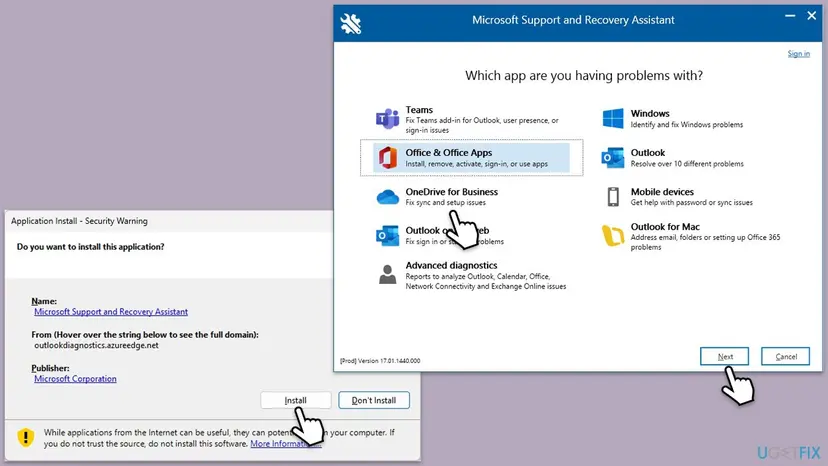
https://aka.ms/SaRA-FirstScreen. - Run the downloaded file and select Install when Windows asks.
- On Which app are you having problems with?, select OneDrive for Business, then Next.
- Select I need help syncing my OneDrive files, then Next.
- Sign in with the work or school account when it asks, and follow the steps it shows after the scan.
Microsoft's article says the cause is then something other than a sync conflict, and the next steps are a reset (Fix 2) and a full reinstall (Fix 6). Your IT admin can also check the account.
It worked if: The Assistant reports and fixes the sync problem, and OneDrive syncs again.
If not: If you skipped Fix 2, do it now. Otherwise go to Fix 5.
Fix 5. Unlink this PC and sign in to OneDrive again
10 minutesLow riskYou changed your password, or OneDrive keeps showing an account you no longer use.
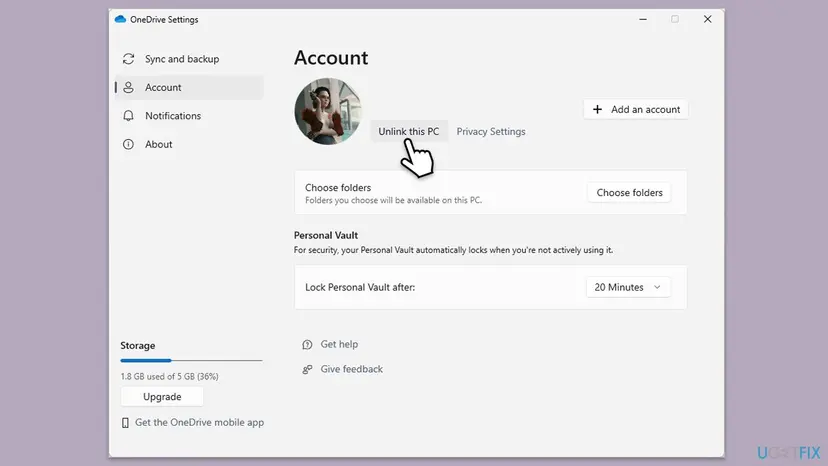
The error stops OneDrive at sign-in, and an old sign-in stored on the PC can keep it there. Unlinking removes the account from OneDrive on this PC, so the next sign-in is a fresh one. Your files stay in the folder.
- If OneDrive opens, select the cloud icon, the gear Help & Settings, then Settings.
- Open the Account tab and select Unlink this PC, then Unlink account.
- Restart the PC.
- Open OneDrive from Start and sign in with your current email address and password.
- When OneDrive asks for the folder location, choose the old OneDrive folder and confirm that you want to use it.
It worked if: OneDrive accepts the account and is still signed in after the next restart.
If not: Go to Fix 6 for a clean reinstall.
Fix 6. Uninstall OneDrive cleanly and install the current version
20 minutesLow riskFixes 1 to 5 did nothing, or OneDrive will not open at all.
The message itself says to reinstall OneDrive if the problem persists, and Microsoft's article ends with the same step. Moving OneDrive's settings folder aside first makes sure the new install does not reuse a damaged setting.
- Quit OneDrive: gear Help & Settings > Pause syncing > Quit OneDrive.
- Press Win + R, paste the path below and select OK. Go up one level to Microsoft and move the OneDrive folder to your desktop instead of deleting it.
%localappdata%\Microsoft\OneDrive - Uninstall every OneDrive app as in Fix 1 (
apps:onedrivein Start, then Uninstall). - Restart the PC.
- Install OneDrive from Microsoft's OneDrive download page and sign in.
- When OneDrive syncs again, delete the old folder from your desktop.
Other ways to uninstall, and what to do when the uninstaller fails: Uninstall a program or app in Windows
It worked if: The fresh OneDrive signs in and syncs without 0x8004def4.
If not: Collect the details in the next section and contact Microsoft support or your IT admin.
If OneDrive still shows 0x8004def4: what to collect and who can help
If all six fixes failed, the cause is outside the OneDrive app on this PC, or it needs a look at the account. Write down the facts below so support does not ask you to repeat every test.
- The account type: personal (outlook.com, hotmail.com, live.com) or work or school, and whether onedrive.com works in a browser.
- Installed apps: what
apps:onedriveshowed before Fix 1, and whether a Store version was there. - OneNote: whether notebooks were in the OneDrive folder, and how you moved them.
- The OneDrive version: gear Help & Settings > Settings > About, if OneDrive opens.
- What the Assistant reported, if you ran it.
- What you tried and what happened each time.
With a work or school account, ask your IT admin, who can open a Microsoft 365 support ticket. With a personal account, Microsoft's OneDrive error codes page offers Contact Microsoft Support at the bottom, where you enter the problem and select Get Help.
Are your OneDrive files safe while 0x8004def4 blocks the sync?
Yes. Microsoft says you do not lose files or data by disabling, uninstalling or unlinking OneDrive on your computer, and you can always reach them by signing in to OneDrive online. The error stops the sync, not the storage.
- Changes you make while sync is stopped stay on the PC and upload when OneDrive works again.
- Online-only files (the cloud icon in File Explorer) cannot open until OneDrive runs. Open them on onedrive.com meanwhile.
- OneNote notebooks are the exception to be careful with: copy them before you move them, as Fix 3 says.
How to keep 0x8004def4 from coming back
Each cause Microsoft names is something added to the PC: a second OneDrive app, notebooks copied by hand, conflicting folders. Avoiding those keeps the error away.
- Keep one OneDrive app: the sync app from Microsoft's download page.
- Move OneNote notebooks to OneDrive from inside OneNote.
- Let OneDrive and Windows update themselves.
- After a password change, sign in to OneDrive when it asks.
- Do not install the OneDrive Store app next to the sync app.
- Do not copy notebook folders into the OneDrive folder in File Explorer.
- Do not delete the OneDrive folder in AppData: move it aside until OneDrive works.
- Do not turn off the antivirus or the firewall for good to fix a sync error.
Frequently asked questions
What does error code 0x8004def4 mean in OneDrive?
It means the OneDrive sync app hit a problem during sign-in or sync and stopped. The window says Sorry, there was a problem with OneDrive and asks you to restart the PC, then to reinstall OneDrive. Microsoft names three causes: the OneDrive Store app installed next to the sync app, OneNote notebooks synced through the OneDrive folder instead of OneNote, and a folder name conflict. Your account is usually fine, so check onedrive.com in a browser first.
Why does a second OneDrive app cause 0x8004def4?
Microsoft's OneDrive error codes page says you may see 0x8004def4 when you use the OneDrive sync app while the OneDrive Store app is installed. It does not explain the mechanism, only the fix: uninstall all versions of OneDrive, then install the latest sync app. Type apps:onedrive in Start to see every OneDrive app on the PC. Fix 1 walks through the removal and reinstall.
Will I lose my files if I reset, unlink or reinstall OneDrive?
No. Microsoft says you won't lose files or data by disabling, uninstalling or unlinking OneDrive on your computer, and you can always open your files on OneDrive online. A reset makes OneDrive compare everything again. When OneDrive asks for the folder location after a reset or reinstall, choose the old folder so unchanged files are not downloaded again. Copy OneNote notebooks before you move them, as Fix 3 says.
Does restarting the computer fix 0x8004def4?
Sometimes, which is why the message asks for it first. A restart helps when OneDrive only hit a passing problem at start. If the error comes back after the restart, a cause from the list is still on the PC, and restarting again will not help. Then check for a second OneDrive app with apps:onedrive in Start (Fix 1) and reset OneDrive (Fix 2).
The reset command says Windows cannot find onedrive.exe. What now?
OneDrive can be installed in more than one place, and the first reset command covers only the per-user install. Try the commands for C:\Program Files\Microsoft OneDrive and C:\Program Files (x86)\Microsoft OneDrive next, as the reset steps in Fix 2 show. If none of them works, the OneDrive sync app is not installed for this user. Install it from Microsoft's OneDrive download page and sign in.
How are OneNote notebooks connected to OneDrive error 0x8004def4?
Microsoft says the error can appear when an existing OneNote notebook is synced with the OneDrive sync app without going through the OneNote app. That happens when notebook folders are copied into the OneDrive folder in File Explorer. OneNote should move the notebook itself, so it is stored as a notebook in the cloud. Copy the notebook first, move it out of the OneDrive folder, then move it to OneDrive from inside OneNote, as in Fix 3.
Is Microsoft Support and Recovery Assistant still the right tool for 0x8004def4?
It is the tool Microsoft's 0x8004def4 article names for folder name conflicts and OneNote sync problems, with the download link aka.ms/SaRA-FirstScreen. In the Assistant, choose OneDrive for Business, then I need help syncing my OneDrive files. It is aimed at work and school accounts. If it cannot fix the problem, Microsoft says the cause is something else, and the next steps are a reset and a reinstall.
Do I need to run SFC, DISM or turn off the antivirus for this error?
Not as a first step. Neither Microsoft page for 0x8004def4 names damaged system files or security software as a cause, so this page does not use those steps. If Windows itself shows other faults, a system file repair is a safe extra step: Run DISM and SFC to repair Windows system files. If you suspect your security tool, pause it for one test only and turn it back on: Turn off Microsoft Defender protection for a moment.
Is the fix different on Windows 11 and Windows 10?
No. The error, the causes and the fixes are the same on Windows 11 and Windows 10 22H2. Only some menu names differ: Installed apps on Windows 11 is Apps & features on Windows 10. Windows 10 left support on 14 October 2025, so a Windows 10 PC no longer gets security updates; OneDrive fixes still work there, but moving to Windows 11 is worth planning.
Is this page available in German or Japanese?
This page is in English, but the error and the fixes are the same in every language of Windows. People search for it as OneDrive Fehlercode 0x8004def4 in German and OneDrive エラーコード 0x8004def4 in Japanese. Menu names differ by language, so look for the same places: the OneDrive gear for Settings and Installed apps in Windows Settings. The apps:onedrive search, the reset commands and the folder paths work unchanged.
Sources
Did this fix work?
One click, no account. It tells the next reader which guides are worth their time.
Questions and experiences: fix OneDrive error 0x8004def4 in Windows
Still broken, or found a fix we did not cover? Ask here: members and our editors answer. Reading is open; writing needs a free account.
…