How to fix
OneDrive error 0x80070194
on Windows
Resolve OneDrive error 0x80070194 on Windows 10 or 11 effortlessly. Get quick solutions that are expert-tested and fixed in minutes.


What causes How to fix OneDrive error 0x80070194 in Windows?
- Disruptions or flaws in the app's sync process
- Unstable internet connection
- Out-of-date or corrupted OneDrive application files
- Incompatibilities with other programs
- Misconfigured system settings
Repairs Windows system files, removes malware, and restores a clean OS state — without reinstalling.
I was unable to open a PDF file that was stored in OneDrive using File Explorer. My computer soon displayed the error code 0x80070194 along with the message "The cloud file provider exited unexpectedly." What should I do?
OneDrive is a well-known cloud storage platform that enables users to share and access files from almost anywhere, making it a vital tool for both personal and business use. The platform guarantees that they can always access crucial files with ease thanks to its capacity to sync across different devices. However, there are times when people encounter the error code 0x80070194 while attempting to open or move files from OneDrive on Windows.
One of the primary reasons why the OneDrive 0x80070194 error occurs is because of disruptions or flaws in the app's sync process. For OneDrive sync to work correctly, you also need a stable internet connection, so it would be a good idea to run a network troubleshooter or address it.
Furthermore, this problem can be caused by out-of-date or corrupted OneDrive application files, which will make it challenging to access your cloud storage. In some situations, the 0x80070194 error may also result from incompatibilities with other programs or from misconfigured system settings.
Finding the root cause of problem 0x80070194 is crucial to fixing it. Frequently, the issue can be addressed by verifying that your internet connection is stable, updating your OneDrive application, and checking for Windows updates. Additionally, reviewing and adjusting any conflicting software or system settings can prevent this error from recurring.
Using a [d1] repair tool can be a helpful solution as well, as it can automatically fix underlying Windows issues, potentially preventing the error 0x80070194 and ensuring easy access to your OneDrive files.

Fix 1. Run Windows Store apps and Network troubleshooters
- Type Troubleshoot into the Windows search bar and press Enter.
- Next, on the right side of the window, select Additional troubleshooters/Other troubleshooters.
- Scroll down to locate the Windows Store apps option and click on it.
- Click on Run the troubleshooter/Run and allow the process to complete.
- Repeat this process with Network troubleshooter.
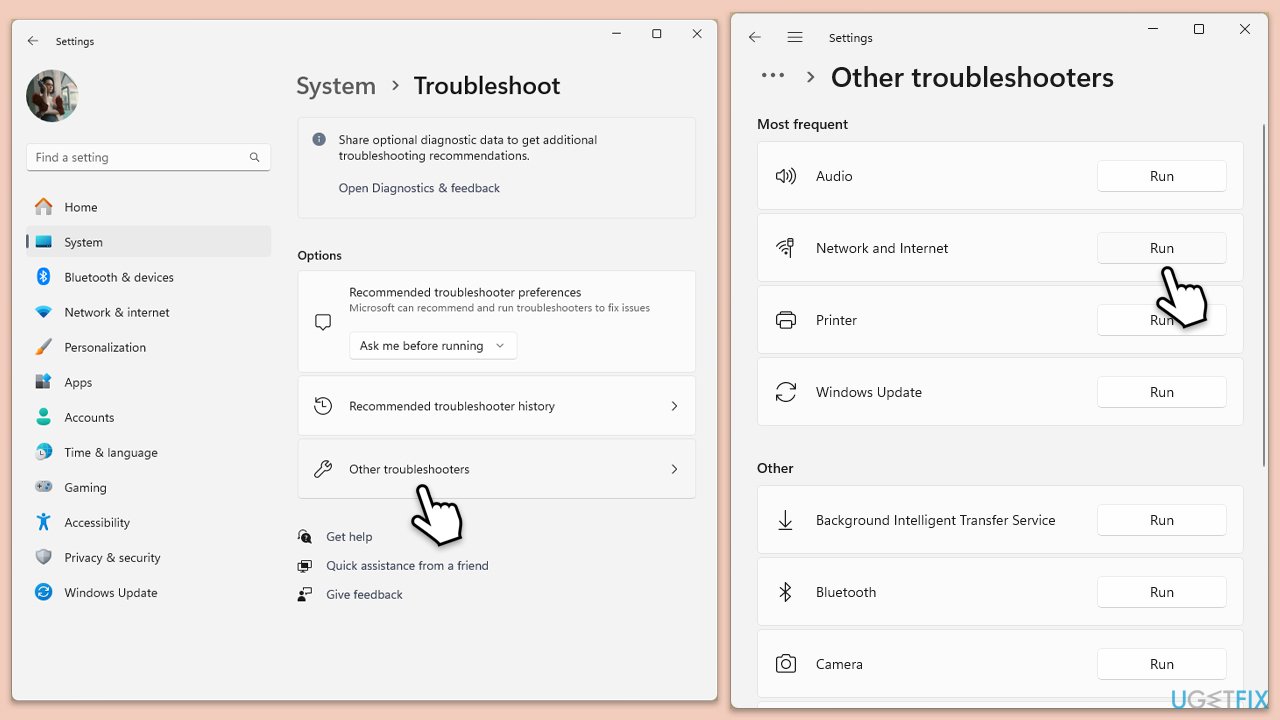
To run Network troubleshooter in Windows 10, follow these steps:
- Right-click on Start and pick Settings.
- Go to the Network & Internet section.
- On the right side, find the Advanced network settings section.
- Click Network troubleshooter and wait.
- The fixes will be automatically applied.
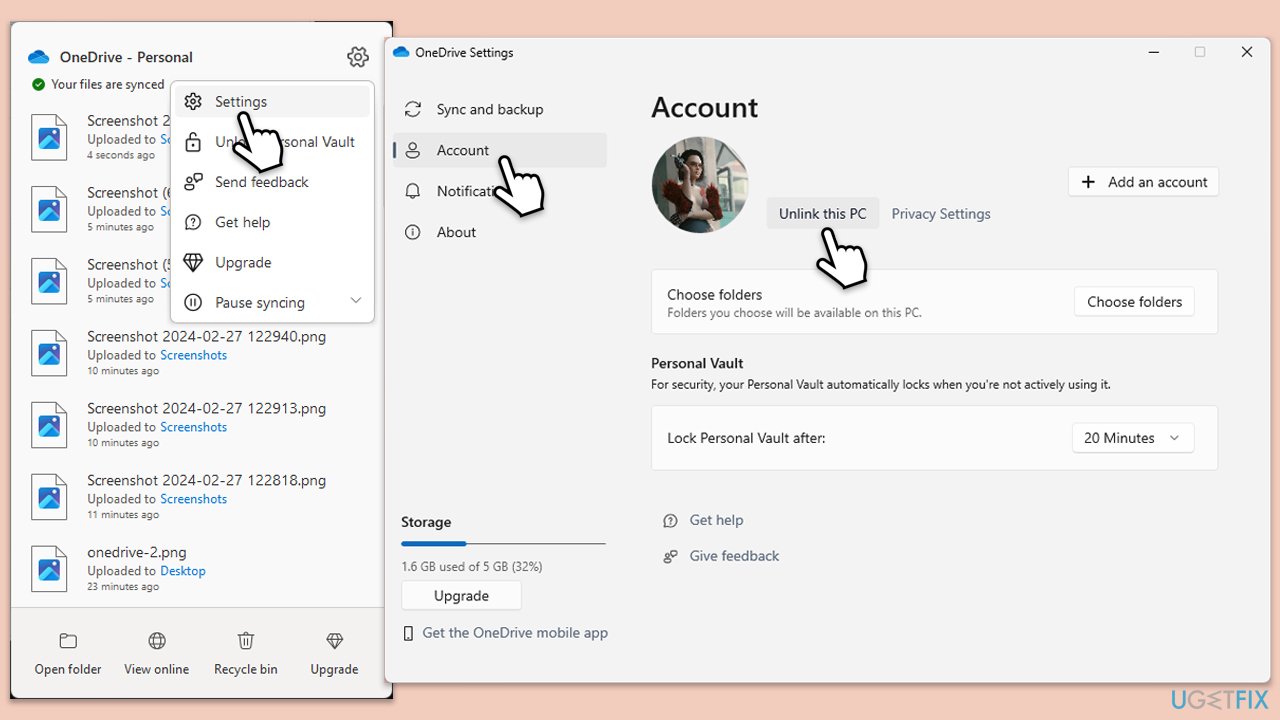
Fix 2. Re-link your account via OneDrive app
- Click on the OneDrive icon in the system tray.
- Go to Help & Settings and then choose Unlink this PC.
- When prompted, confirm with Unlink this PC.
- After signing out, sign back in with your credentials.
Fix 3. Manually update OneDrive
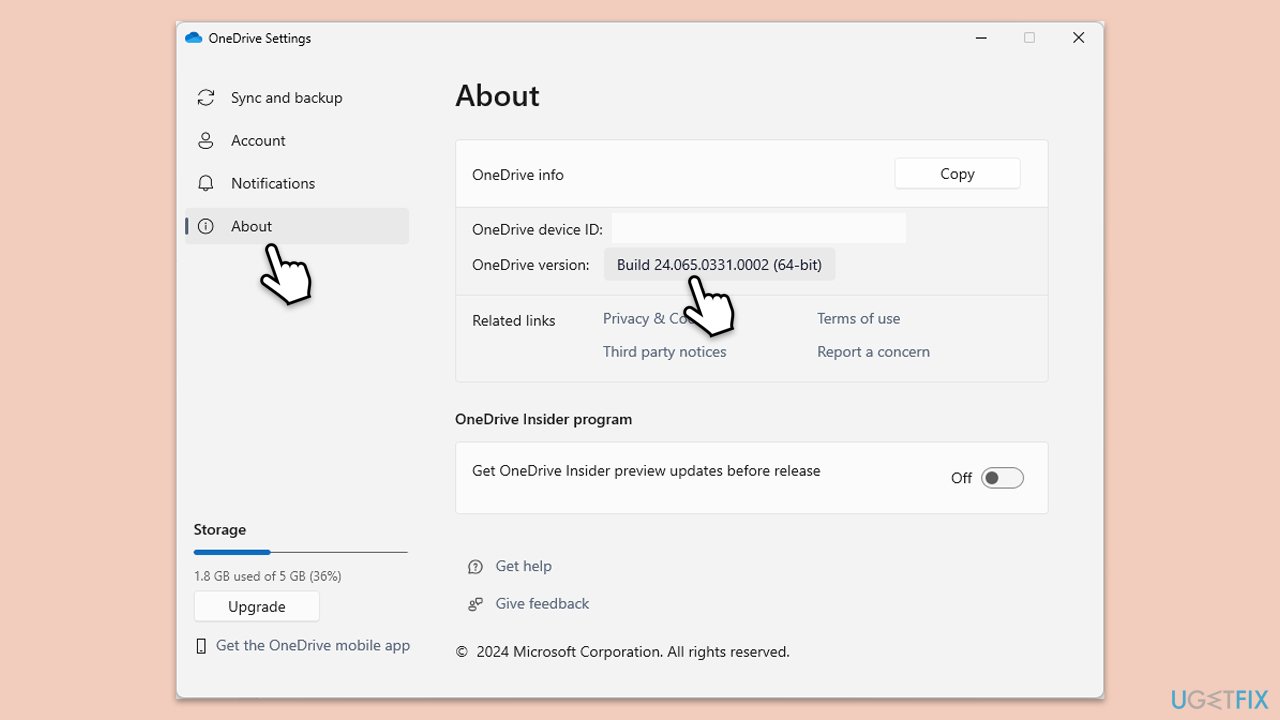
- Open the OneDrive app on your PC.
- Click on the Help & Settings icon in the notification area.
- Select Settings.
- In the settings menu, go to the About tab.
- Click on the OneDrive version - this should open the browser and the release notes from Microsoft.
- If the latest version listed there matches with the one on your app, you are up to date.
- If the version does not match, simply click on Download OneDrive for Windows, follow the installation instructions and it will install the latest version on your device.
Fix 4. Install all Windows updates
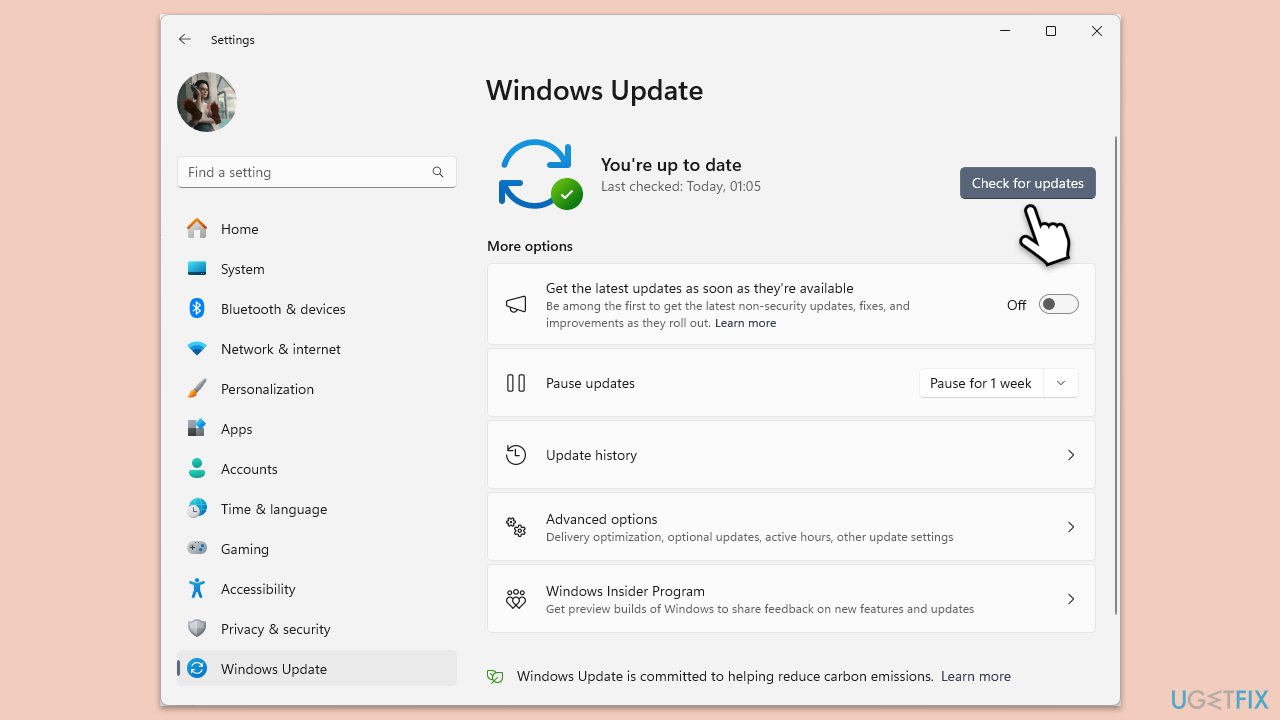
- Type Updates in the Windows search bar and hit Enter.
- If updates are pending, click Download and install. Otherwise, click Check for updates.
- Make sure you choose to install optional updates as well.
- Restart your system to implement the changes.
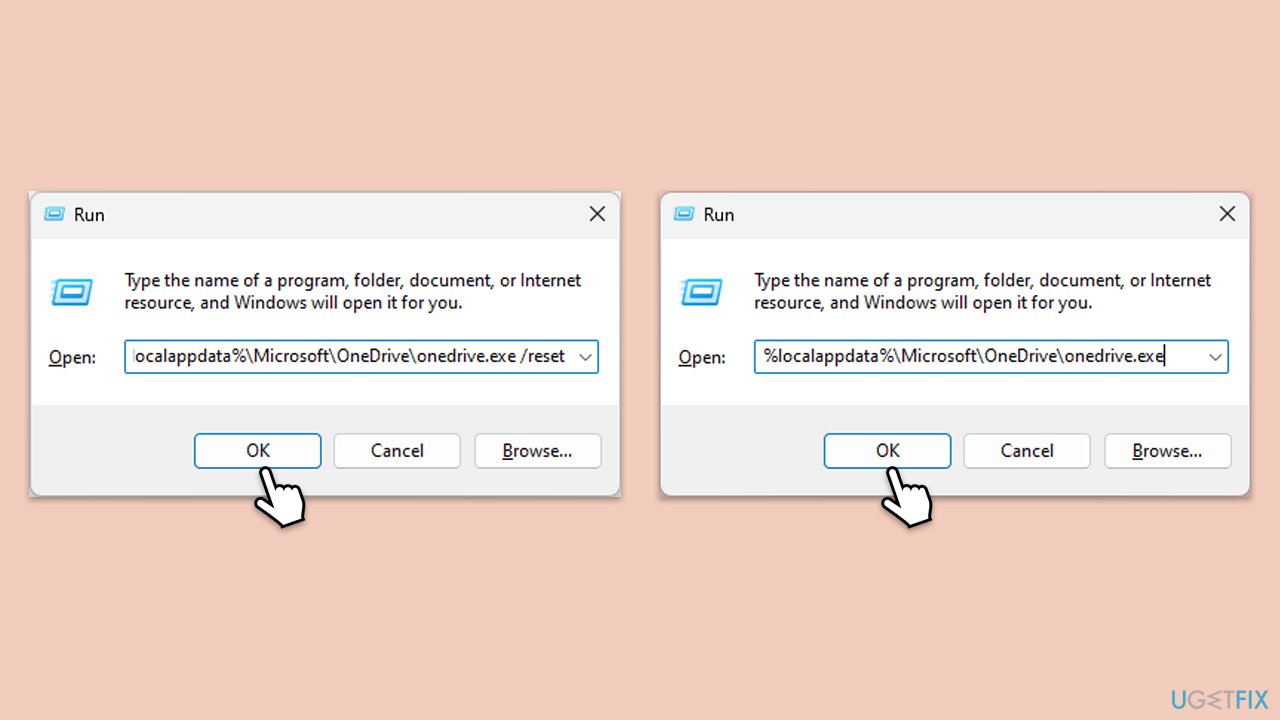
Fix 5. Reset OneDrive
- Press Win + R on your keyboard.
- When the Run window opens, copy and paste the following text into it:
%localappdata%\Microsoft\OneDrive\onedrive.exe /reset
(Note: you might get an error here. In that case, use %programfiles(x86)%\Microsoft OneDrive\onedrive.exe /reset or C:\Program Files (x86)\Microsoft OneDrive\onedrive.exe /reset instead) - Press Enter or click OK.
- After this command is executed, the app should be reset, and OneDrive should open.
- If it doesn't, wait a few minutes, then open the Run window again and use the following command:
%localappdata%\Microsoft\OneDrive\onedrive.exe - Press Enter.
Fix 6. Reinstall OneDrive
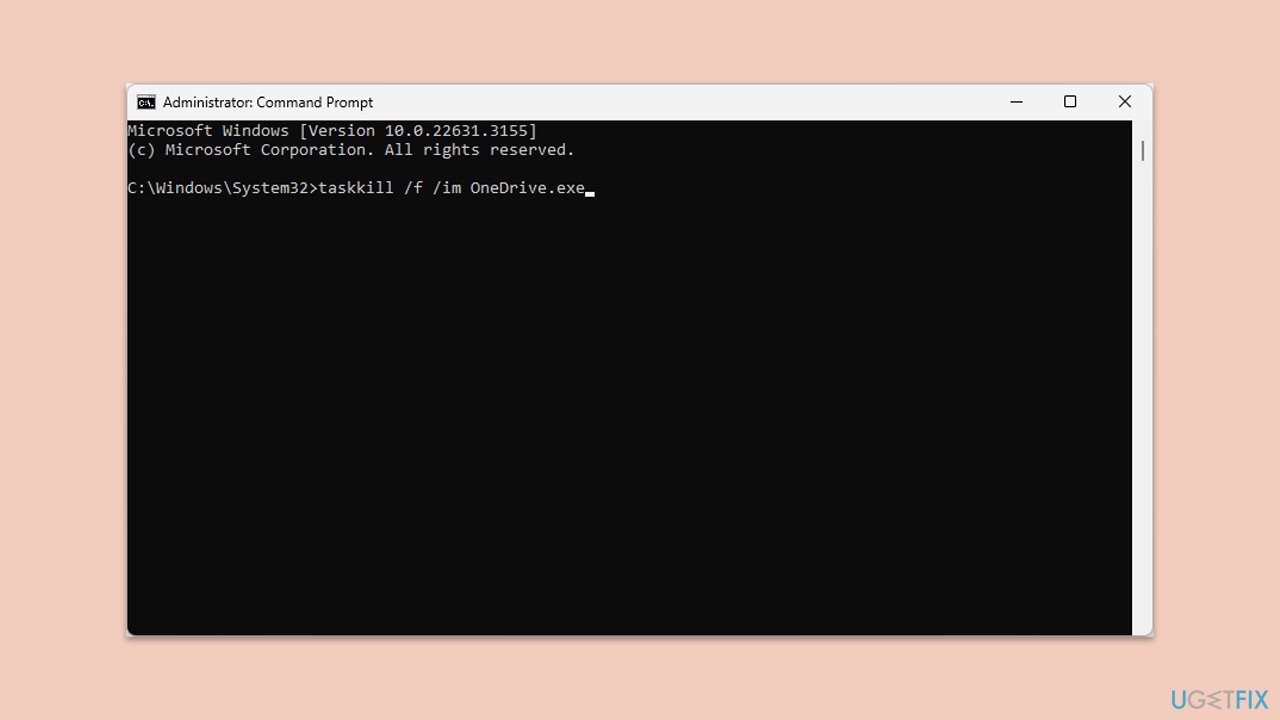
- Open Command as administrator.
- Type in the following and press Enter to terminate any leftover OneDrive processes:
taskkill /f /im OneDrive.exe - If you are using 64-bit Windows, use the following command and hit Enter:
%SystemRoot%\SysWOW64\OneDriveSetup.exe /uninstall - If you are using 32-bit Windows, use the following command and hit Enter:
%SystemRoot%\System32\OneDriveSetup.exe /uninstall - After that, restart your PC.
- Reinstall OneDrive from the official Microsoft website.
Bottom line
To fix the OneDrive error 0x80070194, ensure your internet connection is stable, update your OneDrive application, and check for Windows updates. Additionally, review and adjust any conflicting software or system settings. If none of these solutions work, consider using a repair tool to automatically fix underlying Windows issues.
Frequently asked questions
OneDrive error 0x80070194 typically indicates a problem with syncing your files, often related to corrupted data or connection issues. This error can prevent you from accessing or uploading files to OneDrive.
To resolve this error, try resetting the OneDrive app by opening the Run dialog (Win + R), typing 'onedrive /reset', and pressing Enter. If the error persists, check your internet connection and re-link your OneDrive account.
Yes, you can fix the error without reinstalling by clearing the OneDrive cache and ensuring that your Windows 10 is up to date. Additionally, unlinking and relinking your OneDrive account can help resolve the issue.




Report an issue
What's wrong with this guide? We review every report and update or remove content.
Report received — thank you. We'll review and fix it.
You need a free account to submit a report.
Be the first to comment