How to fix
OneDrive error 0x80071129
on Windows
Resolve OneDrive error 0x80071129 in Windows 10/11 effortlessly with our expert-tested solutions. Get your files syncing again, fixed in minutes!

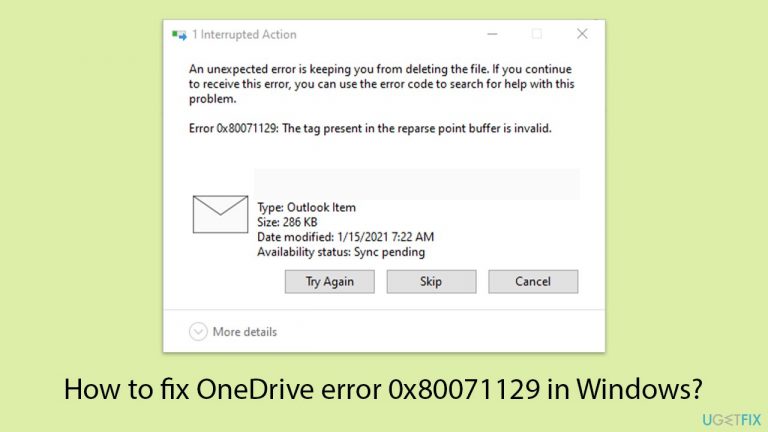
What causes How to fix OneDrive error 0x80071129 in Windows?
- Corrupted reparse points
- Incorrect information in reparse points
- System crashes
- Disk write errors
- Problems during the syncing process
Repairs Windows system files, removes malware, and restores a clean OS state — without reinstalling.
I have an issue where a file I want to sync with OneDrive produces the following error message "Error 0x80071129: The tag present in the reparse point buffer is invalid." I am using Windows 11 Home. Any recommendations?
An error message with the heading line "Error 0x80071129: The tag present in the reparse point buffer is invalid" may appear when using OneDrive on Windows. This problem can make it difficult for you to access or synchronize your data correctly. It usually arises when attempting to sync files or folders within OneDrive.
Why does the "Error 0x80071129: The tag present in the reparse point buffer is invalid" error occur?
The error 0x80071129 often arises due to issues with the file system where the reparse points, which are used by OneDrive for placeholders and symbolic links, are corrupted or contain incorrect information.
Reparse points direct file system operations for certain files or directories to a user-mode application, and when these points are invalid, OneDrive cannot process the files as expected. Corruption can be caused by various factors, including system crashes, disk write errors, or problems during the syncing process itself.
Potential resolutions
Addressing this error involves several potential solutions aimed at resolving underlying file system issues:
- Sometimes, resetting the OneDrive app can refresh its connection with the server and clear the error.
- Windows includes various troubleshooters that can automatically find and fix problems with file and folder operations.
- Pausing the OneDrive sync, and then identifying and deleting problematic files directly from the OneDrive website may resolve the sync issues.
- Running a check disk scan can find and repair problems with the file system.
- Fixing corrupted files within the Windows operating system might resolve the 0x80071129 error.
Below you will find detailed instructions on how to fix the issue at hand. If you're looking for a more comprehensive solution to address not only this issue but also other Windows-related problems, consider using the [d1] maintenance and repair utility, which is designed to automatically fix underlying Windows issues.

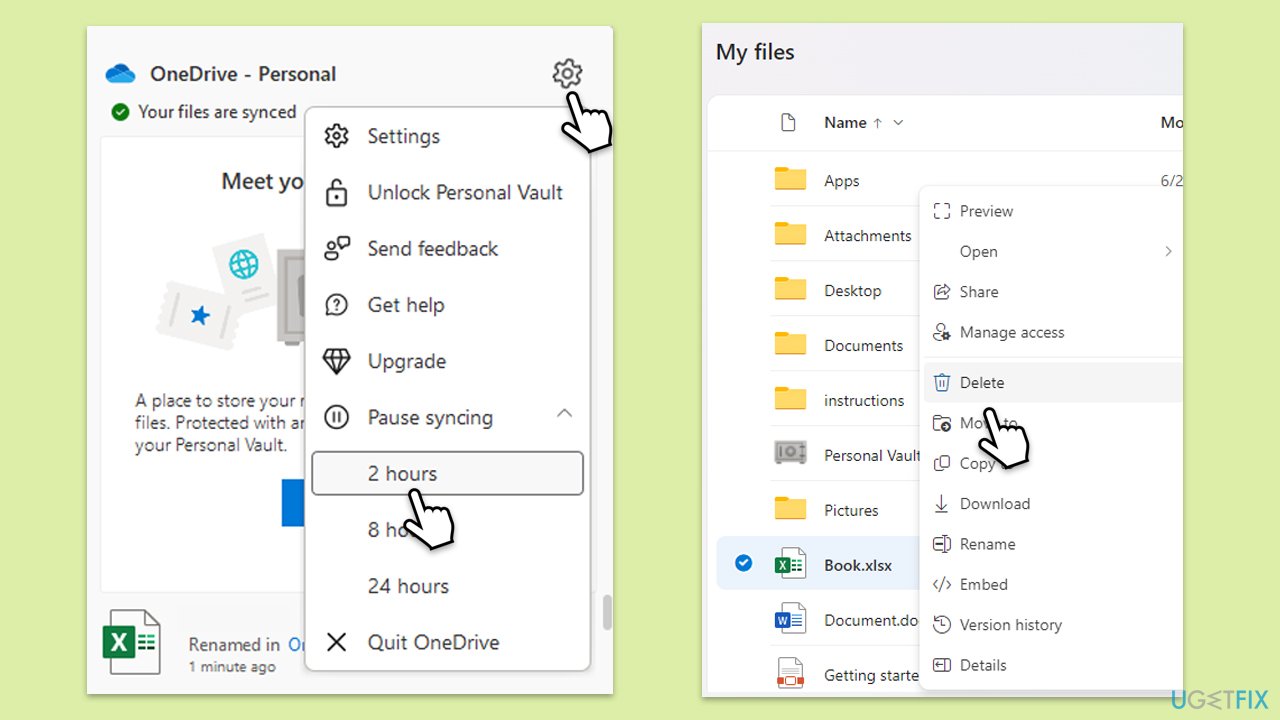
Fix 1. Pause syncing in OneDrive and remove the file online
Pausing OneDrive sync temporarily stops all syncing activities, allowing you to delete problematic files from OneDrive online without the local client interfering.
- Click on the OneDrive icon in the system tray.
- Click on Settings (cogwheel).
- Select Pause syncing and choose a duration.
- Go to the OneDrive website and log in with your credentials.
- Find the problematic file and delete it.
- After deleting, resume syncing in OneDrive by clicking on Settings again and selecting Resume syncing.
Fix 2. Run Check Disk
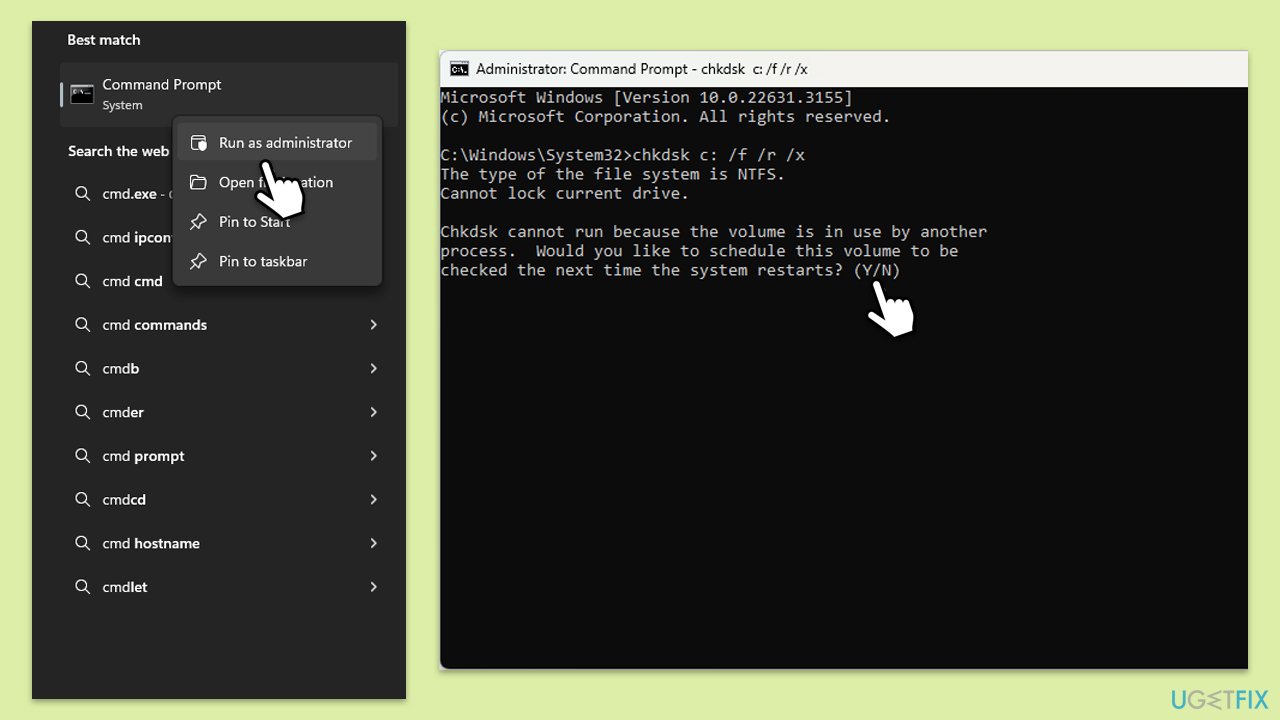
The Check Disk utility scans the file system and file system metadata on a disk for logical and physical errors. It is useful for correcting problems related to bad sectors, cross-linked files, lost clusters, and directory errors.
- Type in cmd in Windows search.
- Right-click on Command Prompt and select Run as administrator.
- In the User Account Control window, click Yes.
- In the new window, type in the following command and press Enter after:
chkdsk c: /f
(Note: use chkdsk c: /f /r /x command if you are using SSD as your primary partition. Also, replace c: with another drive letter if you are not using default) - If you receive an error, type in Y, close down Command Prompt, and restart your system.
- Wait till the scan is finished.
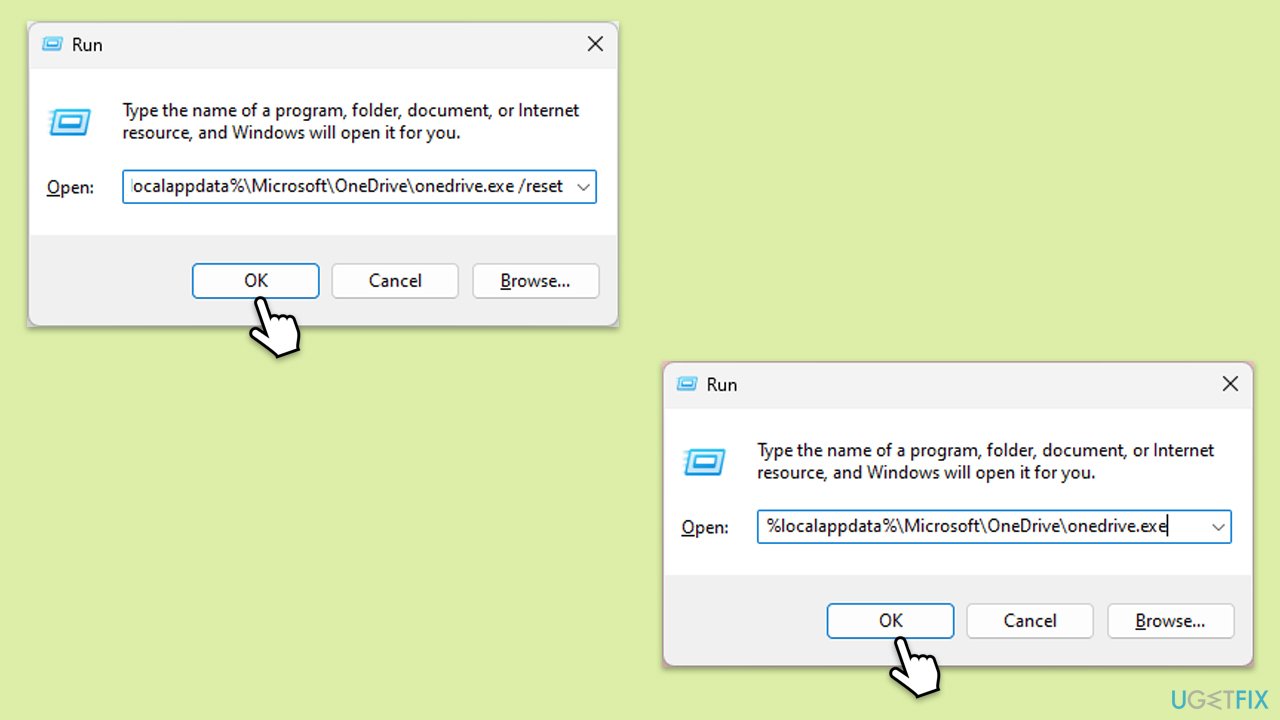
Fix 3. Reset OneDrive
Resetting OneDrive reinitializes OneDrive setup and resyncs your files.
- Press Win + R on your keyboard.
- When the Run window opens, copy and paste the following text into it:
%localappdata%\Microsoft\OneDrive\onedrive.exe /reset
(Note: you might get an error here. In that case, use %programfiles(x86)%\Microsoft OneDrive\onedrive.exe /reset or C:\Program Files (x86)\Microsoft OneDrive\onedrive.exe /reset instead) - Press Enter or click OK.
- After this command is executed, the app should be reset, and OneDrive should open.
- If it doesn't, wait a few minutes, then open the Run window again and use the following command:
%localappdata%\Microsoft\OneDrive\onedrive.exe - Press Enter.
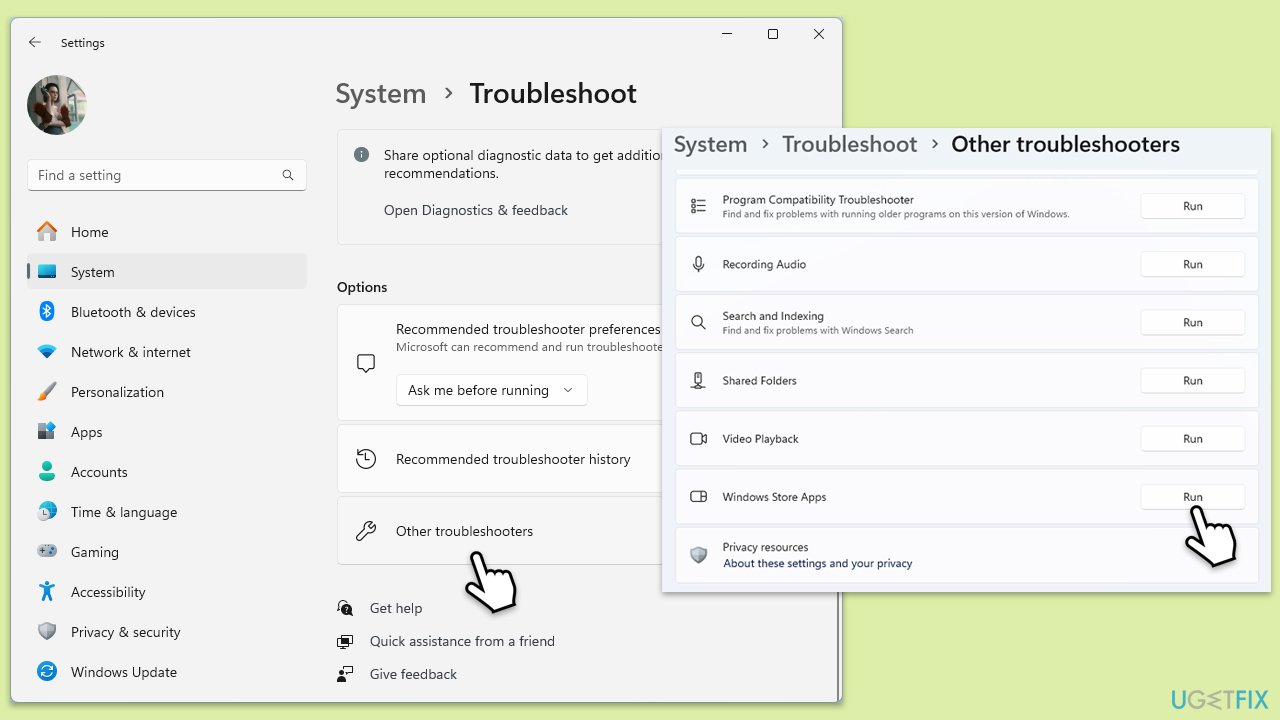
Fix 4. Run Windows Store apps troubleshooter
The Windows Store apps troubleshooter helps solve issues with apps downloaded from the Windows Store, including OneDrive. It automatically finds and resolves problems that may cause the app to malfunction.
- Type Troubleshoot in Windows search and press Enter.
- Select Additional troubleshooters/Other troubleshooters.
- Find Windows Store Apps from the list and select Run the troubleshooter/Run.
- Wait till the process is finished and apply the recommended solutions.
Fix 5. Scan your system for corrupted files
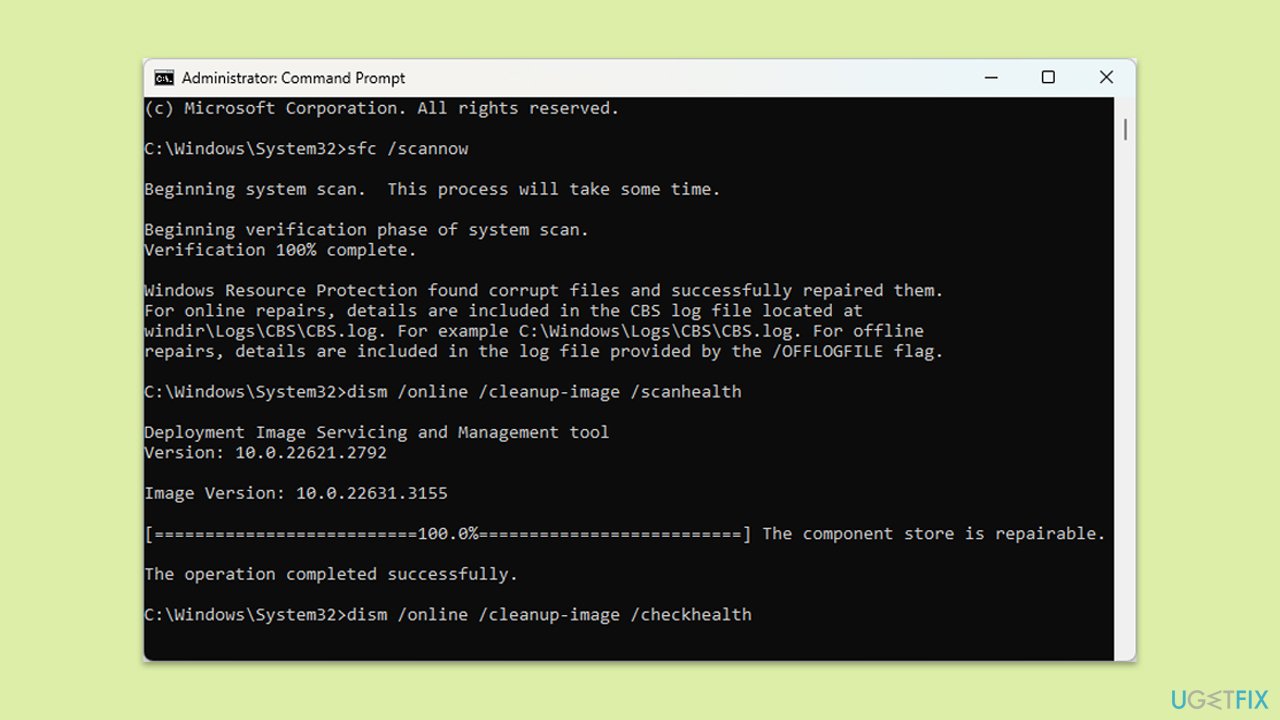
SFC and DISM are tools that fix system corruption - the former checks for corrupted system files, while the latter repairs the Windows system image.
- Open Command Prompt as administrator.
- Copy and paste the following command, pressing Enter after:
sfc /scannow - Wait till the scan is finished. If Windows finds system file integrity violations, it will attempt to fix them. After this, use the set of the following commands, pressing Enter each time:
DISM /Online /Cleanup-Image /CheckHealth
DISM /Online /Cleanup-Image /ScanHealth
DISM /Online /Cleanup-Image /RestoreHealth - (Note: if you get an error executing this last command, add /Source:C:\RepairSource\Windows /LimitAccess to it and try again).
- Close down the Command Prompt and restart your computer.
Fix 6. Use the Remove properties and personal information option in file Properties
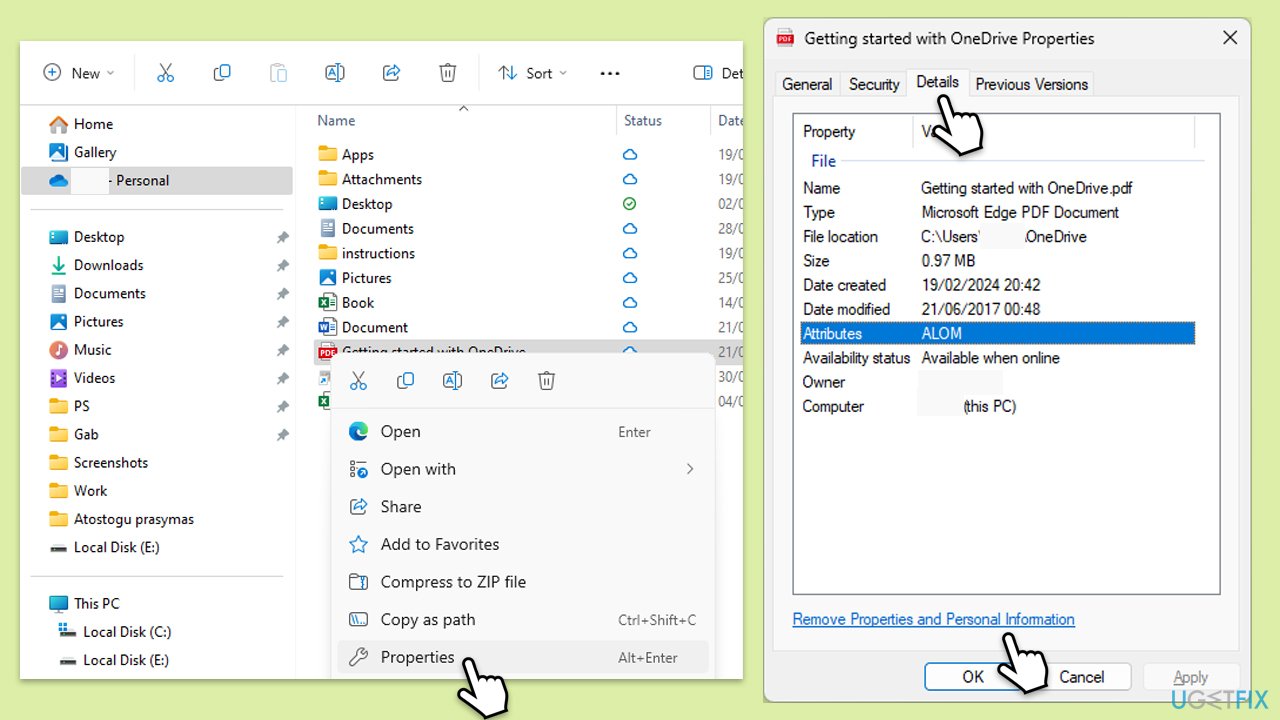
This feature removes personal information and other properties from files, which can help if metadata problems are causing sync issues.
- Right-click on the problematic file in your OneDrive folder.
- Select Properties.
- Go to the Details tab.
- Mark the Remove properties and personal information checkbox.
- Apply changes and check if OneDrive syncs properly.
Bottom line
To fix the OneDrive error 0x80071129, you can try pausing the sync, resetting the OneDrive app, using Windows troubleshooters, running a check disk scan, or fixing corrupted files. If these solutions do not resolve the issue, consider using a maintenance and repair utility for more comprehensive fixes.
Frequently asked questions
The OneDrive error 0x80071129 typically indicates a problem with the file path or that a file is missing from its expected location. This error can prevent OneDrive from syncing properly.
To fix this error on Windows 11, try unlinking and then relinking your OneDrive account, or check the OneDrive settings for any incorrect file paths.
Yes, certain file types or large files that exceed OneDrive's size limits may trigger the error 0x80071129 in Windows 10, causing sync issues.




Report an issue
What's wrong with this guide? We review every report and update or remove content.
Report received — thank you. We'll review and fix it.
You need a free account to submit a report.
Be the first to comment