How to fix
OneDrive error code 0x8004de8a
on Windows
Resolve OneDrive error code 0x8004de8a on Windows 10 and 11 effortlessly. Get expert-tested solutions to fix it in minutes!


What causes How to fix OneDrive error code 0x8004de8a in Windows?
- Account credentials stored in Windows do not match the Microsoft account
- Password change associated with the Microsoft account
- Corruption in OneDrive app configuration or cached sign-in data
- Missing Windows updates used by OneDrive
- Required services for OneDrive synchronization are not operational
Repairs Windows system files, removes malware, and restores a clean OS state — without reinstalling.
I can’t sign in to OneDrive and keep getting an error code 0x8004de8a. It says there’s a problem with my account, but I’m sure the login info is correct. Could you help me, maybe?
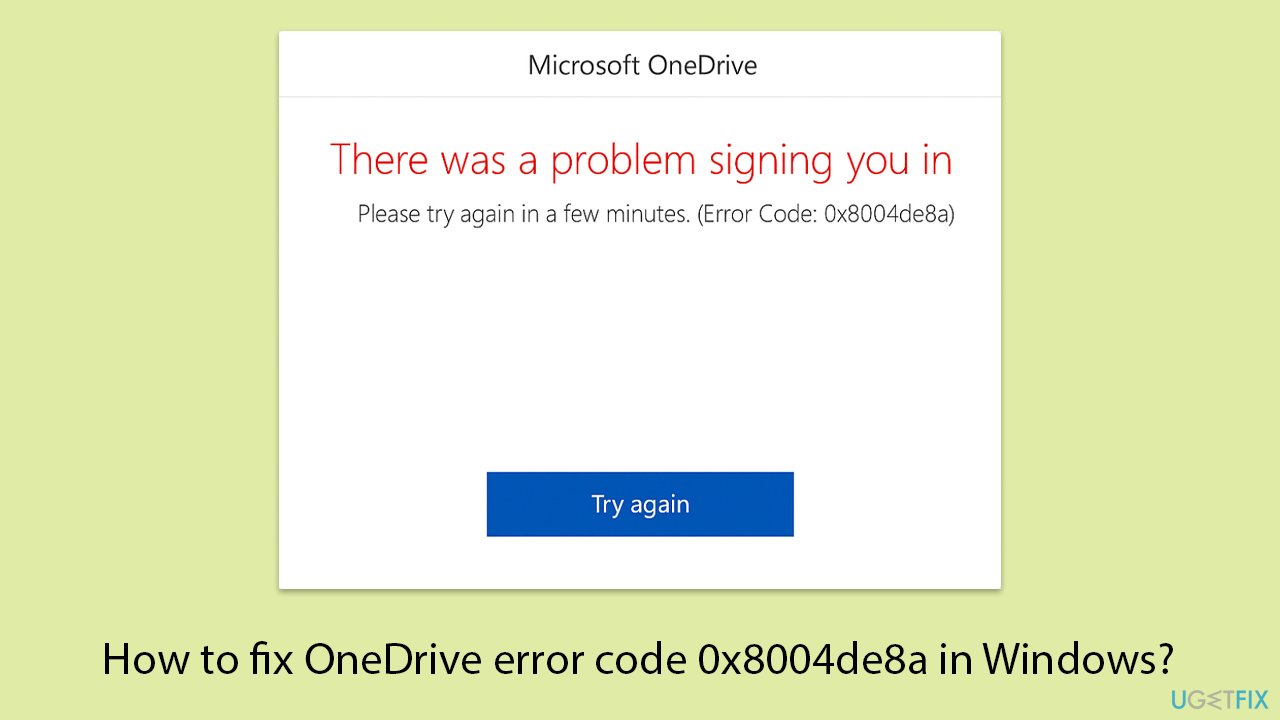
Usually, the OneDrive error code 0x8004de8a in Windows is related to an issue with account authentication. Users typically see that error at sign-in time due to a system update, some sort of password change to their Microsoft account, or an interruption in syncing files and folders. The error description may lead you to think you are trying to sign in with the wrong credentials. However, the real issue is likely a more complicated one.
The bug that causes error 0x8004de8a is commonly related to the account credentials stored in Windows that do not match the Microsoft account you are trying to sign in with. This can occur if you have changed the password associated with the account, switched between logon accounts (local and Microsoft), or changed devices you wish to sign into.
It can also occur if there is corruption occurring on OneDrive, such as the app's configuration or cached sign-in data. Some other users mentioned that they see this error after restoring their system back to a prior date or after the modification of group policy settings.
In some isolated instances, missing Windows updates used by OneDrive or having a premature connection between the OneDrive client and the Microsoft account service will cultivate this error as well. In addition, if some of the required services to run synchronizations within OneDrive are not operational (like the Microsoft Account Sign-in Assistant), you will continue to see this error code.
To resolve OneDrive error 0x8004de8a, users often need to re-enter their login credentials, clear the OneDrive credentials from Windows Credential Manager, or reset the OneDrive app altogether. When these steps don’t solve the problem or the root cause remains unclear, turning to an automated PC repair solution like [d1] can help. It can scan for deeper system issues affecting login mechanisms, repair corrupt components, and restore proper integration between OneDrive and your Microsoft account.
Fix 1. Confirm you're using the correct account
Error code 0x8004de8a often appears when the account used to sign in doesn’t match the one linked to OneDrive. This can happen after a password change or when switching between work and personal accounts.
- Click on the OneDrive icon in your system tray.
- Select Help & Settings > Settings.
- Check which account is currently signed in.
- If the wrong account is being used, click Unlink this PC and close OneDrive.
- Reopen OneDrive and sign in with the correct Microsoft account, making sure to use the right credentials for either a personal or work/school account.

Fix 2. Reset OneDrive
Resetting OneDrive clears any corrupted settings or temporary data that may be blocking sign-in.
- Press Win + R on your keyboard.
- When the Run window opens, copy and paste the following text into it:
%localappdata%\Microsoft\OneDrive\onedrive.exe /reset
(Note: you might get an error here. In that case, use %programfiles(x86)%\Microsoft OneDrive\onedrive.exe /reset or C:\Program Files (x86)\Microsoft OneDrive\onedrive.exe /reset instead) - Press Enter or click OK.
- After this command is executed, the app should be reset, and OneDrive should open.
- If it doesn't, wait a few minutes, then open the Run window again and use the following command:
%localappdata%\Microsoft\OneDrive\onedrive.exe - Press Enter.

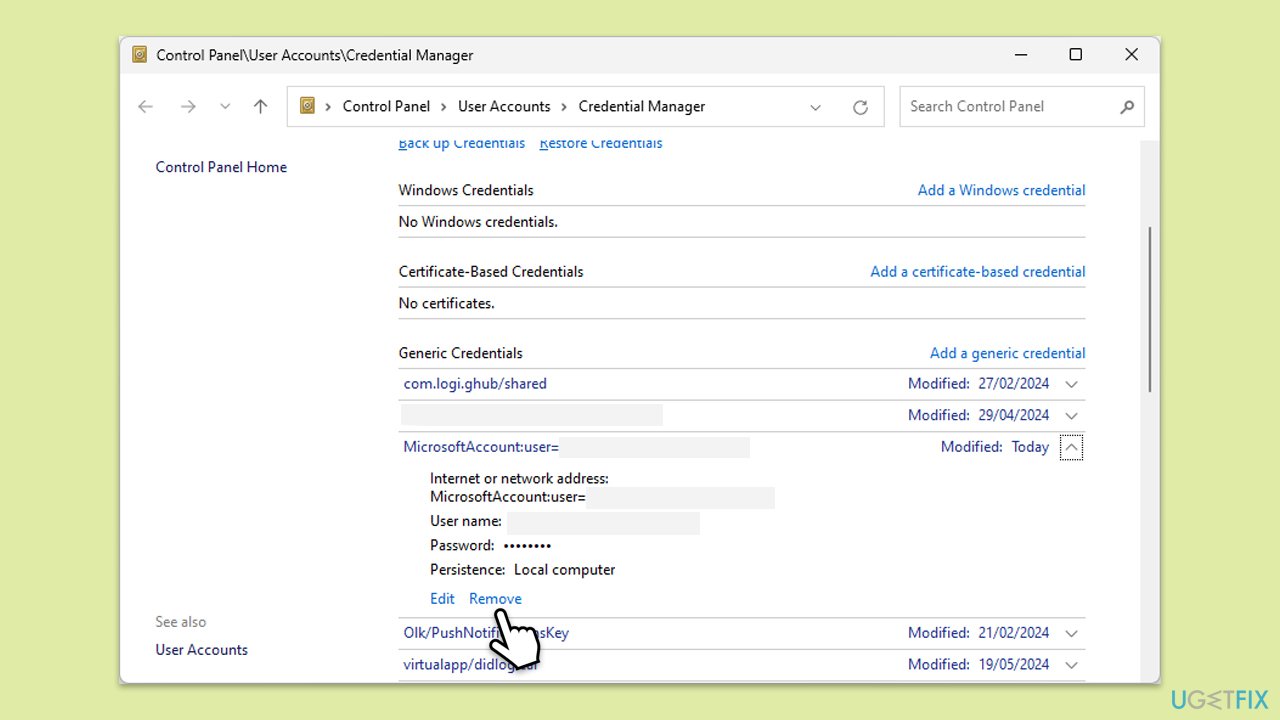
Fix 3. Clear OneDrive credentials
Outdated or corrupted sign-in credentials can lead to error 0x8004de8a.
- Close OneDrive.
- Type Control Panel in Windows search and press Enter.
- Go to User Accounts > Credential Manager.
- Go to the Windows Credentials section.
- Scroll down to the Generic Credentials section.
- Remove all OneDrive credentials as required.
- Sign in again.
Fix 4. Update OneDrive
An outdated version of OneDrive might be incompatible with your system or Microsoft’s sign-in services.
- Open the OneDrive app on your computer.
- Click on the Help & Settings icon in the notification area.
- Select Settings.
- In the settings menu, go to the About tab.
- Click on the OneDrive version - this should open the browser and the release notes from Microsoft.
- If the latest version listed there matches with the one on your app, you are up to date.
- If the version does not match, simply click on Download OneDrive for Windows, follow the installation instructions, and it will install the latest version on your device.

Fix 5. Check for Windows updates
Pending system updates can disrupt account synchronization and lead to sign-in issues.
- Type Updates in Windows search and hit Enter.
- If updates are available, click Install updates.
- Otherwise, click Check for updates.
- If optional updates are available, install them as well.
- When all the update processes are complete, restart your device.

Fix 6. Temporarily disable antivirus
Sometimes, security software interferes with Microsoft account services.
- Open your antivirus application.
- Turn off real-time protection temporarily.
- Try to sign in to OneDrive again.
- If successful, add OneDrive to the exception list.
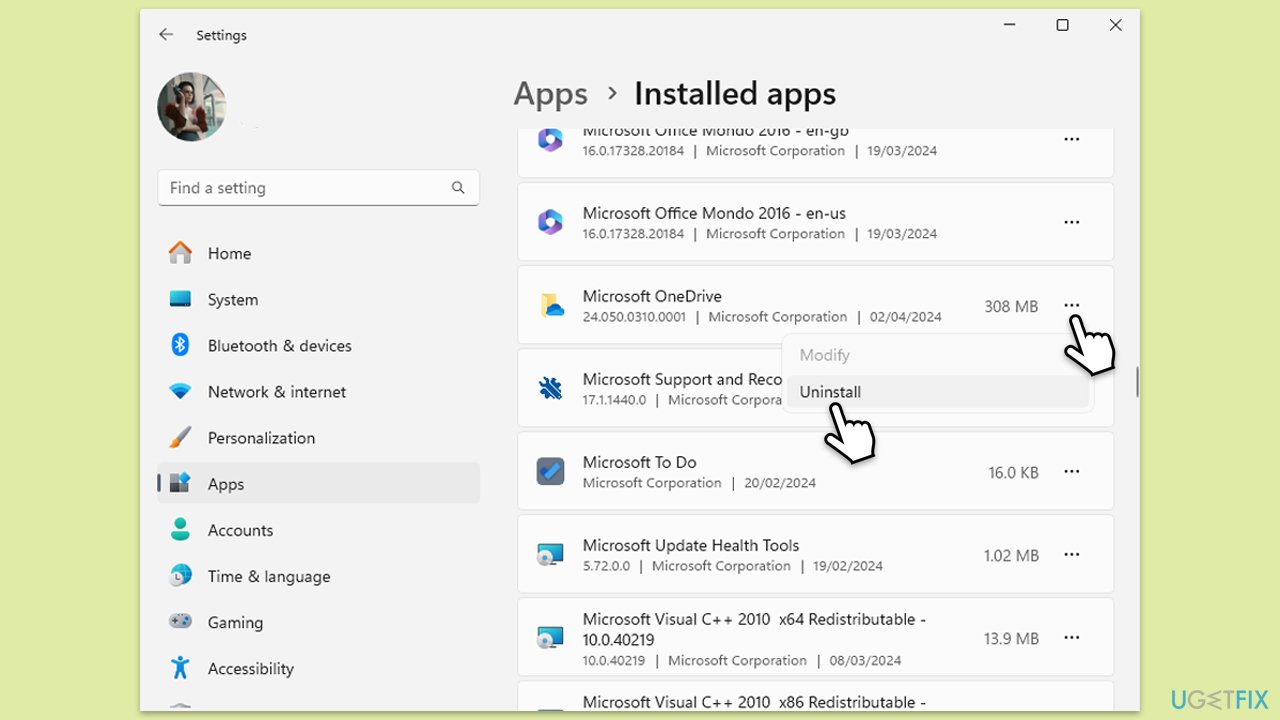
Fix 7. Reinstall OneDrive
Reinstalling can resolve deeper configuration problems that a reset may not fix.
- Right-click on Start and pick Apps and Features/Installed apps.
- Scroll down and find Microsoft OneDrive.
- Click Uninstall and follow the prompts to remove the app.
- Next, open File Explorer and make sure Hidden items are visible.
- Navigate to the following locations and delete all contents from OneDrive folders located in the following directories (replace USERNAME with your username):
C:\Users\USERNAME\AppData\Local\
C:\Users\USERNAME\AppData\Local\Temp
C:\Users\USERNAME\AppData\LocalLow\Temp
C:\Windows\Temp - Restart your computer.
- Once rebooted, open your browser and go to the official Microsoft site to download OneDrive.
Bottom line
To resolve OneDrive error 0x8004de8a, users can re-enter their login credentials, clear OneDrive credentials from Windows Credential Manager, or reset the OneDrive app. If these steps do not resolve the issue, consider using an automated PC repair solution to scan for deeper system issues.
Frequently asked questions
This error usually occurs due to network configuration issues, corrupted OneDrive installation, or problems with your Microsoft account settings.
You can reset OneDrive by pressing Windows + R, typing 'onedrive.exe /reset', and pressing Enter; this will refresh the application and may resolve the error.
Yes, ensure you have a stable internet connection by testing other websites or applications, and consider resetting your router if you're experiencing issues.




Report an issue
What's wrong with this guide? We review every report and update or remove content.
Report received — thank you. We'll review and fix it.
You need a free account to submit a report.
Be the first to comment