How to fix
OneDrive error code 0x8004ded2
on Windows
Resolve OneDrive error code 0x8004ded2 on Windows 10 and Windows 11 effortlessly. Get expert-tested solutions for a seamless experience!


What causes How to fix OneDrive error code 0x8004ded2 in Windows?
- Poor or unstable network connection
- Incorrect or corrupted credentials
- Corrupted files or settings in the OneDrive application
- Issues with Windows affecting OneDrive functionality
Repairs Windows system files, removes malware, and restores a clean OS state — without reinstalling.
Hello. I was wondering if you could help me to solve error code 0x8004ded2 on OneDrive. I've been struggling with it for a while now and it's not going away by itself.
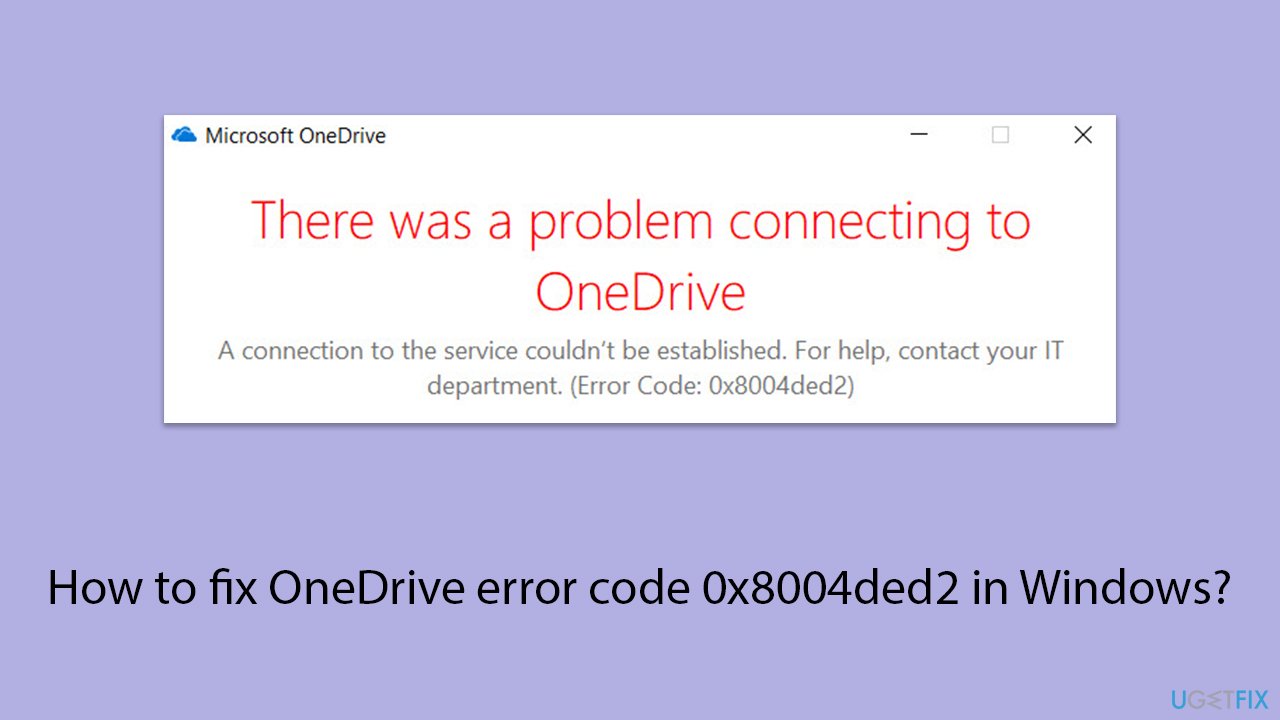
OneDrive error code 0x8004ded2 is a common issue that prevents users from accessing their Microsoft OneDrive accounts. This error typically occurs when users attempt to sign in to OneDrive, especially with work or school accounts that may have specific restrictions or configurations. The error message generally indicates that there is a problem connecting to OneDrive and that a connection to the service couldn’t be established.
Users may encounter error code 0x8004ded2 due to several reasons. One common cause is a poor or unstable network connection, which can prevent OneDrive from successfully communicating with Microsoft servers.
Another possible cause is incorrect or corrupted credentials stored on the device, which can hinder the sign-in process. Additionally, issues with the OneDrive application itself, such as corrupted files or settings, can lead to this error.
To fix the 0x8004ded2 error, users can try several solutions, including checking and improving their internet connection, resetting OneDrive to clear any corrupted settings, and removing and re-adding their OneDrive credentials. If these solutions do not resolve the issue, using the [d1] repair app can help fix underlying Windows problems that might be affecting OneDrive’s functionality.
By following these steps, most users should be able to resolve OneDrive error code 0x8004ded2 and regain access to their accounts on their Windows devices.
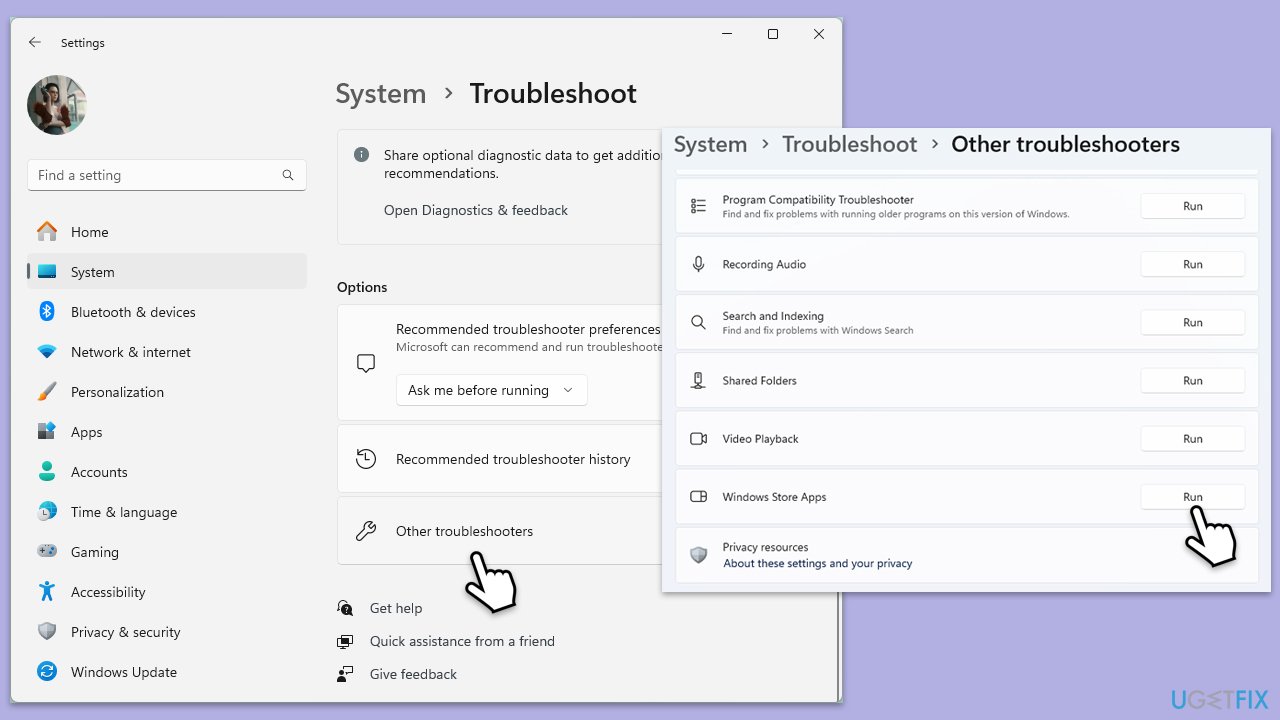
Fix 1. Rin Windows Store apps troubleshooter
- Type Troubleshoot in Windows search and press Enter.
- Select Additional troubleshooters/Other troubleshooters.
- Find Windows Store Apps from the list and select Run the troubleshooter/Run.
- Wait till the process is finished and apply the recommended solutions.
- Repeat this process with a Network troubleshooter.
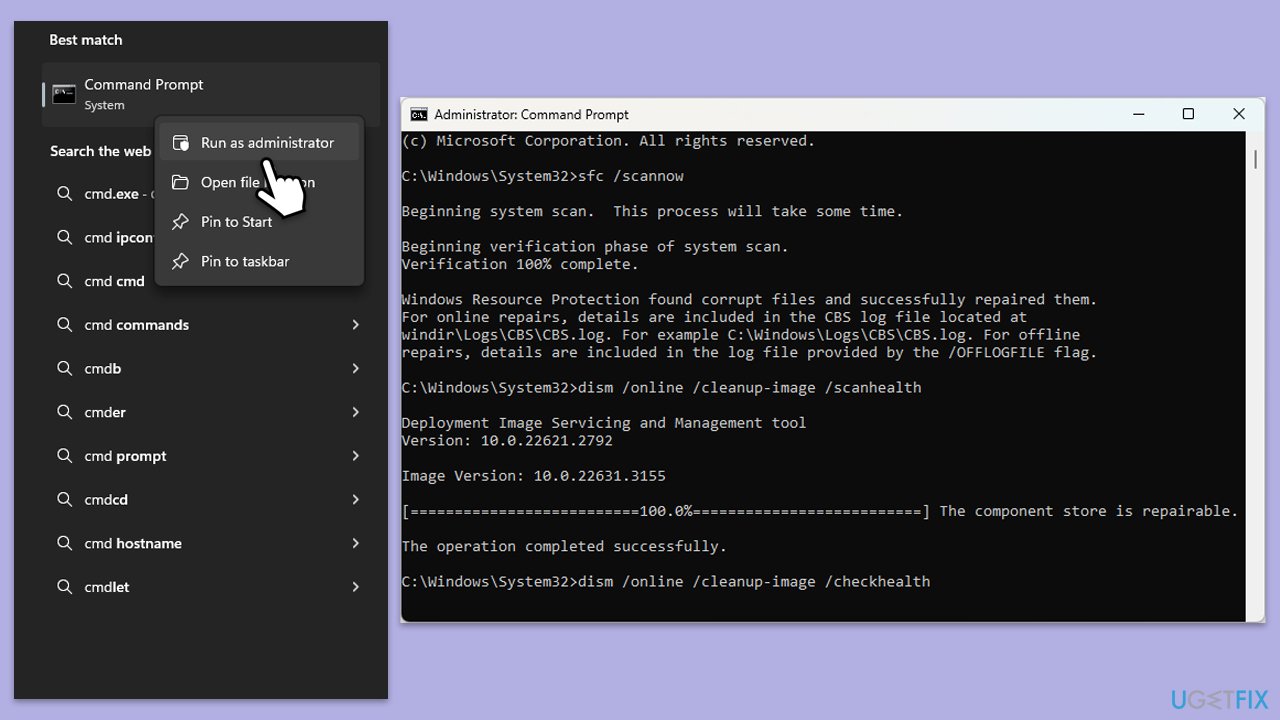
Fix 2. Repair corrupted files
- Type in cmd in Windows search.
- Right-click on Command Prompt and select Run as administrator.
- In the User Account Control window, click Yes.
- In the Command Prompt window, paste the following command and hit Enter:
sfc /scannow - Next, use the following commands, pressing Enter each time:
Dism /Online /Cleanup-Image /CheckHealth
Dism /Online /Cleanup-Image /ScanHealth
Dism /Online /Cleanup-Image /RestoreHealth
(Note: if you get an error executing this last command, add /Source:C:\RepairSource\Windows /LimitAccess to it and try again). - Reboot your device.
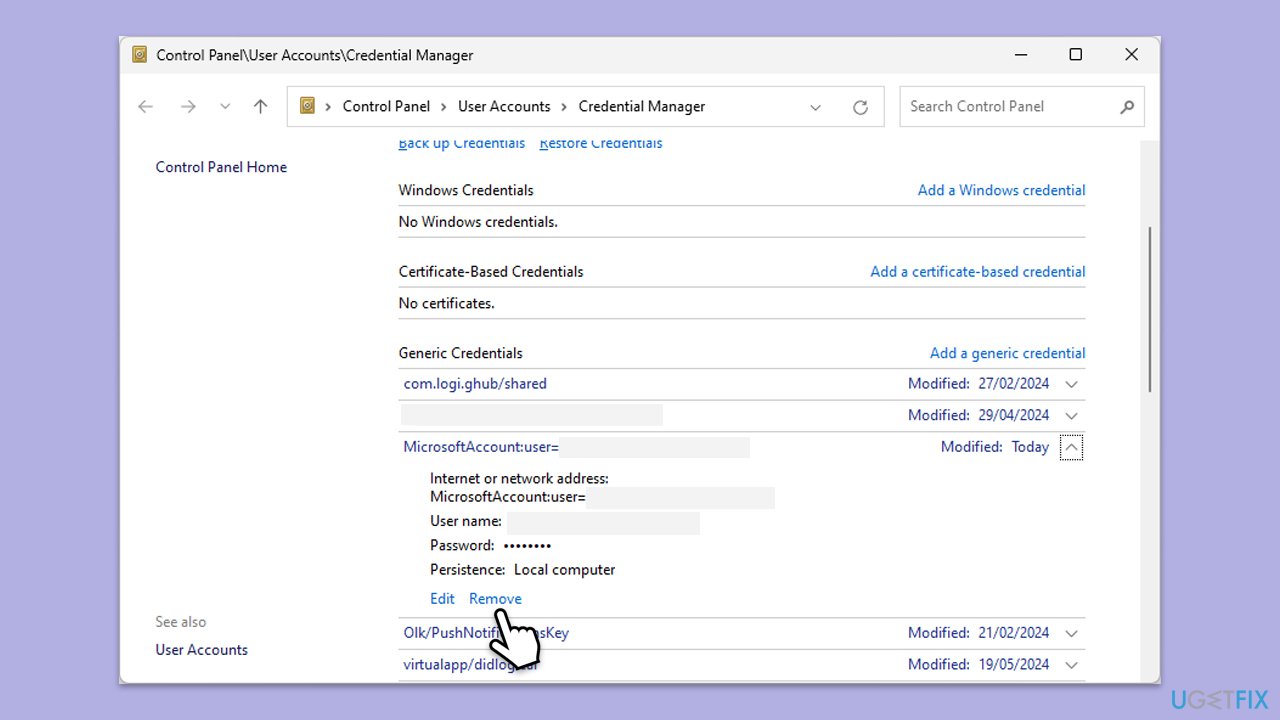
Fix 3. Remove credentials
- Turn off OneDrive.
- Type Control Panel in Windows search and press Enter.
- Go to User Accounts > Credential Manager.
- Go to the Windows Credentials section.
- Scroll down to the Generic Credentials section.
- Remove all OneDrive credentials as required.
- Sign in again.
Fix 4. Reset OneDrive
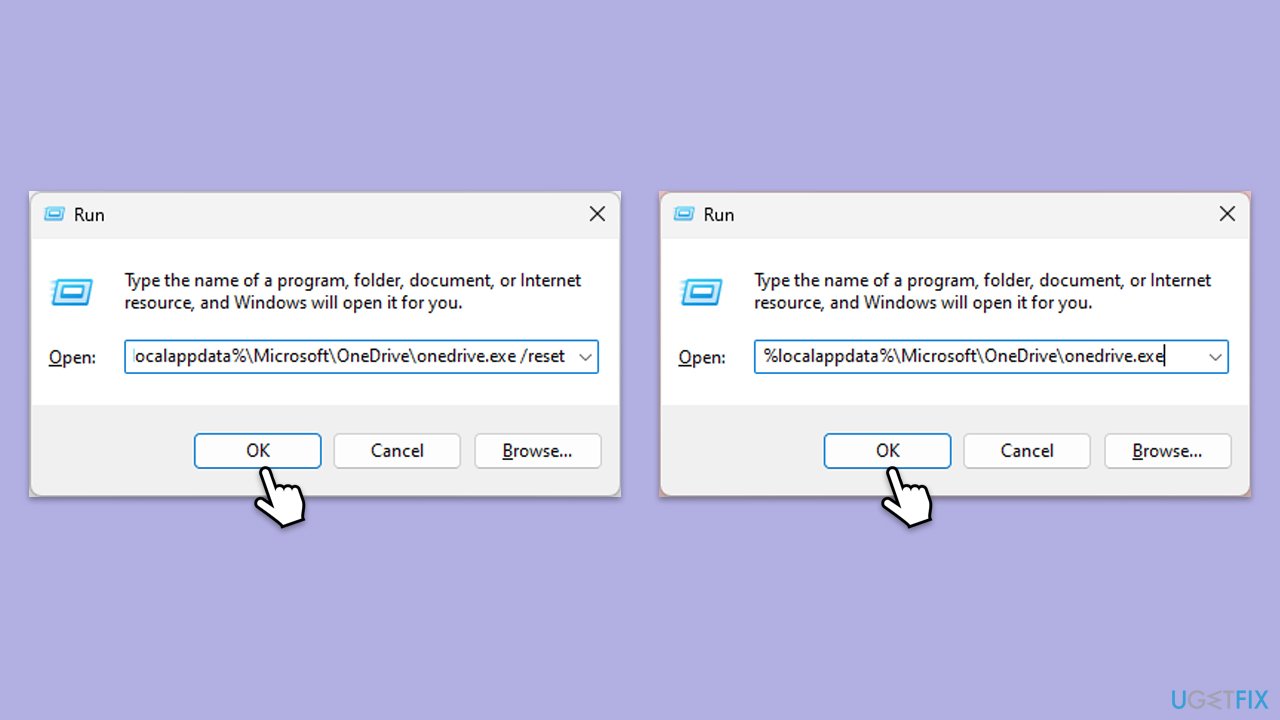
- Press Win + R on your keyboard.
- When the Run window opens, copy and paste the following text into it:
%localappdata%\Microsoft\OneDrive\onedrive.exe /reset
(use %programfiles(x86)%\Microsoft OneDrive\onedrive.exe /reset instead if you get an error here) - Press Enter or click OK.
- After this command is executed, the app should be reset, and OneDrive should open.
- If it doesn't, wait a few minutes, then open the Run window again and use the following command:
%localappdata%\Microsoft\OneDrive\onedrive.exe - Press Enter.
Fix 5. Check your internet connection
Windows 11
- Type Troubleshoot in Windows search and hit Enter.
- Select Other troubleshooters.
- Locate Network & Internet troubleshooter from the list and click Run.
- Wait till the process is finished and apply the recommended fixes.
- Restart your computer.
Windows 10
- Right-click on Start and pick Settings.
- Go to the Network & Internet section.
- On the right side, find the Advanced network settings section.
- Click Network troubleshooter and wait.
- The fixes will be automatically applied.

Fix 6. Reinstall OneDrive
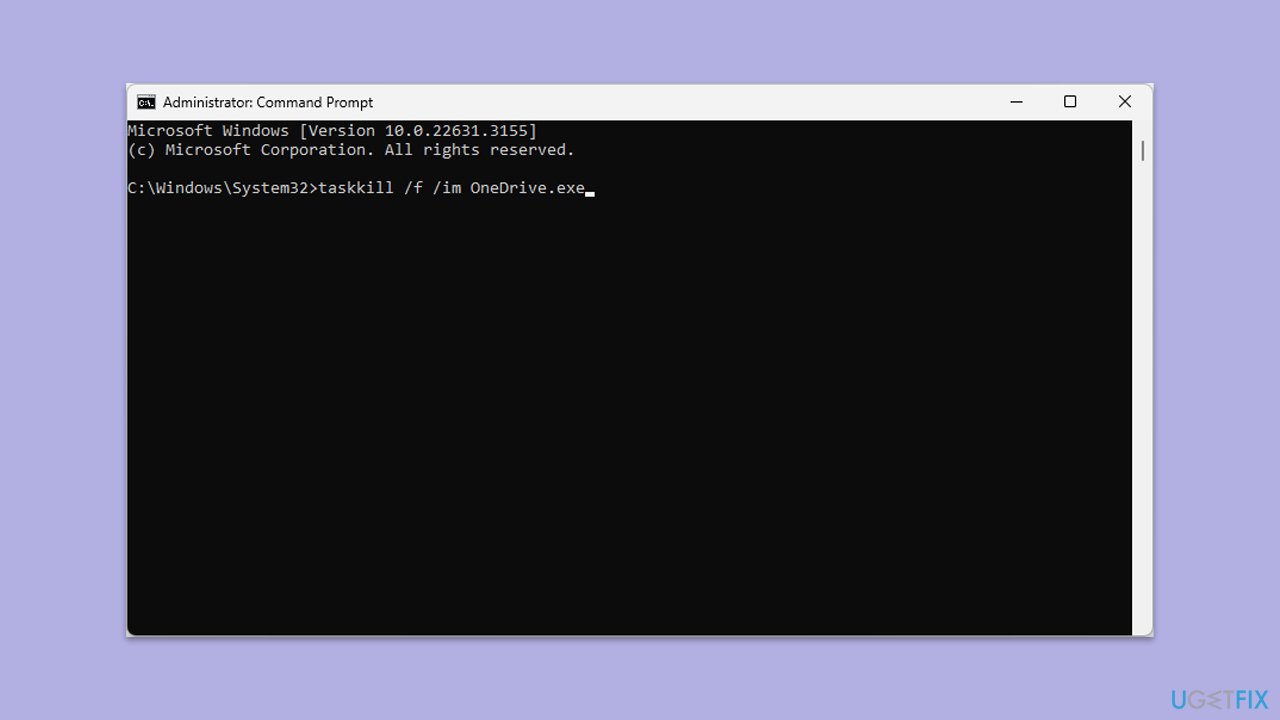
- Open Command as administrator.
- Type in the following and press Enter to terminate any leftover OneDrive processes:
taskkill /f /im OneDrive.exe - If you are using 64-bit Windows, use the following command and hit Enter:
%SystemRoot%\SysWOW64\OneDriveSetup.exe /uninstall - If you are using 32-bit Windows, use the following command and hit Enter:
%SystemRoot%\System32\OneDriveSetup.exe /uninstall - After that, restart your PC.
- Reinstall OneDrive from the official Microsoft website.
Bottom line
To fix OneDrive error code 0x8004ded2, users can check their internet connection, reset OneDrive, and remove and re-add their credentials. If these solutions do not resolve the issue, using the repair app may help fix underlying problems.
Frequently asked questions
This error typically occurs due to internet connectivity issues, problems with the OneDrive app, or incorrect account settings. Ensuring a stable internet connection and updating the OneDrive app can help resolve it.
To reset OneDrive, press Win + R, type 'onedrive.exe /reset', and hit Enter. This will reset the app and may resolve the error.
Yes, uninstalling and then reinstalling OneDrive can help fix the error by restoring the application to its default state. Make sure to download the latest version from the official Microsoft website.




Report an issue
What's wrong with this guide? We review every report and update or remove content.
Report received — thank you. We'll review and fix it.
You need a free account to submit a report.
Be the first to comment