How to fix
OneDrive error code 0x8004e4f1
on Windows
Resolve OneDrive error code 0x8004e4f1 effortlessly on Windows 10 or 11. Follow our expert-tested solutions for a quick fix and smooth syncing.


What causes How to fix OneDrive error code 0x8004e4f1 in Windows?
- Incorrect Windows system settings
- Corrupted data within the application
- Problems with the server connection
- Lack of necessary permissions for OneDrive
- Conflicts with other software on the computer
Repairs Windows system files, removes malware, and restores a clean OS state — without reinstalling.
Help me, please. I can't log in to OneDrive because of the error code 0x8004e4f1. I need to use it for work and now I am stuck. I am using Windows 11 Home. Help is much appreciated.
Understanding OneDrive error code 0x8004e4f1 in Windows
OneDrive is a useful tool from Microsoft that helps you store and share files online, making it easy to access your documents from different devices. However, sometimes you might run into problems, like the OneDrive error code 0x8004e4f1, which can stop you from logging in or using OneDrive properly.
Why OneDrive error code 0x8004e4f1 occurs
There are a few reasons why you can see the OneDrive error code 0x8004e4f1, which typically shows up when you attempt to log in or use your OneDrive account.
It could be the result of incorrect Windows system settings, corrupted data within the application, or problems with the server connection. OneDrive might not have the necessary rights to function correctly, or conflicts with other software on your computer could be the source of the issue.
How to fix the 0x8004e4f1 error in OneDrive?
Dealing with the OneDrive error code 0x8004e4f1 can be annoying, but there are several ways to try to fix it. First, try unblinking your account via the Windows setting and then reconnecting it - this usually helps to solve the problem.
Also, check that your OneDrive app is updated to the latest version because updates often fix known issues. Look at your system settings to ensure OneDrive has the permissions it needs and isn’t being blocked by your antivirus software or firewall - a Clean Boot can help you determine which software prevents you from using the app. Additionally, you can try removing credentials or resetting OneDrive to fix the 0x8004e4f1 error.
Using a repair and maintenance tool like [d1] can be very helpful for fixing various Windows issues, including problems with system files and DLL errors - this way you could avoid most of the manual troubleshooting steps below.

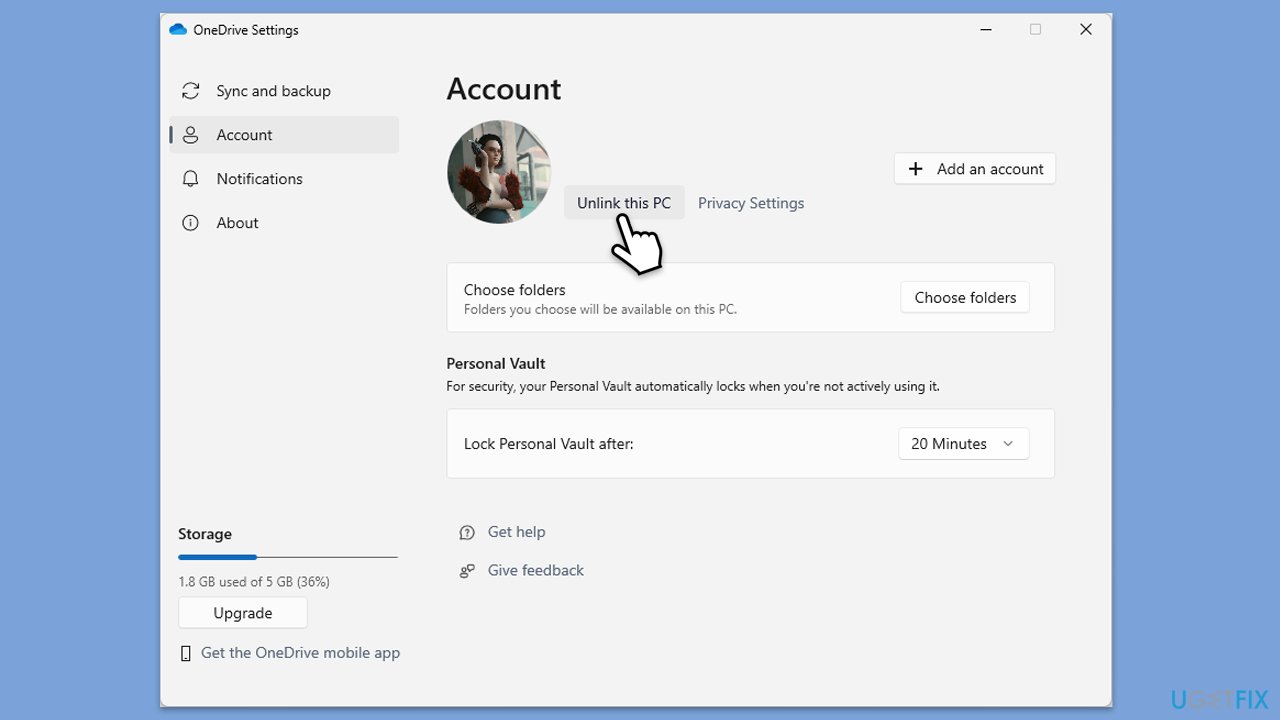
Fix 1. Relink OneDrive account
- Right-click the OneDrive icon in the taskbar.
- Select Settings.
- Go to the Account tab.
- Click Unlink this PC.
- Sign in again with your Microsoft account.
Fix 2. Update OneDrive
Outdated software can cause compatibility issues. Keeping OneDrive updated ensures you have the latest fixes and improvements.
- Open the OneDrive app.
- Click on the Help & Settings icon in the notification area.
- Select Settings.
- In the settings menu, go to the About tab.
- Click on the OneDrive version - this should open the browser and the release notes from Microsoft.
- If the latest version listed there matches with the one on your app, you are up to date.
- If the version does not match, simply click on Download OneDrive for Windows, follow the installation instructions and it will install the latest version on your device.

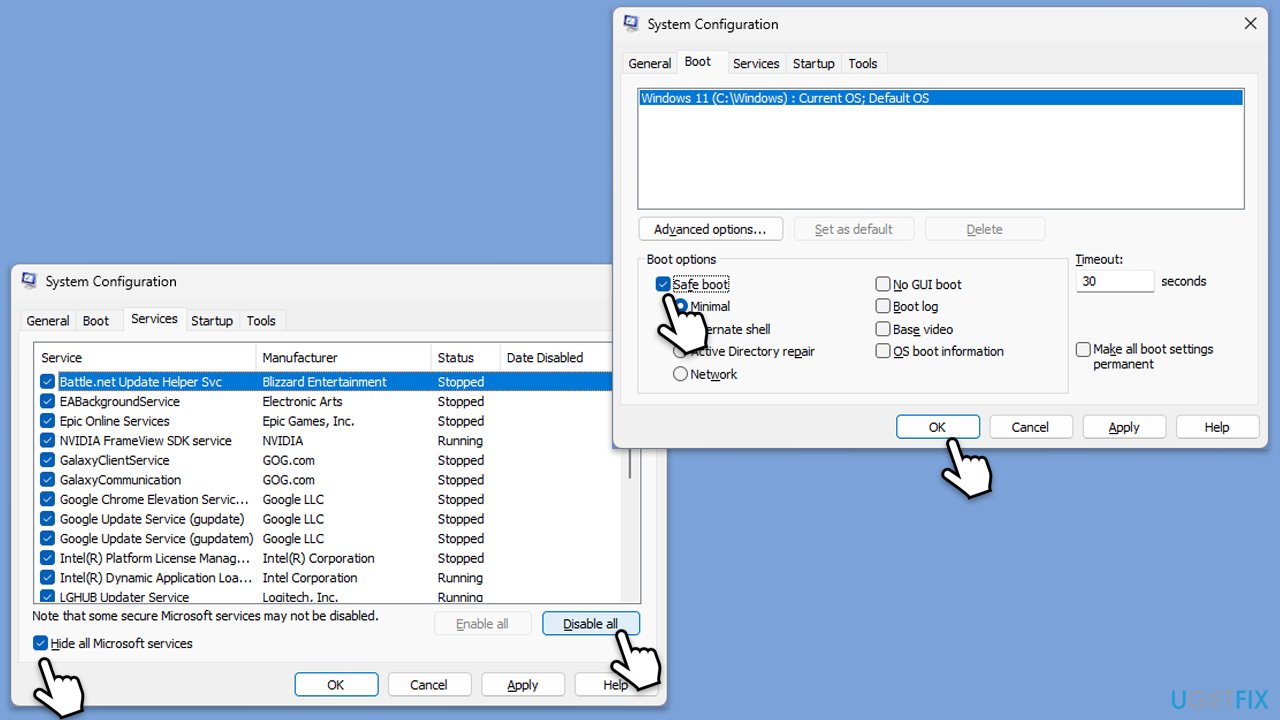
Fix 3. Try Clean Boot
Clean Boot can help you resolve software conflicts.
- Press Win + R, type msconfig, then press Enter.
- Select the Services tab and tick the Hide all Microsoft services checkbox.
- Pick Disable all.
- Go to the Startup tab and click Open Task Manager.
- Here, right-click on each of the non-Windows entries and select Disable.
- Close down the Task Manager.
- Go to the Boot tab and tick the Safe boot option.
- Once the computer is restarted, try the action that was causing the error.
- If resolved, you can start enabling services and startup items one by one (or in groups) to identify the culprit.
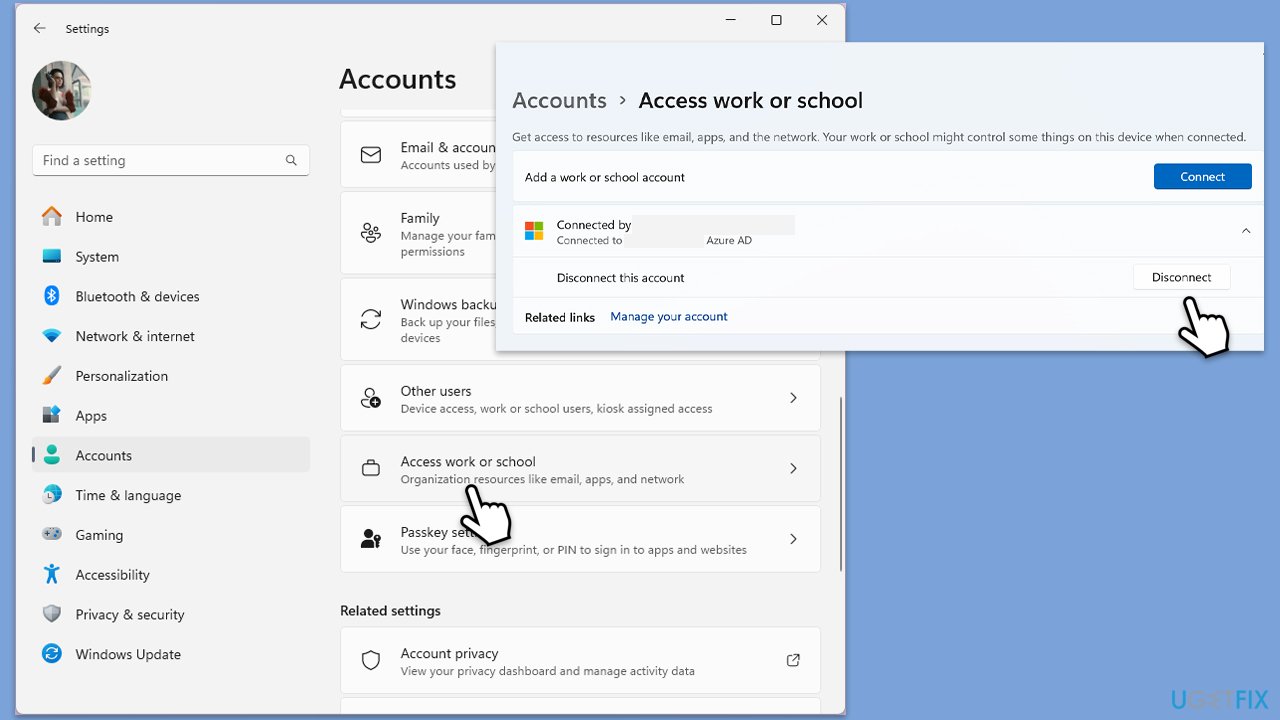
Fix 4. Re-connect your work or school account
- Right-click on Start and pick Settings.
- Click on Accounts.
- Select Access work or school.
- If connected, click Disconnect.
- Navigate to C:\users\USERNAME\AppData\Local\Packages (replace USERNAME with your actual username).
- Delete the contents of the folder.
- Restart your computer.
- Return to Access work or school and connect your account again.
Fix 5. Reset OneDrive
Resetting OneDrive can clear out any corrupted files or settings that might be causing the error.
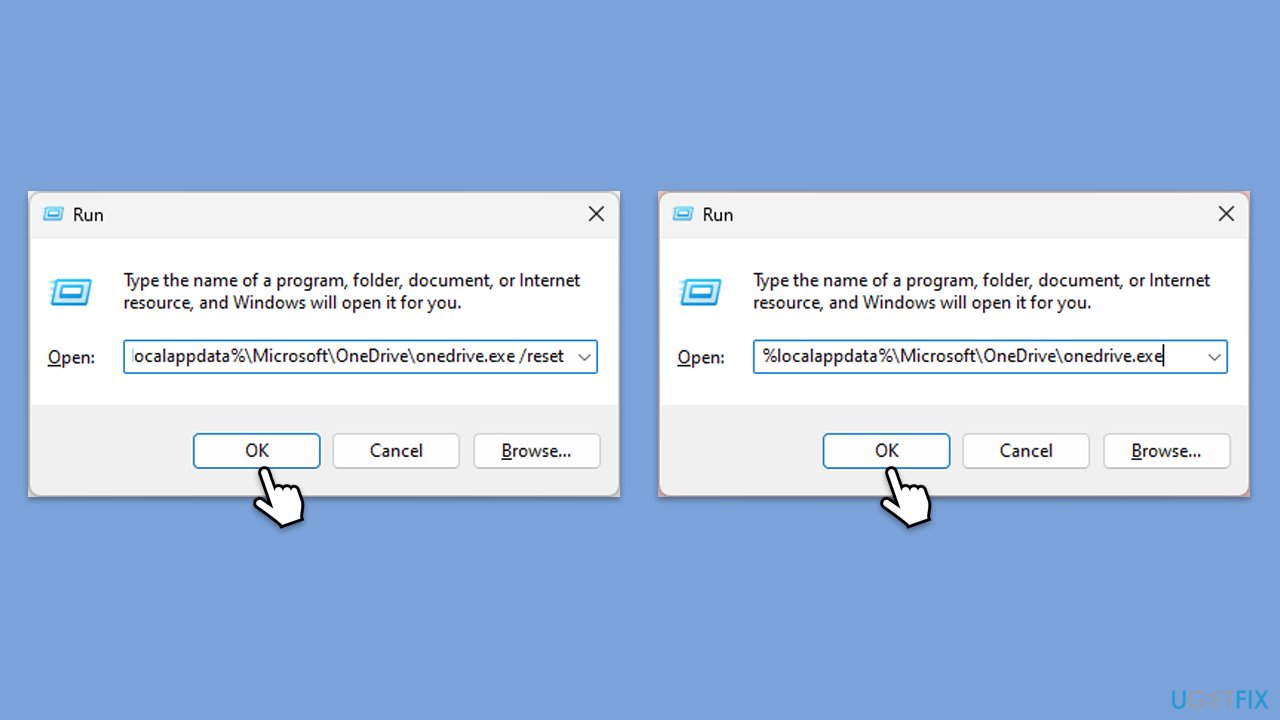
- Press Win + R on your keyboard.
- When the Run window opens, copy and paste the following text into it:
%localappdata%\Microsoft\OneDrive\onedrive.exe /reset
(Note: you might get an error here. In that case, use %programfiles(x86)%\Microsoft OneDrive\onedrive.exe /reset or C:\Program Files (x86)\Microsoft OneDrive\onedrive.exe /reset instead) - Press Enter or click OK.
- After this command is executed, the app should be reset, and OneDrive should open.
- If it doesn't, wait a few minutes, then open the Run window again and use the following command:
%localappdata%\Microsoft\OneDrive\onedrive.exe - Press Enter.
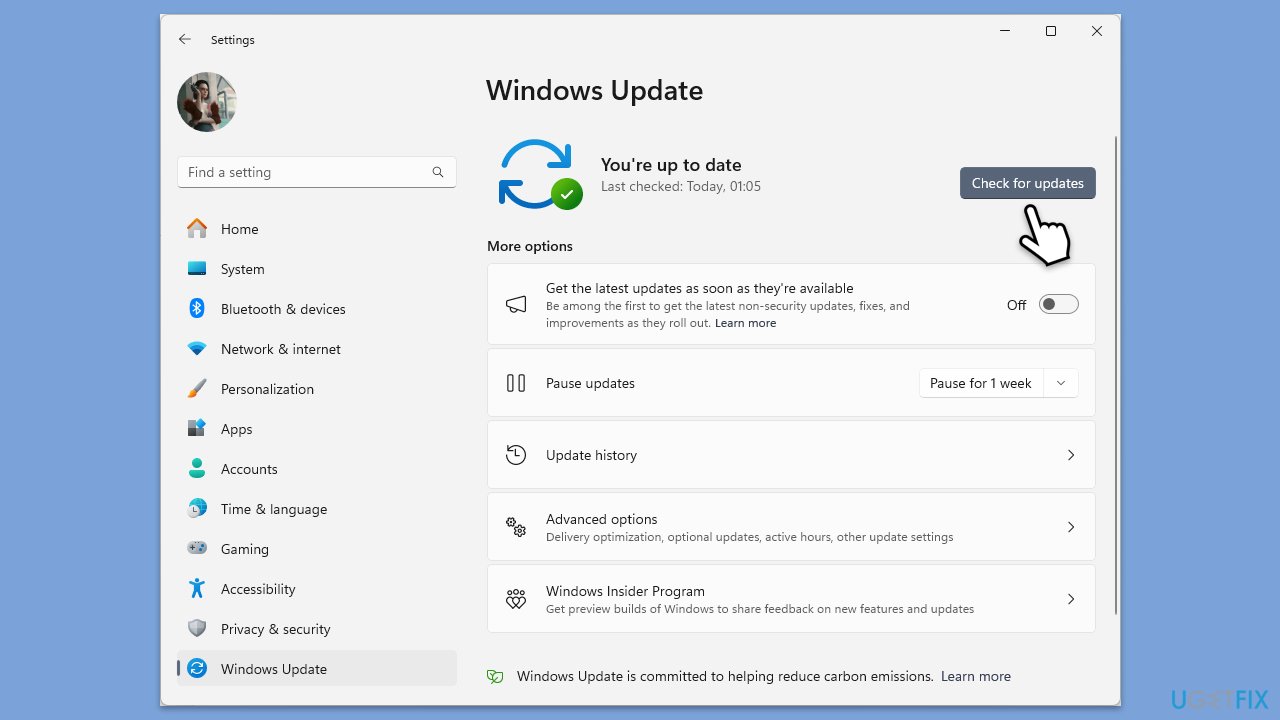
Fix 6. Check for Windows updates
Keeping your Windows operating system updated can resolve compatibility issues.
- Type Updates in Windows search and hit Enter.
- If updates are available, click Install updates.
- Otherwise, click Check for updates.
- If optional updates are available, install them as well.
- When all the update processes are complete, restart your system.
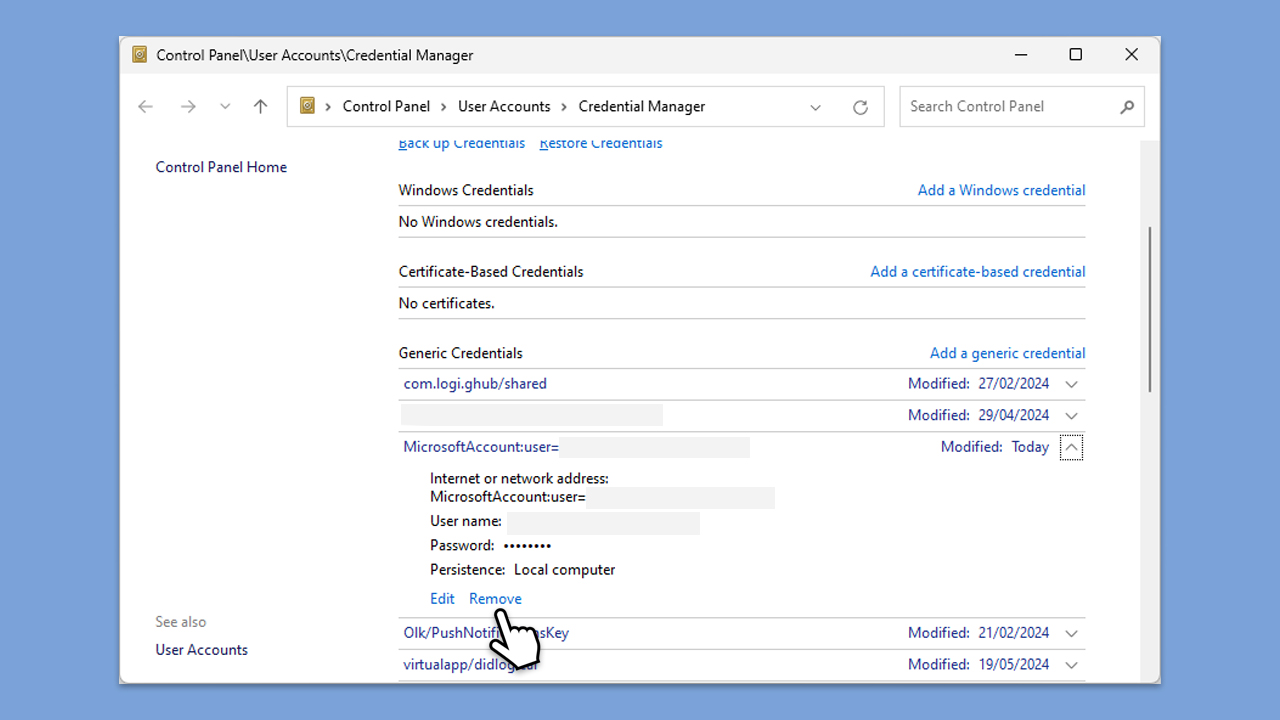
Fix 7. Remove credentials
- Close OneDrive.
- Type Control Panel in Windows search and press Enter.
- Go to User Accounts > Credential Manager.
- Go to the Windows Credentials section.
- Scroll down to the Generic Credentials section.
- Remove all OneDrive credentials as required.
- Sign in again.
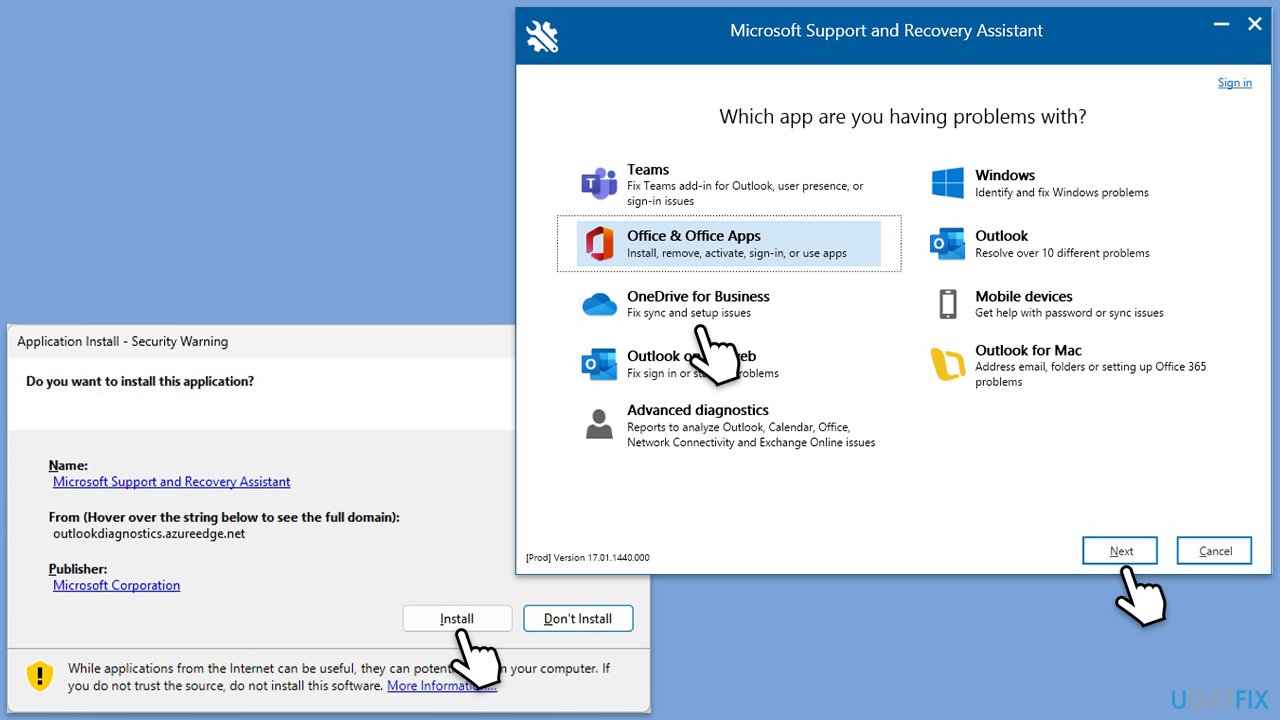
Fix 8. Use Support and Recovery Assistant
- Open your browser and go to the official Microsoft support website.
- Scroll down and click Download under Uninstall and reinstall Office.
- Once downloaded, double-click SetupProd_OffScrub.exe to launch it.
- When prompted, click Install.
- Once installed, launch Microsoft Support and Recovery Assistant.
- Select OneDrive for Business and click Next.
- Pick I need help syncing my OneDrive files and click Next.
- Follow instructions after the scan is finished.
Bottom line
To fix the OneDrive error code 0x8004e4f1, you can try relinking your OneDrive account, ensuring the app is updated, checking system permissions, and performing a Clean Boot to identify conflicting software. If these solutions do not resolve the issue, consider removing credentials or resetting OneDrive, or using a repair tool for further assistance.
Frequently asked questions
This error typically occurs due to network connectivity issues, incorrect account settings, or problems with the OneDrive application itself.
You can start by checking your internet connection, resetting the OneDrive application, or signing out and back into your OneDrive account.
Yes, ensuring that OneDrive is allowed through the firewall and checking for any pending Windows updates can help resolve this error.




Report an issue
What's wrong with this guide? We review every report and update or remove content.
Report received — thank you. We'll review and fix it.
You need a free account to submit a report.
Be the first to comment