How to fix
OneDrive Error Code: 6
on Windows
Quickly resolve OneDrive Error Code: 6 in Windows 10 and 11 with our expert-tested solutions. Enjoy seamless file syncing in minutes!

What causes How to fix OneDrive Error Code: 6 in Windows?
- Weak or unstable internet connection
- Temporary service degradations from Microsoft servers
- Maintenance on Microsoft servers
- Technical difficulties with OneDrive
Repairs Windows system files, removes malware, and restores a clean OS state — without reinstalling.
Hi, how can I fix Error Code: 6 in OneDrive? This happens every time I attempt to access the app, which leads to me not being able to use my files placed there.
Understanding OneDrive Error Code: 6 in Windows
A typical problem that Windows users encounter is OneDrive Error Code: 6, which denotes an issue with file synchronization between your device and the OneDrive cloud service, which usually indicates that your files are not updating or syncing with OneDrive efficiently. Due to this, your workflow and access to crucial documents may be disrupted significantly.
What can cause the OneDrive Error Code: 6?
OneDrive Error Code: 6 often arises due to issues with your internet connection, as a weak or unstable internet connection can prevent OneDrive from syncing files correctly.
Additionally, it may be caused by temporary service degradations from Microsoft servers. Such disruptions can occur when Microsoft performs maintenance or experiences technical difficulties, impacting OneDrive’s performance and your ability to access your files without problems.
Possible solutions to fix the OneDrive Error Code: 6
To resolve OneDrive Error Code 6, numerous methods can be followed. First, consider restarting your computer, which can alleviate many temporary issues by resetting your system's connection to OneDrive.
Checking the Microsoft Service Status page might also help since it offers information on any current service issues that may be affecting OneDrive. Running the network troubleshooter is another helpful option, since it may identify and address issues with your internet connection that could be generating the error.
More specific instructions for completing these stages are provided below. Alternatively, a repair and maintenance program like [d1] may be quite useful for dealing with a variety of Windows issues such as system file corruption, DLL errors, and so on.
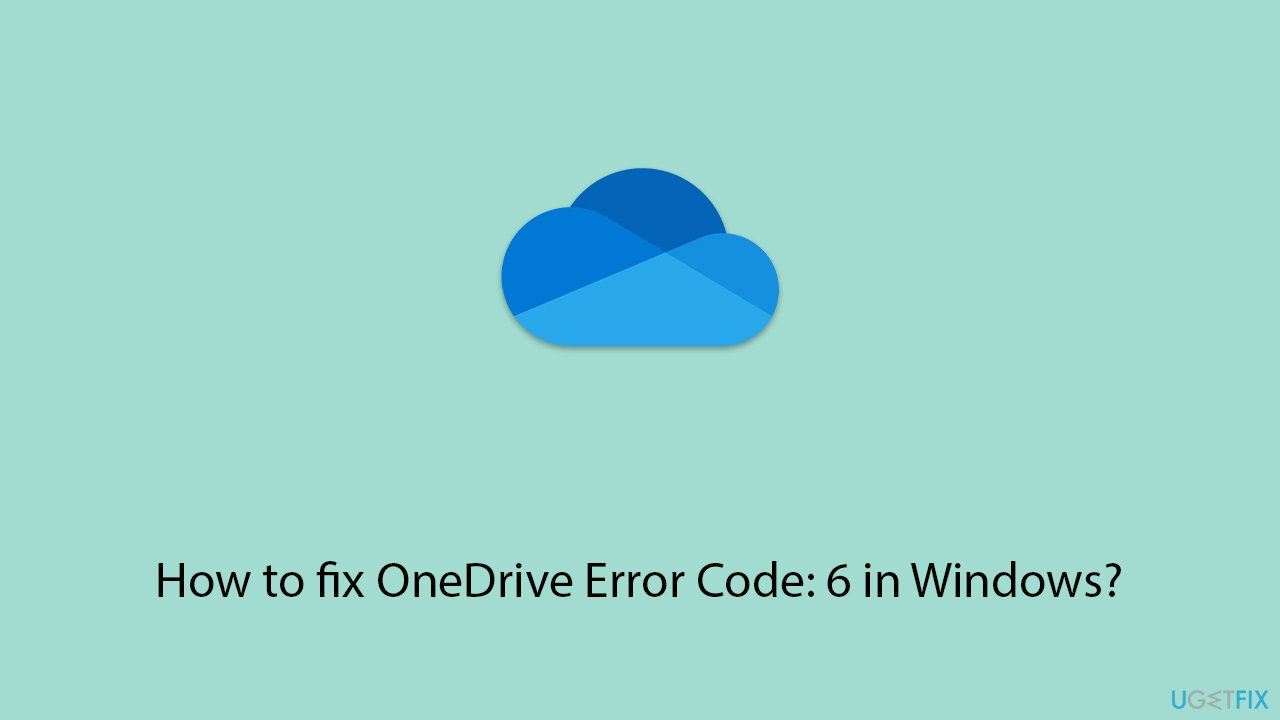
Fix 1. Restart your PC
Restarting your computer can resolve many temporary issues by refreshing your system’s connection to OneDrive.
- Save all open files.
- Close all applications.
- Click on the Start menu.
- Select Restart.
- Wait for your PC to reboot.
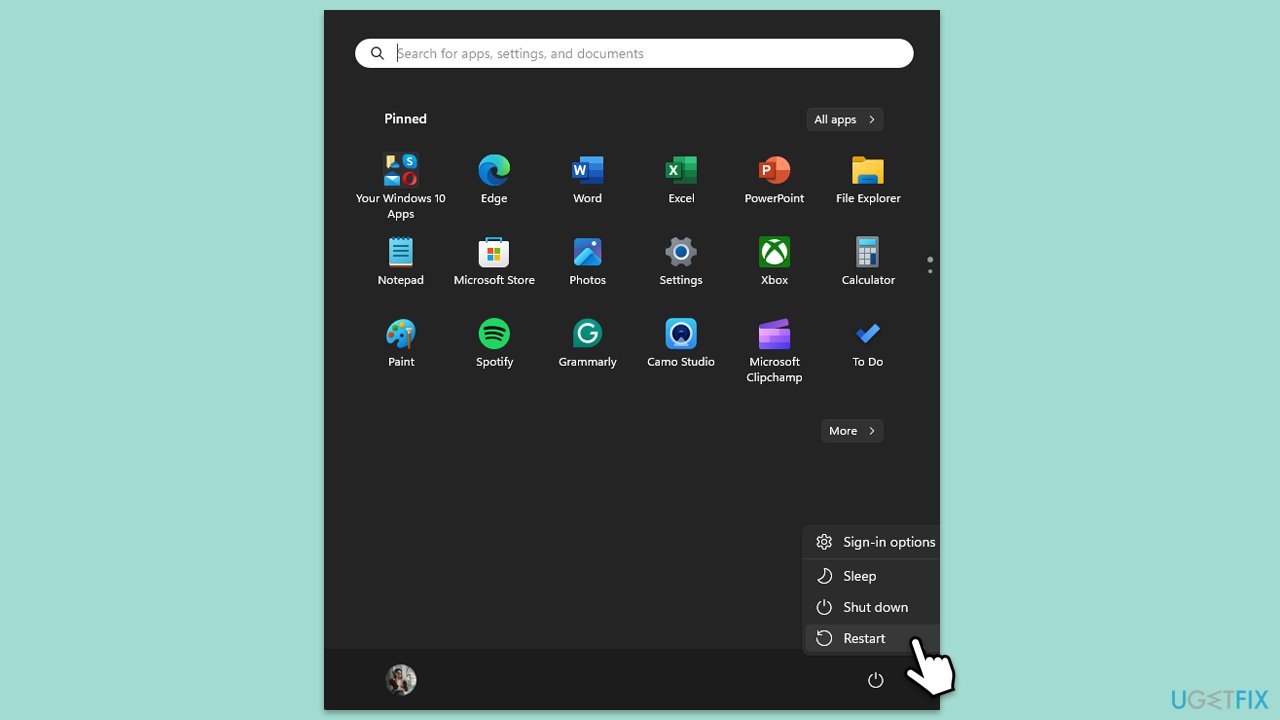
Fix 2. Check your internet connection
An unstable internet connection can prevent OneDrive from syncing properly. To check for network issues, you can run a Network troubleshooter as follows:
Windows 11
- Type Troubleshoot in Windows search and hit Enter.
- Select Other troubleshooters.
- Locate Network & Internet troubleshooter from the list and click Run.
- Wait till the process is finished and apply the recommended fixes.
- Restart your computer.
Windows 10
- Right-click on Start and pick Settings.
- Go to the Network & Internet section.
- On the right side, find the Advanced network settings section.
- Click Network troubleshooter and wait.
- The fixes will be automatically applied.
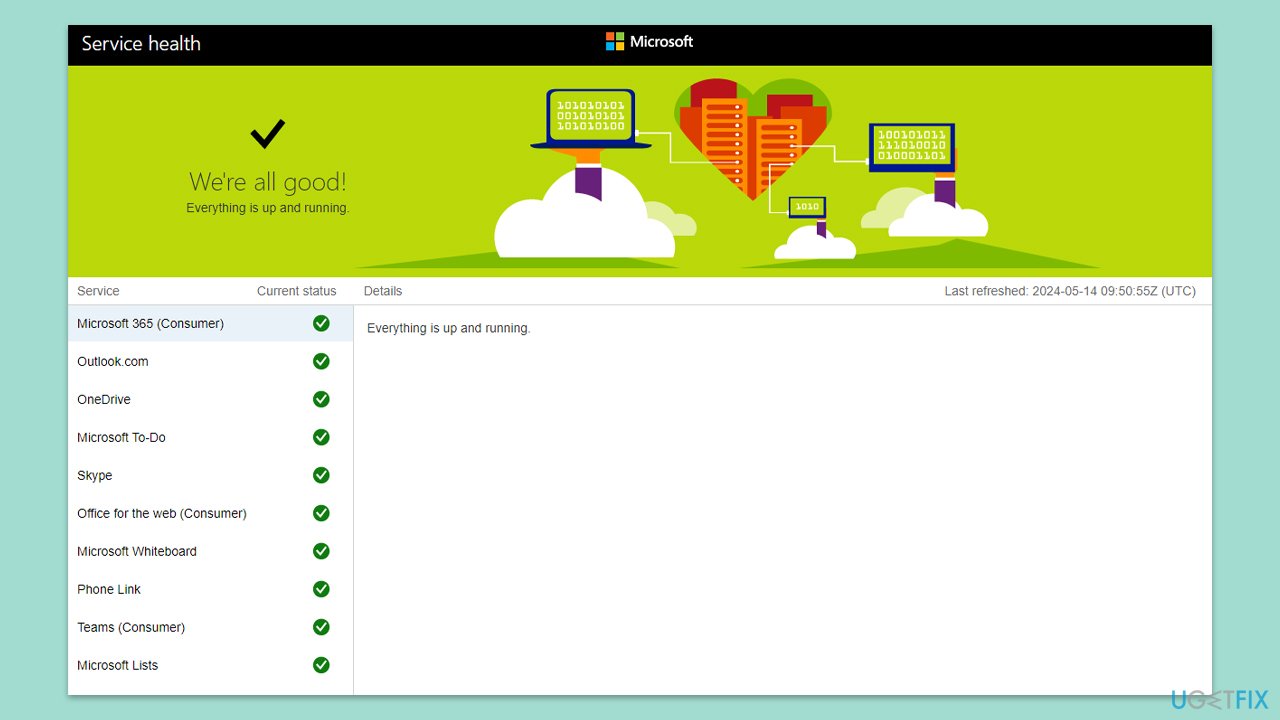
Fix 3. Verify Microsoft service status
Sometimes, OneDrive errors occur due to temporary issues with Microsoft servers.
- Visit the Microsoft Service status page.
- Check for any ongoing issues with OneDrive.
- Wait for Microsoft to resolve any service disruptions.
Fix 4. Reconnect your OneDrive account
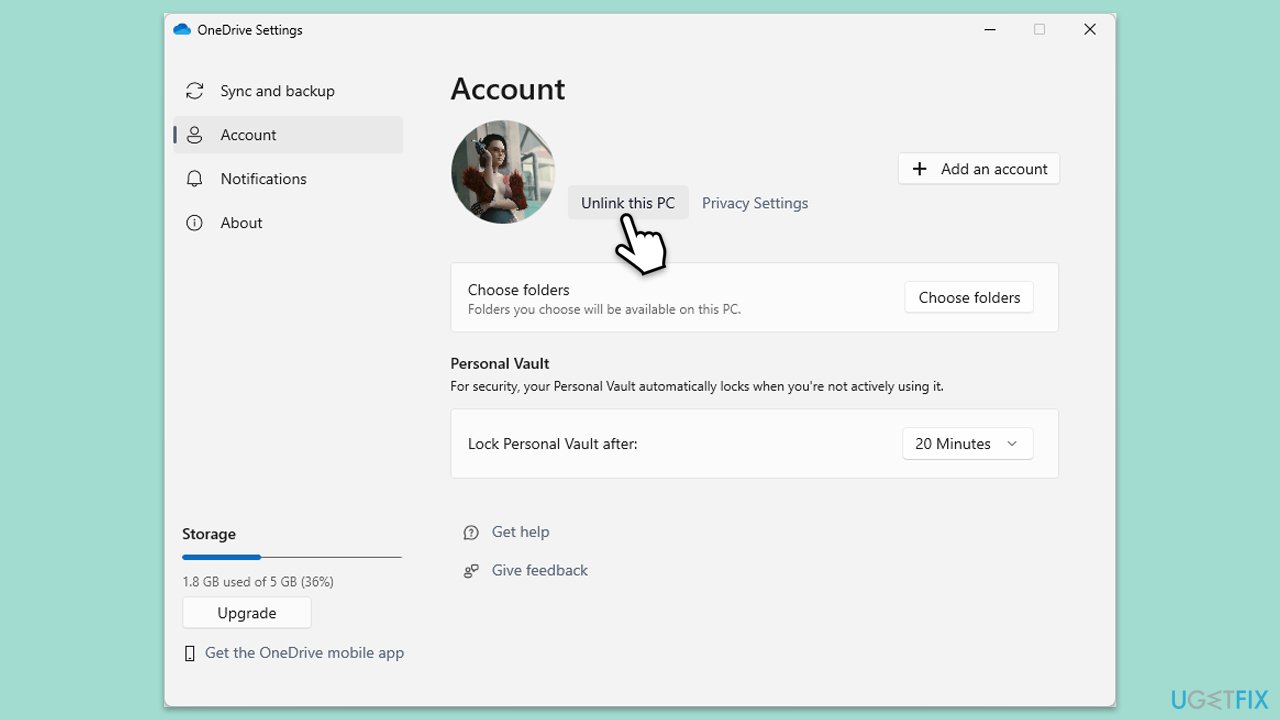
Disconnecting and reconnecting your OneDrive account can help refresh the sync process.
- Right-click the OneDrive icon in the taskbar.
- Select Settings.
- Go to the Account tab.
- Click Unlink this PC.
- Sign in again with your Microsoft account.
Fix 5. Update OneDrive manually
Keeping OneDrive updated ensures you have the latest fixes and improvements.
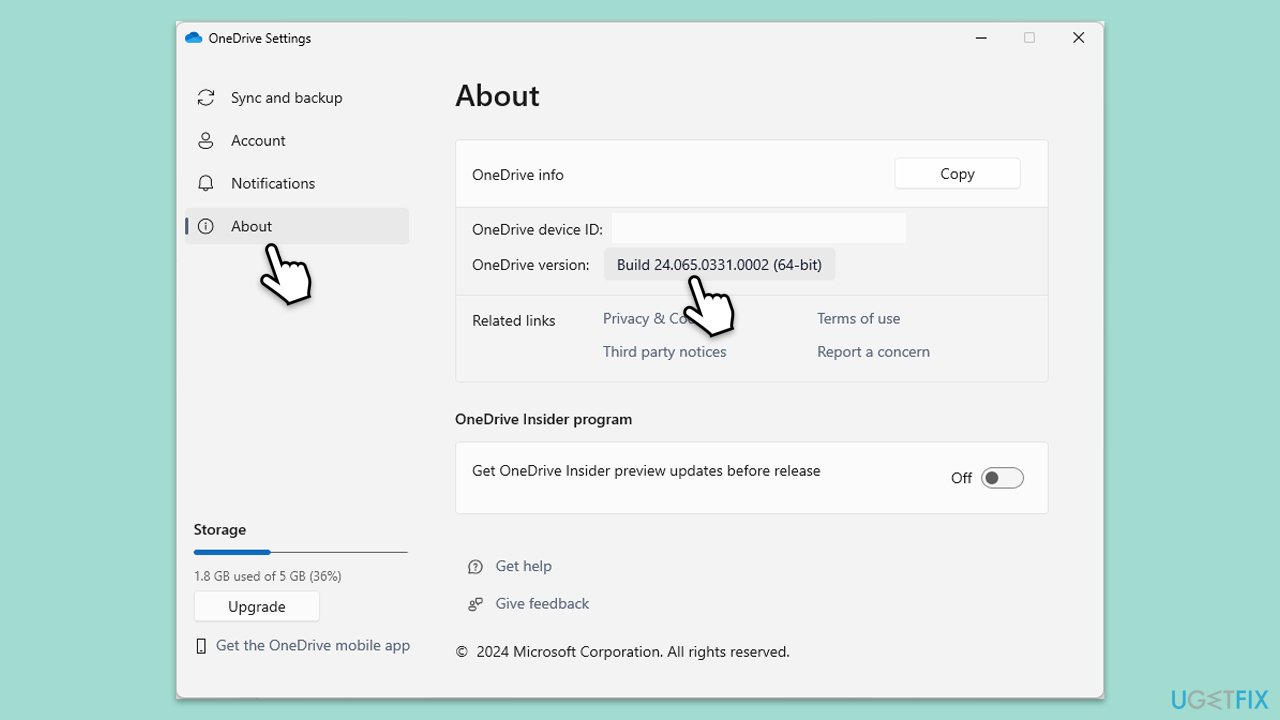
- Open the OneDrive app on your PC.
- Click on the Help & Settings icon in the notification area.
- Select Settings.
- In the settings menu, go to the About tab.
- Click on the OneDrive version - this should open the browser and the release notes from Microsoft.
- If the latest version listed there matches with the one on your app, you are up to date.
- If the version does not match, simply click on Download OneDrive for Windows, follow the installation instructions and it will install the latest version on your device.
Fix 6. Reset OneDrive cache
Resetting OneDrive cache can resolve sync issues caused by corrupted files.
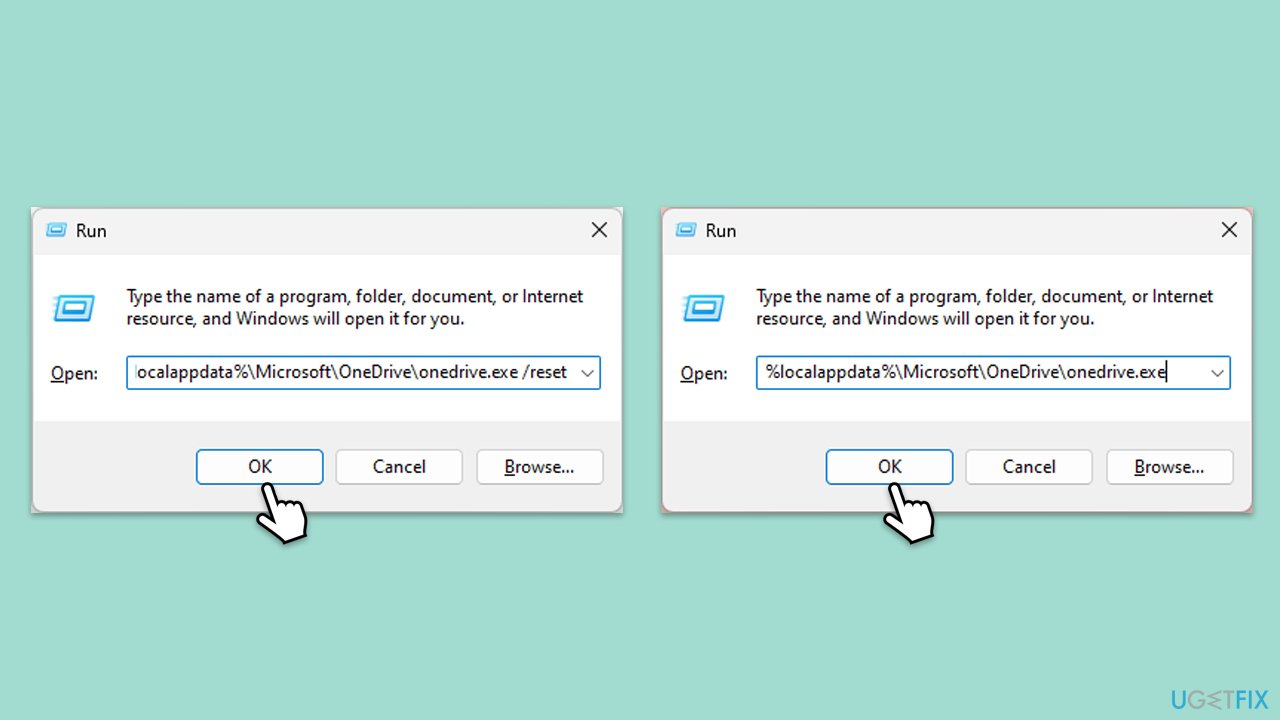
- Press Win + R on your keyboard.
- When the Run window opens, copy and paste the following text into it:
%localappdata%\Microsoft\OneDrive\onedrive.exe /reset
(Note: you might get an error here. In that case, use %programfiles(x86)%\Microsoft OneDrive\onedrive.exe /reset or C:\Program Files (x86)\Microsoft OneDrive\onedrive.exe /reset instead) - Press Enter or click OK.
- After this command is executed, the app should be reset, and OneDrive should open.
- If it doesn't, wait a few minutes, then open the Run window again and use the following command:
%localappdata%\Microsoft\OneDrive\onedrive.exe - Press Enter.
Fix 7. Check your firewall and antivirus settings
Firewall or antivirus software can sometimes block OneDrive’s connection to the internet.
- Open the Control Panel, go to System and Security, then Windows Defender Firewall.
- Click Allow an app or feature through Windows Defender Firewall.
- Click Change settings (you might need administrator permission).
- Ensure OneDrive is allowed for Private and Public networks.
- Click OK after enabling it.
Bottom line
To fix OneDrive Error Code: 6, you can try restarting your PC, checking the Microsoft Service Status page, or running the network troubleshooter. If these solutions do not resolve the issue, consider using a repair and maintenance program to address potential system file corruption.
Frequently asked questions
OneDrive Error Code: 6 typically occurs due to network connectivity issues, corrupted files, or problems with the OneDrive app itself in Windows 10 or Windows 11.
To fix OneDrive Error Code: 6 on Windows 11, try resetting the OneDrive app by running the command 'onedrive.exe /reset' in the Run dialog.
To prevent OneDrive Error Code: 6 in Windows 10, ensure your app is updated regularly and check your internet connection stability.




Report an issue
What's wrong with this guide? We review every report and update or remove content.
Report received — thank you. We'll review and fix it.
You need a free account to submit a report.
Be the first to comment