How to fix
OneDrive icon is missing from taskbar
on Windows
Discover effective solutions to restore the missing OneDrive icon from your Windows 10 taskbar, ensuring seamless file access. Expert-tested methods!

What causes How to fix OneDrive icon is missing from taskbar in Windows 10?
- OneDrive icon missing after Windows update
- OneDrive icon missing after software installation
- OneDrive app not found in Start menu
- OneDrive app not found in File Explorer
- OneDrive not launching properly
Repairs Windows system files, removes malware, and restores a clean OS state — without reinstalling.
When I click on the Start button, I can see that One Drive is installed. However, it is not showing up on the taskbar as I am used to it. It disappeared without a trace, and I am not quite sure when that happened. I am using Windows 10. Any advice on how to deal with this?
Backups are imperative to anybody who has important files on their computers or other devices, as so many things can go wrong and the data could be lost in the process - ransomware[ref en-2] attack or storage device failure are good examples. Without backups, many people lose their pictures, work documents, and other important files in a blink.
To avoid that, backups should always be prepared, maintained, and updates as required - there are many ways and third-party tools that can be used for this purpose. OneDrive is a personal cloud storage[ref en-3] provided by Microsoft that users can upload their files to, and it serves as one of the best examples of how remote storage can be used to protect one's files.
Originally, you get 5 GB of storage data for free on OneDrive, although this can be expanded by paying an extra fee. If you decided to use it as your main backup storage, it is best to do so, as five gigabytes of data is relatively small when taking into consideration how large photos, videos, and other files are. Of course, if you store a few documents on it, there is no need to expand.
Some users had reported that they had issues with the storage - they reported that the OneDrive icon within the taskbar has gone missing (this also applies to the system tray). While some people were able to launch the app via the Start menu, others could not find the launch file at all. In other cases, the app was not even within the File Explorer or the Start menu.
Users said that they found the OneDrive icon was missing right after they updated Windows or after they installed some type of software. There also have been cases where people simply found it missing, seemingly out of nowhere. In any case, if you are dealing with this problem, there plenty of methods that would help you to get the icon within your taskbar or system tray.
Before you begin to apply the fixes listed below, we would like to recommend [d1] repair tool that could replace damaged Windows system components automatically. Depending on the core issue of the problem, the app could fix the most common issues that arise when using Windows 10.
Fix 1. Enable OneDrive icon via Settings
First of all, you should ensure that the icon is enabled via Windows settings. Here's how:
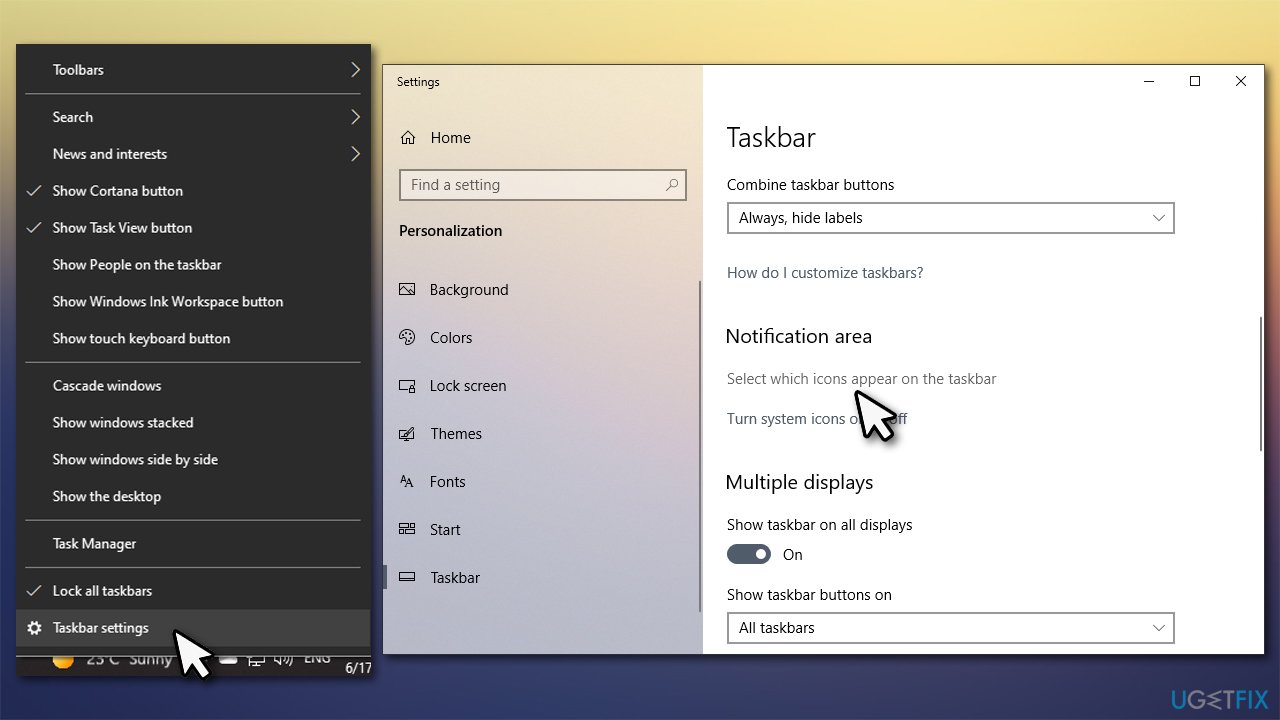
- Right-click anywhere on your taskbar
- Select Taskbar settings
- Under the Notification area, pick Select which icons appear on the taskbar option
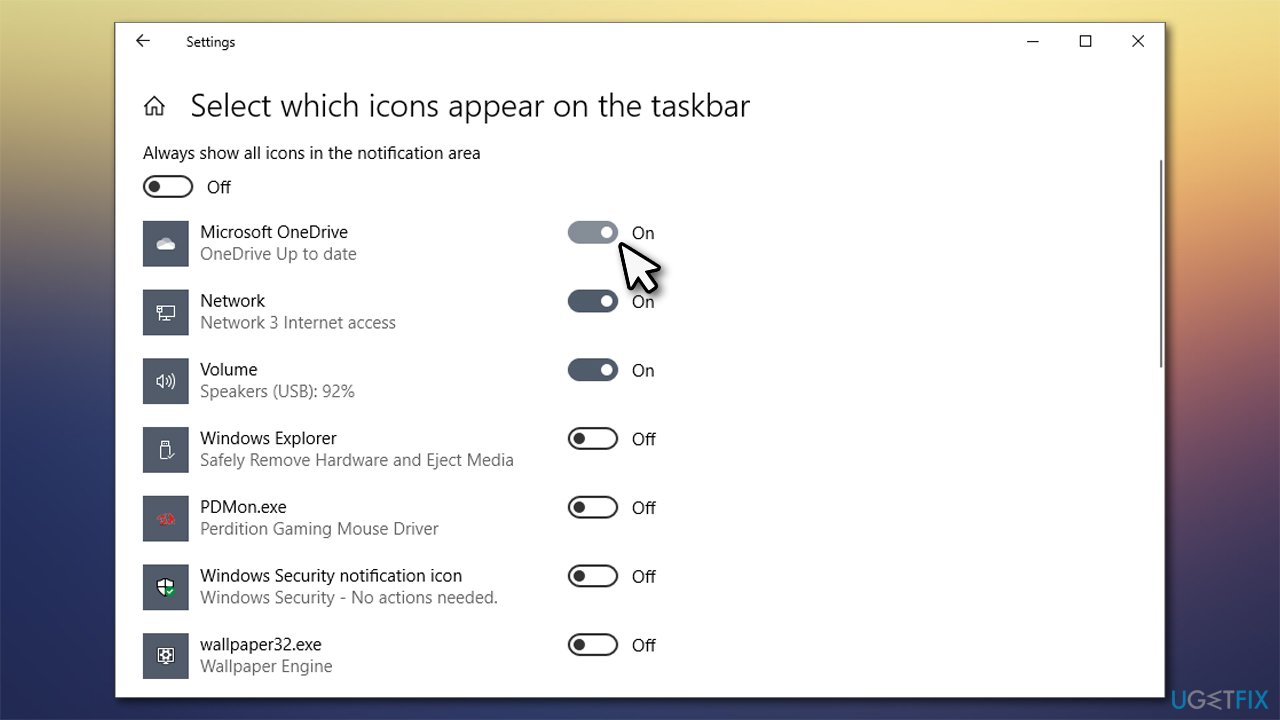
How to fix onedrive icon is missing from taskbar in windows 10 access system icons settings - You will be presented with a list of apps installed on your system - scroll down until you find OneDrive
- Then, make sure that the icon is enabled (switch is placed in the right position).
How to fix onedrive icon is missing from taskbar in windows 10 enable icon
Fix 2. Update Windows
Windows updates are designed not only to patch security vulnerabilities or implement new features but also to fix bugs.[ref en-1] Thus, make sure your Windows is running the latest version:
- Type Updates in Windows search and press Enter
- On the right side of the window, press Check for updates
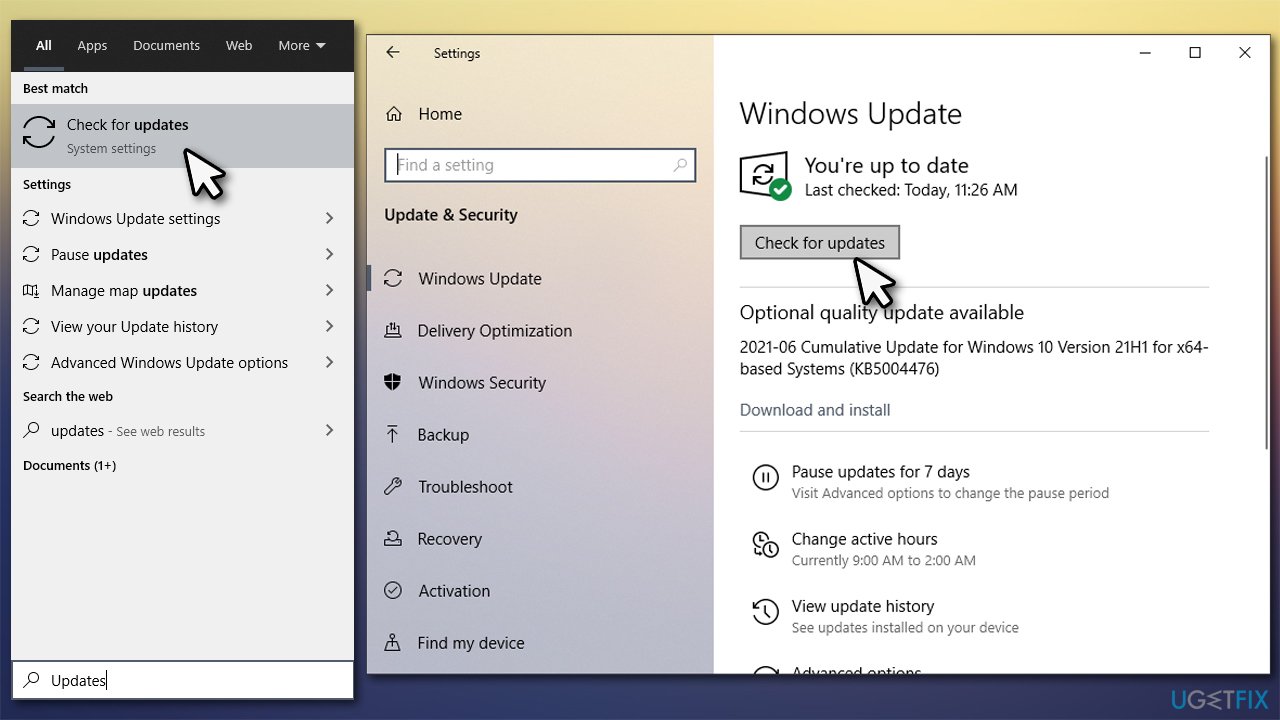
How to fix onedrive icon is missing from taskbar in windows 10 install latest updates - Wait till the necessary files are downloaded
- Restart your computer to apply the updates.
Fix 3. Use Group Policy
- In Windows search, type Group Policy and hit Enter
- Once the Group Policy Editor opens, navigate to the following location:
Computer configuration > Administrative Templates > Windows components > OneDrive - Once there, double-click the Prevent the Usage of OneDrive for File Storage option
- Select Disable or Not Configured
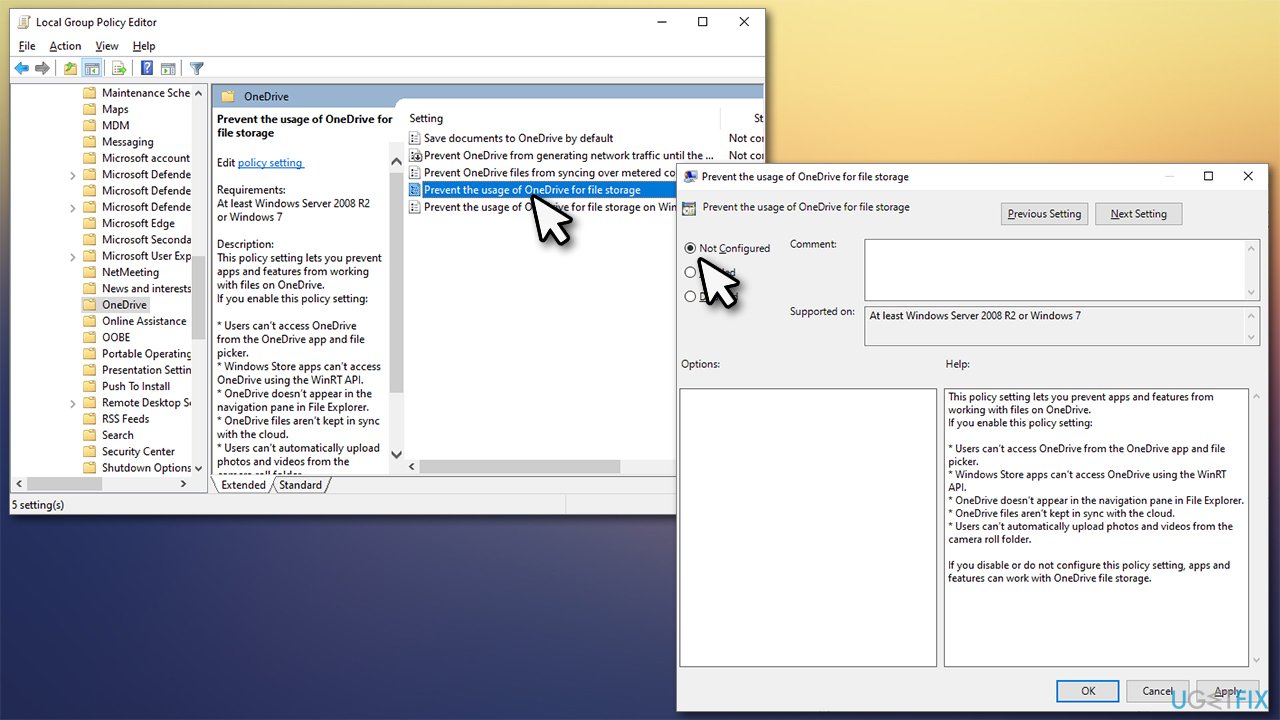
How to fix onedrive icon is missing from taskbar in windows 10 edit group policy - Click Apply and OK, then restart your PC.
Fix 4. Reset OneDrive
Resetting the app might help. Here's how:
- Press Win + R on your keyboard
- In the Run dialog, copy and paste the following text:
%localappdata%MicrosoftOneDriveonedrive.exe /reset - If you receive and error "Windows cannot find the file" at this point, use this command in the Run dialog:
%programfiles(x86)%\\Microsoft OneDrive\\onedrive.exe /reset - The icon should now appear. If it doesn't, press Win + R again and paste the following:
%localappdata%MicrosoftOneDriveonedrive.exe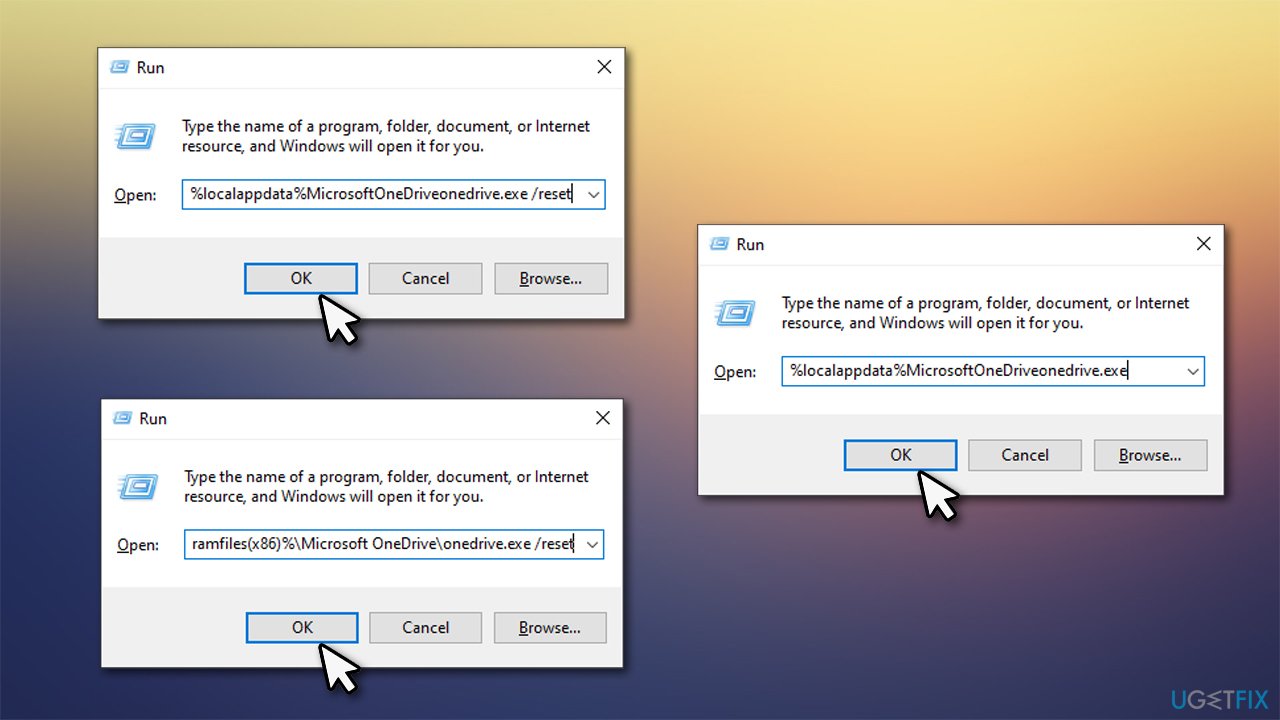
How to fix onedrive icon is missing from taskbar in windows 10 reset the app
Fix 5. Reset the app manually
You can also try to find the installer manually:
- Type in %localappdata% in Windows search and press Enter
- From here, go to Microsoft > OneDrive
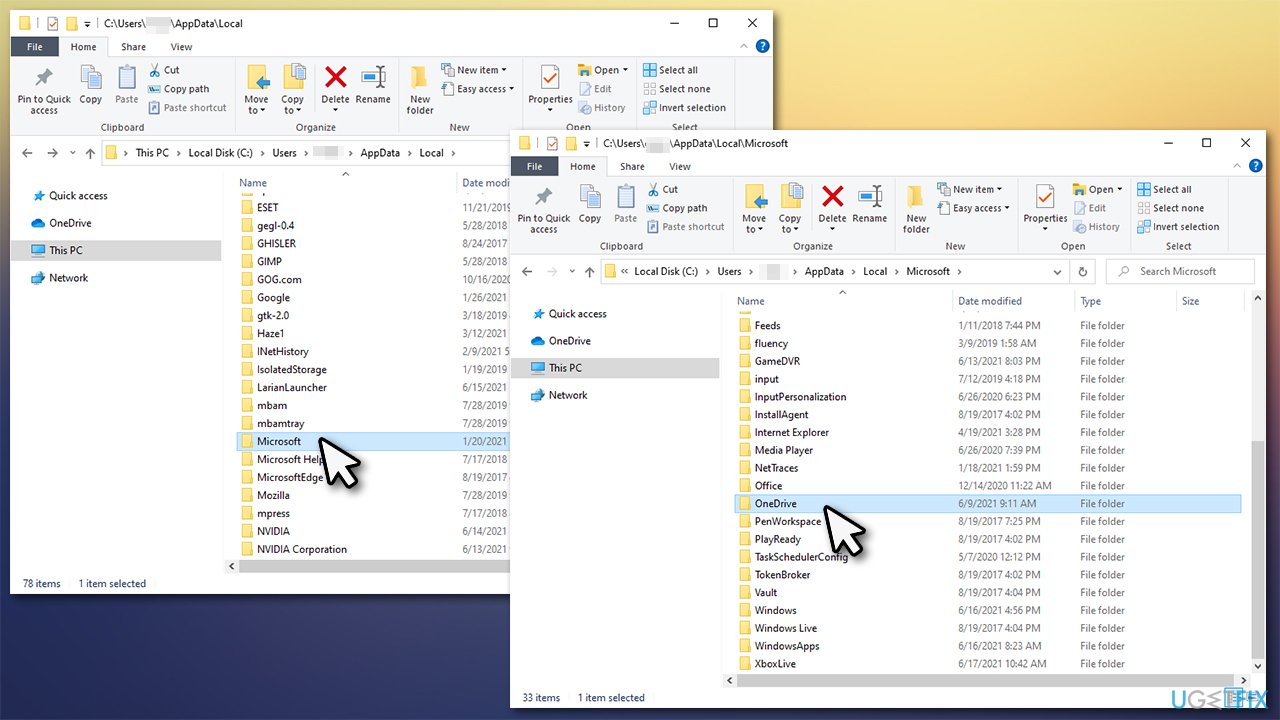
How to fix onedrive icon is missing from taskbar in windows 10 reset the app manually - At the top, you will see a folder with bunch of numbers - enter it
- Inside, there will be many folders and files
- Scroll down past folders and look for OneDriveSetup.exe file (you can press O on your keyboard)
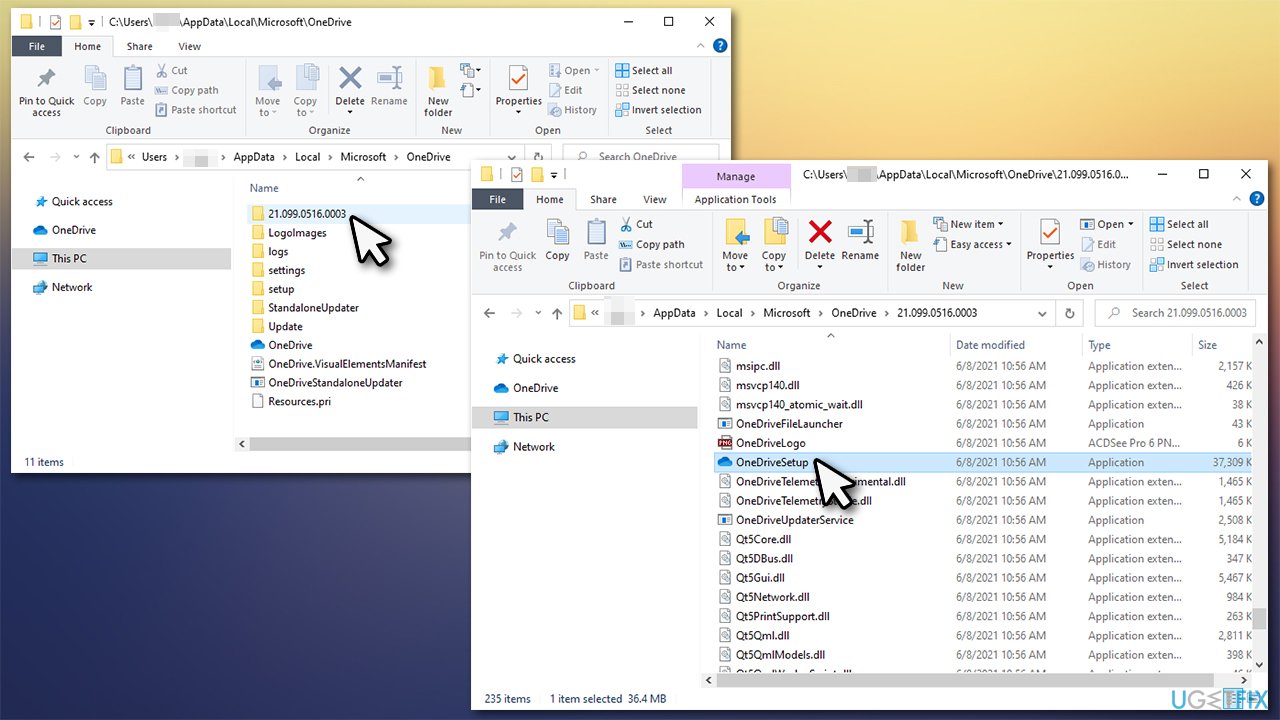
How to fix onedrive icon is missing from taskbar in windows 10 reset the app manually2 - Double-click the file and proceed with the instructions.
Fix 6. Reinstall the app
- Right-click on Start and pick Apps and Features
- Scroll down until you find Microsoft OneDrive entry
- Click on it once and select Uninstall > Uninstall
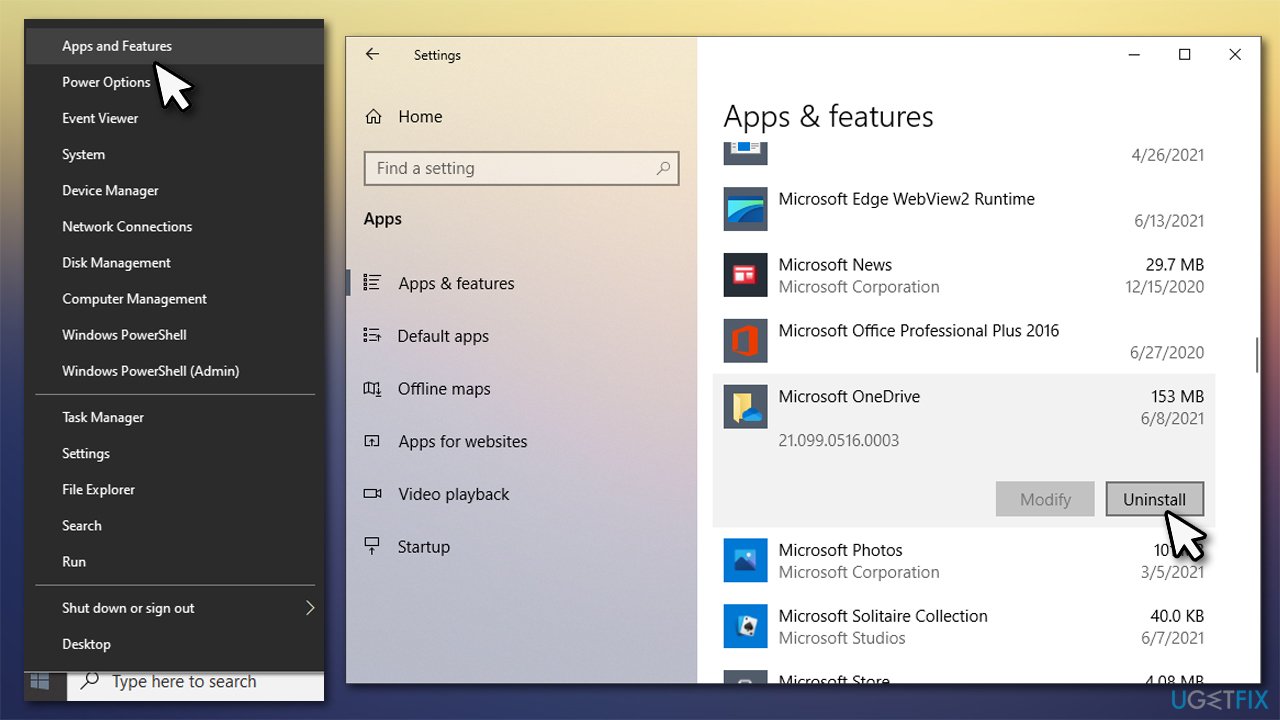
How to fix onedrive icon is missing from taskbar in windows 10 reinstall the app - Proceed with on-screen instructions
- Once done, restart your PC
- Open your web browser and navigate to the official download page
- Download the executable OneDriveSetup.exe, right-click on it and select Run as administrator
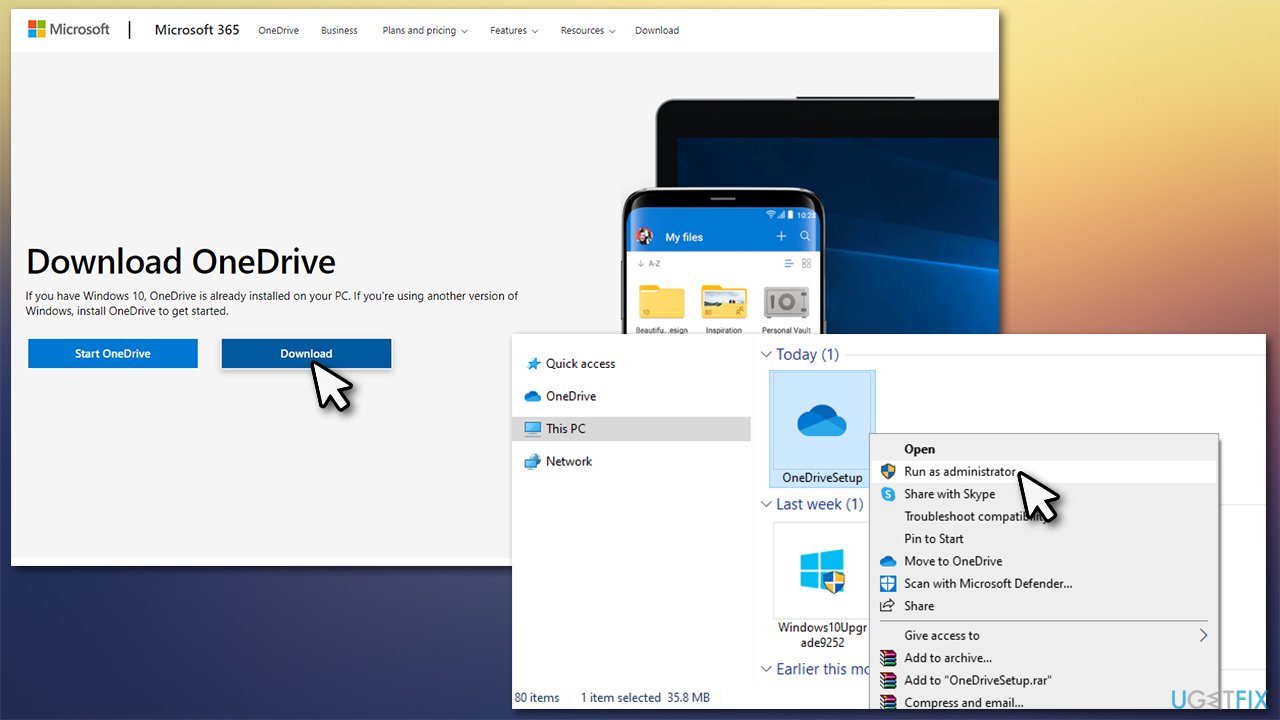
How to fix onedrive icon is missing from taskbar in windows 10 download onedrive - Follow the on-screen instructions to install the app.
Bottom line
To fix the missing OneDrive icon, users can try launching the app from the Start menu, checking for updates, or reinstalling OneDrive. If these solutions do not resolve the issue, further troubleshooting may be necessary.
Frequently asked questions
First, check if OneDrive is running by searching for it in the Start menu. If it’s not running, launch OneDrive and it should reappear in the taskbar.
Right-click the OneDrive cloud icon if visible, select 'Close OneDrive', and then reopen it from the Start menu to refresh the taskbar icon.
Yes, go to Settings > Personalization > Taskbar, and ensure that 'Select which icons appear on the taskbar' is enabled for OneDrive.




Report an issue
What's wrong with this guide? We review every report and update or remove content.
Report received — thank you. We'll review and fix it.
You need a free account to submit a report.
Be the first to comment