How to fix
OneDrive is automatically deleting files
on Windows
Resolve OneDrive's automatic file deletion on Windows 10 or 11 effortlessly. Follow our expert-tested solutions and enjoy peace of mind today!

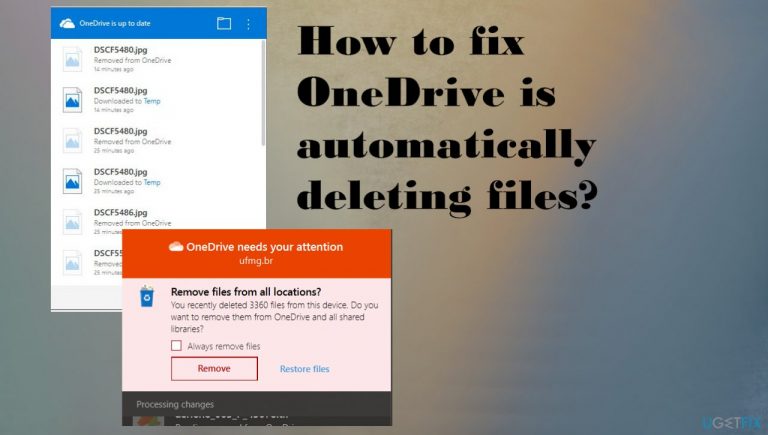
What causes How to fix OneDrive is automatically deleting files?
- Outdated drivers on Windows
- Corrupted operating system files
- Outdated or corrupted OneDrive client
- File damage due to buggy Windows updates
- Alterations to settings and preferences
Repairs Windows system files, removes malware, and restores a clean OS state — without reinstalling.
Hello. I have an issue that is concerning me. I get these messages on my system, and it states that I recently deleted a ton of files. I haven't. I tried to restore files as it was the suggestion on the pop-up, but the restoring cannot happen. The notification comes back all the time. Do you know why OneDrive deletes files automatically out of nowhere? Please help me!
OneDrive is automatically deleting files out of nowhere is a frustrating issue. The problem can be caused by outdated drivers on Windows or operating system files that get corrupted. It can also be the result of an outdated or corrupted OneDrive client. Users[ref en-1] complain about the problem when the message about deleted files occurs.
Other indications for the issue could be missing files when you open the OneDrive or random missing files from the machine. This issue is reported commonly on various Windows OS and macOS devices. It seems to affect versions of OneDrive, including Office 365.[ref en-2]
The missing file might trigger severe issues, so this problem can lead to other issues with the performance and usage of the machine. Another annoying feature of this issue is the continuous reappearing of the message. It states that you recently removed files and offers you to remove them from OneDrive too. Unfortunately, the message indicates huge amounts of files - up to hundreds or thousands. Furthermore, none of those pieces were deleted by you.
Even though this pop-up message occurs repeatedly, you can fix OneDrive is automatically deleting files issue properly. Since the error can be associated with the failure of the hard disk to OneDrive/ windows parts, you need to gather more information and troubleshoot this problem.
When it comes to affected files or even buggy Windows updates,[ref en-3] various file damage and alterations to your settings and preferences can trigger more crucial functions of the machine to crash. We offer you to run a tool that can indicate affected files and registry entries or different pieces and also solve the issue fully. Try [d1] as the first step of this process. Then you can freely move on to the manual guide below with in-depth options. This is where data backup is important.
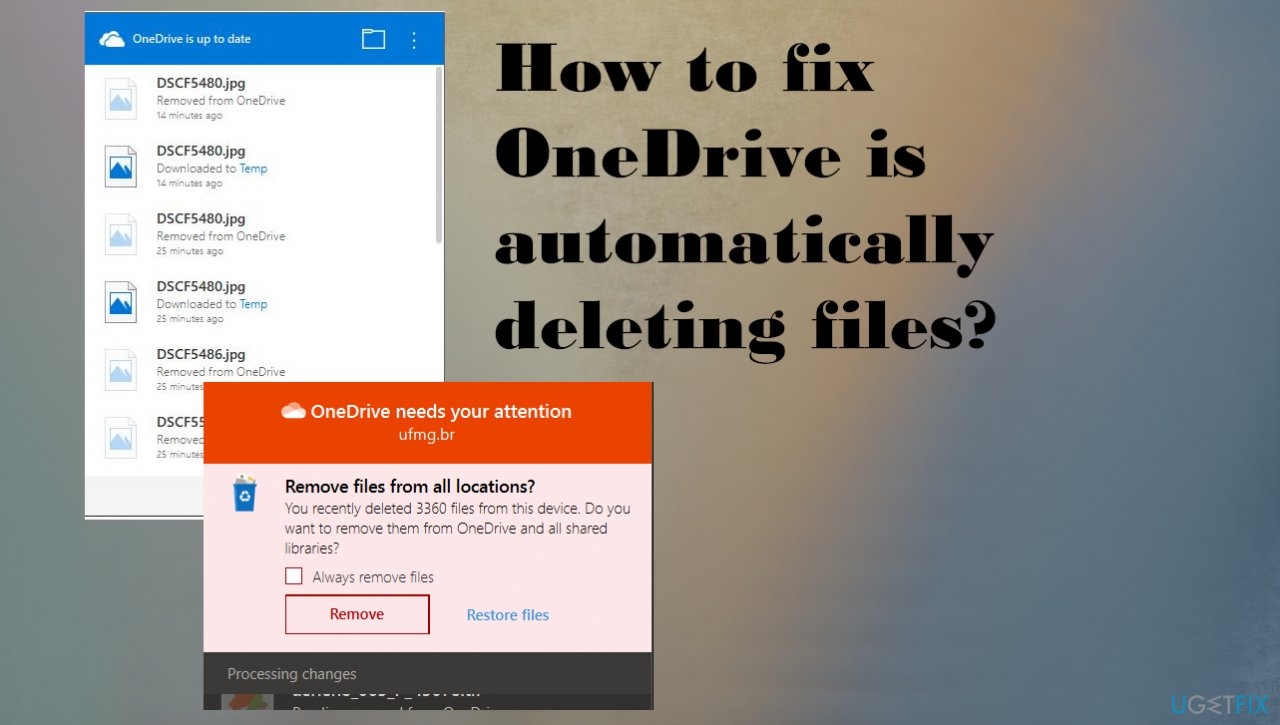
1. Check hard disk for bad sectors
- Search for cmd.
- Choose Command Prompt with administrative rights.
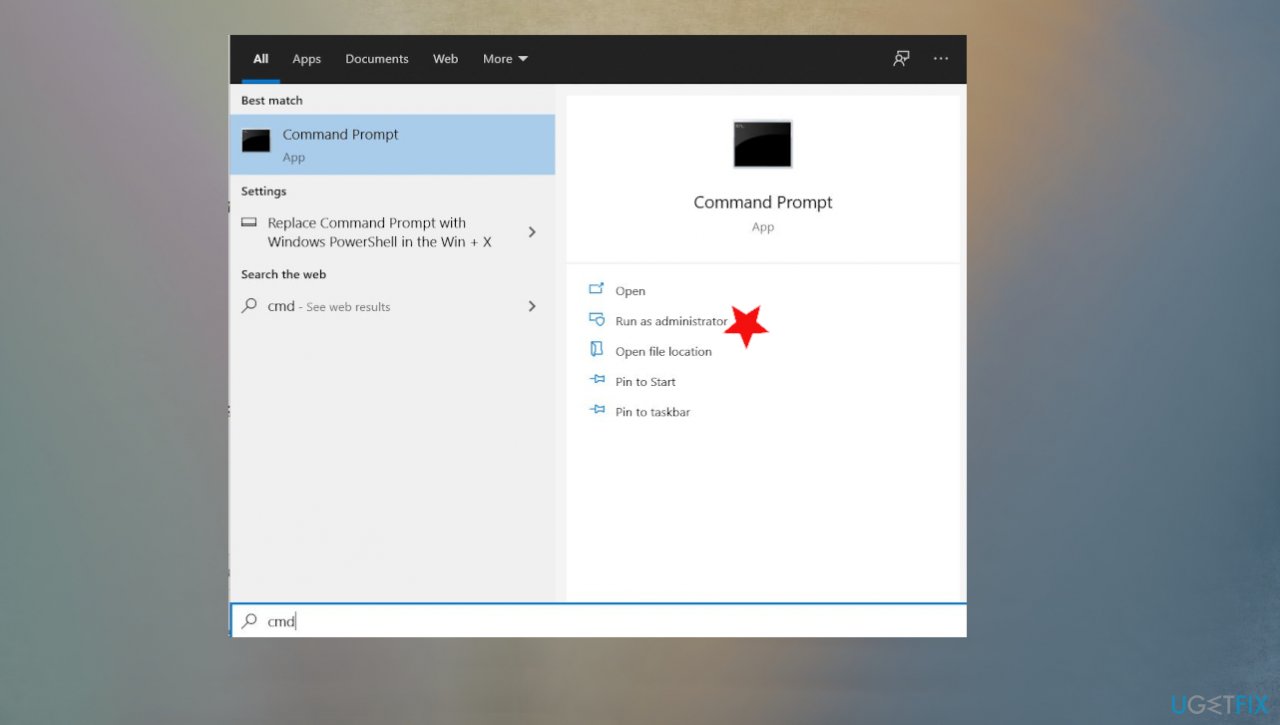
Onedrive deleting files fix command - Enter chdsk /f /r and hit Enter.
- Restart the PC after the process.
2. Update the OneDrive client
- Go to Control Panel.
- Click Uninstall a program wonder Program.
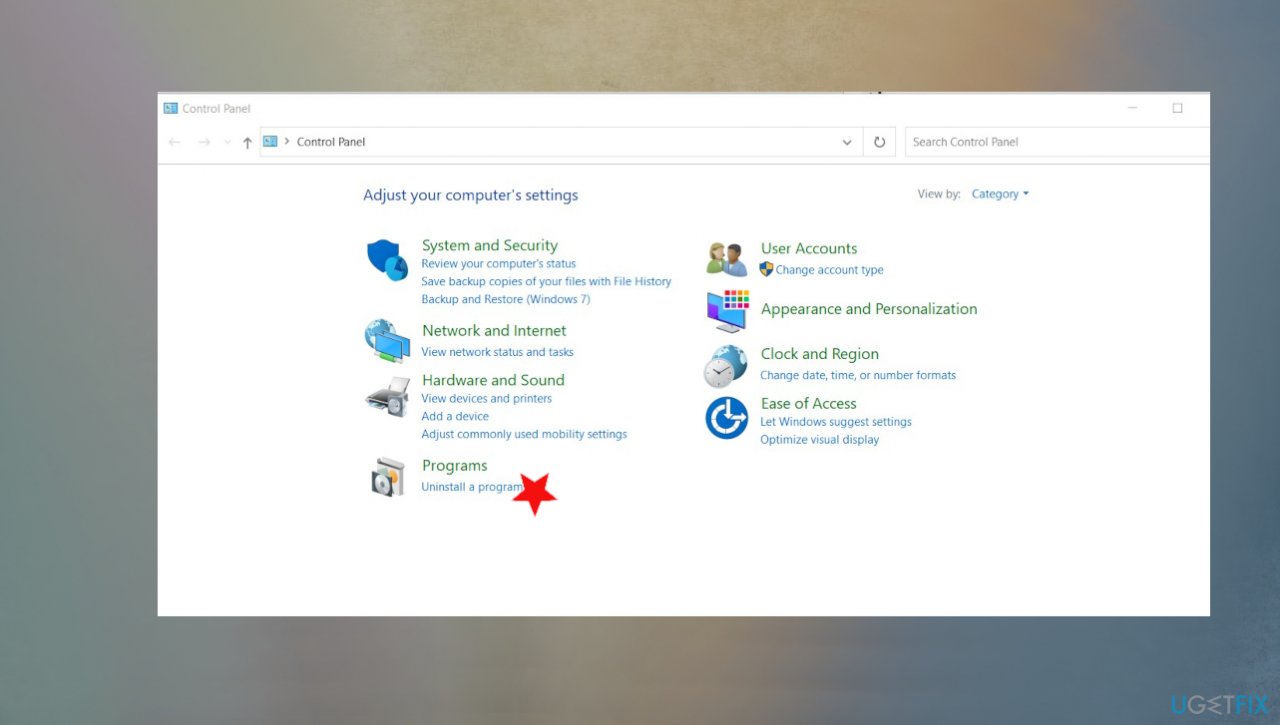
Onedrive deleting files fix program uninstal - Right-click OneDrive app.
- Then click on the Change button.
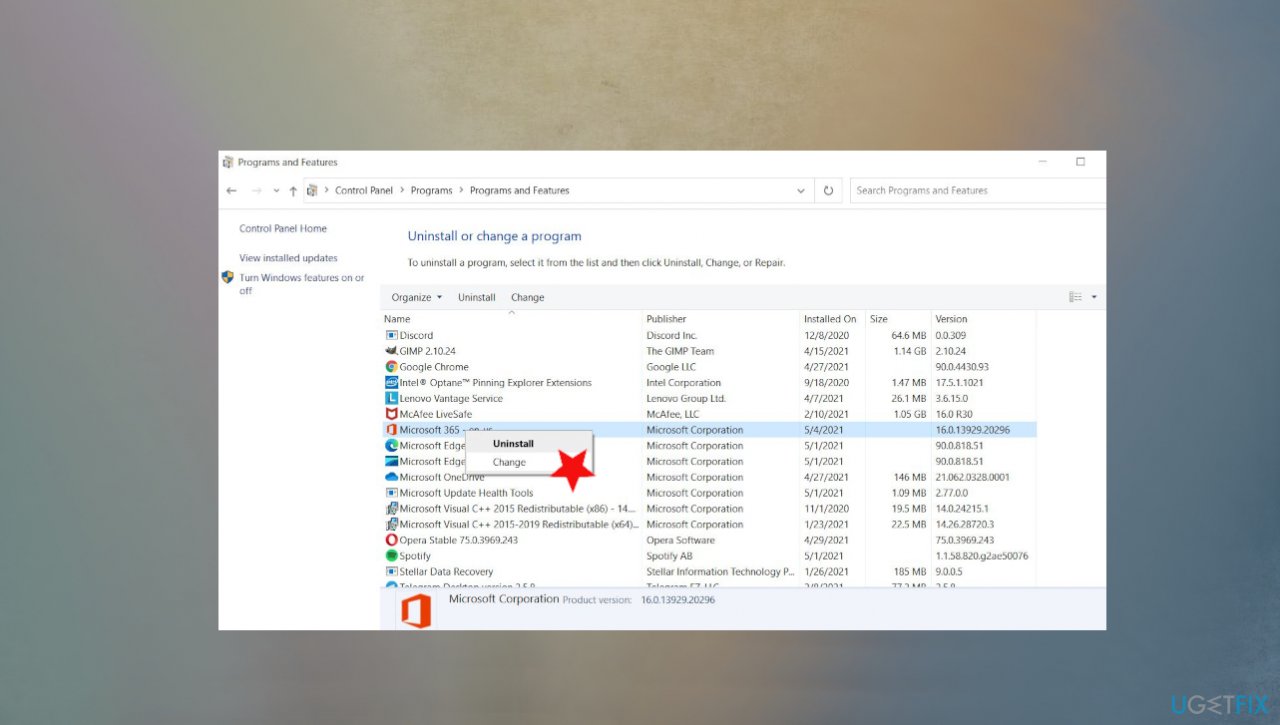
Onedrive deleting files fix change - On the next window, select Online Repair.
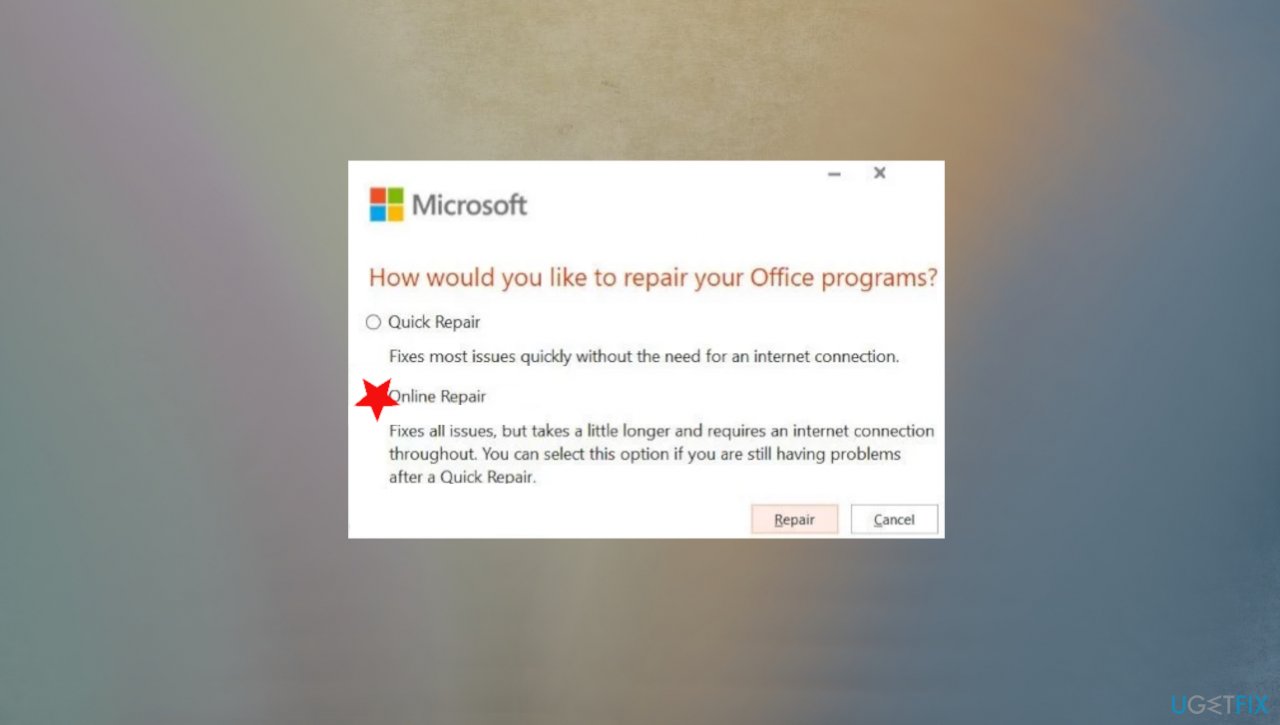
Onedrive deleting files fix online repair - Click on the Repair button.
- Click on the Repair button again to start the process.
- Check if the issue is resolved.
3. Update windows operating system
- Type Updates in Windows search and press Enter.
- Click Check for updates.
- Install any available updates.
- Reboot your system.
4. Restore deleted files
- Backup your files from the system’s OneDrive folder to someplace safe.
- Right-click on the OneDrive icon in your system’s tray.
- Then click on Help and Settings.
- Select Settings and navigate to the Account tab.
- Click on Unlink This PC and then confirm to unlink the PC from OneDrive.
- Repeat the same process on all other PCs linked with the OneDrive account.
- Disconnect all your systems from the internet.
- Exit the OneDrive application.
- Check the recycle bin for those deleted files.
- If the files are not there, then open the OneDrive site and check the Recycle Bin there.
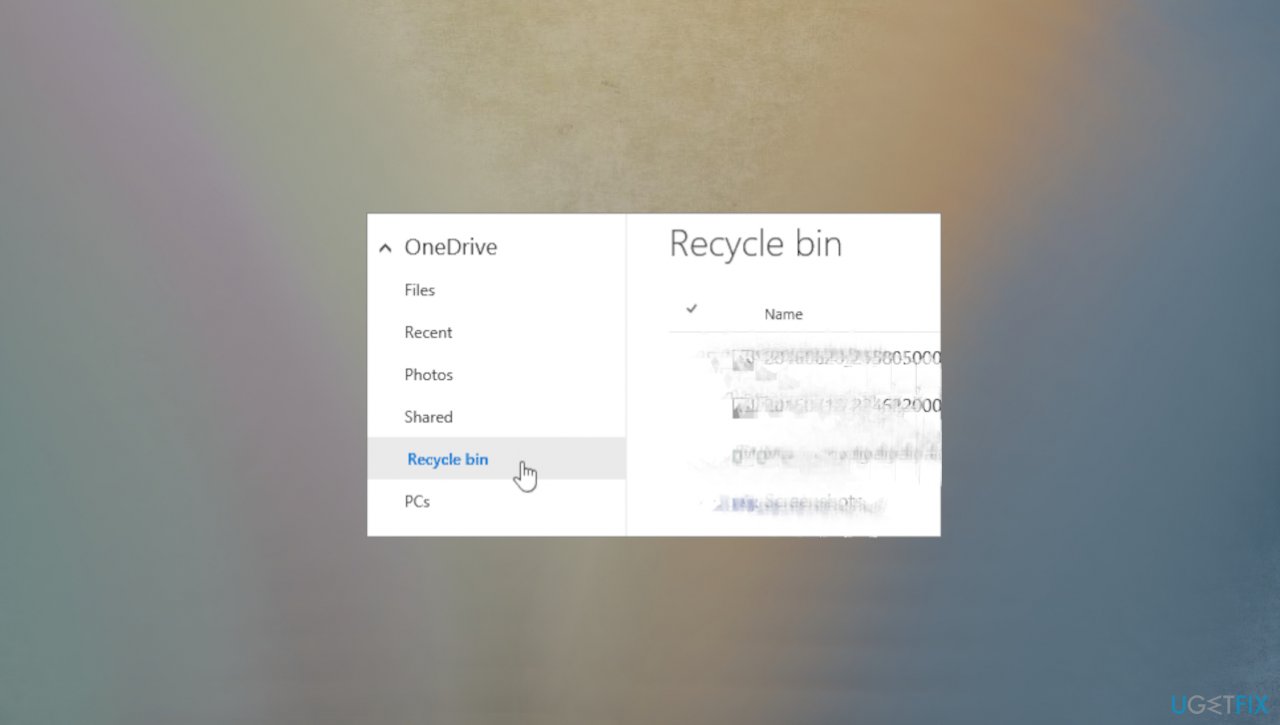
Onedrive deleting files fix bin online - If the deleted files belong to a shared folder, then check the recycle bin.
- You can restore those files when they are found.
- Check those restored files if all pieces are okay and no folder is empty.
- Back up those files or download them.
- Delete the files from the OneDrive folder on the affected PC and OneDrive web
- Then upload your downloaded/backup data to OneDrive web.
- Connect the affected system to the Internet.
- Open the OneDrive.
- Then login to the application.
Bottom line
To fix the issue of OneDrive automatically deleting files, you should run a tool to identify affected files and registry entries. Additionally, ensure your drivers and OneDrive client are up to date. If these steps do not resolve the problem, further troubleshooting may be necessary.
Frequently asked questions
OneDrive may automatically delete files if you have enabled the 'Files On-Demand' feature or if your storage is full. Check your OneDrive settings to adjust these options.
To prevent OneDrive from deleting files, go to the OneDrive settings, disable 'Files On-Demand', and ensure your files are set to always be available offline.
If OneDrive has deleted important files, check the 'Recycle Bin' within OneDrive or use the 'Restore your OneDrive' feature to recover lost items.




Report an issue
What's wrong with this guide? We review every report and update or remove content.
Report received — thank you. We'll review and fix it.
You need a free account to submit a report.
Be the first to comment