How to fix
OneDrive login error 0x8004def7
on Windows
Resolve the OneDrive login error 0x8004def7 on Windows 10 and 11 effortlessly. Enjoy a seamless experience with expert-tested solutions. Fixed in minutes!

What causes How to fix OneDrive login error 0x8004def7 in Windows?
- User has used up all of the storage space allocated to OneDrive
- Account has been suspended for breaking regulations
- Unusual activity detected on the account
- Misattribution of the error code to incorrect assumptions about storage or policy violations
Repairs Windows system files, removes malware, and restores a clean OS state — without reinstalling.
Hello. When I try to log into OneDrive on Windows I get the 0x8004def7 error code. How do I fix this? Any suggestions would be appreciated.
Users occasionally run into the confusing OneDrive login error 0x8004def7 when trying to access their OneDrive accounts on Windows. According to Microsoft, this error code usually denotes one of two situations: either the user has used up all of the storage space allocated to OneDrive, or their account has been suspended for breaking regulations or experiencing unusual activity. It's crucial to remember that these Microsoft explanations may not always match the problem in many situations.
Users may become frustrated and confused as a result of this mismatch between the problem code and its actual underlying causes. When users get this message, they could initially believe that they have broken a policy or that their storage is really full, but these assumptions may not be accurate. This misattribution may result in needless attempts to fix account problems or lower storage consumption, which might not deal with the underlying issue.
The OneDrive login error 0x8004def7 can have a significant effect on users. It can interfere with their ability to access important files and documents saved in the cloud, which is especially harmful for people and organizations who rely significantly on OneDrive for easy sharing and data access. The problem can also make it more difficult to communicate since it makes it difficult to synchronize files and work together in real time, which can impair communication and productivity.
Correcting this problem can be difficult and time-consuming, especially if the underlying reason is not found with precision. Reaching out to Microsoft Support to look into and fix the problem is one possible solution. It may be necessary for users to conduct thorough troubleshooting and investigation in order to determine the true cause of the error. Furthermore, proactive management of their OneDrive files and making sure they haven't gone over their storage limit can aid in preventing the issue from happening in the first place.
In this guide, you will find 5 steps that should help you fix OneDrive login error 0x8004def7 in Windows. You can also run a maintenance tool like [d1] that can fix most system errors, BSODs, corrupted files, and registry issues. Otherwise, follow the step-by-step instructions below.

Method 1. Update OneDrive
- Open a Run utility tab by pressing the Windows key + R simultaneously.
- Paste the following and press Enter:
%localappdata%\Microsoft\OneDrive
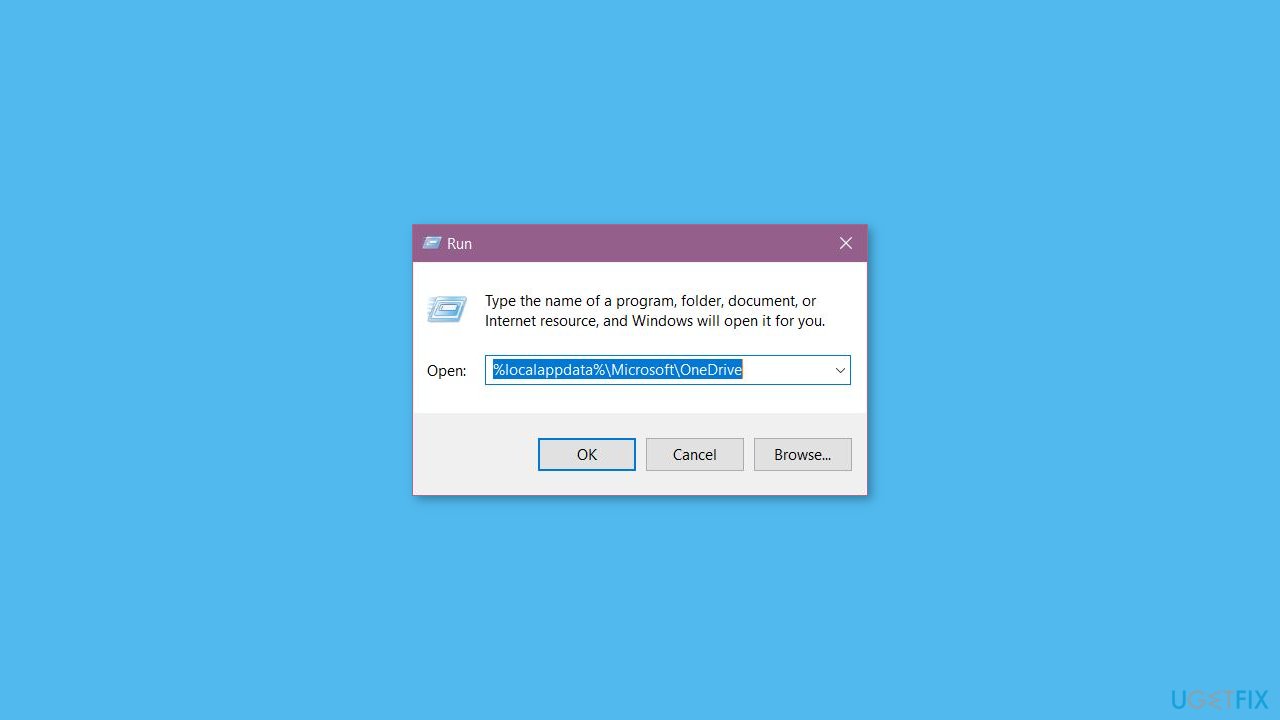
- You should find the OneDriveSetup executable file in this location.
- If you can't find it, search for the OneDriveStandaloneUpdater component. Double-click it to get the latest version of the OneDrive app. After doing this, OneDrive may prompt you to sign in.
Method 2. Install Windows Updates
- Press the Windows key + I on your keyboard to open the Settings window.
- From the left sidebar, click on the Windows Update tab.
- Click on the Check for updates button.
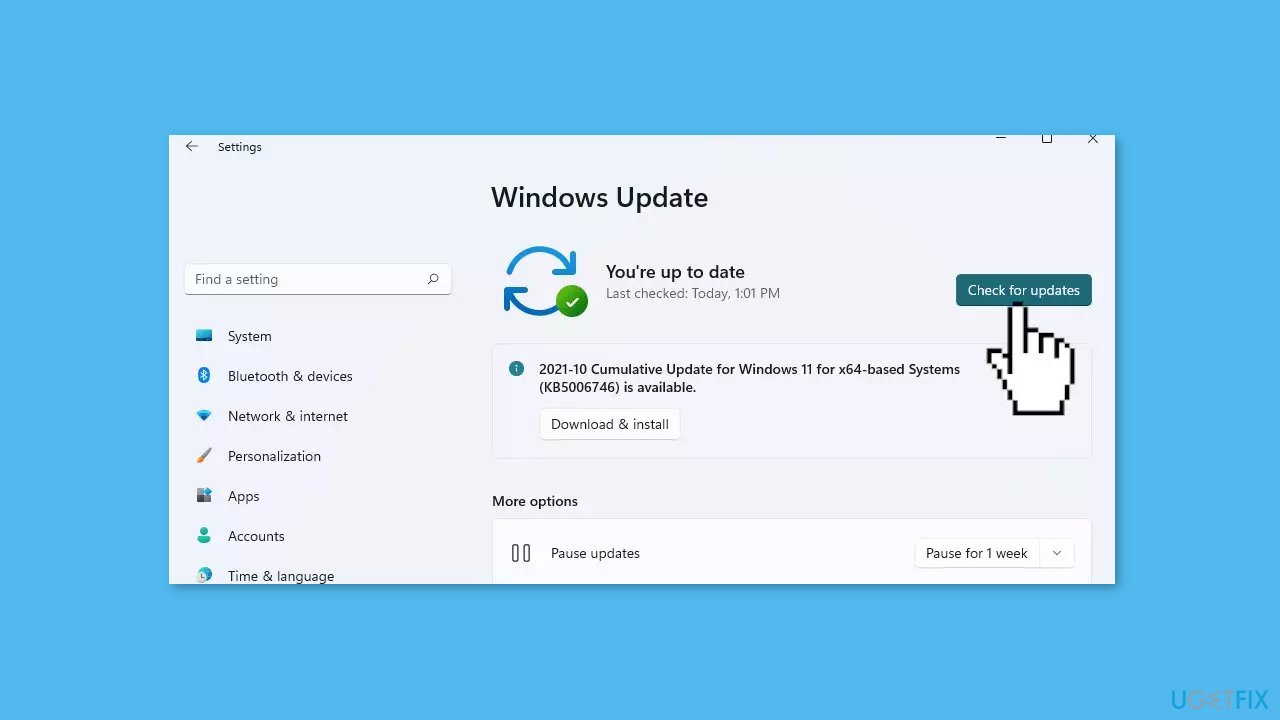
- Wait while Windows checks for available updates.
- If new updates are found, download and install them.
- Follow the on-screen instructions to complete the update process.
Method 3. Repair or Reset OneDrive
- Press the Windows key + X on your keyboard.
- From the menu that appears, select Installed apps.
- Scroll down the list of installed apps and locate OneDrive.
- Click on the three dots next to OneDrive.
- Select Advanced options from the menu.
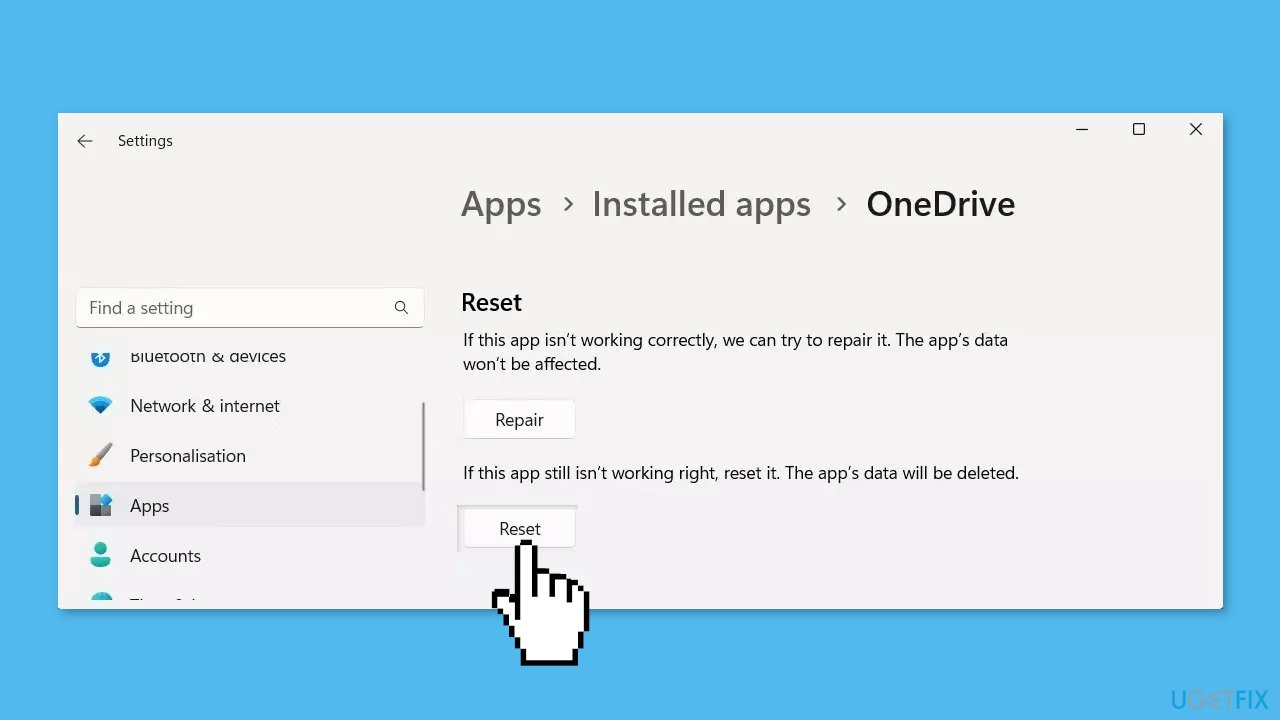
- Scroll down to the Reset section.
- Click on the Repair button.
- Confirm your action by clicking Repair again.
- If the repair did not solve the issue, you can try to reset OneDrive.
- Go back and instead click the Reset button.
Method 4. Reinstall OneDrive
- Open Control Panel on your computer.
- Set the View by option to Category.
- Click on Programs and then select Uninstall a program.
- Locate OneDrive in the list of installed programs.
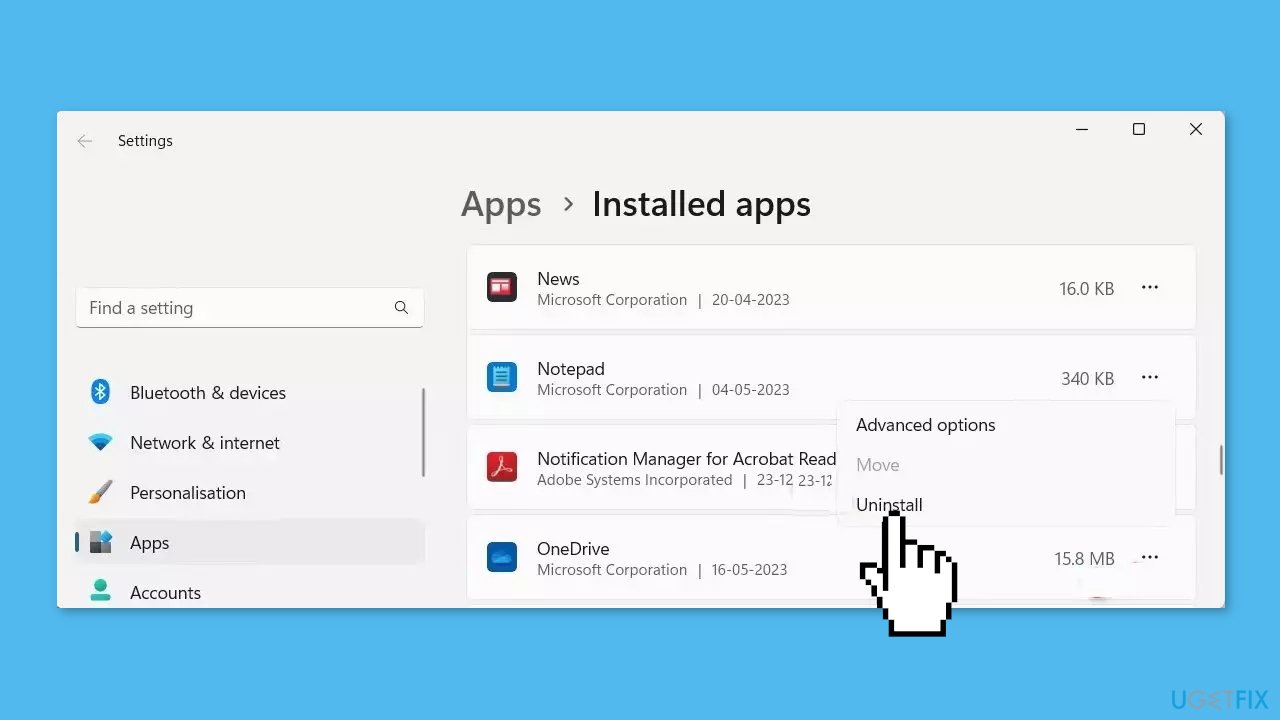
- Click on Uninstall. If a confirmation prompt appears, click Yes.
- Follow the on-screen instructions to complete the uninstallation process.
- After uninstalling, visit Microsoft's official website.
- Download the OneDrive installation package.
- Run the downloaded file to install OneDrive on your computer.
- Follow the on-screen instructions to complete the installation process.
Method 5. Log in to the Web Portal
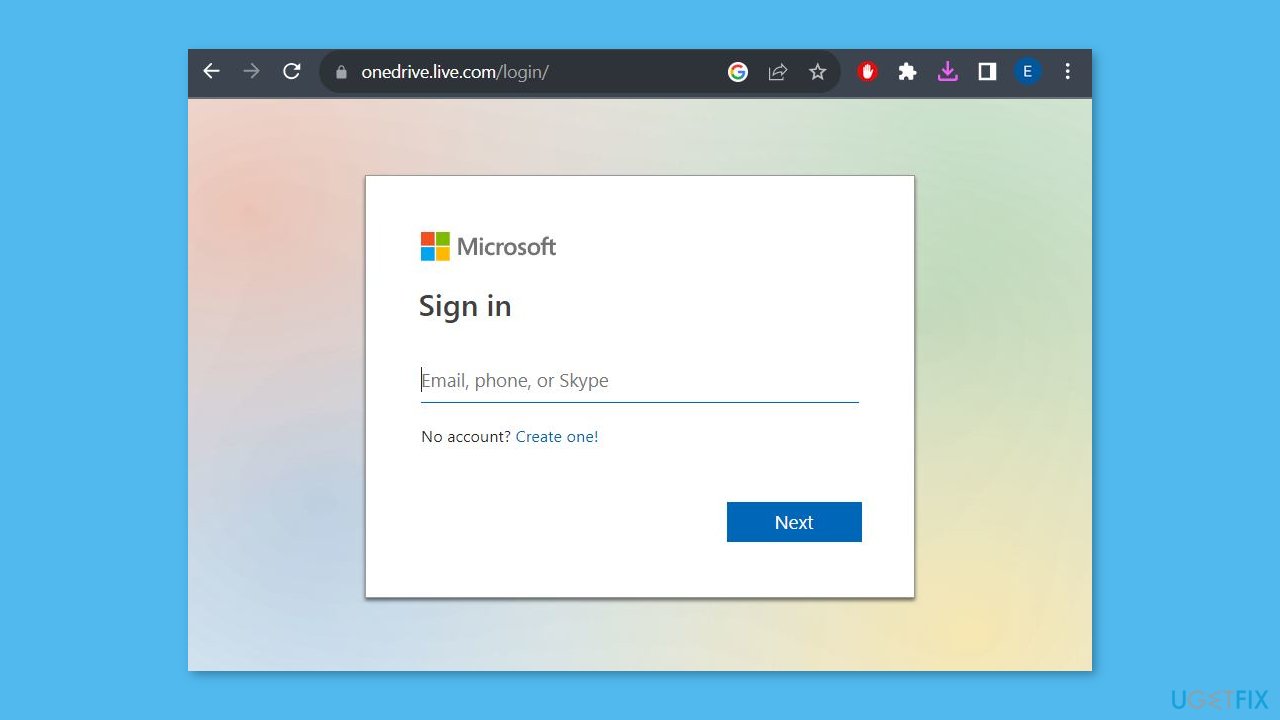
Another intriguing yet unconventional approach involves accessing the Microsoft OneDrive webpage, allowing a brief wait of a few minutes, and observing whether your application functions without the error.
Bottom line
To fix the OneDrive login error 0x8004def7, users should check their storage space, verify their account status, and reach out to Microsoft Support for assistance. Additionally, proactive management of OneDrive files can help prevent this issue. If none of these solutions work, further troubleshooting may be necessary.
Frequently asked questions
This error often occurs due to network connectivity issues or problems with the OneDrive application itself. Ensuring a stable internet connection and updating OneDrive are recommended first steps.
To fix this error on Windows 11, try resetting the OneDrive app by pressing Win + R, typing 'onedrive.exe /reset', and hitting Enter. If the issue persists, consider unlinking your account and signing back in.
Yes, ensure that your Windows firewall or antivirus software is not blocking OneDrive, and check your proxy settings under Network & Internet in Windows 10 or 11.




Report an issue
What's wrong with this guide? We review every report and update or remove content.
Report received — thank you. We'll review and fix it.
You need a free account to submit a report.
Be the first to comment