How to fix
OneDrive sign-in error 0x8004deef
on Windows
Resolve the OneDrive sign-in error 0x8004deef in Windows 10 and 11 quickly. Follow our expert-tested solutions for a seamless experience, fixed in minutes.


What causes How to fix OneDrive sign-in error 0x8004deef in Windows?
- Network connection issues
- Incorrect account credentials
- Password issues
- Temporary configuration problems
- Outdated OneDrive application
Repairs Windows system files, removes malware, and restores a clean OS state — without reinstalling.
Hello. When I try to log into OneDrive on my Windows laptop I get the 0x8004deef error. Is there a way to fix this?
Error 0x8004deef is a sign-in error that can occur when attempting to access or log into OneDrive, Microsoft's cloud-based storage service. OneDrive is a file hosting and synchronization service that allows users to store and access their files from any internet-connected device. It is a popular choice for individuals, professionals, and businesses due to its convenient cloud storage, file sharing, and collaboration features.
OneDrive has a number of useful features. For starters, it enables users to securely store their files in the cloud, eliminating the need for physical storage devices like external hard drives or USB flash drives. Users can access their files from any location, at any time, as long as they have an internet connection.
OneDrive also includes file synchronization, which ensures that changes made to files on one device are automatically reflected on all devices linked to the same OneDrive account. Furthermore, it supports file sharing, allowing users to easily collaborate with others by granting them access to specific files or folders.
When encountering the sign-in error 0x8004deef, users may have difficulty accessing their files and utilizing the OneDrive features. This error usually indicates that there is an issue with the user's network connection or account credentials. A slow or unstable internet connection can impede the sign-in process, preventing users from accessing files or synchronizing changes. This error can also be caused by incorrect account credentials or password issues, resulting in denied access to the OneDrive service.
There are several potential solutions available to address the sign-in error 0x8004deef. It is critical to test the network connection's stability and ensure a strong internet connection. It is also necessary to check the accuracy of the account credentials, such as the user ID and password. Any temporary configuration issues may be resolved by resetting OneDrive or clearing its cache. Additionally, updating or reinstalling the OneDrive application can sometimes resolve the issue.
In this guide, you will find 6 steps that should help you fix OneDrive sign-in error 0x8004deef. You can also try a maintenance tool like [d1] that can fix most system errors, BSODs,[ref en-1] corrupted files, registry[ref en-2] issues, or clear cookies and cache.[ref en-3] Otherwise, follow the step-by-step instructions below.
Method 1. Check Network
Prior to implementing any significant modifications to your system, it is essential to verify the stability of your network connection. The occurrence of error 0x8004deef when attempting to sign in to OneDrive could be attributed to a weak and unreliable internet connection. To assess your internet connection, carry out a speed test. If the test reveals a speed below the subscribed plan, proceed by restarting your router and modem.
Method 2. Check Date and Time
- Right-click on the system clock in the taskbar.
- Select Adjust date and time from the context menu.
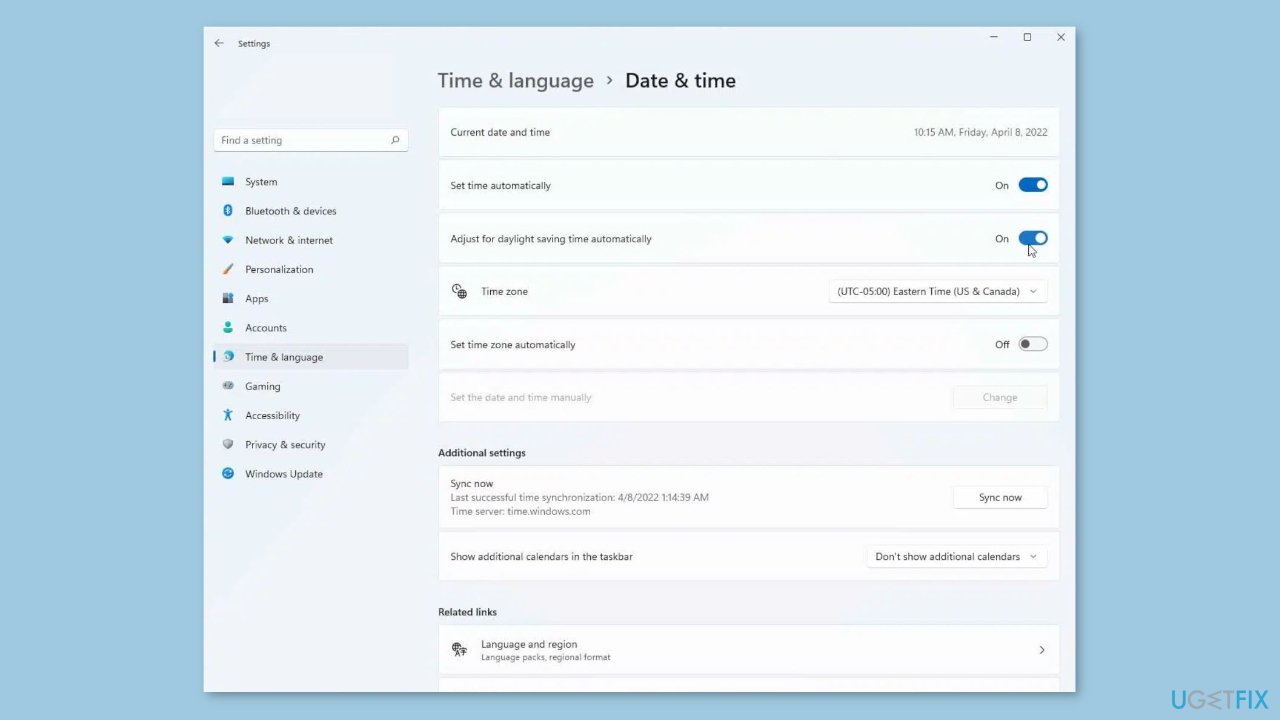
- Make the necessary changes to the date and time settings.
- Close the date and time settings window.
Method 3. Verify Login Credentials
- Verify that you are entering the correct account credentials, including your user ID and password.
- Attempt entering your old password to see if it grants access.
- If the old password doesn't work, click on the Forgot password option.
- Follow the steps provided to initiate the password recovery process.
Method 4. Remove Cached Account Identities
- Press the Windows key + R to open the Run dialog box.
- Type regedit in the Run dialog box and press Enter.
- The Registry Editor will open. Navigate to the following path:
HKEY_CURRENT_USER\SOFTWARE\Microsoft\Office\16.0\Common\Identity
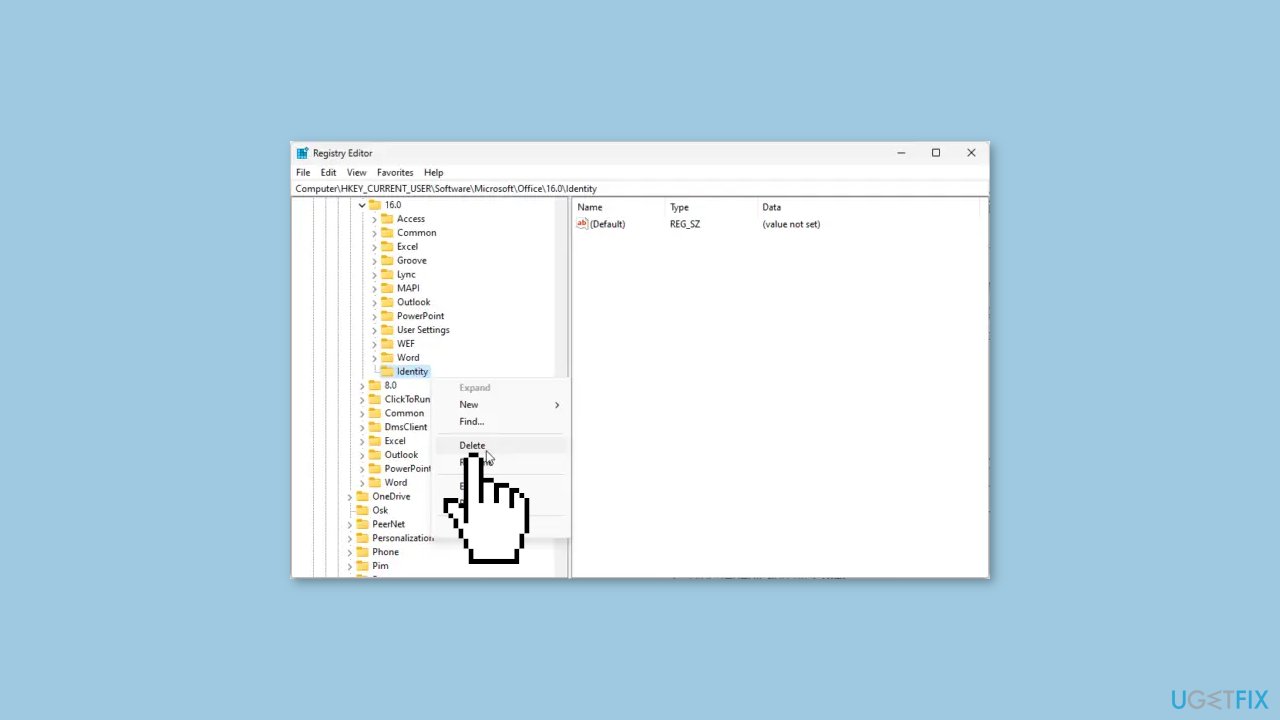
- Right-click on the Identity folder.
- Click on Delete from the context menu.
Method 5. Disable VPN or Proxy
- Press the Windows key + I to open the Settings menu.
- Navigate to Network & Internet, and then click on Proxy.
- Locate the Automatically detect settings option and toggle it off.
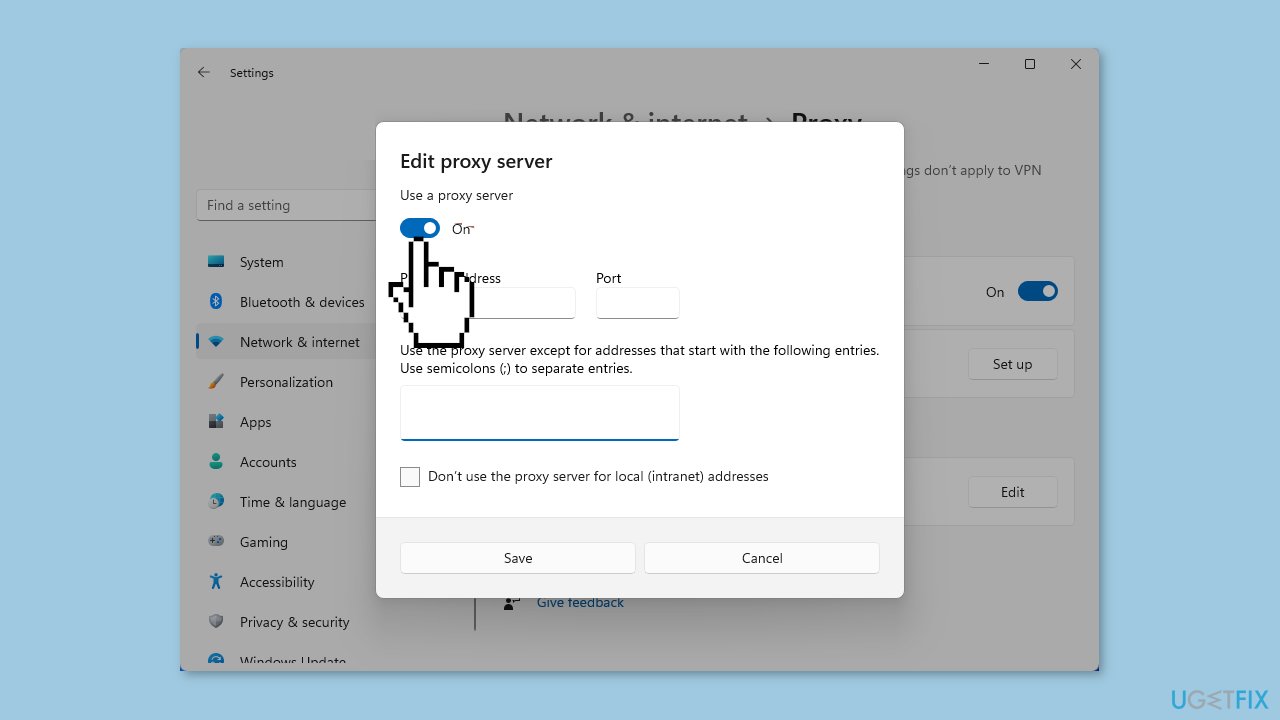
- Next, click on the Set up option next to Use a proxy server.
- Toggle off the Use a proxy server option.
Method 6. Reset OneDrive
- Press the Windows key + R to open the Run dialog box.
- Type %localappdata%\Microsoft\OneDrive\OneDrive.exe /reset in the Run dialog box.
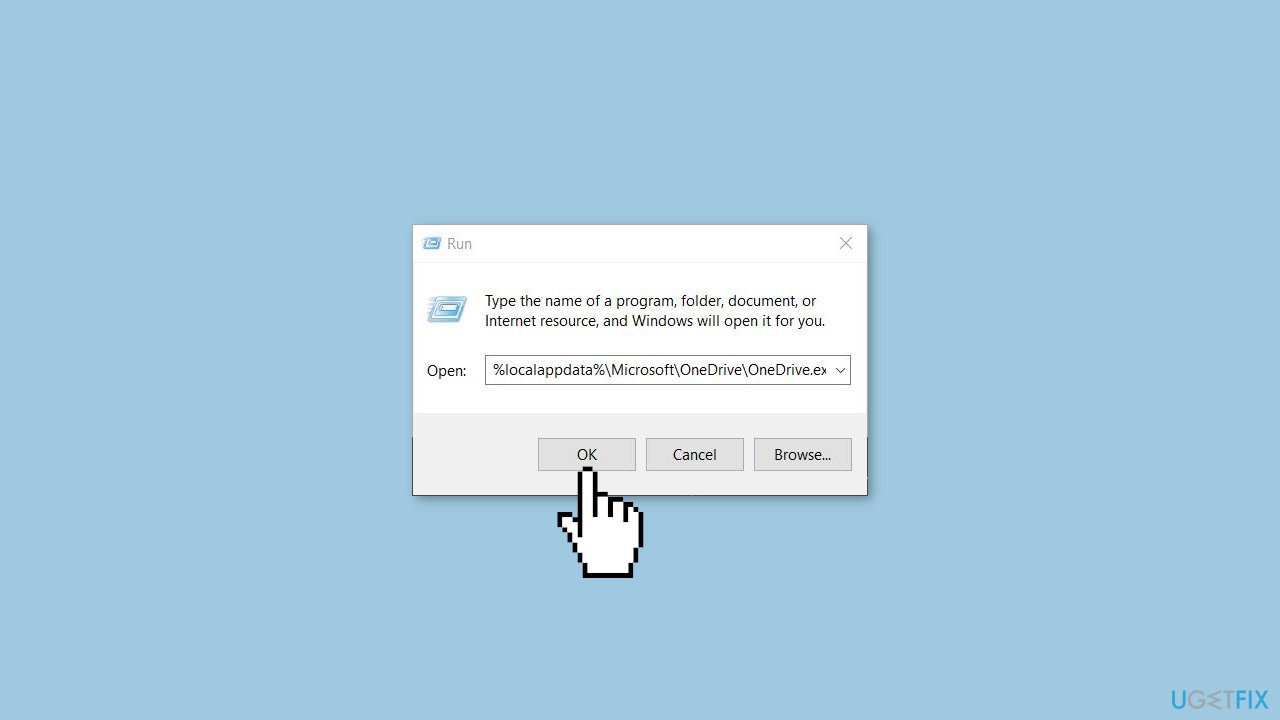
- Press Enter to execute the command. This will reset all the components of OneDrive.
- Once the reset process is complete, restart your device.
- After restarting, check if the issue is resolved.
Bottom line
To fix the OneDrive sign-in error 0x8004deef, ensure your network connection is stable and verify your account credentials. You may also try resetting OneDrive, clearing its cache, or updating/reinstalling the application. If none of these solutions work, consider seeking further technical support.
Frequently asked questions
This error often occurs due to issues with network connectivity, incorrect account credentials, or problems with the OneDrive application itself.
Try resetting the OneDrive app by pressing Win + R, entering 'onedrive.exe /reset', and then restarting the application to see if the error is cleared.
Yes, you can run the Windows Network Troubleshooter by going to Settings > Update & Security > Troubleshoot > Additional troubleshooters and selecting 'Internet Connections' to diagnose any connectivity issues.




Report an issue
What's wrong with this guide? We review every report and update or remove content.
Report received — thank you. We'll review and fix it.
You need a free account to submit a report.
Be the first to comment