How to fix
OneNote error 0x0803D0010
on Windows
Resolve OneNote error 0x0803D0010 easily on Windows 10 and 11 with our expert-tested solutions. Get back to note-taking in minutes!

What causes How to fix OneNote error 0x0803D0010 in Windows?
- Corrupted files
- Permission issues
- Outdated or incompatible drivers
- Software conflicts
Repairs Windows system files, removes malware, and restores a clean OS state — without reinstalling.
Hey, I was wondering if you could help me fix Notebook error 0x0803D0010 in Windows? It started occurring a few days ago and it doesn't seem to go away on its own. I use Windows 11 version 23H2.
Error code 0x0803D0010 is one of the common problems that Windows users might experience in trying to use Notebooks in the OneNote app on their operating system.
Normally, such an error would relate to configuration problems, permissions issues, or compatibility between the application and the Windows version in use. While this kind of error is not specific to any version of Windows - a problematic state may appear on a wide range of notebook applications-it's a common issue at large.
What causes OneNote error 0x0803D0010?
The error typically occurs when there are problems related to:
- Corrupted files. Sometimes, system files required by notebook applications may become damaged, leading to malfunction.
- Permission issues. If the application lacks the required administrative privileges to operate, this error may appear.
- Outdated or incompatible drivers. Drivers that control notebook components, such as display or storage, can interfere with the proper functioning of the application if they are outdated or incompatible.
- Software conflicts. Sometimes, other installed applications or antivirus programs may block the notebook application from functioning properly.
The symptoms of this error are that users can often fail to open the notebook application, save any files, or sync their data in OneNote. It tends to disrupt productivity, so it is quite vital that a fix is found rather quickly.
To users for whom manual troubleshooting is not worth being overwhelmed with, the use of an automated tool such as [d1] may prove to be a real time saver. The utility will be able to diagnose and fix the system-related problems much faster, minimizing further downtime and ensuring the notebook application will run just fine again.
Fix 1. Run the Windows Troubleshooter
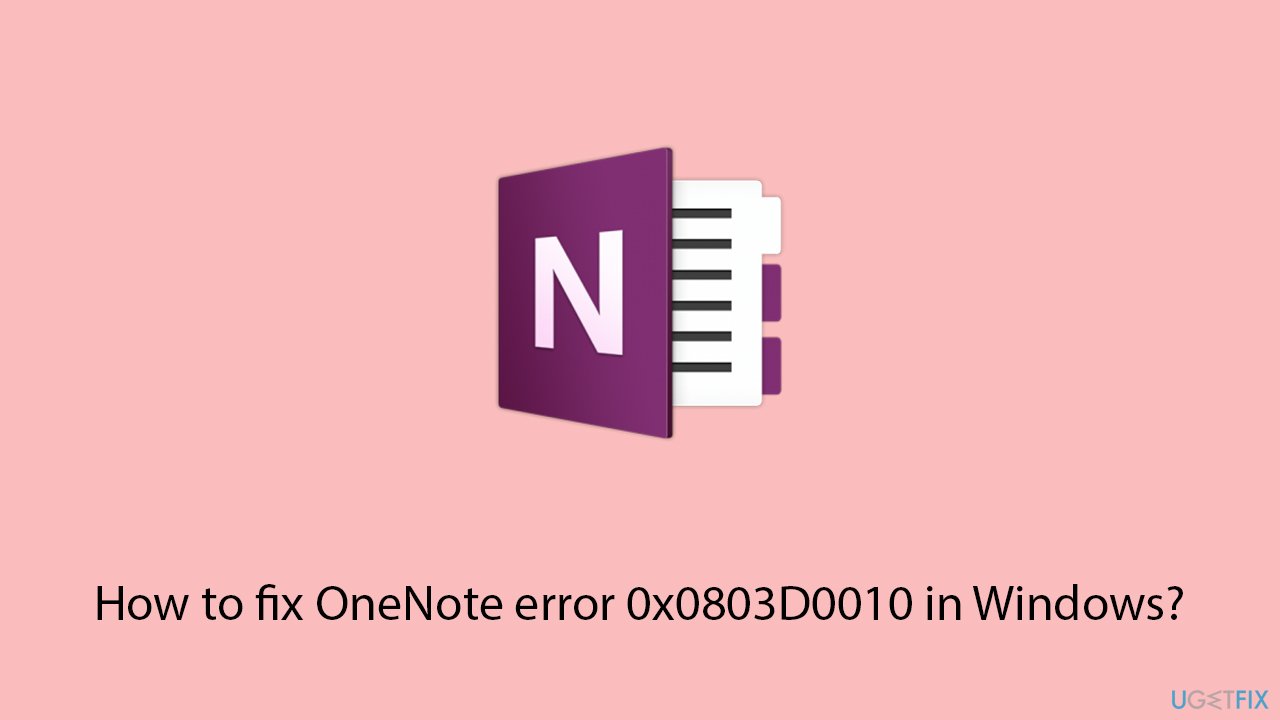
The Windows Troubleshooter can help diagnose and automatically fix issues with apps, including notebook applications. Running this tool might resolve error 0x0803D0010.
Windows 11
- Type Troubleshoot in Windows search and hit Enter.
- Select Other troubleshooters.
- Find Network & Internet from the list and select Run.
- Repeat this with Windows Store apps troubleshooter.
- Wait till the scan is finished - you will be provided with potential causes so you can proceed with fixes.
Windows 10
- Right-click on Start and pick Settings.
- Go to the Network & Internet section.
- On the right side, find the Advanced network settings section.
- Click Network troubleshooter and wait.
- The fixes will be automatically applied.
Fix 2. Check for Windows updates
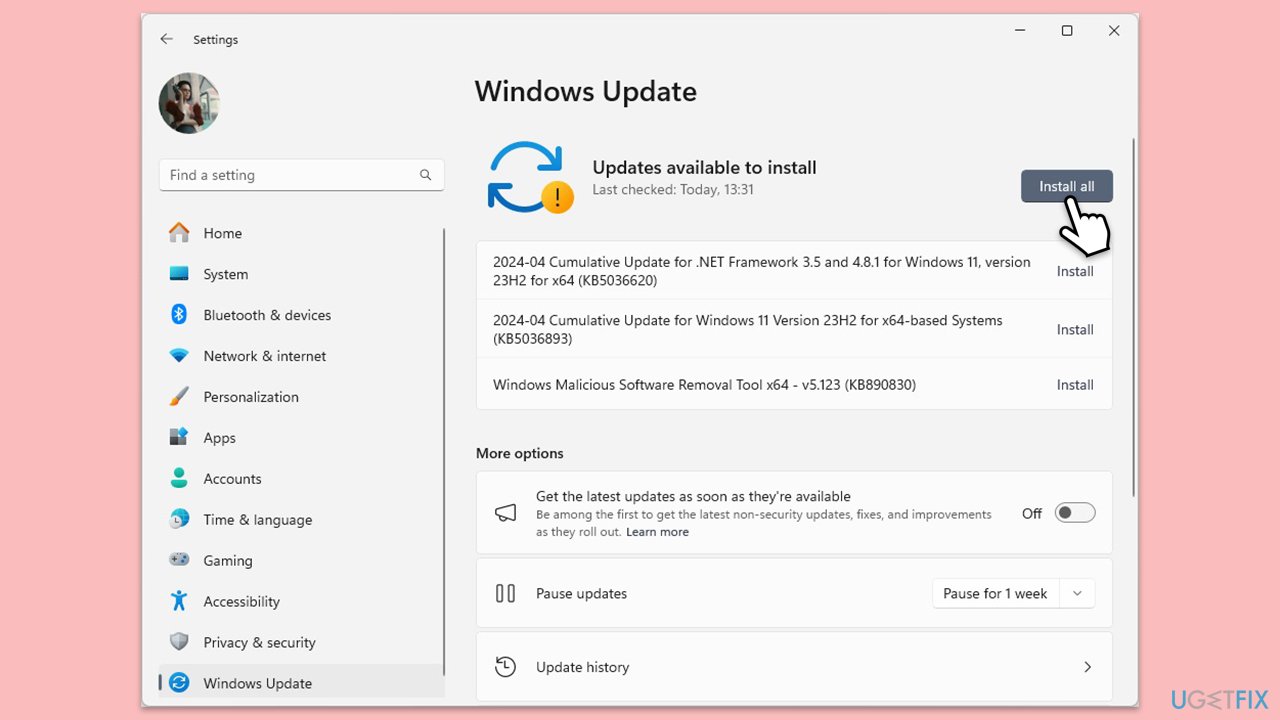
Windows updates provide important patches and bug fixes that can resolve compatibility issues. Ensuring your system is up to date might prevent the error.
- Updates in Windows search and hit Enter.
- In the new window, click Check for updates/Install all and wait till everything is installed.
- Make sure you also install any available optional updates.
- When done, restart your device to implement the changes.
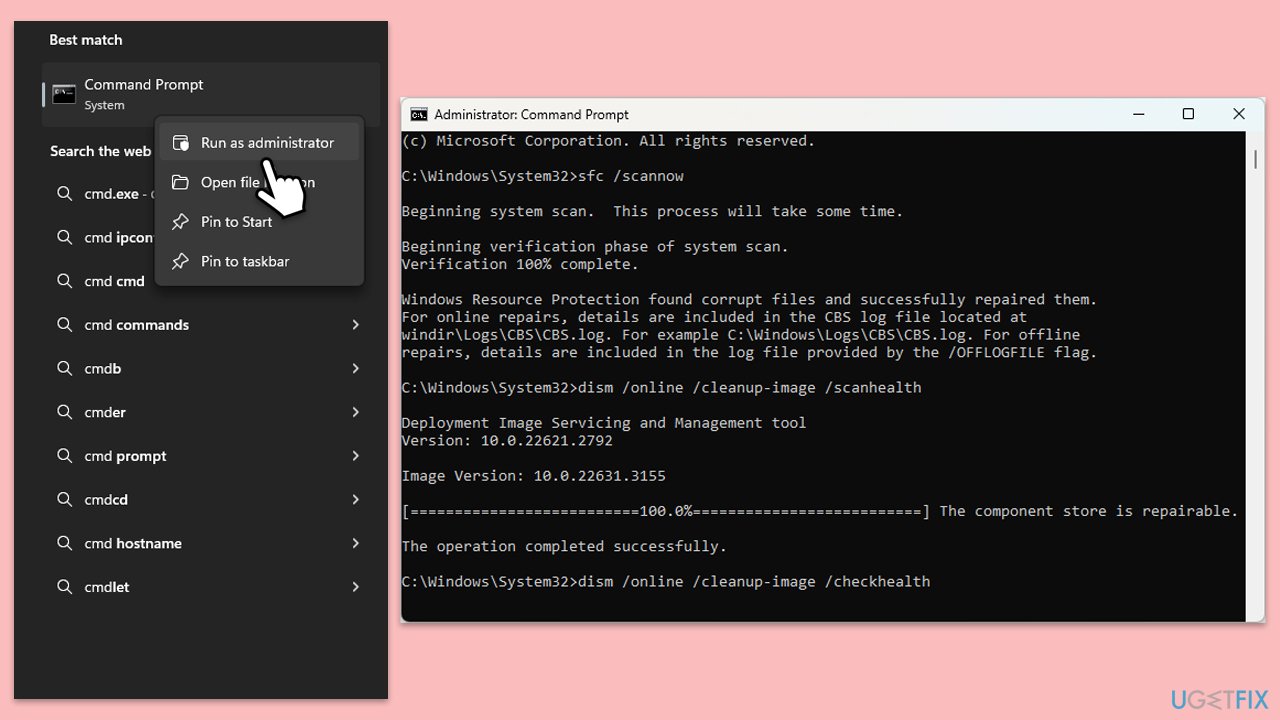
Fix 3. Run System File Checker (SFC) and DISM
Corrupted system files can cause errors like 0x0803D0010. Running the System File Checker and Deployment Imaging Service Management (DISM) tools can repair these files.
- Type cmd in Windows search.
- Right-click on Command Prompt and pick Run as administrator.
- The User Account Control window will ask whether you want to allow changes - click Yes.
- In the Command Prompt window, paste the following command and hit Enter:
sfc /scannow - Once the scan is complete, use the following commands and press Enter after each:
Dism /Online /Cleanup-Image /CheckHealth
Dism /Online /Cleanup-Image /ScanHealth
Dism /Online /Cleanup-Image /RestoreHealth - (Note: if you get an error executing this last command, add /Source:C:\RepairSource\Windows /LimitAccess to it and try again).
- Restart your system.
Fix 4. Repair the OneNote app
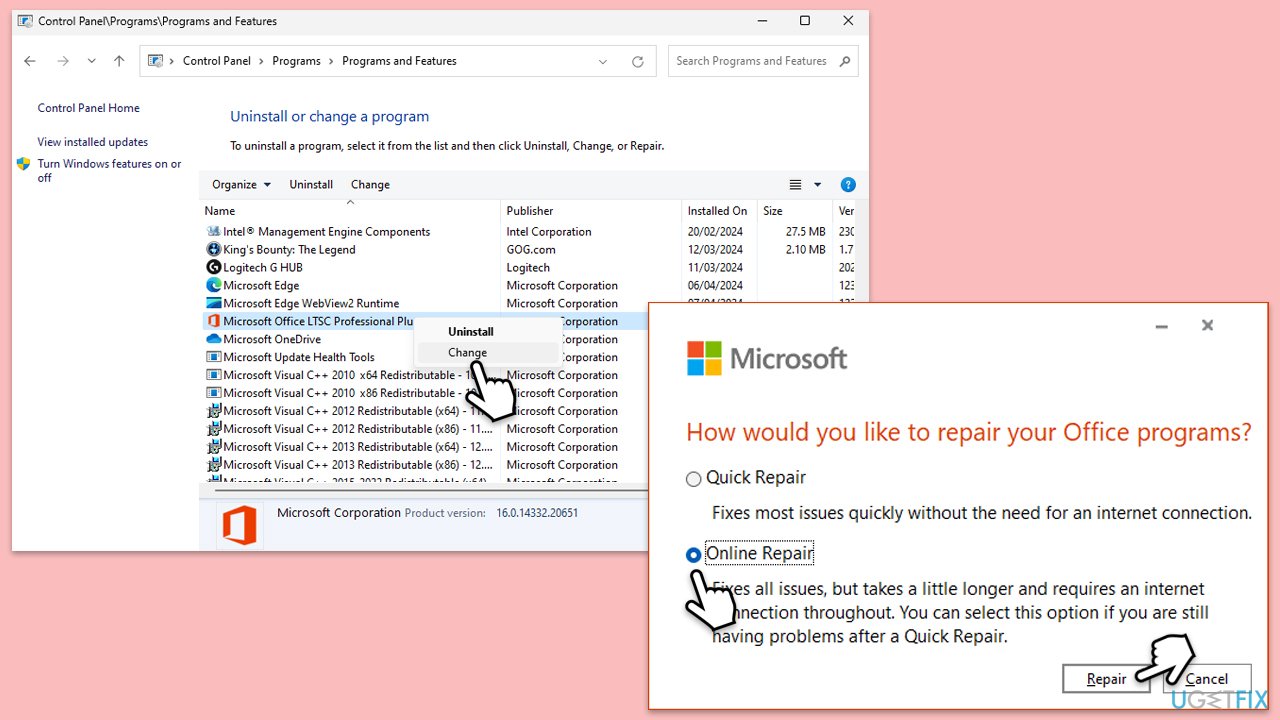
OneNote app files may become corrupted, causing error 0x0803D0010. Repairing the app can resolve the issue.
- Type Control Panel in Windows search and press Enter.
- Select Programs and Features.
- Find Microsoft Office in the list, right-click, and choose Online repair.
- Follow the on-screen instructions to complete the repair process.
Fix 5. Run the app as an administrator
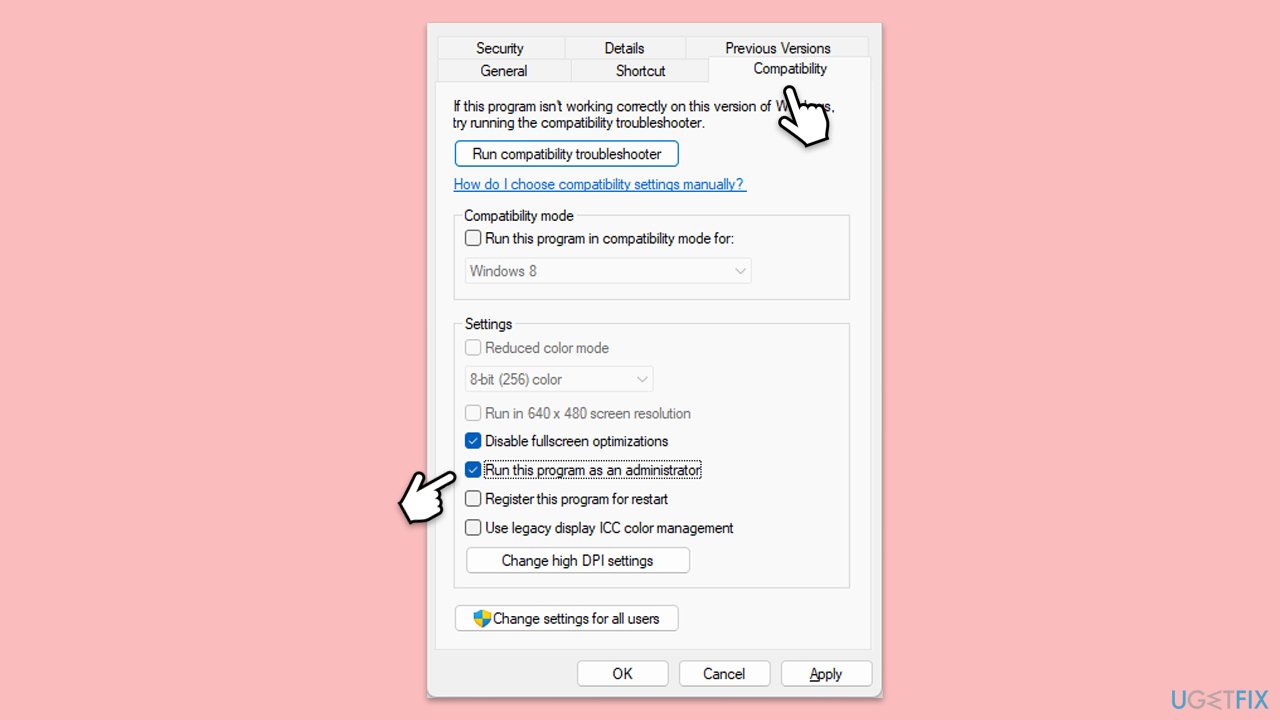
Permission issues might prevent the notebook app from functioning properly. Running it with administrator privileges can sometimes resolve these issues.
- Right-click on the OneNote app shortcut or executable file.
- Choose Properties, go to the Compatibility tab, and select Run this program as an administrator.
- Click Apply and OK, then open the app again to check if the error is fixed.
Fix 6. Disable antivirus or firewall temporarily
Sometimes, antivirus software or firewalls can block notebook apps from running correctly. Disabling these programs temporarily can help identify if they are causing the issue.
- Open your antivirus software and find the option to disable it.
- Go to Settings > Update & Security > Windows Security > Firewall & network protection to disable the firewall.
- Try running the app again to see if the issue is resolved.
Fix 7. Reinstall the OneNote app
If none of the previous solutions work, reinstalling the app can remove corrupted files and reset the app to its default settings.
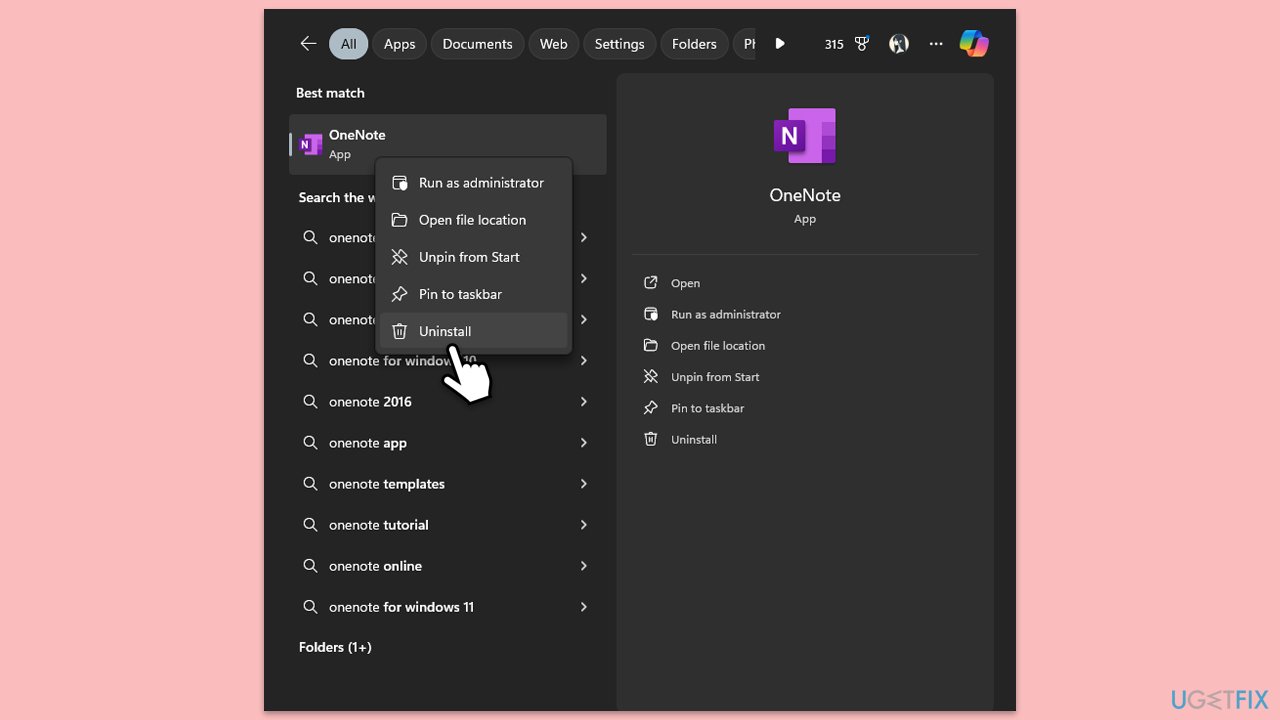
- Type OneNote in the Windows search box.
- Right-click on OneNote and select Uninstall.
- Follow the prompts to remove the app completely.
- Reboot your system.
- Go to the Microsoft Store and reinstall OneNote.
Bottom line
To fix OneNote error 0x0803D0010, you can run the Windows Troubleshooter to diagnose and automatically fix issues with the app. If the error persists after trying this solution, consider using an automated tool to address system-related problems. If none of these fixes work, further investigation into the specific configuration of your system may be necessary.
Frequently asked questions
The OneNote error 0x0803D0010 is typically caused by a corrupted notebook or issues with your Microsoft account synchronization. It can also arise from improper installation or updates of the OneNote application.
To fix this error on Windows 11, try resetting the OneNote app through Settings, or remove and re-add your Microsoft account in OneNote. Additionally, ensure your app is updated to the latest version.
To prevent the OneNote error 0x0803D0010 in Windows 10, regularly update the OneNote app and Windows system, and avoid syncing large files that may cause issues. Keeping your notebooks organized and free of corruption can also help.




Report an issue
What's wrong with this guide? We review every report and update or remove content.
Report received — thank you. We'll review and fix it.
You need a free account to submit a report.
Be the first to comment