How to fix
OneNote error 0xe0000002 “The exception unknown software exception”
on Windows
Resolve the OneNote error 0xe0000002 on Windows 10 or 11 swiftly. Follow our expert-tested solutions for a hassle-free fix, zero traces left.

What causes How to fix OneNote error 0xe0000002 “The exception unknown software exception” in Windows?
- Program conflicts
- Outdated OneNote version
- Corrupted OneNote installation
- System compatibility issues
Repairs Windows system files, removes malware, and restores a clean OS state — without reinstalling.
Hello. When I try to open the OneNote app on Windows I get the "The exception unknown software exception" message with 0xe0000002 error code. Is there a way to fix this?
Microsoft created OneNote, a digital note-taking tool that lets users create and arrange digital notes in a variety of formats, such as text, drawings, and multimedia. It is a flexible tool that helps both individuals and groups to collect and arrange data across many platforms.
However, some users may encounter a specific error, namely 0xe0000002, which is accompanied by the message "The exception unknown software exception." This problem usually shows up when users open OneNote, which can cause interruptions like work loss or even unexpected application failures when the error notice displays.
Without more thorough diagnostic data, identifying the precise source of the problem can be difficult because it is an unknown software exception. This problem is frequently reported by users when they first launch OneNote, and in certain cases, it causes the program to crash without warning. The lack of clarity regarding the specific nature of the exception complicates the troubleshooting process for users facing this issue.
This is a serious OneNote bug that might cause users to lose work they haven't saved and make it more difficult to view notes they already have. Frequent crashes might cause an inability to save new changes or open old notes, which can be quite frustrating for users who rely heavily on OneNote for note-taking and collaborative work.
Fixing this issue is essential to getting OneNote back to normal and guaranteeing a smooth note-taking experience. Users can investigate alternatives including verifying for program conflicts, updating or reinstalling OneNote, and looking at system compatibility problems, however, precise solutions may differ based on the underlying cause.
In this guide, you will find 5 steps that should help you fix OneNote error 0xe0000002 "The exception unknown software exception" in Windows. You can also run a maintenance tool like [d1] that can fix most system errors, BSODs,[ref en-1] corrupted files, and registry[ref en-2] issues. Otherwise, follow the step-by-step instructions below.
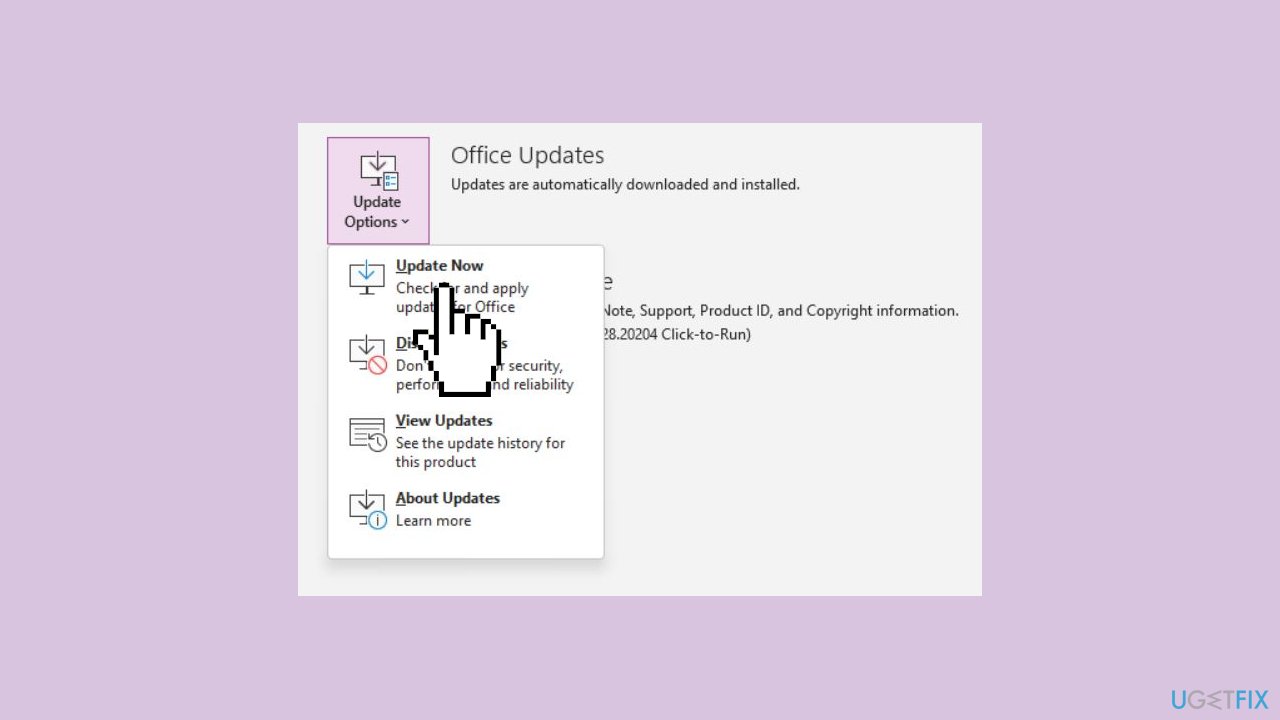
Method 1. Update OneNote
- Launch the OneNote app.
- Click the File option at the top of the app.
- In the left pane, select the Account option.
- Under the Office Updates section, select Update Options.
- Finally, click the Update Now option to download and install the latest updates.
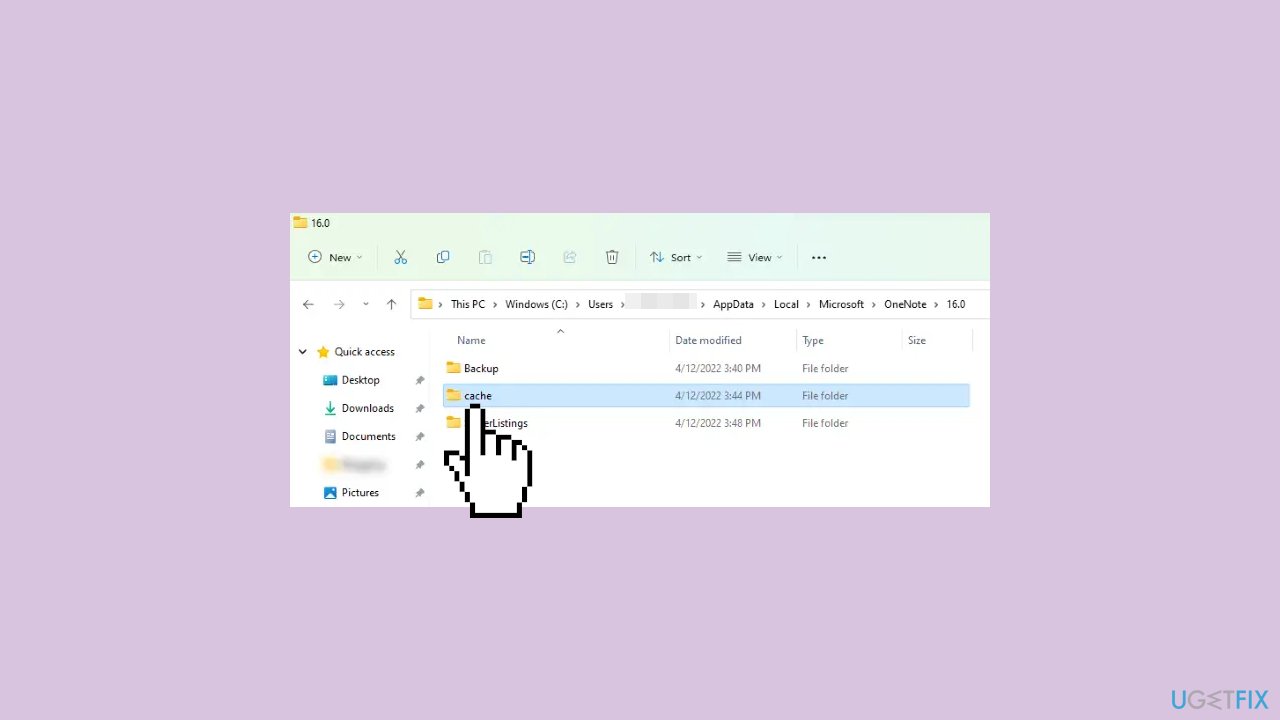
Method 2. Clear the Cache
- Open File Explorer on your computer.
- Navigate to the following path: C:\Users<user>\AppData\Local\Microsoft\OneNote\16.0
- Replace <user> with your actual username.
- Locate a folder named cache within the specified directory.
- Delete the cache folder.
- Ensure to replace <user> with your actual username in the provided path to avoid errors. Also, verify the version number based on your Microsoft Office installation.
Method 3. Disable Antivirus
- If you've installed third-party security software, such as antivirus or antimalware programs, it could be the source of the error.
- To investigate, temporarily disable your security software and attempt to launch OneNote again.
- If the error no longer occurs, it indicates that your security software is causing the issue.
- In such a scenario, consider adding OneNote as an exception in your security software settings.
Method 4. Repair OneNote
- Open Windows Settings.
- Navigate to Apps > Installed apps.
- Scroll down and locate Microsoft OneNote.
- Click on the three horizontal dots next to Microsoft OneNote.
- Select Modify and confirm by clicking Yes in the User Account Control (UAC) prompt.
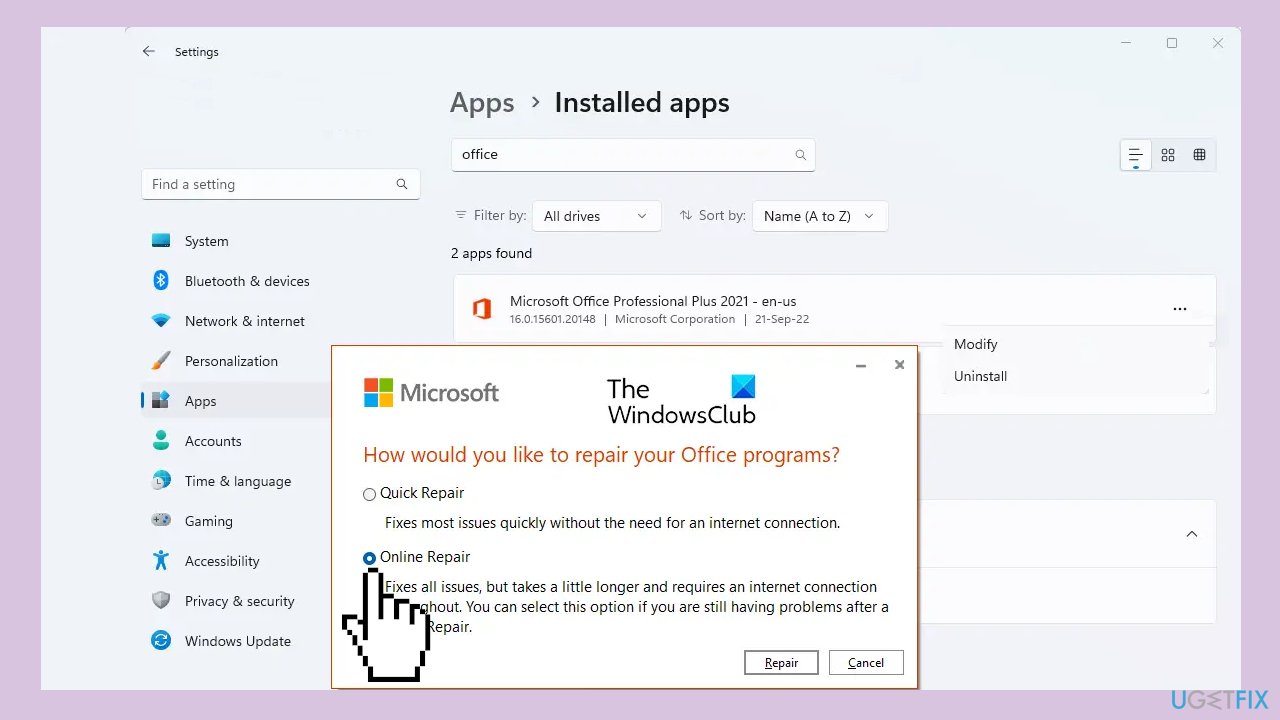
- Choose Online Repair.
- Click on Repair to initiate the repair process.
Method 5. Reinstall Microsoft Office
- Open Settings on your computer.
- Navigate to Apps > Apps and features.
- Search for Office and select the corresponding entry.
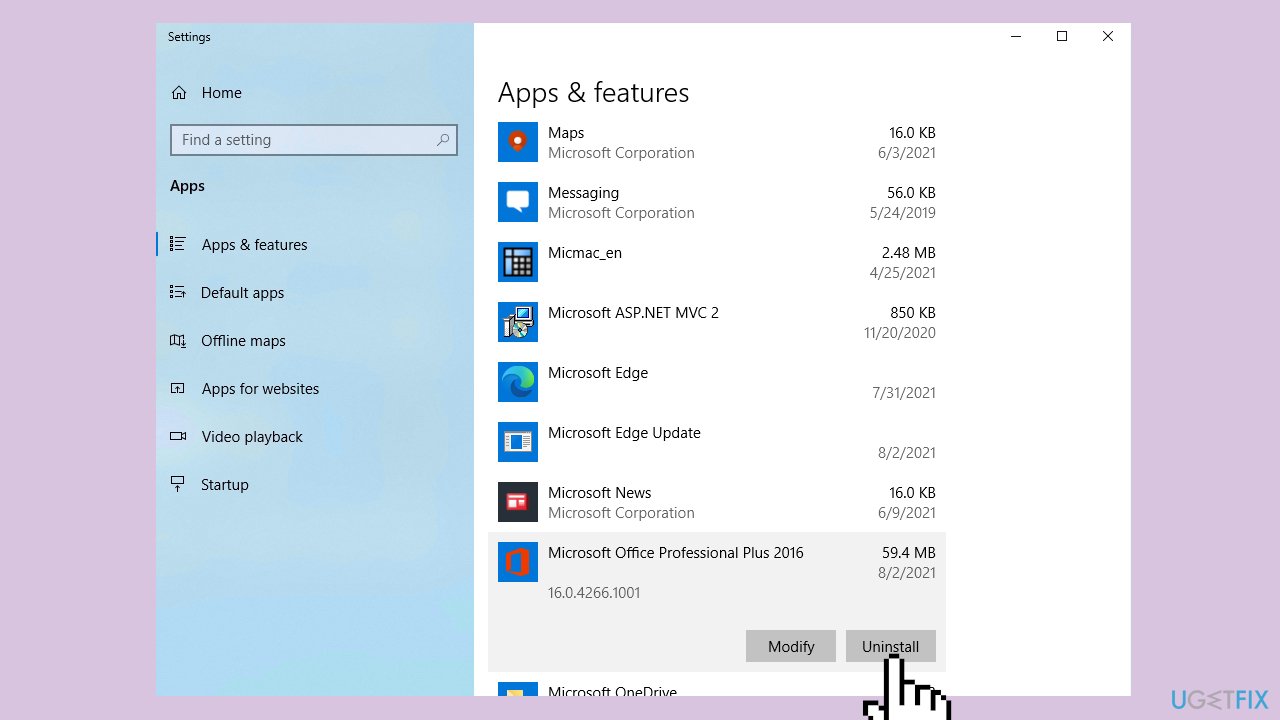
- Click on Uninstall to remove the program.
- Note: You can uninstall both Office programs (Click-To-Run or MSI) and Office apps (Microsoft Store) from this location.
- After uninstallation, proceed to download Microsoft Office again.
- Install Microsoft Office on your system.
Bottom line
To fix OneNote error 0xe0000002, users can verify for program conflicts, update or reinstall OneNote, and check for system compatibility problems. If these steps do not resolve the issue, consider using a maintenance tool to address system errors.
Frequently asked questions
The OneNote error 0xe0000002 typically arises due to corrupted files, outdated software, or conflicts with other applications on your Windows system.
To fix the OneNote error 0xe0000002 on Windows 11, try repairing the app through the Settings menu or reinstalling OneNote to ensure all components are intact.
Yes, resetting OneNote can help resolve the error 0xe0000002 in both Windows 10 and Windows 11 by restoring the app to its default settings.




Report an issue
What's wrong with this guide? We review every report and update or remove content.
Report received — thank you. We'll review and fix it.
You need a free account to submit a report.
Be the first to comment