How to fix
OneNote error 0xE0001464
on Windows 10
OneNote error 0xE0001464 disrupts the synchronization of notes across devices, preventing users from accessing updated content. This guide provides solutions to resolve the sync issue on Windows 10.

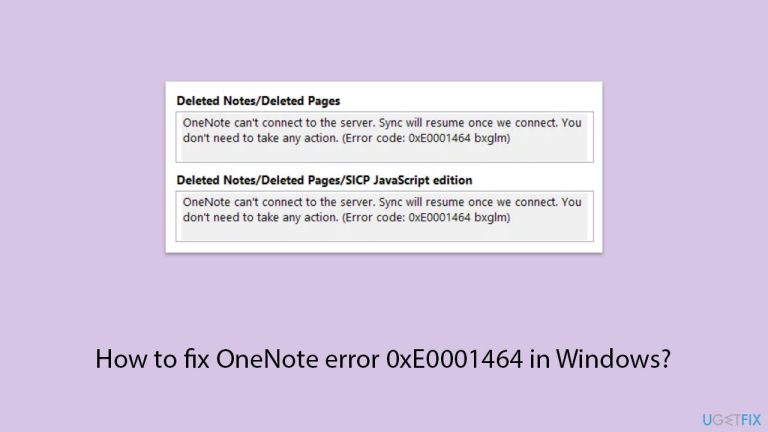
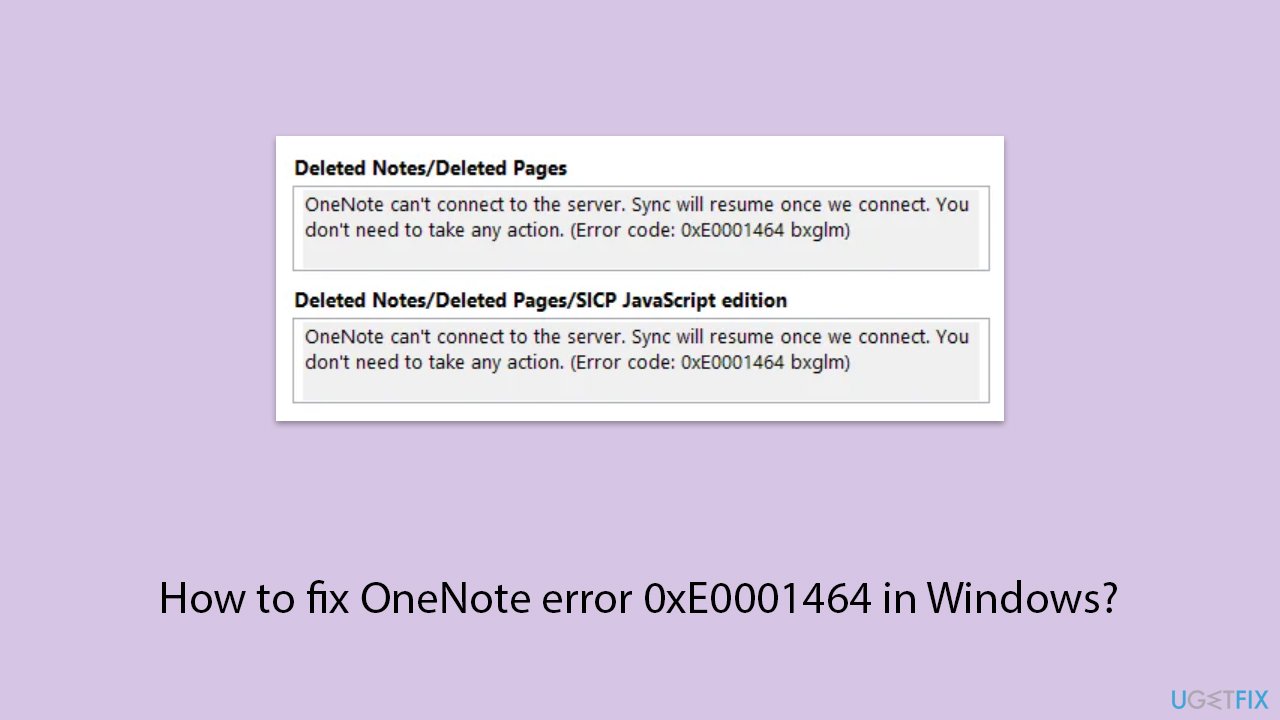
Is this your error?
Match two or more signs — you are likely dealing with OneNote error 0xE0001464.
What causes OneNote error 0xE0001464?
- Corrupted notebook or cache data
- Authentication issues with Microsoft account
- Network controls like firewalls or proxy settings blocking OneNote
Fix in 9 steps
Manually trigger a sync to reconnect with the server.
Delete cache files to force OneNote to rebuild them.
Refresh the session by signing out and back in.
Ensure you have the latest fixes for compatibility and syncing issues.
Adjust settings to allow OneNote's connection to OneDrive.
Repair corrupted system files that interfere with syncing.
Ensure there is enough free space for OneNote to write cache files.
Reinstall the application to ensure a fresh setup.
Verify if OneDrive is experiencing any outages.
Repairs Windows system files, removes malware, and restores a clean OS state — without reinstalling.
I've been trying to synchronize my OneNote notes on my Windows 10 machine, but I receive error code 0xE0001464 with the message We couldn't sync this notebook. My notes on some of my notebooks are not updating across devices, and at other times, when I initiate a forced sync, OneNote becomes unresponsive. I have double-checked that my internet connection is working fine.
The OneNote error code 0xE0001464 typically arises with an alert like We couldn't sync this notebook, where there is a syncing failure of notes to Microsoft servers. Notes are not reflected on other devices after editing on one device, or in some cases, OneNote crashes when it tries to sync. This error interrupts the free-flowing note-taking experience that OneNote is renowned for, usually leaving users incapable of viewing existing notes across devices.
There are several possible reasons this sync issue could be caused. Files on the Notebook or cache data may get corrupted, which would prevent OneNote from talking nicely to the cloud. Authentication issues, such as stale credentials or compatibility with Microsoft account log-ins, are common culprits as well.
Network controls like firewalls or proxy settings may block the communication of OneNote to OneDrive, where the notebooks reside. Also, a corrupted OneNote application, low disk space, or system-related issues like corrupt files might be the source of the error, especially when OneNote is unable to write or read local cache files.
OneNote, a component of Microsoft Office and a separate application in Windows 10 and 11, is a powerful note-taking, idea management, and collaborative work tool across devices. It uses OneDrive for cloud synchronizing, making notes accessible everywhere. When errors like 0xE0001464 occur, though, this feature does not work, and certain troubleshooting is needed to bring it back to life.
A couple of steps, luckily, are sufficient to fix this error, depending on its cause. Forcing a manual sync, cache clearing, or OneNote updating typically fixes the problem. System repairs or network settings might be needed for more complex scenarios. The following are eight step-by-step solutions to fix OneNote syncing.
As an alternative quicker solution, we recommend [d1], a PC repair software that can automatically repair system file corruption, service problems, and other Windows issues potentially causing the 0xE0001464 error.
Fix 1. Force a manual sync
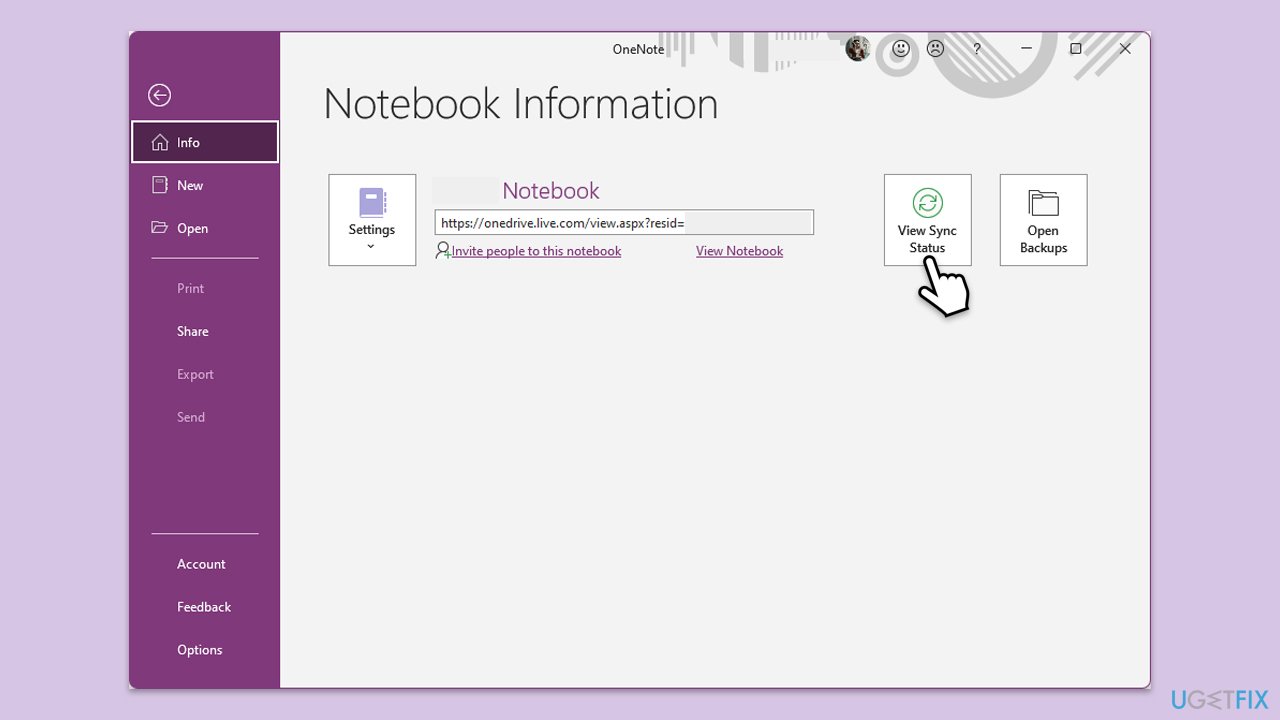
Sometimes, sync issues are temporary and can be resolved by manually triggering a sync, which forces OneNote to reconnect with the server.
- Open OneNote and click on the notebook you’re having issues with.
- Go to the File menu and select View Sync Status.
- Click Sync Now or Sync All to initiate a manual sync.
Fix 2. Clear OneNote cache
A corrupted cache can prevent OneNote from syncing properly, as it relies on local cache files to manage notebook data. Clearing it forces OneNote to rebuild the cache.
- Close OneNote completely.
- Navigate to the following location:
C:UsersYourUsernameAppDataLocalMicrosoftOneNote16.0cache (replace with your username and OneNote version). - Delete all files in this folder.
- Restart OneNote and try syncing again.
Fix 3. Sign out and sign back into OneNote
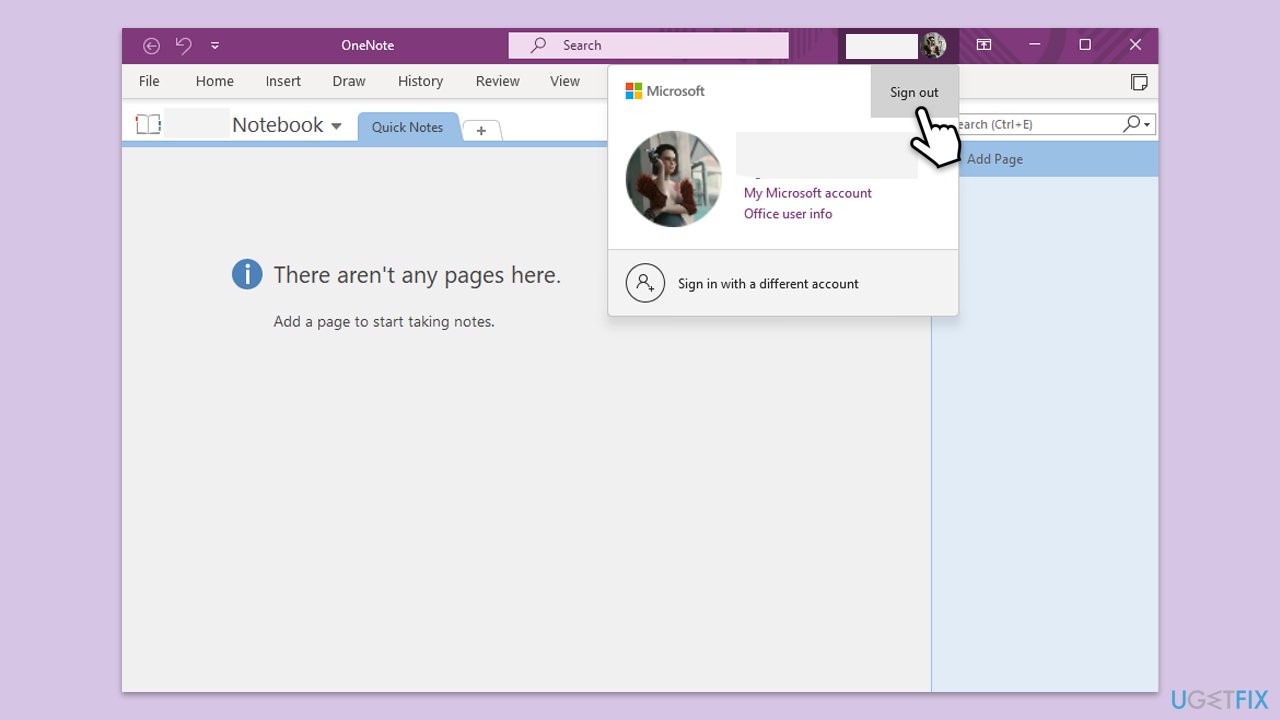
Authentication issues with your Microsoft account can disrupt syncing, causing errors like 0xE0001464. Signing out and back in refreshes the session.
- Open OneNote and click File > Account.
- Click Sign out and confirm.
- Close OneNote and reopen it.
- Sign back in with your Microsoft account
- Try syncing the notebook again.
Fix 4. Update OneNote to the latest version
An outdated OneNote app might have bugs that cause sync failures. Updating ensures you have the latest fixes for compatibility and syncing issues.
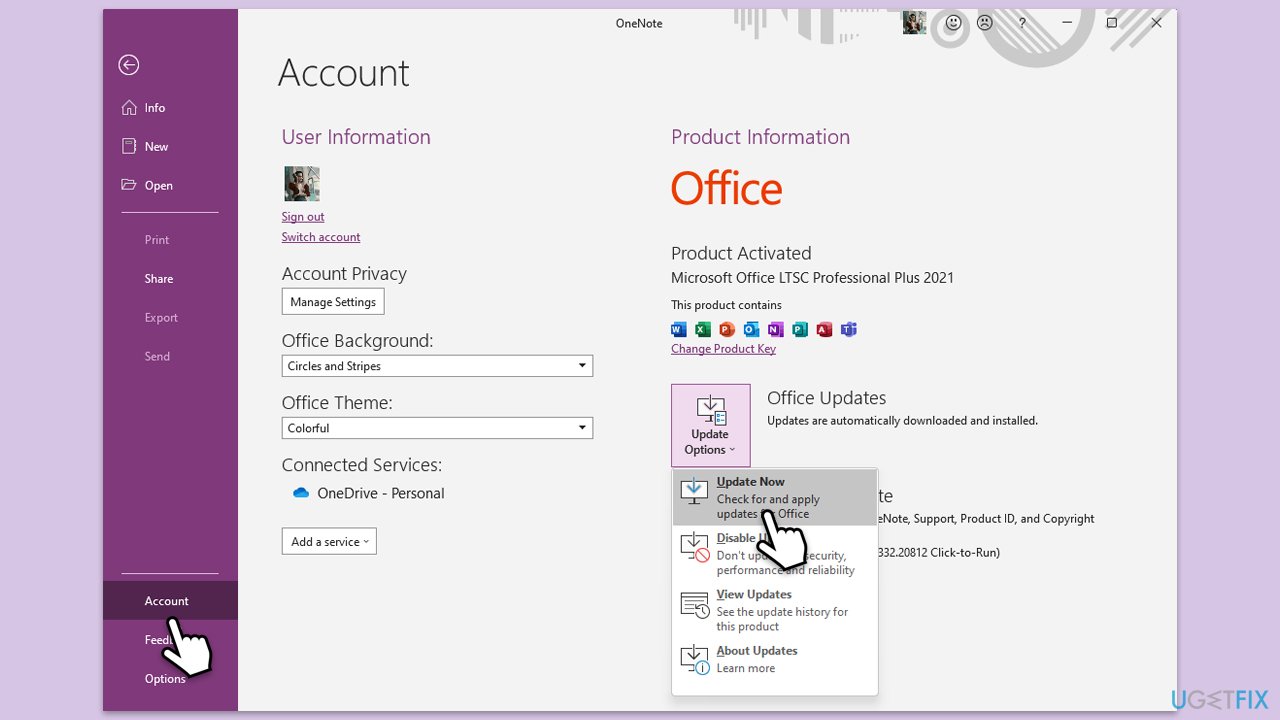
- Open Microsoft OneNote and navigate to File.
- From the file menu, select Account.
- Under Product Information, locate and click on Update Options.
- From the dropdown list, select Update Now. The program will then check for available updates and install them.
Fix 5. Check network and firewall settings
Network restrictions, such as firewalls or proxies, can block OneNote’s connection to OneDrive, leading to sync errors. Adjusting these settings can help.
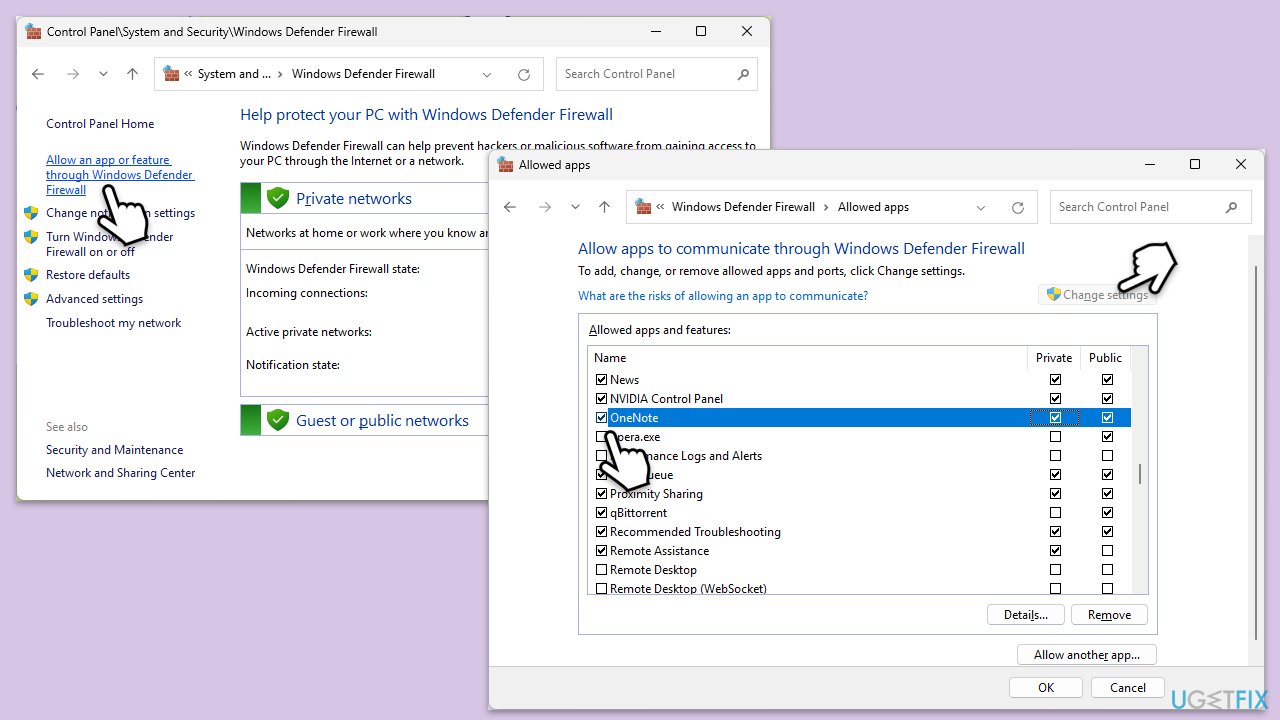
- Right-click on Start and pick Settings.
- Go to Network & internet > Proxy and ensure Use a proxy server is turned off.
- Open Windows Security by searching for it in the Start menu.
- Go to Firewall & network protection > Allow an app through firewall.
- Ensure OneNote is listed and allowed for both private and public networks.
- If using third-party firewall software, check the software's support site for instructions to allow OneNote.
- Restart OneNote and attempt to sync again.
Fix 6. Run SFC and DISM scans
Corrupted system files can interfere with OneNote’s ability to sync, causing errors like 0xE0001464. SFC and DISM tools can repair these files.
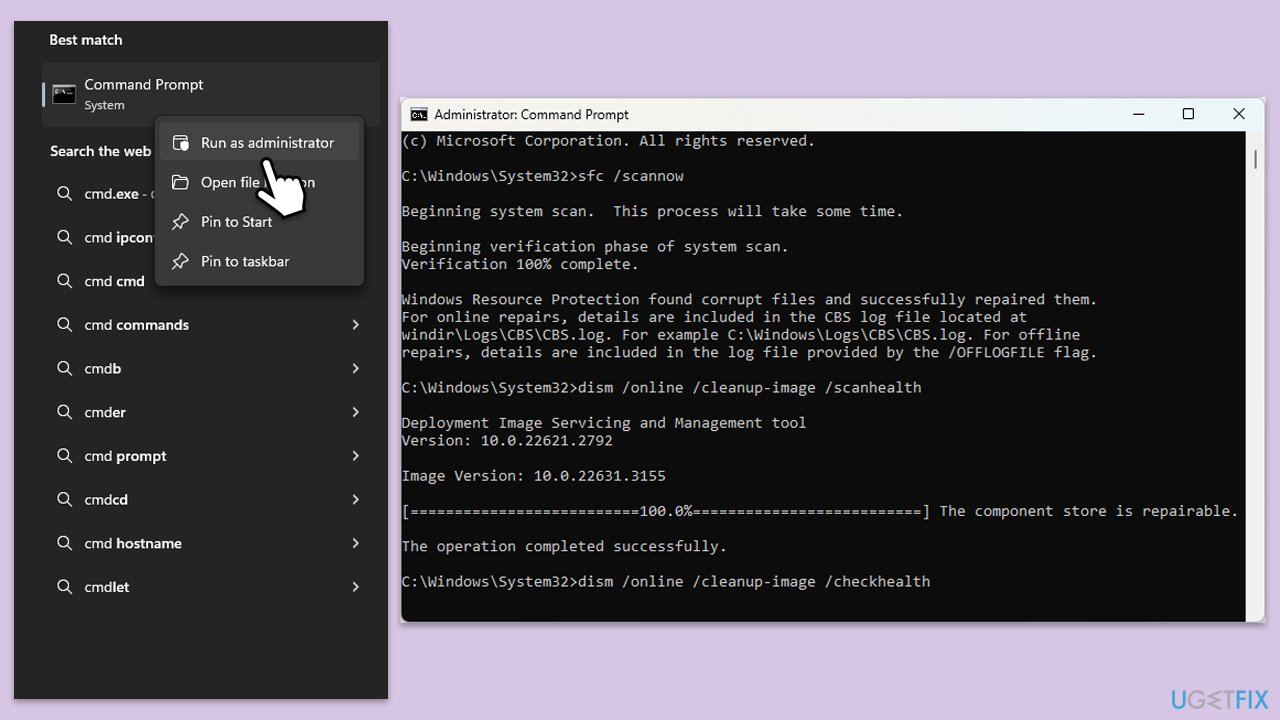
- Type cmd in Windows search.
- Right-click on Command Prompt and select Run as administrator.
- When User Account Control window shows up, click Yes.
- Paste the following command into the new window:
sfc /scannow - Press Enter and wait till the scan is executed.
- As soon as the scan finishes, Windows will report whether integrity violations were found and if they could be fixed. Regardless of the outcome, use these commands next, pressing Enter after each:
DISM /Online /Cleanup-Image /CheckHealth
DISM /Online /Cleanup-Image /ScanHealth
DISM /Online /Cleanup-Image /RestoreHealth - (Note: if you get an error executing this last command, add /Source:C:RepairSourceWindows /LimitAccess to it and try again).
- Close down the Command Prompt and restart your computer.
Fix 7. Free up disk space
Low disk space can prevent OneNote from writing cache files needed for syncing, leading to errors. Ensuring enough free space can resolve this.
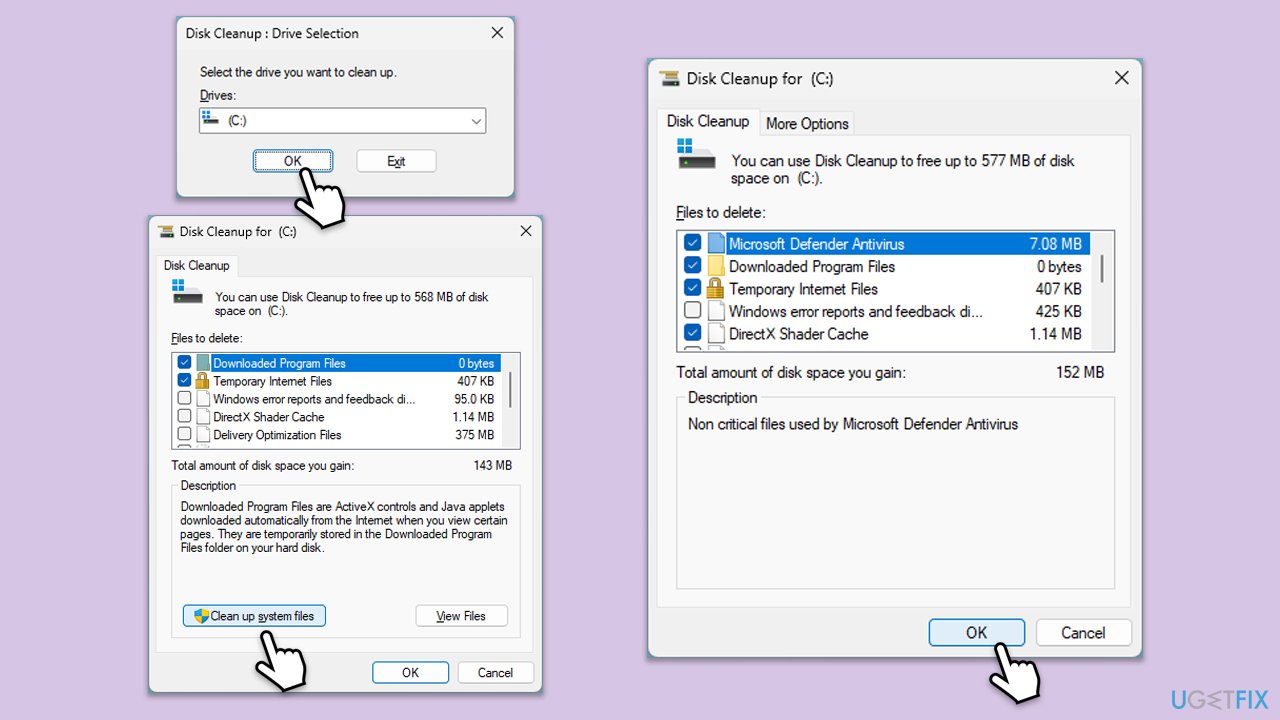
- Type Disk Cleanup in Windows search and hit Enter.
- If your Windows is installed on drive C, pick it from the list (it should be by default) and press OK.
- Click Clean up system files.
- Select your main disk again and click OK.
- Here, select the largest portions of the data used - these typically include Temporary Internet Files, Windows Update, Temporary Files, Recycle Bin, Delivery Optimization Files, and others.
- Click OK - the process should be finished shortly.
- Check available storage by opening File Explorer, selecting This PC, and reviewing available storage under the Devices and drives section. Ensure there is more than 500 MB free space.
Fix 8. Reinstall OneNote
If OneNote’s installation is corrupted, it might fail to sync properly. Reinstalling it ensures a fresh setup of all components.
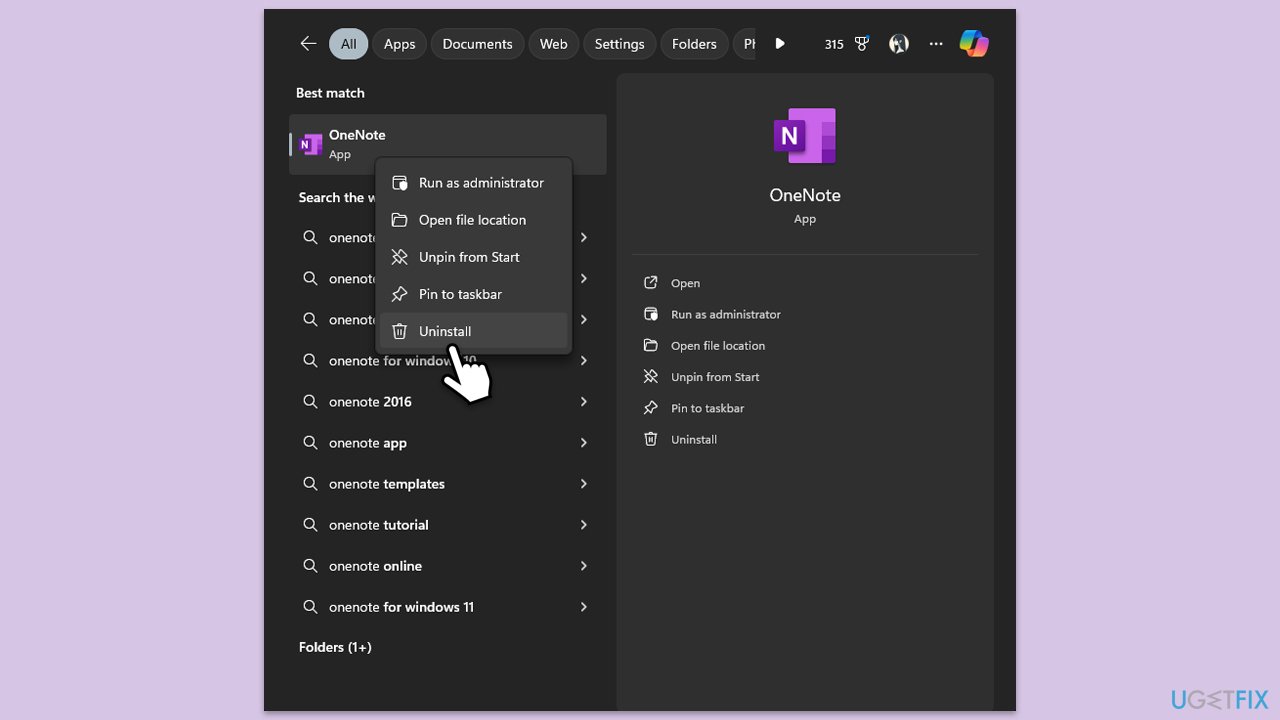
- Type OneNote in the Windows search box.
- Right-click on OneNote and select Uninstall.
- Follow the prompts to remove the app completely.
- Reboot your system.
- Go to the Microsoft Store and reinstall OneNote.
Fix 9. Check OneDrive status
OneNote relies on OneDrive for syncing. If OneDrive is experiencing issues, syncing will be affected.
- Visit the Microsoft Service Status page to check if OneDrive is experiencing any outages.
- Try syncing your notebook from a different network, such as a mobile hotspot, to rule out network-specific issues.
- If OneDrive is down, wait for the service to be restored before attempting to sync again.
FAQ
Why am I seeing error 0xE0001464?
This error generally means OneNote can't connect to the server. It could be due to network issues, authentication problems, or corrupted files.
How do I know if my disk space is causing the error?
Check your available disk space by opening File Explorer and selecting 'This PC'. Ensure you have more than 500 MB of free space.
Can OneNote error 0xE0001464 be fixed by repairing Office?
While not specific to this error, repairing the Office installation can resolve various OneNote issues. You can try it if other fixes don't work.
Bottom line
By following these steps, you can resolve the OneNote error 0xE0001464 and restore the synchronization of your notes across devices. Ensure to check network settings and update OneNote regularly to prevent future issues.
Frequently asked questions
OneNote can't connect to the server due to network issues, authentication problems, or corrupted files.
Check your available disk space to ensure there is more than 500 MB free.
Wait for the service to be restored before attempting to sync again.




Report an issue
What's wrong with this guide? We review every report and update or remove content.
Report received — thank you. We'll review and fix it.
You need a free account to submit a report.
Be the first to comment