How to fix
OneNote error code 0x803d0014
on Windows
Resolve OneNote error code 0x803d0014 on Windows 10 and 11 quickly with our expert-tested solutions. Fix it in minutes and get back to work!

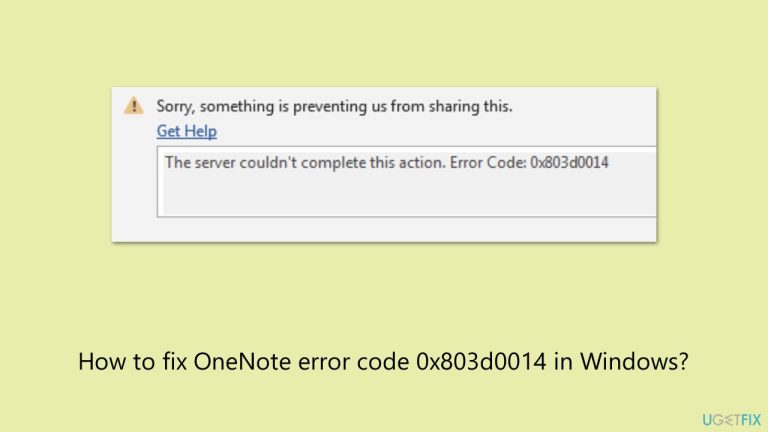
What causes How to fix OneNote error code 0x803d0014 in Windows?
- Corrupted app data or cache
- Network issues
- Outdated versions of the app or Windows
- Misconfigured account settings
- Deeper system problems like corrupted files or registry errors
Repairs Windows system files, removes malware, and restores a clean OS state — without reinstalling.
Hi there, I’ve been using OneNote on my Windows 11 laptop for months without issues, but now I keep getting this annoying error code 0x803d0014 every time I try to sync my notes. It started after a recent update, and now I can’t access my shared notebooks at all. How do I fix it? I’ve tried restarting the app and my PC, but nothing’s worked so far.
Windows users experience OneNote error code 0x803d0014 when they attempt to synchronize or access their notes in Microsoft's note-taking application OneNote. Since OneNote integrated more deeply with Windows systems this error has appeared repeatedly in user reports causing synchronization failures and complete notebook access restrictions. This problem interrupts workflow especially when OneNote serves as a core productivity tool for work or education purposes.
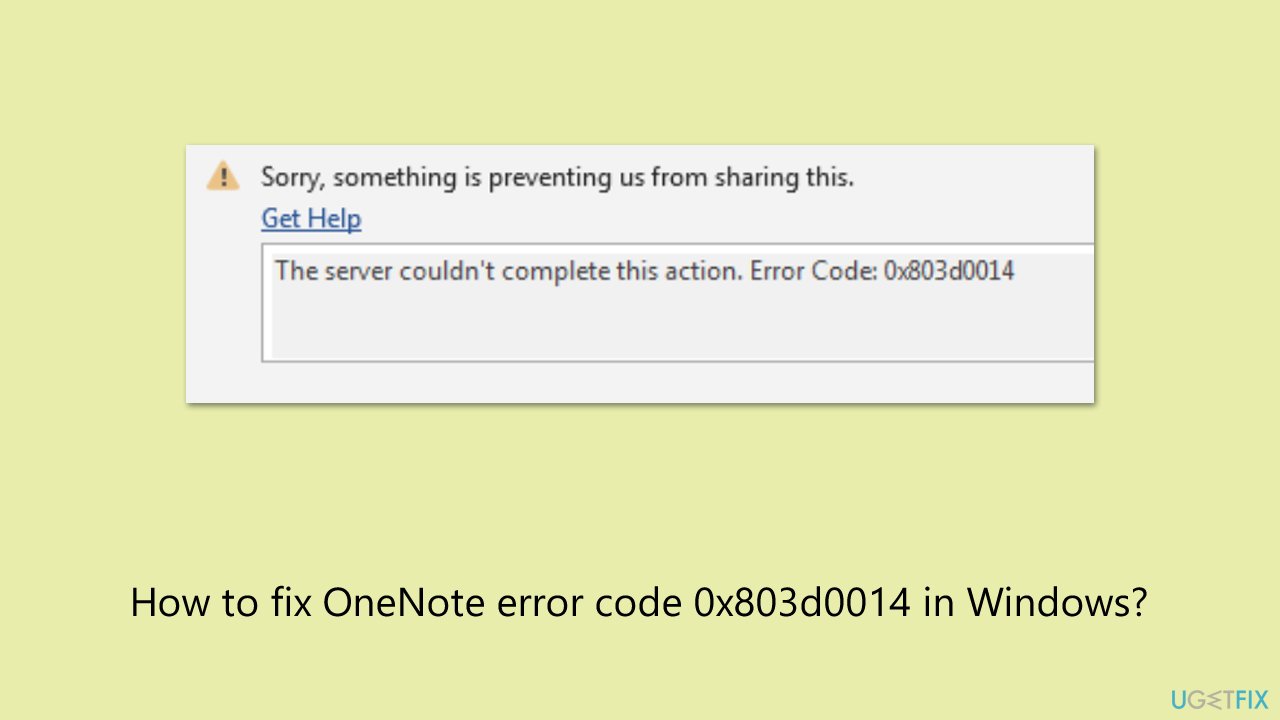
Users encounter the 0x803d0014 error when they start OneNote and when they try to sync shared notebooks or while switching their accounts. The error message displays confusing technical language without revealing any details about the fundamental cause of the problem. While some users claim encountering it for the very first time, others say that they have been struggling with it for a while now.
So, what could be behind error code 0x803d0014? Several culprits might be at play. Corrupted app data or cache is a frequent suspect, often stemming from interrupted updates or improper shutdowns. Network issues could also interfere, especially if OneNote struggles to connect to Microsoft’s servers for syncing.
Outdated versions of the app or Windows itself might trigger compatibility hiccups, while misconfigured account settings (like incorrect credentials or permissions) can also lead to this digital dead end. In some cases, deeper system problems like corrupted files or registry errors might be quietly pulling the strings.
Possible solutions start with the basics: restart OneNote or your PC to clear any temporary glitches. Checking for app and Windows updates is a smart move, as Microsoft often patches known bugs. Clearing the OneNote cache or re-signing into your account might reset the sync process. If the problem persists, resetting or reinstalling the app could do the trick, though it’s wise to back up your notes first. For network-related woes, ensuring a stable internet connection is key.
For a more automated fix, consider using the [d1] maintenance and repair utility, which shines when tackling broken registries or DLLs, corrupted system files, BSODs, and more.
Fix 1. Update OneNote and Windows
Keeping software up to date often resolves compatibility issues and patches known bugs that could trigger error code 0x803d0014. Microsoft frequently releases updates to address sync and performance glitches in OneNote.
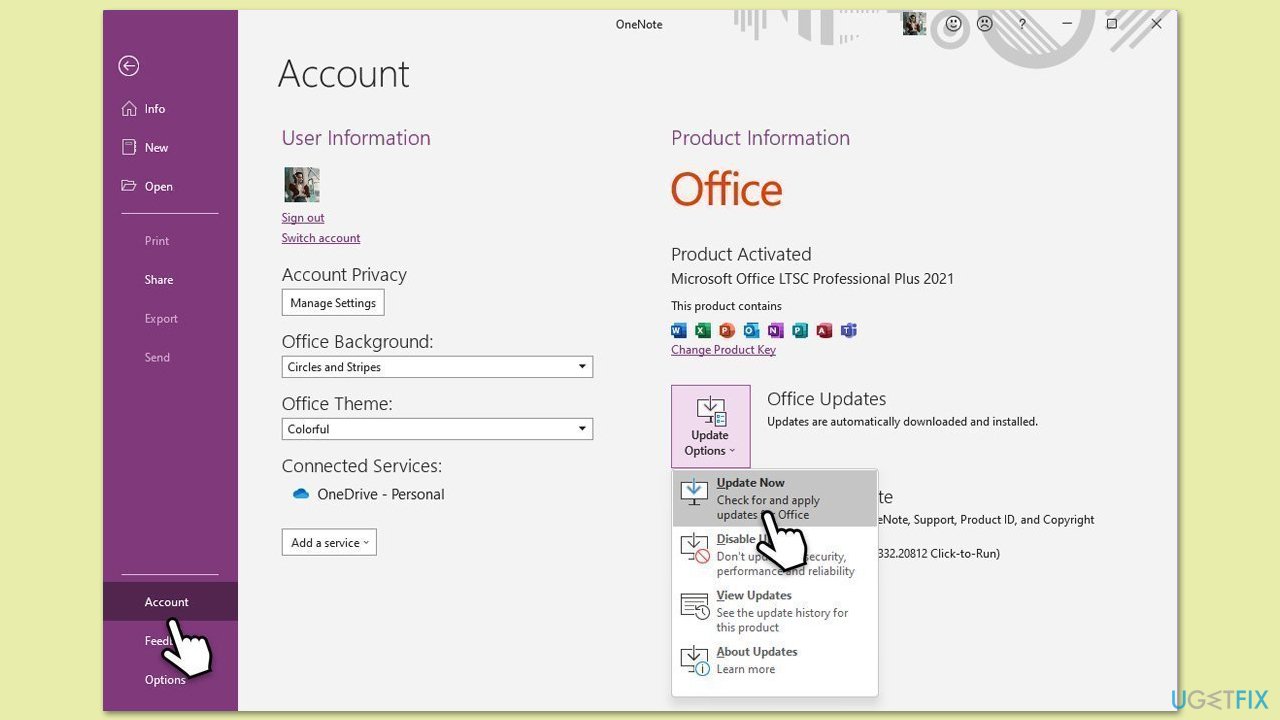
- Open Microsoft OneNote and navigate to File.
- From the file menu, select Account.
- Under Product Information, locate and click on Update Options.
- From the dropdown list, select Update Now. The program will then check for available updates and install them.
Update Windows:
- Type Updates in Windows search and press Enter.
- Here, click Check for updates or Install updates, depending on which one is available.
- Wait till Windows downloads and installs all the necessary files.
- If optional updates are available, install them too.
- Restart your computer and try logging in again.
Fix 2. Clear OneNote cache
Corrupted cache files can disrupt syncing and cause errors like this one by holding onto outdated or broken data. Clearing it forces OneNote to rebuild fresh files.
- Close OneNote completely.
- Press Win + E to open File Explorer.
- Ensure Hidden files are visible.
- Navigate to the following location:
C:\Users\YourUsername\AppData\Local\Microsoft\OneNote\16.0\cache (replace with your username and OneNote version). - Delete all files in this folder.
Fix 3. Sign Out and back in
Account authentication glitches can block access to notebooks, and re-logging in refreshes your credentials with Microsoft’s servers.
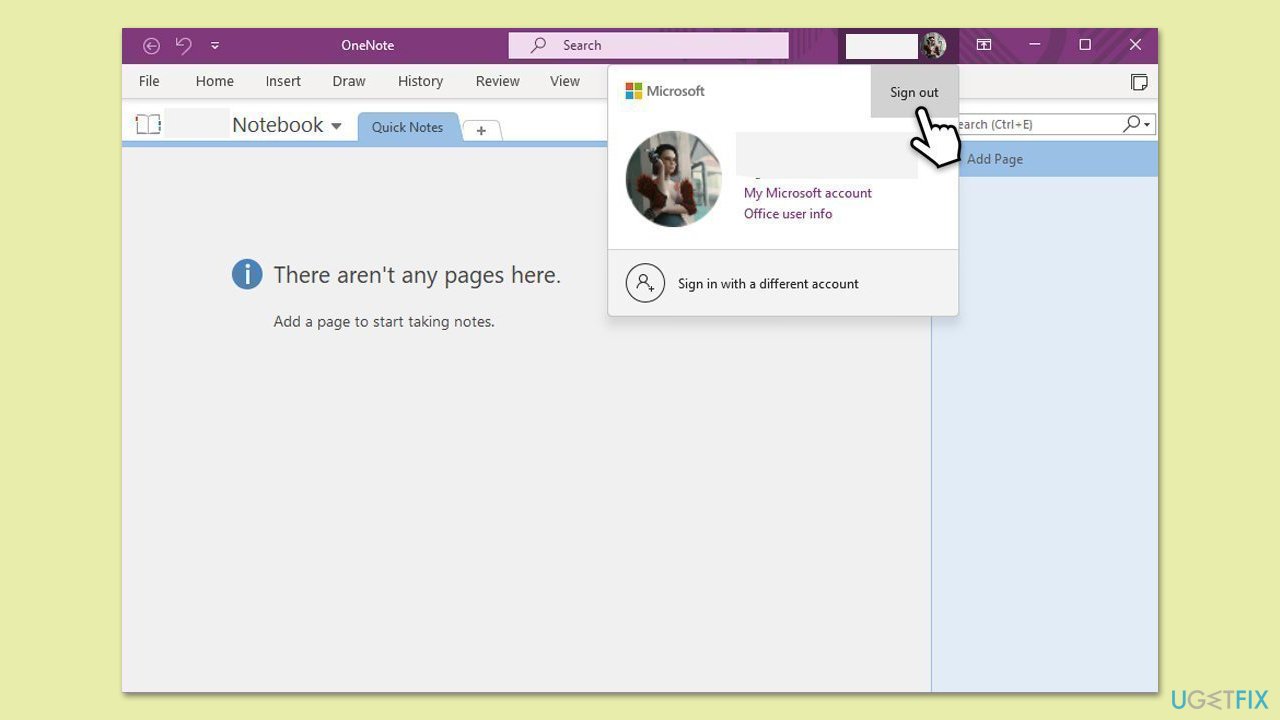
- Open OneNote and click File > Account.
- Click Sign out and confirm.
- Close OneNote and reopen it.
- Sign back in with your Microsoft account and try syncing again.
Fix 4. Check internet connection stability
Sync errors often stem from shaky network performance, interrupting OneNote’s ability to communicate with the cloud. Ensuring a solid connection can eliminate this variable.
Windows 11
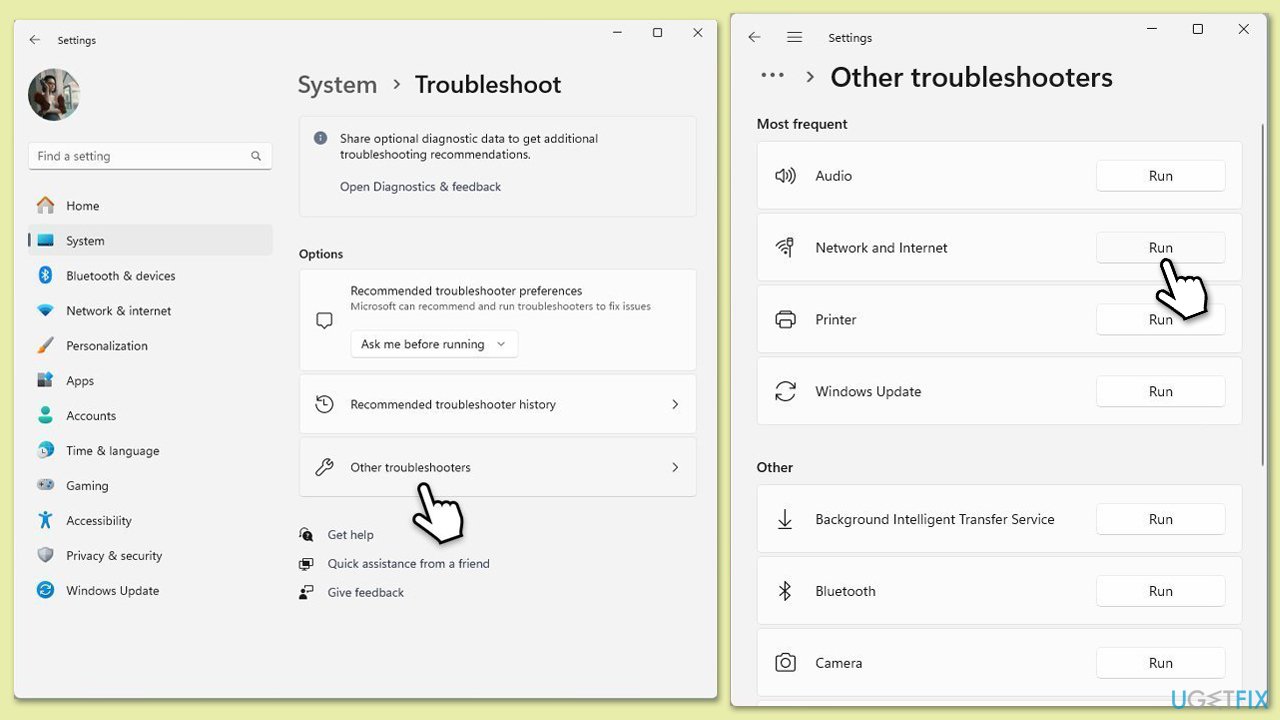
- Type Troubleshoot in Windows search and hit Enter.
- Select Other troubleshooters.
- Find Network & Internet from the list and select Run.
- Wait till the scan is finished - you will be provided with potential causes so you can proceed with fixes.
Windows 10
- Right-click on Start and pick Settings.
- Go to the Network & Internet section.
- On the right side, find the Advanced network settings section.
- Click Network troubleshooter and wait.
- The fixes will be automatically applied.
Fix 5. Repair Microsoft Office (If applicable)
For users with OneNote bundled in an Office suite, repairing the suite can fix deeper integration issues tied to the error.
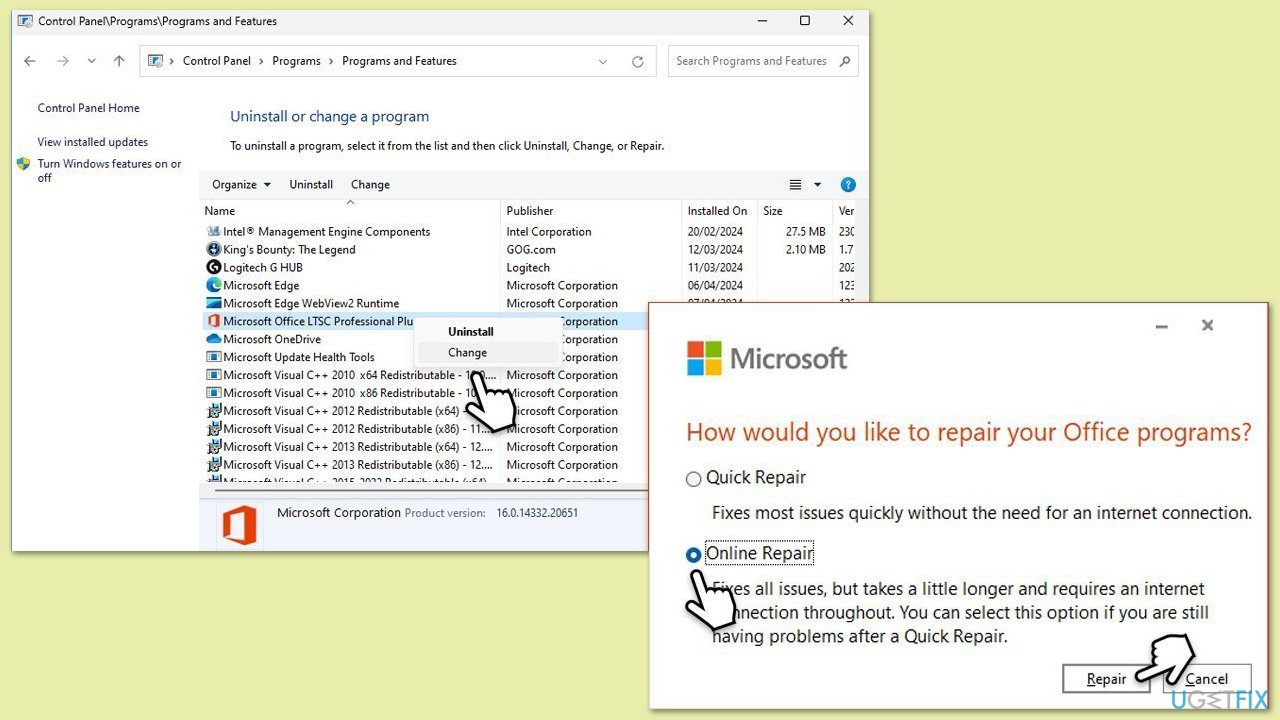
- Type Control Panel in Windows search and press Enter.
- Select Programs and Features.
- Find Microsoft Office in the list, right-click, and choose Online repair.
- Follow the on-screen instructions to complete the repair process.
Fix 6. Reinstall OneNote
Damaged installation files could be at fault, and a fresh install replaces them entirely to restore proper function.
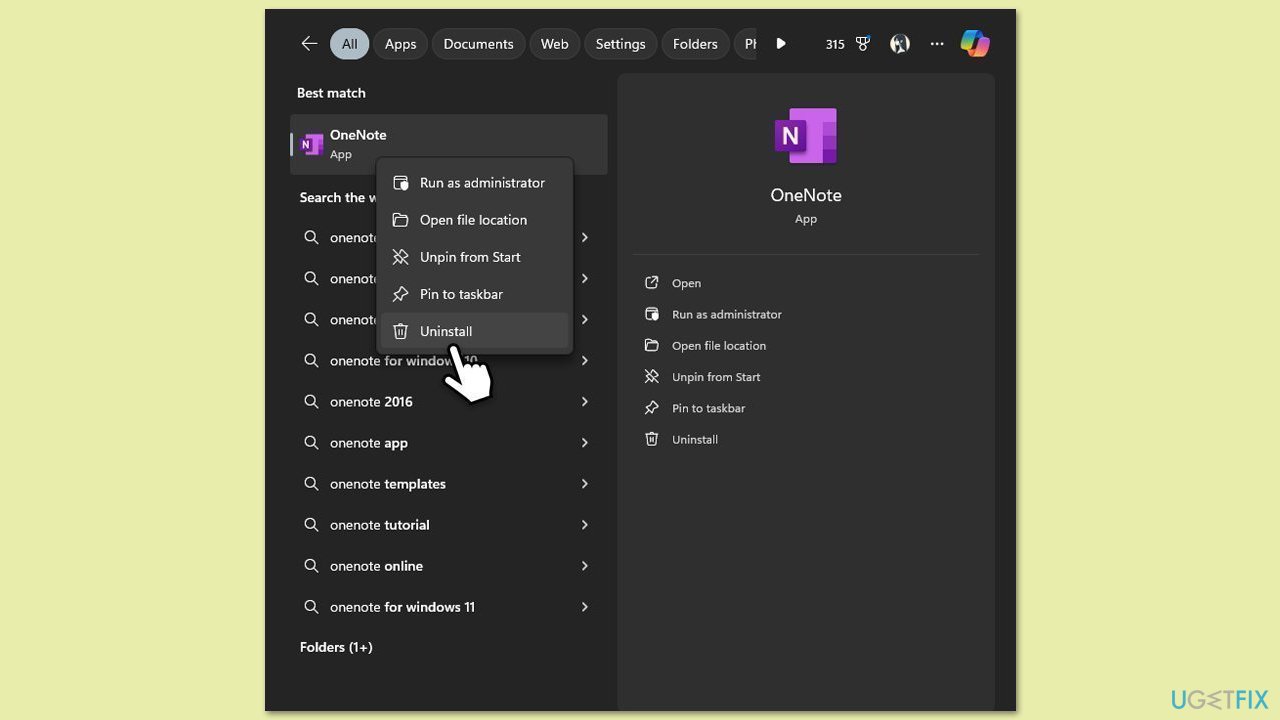
- Type OneNote in the Windows search box.
- Right-click on OneNote and select Uninstall.
- Follow the prompts to remove the app completely.
- Reboot your system.
- Go to the Microsoft Store and reinstall OneNote.
Fix 7. Check account permissions
Incorrect or revoked permissions on shared notebooks can trigger sync failures, leading to this error code. Verifying access rights resolves such conflicts.
- Right-click on the OneNote folder in your Documents directory.
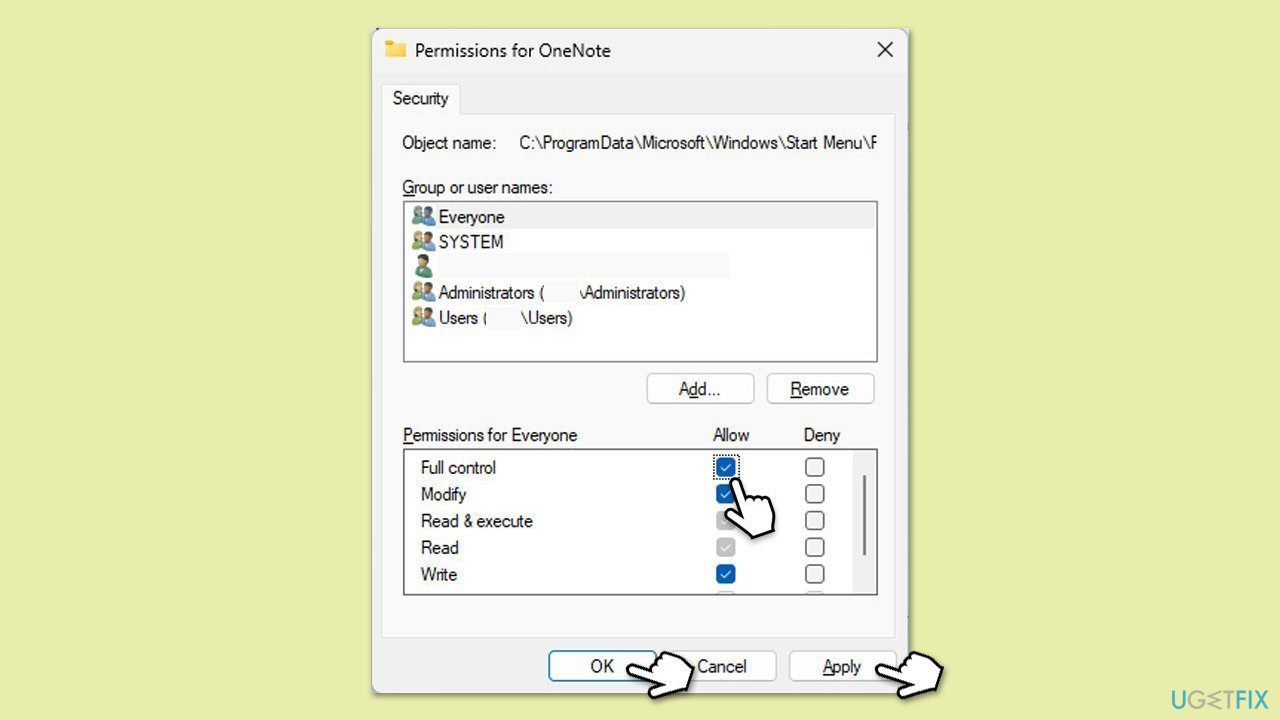
- Select Properties and navigate to the Security tab.
- Ensure that your user account has full control.
- Click Edit and adjust the permissions as required.
- Apply changes and restart OneNote.
Bottom line
To fix the OneNote error code 0x803d0014, users can start by restarting OneNote or their PC, checking for app and Windows updates, clearing the OneNote cache, or re-signing into their account. If these steps do not resolve the issue, resetting or reinstalling the app may be necessary.
Frequently asked questions
The OneNote error code 0x803d0014 typically indicates a problem with the sync process, often related to a corrupted notebook or issues with your Microsoft account settings.
To fix this error on Windows 11, try resetting OneNote by going to Settings > Apps > Apps & features, selecting OneNote, and clicking on the 'Advanced options' to reset the app.
To prevent this error from recurring in Windows 10, ensure that your OneNote app is updated regularly and that your internet connection is stable during sync operations.




Report an issue
What's wrong with this guide? We review every report and update or remove content.
Report received — thank you. We'll review and fix it.
You need a free account to submit a report.
Be the first to comment