How to fix
OneNote Immersive Reader not working
on Windows
Resolve OneNote Immersive Reader issues in Windows 10 and 11 quickly and efficiently. Follow our expert-tested solutions for seamless reading today!

What causes How to fix OneNote Immersive Reader not working in Windows?
- Outdated OneNote application
- Corrupted app files
- Unsupported document format
- Poor internet connection
Repairs Windows system files, removes malware, and restores a clean OS state — without reinstalling.
For the past week or so, Immersive Reader on OneNote has not worked for me. Instead, I see an empty white window with a loading symbol, and no matter how long I wait, nothing happens. I'm using the latest version of Windows.
OneNote is a digital note-taking application developed by Microsoft. It is widely used for various purposes, such as taking notes during meetings, creating to-do lists, and even for educational use, like organizing lecture notes. One of its most beneficial features is the Immersive Reader.
Immersive Reader is designed to make reading more accessible by providing options to read text aloud, break words into syllables, and offer text decoding solutions. It is particularly useful for individuals with learning disabilities, those who are non-native English speakers, or anyone who finds it more comfortable to absorb information audibly.
However, some users have reported that Immersive Reader is not functioning as expected. Specifically, they encounter a loading screen that never resolves into the application's interface. Instead of accessing the features to facilitate reading, all they see is a perpetual loading symbol, effectively halting their workflow.
Several factors can contribute to Immersive Reader not working. One of the most common causes could be an outdated or corrupted OneNote application. Applications that are not up-to-date often experience bugs or compatibility issues. Similarly, if the app files have been corrupted, it may result in the Immersive Reader feature not loading properly. Another possibility is the document format being unsupported by Immersive Reader.
While OneNote aims to support a wide range of formats, there may be specific ones that Immersive Reader cannot process, leading to loading issues. A poor internet connection can also contribute to this problem. Immersive Reader often requires a stable connection to function seamlessly, and an unstable or slow connection may result in a stuck loading screen.
Though detailed solutions for these issues will be outlined below, one preliminary step to rule out a system-wide problem is to use [d1] PC repair software, which can troubleshoot a range of issues, providing a broader health check for your Windows operating system.
Fix 1. Update OneNote
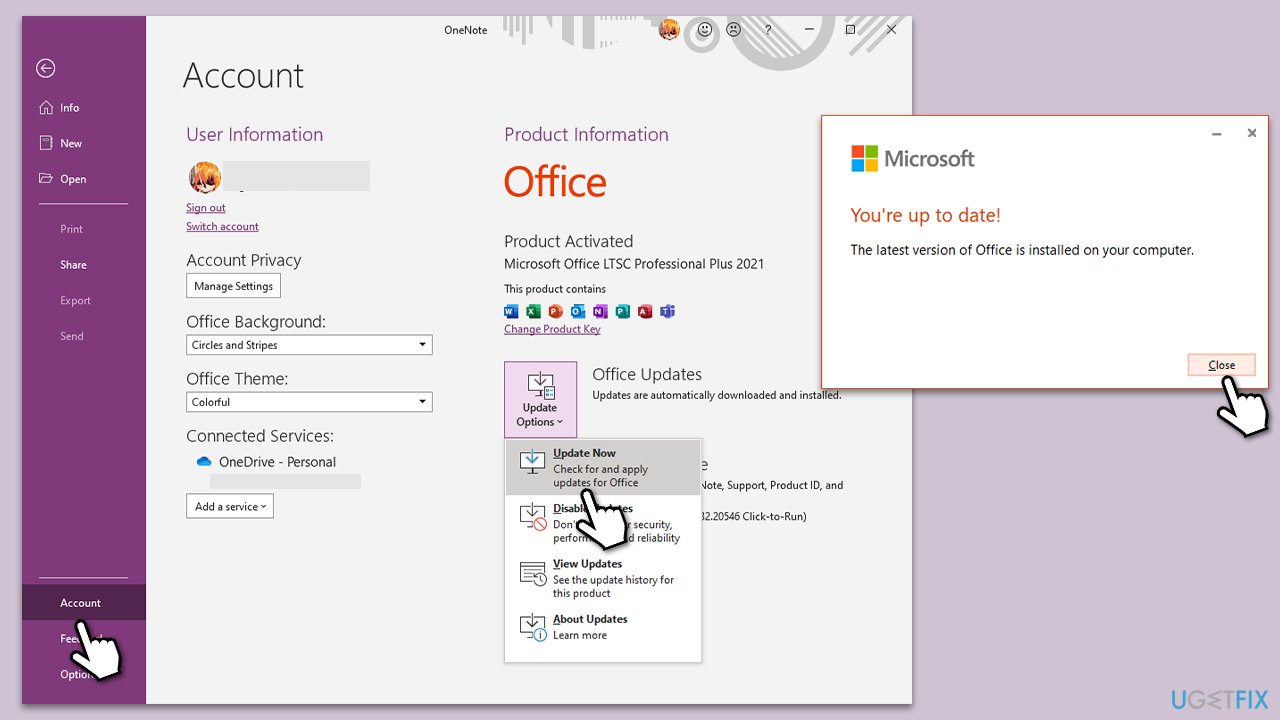
Updating OneNote to the latest version can resolve bugs and compatibility issues, including problems with the Immersive Reader feature.
- Open Microsoft OneNote and navigate to File.
- From the file menu, select Account.
- Under Product Information, locate and click on Update Options.
- From the dropdown list, select Update Now. The program will then check for available updates and install them.
Fix 2. Run network troubleshooter
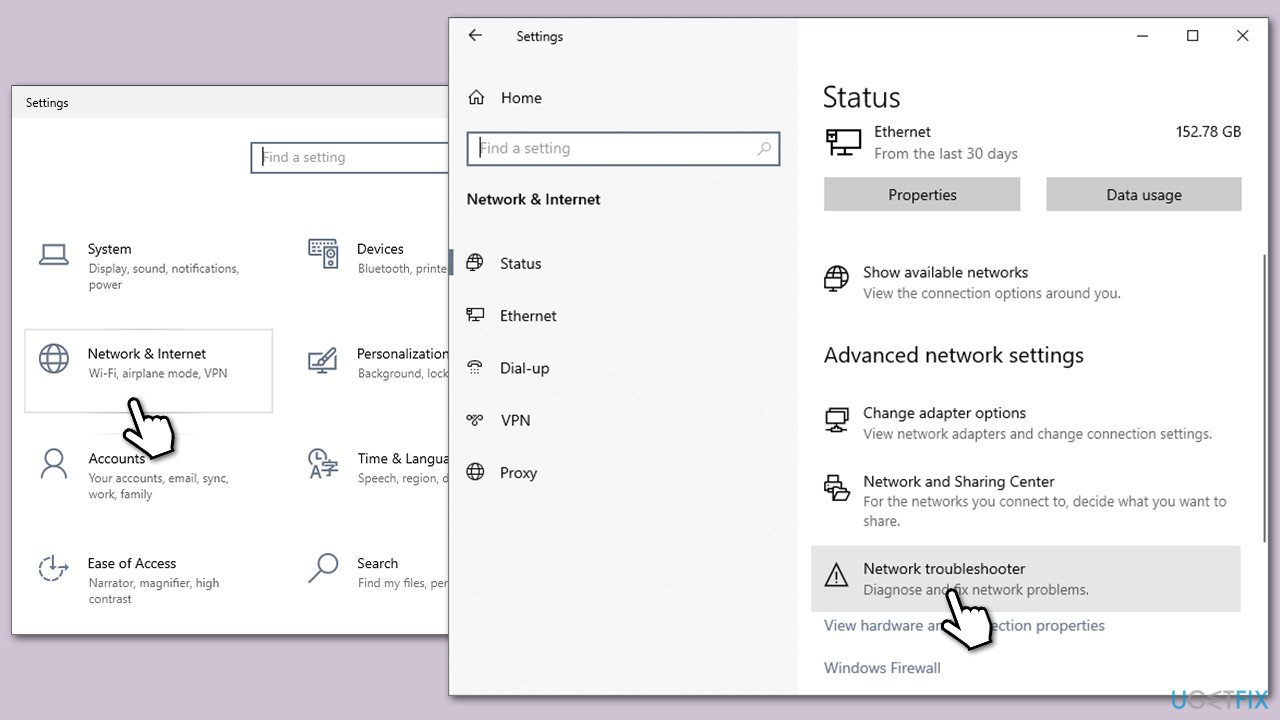
A poor internet connection can affect the performance of Immersive Reader. Running the network troubleshooter can identify and potentially fix any connectivity issues.
- Right-click on Start and pick Settings.
- Go to the Network & Internet section.
- On the right side, find the Advanced network settings section.
- Click Network troubleshooter and wait.
- Apply the recommended fixes.
Fix 3. Ensure your mic is not muted, and check volume levels
If the issue lies with the audio output in Immersive Reader, ensure that your microphone is not muted and the volume is appropriately set.
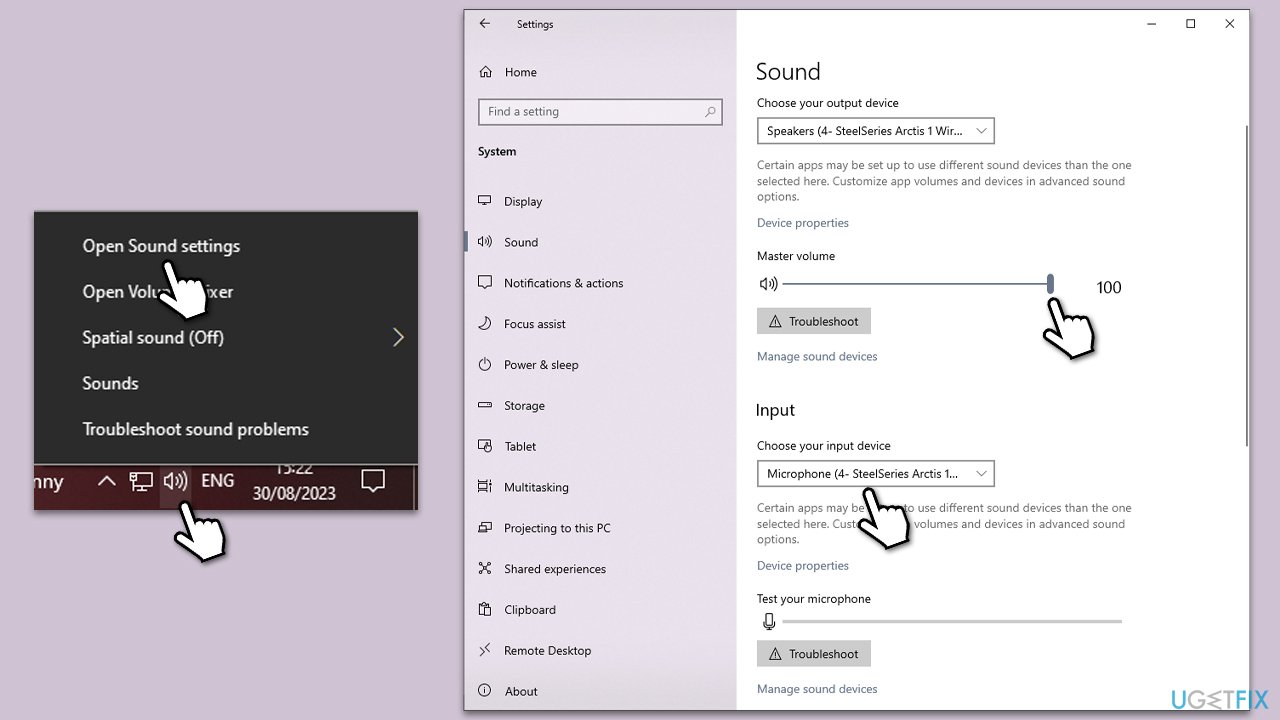
- Right-click on the speaker icon in your system tray.
- Select Open Sound settings.
- Under Input, make sure the correct microphone is selected.
- Check if the microphone is muted or if the volume is too low, and adjust accordingly.
Fix 4. Check if your language is supported
Immersive Reader may not support all languages. Make sure the language of your document is supported.
- Open OneNote, click on File, and go to Options.
- Navigate to Language.
- Confirm that the language of your document is listed as supported.
- If it is missing but supported, you can follow the link to install it.
Fix 5. Clear OneNote cache files
Clearing the cache can remove any temporary files that might be causing issues with Immersive Reader.
- Close OneNote.
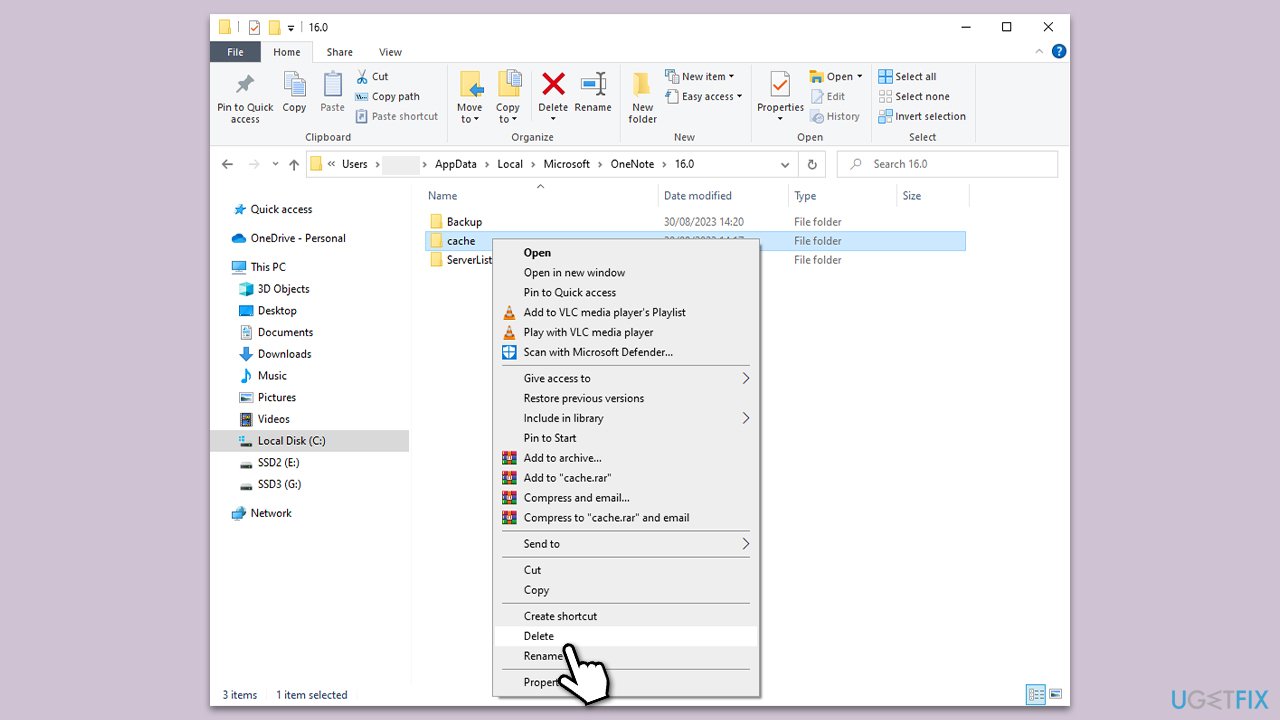
- Open File Explorer by pressing Win + E.
- Ensure that hidden files are visible.
- Go to the following location (replace USERNAME with your personal one and note that the version at the end can differ too):
C:\users\USERNAME\AppData\Local\Microsoft\OneNote\16.0 - Right-click on the cache folder and select Delete.
Fix 6. Repair or reset OneNote
Repairing or resetting the application can fix any underlying issues that may be causing the problem.
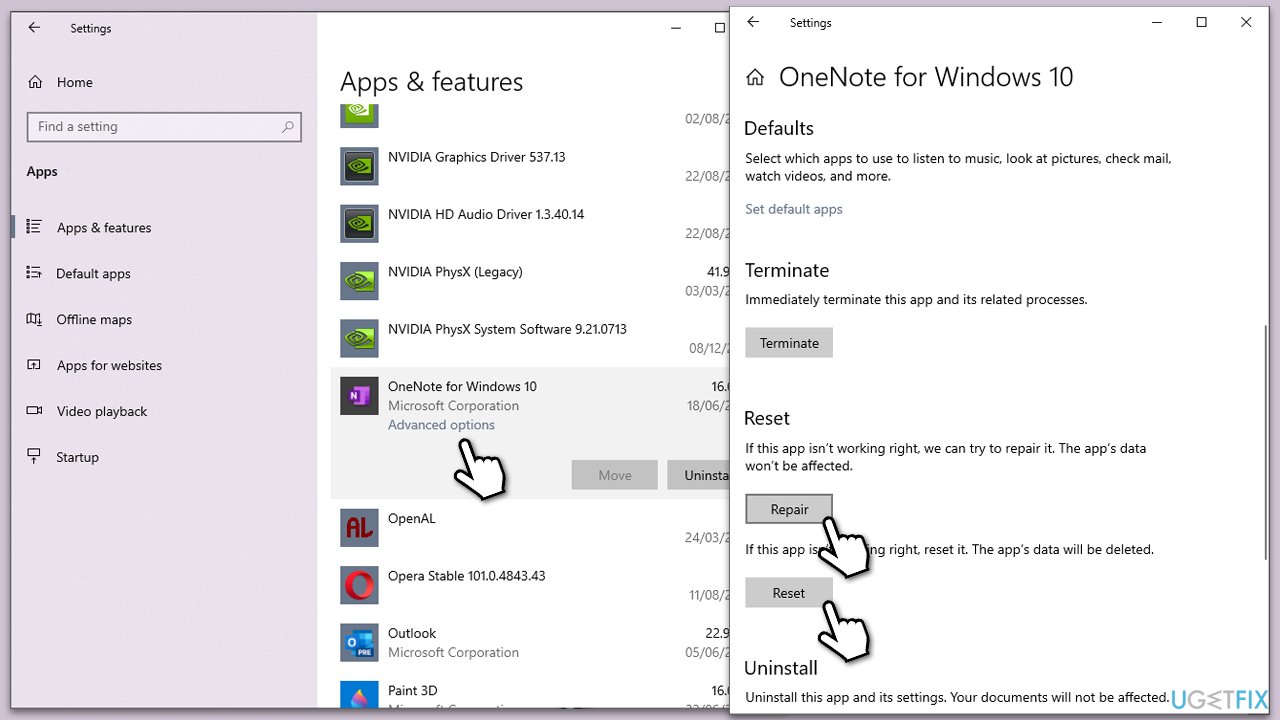
- Right-click on Start and pick Apps and Features.
- Scroll down to find the OneNote entry.
- Select Advanced options.
- Scroll down and click Repair - wait till the process is finished.
- If that doesn't help, use the Reset option.
Fix 7. Reinstall OneNote
As a last resort, reinstalling OneNote can resolve any deep-rooted issues with the application, including problems with Immersive Reader.
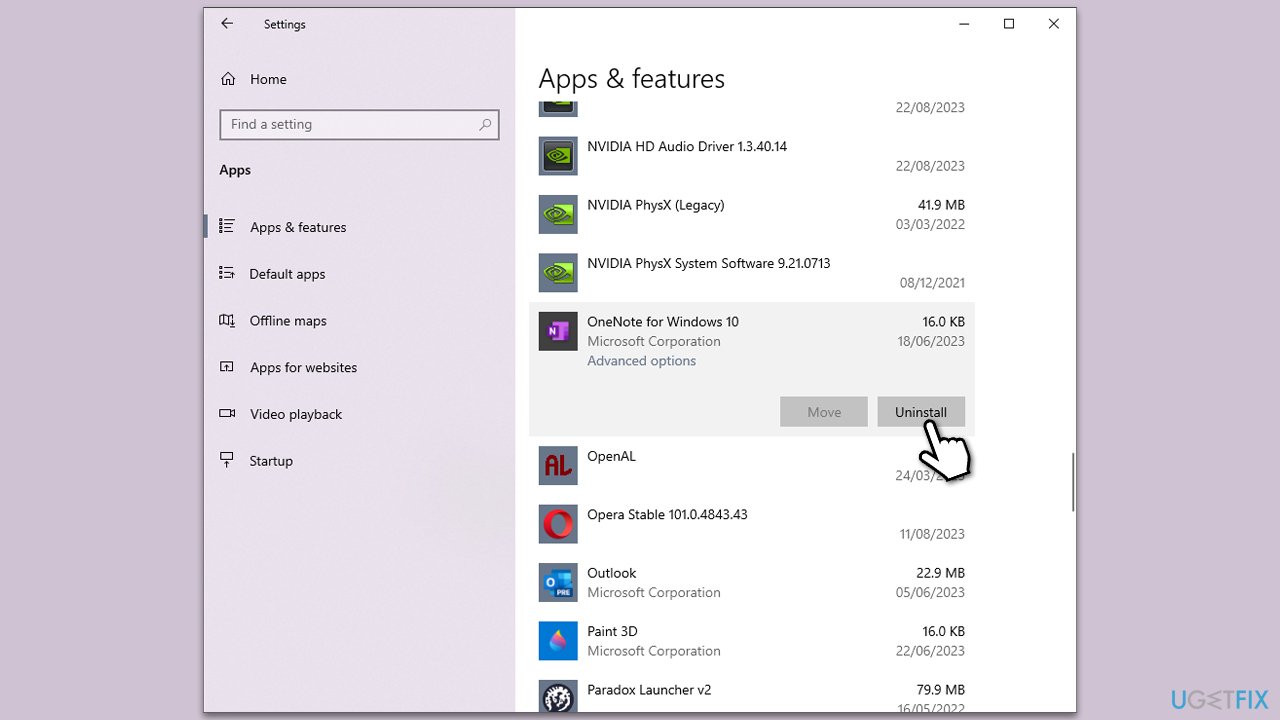
- Open the Windows Settings.
- Go to Apps.
- Locate and select OneNote.
- Click on Uninstall and follow the on-screen instructions.
- Visit the Microsoft Store to download and install OneNote again.
Bottom line
To fix the Immersive Reader issue in OneNote, ensure that the application is updated, check for any file corruption, verify the document format compatibility, and improve your internet connection. If these solutions do not resolve the problem, consider using PC repair software to troubleshoot further.
Frequently asked questions
Ensure that your OneNote application is updated to the latest version through the Microsoft Store. If it’s still missing, try resetting the app by going to Settings > Apps > OneNote > Advanced options and selecting 'Reset'.
Check your audio settings to ensure that your speakers or headphones are working properly, and verify that the Immersive Reader settings are correctly configured. Additionally, reinstalling OneNote can sometimes rectify this issue.
This could be due to a corrupted app installation or conflicts with other software; try repairing OneNote through the Settings app under Apps. If that doesn't help, consider reinstalling OneNote to fix potential corruption.




Report an issue
What's wrong with this guide? We review every report and update or remove content.
Report received — thank you. We'll review and fix it.
You need a free account to submit a report.
Be the first to comment