How to fix
Opera GX application error 0xc0000022
on Windows
Resolve the Opera GX application error 0xc0000022 on Windows 10 and 11 effortlessly with our expert-tested solutions. Fixed in minutes!


What causes How to fix Opera GX application error 0xc0000022 in Windows?
- Permissions problem preventing access to system files
- Corrupted system files
- Tight file permissions
- Incomplete system components like Visual C++ Redistributable packages
- Corrupted browser files
- Outdated system updates
Repairs Windows system files, removes malware, and restores a clean OS state — without reinstalling.
For some reason, I can no longer launch Opera GX. Whenever I try, I get opera.exe - Application Error, and the message says "The application was unable to start correctly (0xc0000022). Click OK to close the application." Could you help?
Opera GX app error 0xc0000022 is a common error that will prevent the browser from launching properly. When you attempt to launch Opera GX, you might get a dialog box with the message, "The application was unable to start correctly (0xc0000022). Click OK to close the application." The error is likely to occur after system updates such as Windows updates or user permission updates that interfere with how the browser accesses system resources.
At its core, the 0xc0000022 error is usually a permissions problem in which the program cannot access certain system files or libraries. It is not just for Opera GX but can apply to other software based on similar system elements. In some situations, antivirus tools or system security settings will get in the way and deny access, causing the same error. This may be reported by users to occur following new updates, user account control changes, or manual reinstallation of the browser.
There are multiple factors behind this issue. Corrupted system files, tight file permissions, or incomplete system components such as Visual C++ Redistributable packages typically are the cause. At times, corrupted browser files or outdated system updates can also cause the problem, and it may be difficult for Opera GX to launch normally.
To fix the Opera GX application error 0xc0000022, you might need to try several solutions before one works for you. For example, it could be related to permissions on your PC, so you'd have to adjust those. In other cases, if the main reason for the issue are corrupted files, you would need to remove AppData files and reinstall the browser. In some cases, using System Restore or Media Creation Tool might be necessary.
The [d1] PC repair tool provides an automated solution for detecting Windows issues that trigger Opera GX errors while offering convenient repair capabilities.

Fix 1. Check file permissions
Incorrect file permissions can prevent Opera GX from accessing necessary system resources, causing the 0xc0000022 error. You can adjust the permissions as follows:
- Right-click the Opera GX shortcut and select Properties.
- Go to the Security tab and click Edit under the Group or user names section.
- Ensure that Full Control is checked for your user account.
- Click Apply and OK.

Fix 2. Reinstall Opera GX
Uninstalling the browser in a simple way won't cut it in this case, so please follow the steps carefully:
- Type Control Panel in Windows search and press Enter.
- Go to Programs > Uninstall a program.
- From the list, find Opera GX, right-click and select Uninstall.
- Follow the prompts to finish the process.
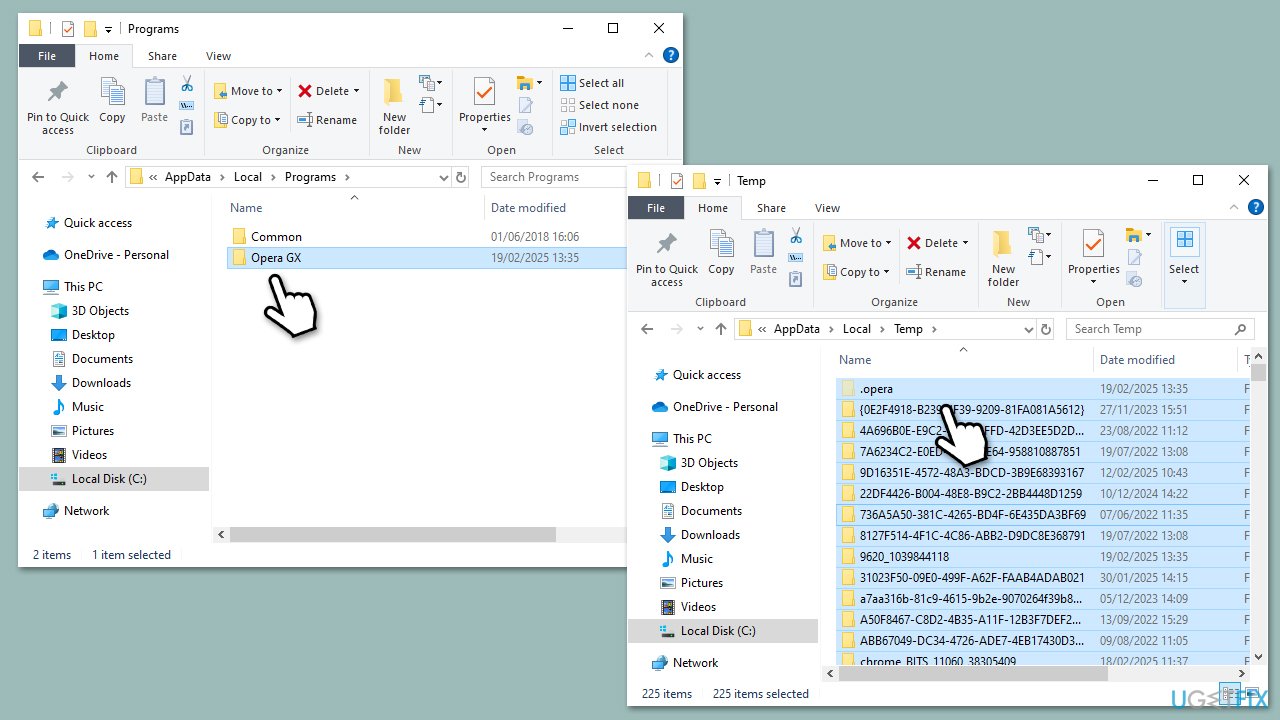
- In Windows search, type %localappdata% and press Enter.
- Find and access Programs folder.
- Here, mark Opera GX entry and press Shift + Del on your keyboard to delete it.
- Go to %localappdata% again, find the Temp folder and delete all its contents.
- Next, type C:\Windows\temp in Windows search and delete all the contents of this folder.
- Finally, restart your device, download the official installer and install the browser again.
Fix 3. Rename your Opera GX profile folder
If the previous method did not work, your profile might be corrupted. To address this, follow these steps:
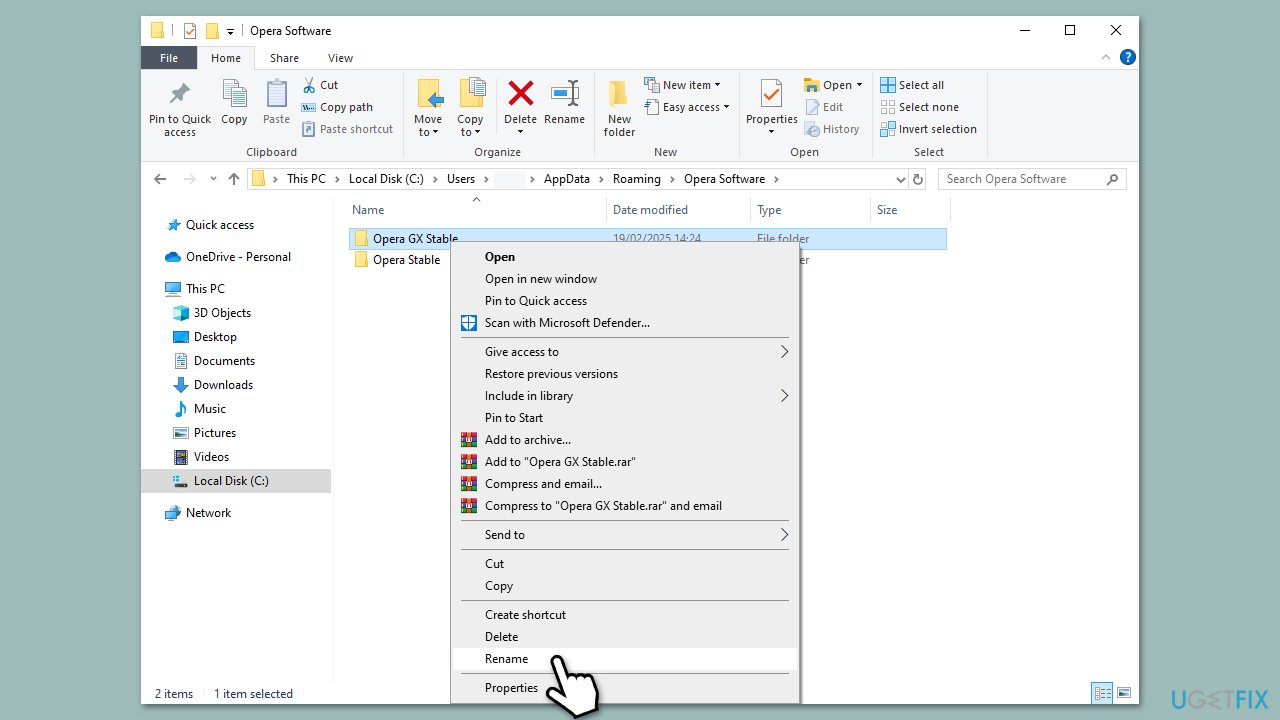
- Type %appdata% in Windows search and press Enter.
- Access Opera Software folder.
- Rename Opera GX Stable folder to Opera GX Stable.old.
- Do the same thing in the %localappdata% folder.
- Try launching Opera GX again.
Fix 4. Install missing system components
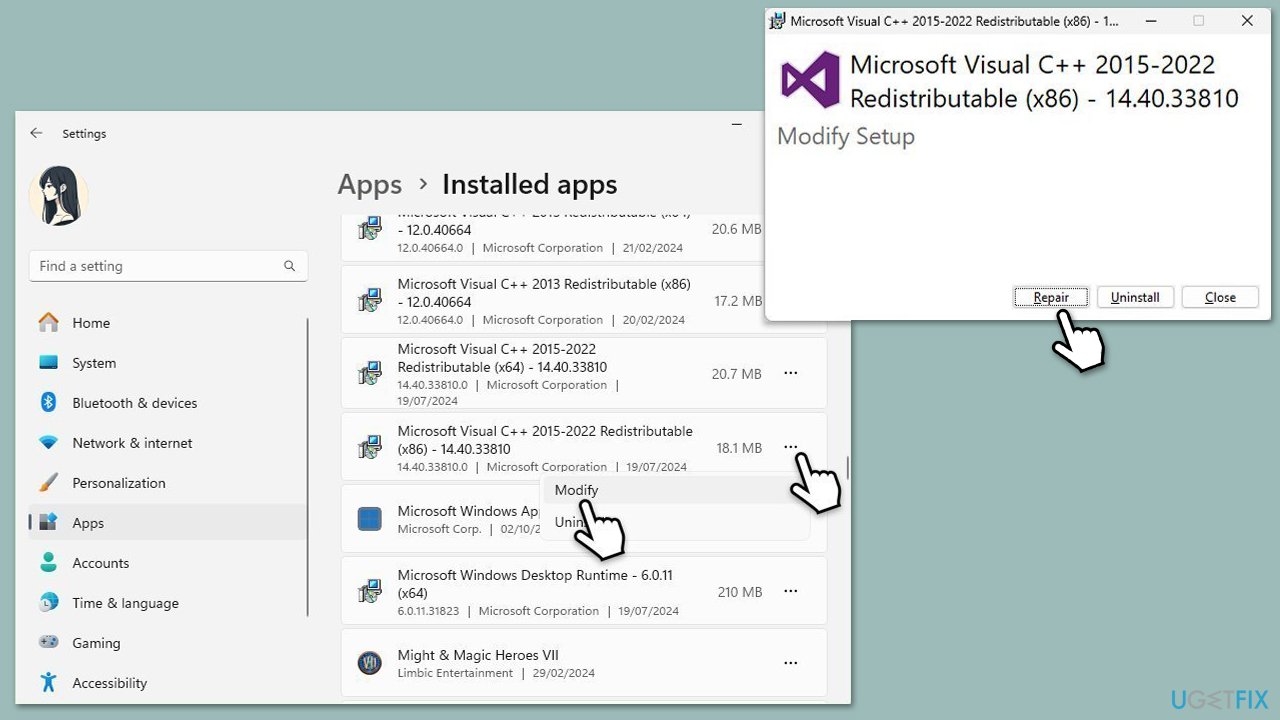
Missing Visual C++ Redistributable packages Are important components of Opera GX. Make sure they are all installed. Otherwise, repair them.
- Right-click on Start and pick Apps & Features or Installed apps.
- Scroll down to find Microsoft Visual C++ Redistributables.
- Click each version or click three dots, select Modify, and choose Repair.
- If repairing does not work, uninstall the packages and download the latest versions from the official Microsoft website.
- Install the downloaded files and restart the computer.
Fix 5. Disable antivirus temporarily
Overprotective antivirus programs can block application access, causing the error. Temporarily disabling them can determine if security settings are the cause.
- Open your antivirus program.
- Look for options to disable real-time protection.
- After turning off the protection, try launching Opera GX.
- If everything works fine, make sure you make add Opera GX to the exceptions list in your AV software.
Fix 6. Run System Restore
If the error appeared after recent system changes, restoring the system to an earlier state can undo the problem.
- Type in Create a restore point in Windows search and hit Enter.
- In the System Protection tab, pick System restore.
- Click Next.
- Click Show more restore points (if available).
- Pick the time before the problem occurred and click Next.
- Your computer will restart as required.

Bottom line
To fix the Opera GX application error 0xc0000022, you may need to adjust permissions on your PC, remove AppData files, or reinstall the browser. In some cases, using System Restore or the Media Creation Tool may be necessary. If none of these solutions work, consider using a PC repair tool for automated detection and repair of Windows issues.
Frequently asked questions
Error 0xc0000022 in Opera GX indicates that the application is unable to access a required file or resource, often due to permission issues or corrupted files.
To fix the error, try running Opera GX as an administrator, or check the application's properties to ensure that it has the necessary permissions.
Yes, uninstalling and then reinstalling Opera GX can help restore the application files and correct any issues causing the 0xc0000022 error on Windows 11.




Report an issue
What's wrong with this guide? We review every report and update or remove content.
Report received — thank you. We'll review and fix it.
You need a free account to submit a report.
Be the first to comment