How to fix
“Operating system not found” Error
on Windows
Resolve the "Operating system not found" error on Windows 10 with proven methods. Get your PC running smoothly again—expert-tested solutions included.

What causes How to Fix “Operating system not found” Error on Windows 10?
- Corruption of Master Boot Record (MBR)
- Corruption of DOS Boot Record (DBR)
- Corruption of Boot Configuration Database (BCD)
- Deactivation of system’s partition
- BIOS fails to detect Windows installation disk
- Incorrect BIOS settings
Repairs Windows system files, removes malware, and restores a clean OS state — without reinstalling.
Hello. I have a serious issue on my Dell PC. A few days ago my PC’s boot time (out of sleep) started taking a very long time, which is up to 30min. Today it took way too long for a log on screen to show up, so I’ve started to looking for a reason. I did a scan with antivirus, but it found nothing. A couple of hours after the scan, my PC got stuck, so I had to reboot it, but then an error message saying “operating system not found” showed up. I rebooted the system one more time, but the same message showed up. That scares me out. Why is this error message showing up? Could you please help me?
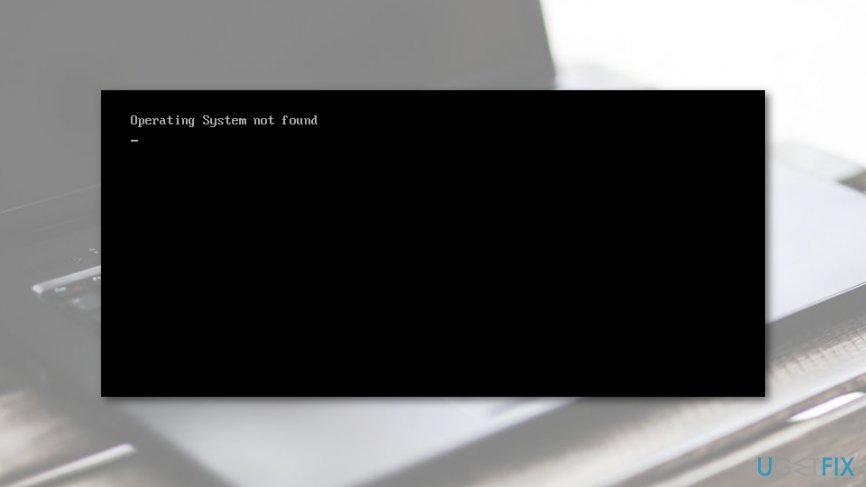
Operating System Not Found is an error message that occurs during system startup. The message is shown in the black windows and prevents from accessing the desktop. Therefore, the situation is scary and quite complicated. However, just like many other Windows errors, this one can be fixed.
This problem might occur on any version of Windows. However, the majority of reports were from Windows 10 users. In many cases, the error is preceded by a PC’s sluggishness, app crashes, freezes, and similar issues. Also, before the error emerges, the system may initiate a self-repair and offer the user to restart the PC or open Advanced options. If the PC owner selects to restart, the system generates an “Operating System Not Found” error message, which then leads to nowhere.
Operating system not found. Reboot and select proper boot device.
The issue may be triggered by various issues, including:
- corruption of Master Boot Record (MBR),[ref en-1]
- DOS Boot Record (DBR),
- Boot Configuration Database (BCD),
- deactivation of system’s partition.
By the way, it might be that the system/BIOS fails to detect Windows installation disk or the BIOS[ref en-2] settings might have been set incorrectly. Thus, if during Windows boot you receive a black screen with an Operating system not found error message, it’s about time to take actions and fix your OS right away.
There are a couple of ways how you can fix Operating System Not Found error on Windows. Our team has prepared a detailed guide and explained the most common ways to get rid of this problem.
Methods to fix “Operating system not found” Error on Windows 10
As we have already mentioned, the error might be triggered by various problems. Therefore, in order to fix it, you need to find the source of the problem and solve it.
Method 1. Fix MBR/DBR/BCD
NOTE: This method requires to have a bootable Windows installation media, such as DVD or USB.
- Boot up the PC that is having an Operating system not found error and then insert the DVD/USB.
- Then press any key to boot from the external drive.
- When Windows Setup shows up, set keyboard, language, and other required settings, and press Next.
- Then select Repair your PC.
- On the Choose an option screen, click Troubleshoot.
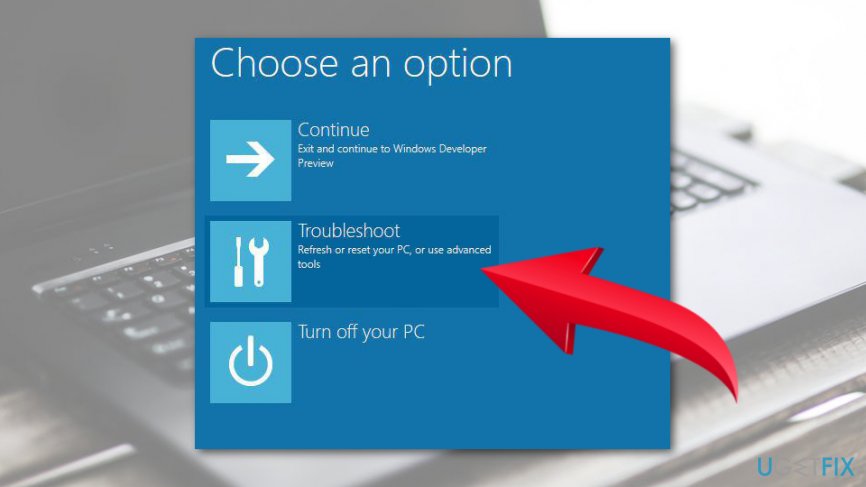
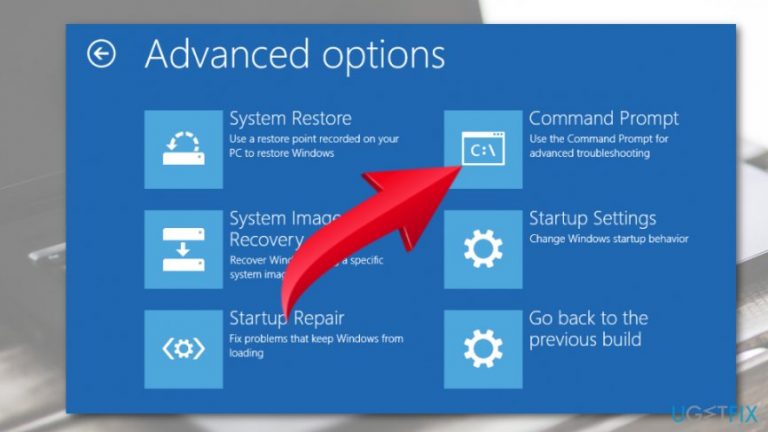
Choose troubleshoot - Select Advanced options and open Command Prompt.
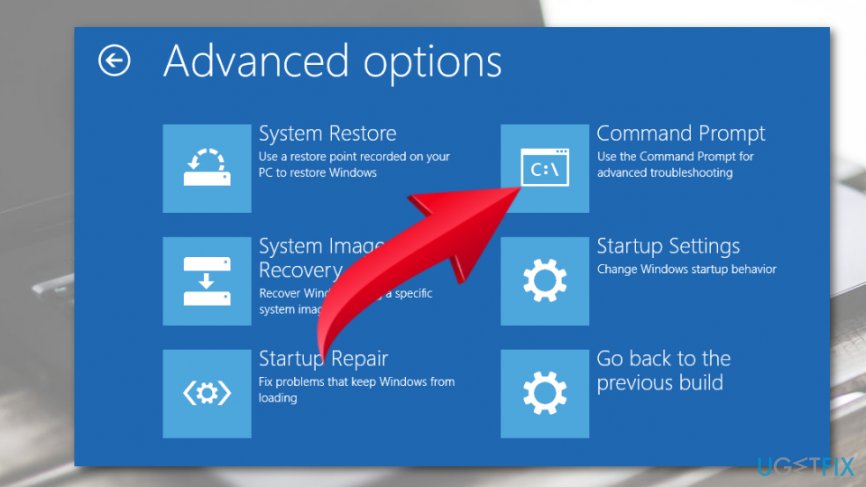
Open command prompt - In the Command Prompt window, type the following commands pressing Enter after each of them:
bootrec.exe /fixmbr
bootrec.exe /fixboot
bootrec.exe /rebuildbcd - Finally, restart your PC.
Method 2. Enable/Disable UEFI Secure Boot
You may receive an error reporting about missing OS if you have configured a UEFI system[ref en-3] to boot in Legacy mode. That’s because the majority of Windows 10 PC comes with enabled firmware and Secure Boot, and the OS installed on GPT partition can be booted in UEFI mode only. In this case, you should change the boot mode from Legacy to UEFI or disable UEFI and Secure Boot. For this purpose, you have to:
- Click the Power button before the logo shows up.
- Then press F2 to open BIOS Setup Menu.
- Select Security tab and disable Secure Boot.
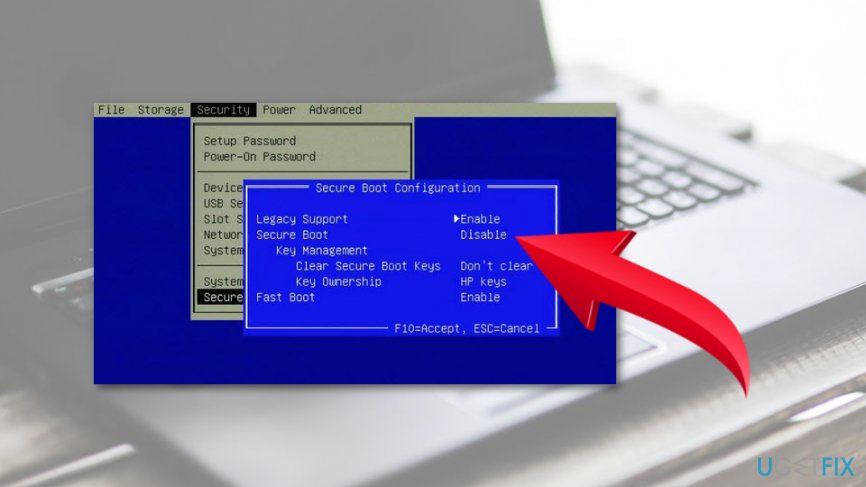
Disable secure boot - After that, select Advanced and navigate to System Configuration.
- Set Boot Mode to CSM Boot.
- After that, press F10 to save the changes.
- Finally, press F12 and then select the source you want the system to boot from.
Method 3. Activate Windows Partition
If the previous methods did not help, then the last thing that you can try is related to the Windows Partition. If it has been disabled, now it’s time to enable it. For this purpose, do the following:
NOTE: you will need a bootable Windows OS installation drive, such as DVD or USB.
- Boot up the PC that is having an Operating system not found error and then insert the DVD/USB.
- Then press any key to boot from the external drive.
- When Windows Setup shows up, set keyboard, language, and other required settings, and press Next.
- Then select Repair your PC.
- On the Choose an option screen, click Troubleshoot.
Choose troubleshoot - Select Advanced options and open Command Prompt.
Open command prompt - Type diskpart in the Command Prompt window and press Enter.
- After that, type list disk and disk n (the n stands for disk number) and press Enter after each of them.
- Type list volume and don’t forget to hit Enter.
- Locate the partition in which Windows OS is stored and type volume n (n stands for the number of Windows partition).
- To activate the selected partition, type active in the Command Prompt window and press Enter.
- Close everything and reboot the PC.
Bottom line
To fix the 'Operating system not found' error, you can attempt to repair the Master Boot Record, check the BIOS settings, or ensure the system partition is activated. If these solutions do not resolve the issue, further troubleshooting or professional assistance may be necessary.
Frequently asked questions
This error can occur due to a corrupted boot sector, misconfigured BIOS settings, or a failing hard drive. It typically indicates that Windows 10 is unable to locate the necessary files to boot up.
You can use the Windows 10 installation media to access the recovery options and run the 'bootrec /fixmbr' and 'bootrec /fixboot' commands in the Command Prompt. This can help restore the boot sector and resolve the issue.
Yes, you can use data recovery software or connect the hard drive to another computer as a secondary drive to retrieve your files, provided the drive is not severely damaged.




Report an issue
What's wrong with this guide? We review every report and update or remove content.
Report received — thank you. We'll review and fix it.
You need a free account to submit a report.
Be the first to comment