How to fix
Optional Features not Installing
on Windows
Resolve Optional Features installation issues in Windows 10 and 11 effortlessly with our expert-tested solutions. Get fixed in minutes!

What causes How to fix Optional Features not Installing in Windows?
- Corrupt system files
- Outdated Windows version
- Incorrect configuration settings
- Issues with Windows Update
Repairs Windows system files, removes malware, and restores a clean OS state — without reinstalling.
Hello. I tried to install optional features in Windows but it is not working. Is there anything I can do to solve this?
Optional features in Windows are additional features that are not included in the core installation of the operating system but can be added later. These features can include additional language packs, specific software or tools, and other components that are not essential for the basic functioning of the OS.
They are called optional because they are not necessary for the OS to run, but can be added by the user if desired. You can find and install optional features in the "Apps & features" section of the Windows Settings app. These features can include font packs, utilities like Paint and WordPad, and other software or tools.
While optional features can be useful, sometimes they may fail to install due to issues such as corrupt system files, outdated Windows versions, or incorrect configuration settings. In this guide, you will find 6 steps that should help you fix Optional Features not Installing in Windows.
Keep in mind that the manual troubleshooting process can be lengthy. You can use a maintenance tool like [d1] that can automatically fix most system errors, BSODs,[ref en-1] corrupted files, registry[ref en-2] issues, or clear cookies and cache.[ref en-3] Otherwise, follow the step-by-step instructions below.

Solution 1. Fix Corrupted System Files
Use Command Prompt commands to repair system file corruption:
- Open Command Prompt as administrator
- Use the following command and press Enter:
sfc /scannow
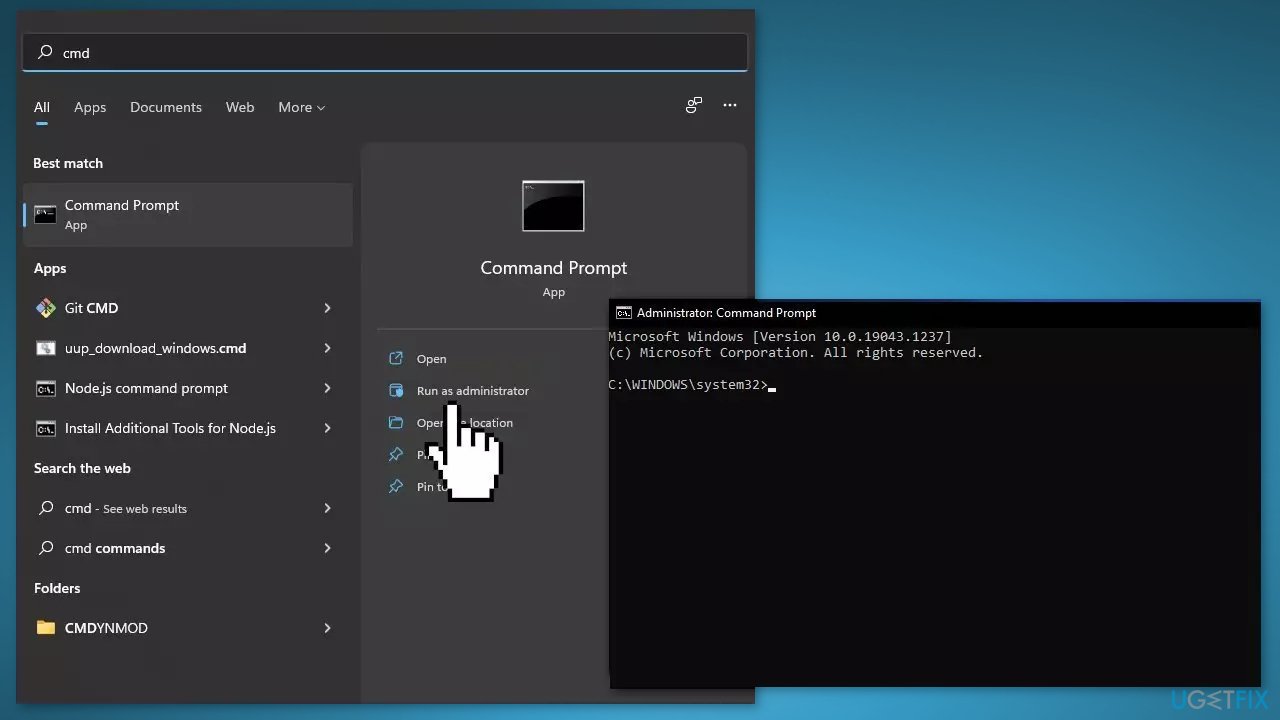
- Reboot your system
- If SFC returned an error, then use the following command lines, pressing Enter after each:
DISM /Online /Cleanup-Image /CheckHealth
DISM /Online /Cleanup-Image /ScanHealth
DISM /Online /Cleanup-Image /RestoreHealth
Solution 2. Update Windows
- Click Start and select Settings
- Go to the Windows Update section
- Click Check for updates and wait
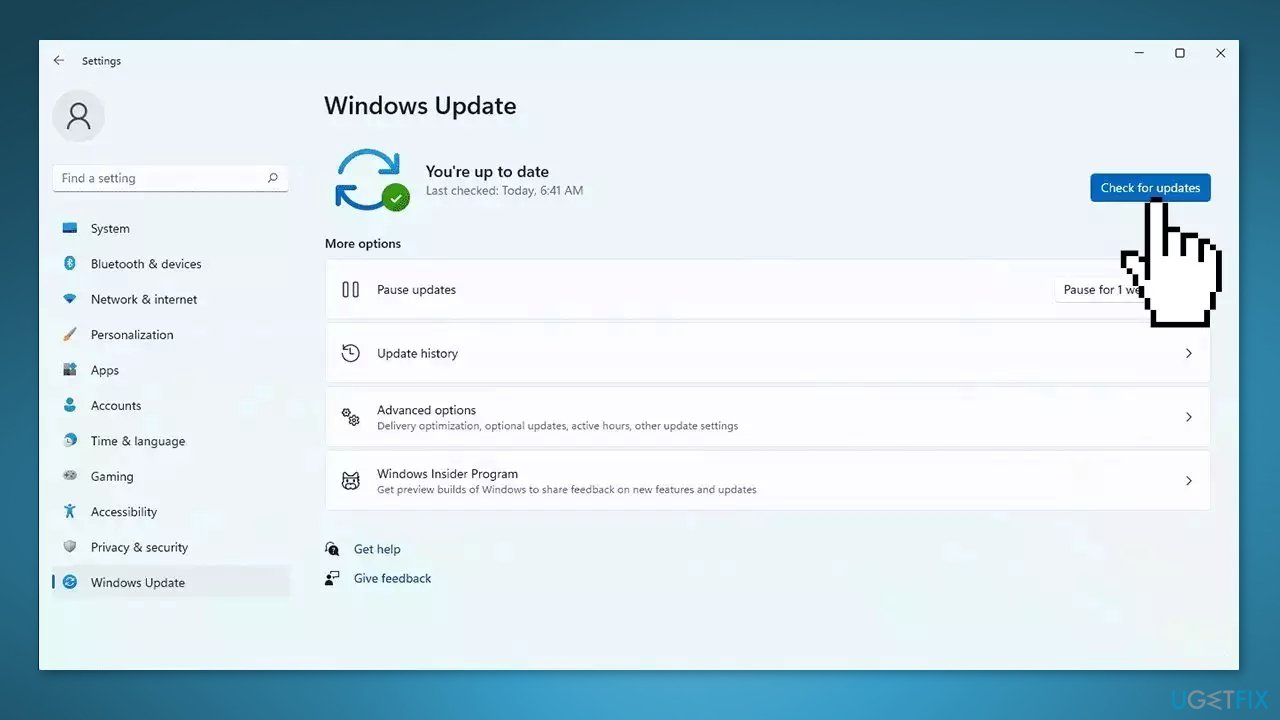
- Go to the Advanced options and install optional updates
- Reboot your system.
Solution 3. Run Windows Update Troubleshooter
- Click the Windows button and select Settings
- Select System from the left pane, then scroll down on the right pane and click on Troubleshoot
- Click on Other troubleshooters
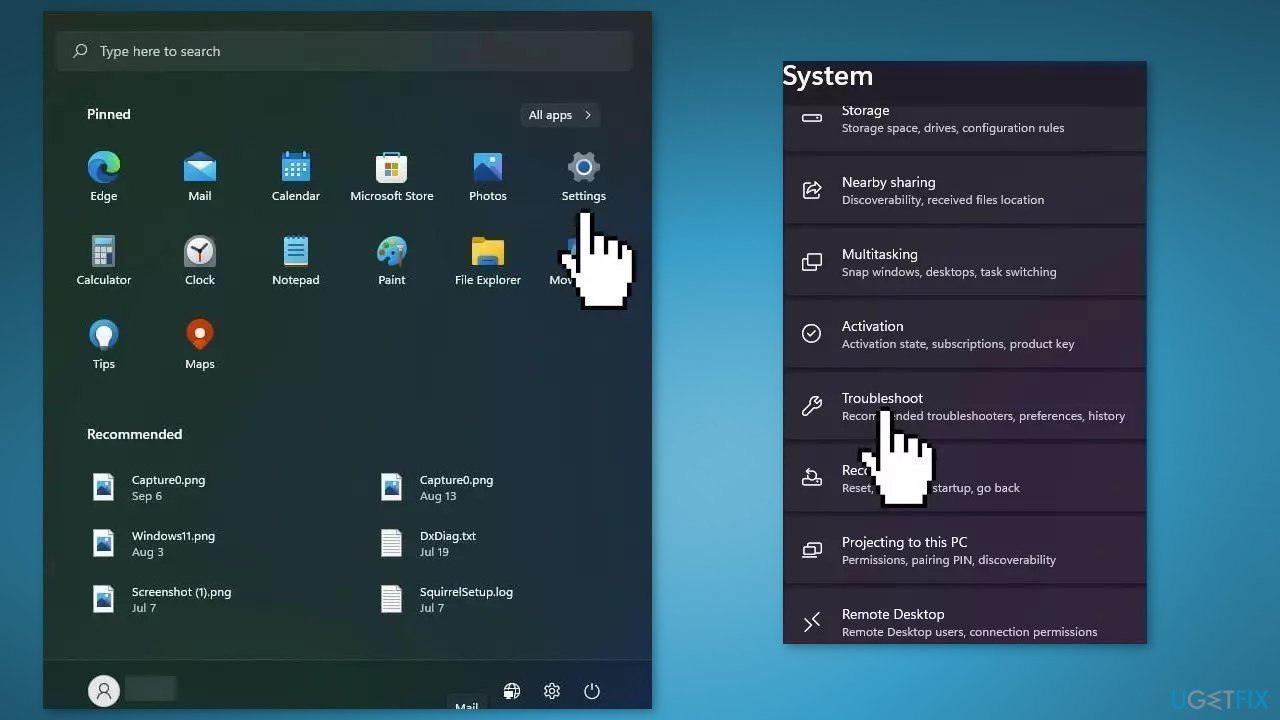
- Locate the Windows Update troubleshooter and hit the Run button
Solution 4. Reset Windows Update Components
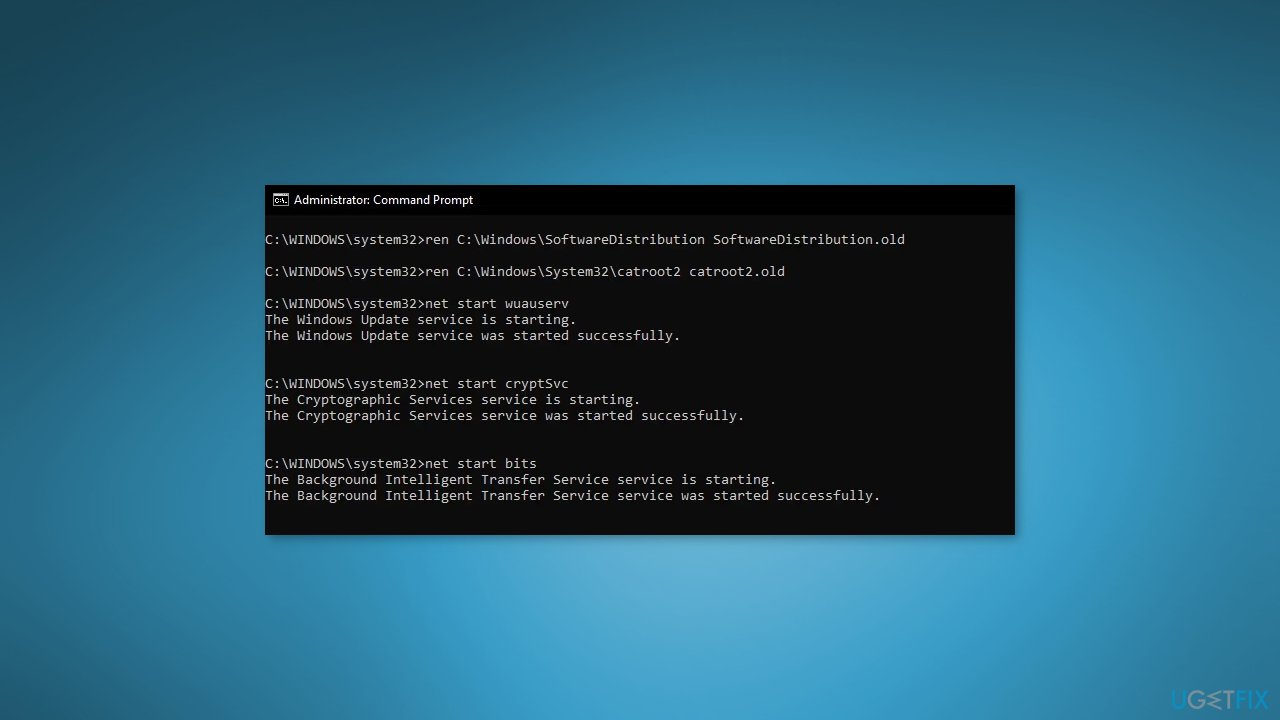
- Open the Command Prompt utility as an administrator
- Type and execute the following commands one by one:
net stop wuauserv
net stop cryptSvc
net stop bits
net stop msiserver
ren C:\Windows\SoftwareDistribution SoftwareDistribution.old
ren C:\Windows\System32\catroot2 catroot2.old
net start wuauserv
net start cryptSvc
net start bits
net start msiserver
- Wait for the process to finish and restart your PC
Solution 5. Restart the Windows Module Installer Service
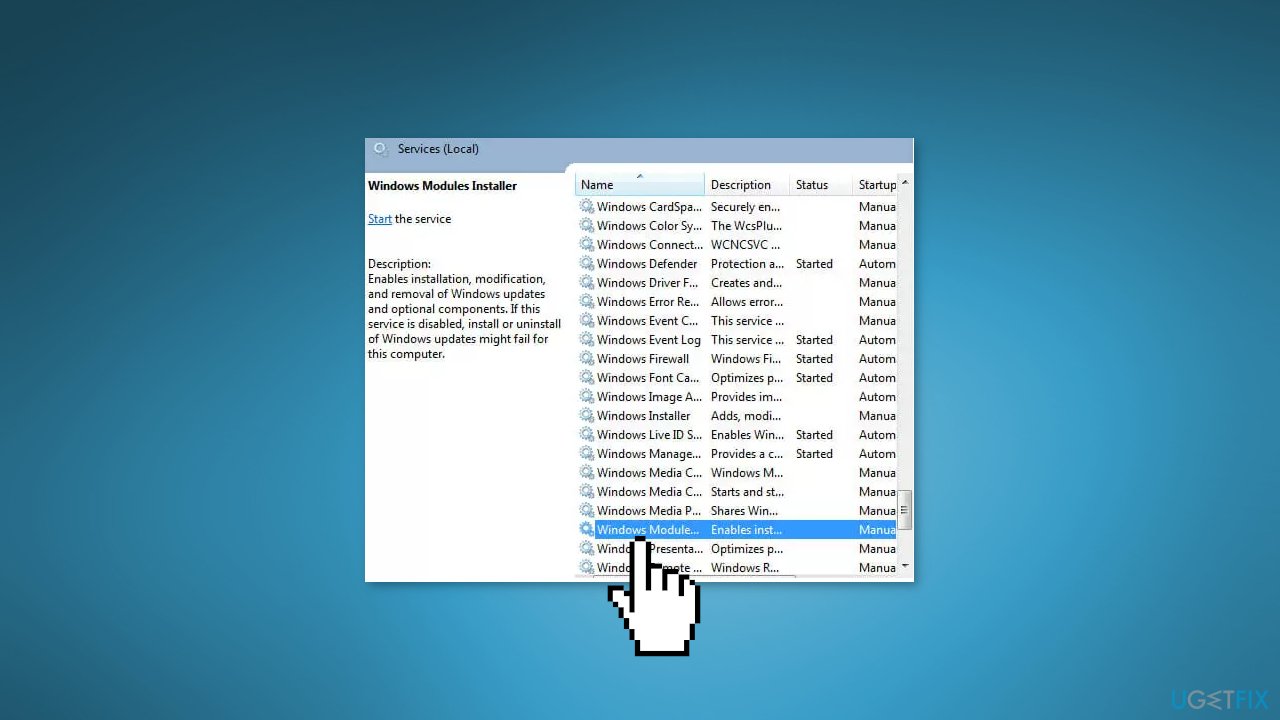
The Windows Module Installer service is responsible for managing the installation, modification, and removal of optional features and components in Windows. If this service is not functioning properly, it may be difficult to add or remove optional features from your system.
- Open the Services app
- Scroll down and find the Windows Module Installer service
- Right-click and select Restart
Solution 6. Restore Windows Features Using PowerShell
If you've tried all the other methods and are still unable to use or install an optional feature in Windows, you may need to try restoring the feature using PowerShell as a last resort. This can sometimes fix the problem and allow you to use the feature you need. To restore a particular feature using PowerShell, you will need to use specific commands to reinstall the feature and its dependencies.
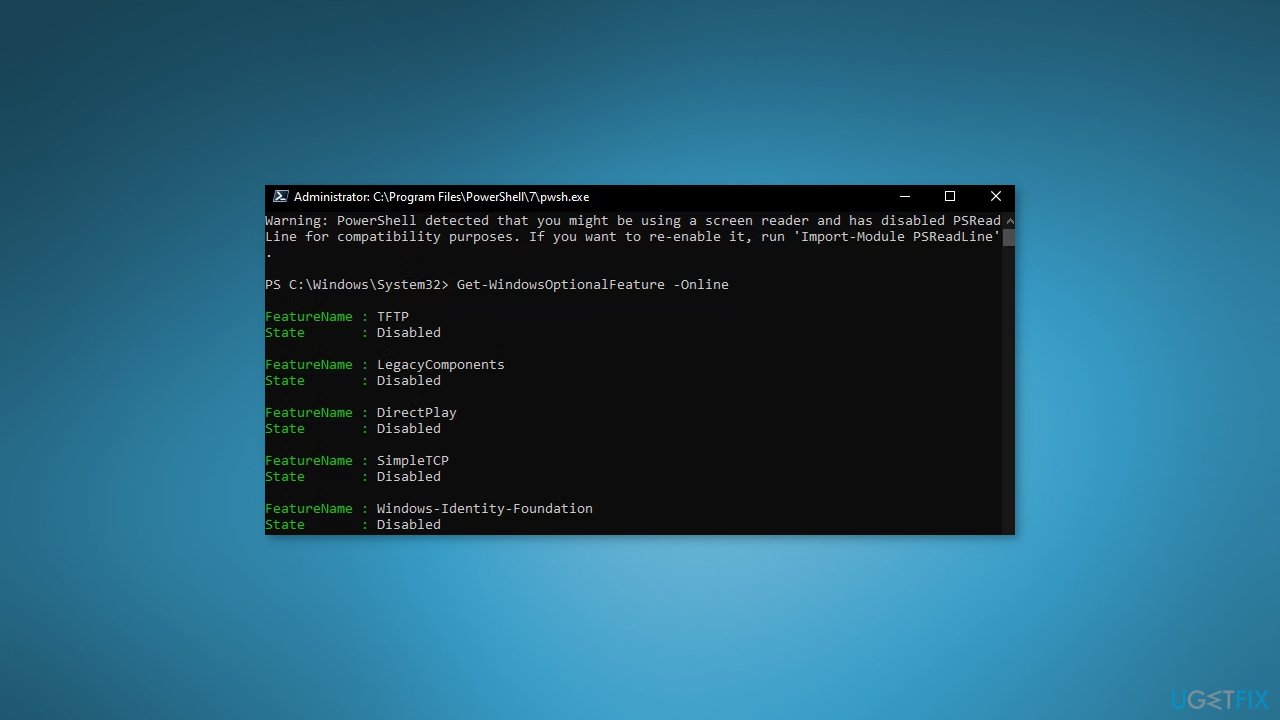
- Open Windows PowerShell as an administrator
- Type and execute the following command:
Get-WindowsOptionalFeature -Online
- Copy the FeatureName of the feature you want to enable
- Type and execute the following command:
Enable-WindowsOptionalFeature -Online -FeatureName FEATURENAME
- Replace FEATURENAME with the feature name you copied earlier
- Restart your computer for the changes to take effect
Bottom line
To fix the issue of optional features not installing in Windows, you can repair corrupted system files using Command Prompt, update Windows, or run the Windows Update Troubleshooter. If these solutions do not resolve the problem, consider using a maintenance tool to automatically fix system errors.
Frequently asked questions
Try running the Windows Update Troubleshooter to resolve any underlying issues and then attempt to install the features again. If that doesn't work, you may need to reset the Windows Update components.
Ensure that your Windows 11 system is fully updated by checking Windows Update, then restart your computer and try to install the features again. If the problem persists, consider using the DISM tool to repair the system image.
Yes, you can manually install Optional Features using PowerShell commands by opening PowerShell as an administrator and running the appropriate command for the feature you want to install. Make sure to check the feature's name to ensure accuracy.




Report an issue
What's wrong with this guide? We review every report and update or remove content.
Report received — thank you. We'll review and fix it.
You need a free account to submit a report.
Be the first to comment