How to fix
Origin error 327683:0
on Windows
Resolve Origin error 327683:0 effortlessly on Windows 10 and 11 with our expert-tested solutions. Get back to gaming in minutes!

What causes How to fix Origin error 327683:0?
- Corrupted system files
- Issues with the Origin client
- Network connectivity problems
- Insufficient storage space
- Outdated software
Repairs Windows system files, removes malware, and restores a clean OS state — without reinstalling.
Hello, I was trying to install and update Mass Effect: Andromeda on Origin, but instead, I received the 327683:0 error. I can't play the game with the newest content in it now. Could you please help me fix this?
Origin was developed and released by Electronic Arts (EA) back in 2011 - a digital video game distribution platform that can be used by players to buy, download, install and update their games. The app also has plenty of social features that allow people to use chat and audio communication, community integration, and much more.
Currently, Origin is one of the best-known game distribution applications around, and although it does not come close to the popularity of Steam,[ref en-3] it competes well with less prominent platforms such as Epic Games Launcher, Uplay, or GOG.com. EA announced in September 2020 that it will retire Origin eventually for its innovation EA Play service in the future,[ref en-1] although many users are sticking to Origin for now.
As for now, when users keep downloading games via this particular platform, they do not avoid problems, and error 327683:0 is one of them. According to multiple reports on various tech forums, users can face this issue when attempting to download a new game, an update, or a DLC[ref en-2] for it.
The full error 327683:0 reads as follows:
An unexpected error has occurred. Please try again in a few moments. Error: 327683:0
This issue can be extremely frustrating, as it prevents players from downloading and installing the latest game updates or the game itself. Nevertheless, luckily, several ways could help users fix error 327683:0 easily.
Since there each of the computers is relatively unique in terms of system configuration, installed programs, etc., there are several different reasons why the problem arises in the first place. Hence, there are no universal solutions for everybody. Instead, you should follow the steps we provide below.
Sine 327683:0 error can occur due to corrupted system files, you could employ [d1] to repair these issues automatically if you wish not to bother with manual solutions below.
Fix 1. Re-log to your Origin client
Yes, as simple as that. In some cases, error 327683:0 fix lies within the simplest tasks. Thus, we suggest you first try to log out and then log back into your game client. If you are not sure how to do that, please follow these steps:
- Open your Origin app
- Click on Origin at the top-left corner
- Select Sign Out
- Then, use your login credentials to sign back in
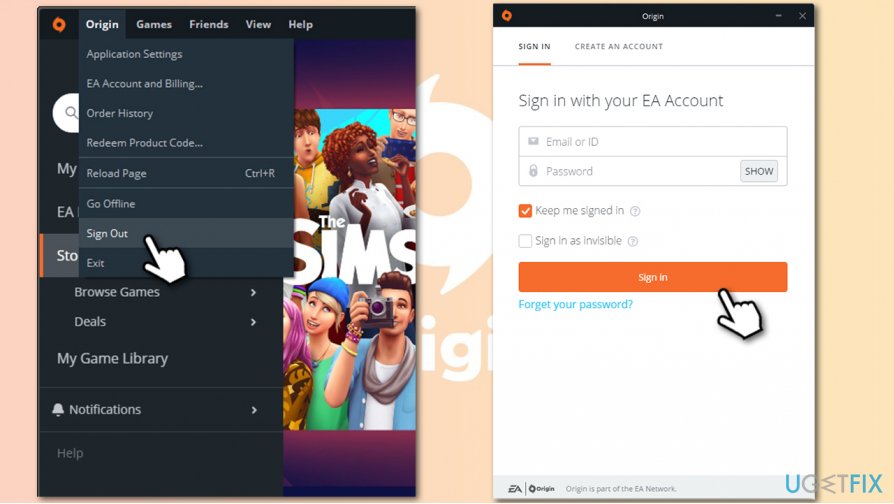
How to fix origin error 327683 0 relog client - Attempt to download the game again and see if the issue persists.
Fix 2. Temporarily turn off your anti-virus
Some antivirus solutions are known to be overly aggressive when it comes to online security, which means that legitimate apps or downloads might be blocked.
Turning off your antivirus depends on which one you are running. If you are using a third-party one, you should check the developer's official website. In the meantime, here's how to turn off the default Windows Defender:
- Type in Windows Security into Windows Search and press Enter
- Click on Virus & threat protection
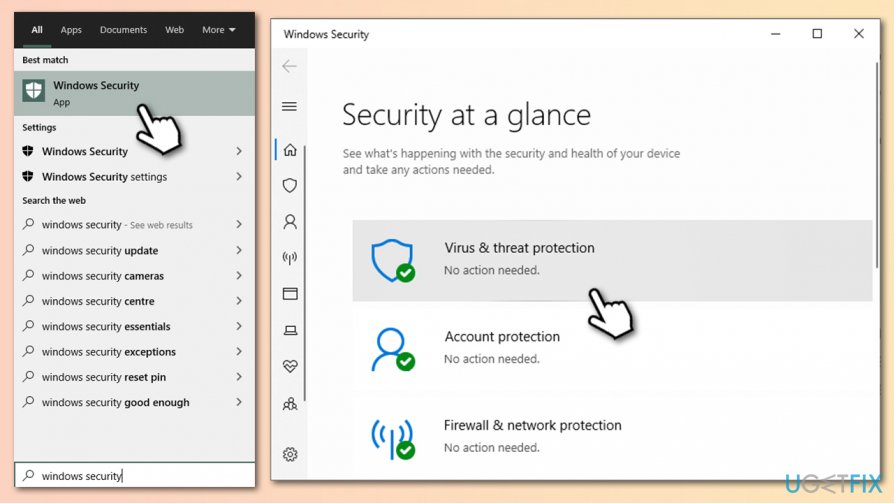
How to fix origin error 327683 0 go to windows security - Scroll down to locate Virus & threat protection settings
- Click Manage settings
- Click once on the switch for Real-time protection to turn it off.

How to fix origin error 327683 0 turn off anti virus protection temporarely
Fix 3. Allow the app through Firewall
- Type in Windows Defender Firewall in Windows Search and press Enter
- In the new window, select Allow an app or feature through Windows Defender Firewall

How to fix origin error 327683 0 access windows firewall - Click Change settings here (you must be logged in as an administrator)
- Scroll down to locate Origin and tick both - Private and Public options.
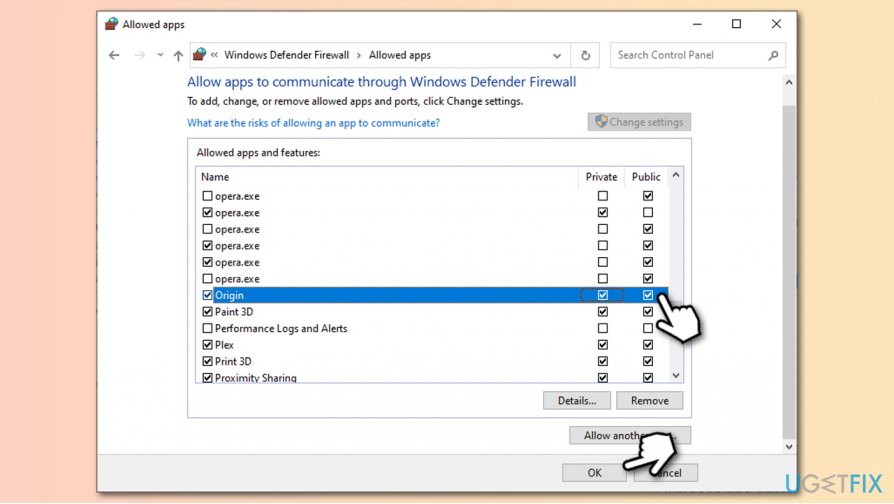
How to fix origin error 327683 0 allow origin through firewall
If you can't find Origin in the list, proceed with the following:
- At the bottom of the window, select Allow another app...
- Under Path, click on Browse
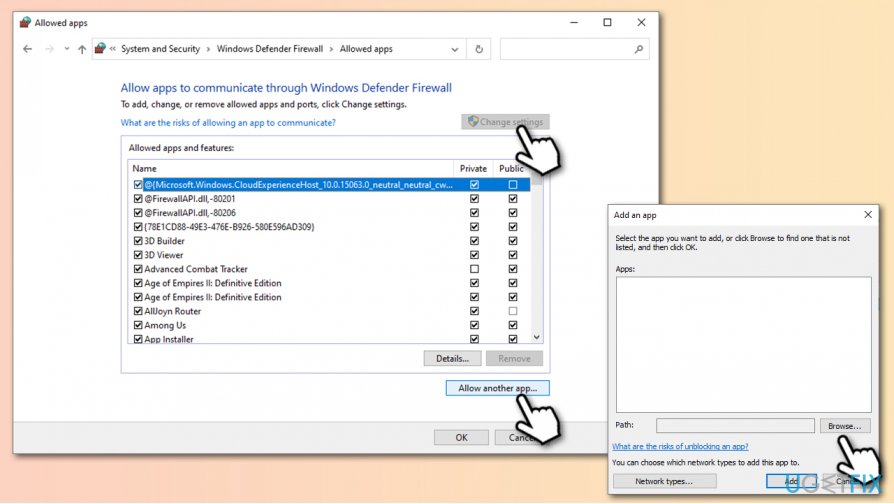
How to fix origin error 327683 0 allow another app via firewall - Navigate to the directory where Origin is installed (default: C:\\Program Files (x86)\\Origin)
- Find Origin.exe and click Open
- Select Origin and press Add
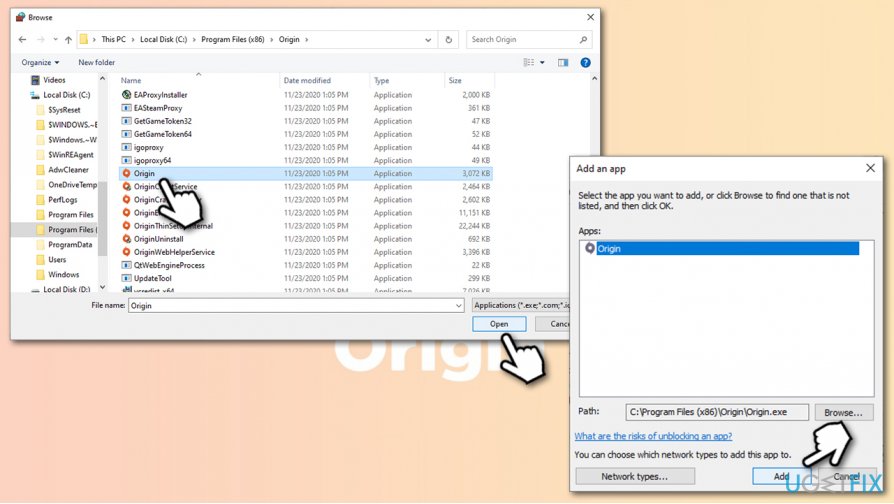
How to fix origin error 327683 0 allow origin - Now allow the app through Firewall and press OK.
Fix 4. Clear Origin app cache
Clearing program cache could also be one of the ways to fix error 327683:0:
- Press Win + R for Run dialog to open
- Type in %ProgramData%/Origin and hit Enter
- In here, delete everything apart from LocalContent folder
- Press Win + R again and type in %AppData%, press Enter

How to fix origin error 327683 0 delete data from roaming - In here, delete Origin folder
- Now go back by pressing up arrow at the top-left
- Select Local folder and double-click it
- Delete Origin folder there as well.

How to fix origin error 327683 0 clear cache
Fix 5. Re-install Origin
Users claimed that re-installing the app made the error go away. Here's how to do it:
- Type in Control Panel in Windows Search and press Enter
- Select Programs > Uninstall a program
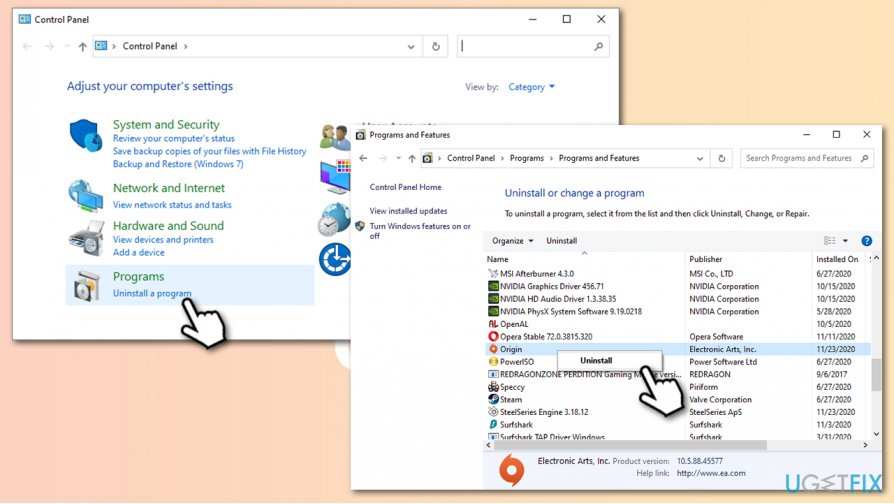
How to fix origin error 327683 0 uninstall origin - Find Origin on the list
- Right-click on it and select Uninstall
- Follow on-screen instructions to complete the process
- After that, go and download the newest version of the client from the official Origin website and install it.
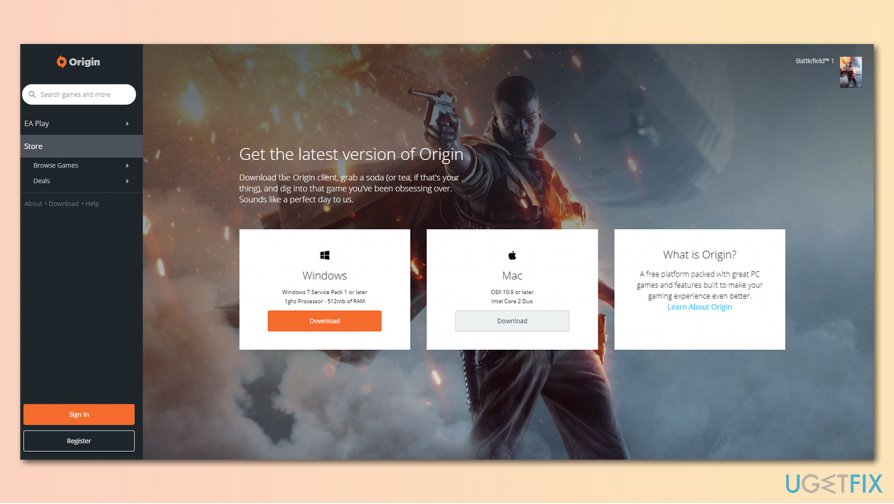
How to fix origin error 327683 0 download origin from official website
Bottom line
To fix error 327683:0, you can try re-logging into your Origin client, repairing corrupted system files, or checking your network connection. If these solutions do not resolve the issue, consider seeking further assistance or exploring additional troubleshooting methods.
Frequently asked questions
To fix Origin error 327683:0 on Windows 10, try clearing the Origin cache by deleting the contents of the 'Origin' folder located in 'C:\ProgramData\Origin'. Additionally, ensure that your network settings are properly configured and restart your PC.
Yes, updating Windows 11 can help resolve Origin error 327683:0 as it may fix underlying issues with system files or network settings. Make sure to check for updates and install any pending ones.
Yes, antivirus software can mistakenly block Origin's access, leading to error 327683:0 on Windows. Temporarily disabling your antivirus or adding Origin to the exceptions list may resolve the issue.




Report an issue
What's wrong with this guide? We review every report and update or remove content.
Report received — thank you. We'll review and fix it.
You need a free account to submit a report.
Be the first to comment