How to fix
Origin high CPU usage
on Windows
Resolve Origin's high CPU usage on Windows 10 and 11 effortlessly. Get expert-tested solutions that fix issues in minutes, with clear instructions.


What causes How to fix Origin high CPU usage?
- Origin performing updates
- Origin downloading files
- Origin Web Helper Service running
- Hardware info sharing enabled
- Compatibility issues with Windows version
Repairs Windows system files, removes malware, and restores a clean OS state — without reinstalling.
Hello. My computer's CPU usage regularly goes extremely high and it is caused by the Origin application. Is there a way to fix this?
Origin is a digital distribution platform developed by Electronic Arts for purchasing and playing video games. It provides features such as profile management, networking with friends, direct game joining along with streaming via Twitch. The Origin client can also update automatically and allow users to download games, expansion packs, content booster packs, and patches from one place.
Recently, there have been reports about Origin causing high CPU[ref en-1] usage. Users report seeing Origin use even up to 99% of CPU power. This can prevent people from being able to launch games completely. If the processor is running at maximum capacity for a long time, this could make the PC incredibly slow.
It is important to have proper cooling on your PC or laptop as high CPU usage can increase the temperature and cause the device to overheat. The issue seems to appear after Origin performs updates or downloads files. The problem first arose in 2016, and it seems that it still has not been fixed.
In this guide, you will find 4 steps that could help you fix Origin high CPU usage. If you want to avoid doing changes to your computer and the Origin client, you can try using the [d1] optimization tool. It can find the underlying Windows issues, automatically fix BSODs,[ref en-2] missing DLL errors, registry problems,[ref en-3] and more.
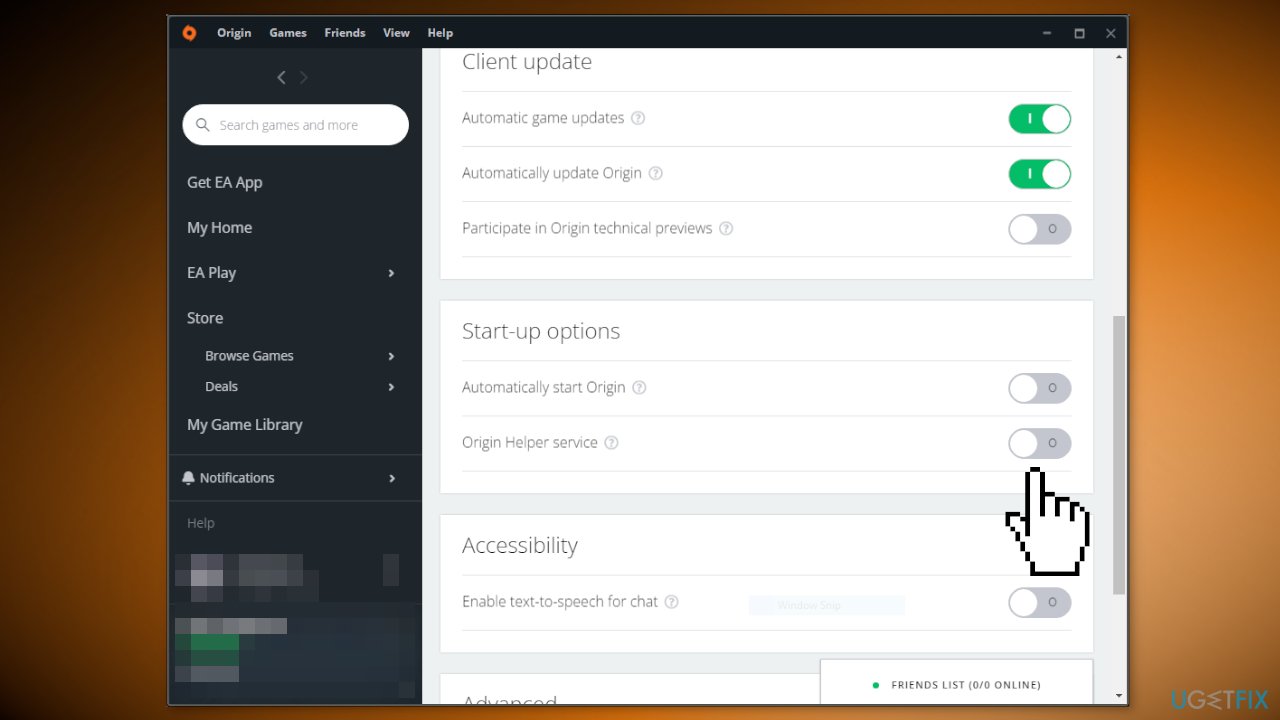
Solution 1. Disable the Origin Web Helper Service
- Open Origin and go to Application Settings
- Scroll down until you find Start Up Options
- Turn off Origin Helper service and check if the issue persists
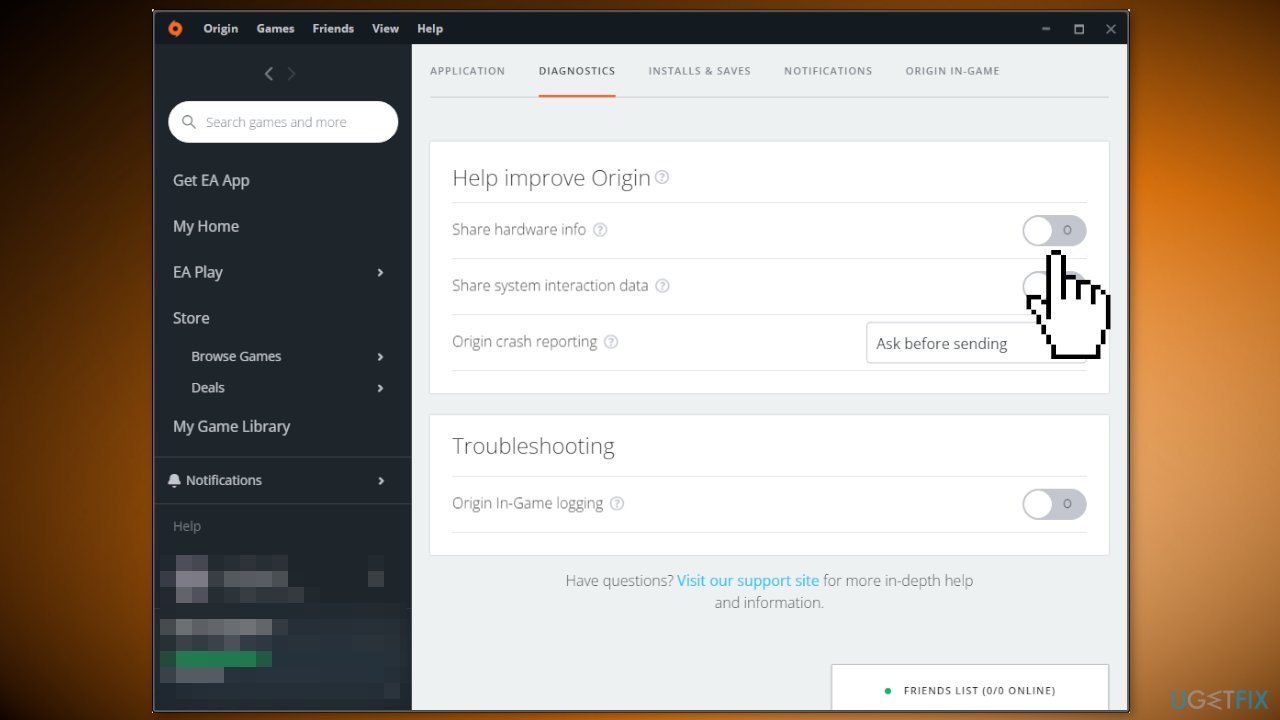
Solution 2. Disable Hardware Info Sharing
- Open Origin and go to Application Settings
- Switch to the Diagnostics tab
- Turn off the Share hardware info option
Solution 3. Switch to Windows 8 Compatibility Mode
- Right-click on the Origin icon and click on Properties
- Go to the Compatibility tab
- Check the Run this program in compatibility mode for option
- Choose Windows 8
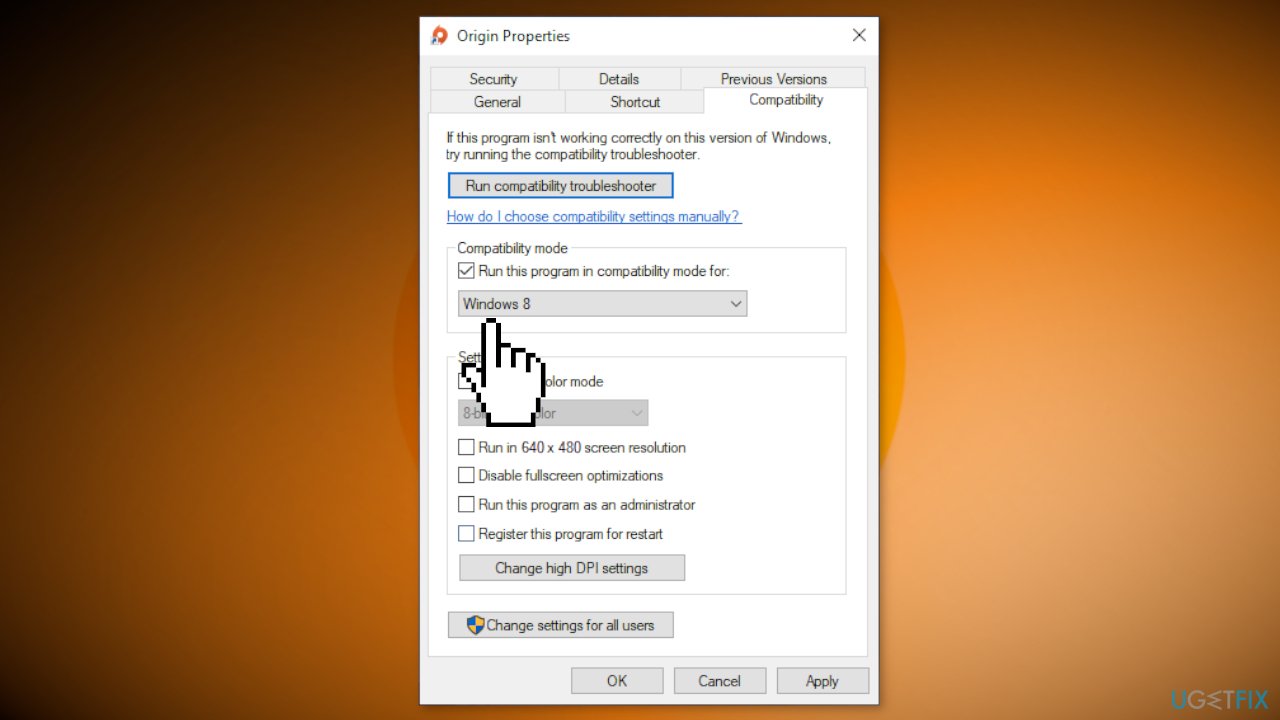
- Click Apply and check if the CPU usage went down
Solution 4. Reinstall Origin
- Open the Start menu and find go to Apps & Features
- Find Origin in the list and click on Uninstall
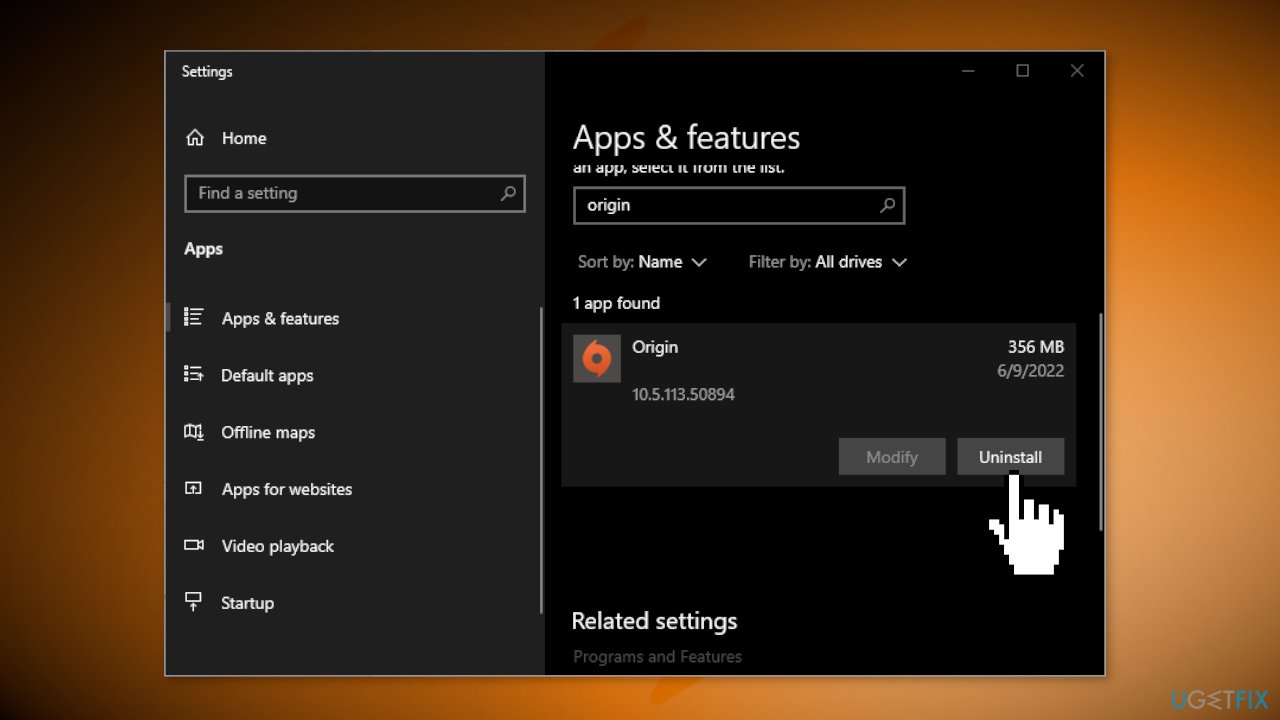
- Now install the application again from the official website and check if the issue persists
Bottom line
To fix high CPU usage caused by Origin, you can disable the Origin Web Helper Service, turn off hardware info sharing, or switch to Windows 8 compatibility mode. If these solutions do not resolve the issue, consider using an optimization tool to identify and fix underlying Windows problems.
Frequently asked questions
Try disabling Origin in-game features and limiting the number of background applications running on your Windows 10 system to free up CPU resources.
Yes, sometimes Windows 11 updates can lead to compatibility issues; ensure that both Origin and Windows are updated to the latest versions.
Use the Task Manager on Windows 10 or Windows 11 to monitor CPU usage and identify if Origin is the primary culprit or if other applications are contributing to the issue.




Report an issue
What's wrong with this guide? We review every report and update or remove content.
Report received — thank you. We'll review and fix it.
You need a free account to submit a report.
Be the first to comment