How to fix
“Out of memory or system resources” error in Outlook
on Windows
Resolve the "Out of memory or system resources" error in Outlook on Windows 10/11 quickly and effectively. Expert solutions, updated 2025.


What causes How to fix “Out of memory or system resources” error in Outlook?
- Too many applications running concurrently
- Insufficient RAM
- Overloaded Outlook data file (.pst or .ost)
- Lack of sufficient memory or system resources
- Outlook application constraints
Repairs Windows system files, removes malware, and restores a clean OS state — without reinstalling.
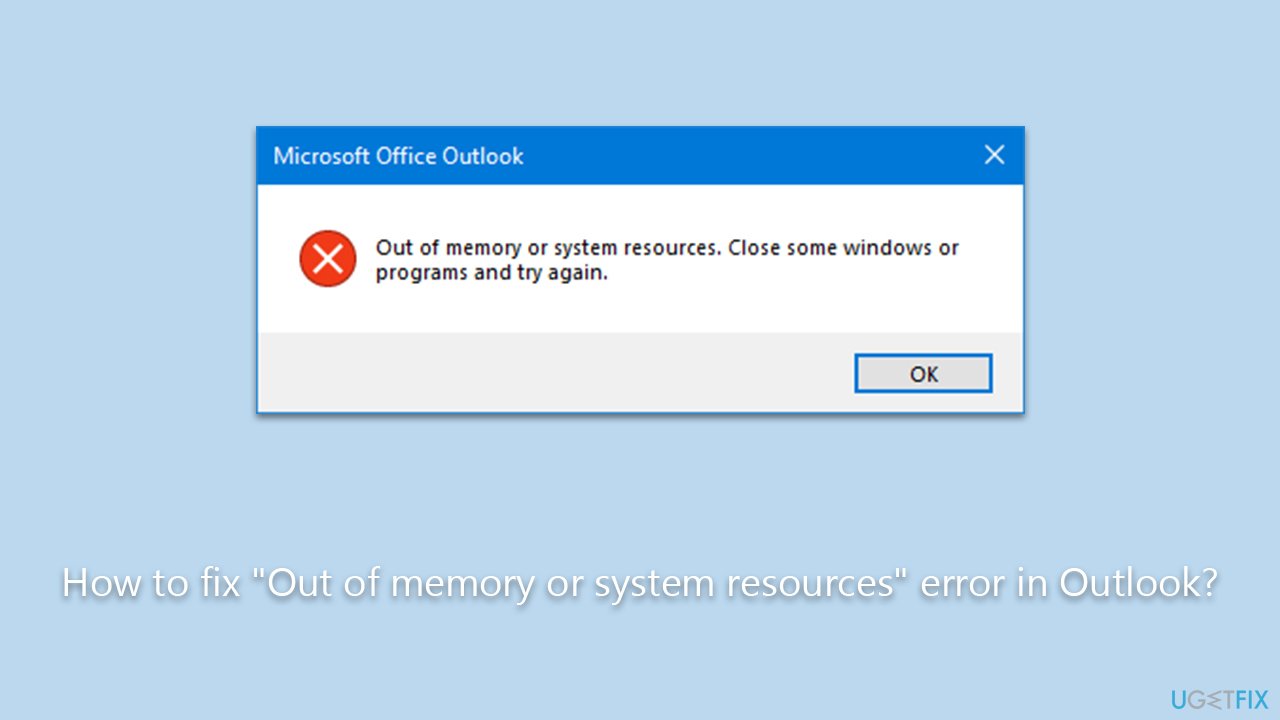
Hi. I tried to create a calendar event in Outlook and suddenly received an error "Out of memory or system resources." As a result, Outlook crashed, and I needed to restart it in order to use it again. Whenever I try to create an event, it happens again. Can you provide some tips on how to approach this?
Outlook is a widely used personal information manager that is part of the Microsoft Office suite. It offers functionalities like email, calendar, tasks, and more, making it a valuable tool for millions of individuals and businesses globally. Despite its popularity and utility, Outlook is not without its share of issues and errors, one of which is the “Out of memory or system resources” error.
This error is often encountered by users when performing various tasks on Outlook, such as creating events, printing documents, or simply sending an email. When this error occurs, Outlook unexpectedly shuts down, forcing the users to relaunch the application to continue their work. This disrupts the workflow and results in the loss of unsaved data, causing inconvenience and frustration.
The "Out of memory or system resources" error usually occurs due to a lack of sufficient memory or system resources to perform the requested operation. It might be caused by multiple factors, including but not limited to having too many applications running concurrently, insufficient RAM, or an overloaded Outlook data file (.pst or .ost). When the system or the Outlook application cannot access the required resources due to these constraints, it triggers this error message, thereby preventing the users from proceeding with their tasks.
There are several potential solutions to fix the "Out of memory or system resources" error. Users might need to close other running applications to free up system resources, increase the system's RAM, or manage and compact the Outlook data files to alleviate the stress on the application. Each of these solutions targets the root causes mentioned earlier, and detailed instructions for these will be provided below the article.
In cases where the error persists or for users seeking an immediate and effective resolution, employing a PC repair tool like [d1] can be beneficial. These tools are designed to identify, troubleshoot, and resolve various PC errors and issues efficiently, allowing for smoother and more stable system performance.
Fix 1. Set high priority to Outlook
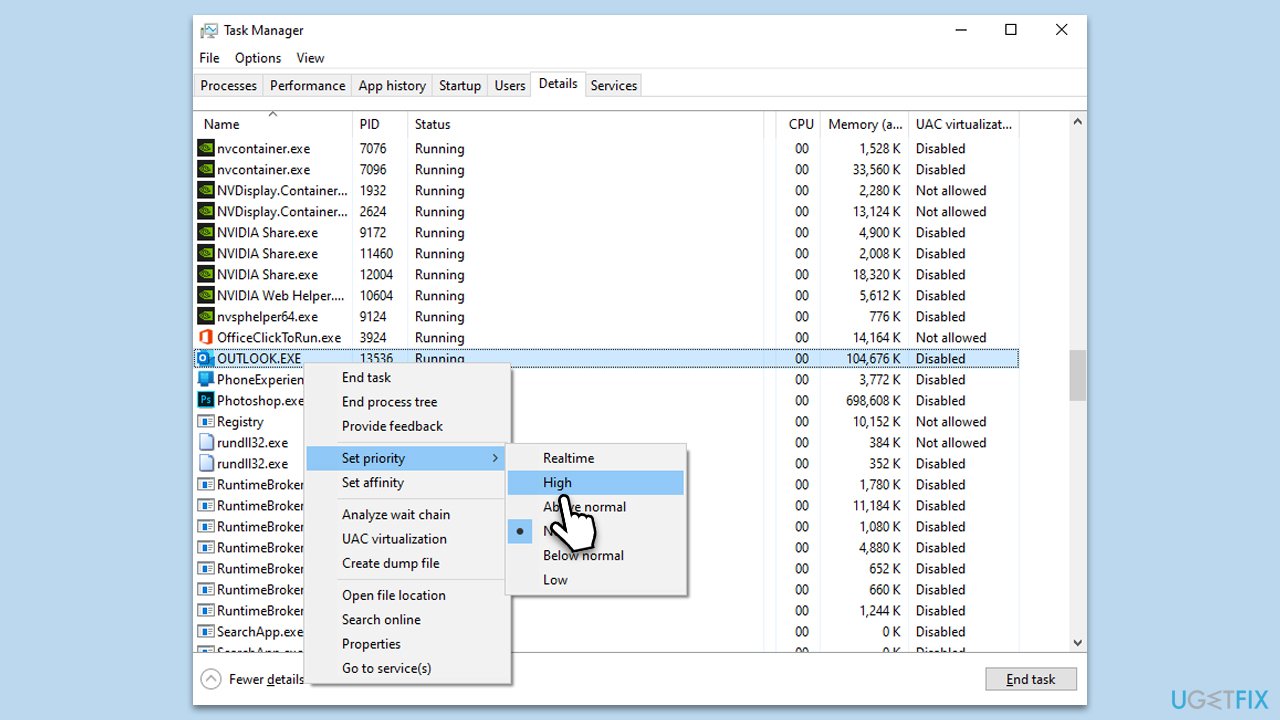
Assigning high priority to Outlook in the task manager ensures that the system allocates more resources to run the application smoothly. This setting often resolves issues related to insufficient memory or system resources.
- Press Ctrl + Alt + Del and select Task Manager.
- Find the Processes tab.
- Locate and right-click on Outlook.
- Hover over Set priority and choose High.
- Close Task Manager and restart Outlook.
Fix 2. Update the app
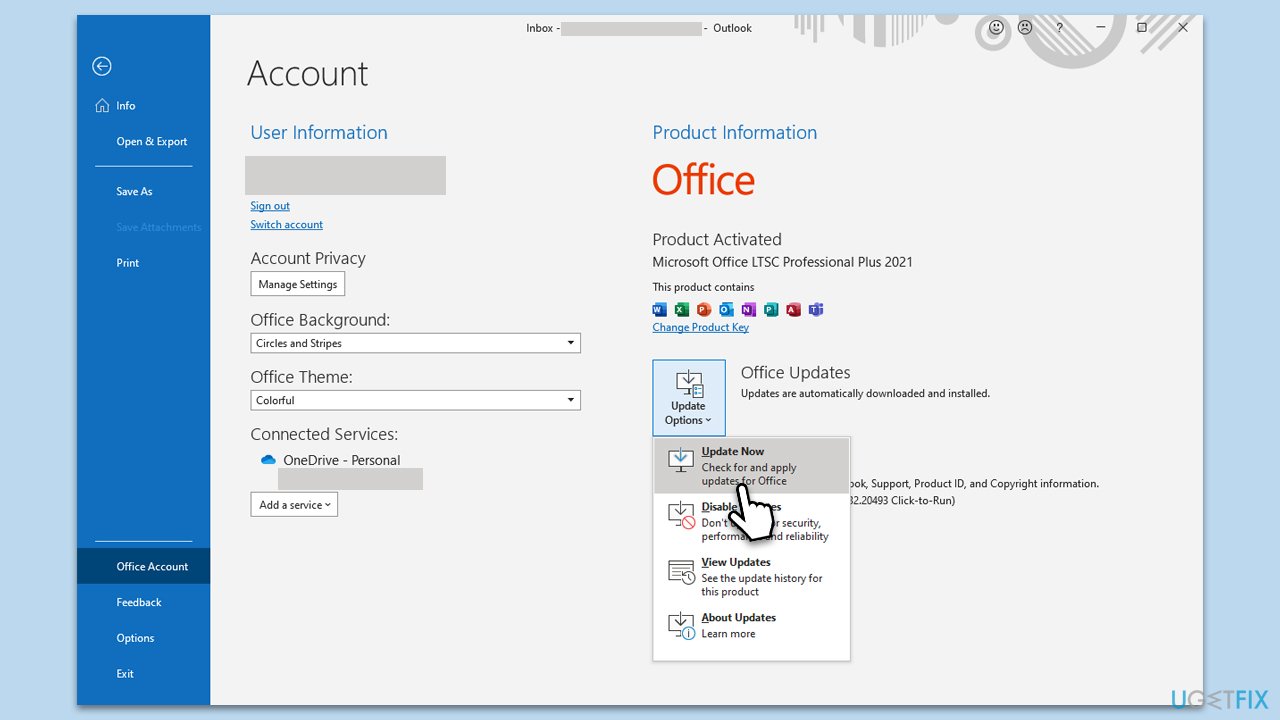
Keeping Outlook updated ensures that you have all the latest features and security patches, often resolving many common errors and issues.
- Open Outlook.
- Go to File and then pick Office account on the left.
- On the right side, select Update options.
- Select Update now from the dropdown menu.
- Wait till all the updates are installed and reboot your device.
Fix 3. Shut down unnecessary apps
Closing other applications frees up memory and resources for Outlook to function without disruptions.
- Right-click on the taskbar and open Task Manager.
- Under the Processes tab, look at the list of running applications.
- Right-click on non-essential applications and select End Task.
- Close Task Manager and restart Outlook.
Fix 4. Repair Office
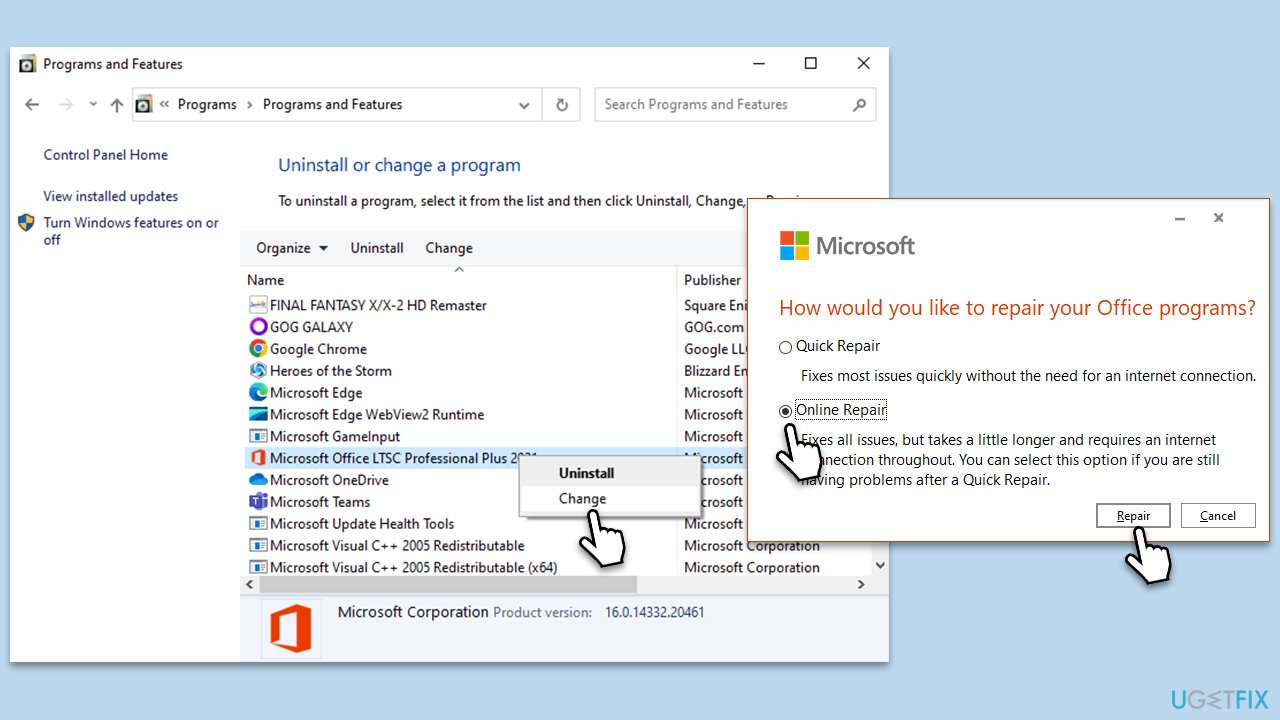
Sometimes, corrupted Office installation files might cause errors. Repairing Office can fix these issues.
- Type Control Panel in Windows search and press Enter.
- Select Programs > Programs and Features.
- Select Microsoft Office and click on Change.
- Choose the option for Online Repair and click Repair.
- Follow the prompts to finish the process.
Fix 5. Repair PST file
A corrupted PST file might cause Outlook to display error messages. Repairing it might resolve the issue.
- Close Outlook.
- Navigate to the search bar and type Control Panel, then open it.
- Under View by, select Small icons from the drop-down menu.
- Go to Mail and then click on Data Files.
- In the Account Settings window, you’ll see the Data Files tab; here, you will find the location of your PST files listed.
- Take note of the location.

- Press Win + E to open File Explorer.
- Navigate to one of these locations (depending on your Office version):
C:\Program Files\Microsoft Office\Office[version]\
C:\Program Files\Microsoft Office\root\Office16 - Open the Inbox Repair Tool (scanpst.exe)
- Click Browse and select the PST file.
- Click Start and follow the prompts to repair the file.

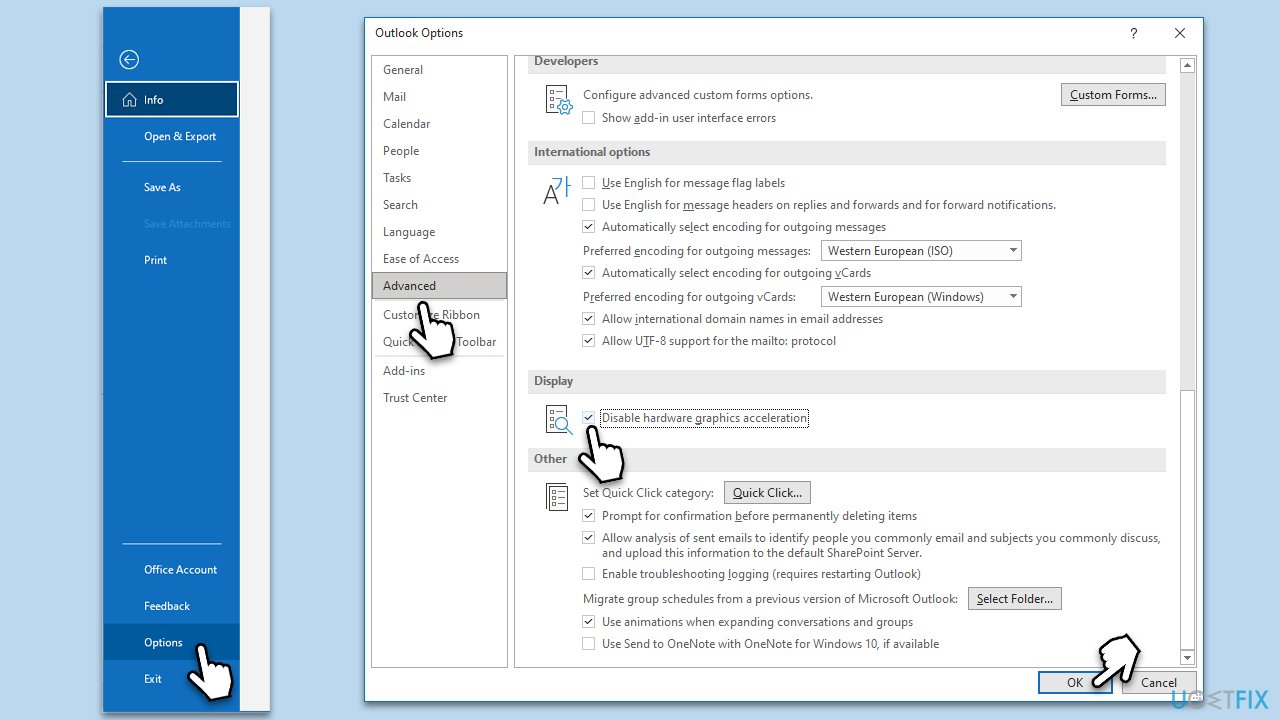
Fix 6. Disable hardware acceleration
Hardware acceleration sometimes causes Outlook to behave erratically. Disabling it might improve stability.
- Open Outlook and go to File.
- Click on Options.
- In the Mail category, click on Advanced.
- Uncheck the box next to Disable hardware graphics acceleration.
- Restart Outlook.
Fix 7. Create a new Outlook profile
A new profile might resolve issues caused by profile corruption.
- Close Outlook.
- Open the Control Panel and click on Mail.
- In the Mail Setup dialog box, click on Show Profiles.
- Click on Add and follow the prompts to create a new profile.
- Set the new profile as the default one and restart Outlook.
Bottom line
To fix the 'Out of memory or system resources' error in Outlook, users can close other running applications, increase the system's RAM, or manage and compact Outlook data files. If these solutions do not resolve the issue, further troubleshooting may be necessary.
Frequently asked questions
You can try closing other applications to free up system resources, increasing your virtual memory, or repairing Outlook through the Control Panel.
Go to Settings > System > About, then select Advanced system settings, and under Performance, click on Settings to adjust the virtual memory.
Yes, you can disable unnecessary add-ins and reduce the size of your mailbox to minimize Outlook's memory consumption.




Report an issue
What's wrong with this guide? We review every report and update or remove content.
Report received — thank you. We'll review and fix it.
You need a free account to submit a report.
Be the first to comment