How to fix
Outdated or missing drivers
on Windows
Resolve outdated or missing drivers in Windows 10 and 11 easily. Boost your PC's performance today with expert-tested solutions and clear screenshots.


What causes How to fix outdated or missing drivers in Windows 10 and 11?
- Drivers may be outdated due to the manufacturer not releasing updates
- Windows updates can remove or replace working drivers with generic versions
- Drivers can become corrupted or incompatible after a major Windows update
- Automatic installation of drivers may not always provide the latest versions
- Hardware issues can arise if drivers are not functioning properly
Repairs Windows system files, removes malware, and restores a clean OS state — without reinstalling.
Hello. I am puzzled why but drivers on my computer are outdated somehow. I got the laptop last year and drivers are old. Like ten or even twenty years outdated. Its Windows 11 and drivers go back to 2008. I have no idea why that is or how to fix it but I am sure these issues cause problems with my computer. Can you offer some insights?
Outdated or missing drivers are one of the most common causes of hardware issues in Windows. It does not matter of its Windows 10 or 11. If your computer suddenly loses sound, the screen resolution changes, a USB device stops working, or the Wi-Fi connection becomes unstable after an update, chances are the problem lies with the system’s drivers.
Drivers are essential software components that allow Windows to communicate with the hardware inside and connected to your computer. When they’re working properly, everything from your keyboard and mouse to your printer and graphics card should operate smoothly. But if a driver becomes outdated, corrupted, or incompatible — especially after a major Windows update — the hardware may stop functioning or cause unexpected errors.
A driver is a small software package that tells the operating system how to use a particular piece of hardware. Every component — whether it’s your monitor, sound card, network adapter, graphics card, or USB controller — depends on a functioning driver.
Drivers are usually installed automatically by Windows when you connect new hardware. However, over time, these drivers may become outdated, especially if the manufacturer releases updates that fix bugs, improve performance, or add compatibility with newer software.
Some Windows updates can also remove or replace working drivers with generic versions, which may reduce functionality or introduce errors.

Common signs of driver problems
You may be dealing with a driver issue if you experience any of the following:
- Devices stop working after a Windows update
- A device disappears from the system (for example, no sound or missing network adapter)
- Yellow warning signs appear in Device Manager
- Windows shows error codes like “This device cannot start (Code 10)” or “Windows has stopped this device (Code 43)”
- USB ports or external devices stop responding
- Random crashes, freezes, or Blue Screen of Death (BSOD) errors.
In many cases, these problems can be resolved by updating or reinstalling the correct driver.
How to fix issues with outdated drivers or files?
Users who experience hardware malfunctions or system instability due to outdated or missing drivers often try manual fixes[ref en-1], such as reinstalling the device driver or downloading updates from the manufacturer’s website. While these steps can be effective, they may not always resolve deeper issues tied to system file corruption, broken registry entries, or conflicting components. In such cases, [d1] is considered a reliable tool for automatic driver and file repair.
It can identify outdated drivers, repair broken entries, and restore essential components that may prevent devices from working correctly. Many users have reported that it helped restore proper driver functionality when manual steps failed. It saves you some time and worries. Whether the issue stems from a removed system file, a failed update, or a mismatched driver, the application provides a streamlined way to fix these problems without needing advanced technical knowledge. If that is not helping, however, follow the steps to solve the outdated driver issue manually.
1: Check Device Manager for driver issues
To open Device Manager:
- Press
Windows + Xand select Device Manager from the menu.
Outdated drivers device manager - Look for any devices with a yellow triangle icon or an entry labeled Unknown Device.
- Right-click the problematic device and choose Properties.
- Under the Driver tab, check the Driver Provider and Driver Date.
If the provider is Microsoft and the date is several years old, the system may be using a generic fallback driver instead of the latest version from the manufacturer.
2: Use Windows Update to install available updates
Windows Update often includes driver updates for many common devices.
To check for driver updates:
- Open the Settings app.
- Go to Windows Update and click Check for updates.

Outdated drivers windows updates - After the initial scan, go to Advanced options > Optional updates.
- Look under Driver updates and install any that are listed.
3: Download the latest drivers from the manufacturer’s website
For important components like the graphics card, Wi-Fi adapter, or sound card, the best option is to download the driver directly from the manufacturer. This ensures that you are installing the latest, most compatible version.
Here are links to major manufacturers’ official driver download pages:
- Intel: intel.com/download
- NVIDIA: nvidia.com/Download
- AMD: amd.com/en/support
- Realtek: realtek.com
Make sure you know the exact model of your hardware. You can find this information in Device Manager. After downloading the correct installer, run it and follow the prompts. A system restart may be required after installation.
4: Reinstall a problematic driver
If updating the driver does not help, or if a driver has become corrupted, a clean reinstall may solve the issue.
To uninstall and reinstall a driver:
- Open Device Manager.
- Right-click the device that is not working and choose Uninstall device.
- Check the box that says Delete the driver software for this device, if available.
- Click Uninstall and restart the computer.
5: Use System Tools to detect or verify problems
Advanced users can try built-in Windows tools to further analyze driver issues.
Go to the search and input cmd to open the Command Prompt window.
They run one of the commands.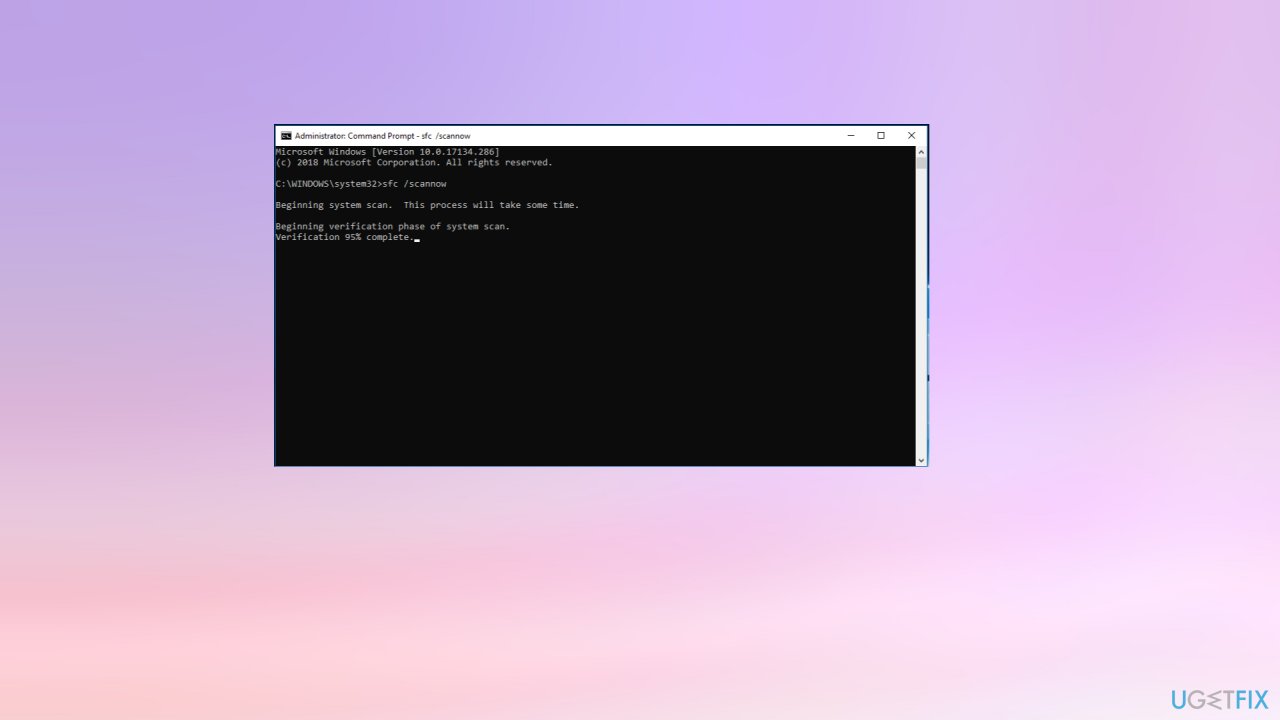
- Driver Verifier: Run
verifier.exeto check for driver conflicts or instability (use with caution). - System File Checker: Open Command Prompt as Administrator and run
sfc /scannowto detect corrupted system files. - MSInfo32: Type
msinfo32in the Start menu to view all hardware and driver-related information.
Frequently Asked Questions (FAQ)
Should I update all of my drivers regularly?
No. You should only update drivers when something is not working or when a manufacturer releases a new version to fix a specific problem. Updating drivers that are already working can sometimes introduce new bugs.
Is Windows Update enough to keep my drivers current?
For most users, yes. Windows Update covers essential drivers like chipsets, audio, and input devices. However, for graphics cards and gaming-related components, manufacturers often release newer versions that Windows doesn’t include.
Are free driver updater tools safe to use?
In general, no. Many of these tools install incorrect drivers, show fake alerts to push premium upgrades, or include unnecessary software. It is best to update drivers manually through the manufacturer’s website.
What should I do if a device disappears after a Windows update?
First, check Device Manager to see if it’s been disabled or hidden. If necessary, reinstall the driver using one of the steps in this guide. Some updates may overwrite or remove manufacturer-specific drivers, which can lead to device detection issues.
Can a faulty driver cause blue screen errors?
Yes. Many BSOD (Blue Screen of Death) errors are caused by incompatible or corrupted drivers, especially for critical hardware like graphics cards, storage controllers, or network adapters.
Bottom line
To fix outdated or missing drivers, you can update them through Device Manager, download the latest versions from the manufacturer's website, or use third-party driver update tools. If none of these solutions work, consider seeking professional assistance or checking for hardware issues.
Frequently asked questions
You can check for outdated drivers by going to Device Manager, right-clicking on the device, and selecting 'Update driver' to search automatically for updated driver software.
If Windows cannot find a driver update, consider visiting the manufacturer's website for the latest drivers or using a third-party driver update tool.
While some third-party tools can be safe and effective, it's important to research and choose reputable software to avoid potential risks.
4 comments

Thank you for sharing this information about outdated drivers. I must admit, when I was using Windows XP, I rarely encountered these issues, and everything seemed to run smoothly. However, since switching to Windows 11, I often find things a bit perplexing. Could you tell me exactly where to find the Device Manager to check for those yellow warning signs? I’m trying my best here to keep my laptop running well!
Leave a reply




Oh great, outdated drivers from 2008 on your "new" Windows 11 laptop? Wake up — this is by design. Microsoft wants you to play the driver-update game forever! Just remember, “installing drivers” can be a trap — they want you to think it’s all harmless, but those updates might come with some of that lovely “telemetry” (read: spyware). If you actually care about your privacy, try Linux instead. You'll thank yourself later. ✌️
TL;DR: Driver updates can be frustrating but are necessary for performance.
Bottom line: While privacy concerns are valid, outdated drivers can lead to worse performance and stability. For fixing drivers, try these steps:
1. Use Device Manager to update drivers automatically.
2. Visit the manufacturer's website for the latest versions.
3. Consider a driver update tool if you're overwhelmed.
This isn’t just a game; it's about keeping your system running smoothly.
Hi Chad! I get where you’re coming from; keeping drivers updated can feel like a hassle. However, they are really important for the smooth functioning of your hardware and can help resolve a lot of issues. If you're looking to update your drivers safely, let’s try this:
1. Right-click the Start button and select "Device Manager."
2. Find the hardware you want to update.
3. Right-click it and select "Update driver."
4. Choose "Search automatically for updated driver software."
This won’t affect your privacy settings, and it can help your system run better. Did that work for you? Let me know if you need more help!