
How to fix Outlook error 0x8004011c in Windows?

Prefer to fix it yourself? The manual steps follow.
- 5methods
- 5 to 30 minutes
- Intermediate
Applies to Classic Outlook for Windows (Microsoft 365, Outlook 2024, 2021, 2019 and 2016) when you add an IMAP, POP, Gmail or other mail account
5 methods in this guide
Hi. I was trying to add another email to my Outlook account, and I couldn't do so because of the error 0x8004011c. The message said, "Something went wrong and Outlook couldn't set up your account."
Error 0x8004011c means classic Outlook could not set up the new mail account, so the wizard ends with Something went wrong and Outlook couldn't set up your account. It shows up most on company PCs joined to a domain, where Windows cannot create its encryption key for saved passwords. Connect to the office network or VPN first, then add the account again.
0x8004011c is a MAPI error that means the mail account could not be configured. On a PC joined to a company domain, the usual reason is that Windows could not reach a domain controller to back up its password encryption key. Connect to the office network or VPN, sign out of Windows and in again, then add the account (Fix 1). If you cannot reach the domain, set the ProtectionPolicy registry value Microsoft documents (Fix 2).
| Error | Something went wrong and Outlook couldn't set up your account. in the Add Account wizard, or An unknown error occurred, error code: 0x8004011c in Control Panel > Mail. |
|---|---|
| Where it appears | In classic Outlook or in the Mail app of Control Panel, at the last step of adding an IMAP, POP, Gmail or other mail account. |
| Main cause | A domain-joined PC that cannot reach a writable domain controller, so Windows cannot create the DPAPI key that protects the saved mail password. |
| Fastest fix | Connect to the office network or VPN, sign out of Windows and back in, then add the account again (Fix 1). |
| Also written as | 0x8004011C, 0x8004011c, MAPI_E_UNCONFIGURED, error code: 0x8004011c, outlook 0x8004011c. |
| Affects | Classic Outlook 2016 and later on Windows 11 and Windows 10, most often on work laptops joined to an Active Directory domain. |
| Microsoft's status | No Microsoft article names 0x8004011c. Microsoft support staff answered it with the DPAPI registry value, which Microsoft documents in KB 3205778 for domain PCs without a writable domain controller. |
| Time to fix | 5 minutes on the office network. About 15 minutes with the registry value and a restart. |
Facts checked on 15 October 2026. Steps written for classic Outlook for Microsoft 365 and Outlook 2016 to 2024 on Windows 11 (25H2 and 26H2) and Windows 10 22H2, read against Microsoft's documentation and Microsoft support answers.
What Outlook error 0x8004011c means
You add a second mailbox in classic Outlook, type the address and password, and the wizard stops with a short message instead of a green tick. In current Outlook it reads Something went wrong and Outlook couldn't set up your account. If you add the account from Control Panel > Mail instead, the window says An unknown error occurred, error code: 0x8004011c.
The code itself comes from MAPI, the layer under classic Outlook that loads each mail account. 0x8004011C is the MAPI error MAPI_E_UNCONFIGURED: the account provider could not be configured. It says that setup failed, not why. Your mailbox, the server and the password are usually fine, because the same account often works on a phone or in a browser.
| What you see | Where | What it tells you |
|---|---|---|
| Something went wrong and Outlook couldn't set up your account. | File > Add Account in classic Outlook | The account setup failed. Look for the code under the details. |
| An unknown error occurred, error code: 0x8004011c | Control Panel > Mail > Email Accounts | The same failure in the older setup window. |
MAPI_E_UNCONFIGURED (0x8004011c) | Logs of programs that use MAPI | The symbolic name of the same code. |
0x8004011D or 0x80040116 | Other Outlook errors | Different codes from the same MAPI family. This page does not cover them. |
The error code comes from classic Outlook and its Mail setup in Control Panel. The new Outlook for Windows adds accounts in a different way and shows its own messages, so the fixes below are written for classic Outlook.
What causes error 0x8004011c in Outlook, ranked
When Outlook saves the password of a new account, Windows encrypts it with the Data Protection API (DPAPI). On a domain PC, DPAPI must back up its master key to a writable domain controller the first time. Microsoft documents that since KB2992611 and in all versions of Windows 10 and later, the key is not created when that backup fails. Outlook profile creation is one of the failures Microsoft lists.
| How often | Cause | Typical sign | Fix |
|---|---|---|---|
| Most often | Domain PC away from a writable domain controller | Work laptop at home or in a branch office, often a new laptop or a first sign-in. The account adds fine on a home PC. | Fix 1, Fix 2 |
| Less often | Something in your Windows profile or its sign-in | The account adds in a fresh local Windows account but not in yours. | Fix 3 |
| Less often | A damaged Outlook mail profile | Outlook already has problems with other accounts in the same profile. | Fix 4 |
| Rarely | Damaged Office files | Other Office apps also misbehave, or Fix 1 to Fix 4 changed nothing. | Fix 5 |
Microsoft has not published an article for 0x8004011c. The link to DPAPI comes from a Microsoft support answer in which the registry value fixed it, and from Microsoft's DPAPI article, which lists Outlook profile failures on domain PCs. We found no source that ties this code to Windows Update, the firewall or the Windows Store Apps troubleshooter that older guides suggest.
Before you start: check whether your PC is on a domain
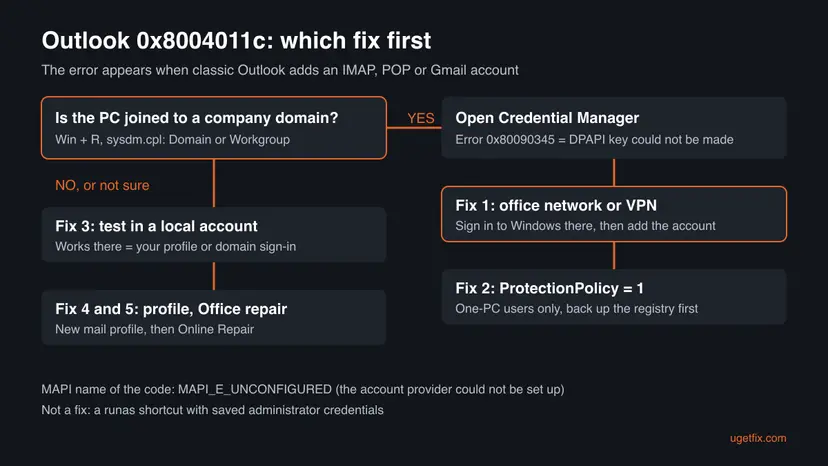
The first two fixes are only for domain PCs. This check takes a minute and tells you which branch of the chart to follow.
- Press Win + R, type this and press Enter:
sysdm.cpl - Open the Computer Name tab. If it shows Domain: with a name, the PC is on a domain. If it shows Workgroup:, it is not.
- On a domain PC, select Start, type
credential managerand open Credential Manager. - If it fails to open with error
0x80090345, Microsoft's DPAPI article applies to you: go to Fix 1.
How to fix Outlook error 0x8004011c on Windows
Close Outlook before each fix and open it again after. Keep the server settings of the account you add at hand (IMAP or POP server, port, encryption) in case Outlook asks for them. Your existing mailboxes are not touched by Fix 1 to Fix 3.
| Your case | Start with | Then |
|---|---|---|
| Work laptop on a domain, used at home or in a branch office | Fix 1 | Fix 2 |
| Credential Manager fails with 0x80090345 | Fix 1 | Fix 2 |
| Domain PC, the office network is out of reach and you use only this PC | Fix 2 | Fix 3 |
| Home PC in a workgroup | Fix 3 | Fix 4, Fix 5 |
| Other accounts in the same Outlook profile also fail | Fix 4 | Fix 5 |
Fix 1. Connect to the office network or VPN and add the account again
5 to 10 minutesLow riskDomain PCs, first. Above all a new laptop, or a user who signed in for the first time away from the office.
Microsoft's DPAPI article says the master key is created once the PC can reach a writable domain controller. After that, Windows can protect the mail password and Outlook finishes the setup.
- Close Outlook.
- Connect the laptop to the office network, or start the company VPN and wait until it says it is connected.
- Sign out of Windows and sign in again while the connection is up.
- Open Credential Manager again. It should now open without an error.
- Open Outlook, select File > Add Account and add the mail account again.
Your IT department can confirm that a writable domain controller answers with the command Microsoft gives. Run it in Command Prompt and replace the domain name with yours.
Lists a writable domain controller if one is reachable. An error means none is.
nltest /dsgetdc:yourdomain.local /writableIt worked if: Credential Manager opens and Outlook adds the account with the green tick.
If not: If you cannot reach the office network, or the error stays, set the registry value in Fix 2.
Fix 2. Set the DPAPI ProtectionPolicy value in the registry
15 minutesRead the warningDomain PCs that cannot reach a writable domain controller, used by one person on this one computer only.
With ProtectionPolicy set to 1, Windows backs up DPAPI master keys on the PC instead of on the domain controller. Microsoft documents the value in KB 3205778, and a Microsoft support answer for 0x8004011c used the same value, which the user confirmed fixed it.
Microsoft warns not to use this value if domain users sign in to more than one computer. A password change made on another PC can then leave the local keys locked to the old password, and data protected by them can be lost. Ask IT first on a managed laptop. Export the key before you change it: Back up the registry before editing it.
- Press Win + R, type
regeditand select OK. Select Yes in the permission prompt. - Paste this path into the address bar and press Enter:
HKEY_LOCAL_MACHINE\Software\Microsoft\Cryptography\Protect\Providers\df9d8cd0-1501-11d1-8c7a-00c04fc297eb - Select File > Export, keep Selected branch and save the file.
- Right-click the empty right pane and select New > DWORD (32-bit) Value.
- Name it
ProtectionPolicy, double-click it, set Value data to1and select OK. - Close Registry Editor and restart the PC, as Microsoft's article asks.
- Open Outlook and add the account again.

It worked if: After the restart Outlook adds the account without 0x8004011c.
If not: If nothing changes, delete the ProtectionPolicy value (or double-click the exported file to restore the key), restart, and test a local account with Fix 3.
Fix 3. Test adding the account in a local Windows account
10 minutesLow riskHome PCs, and domain PCs where Fix 1 and Fix 2 did not help or are not allowed.
Microsoft notes that local accounts always back up DPAPI keys on the PC, so the domain cause cannot occur there. A fresh account also has a clean Outlook profile. If the account adds there, the problem is in your own profile or its domain sign-in.
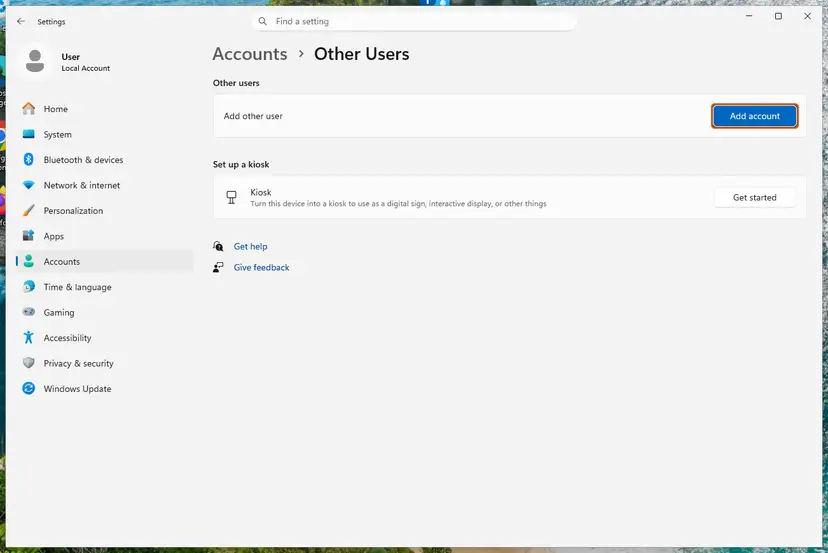
- Create a test local account: Create a new user account to test a problem.
- Sign out and sign in to the new account.
- Open Outlook, skip the Microsoft 365 sign-in if asked, and add the same mail account.
- Note the result, sign out and go back to your own account.
Some guides suggest a shortcut that runs Outlook through runas /savecred as Administrator. That saves the administrator password for every program you start that way. It weakens the PC for good and does not address the cause, so we do not recommend it.
It worked if: The account adds in the test account. That points to your profile or the domain, not to Outlook or the mail server.
If not: If the test account fails with the same code too, the cause is the Office install or the account settings: go to Fix 5. If it works, try a new mail profile in your account with Fix 4.
Fix 4. Create a new Outlook mail profile and add the account there
10 minutesLow riskThe test account worked, or other accounts in your current profile also misbehave.
MAPI loads every account from the mail profile. A new profile starts without the settings of the old one, so a damaged profile cannot block the setup. If the error shows in the new profile too, the profile is not the cause.
- Close Outlook.
- Open Control Panel, set View by to Small icons and select Mail (Microsoft Outlook).
- Select Show Profiles, then Add, and type a name such as
Outlook2. - Add your main mailbox first, then the new account. For IMAP or POP, choose manual setup and enter the server names and ports from your mail provider.
- Select Prompt for a profile to be used, select OK and open Outlook with the new profile.
- Keep the old profile until the new one shows all your mail, then remove it in the same window.
A POP account keeps its mail in a .pst file on the PC. Note where it is (in Outlook: File > Account Settings > Data Files) and open it in the new profile with File > Open & Export > Open Outlook Data File.
It worked if: The new profile adds the account and Outlook opens with it.
If not: If the new profile fails with the same code, repair Office with Fix 5.
Fix 5. Repair Microsoft Office with Online Repair
15 to 30 minutesLow riskLast, when the error appears in every profile and every Windows account.
Online Repair downloads and replaces every Office file, including the MAPI parts that load mail accounts. It is not where 0x8004011c usually comes from, but it rules out a damaged install.
- Close Outlook and the other Office apps.
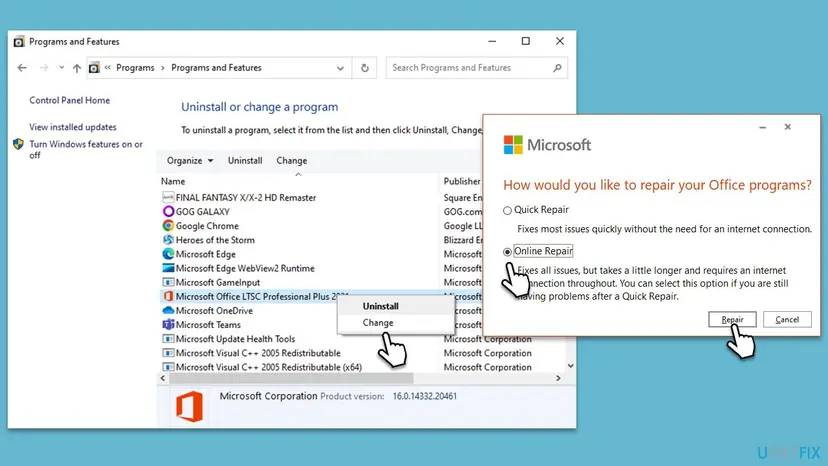
- Press Win + R, type this and press Enter to open Programs and Features:
appwiz.cpl - Select your Microsoft Office or Microsoft 365 entry and select Change.
- Choose Online Repair, select Repair and wait until it finishes. Step by step: How to repair Microsoft 365 or Office.
- Restart the PC and add the account in Outlook again.
It worked if: Office repairs, and after a restart Outlook adds the account.
If not: If 0x8004011c is still there, read the next section.
If Outlook still shows error 0x8004011c
When every fix failed, check the account itself and collect what IT or your mail provider will need. The table sorts the common signs.
| What you see | Likely reason | What to do |
|---|---|---|
| The account fails on a home PC and on a phone too | Wrong password, app password needed, or IMAP turned off at the provider | Check the provider's settings page. Gmail and other services may need IMAP turned on or an app password. |
| Credential Manager still fails with 0x80090345 | No writable domain controller for this PC | IT: run nltest /dsgetdc:<domain> /writable and check the site's domain controllers. |
| Outlook also says the .ost file cannot be accessed | A damaged offline file of the Exchange mailbox | Close Outlook and let IT or Microsoft support rebuild the .ost. Microsoft support suggested deleting it so Outlook makes a new one. |
| Only one Windows user fails | Damaged Windows profile | Move to a new Windows profile with IT's help. |
- Event Viewer: on a domain PC, IT can turn on DPAPI auditing. Microsoft logs event 4692 when a master key backup is attempted, with a failure reason when it fails.
- For IT or support: the exact message, the account type (IMAP, POP, Exchange), whether the PC is on a domain, whether Credential Manager opens and the result of the local account test.
- Workaround: until it is fixed, read the mailbox in the provider's web mail or on your phone.
How to keep error 0x8004011c from coming back
- Sign in to a new work laptop on the office network or VPN the first time, so Windows creates its DPAPI key while a domain controller is reachable.
- Add new mail accounts while connected to the company network on a domain PC.
- Use ProtectionPolicy only where Microsoft allows it: one user on one PC, and remove it if that changes.
- Keep Office and Windows updated. Windows 10 left support on 14 October 2025, so a Windows 10 PC no longer gets security fixes.
Frequently asked questions
What is error 0x8004011c in Outlook?
It is the MAPI error MAPI_E_UNCONFIGURED, which means classic Outlook could not configure the mail account you were adding. Outlook shows it as Something went wrong and Outlook couldn't set up your account, or in Control Panel as An unknown error occurred, error code: 0x8004011c. The code says that setup failed but not why. On domain PCs the usual reason is that Windows could not create its DPAPI key for saved passwords, which Fix 1 and Fix 2 address.
Why does Outlook say something went wrong and it couldn't set up your account?
The message is generic: Outlook shows it whenever the last step of adding an account fails. With code 0x8004011c the failure is in configuring the account on this PC, not at the mail server. On a work laptop, check whether it is on a domain and whether Credential Manager opens. If Credential Manager fails, the PC cannot reach a writable domain controller, and connecting to the office network usually lets the setup finish.
Is 0x8004011c a Windows 11 or a Windows 10 problem?
It happens on both. Microsoft's DPAPI article says the domain behavior applies to all versions of Windows 10 and later, which includes Windows 11 25H2 and 26H2. The error comes from classic Outlook, so the fixes are the same on both systems. Windows 10 left support on 14 October 2025, so a Windows 10 PC no longer gets security fixes, but that does not cause this error.
Does error 0x8004011c affect Outlook 365?
Yes, when you use classic Outlook from Microsoft 365. The error appears when you add a second account, such as Gmail or another IMAP or POP mailbox, to classic Outlook on a domain PC. The Microsoft 365 mailbox itself keeps working. The new Outlook for Windows uses a different way of adding accounts, so this code is not its typical message.
Is it safe to set ProtectionPolicy to 1?
It is safe on a PC used by one domain user who does not sign in to other computers. Microsoft warns against it where users roam between PCs: a password changed elsewhere can leave the locally backed up keys tied to the old password, and the protected data can be lost. On a company laptop, ask IT first. Always export the registry key before the change so you can undo it.
Should I turn off the firewall or antivirus to fix 0x8004011c?
No. We found no source that ties this code to the firewall or to antivirus software. The setup fails inside Windows, while Windows protects the password, not on the network. If you want to rule out a security program, pause it for one attempt and turn it back on at once: Turn off Microsoft Defender protection for a moment. Allowing Outlook through the firewall by hand is not needed for adding a mail account.
Will I lose my emails if I follow these fixes?
Not with Fix 1 to Fix 3: they change only how Windows protects passwords and add a test account. Fix 4 creates a new mail profile next to the old one, so nothing is removed until you decide. IMAP and Exchange mail comes back from the server. A POP account keeps mail in a .pst file on the PC, so note its location and back it up before you remove an old profile.
What is error 0x80040111 in Outlook?
It is a different code from the same MAPI family, and this page does not cover it. People search both codes together because they look alike and both appear when Outlook cannot load an account. The fixes here are written for 0x8004011c, the account configuration failure. If your window shows 0x80040111 instead, search for that exact code.
Geht immer noch nicht: what if Outlook still does not work?
This page is in English. If Outlook still fails after every fix, the cause is outside Outlook. Check that the account works in the provider's web mail and on a phone, then follow the section after the fixes. On a work PC, give IT the exact message, the account type and whether Credential Manager opens. They can check the domain controllers with nltest and DPAPI events in Event Viewer.
Sources
- Microsoft Learn: DPAPI MasterKey backup failures when RWDC isn't available (KB 3205778: Outlook profile failures, nltest check, ProtectionPolicy value and warning) (learn.microsoft.com)
- Microsoft Q&A: Error opening Outlook 2016 via Office 365 after computer joined domain (support answer for error code 0x8004011c) (learn.microsoft.com)
- CodeTwo knowledge base: Error opening default mailbox in the MAPI profile (MAPI_E_UNCONFIGURED 0x8004011c) (codetwo.com)
Did this fix work?
One click, no account. It tells the next reader which guides are worth their time.
Questions and experiences: fix Outlook error 0x8004011c in Windows
Still broken, or found a fix we did not cover? Ask here: members and our editors answer. Reading is open; writing needs a free account.
…