How to fix
Outlook error 0x80040610
on Windows
Resolve Outlook error 0x80040610 on Windows 10 and 11 effortlessly. Fix your email issues quickly with expert-tested solutions.

What causes How to fix Outlook error 0x80040610 in Windows?
- Problem with the Outlook data file (.pst)
- Mailbox is corrupted
- Conflicting add-ins or plugins
- Corrupted system files
- Issues with the Outlook profile
Repairs Windows system files, removes malware, and restores a clean OS state — without reinstalling.
Hello. When I try to use the Outlook app on Windows I keep getting the 0x80040610 error. Is there a way to fix it?
Outlook Error 0x80040610 is a common problem that many Windows users face. This error usually indicates that there is a problem with the Outlook data file (.pst) or that the mailbox is corrupted. Microsoft Outlook is a popular email client and personal information manager. It is part of the Microsoft Office suite and provides a variety of features for managing emails, contacts, calendars, tasks, and other items.
Outlook is a comprehensive tool that helps individuals and businesses manage their communication and organizational needs. Outlook allows users to send and receive emails, organize their inbox with filters and folders, schedule appointments and meetings, set reminders, manage contacts and address books, and synchronize data across multiple devices thanks to its user-friendly interface and robust functionality.
The error 0x80040610 can have a significant impact on users' productivity and communication workflows. Users are frequently unable to access their Outlook data or perform necessary tasks such as sending or receiving emails, updating calendars, or accessing contacts due to the error. This can cause disruptions in daily work routines, frustration, missed deadlines, and potential miscommunication.
Users can try a variety of solutions to the error 0x80040610. These may include repairing the Outlook data file with the built-in Inbox Repair tool (Scanpst.exe), disabling conflicting add-ins or plugins, recreating the Outlook profile, or using other Microsoft troubleshooting methods.
In this guide, you will find 5 steps that should help you fix Outlook error 0x80040610 in Windows. You can also try a maintenance tool like [d1] that can fix most system errors, BSODs,[ref en-1] corrupted files, registry[ref en-2] issues, or clear cookies and cache.[ref en-3] Otherwise, follow the step-by-step instructions below.
Solution 1. Fix Corrupted System Files
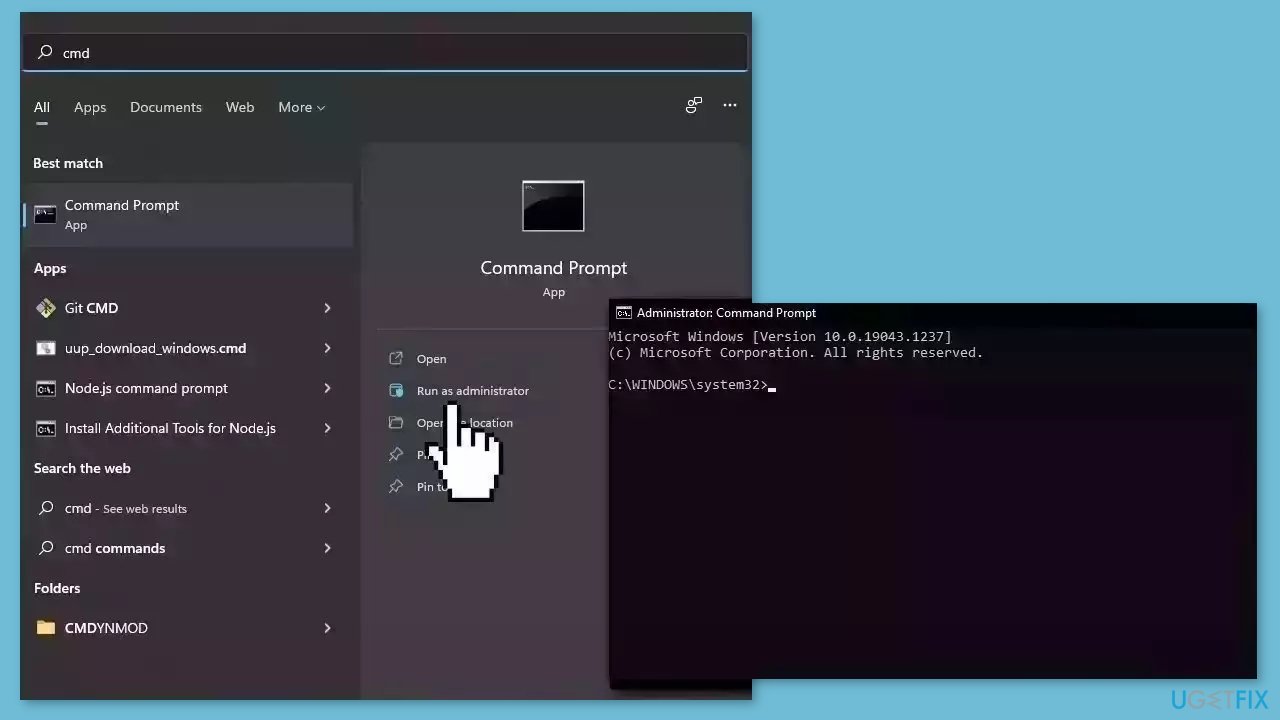
Use Command Prompt commands to repair system file corruption:
- Open Command Prompt as administrator
- Use the following command and press Enter:
sfc /scannow
- Reboot your system
- If SFC returned an error, then use the following command lines, pressing Enter after each:
DISM /Online /Cleanup-Image /CheckHealth
DISM /Online /Cleanup-Image /ScanHealth
DISM /Online /Cleanup-Image /RestoreHealth
Solution 2. Install Windows Updates
- Click Start and select Settings.
- Go to the Windows Update section.
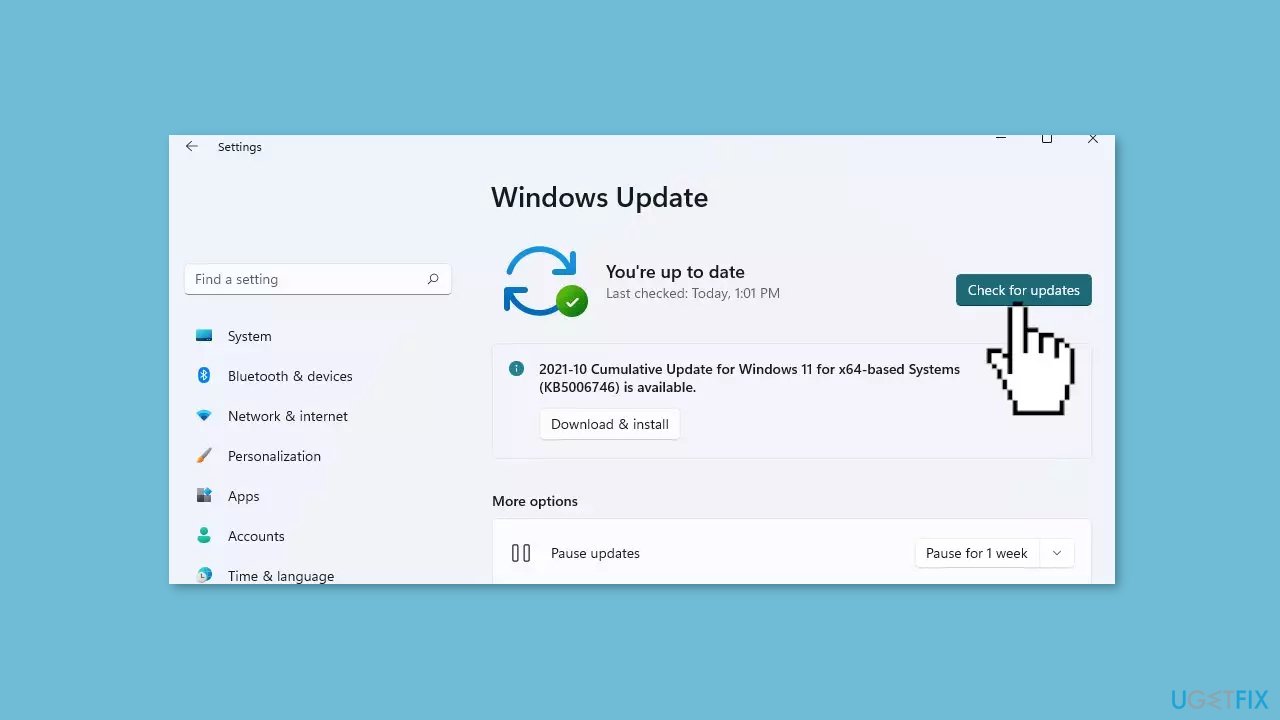
- Click Check for updates and wait.
- Go to the Advanced options and install optional updates.
- Reboot your system.
Solution 3. Repair Outlook Data File
- Press the Windows key + S to open Windows Search.
- Type Task Manager and click Open.
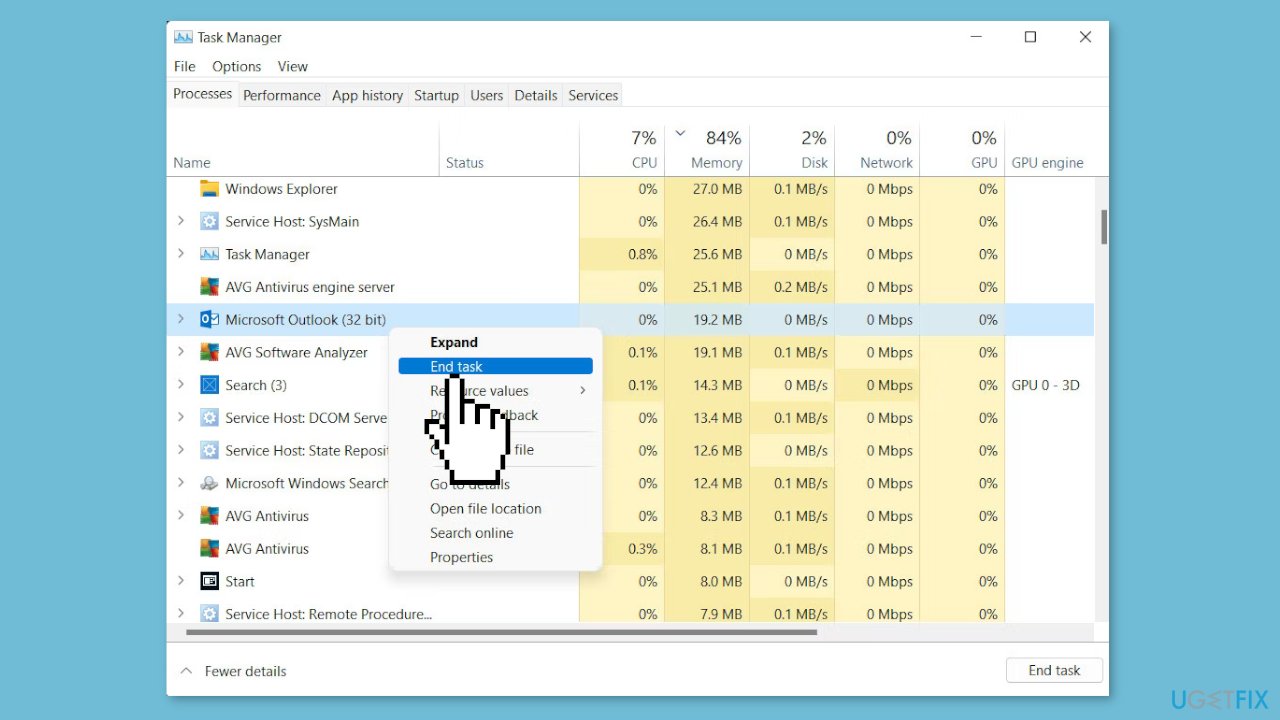
- In the Processes tab, right-click on Outlook and choose End task.
- Open File Explorer and navigate to the following location:
For Outlook 2016 or later: C:\Program Files (x86)\Microsoft Office\OfficeX
For Outlook 2013: C:\Users\username\AppData\Local\Microsoft\Outlook
- Replace username with your Windows username.
- Locate the Scanpst.exe file and click on it.
- In the tool, click the Browse button.
- Navigate to the Outlook data file (.pst) you want to repair.
For Outlook 2019, Outlook 2016, or Outlook for Microsoft 365: C:\Users\username\Documents\Outlook Files
- Replace username with your Windows username.
- Choose the .pst file and click on the Start button.
- The tool will scan the file for potential issues and attempt to fix any issues it detects.
- Review the repair log for any warnings related to the problem.
Solution 4. Remove Problematic Add-ins
- Launch Outlook.
- Click on the File tab.
- Choose Options from the left pane.
- In the Options window, select Add-Ins from the left menu.
- Expand the Manage dropdown on the right side of the window.
- Select COM Add-ins.
- Click on the Go button. You will see a list of add-ins that are currently enabled.
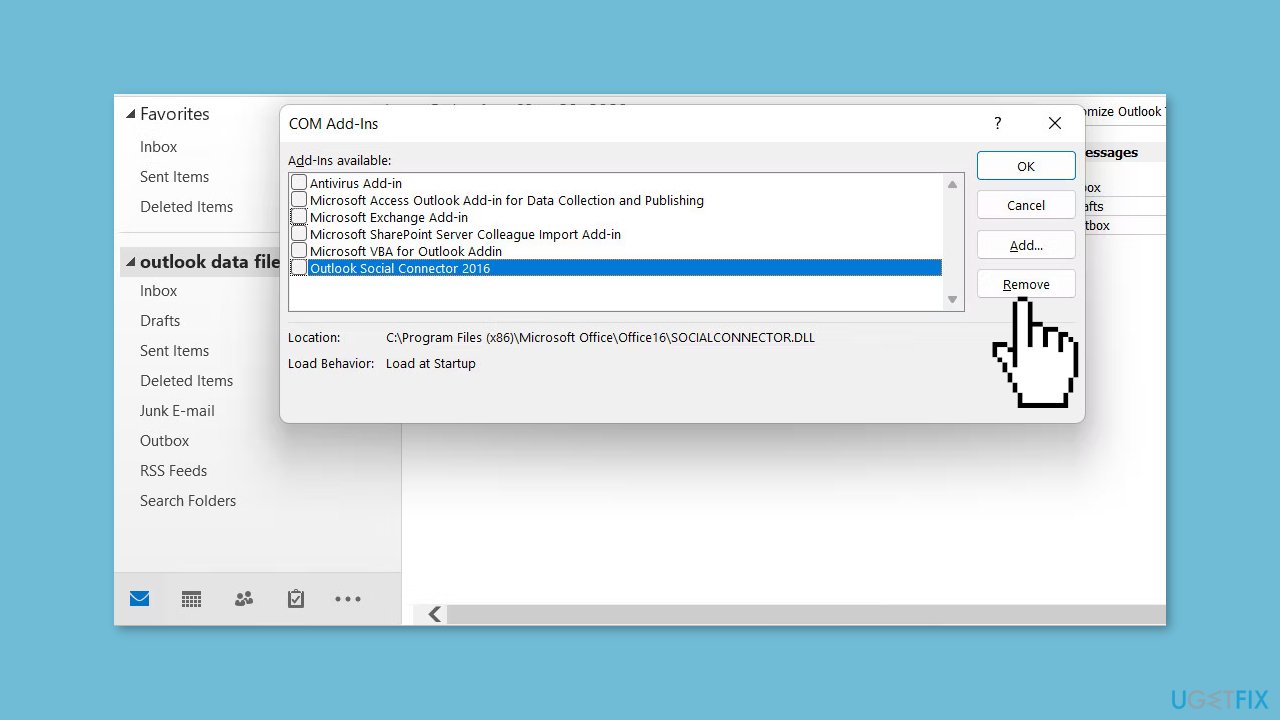
- Uncheck the boxes next to each add-in to disable them.
- If you already have a suspect add-in, you can just disable that one and leave the others enabled.
- Click OK to save the changes.
- Restart Outlook.
- Check if the issue is resolved.
Solution 5. Increase PST File Size Limit
- Exit Outlook using the Task Manager.
- Open the Run dialog by pressing the Windows key + R .
- Type regedit in the Run dialog and press Enter.
- Confirm your action in the User Account Control (UAC) prompt.
- Once you are inside the Registry Editor, navigate to the following location:
HKEY_CURRENT_USER\Software\Microsoft\Office<version>\Outlook\PST
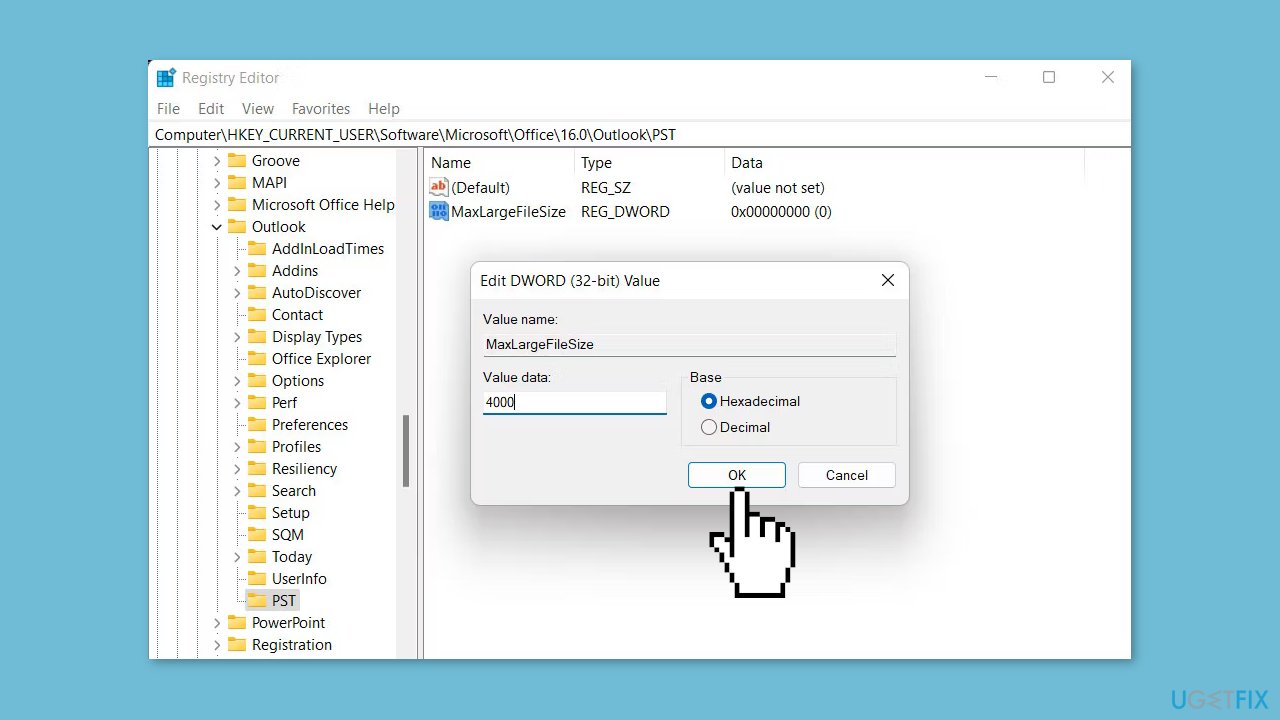
- Replace <version> with the Office version you are currently using
- Right-click on the PST folder and choose New > DWORD (32-bit) Value.
- Name the new DWORD value as MaxLargeFileSize.
- Right-click on the newly created value and enter the desired file size limit in megabytes (MB) in the Value data section.
- Click OK to save the changes and close the Registry Editor.
Bottom line
To fix the Outlook error 0x80040610, users can repair the Outlook data file using the built-in Inbox Repair tool, disable conflicting add-ins, recreate the Outlook profile, or repair corrupted system files using Command Prompt. If these solutions do not resolve the issue, consider using a maintenance tool or other Microsoft troubleshooting methods.
Frequently asked questions
The Outlook error 0x80040610 typically occurs due to a corrupted Outlook profile or issues with the PST file associated with the profile. This can happen after a Windows update or if the Outlook data file exceeds its size limit.
You can use the Inbox Repair Tool (Scanpst.exe) in Windows 10 or Windows 11 to scan and repair the PST file. Simply locate the tool, run it, and follow the prompts to select your PST file for repair.
Yes, creating a new Outlook profile can resolve the 0x80040610 error by providing a fresh setup without the issues of the corrupted profile. You can do this through the Control Panel under Mail settings in both Windows 10 and Windows 11.




Report an issue
What's wrong with this guide? We review every report and update or remove content.
Report received — thank you. We'll review and fix it.
You need a free account to submit a report.
Be the first to comment