How to fix
Outlook error 0x80040900
on Windows
Resolve Outlook error 0x80040900 on Windows 10 and 11 effortlessly. Get expert tips and quick fixes to restore your email functionality now, with screen…

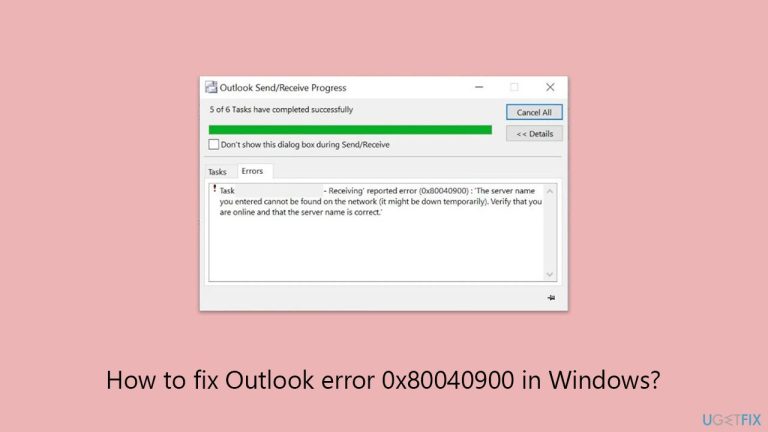
What causes How to fix Outlook error 0x80040900 in Windows?
- Incorrect account configuration
- Mistakes in server names
- Network connectivity problems
- Security software interference
- Damaged Outlook data files
Repairs Windows system files, removes malware, and restores a clean OS state — without reinstalling.
I'm receiving error code 0x80040900 in Outlook when I attempt to send or receive emails. It shows the error message, "The server name you entered cannot be found on the network (it might be down temporarily)." I have checked my internet connection, and it's working fine. What can I do?
Outlook error code 0x80040900 is an issue of connectivity that typically appears whenever the application fails to connect to the email server. It can be a result of incorrect account configuration, name mistakes in the server, or network connectivity problems. When this error appears, Outlook is unable to send or receive emails and, therefore, email communication comes to a complete stop.
The most common source of an incorrect email account configuration - specifically the incoming or outgoing mail server names, port numbers, or encryption types. Users who have recently changed providers or updated account credentials may see this error if settings were not correctly brought over. Network issues are also usually at fault, most notably when DNS problems or firewall settings prevent Outlook from connecting to the server.
Another factor to consider is security software interference. Antivirus programs and firewalls will occasionally prevent Outlook from connecting to the internet or scan its efforts to do so, regarding them as possible threats. Damaged Outlook data files, especially PST files, can also hinder syncing and lead to error 0x80040900.
To fix this mistake, users typically are able to fix the issue by correcting server settings, checking connectivity, or by just disabling antivirus momentarily. Repairing Outlook data files also comes in handy, especially if the issue is recurring in multiple profiles or accounts.
If these steps don't resolve the problem, using a professional-grade PC repair utility such as [d1] may diagnose underlying system flaws. These programs can scan for software conflicts or misconfigurations that are keeping Outlook from running normally and automatically fix them to restore normal email activity.
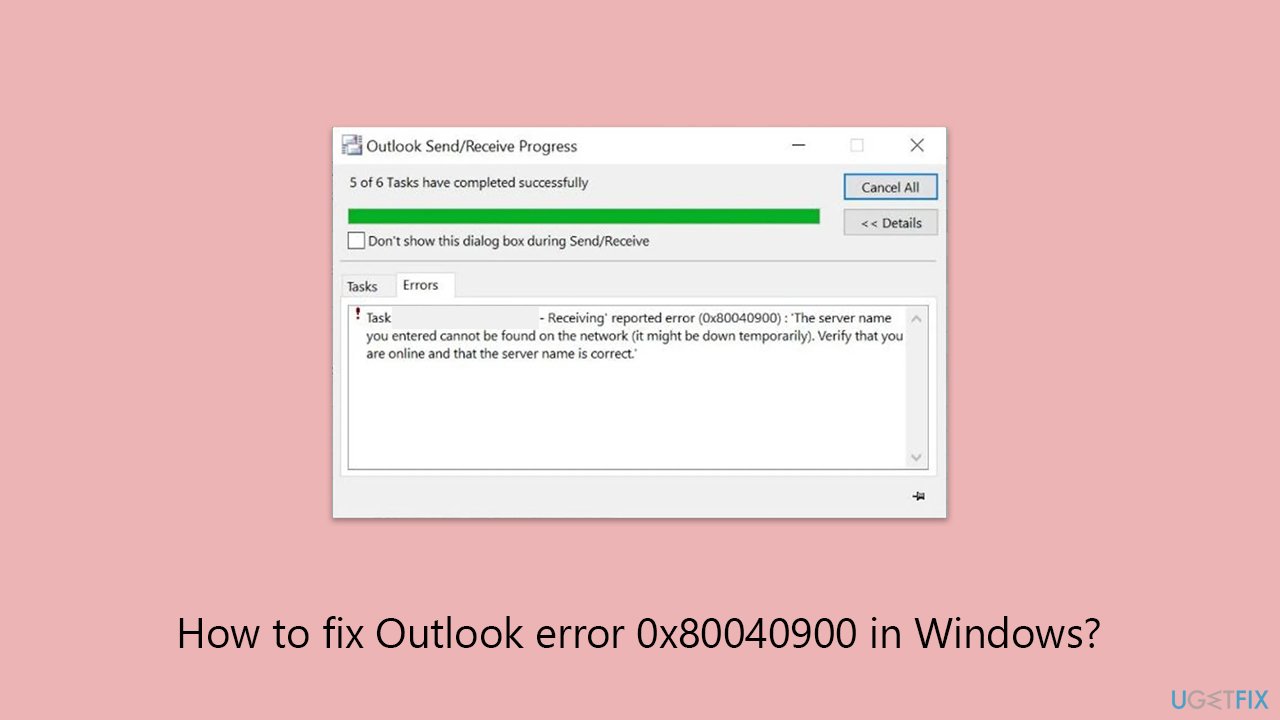
Fix 1. Check internet connection
Outlook needs a stable internet connection to reach the email server. If the connection is weak or interrupted, it may result in error code 0x80040900.
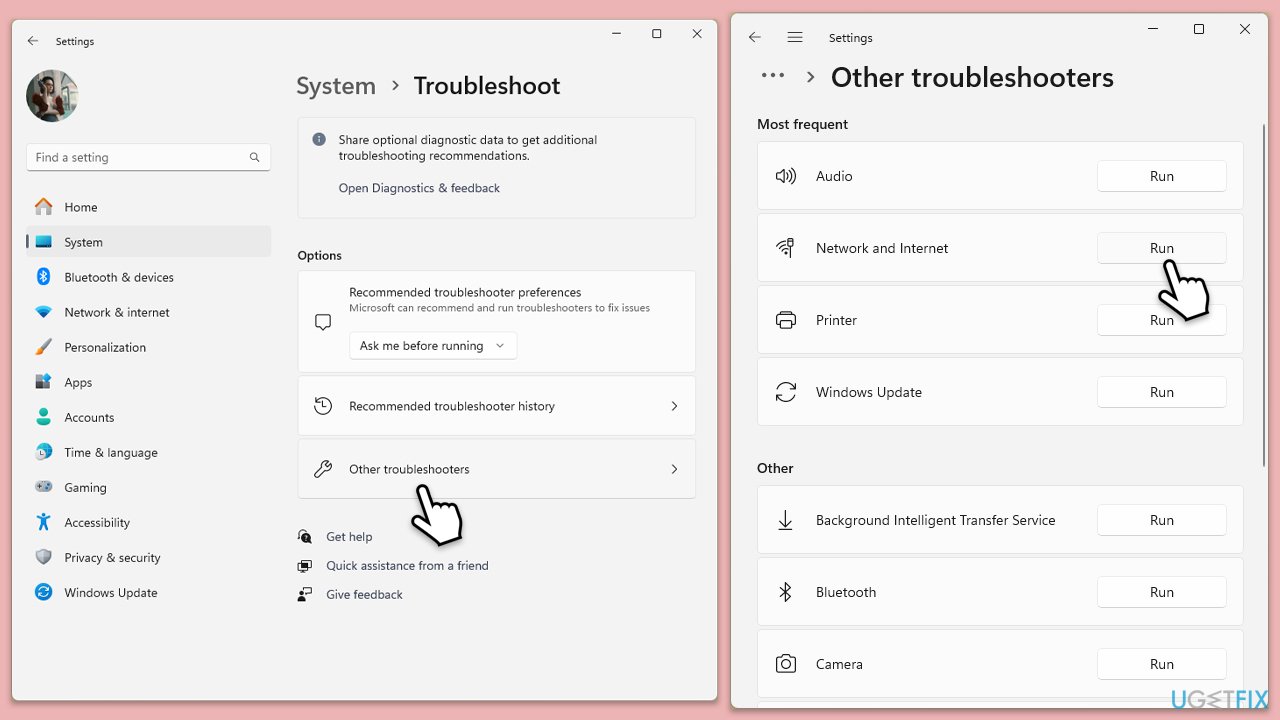
Windows 11
- Type Troubleshoot in Windows search and hit Enter.
- Select Other troubleshooters.
- Find Network & Internet from the list and select Run.
- Wait till the scan is finished.
Windows 10
- Right-click on Start and pick Settings.
- Go to Network & Internet section.
- On the right side, find the Advanced network settings section.
- Click Network troubleshooter, specify the problem, and wait till the scan is finished.
- When done, apply all the recommendations.
Fix 2. Verify server settings in Outlook
Incorrect incoming or outgoing mail server settings are the most common cause of error 0x80040900. Double-check that all values match your email provider’s requirements.
- Open Outlook and go to File.
- Click Account Settings and select the account in question.
- Check the incoming and outgoing server names, ports, and encryption types.
- Correct any mistakes and save changes.
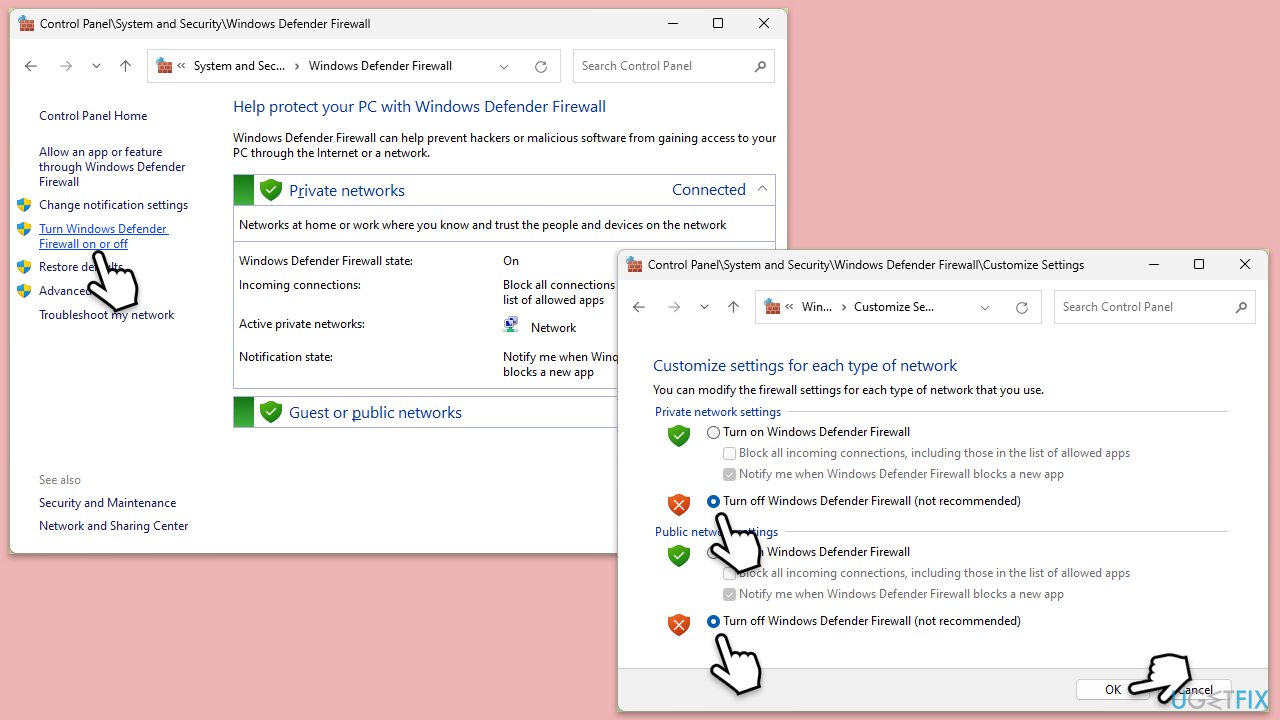
Fix 3. Disable antivirus or firewall temporarily
Security software may block Outlook’s connection to the mail server. Disabling them temporarily can help confirm if they are causing the issue.
- Open your antivirus software and disable it.
- Go to Settings > Update & Security > Windows Security > Firewall & network protection to disable the firewall.
- Try running the app again to see if the issue is resolved.
Fix 4. Repair Outlook data files
Corrupt PST or OST files can cause Outlook to malfunction and show the error. Repairing these files may restore normal functionality.
- Close Outlook.
- Navigate to the search bar and type Control Panel, then open it.
- Under View by, select Small icons from the drop-down menu.
- Go to Mail and then click on Data Files.
- In the Account Settings window, you’ll see the Data Files tab; here, you will find the location of your PST files listed.
- Take note of the location.
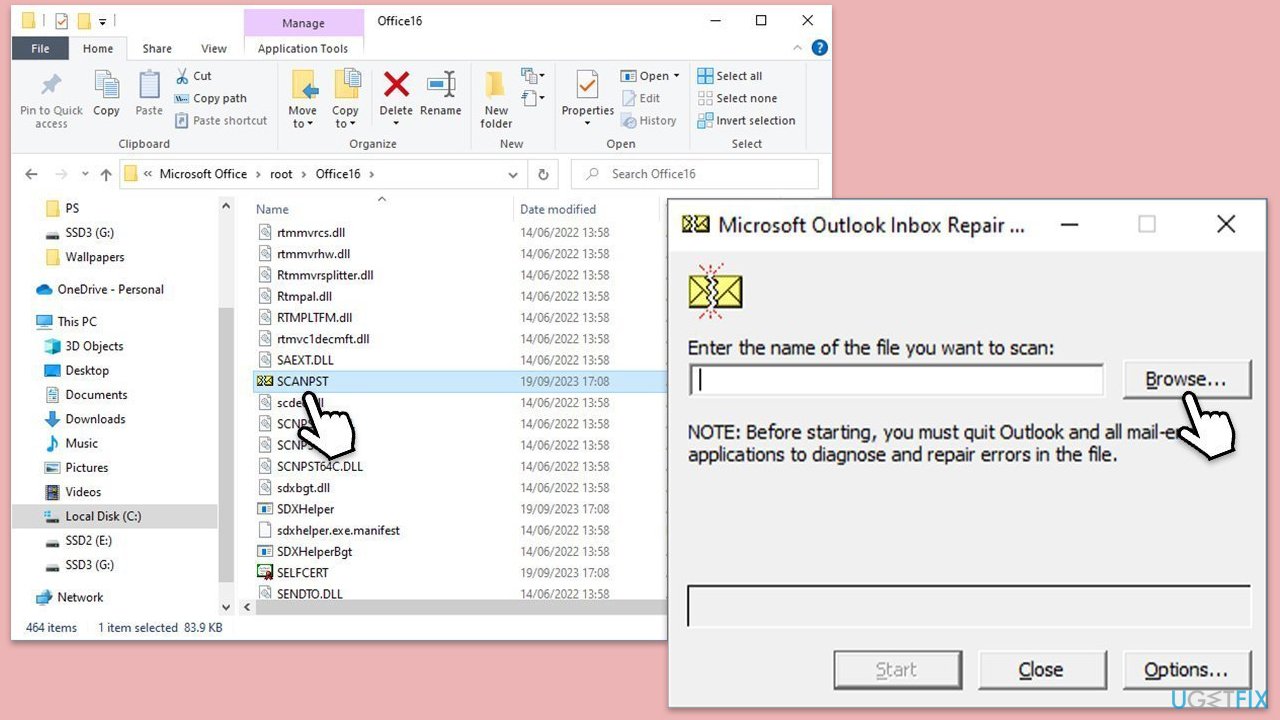
- Press Win + E to open File Explorer.
- Navigate to one of these locations (depending on your Office version):
C:\Program Files\Microsoft Office\Office[version]\
C:\Program Files\Microsoft Office\root\Office16 - Open the Inbox Repair Tool (scanpst.exe)
- Click Browse and select the PST file/OST file.
- Click Start and follow the prompts to repair the file.
Fix 5. Create a new Outlook profile
A damaged profile can result in persistent errors. Creating a new profile can reset settings and remove corruption.
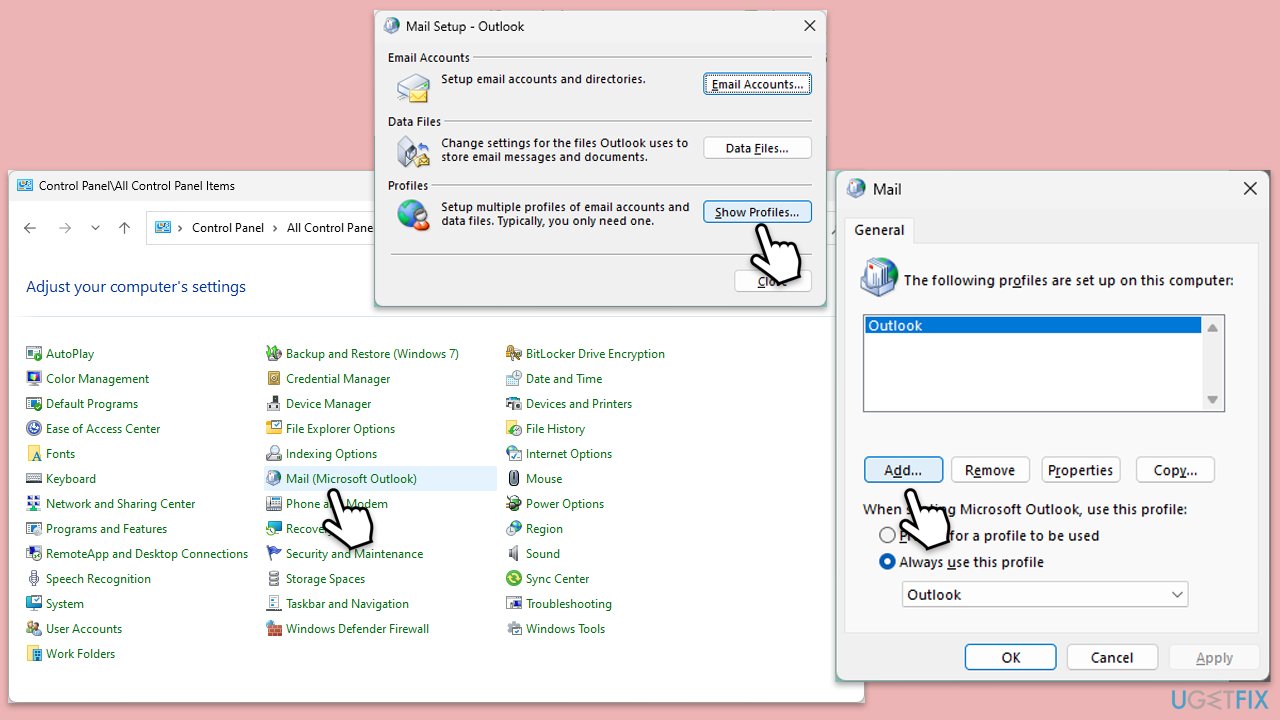
- Open Control Panel.
- Select Small icons view.
- Click Mail (Microsoft Outlook).
- Click on Show Profiles.
- Select Add and create a new profile.
- Set the new profile as the default.
- Restart Outlook and sign in with the new profile.
Fix 6. Reset network settings
Network misconfigurations, such as DNS issues, may prevent Outlook from resolving the email server’s address.
- Type cmd in Windows search.
- Right-click on Command Prompt result and pick Run as administrator.
- In the new window, copy and paste the following commands, pressing Enter after each:
ipconfig /flushdns
ipconfig /registerdns
ipconfig /release
ipconfig /renew
netsh winsock reset - Wait for each of the commands to be executed.
- Close down Command Prompt.

Fix 7. Start Outlook in Safe Mode
Running Outlook in Safe Mode disables add-ins that could interfere with server communication.
- Press Win + R to open the Run dialog.
- Type in outlook /safe and press Enter.
- If the problem does not exist in this environment, the problem is related to the add-in.
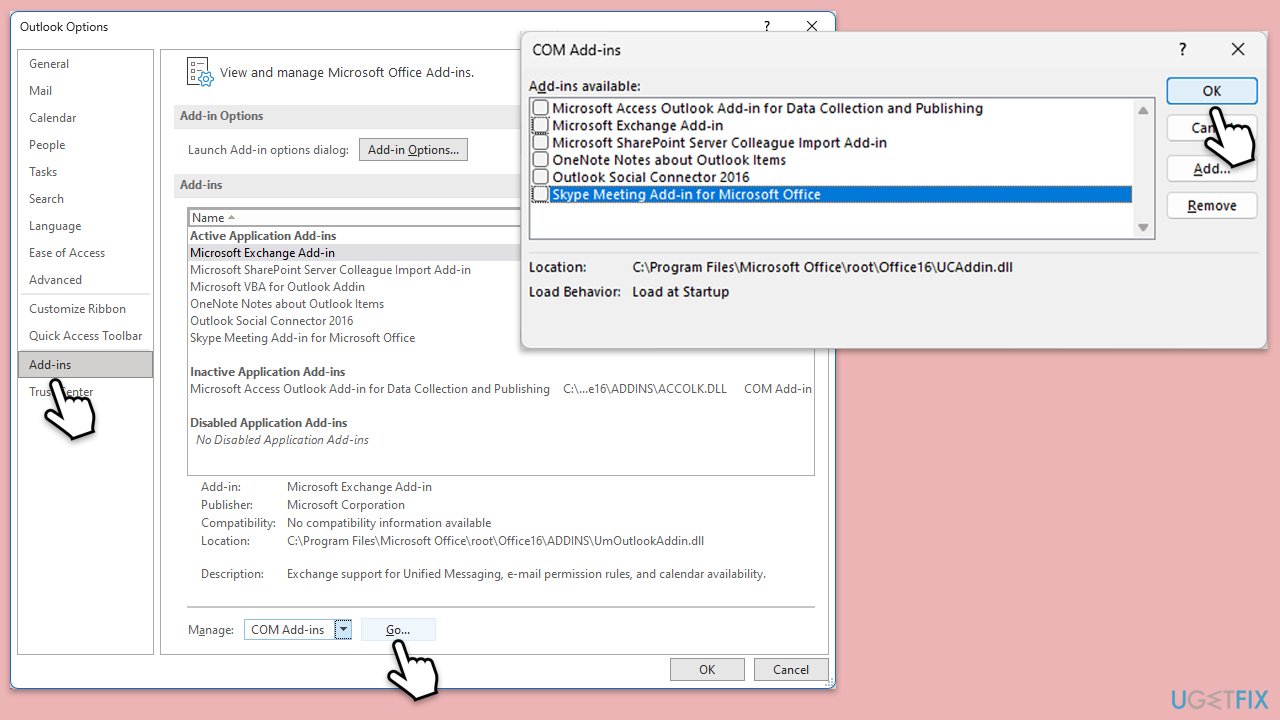
- Next, go to File > Options.
- Go to the Add-ins section.
- At the bottom, on the right side, select COM Add-ins from the drop-down menu and pick Go.
- Here, untick all the add-ins but one, and click OK.
- Check if the error went away. If not, try it with the next add-in until you find the culprit.
Fix 8. Reinstall Outlook
If all else fails, reinstalling Outlook can resolve issues caused by program corruption or missing components.
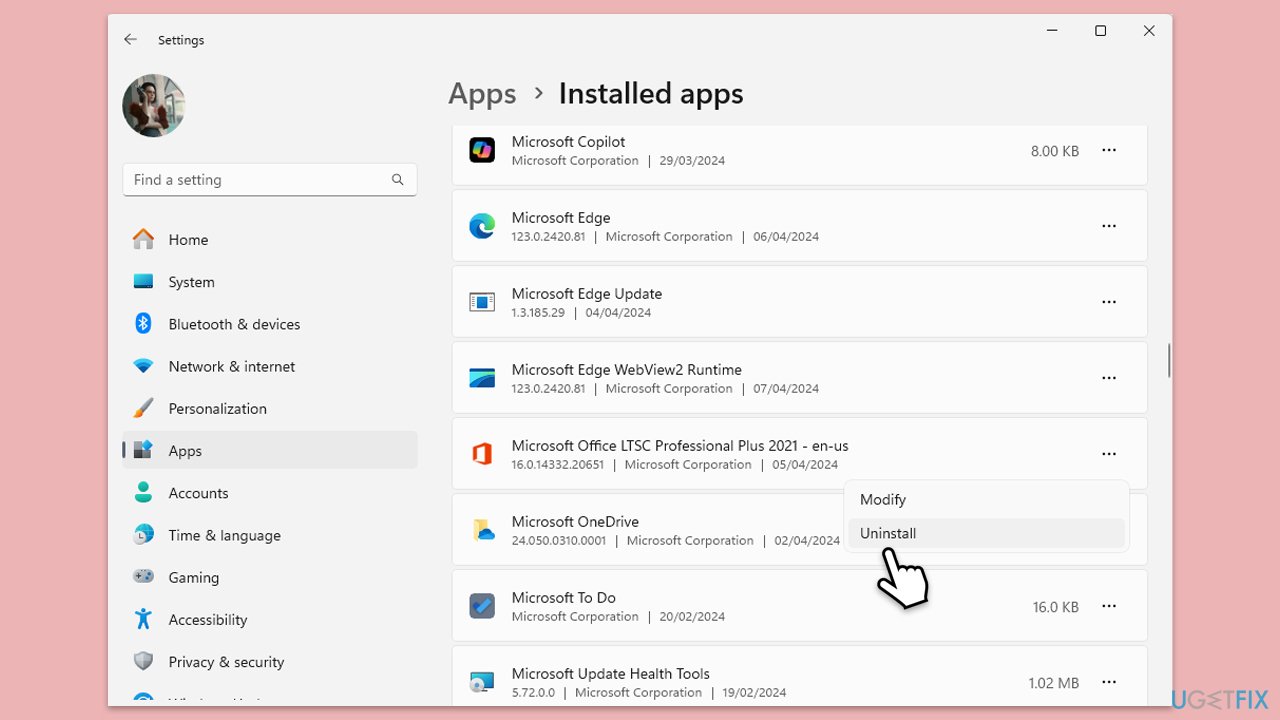
- Right-click on Start and pick Installed apps/Apps and Features.
- Scroll down to find the MS Office installation.
- Click Uninstall and confirm with Uninstall.
- Follow on-screen instructions to remove the app completely.
- Press Win + E to open File Explorer.
- Navigate to the following location and delete its contents:
C:\Program Files\Microsoft Office - Next, type regedit in Windows search and press Enter.
- Go to the following locations in the Registry Editor and delete these items:
Computer\HKEY_LOCAL_MACHINE\SOFTWARE\Microsoft\AppVISV
Computer\HKEY_LOCAL_MACHINE\SOFTWARE\Microsoft\Office\ClickToRun
Computer\HKEY_CURRENT_USER\Software\Microsoft\Office - Restart your system and then reinstall Microsoft Office.
Bottom line
To fix Outlook error 0x80040900, users should check their internet connection, correct server settings, and consider disabling antivirus software temporarily. Repairing damaged Outlook data files may also help. If these steps don't resolve the issue, using a professional-grade PC repair utility may be necessary.
Frequently asked questions
The Outlook error 0x80040900 typically indicates a problem with the connection to the mail server, often due to incorrect account settings or server issues.
To troubleshoot this error on Windows 11, check your internet connection, verify your email account settings, and ensure that your firewall or antivirus is not blocking Outlook.
Yes, you can resolve the 0x80040900 error on Windows 10 by repairing your Outlook installation through the Control Panel or by creating a new Outlook profile.




Report an issue
What's wrong with this guide? We review every report and update or remove content.
Report received — thank you. We'll review and fix it.
You need a free account to submit a report.
Be the first to comment