How to fix
Outlook error 0x800CCC69
on Windows
Resolve Outlook error 0x800CCC69 on Windows 10 or 11 quickly and easily. Follow our expert-tested solutions for a seamless experience, fixed in minutes.


What causes How to fix Outlook error 0x800CCC69 in Windows?
- SMTP settings are incorrect
- Corrupted Outlook data files
- Issues with internet connection
- Erroneous server addresses
- Port numbers mismatch
- Antivirus or firewall interference
Repairs Windows system files, removes malware, and restores a clean OS state — without reinstalling.
I have been using Outlook on my Windows quite smoothly for some time now until lately. Every other time I try sending an email, this error code keeps popping up: 0x800CCC69. It's frustrating because my emails just get in the outbox and never go through. I don't think I have changed anything, so I'm stumped. Can someone please help me?
Outlook error 0x800CCC69 occurs when one tries to send or receive emails. This usually means that there is something wrong with the SMTP settings, critical for email delivery. Users may get messages like "SMTP_550_MAILBOX_NOT_FOUND" associated with this code. This would, in most cases, mean there is a problem either with the configuration of the outgoing mail server, corrupted Outlook data files, or an issue with your internet connection.
This is an error most users report when the email settings are not correctly aligned with the provider's requirements. This will occur with erroneous server addresses, at worst, or with port numbers-especially when security protocols set in Outlook differ from what the email provider can support. Also, corrupted PST files or some problem with your Windows system files may lead to this issue.
SMTP settings may be checked, the installation of Outlook repaired, or scanning data files with Outlook's built-in repair tools, like ScanPST. Sometimes, the antivirus program or even the firewall interferes with Outlook and prevents it from connecting to the server. You can temporarily disable such security measures to check whether they interfere with Outlook.
If you find these steps complex or if the problem persists, using a specialized repair tool like [d1] can automate the troubleshooting process and resolve any system-related issues efficiently.

Fix 1. Verify SMTP settings
SMTP settings are one of the more common incorrect settings and a primary cause of error 0x800CCC69. Entering those correctly to match your email service provider will resolve this issue.
- Open Outlook and go to File > Account Settings.
- Select your email account and click on Change.
- Verify that the Outgoing mail server (SMTP) matches your email provider’s recommended settings.
- Check the Port number and encryption type and make sure they align with your provider’s instructions.
- Save changes and restart Outlook.

Fix 2. Repair Outlook data files
These errors in sending or receiving can be created by corrupted PST or OST files; a user can repair such files to solve the problems.
- Close Outlook.
- Navigate to the search bar and type Control Panel, then open it.
- Under View by, select Small icons from the drop-down menu.
- Go to Mail and then click on Data Files.
- In the Account Settings window, you’ll see the Data Files tab; here, you will find the location of your PST files listed.
- Take note of the location.
- Press Win + E to open File Explorer.
- Navigate to one of these locations (depending on your Office version):
C:\Program Files\Microsoft Office\Office[version]\
C:\Program Files\Microsoft Office\root\Office16 - Open the Inbox Repair Tool (scanpst.exe)
- Click Browse and select the PST file/OST file.
- Click Start and follow the prompts to repair the file.

Fix 3. Disable antivirus or firewall temporarily
This error can be caused by the security software that may block Outlook from successfully connecting to the server. At the very least, temporarily disabling such features needs to be able to help identify if it is causing the problem.
- Open your antivirus or/and firewall program.
- Find the email protection or firewall settings and turn them off temporarily.
- Open Outlook and try sending an email again.
- If the error is resolved, adjust your antivirus settings to allow Outlook connections.
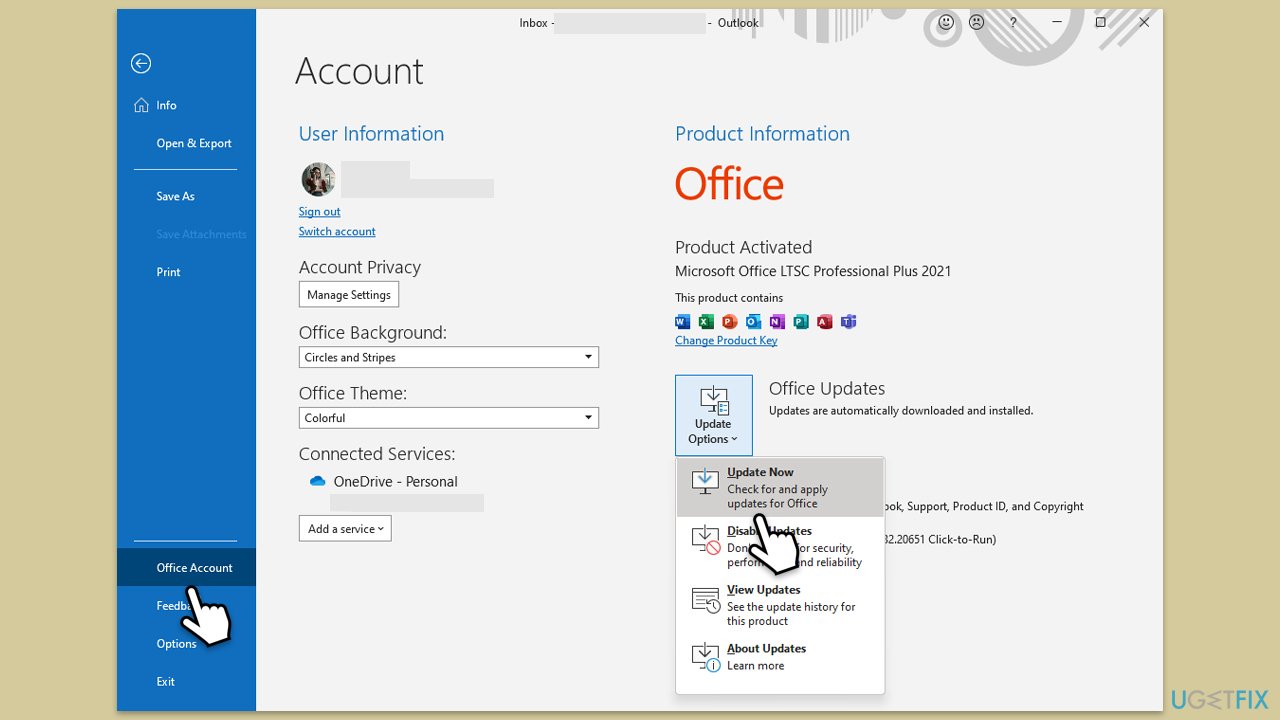
Fix 4. Update Outlook
Using an old version of Outlook often leads to problems and errors like 0x800CCC69.
- Open Outlook and click on the File menu.
- Choose Office Account or Account (the option may vary depending on your version of Outlook).
- Under the Product Information section, you will find an Update Options button. Click it and select Update Now.
- Outlook will check for and install any available updates.
- Once the update is complete, restart Outlook to ensure the changes take effect.
Fix 5. Run Windows Update
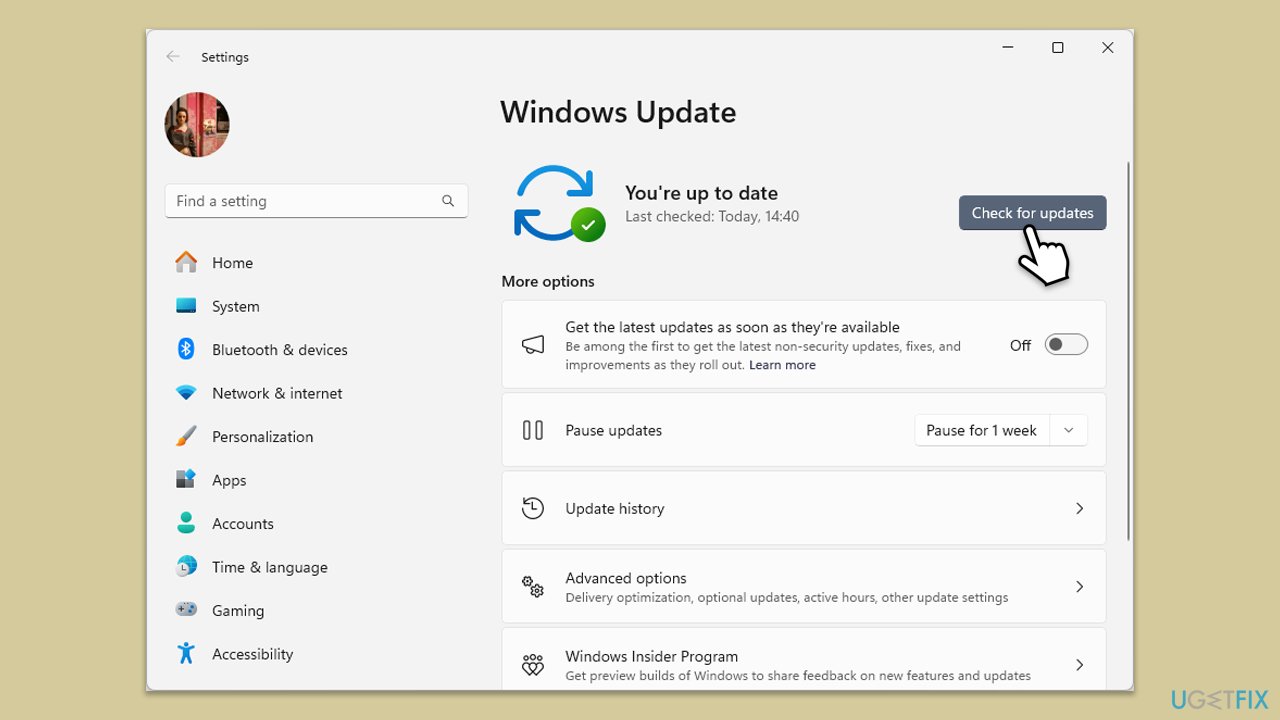
Make sure your operating system has the latest updates installed.
- Type Updates in Windows search and hit Enter.
- If updates are available, click Install updates.
- Otherwise, click Check for updates.
- If optional updates are available, install them as well.
- When all the update processes are complete, restart your device.
Fix 6. Reset Outlook settings
If incorrect settings persist, resetting Outlook can restore default configurations and resolve conflicts.
- Type Control Panel in Windows search and press Enter.
- Open Control Panel and go to Mail (Microsoft Outlook).
- Click on Show Profiles and select the current profile in use.
- Click on Remove and then Add to create a new profile.
- Follow the setup prompts to reconfigure your email account.
- Open Outlook with the new profile to see if the error has been resolved.

Fix 7. Repair Outlook installation
Repairing the Outlook installation can fix any corrupted program files.
- Open Control Panel.
- Select Programs > Programs and Features.
- Select Microsoft Office and click on Change.
- Choose the option for Online Repair and click Repair.
- Follow the prompts to finish the process.

Bottom line
To fix Outlook error 0x800CCC69, verify your SMTP settings, repair the Outlook installation, and scan data files using built-in tools like ScanPST. If the problem persists, consider temporarily disabling your antivirus or firewall. If none of these solutions work, using a specialized repair tool may help resolve the issue.
Frequently asked questions
Outlook error 0x800CCC69 typically occurs due to issues with your email account settings or an unstable internet connection in Windows 10.
To fix error 0x800CCC69 in Windows 11, ensure that your email settings are correctly configured and consider disabling any firewall or antivirus software that may be blocking Outlook.
Yes, check your POP3/IMAP settings and ensure that the incoming and outgoing server settings are correctly entered in Outlook on Windows.




Report an issue
What's wrong with this guide? We review every report and update or remove content.
Report received — thank you. We'll review and fix it.
You need a free account to submit a report.
Be the first to comment