How to fix
Outlook error code 0x800CCCDD
on Windows
Resolve the Outlook error code 0x800CCCDD on Windows 10 or 11 quickly and efficiently. Expert-tested solutions ensure your email is fixed in minutes.

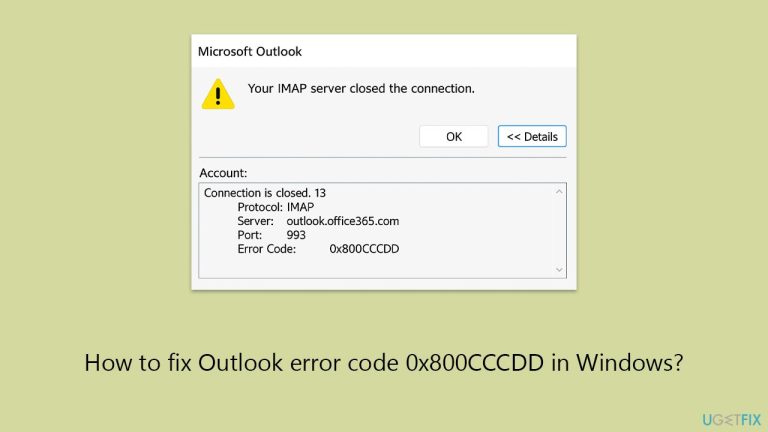
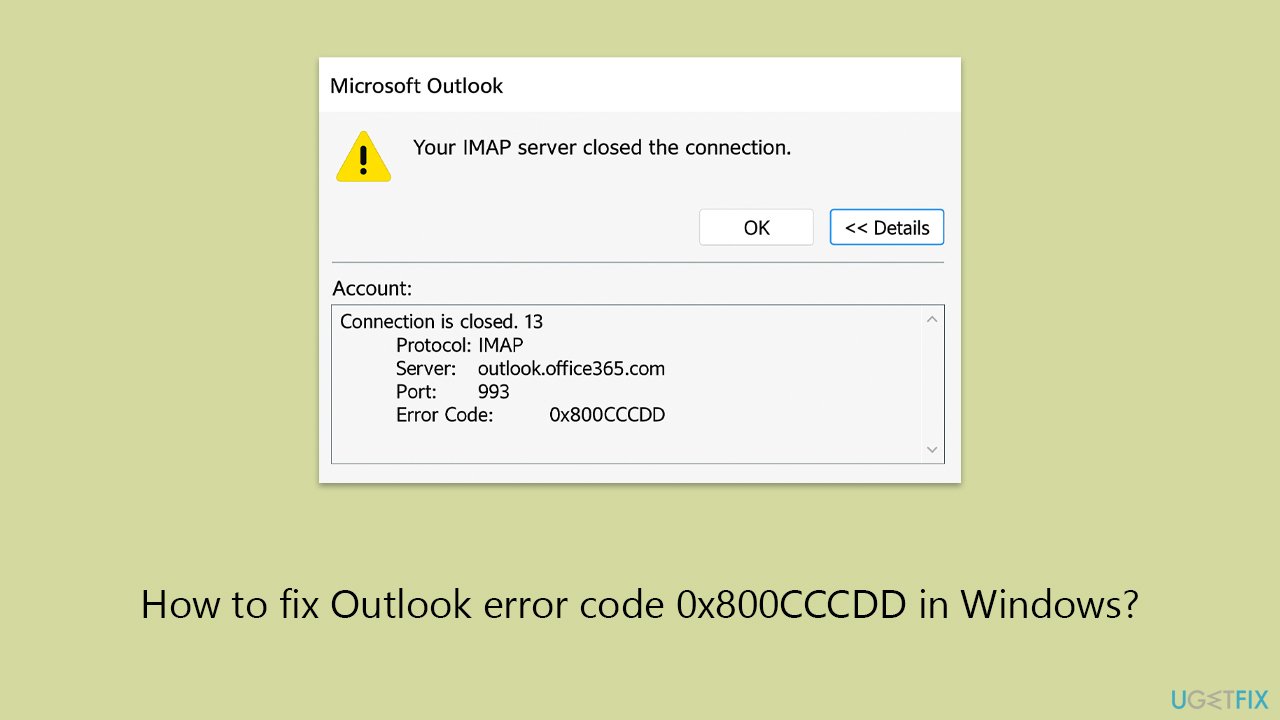
What causes How to fix Outlook error code 0x800CCCDD in Windows?
- Difficulty keeping an ongoing connection to the mail server
- Enabled automatic send/receive intervals causing sync issues
- Very short server timeout setting in Outlook
- Problems with the Outlook profile
Repairs Windows system files, removes malware, and restores a clean OS state — without reinstalling.
I've been using Outlook with my IMAP email account, and recently I started getting the error code 0x800CCCDD saying "Your IMAP server closed the connection." It happens randomly, and I haven't changed any settings. How can I fix this?
Encountering Outlook error code 0x800CCCDD can be confusing, especially when everything is fine at one juncture and then does not work at another. The error occurs most often when using an IMAP account with Microsoft Outlook and usually means the software had difficulty keeping an ongoing connection to your mail server.
Many users report that the 0x800CCCDD error appears out of nowhere and doesn’t seem linked to a specific action. However, it’s often tied to how Outlook is set up to check for new messages. If you’ve enabled automatic send/receive intervals, even without knowing, it might cause issues with how IMAP syncs in real time. IMAP is already designed to keep your inbox up to date, so those scheduled syncs can actually interrupt the process.
Another common reason is a very short server timeout setting in Outlook. If Outlook gives up on the server too quickly, it can disconnect before your emails have a chance to fully load. Sometimes, problems with your Outlook profile itself can also be the cause, especially if it’s been around a while or was imported from another computer.
To fix Outlook error 0x800CCCDD, users often need to turn off automatic send/receive settings, increase the timeout duration, or recreate their Outlook profile. Manual instructions for these and other solutions will be listed below. For deeper system issues that might be contributing to the problem, the [d1] repair tool can help detect and fix problems automatically.
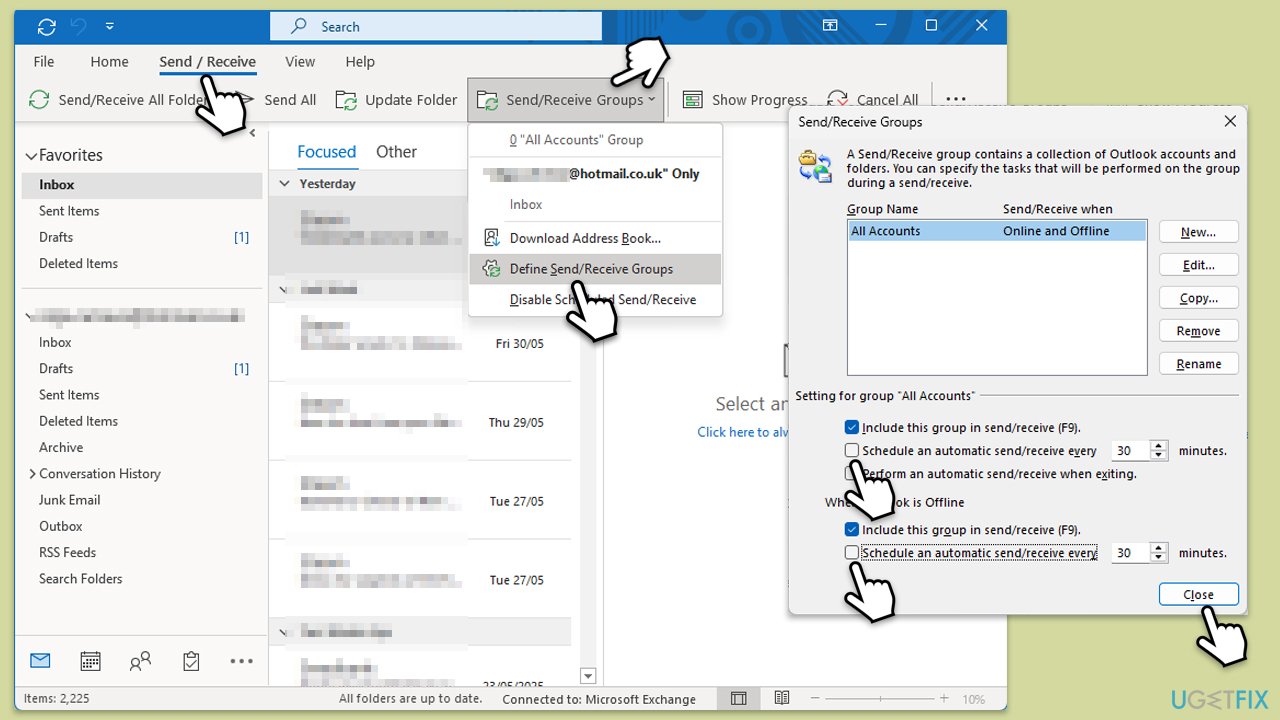
Fix 1. Turn off automatic send/receive in Outlook
Scheduled syncs can interfere with IMAP’s built-in real-time syncing, which may cause disconnection errors.
- Open Outlook.
- Go to the Send/Receive tab.
- Click Send/Receive Groups and select Define Send/Receive Groups.
- Uncheck the box next to Schedule an automatic send/receive every [X] minutes.
- Click Close and restart Outlook.
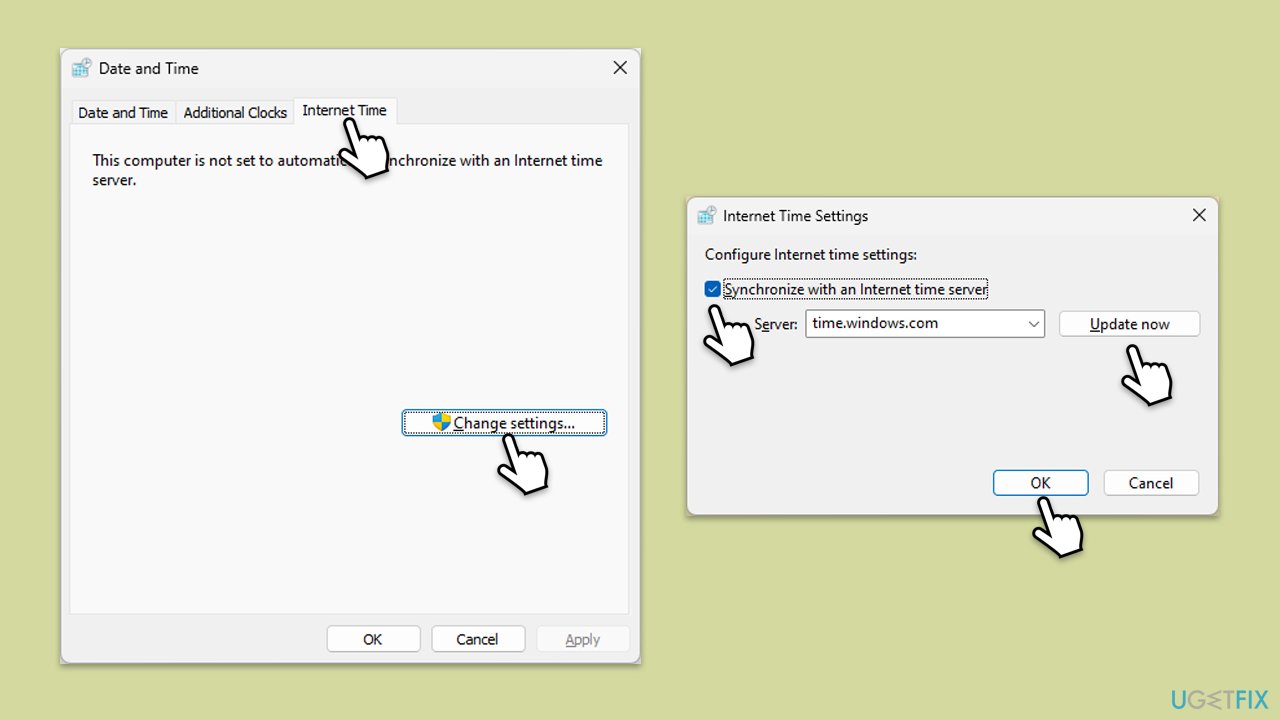
Fix 2. Check your date and time settings
Incorrect system time can cause communication issues between your device and the mail server.
- Type in Control Panel in Windows search and press Enter.
- Go to Clock and Region and click on Date and Time.
- Pick the Internet Time tab and select Change Settings.
- Make sure that the Synchronize with an Internet time server box is ticked.
- Click Update now and OK.
Fix 3. Increase the server timeout duration
A low timeout value can cause Outlook to give up on the server too quickly.
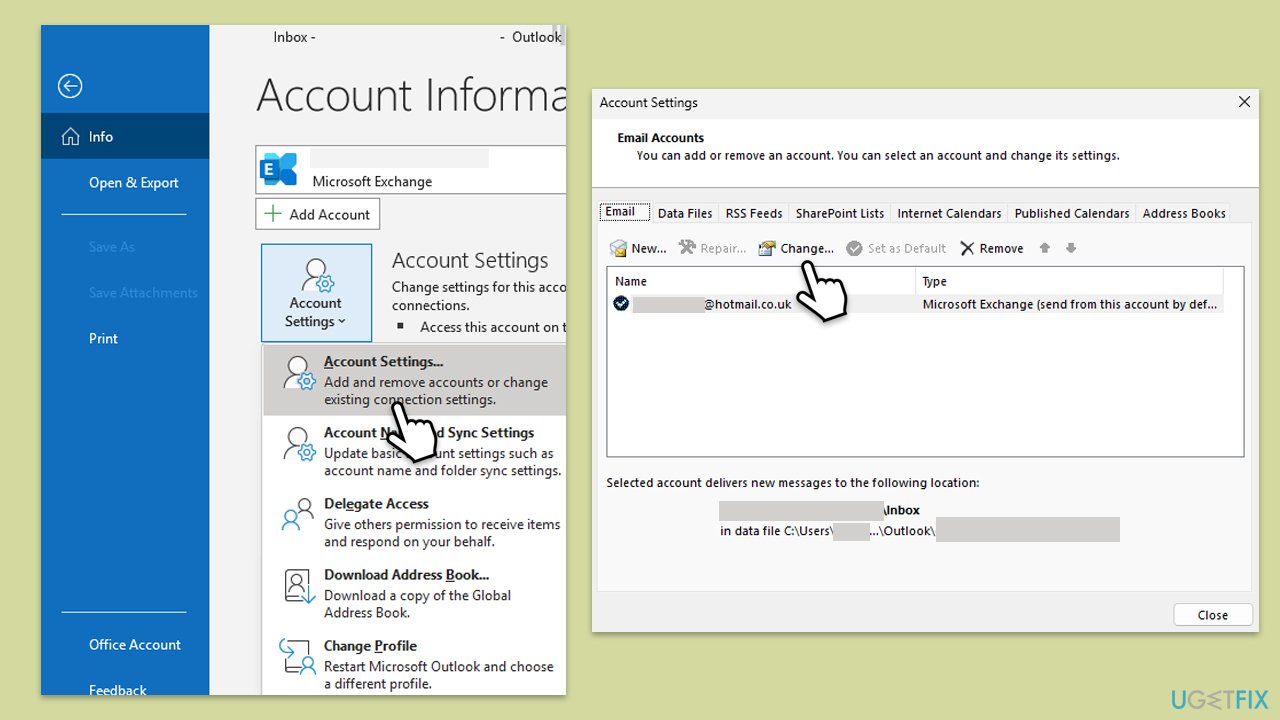
- In Outlook, go to File > Account Settings > Account Settings.
- Select your email account and click Change.
- Click More Settings, then go to the Advanced tab.
- Locate Server Timeouts and slide the bar to the right (3–5 minutes).
- Click OK, then Next, then Finish.
Fix 4. Create a new Outlook profile
If your current profile is corrupted, it may be causing sync issues with the server.
- Type Control Panel in Windows search and press Enter.
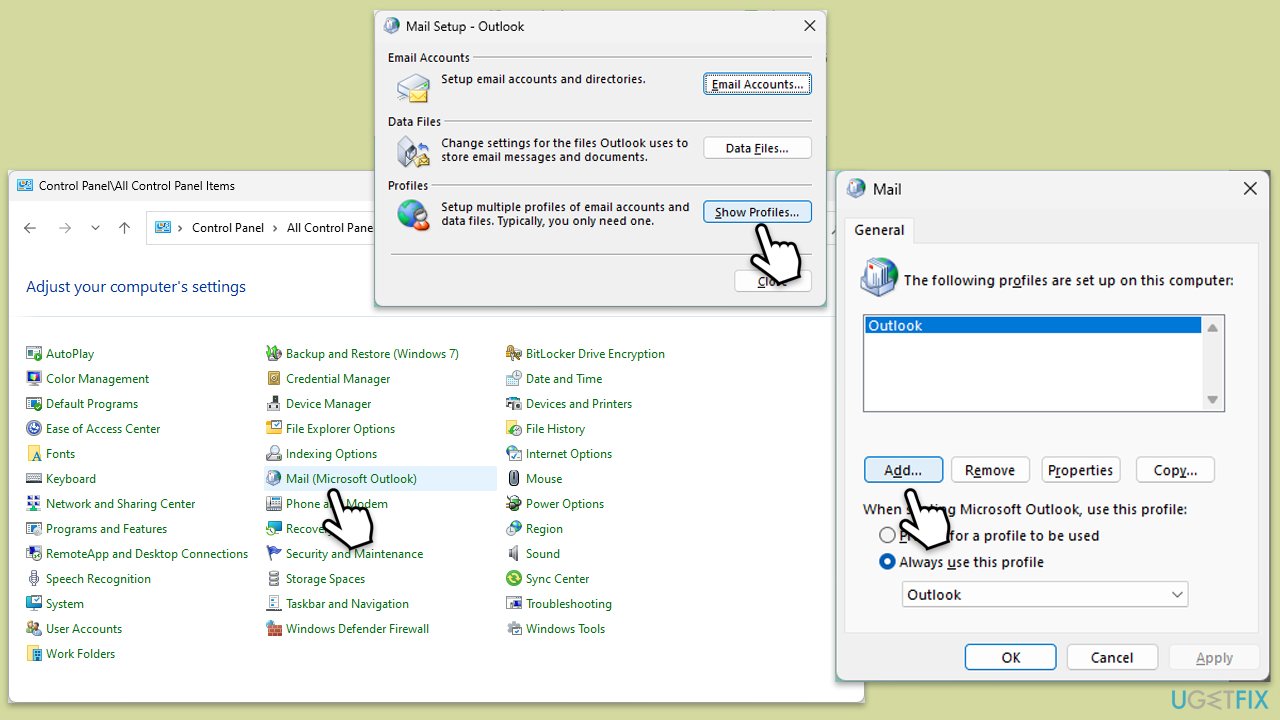
- Open Control Panel and go to Mail (Microsoft Outlook).
- Click on Show Profiles and select the current profile in use.
- Click on Remove and then Add to create a new profile.
- Follow the setup prompts to reconfigure your email account.
- Open Outlook with the new profile to see if the error has been resolved.
Fix 5. Repair the Office installation
Sometimes, Outlook itself has damaged components that can lead to recurring errors.
- Type Control Panel in Windows search and press Enter.
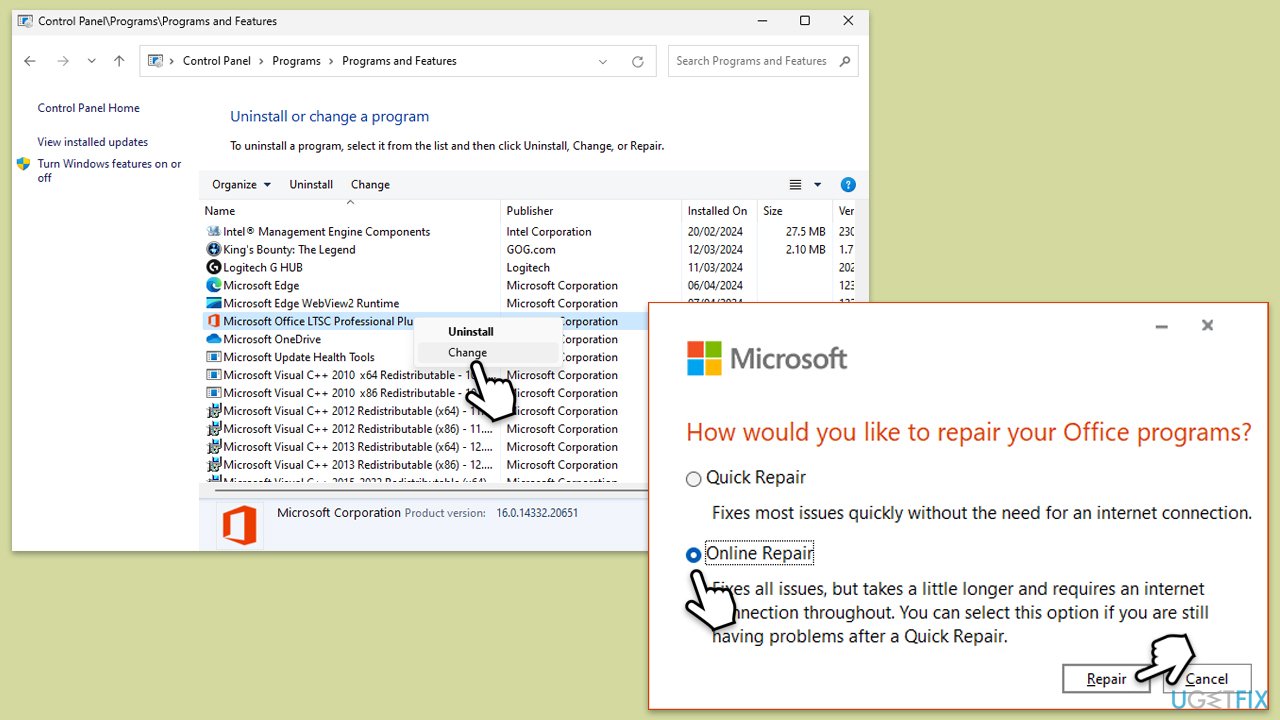
- Select Programs > Programs and Features.
- Select Microsoft Office and click on Change.
- Choose the option for Online Repair and click Repair.
- Follow the prompts to finish the process.
Fix 6. Set Outlook to work in cached mode
Cached Exchange Mode can help Outlook perform better and reduce the chance of sync failures.
- Open Outlook and go to File > Account Settings > Account Settings.
- Select your IMAP account and click Change.
- If available, check Use Cached Exchange Mode.
- Click Next and Finish.
- Restart Outlook.
Bottom line
To fix Outlook error code 0x800CCCDD, users can turn off automatic send/receive settings, increase the timeout duration, or recreate their Outlook profile. If these solutions do not resolve the issue, consider using a repair tool to detect and fix deeper system problems.
Frequently asked questions
This error typically indicates a problem with the email server settings or connectivity issues in Outlook. It can prevent users from sending or receiving emails.
To fix this error, check your email account settings in Outlook, ensuring that the server names, ports, and encryption methods are correctly configured. Additionally, ensure your internet connection is stable.
Windows 10 users can try running the built-in Windows Troubleshooter for email settings and repairing the Outlook application through the Control Panel. Also, consider disabling any third-party antivirus software temporarily to see if it resolves the issue.




TL;DR: Error 0x800CCCDD usually means a connection issue with your IMAP server. Bottom line: Try turning off automatic send/receive and increasing the server timeout in Outlook. Those steps should resolve the problem.
Cheers, Sara! That makes a lot of sense. I know a bit about IMAP from class, but I wouldn’t have thought of messing with the timeout settings. I’ll definitely give that a go if I hit this error. I’m trying to get my head around Outlook and all its quirks, so every tip helps! Thanks a million!