How to fix
Outlook PST file cannot be found error
on Windows
Resolve the Outlook PST file not found error on Windows 10 and 11 quickly. Get expert-tested solutions for seamless email access, fixed in minutes.


What causes How to fix Outlook PST file cannot be found error in Windows?
- Corruption of the PST file
- Corruption of the Outlook application
- Incorrectly terminating the Outlook program
- Malware infections
- Hardware issues with the storage
Repairs Windows system files, removes malware, and restores a clean OS state — without reinstalling.
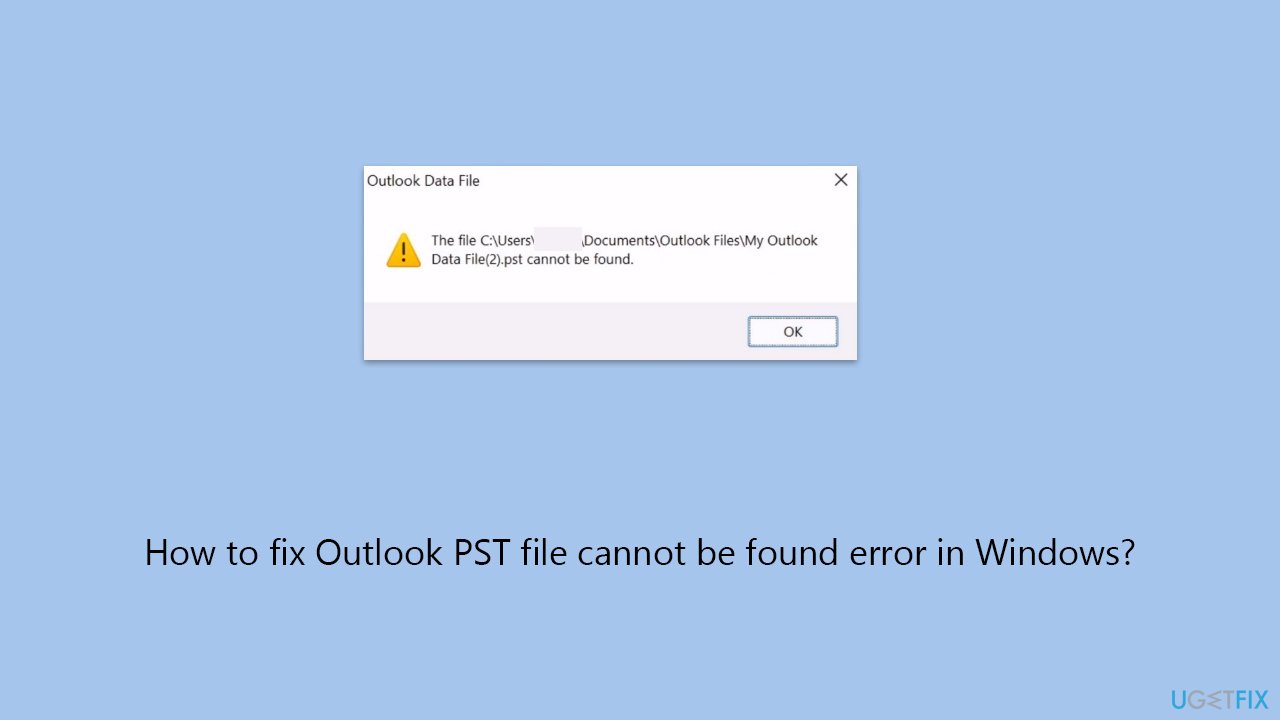
Hello. Every time I attempt to open Outlook I receive an error "The file C:\Documents\Outlook Files\Outlook.pst cannot be found." I can't use Outlook due to this. Any ideas on how to solve it?
With a plethora of tools for organizing emails, calendars, contacts, and tasks, Microsoft Outlook is a popular email application. Outlook's primary tool is the Personal Storage Table (PST) file, which houses all of the user's attachments, email messages, and other data. This file is essential to Outlook's functionality since it contains all of a user's mailbox data, making email content accessible both online and offline.
However, some users may encounter an issue where Outlook cannot open due to an error stating that the PST file cannot be found. This error is a significant hindrance as it prevents users from accessing their email and other stored information within the Outlook application.
Usually, corruption of the PST file or the Outlook application itself is the primary source of this issue. A number of things can cause corruption, such as incorrectly terminating the Outlook program, malware infections, or even hardware issues with the storage where the PST file is kept.
When you see an Outlook PST file not found issue, it means that the data integrity in your mailbox has been compromised. Using Microsoft's built-in tools, such as the Inbox Repair Tool (ScanPST.exe), which is intended to diagnose and fix problems with PST files, is the first thing to think about doing.
Updating Windows and Outlook to the most recent versions can also help reduce compatibility problems and flaws that could cause corruption. Maintaining regular backups of your PST file is also advised to avoid data loss in the event of such failures. If the issue continues and appears to be related to more fundamental problems with Windows that impact Outlook's operation, using a professional PC repair tool [d1] may be another other to solve it.
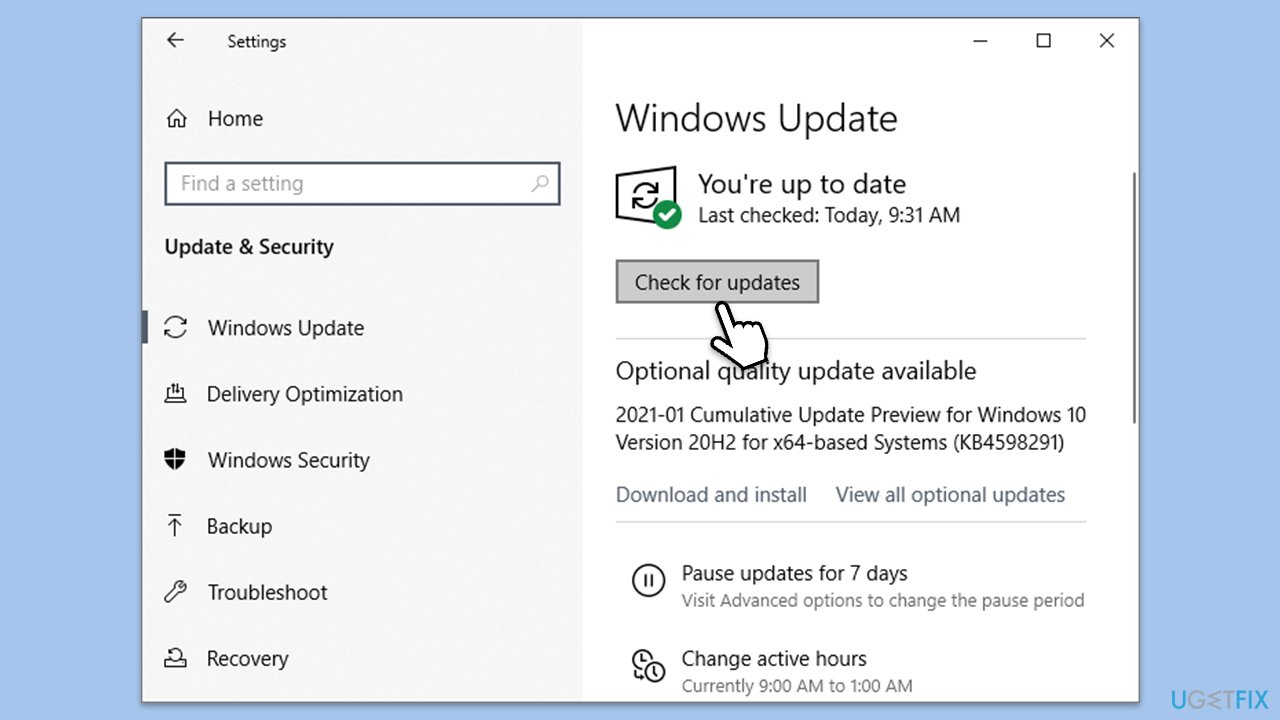
Fix 1. Install all Windows updates
Keeping your operating system up to date is crucial for ensuring compatibility and stability, particularly with applications like Microsoft Outlook. Windows updates often include patches for security vulnerabilities, bug fixes, and improvements that can resolve underlying issues affecting applications. To install all Windows updates, follow these steps:
- Type in Troubleshoot in Windows search and hit Enter.
- Select Additional Troubleshooters/Other troubleshooters.
- Pick Windows Store Apps and click Run the troubleshooter/Run.
- Wait till the scan is finished, and then apply the proposed fixes.
- Reboot your device.
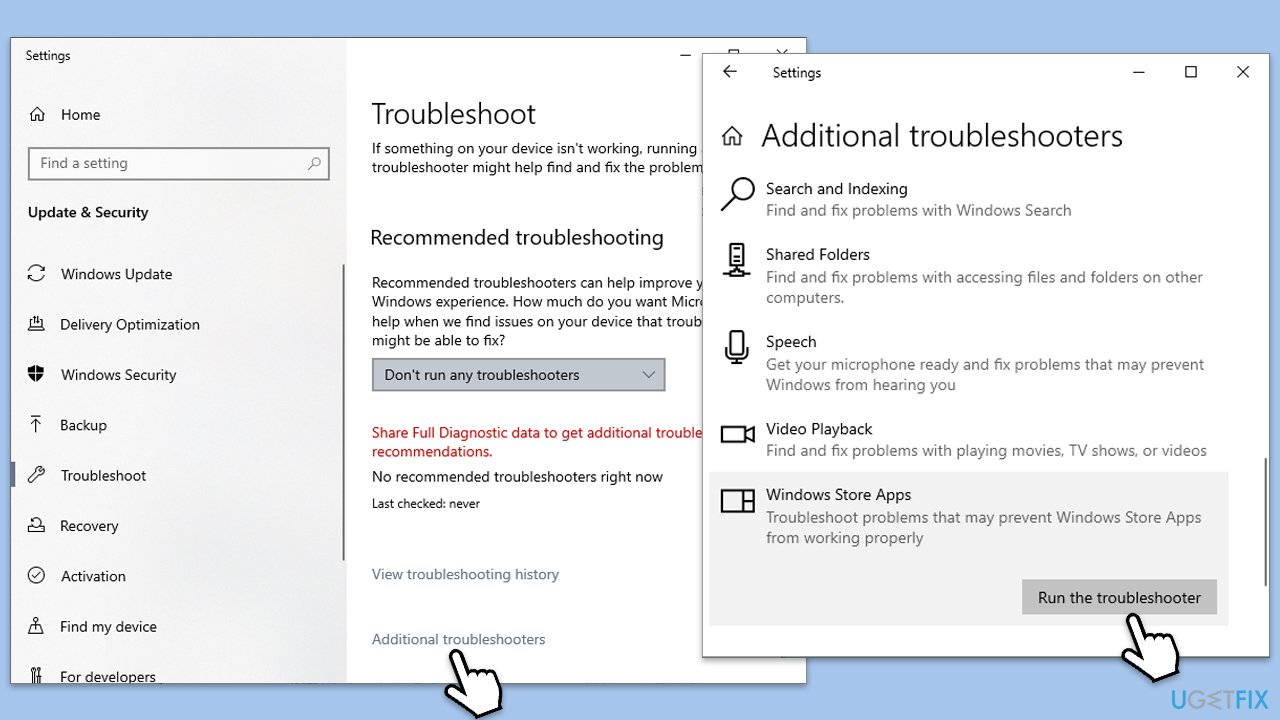
Fix 2. Run Windows Store Apps troubleshooter
The Windows Store Apps troubleshooter can help fix issues with apps downloaded from the Microsoft Store, and while Outlook is traditionally a desktop application, running this troubleshooter can resolve issues with integrated Windows components that might affect Outlook's functionality. Here's how to run the troubleshooter:
- Type troubleshoot into the Windows search bar, then press Enter.
- In the options that appear, select Additional troubleshooters or Other troubleshooters (depending on your Windows version).
- Scroll through the list until you locate Windows Store Apps, then click on Run the troubleshooter/Run.
- Wait as the process runs to completion, then apply any recommended changes to resolve the issue.
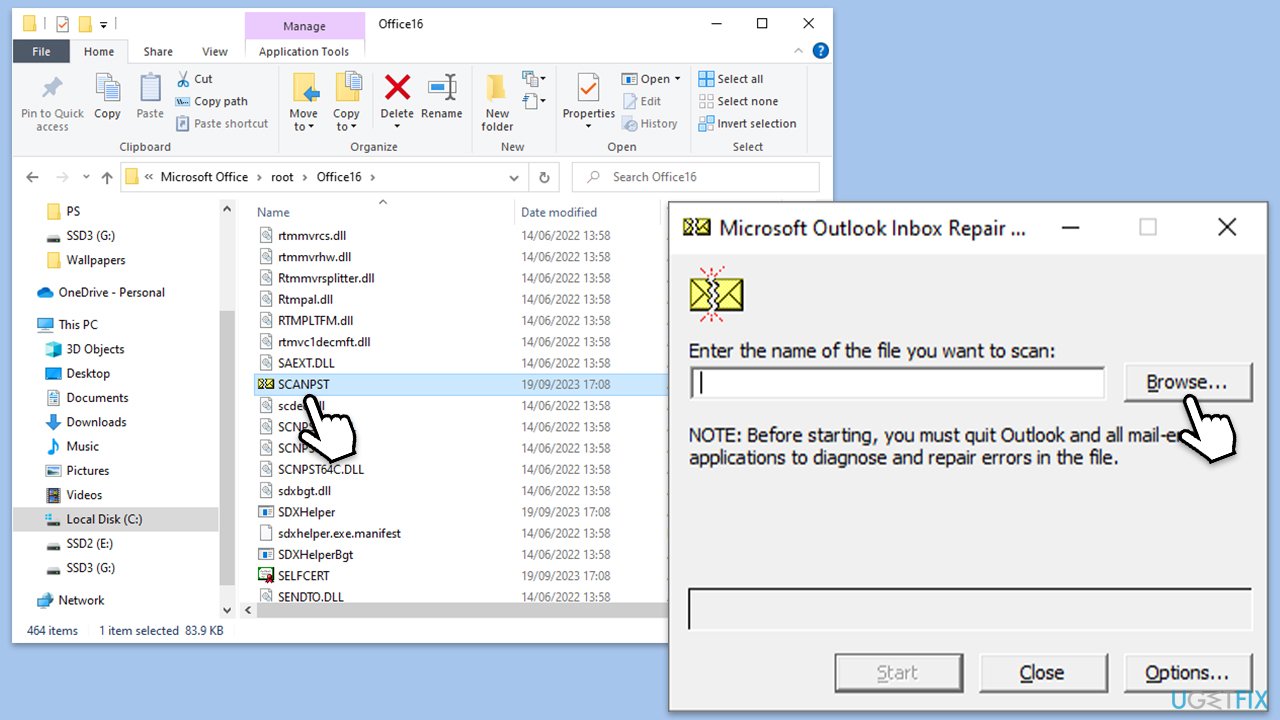
Fix 3. Use the ScanPST.exe tool to repair PST file
The Inbox Repair Tool (ScanPST.exe) is a utility provided by Microsoft to repair corrupted PST files, which might be the reason behind Outlook's failure to locate the PST file. Here's how to use it:
- The Office suite, including Outlook, is usually installed in the Program Files folder on your computer's system drive, such as C:\Program Files (x86)\Microsoft Office\Office version or C:\Program Files\Microsoft Office\Office version- go to this location.
- Double-click on SCANPST.EXE to launch it.
- Click on the Browse button to navigate to the location of your PST file. By default, this should be in Documents\Outlook Files. If not, you may need to search your system for .pst files.
- Once you've selected the PST file, click Start to begin the scanning process. This may take some time, depending on the size of your PST file.
- If the tool finds errors in your PST file, you will be prompted to start the repair process. Click on Repair.
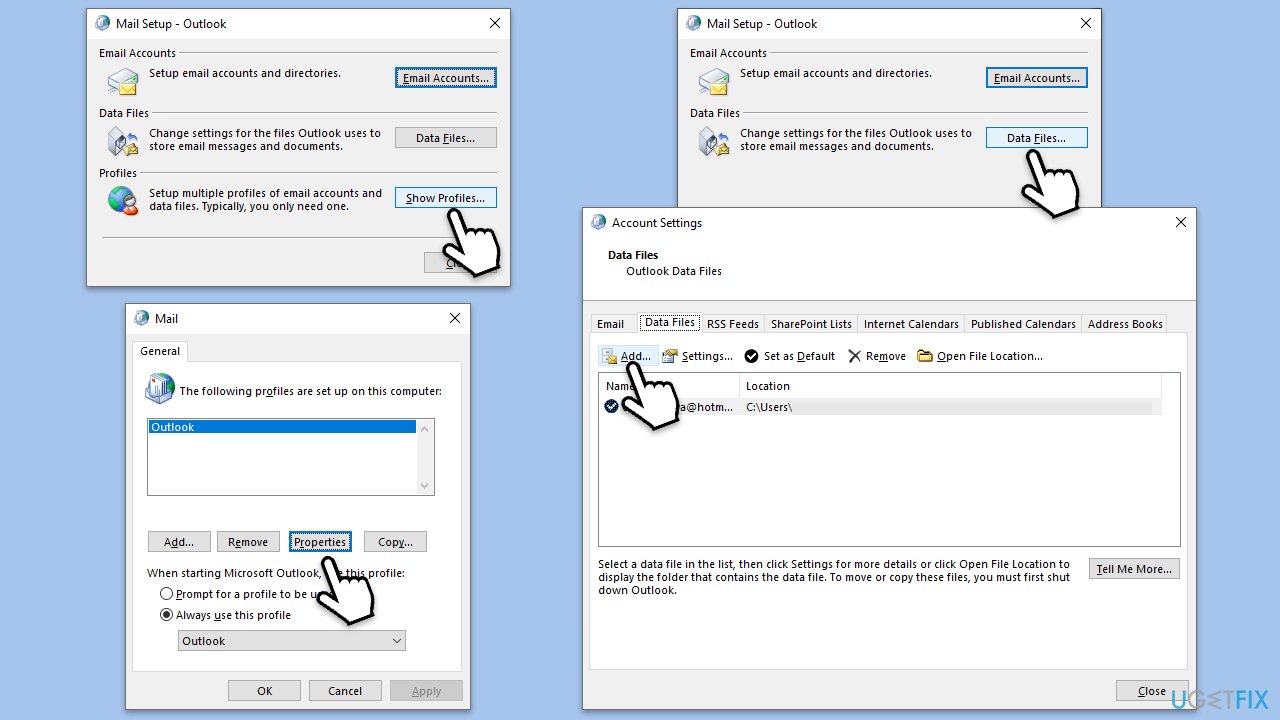
Fix 4. Create a new PST file
If the current PST file is severely corrupted, creating a new PST file and setting it as the default storage location might resolve the issue
- Type Control Panel in Windows search and press Enter.
- Under View by, pick Small icons from the drop-down menu.
- Click on Mail (Microsoft Outlook).
- Click Show Profiles at the bottom.
- Select Properties.
- Pick Data Files.
- Click Add and then give the name to the new PST file, then click OK.
- Set the newly created PST file as default.
- Restart your system.
Fix 5. Repair MS Office
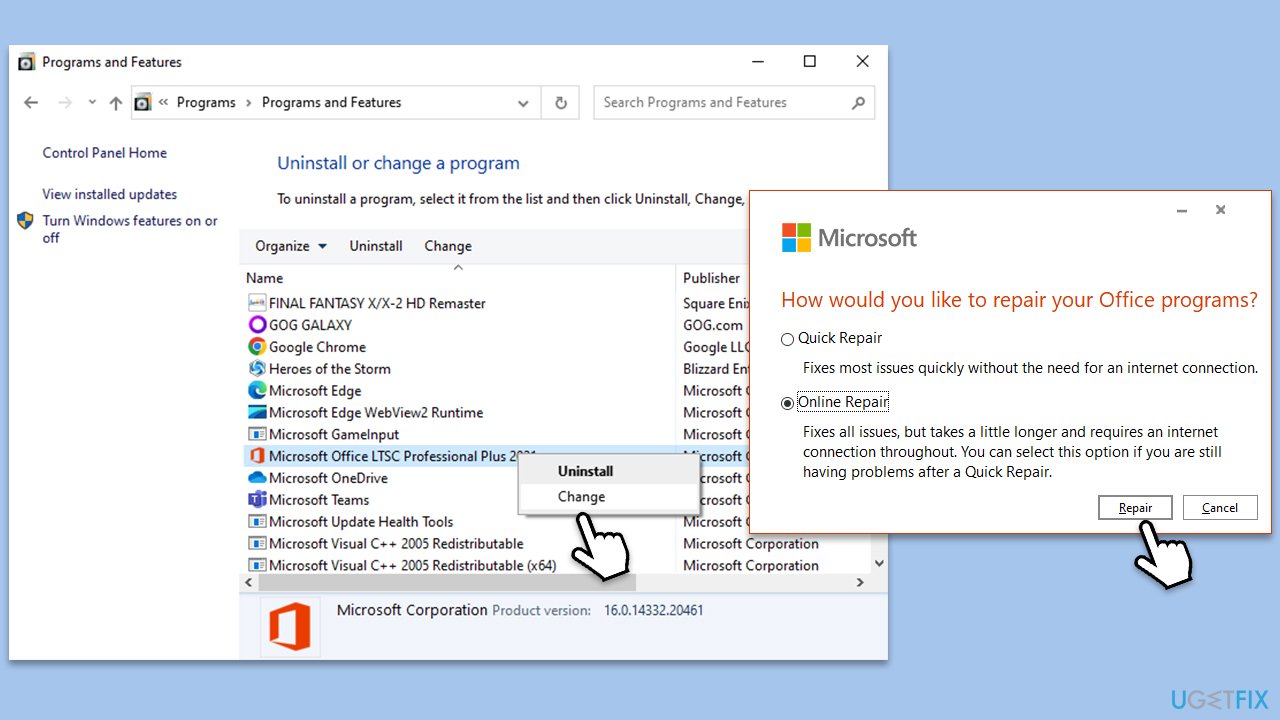
Corruption within the Microsoft Office installation itself can cause issues with its applications, including Outlook. Repairing MS Office can fix these issues without affecting your data. Here's how to repair MS Office:
- Type Control Panel in Windows search and press Enter.
- Select Programs > Programs and Features.
- Select Microsoft Office and click on Change.
- Choose the option for Online Repair and click Repair.
- Follow the prompts to finish the process.
Fix 6. Reinstall Office
- Right-click on Start and pick Apps and Features.
- Scroll down to find the MS Office installation.
- Click Uninstall and confirm with Uninstall.
- Follow on-screen instructions to remove the app completely.
- Press Win + E to open File Explorer.
- Navigate to the following location and delete its contents:
C:\Program Files\Microsoft Office - Next, type regedit in Windows search and press Enter.
- Go to the following locations in the Registry Editor and delete these items:
Computer\HKEY_LOCAL_MACHINE\SOFTWARE\Microsoft\AppVISV
Computer\HKEY_LOCAL_MACHINE\SOFTWARE\Microsoft\Office\ClickToRun
Computer\HKEY_CURRENT_USER\Software\Microsoft\Office - Restart your system and then reinstall Microsoft Office.
Bottom line
To fix the Outlook PST file cannot be found error, consider using the Inbox Repair Tool (ScanPST.exe) and ensure that both Windows and Outlook are updated to their latest versions. Regularly backing up your PST file is also recommended. If the issue persists, consider using a professional PC repair tool.
Frequently asked questions
First, ensure that the PST file is not deleted or moved; you can use the Windows search function to locate it. If found, update the file path in your Outlook settings to resolve the error.
Use the Inbox Repair Tool (scanpst.exe) included with Outlook to scan and repair the corrupted PST file. Navigate to the tool’s location in your Windows 11 system and follow the prompts to fix the issues.
Yes, you can attempt to recover a missing PST file by checking your Recycle Bin or using file recovery software. Additionally, ensure that your backups are up to date to restore any lost data.




Report an issue
What's wrong with this guide? We review every report and update or remove content.
Report received — thank you. We'll review and fix it.
You need a free account to submit a report.
Be the first to comment