How to fix
Outlook Quick Print not working
on Windows
Resolve Outlook Quick Print issues on Windows 10 or 11 effortlessly. Get expert-tested solutions for fast fixes and regain your printing functionality.

What causes How to fix Outlook Quick Print not working in Windows?
- Printer status issues
- Default printer not set
- Operating system issues
- Corrupted files
- Registry issues
Repairs Windows system files, removes malware, and restores a clean OS state — without reinstalling.
Hello. I tried to use the Quick Print function in Outlook on my Windows PC but it does not work. I have never encountered this issue before. What should I do to fix this?
Outlook is a personal information manager software developed by Microsoft as part of the Microsoft Office suite. It is primarily used as an email application, but it also includes features like a calendar, task manager, and contact manager. The advantages of using Outlook include its integration with other Microsoft Office products, a customizable interface, and the ability to manage multiple email accounts in one place.
The Quick Print function in Outlook is a feature that allows users to quickly print an email and its attachments without having to access the File > Print menu. It provides a faster and more convenient way to print emails and their attachments. The Quick Print function can be accessed by selecting an email and clicking the Quick Print button on the Home tab of the Outlook ribbon.
If the Quick Print function is not working in Windows, it can impact people's productivity and cause frustration. Possible solutions to this issue include checking the printer status, running the built-in printer troubleshooter, or opening Outlook in Safe Mode.[ref en-1]
In this guide, you will find 5 steps that should help you fix Outlook Quick Print not working in Windows. Keep in mind that the function may be failing to work because of underlying operating system issues. In that case, to avoid a lengthy troubleshooting process, you can use a maintenance tool like [d1] that can fix most system errors, BSODs,[ref en-2] corrupted files, and registry[ref en-3] issues, Otherwise, follow the step-by-step instructions below.
Solution 1. Setup your Printer
- Open the Windows search menu
- Type Control Panel and open it
- Click on Devices and Printers
- Under the Printers section, right-click on the preferred printer
- Select Set as default printer
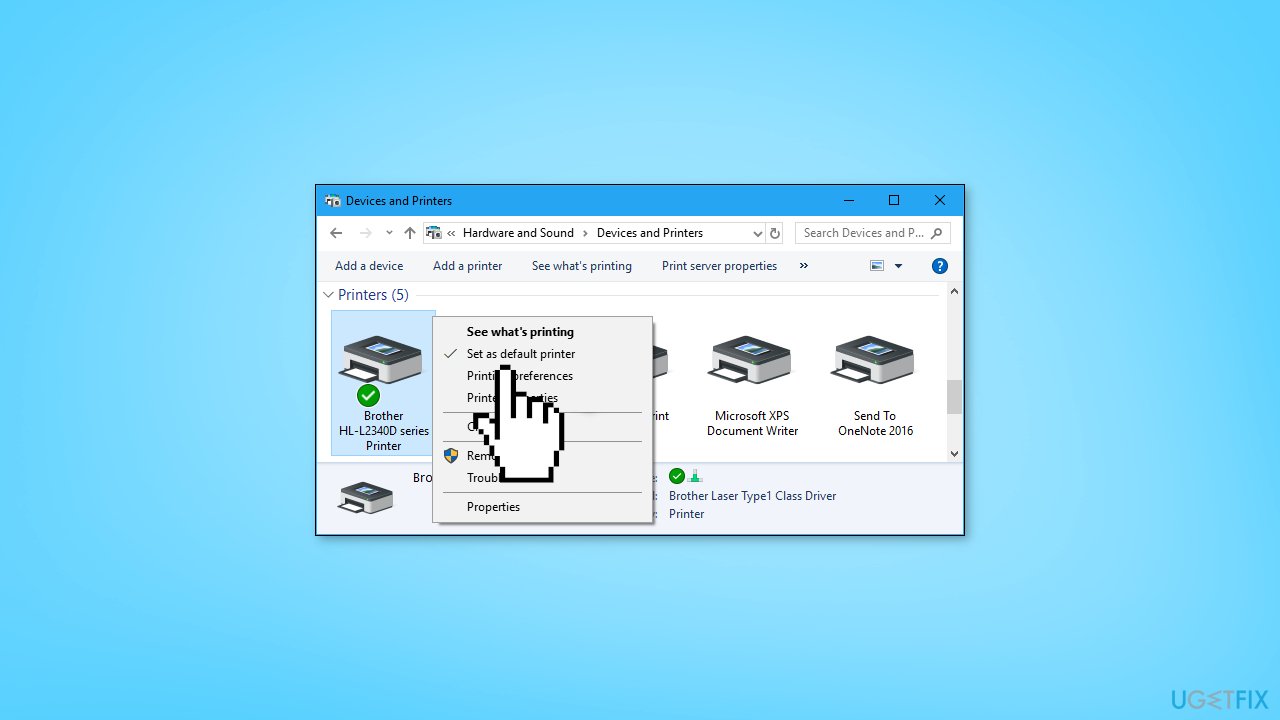
- The default printer will display a green checkmark icon
- Reopen Outlook and try to use Quick Print again
Solution 2. Delete Temporary Outlook Files
- Press the Windows key + E combination to open File Explorer
- Copy and paste the following location in the address bar and press Enter: C:\Users\”username”\AppData\Local\Microsoft\Windows\Temporary Internet Files\Content.Outlook (replace username with your actual computer username)
- Select all the folders
- Right-click and select Delete
- Reopen Outlook
- Check if Outlook not printing attachments has been fixed
Solution 3. Open Outlook in Safe Mode
Starting Outlook in safe mode can help solve issues with the program, including the "Quick Print not working" issue, because it allows the program to run with a minimal configuration, reducing the chances of conflicts with add-ins, extensions, or customization options that may be causing the problem.
- Right-click the Windows logo key and choose the Run dialog box
- Type outlook.exe /safe in the input box and press Enter
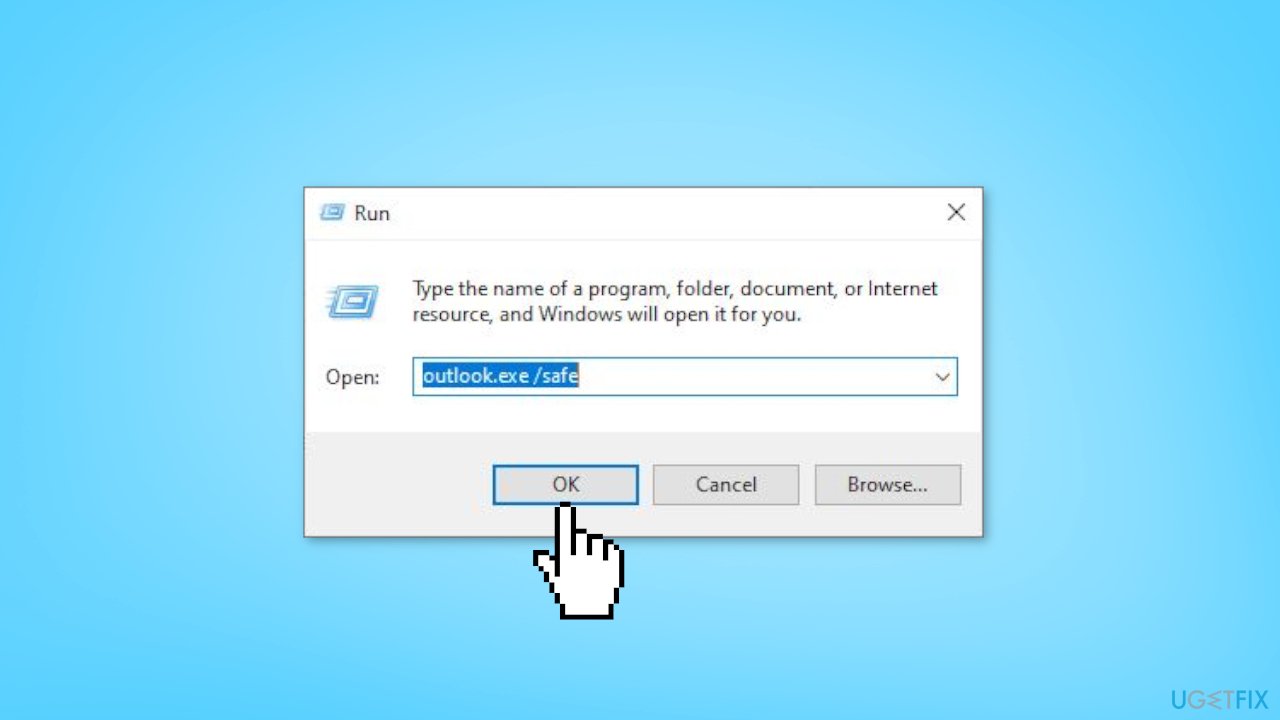
- Choose an Outlook profile in the pop-up window and press OK
- Try to use Quick Print again
Solution 4. Run the Printer Troubleshooter
The Printer troubleshooter can be used to identify and resolve issues such as printers not being recognized by the system, printers not printing correctly, or printers not responding. When the Printer troubleshooter is run, it will scan the system for printer-related issues and provide recommendations or solutions to fix them.
If the troubleshooter is unable to resolve the issue, it may provide additional troubleshooting steps or refer the user to the printer manufacturer's support website for further assistance.
- Press the Windows key + I to go to Windows Settings
- Go to Update & Security > Troubleshoot
- Click Printer and choose Run the troubleshooter
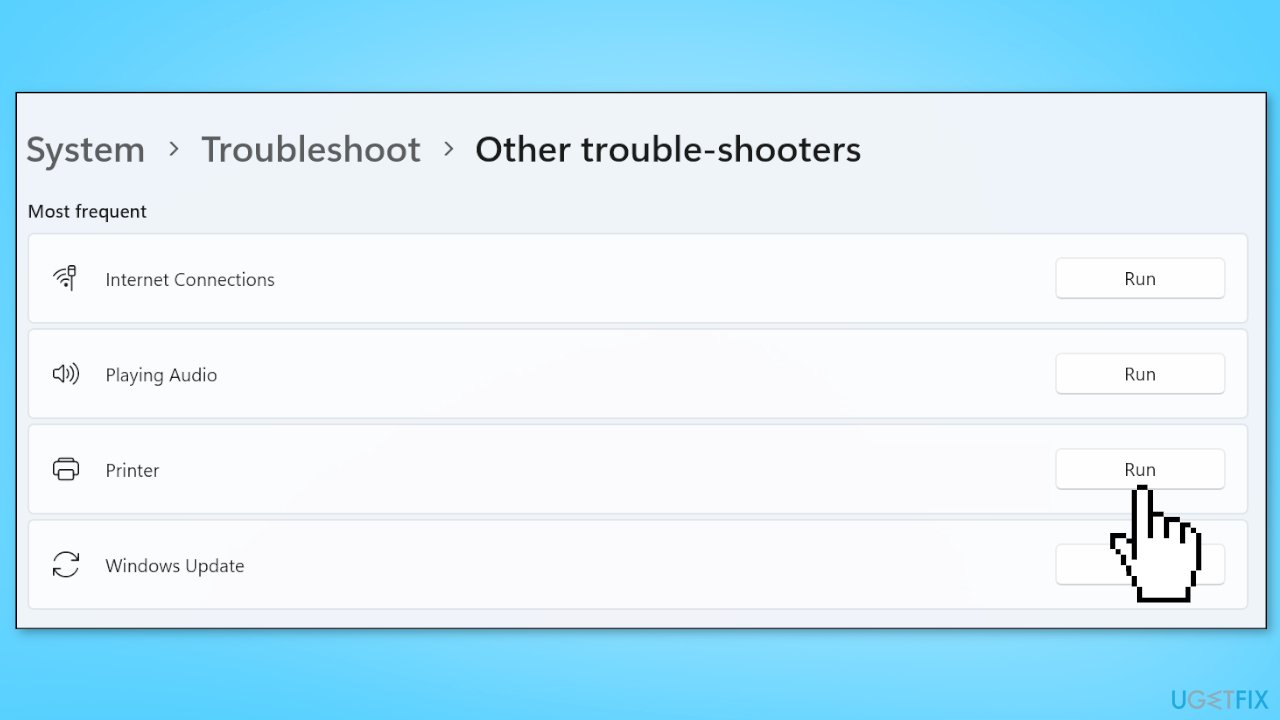
- Wait for the process to complete
- Check if the issue has been solved
Solution 5. Manually Print Attachments
- Open the email with the attachments you want to print
- Click File > Print > Print Options
- In the pop-up window, check Print attached files
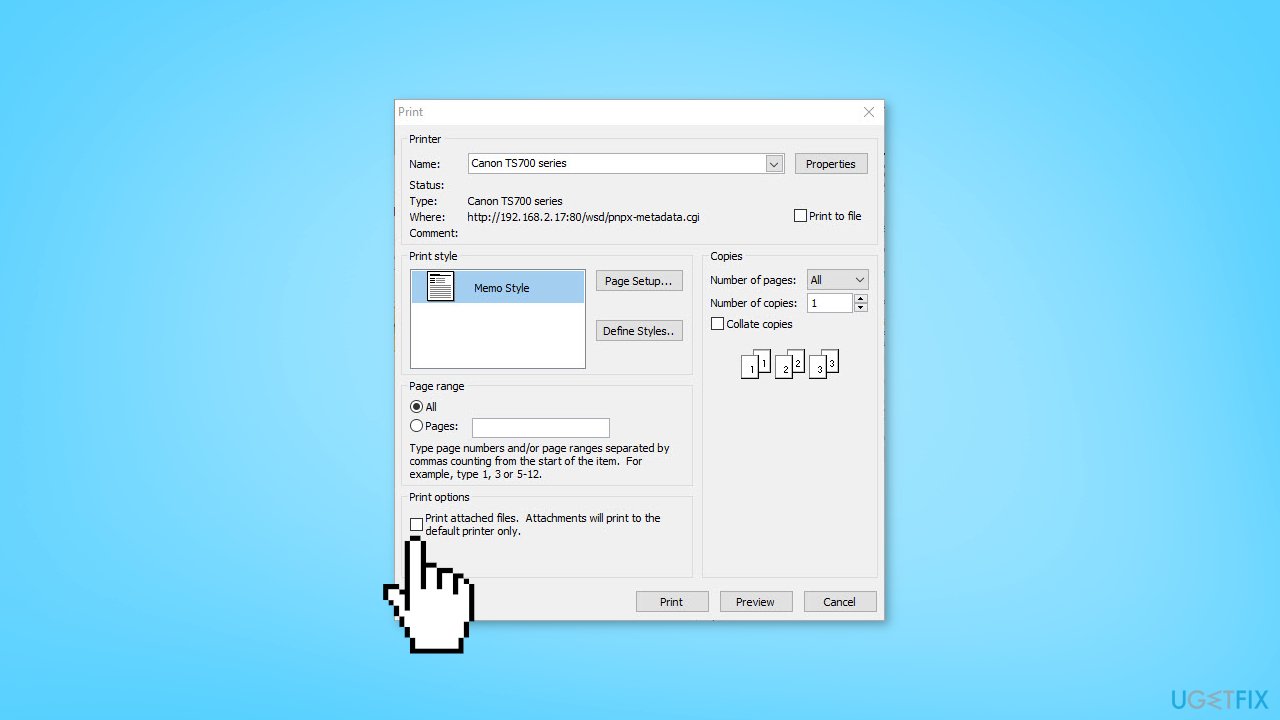
- Set up the number of copies and print styles
- Click Print
- Follow the instructions on the window to complete the printing process
Bottom line
To fix the Outlook Quick Print not working issue, you can check the printer status, set your preferred printer as the default, and run the built-in printer troubleshooter. If these steps do not resolve the problem, consider using a maintenance tool to address underlying system errors.
Frequently asked questions
The Quick Print feature may not work due to outdated printer drivers or issues with Outlook settings. Try updating your printer drivers and checking the default printer settings in Windows 10.
To reset Quick Print settings in Outlook for Windows 11, go to File > Options > Advanced, and then click on 'Print' to adjust the settings as needed.
If Quick Print is grayed out, ensure that you have a default printer set in Windows and that your Outlook application is up to date.




Report an issue
What's wrong with this guide? We review every report and update or remove content.
Report received — thank you. We'll review and fix it.
You need a free account to submit a report.
Be the first to comment