How to fix
Overwatch 2 crashing
on Windows
Fix Overwatch 2 crashing issues on Windows 10 and 11 with our expert-tested solutions. Get back to gaming without interruptions, fixed in minutes!

What causes How to fix Overwatch 2 crashing in Windows?
- Compatibility issues with older hardware or operating systems
- Corrupted game files
- Conflicts arising from outdated graphics drivers
- Missing or damaged essential game files
Repairs Windows system files, removes malware, and restores a clean OS state — without reinstalling.
I've recently decided to try Overwatch 2 since it arrived on Steam and I started to have a lot of fun until it started crashing. For this reason, I can no longer play it properly. Any ideas on how to fix this?
Overwatch 2, released in October 2022, is a first-person shooter developed by Blizzard Entertainment and stands as the successor to the acclaimed original Overwatch. Although highly anticipated, the sequel met with significant criticism due to Blizzard's controversial gameplay changes, notably the lack of Player versus Environment (PvE) modes. However, its recent addition to the Steam platform piqued the interest of many, inviting a broader audience to explore the game.
Yet, a concerning pattern emerged. Numerous Windows users began reporting crashes associated with Overwatch 2. Some encountered issues immediately upon game launch, while others faced disruptions during gameplay, with troubling accounts of screens going black and computers freezing momentarily.
The reasons for these crashes can be multi-faceted. One primary cause could be compatibility issues. If players run the game on older hardware or on operating systems not optimized for Overwatch 2, it may not perform as expected. Another contributing factor could be corrupted game files. A game's functionality can be compromised if essential files are either missing or damaged. Additionally, conflicts arising from graphics drivers often underlie many game-related crashes. Outdated or ill-suited drivers may not be equipped to manage the graphic-intensive demands of a game like Overwatch 2.
To navigate these challenges, players might first look into updating all their hardware drivers, ensuring they are in line with the latest versions, particularly the graphics drivers. They can also verify and, if necessary, repair game files through platforms like Steam or the Blizzard launcher. It's beneficial to compare one's system specifications with the recommended requirements of the game to rule out hardware limitations.

For a holistic solution to potential system challenges, users might contemplate using the [d1] PC repair tool to identify and rectify any foundational system complications that could be hindering the game's performance.
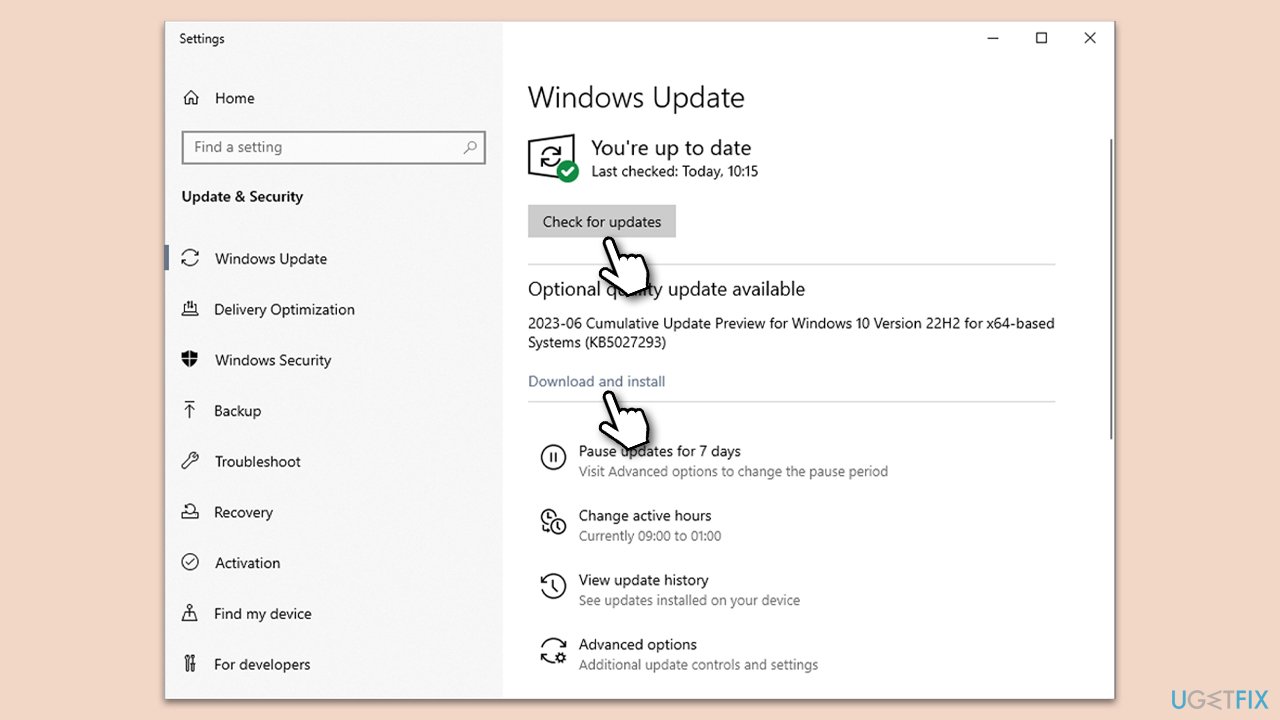
Fix 1. Install updates for Windows, Xbox app, and Gaming Services
Keeping your operating system and associated apps updated ensures that any known bugs or compatibility issues are addressed, enhancing game performance and reducing crashes.
Update Windows
- Type Update in Windows search and press Enter.
- On the right side of the window, click Check for Updates.
- Wait till all the files are downloaded and installed.
- Install all the optional updates as well.
Update the Xbox app and Gaming Services
- Open Microsoft Store.
- Go to your Library and click Get Updates.
- Wait till everything is installed.
- Restart your system when done.
Fix 2. Update your GPU drivers
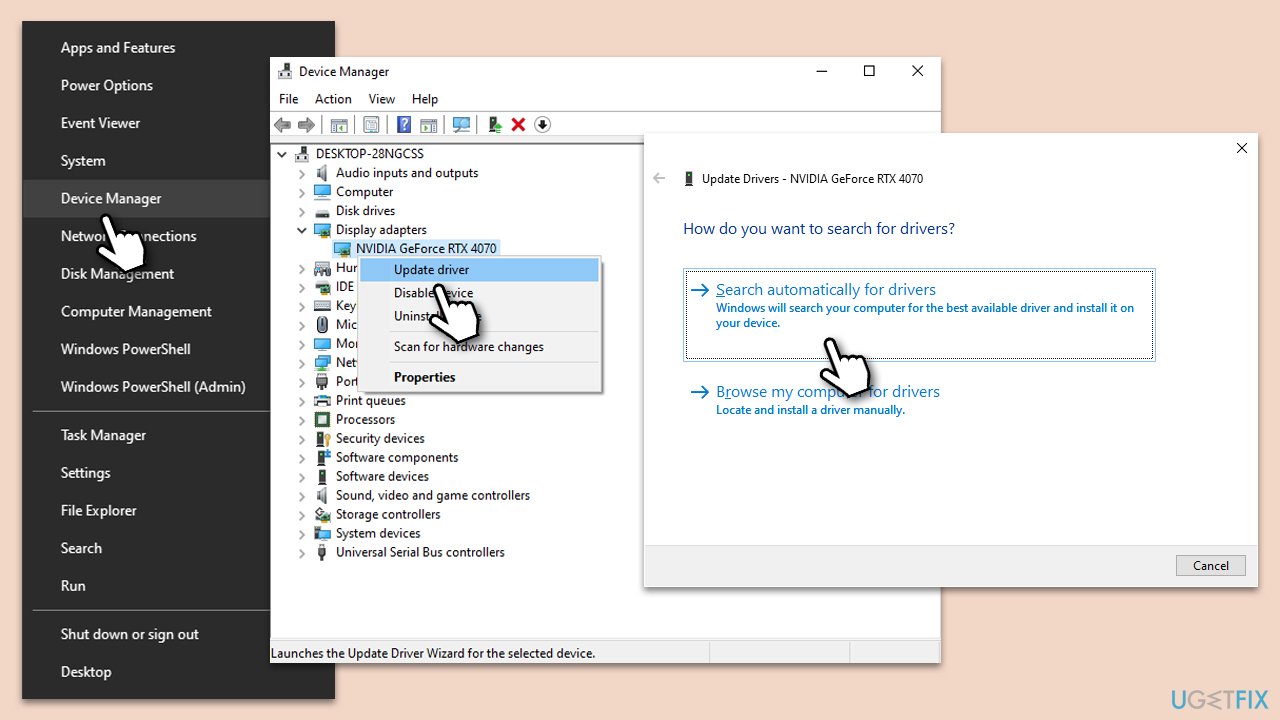
Outdated graphics drivers can lead to game crashes. Keeping them updated ensures compatibility and optimal performance. You can install them manually from the official website, employ automatic tools such as [rev id="DriverFix"] or employ the Windows update feature:
- Right-click on the Start button and select Device Manager from the menu.
- Expand the Display adapters section.
- Right-click on your graphics card and select Update driver.
- Pick Search automatically for drivers.
- If updates are found, allow them to install.
- Restart your computer after updating all necessary drivers.
Fix 3. Run SFC and DISM
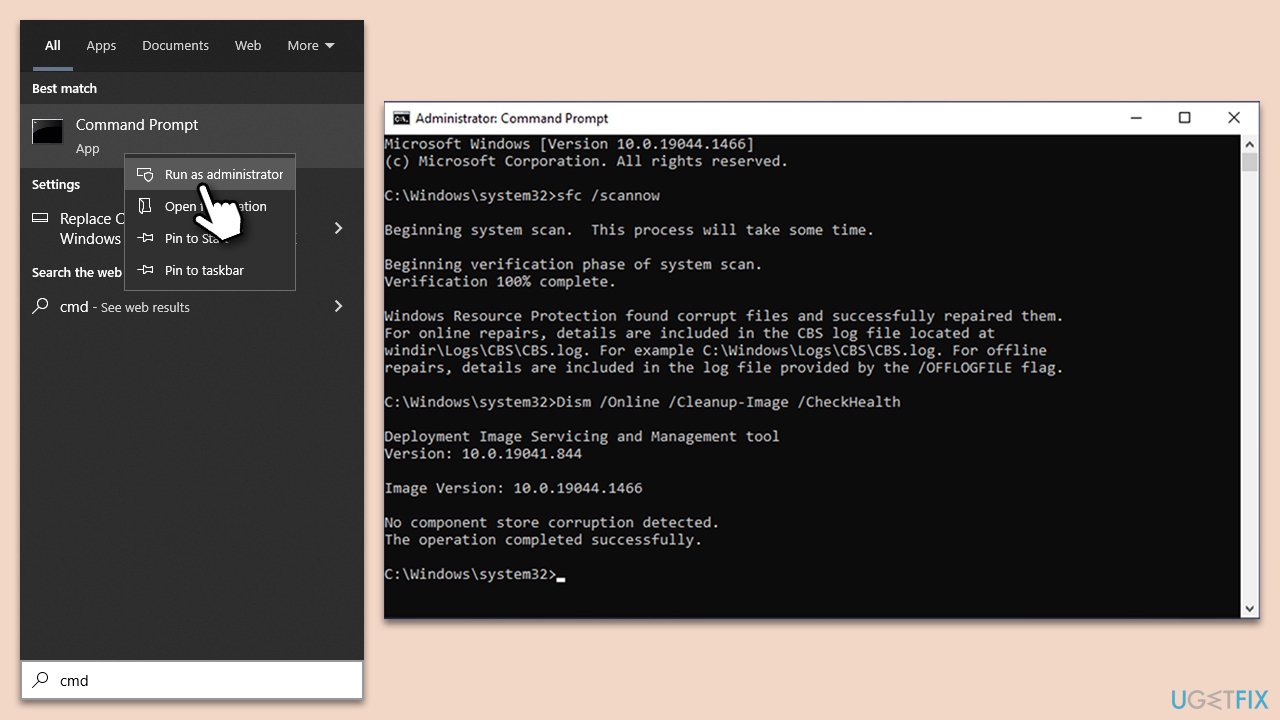
System File Checker and Deployment Image Servicing and Management tools can repair corrupted system files which might be affecting game performance.
- Type in cmd in Windows search.
- Right-click on Command Prompt and select Run as administrator.
- When User Account Control asks you whether you allow changes to your system - click Yes.
- In the Command Prompt window, paste the following command and hit Enter:
sfc /scannow - Next, use the following commands, pressing Enter after each:
Dism /Online /Cleanup-Image /CheckHealth
Dism /Online /Cleanup-Image /ScanHealth
Dism /Online /Cleanup-Image /RestoreHealth
(Note: if you get an error executing this last command, add /Source:C:\RepairSource\Windows /LimitAccess to it and try again). - Reboot your device.
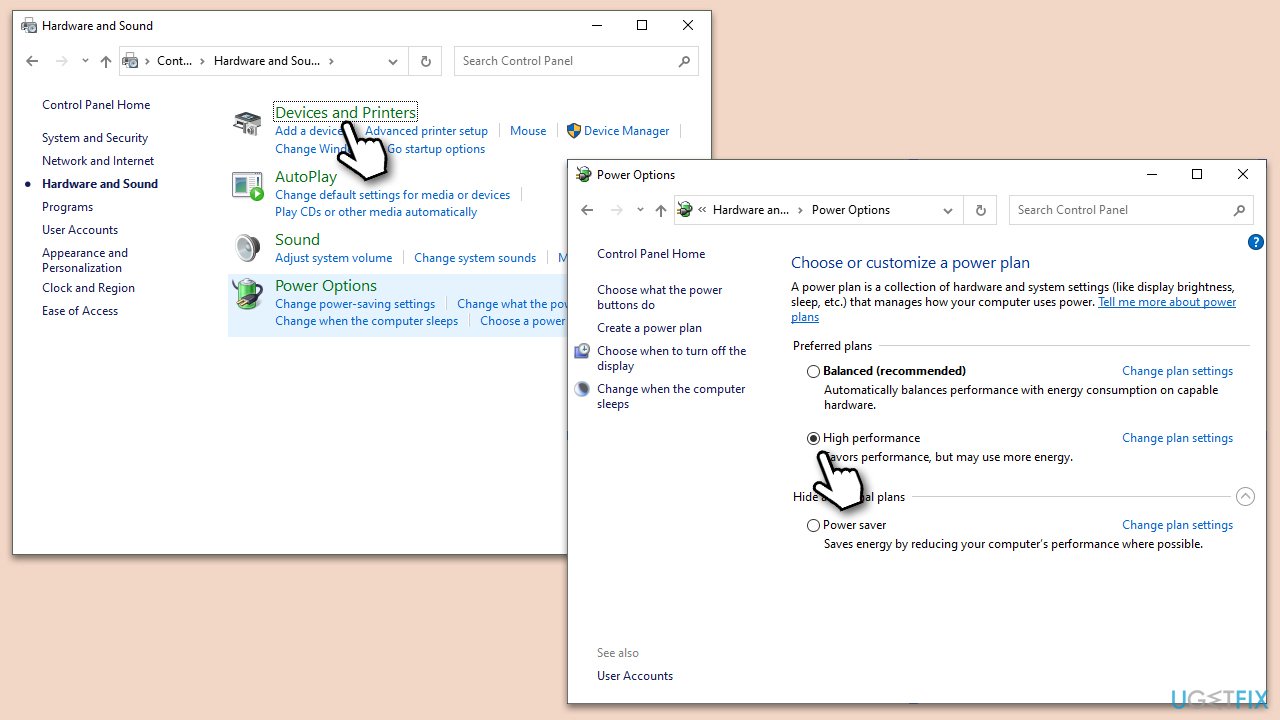
Fix 4. Set Power settings to High Performance
The power plan on a computer can influence its performance. While many systems are set to "Balanced" by default to conserve energy, this might not always provide the optimum environment for resource-intensive tasks like gaming. Switching to "High Performance" ensures that the system utilizes its resources to the fullest, potentially enhancing game stability and reducing crashes.
- Type Control Panel in Windows search and hit Enter.
- Here, go to Hardware and Sound > Power options.
- Here, you will see the listed plans.
- Change the plan from Power saver to High performance.
Fix 5. Stop overclocking
Overclocking is the practice of boosting a computer's hardware beyond its factory settings to enhance performance. However, this can lead to system instability and game crashes. If Overwatch 2 is experiencing issues, it may be due to the strains from overclocking. To promote system stability, it's advisable to revert any overclocked components, such as the CPU and GPU, back to their original settings.
- Restart your computer and enter the BIOS/UEFI setup (typically by pressing keys like Del, F2, or another key during boot).
- Navigate to the Overclocking or Performance section.
- Locate and revert any settings changed from their default values.
- Save the changes and exit.
- If you used software for GPU overclocking (e.g., MSI Afterburner), open it and reset the GPU to default.
- Test Overwatch 2 for improved stability. If issues persist, explore other fixes.
Fix 6. Verify the integrity of game files on Steam or Battle.net apps
Corrupted game files can lead to crashes. Verifying integrity checks and repairs these files.
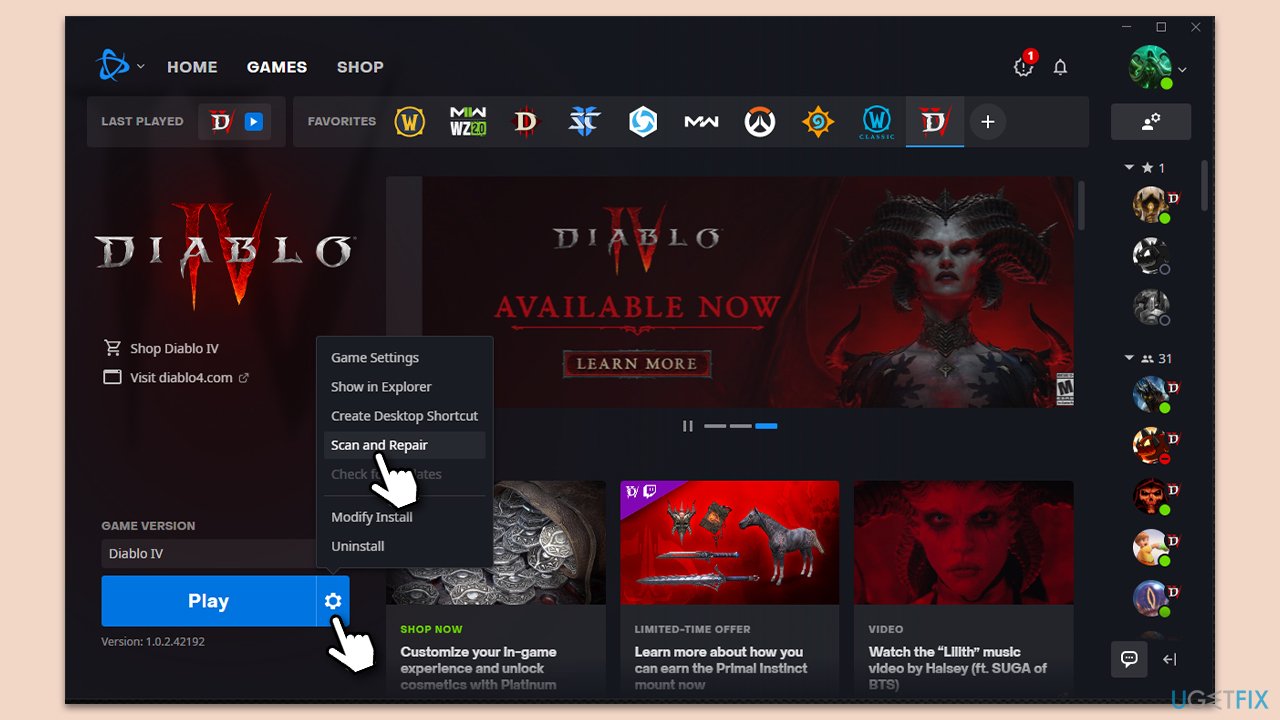
Battle.net
- Open the Battle.net app.
- Select Overwatch 2 from your game list.
- Click the cogwheel (Options) next to the Play button.
- Select Scan and repair.
- Click Begin Scan and wait till it's finished.
- Launch the game and see if it fixed your crashes.
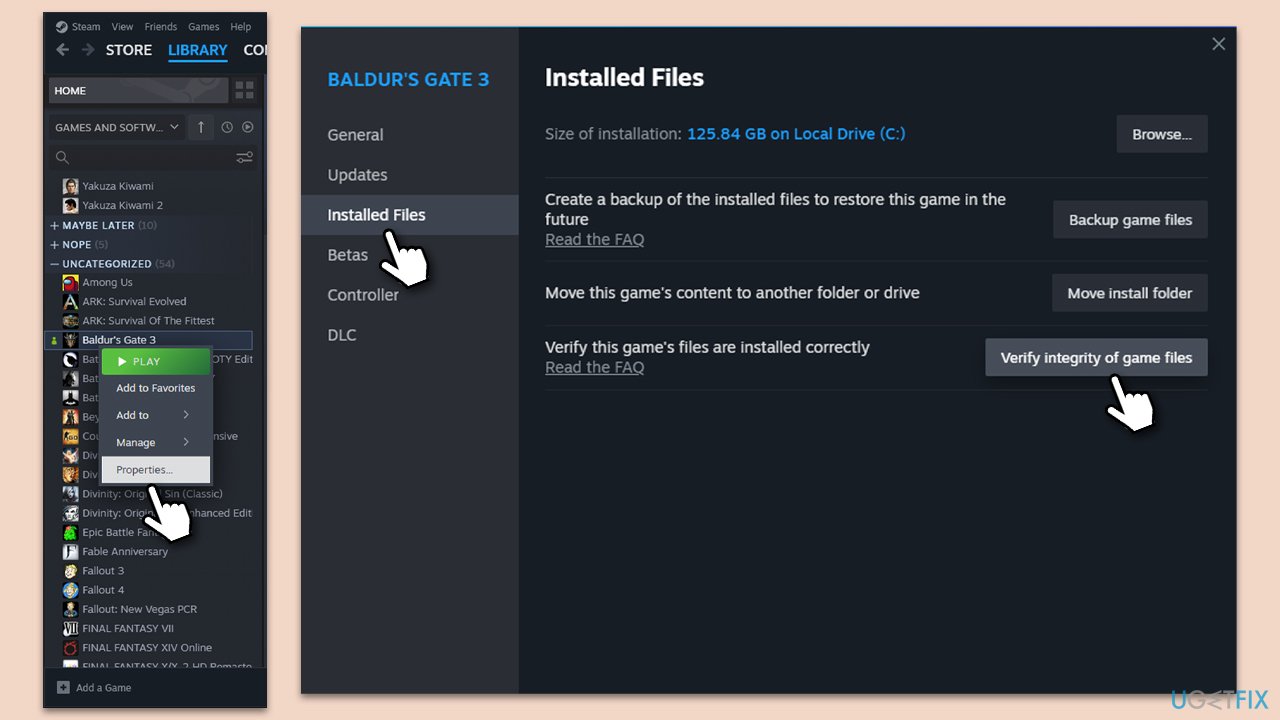
Steam
- Open Steam and go to your Library.
- Right-click on Overwatch 2 and select Properties.
- Go to the Installed Files section.
- Click Verify integrity of game files and wait till the process is complete.
- Launch the game as normal.
Fix 7. Reset Gaming Services in Settings
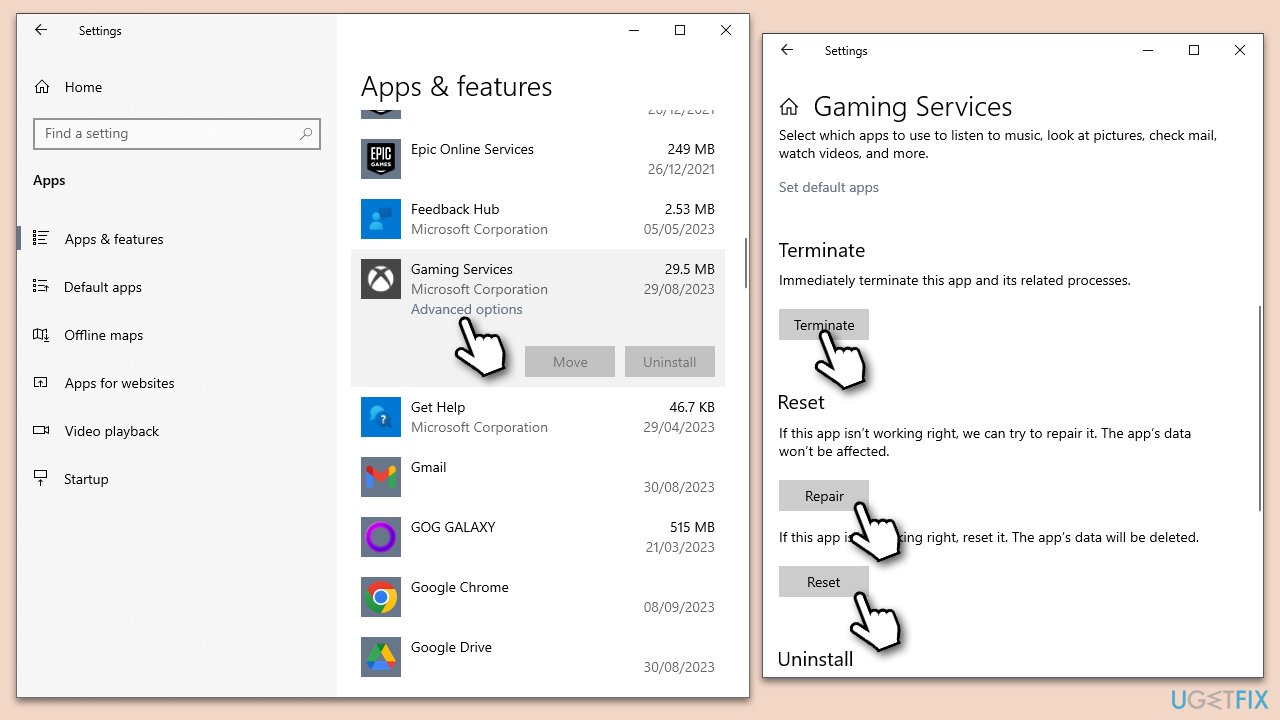
Resetting Gaming Services can resolve issues arising from corrupted or outdated services.
- Right-click on Start and pick Apps & Features.
- Scroll down to locate the and click Advanced options.
- Click Terminate and Repair.
- If that does not help, try the Reset option instead.
Fix 8. Reinstall Gaming Services via PowerShell
A fresh installation can clear up any issues related to corrupted installations.
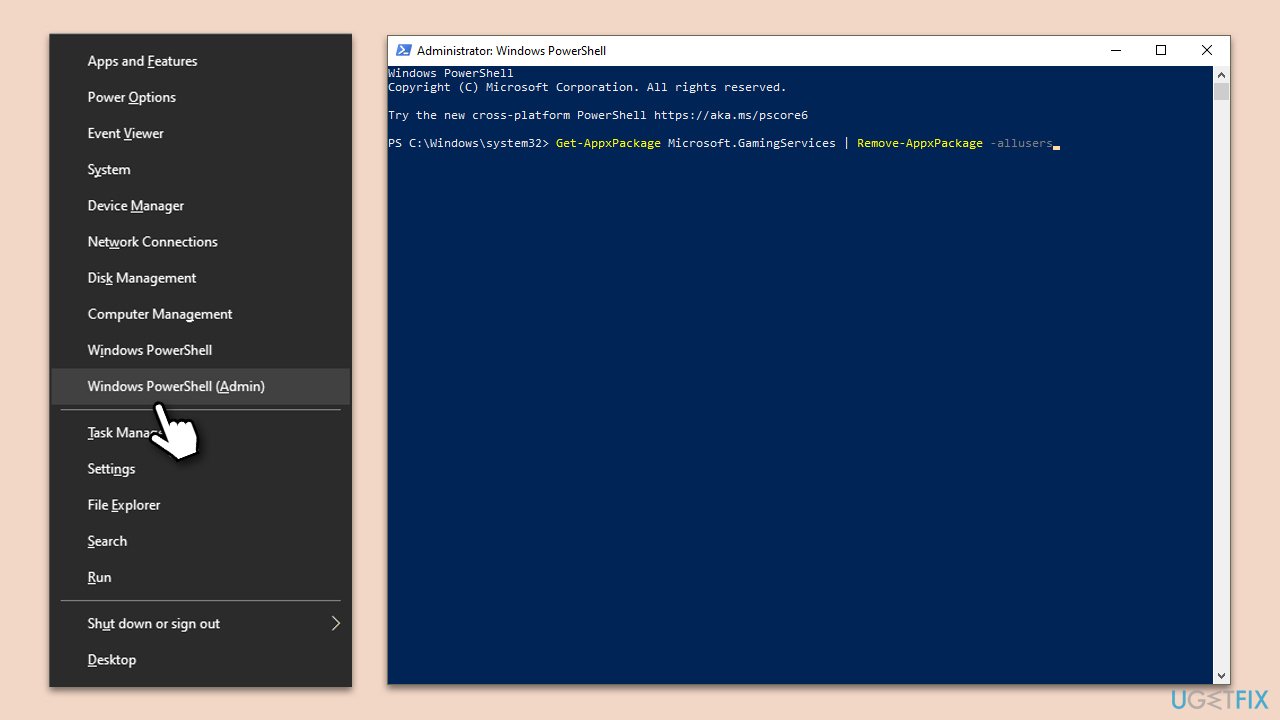
- Press Win + X, then click on PowerShell (Admin).
- Copy and paste the in the following commands:
Get-AppxPackage Microsoft.GamingServices | Remove-AppxPackage -allusers
Remove-Item -Path "HKLM:\System\CurrentControlSet\Services\GamingServices" -recurse
Remove-Item -Path "HKLM:\System\CurrentControlSet\Services\GamingServicesNet" -recurse - Press Enter after each of them, then restart your PC.
- Open PowerShell (Admin) again, then type:
start ms-windows-store://pdp/?productid=9MWPM2CQNLHN - Press Enter and install Gaming Services from the Microsoft Store page that opens.
Fix 9. Reset Windows
As a last resort, resetting Windows can resolve a multitude of issues by restoring the system to its original state and stopping Overwatch 2 from crashing.
- Back up all essential files and data to an external drive or cloud storage.
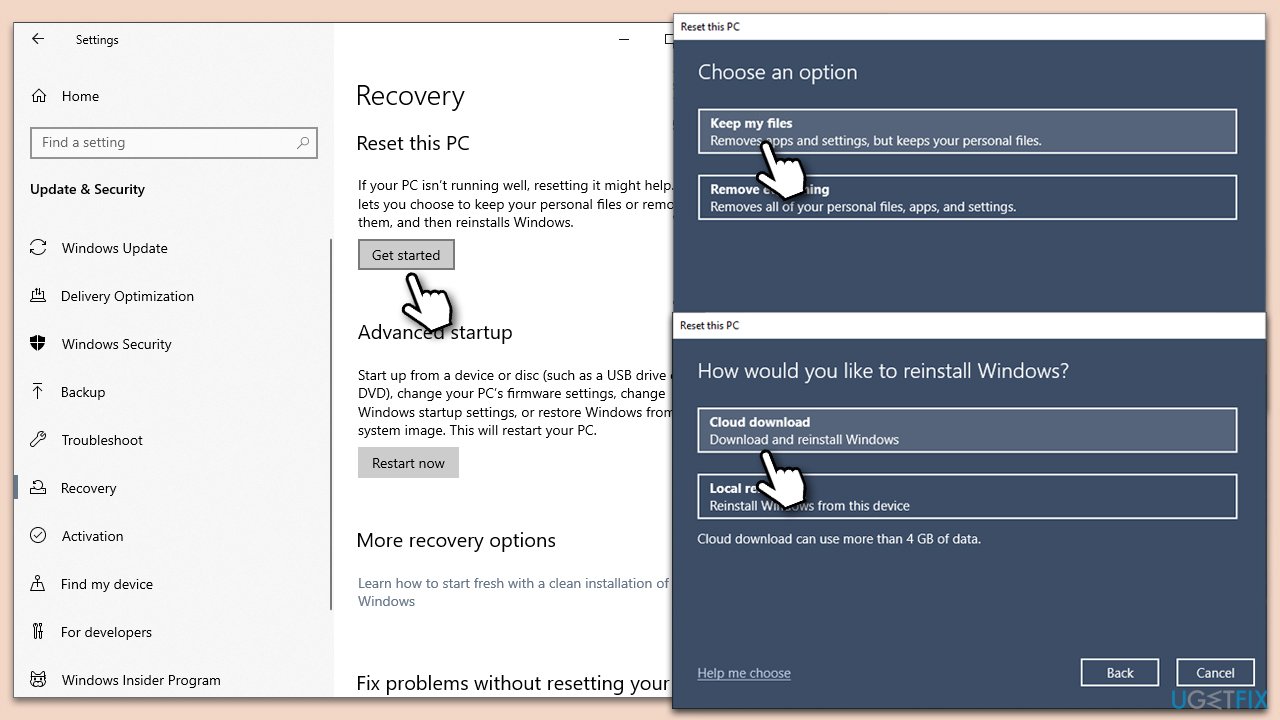
- Open the Start menu and select Settings.
- Navigate to Update & Security.
- From the left pane, select Recovery.
- Under the Reset this PC section, click on the Get started button.
- You'll be presented with two options: Keep my files and Remove everything. Choose according to your preference. (Note: "Keep my files" will remove apps and settings but keep personal files. "Remove everything" will remove all personal files, apps, and settings.)
- Follow the on-screen instructions to complete the reset process.
Bottom line
To fix Overwatch 2 crashing on Windows, players should update all hardware drivers, verify and repair game files through Steam or the Blizzard launcher, and compare their system specifications with the game's recommended requirements. If these solutions do not resolve the issue, consider using a PC repair tool to identify and rectify any foundational system complications.
Frequently asked questions
Try updating your graphics drivers and ensuring that Windows 10 is fully updated to the latest version. Additionally, verify the game files through the Battle.net client to fix any corrupted files.
Adjusting the in-game settings to lower graphics options and disabling background applications can help stabilize the game. Also, make sure your system meets the minimum requirements for Overwatch 2.
Ensure that DirectX is up to date by running Windows Update, and consider reinstalling the game if the issue persists. You can also try running the game in compatibility mode for an earlier version of Windows.




Report an issue
What's wrong with this guide? We review every report and update or remove content.
Report received — thank you. We'll review and fix it.
You need a free account to submit a report.
Be the first to comment