How to fix
Overwatch 2 error “Your rendering device has been lost”
on Windows
Resolve the Overwatch 2 "Your rendering device has been lost" error on Windows 10 or Windows 11 easily and effectively. Fixed in minutes!


What causes How to fix Overwatch 2 error “Your rendering device has been lost” in Windows?
- Overheating of the GPU
- Overclocking the GPU
- Incompatible or unstable hardware
- Resource-hogging processes
- Out-of-date graphics drivers
- Inconsistency in display settings
Repairs Windows system files, removes malware, and restores a clean OS state — without reinstalling.
Hello. I was playing Overwatch 2 and suddenly the game closed and I received the "Your rendering device has been lost" error. I use a Windows PC, how do I fix this?
Blizzard Entertainment's Overwatch 2 is a 2022 first-person shooter. The game, a follow-up to the 2016 hero shooter Overwatch, introduces persistent cooperative modes while aiming to create a shared environment for player-versus-player (PvP) activities. The reduction of team numbers from six to five in PvP modes was a significant adjustment. A number of significant characters were also revised.
Players choose a "hero" from a pool of 35 characters. Characters are divided into three classes: "damage," which is in charge of offensive efforts; "support," which is in charge of healing and buffing; and "tank," which is in charge of the team's defense. Active, passive, and ultimate skills make up each character's own set of skills. However, many users are complaining about the Your rendering device has been lost" error when trying to play Overwatch 2.
When your graphics card doesn't react adequately, the "Your rendering device has been lost" error appears, and the game ends with a return to your desktop. It could be caused by overheating or overclocking the GPU, incompatible or unstable hardware, resource-hogging processes, out-of-date graphics drivers,[ref en-1] or even just an inconsistency in your display settings.
In this guide, you will find 7 steps that should help you fix "Your rendering device has been lost" error while playing Overwatch 2. Keep in mind that the manual troubleshooting process can be lengthy. Instead, you can use a maintenance tool like [d1] that can fix most system errors, BSODs,[ref en-2] corrupted files, registry[ref en-3] issues, or clear cookies and cache. Otherwise, follow the step-by-step instructions below.
Solution 1. Check System Requirements
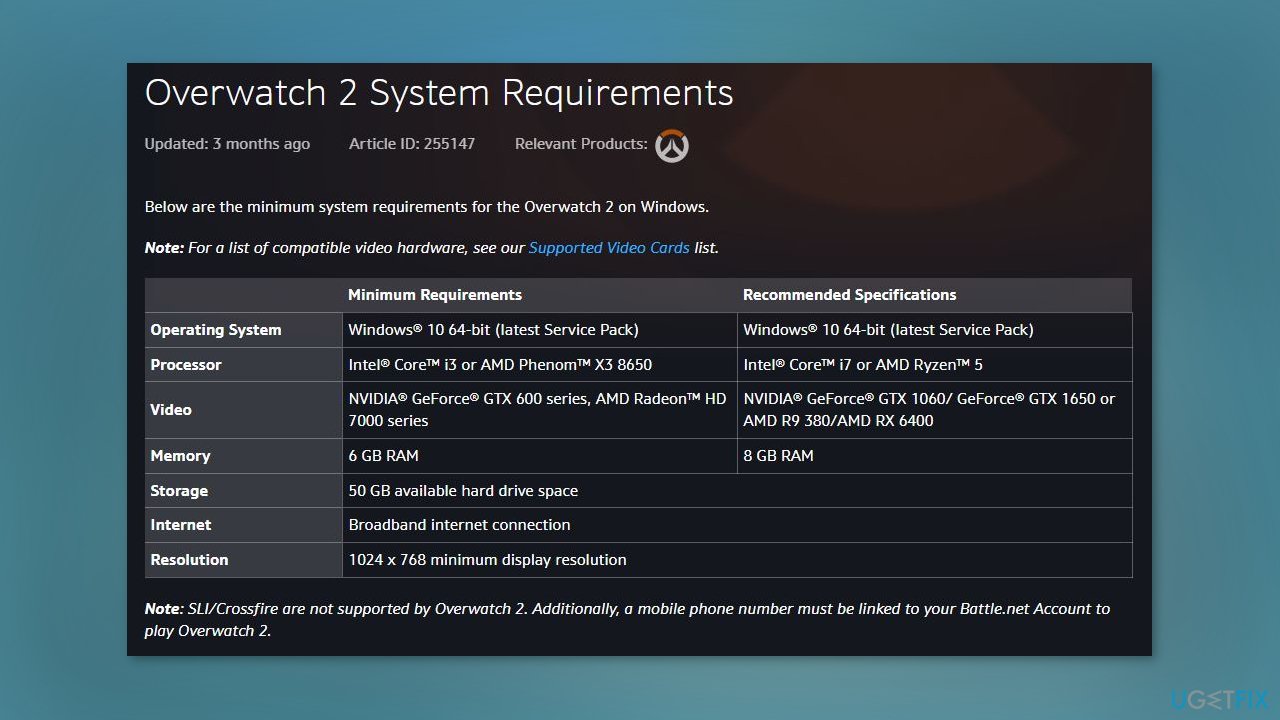
To troubleshoot problems with running Overwatch 2, start by making sure your hardware meets the minimum system requirements and is compatible with the game. Check the Battle.net website for information on the minimum and recommended specifications and a list of supported video cards. If your hardware does not meet these requirements, consider upgrading it. If your hardware is sufficient but you are still experiencing issues, you may need to try additional troubleshooting steps.
Solution 2. Terminate Background Applications
To ensure that Overwatch 2 runs smoothly, you should close any resource-intensive processes that may be running in the background and competing for hardware resources.
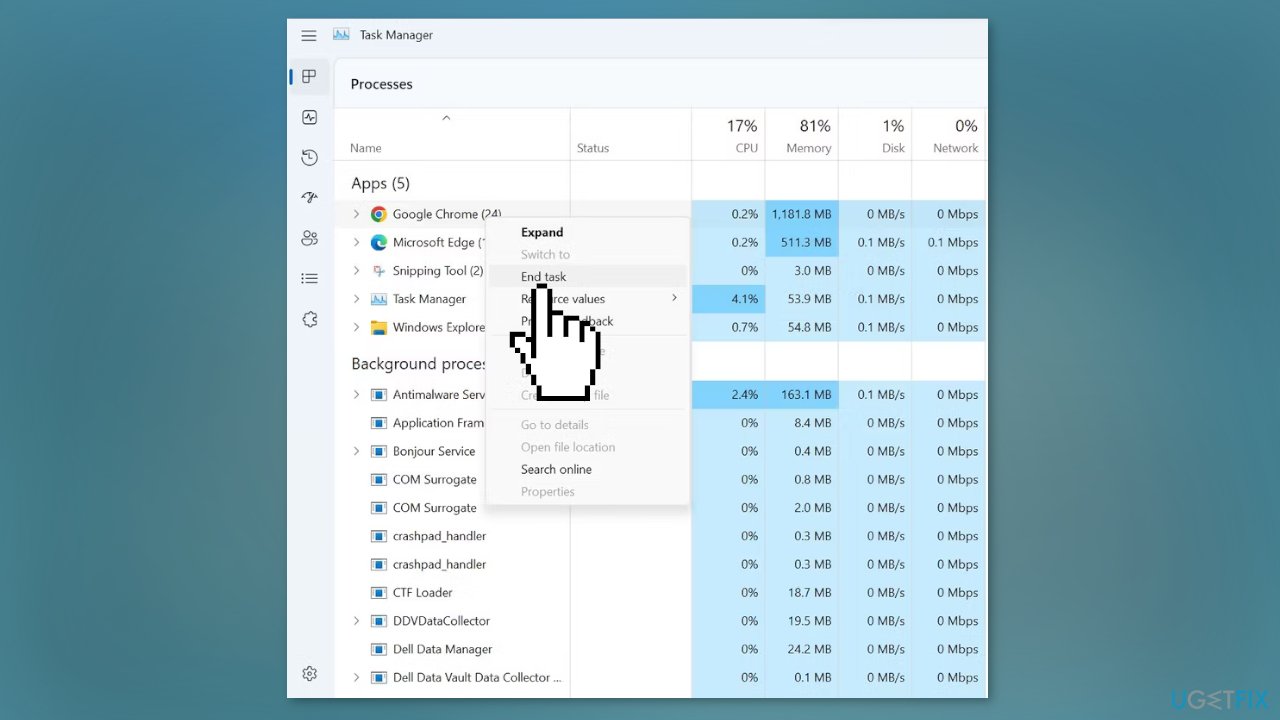
- Use the Windows Task Manager by pressing Ctrl + Shift + Esc
- In the Processes tab, you can filter the processes by CPU and RAM usage and end any that are using a lot of resources
- Right-click on them and select End task
Solution 3. Update Graphics Driver
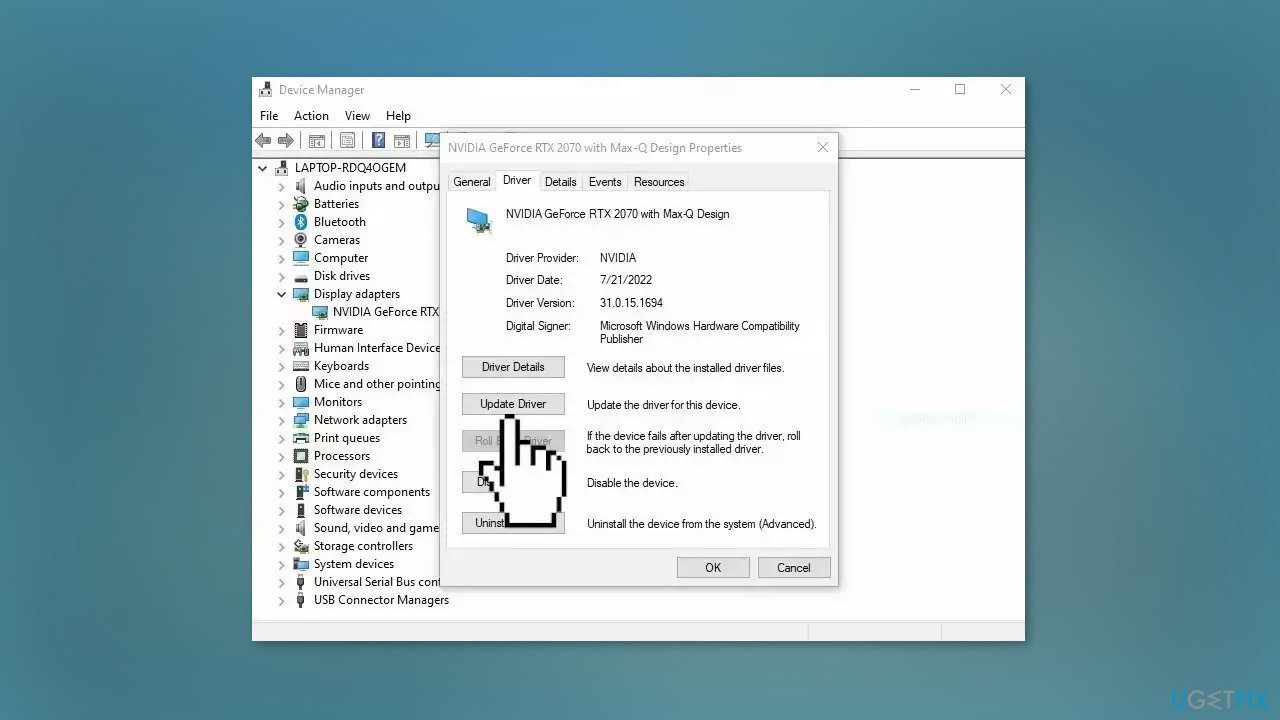
- Open Device Manager and expand the Display Adapters tab
- Right-click on your graphics driver and select Properties
- Go to the Driver tab and click on Update Driver
- Press on Search Automatically for Drivers
- If a graphic driver update is available, install it and then restart your PC
- Upon restart, launch the Modern Warfare game and check if it fixed the issue.
- You may also use a dedicated utility like [rev id="DriverFix"] that can find the best drivers for your machine and install them automatically
Solution 4. Change Display Settings
Ensure that your display settings are configured properly by reverting any recent changes. If you haven't adjusted them recently still consider the following steps to verify they're optimized:
- Press the Windows key + I to open the Settings app
- Click on the System tab
- In the right pane, click Display
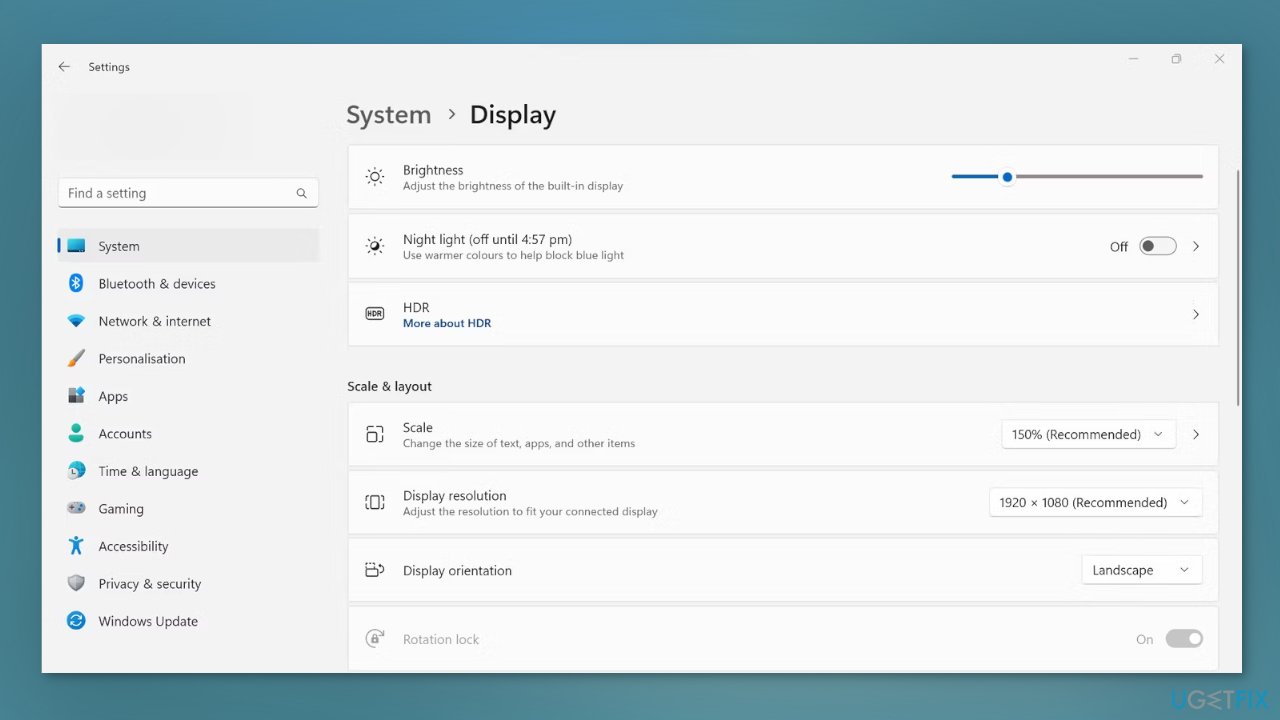
- Set the Scale percentage and Display resolution to the recommended value or modify them as needed
- Ensure the Brightness and color settings aren't set too high
Solution 5. Check the SysMain and Superfetch Services
SysMain is a Windows service that helps to maintain and improve the performance of the operating system. If it is turned off, you may experience issues with system performance, including errors when playing games that require a lot of resources. To ensure that SysMain is running, you can follow these steps:
- Search for Services in Windows Search and open the Services app
- Find the SysMain service and double-click it to open its Properties
- If the service has been stopped, click the Start button to restart it
- Click OK to close the Properties window
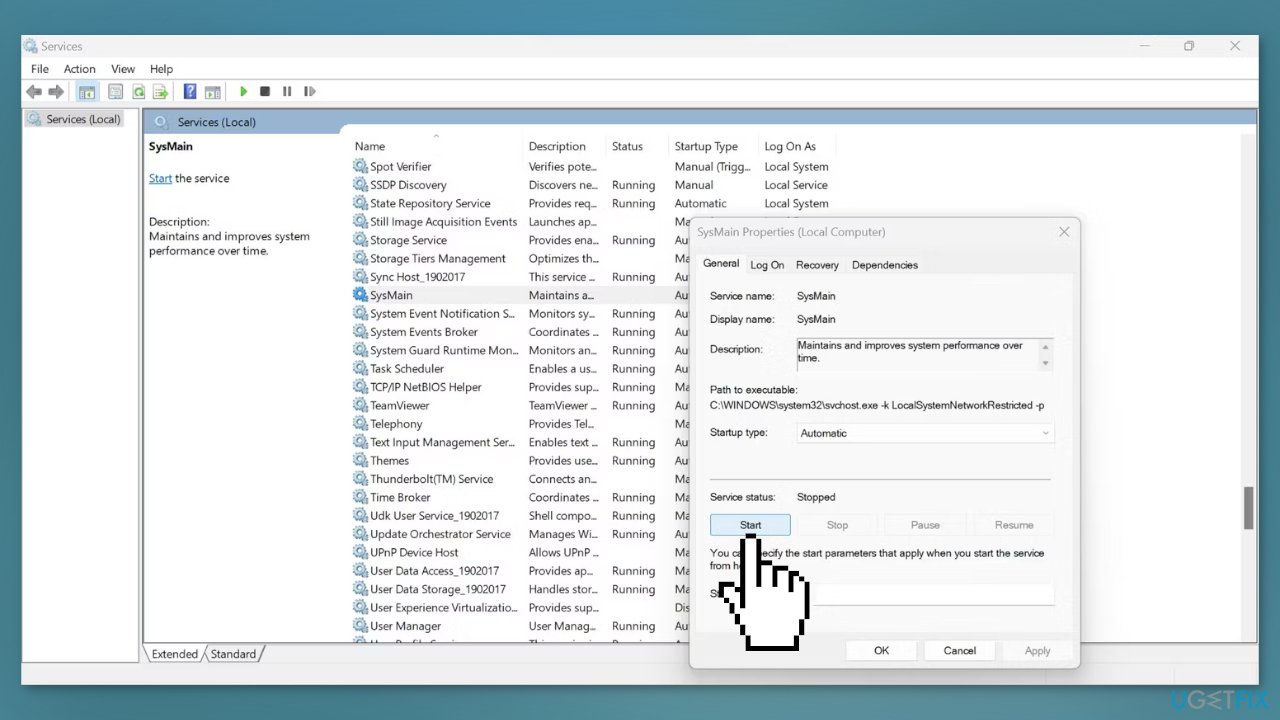
- Do the same for the Superfetch service
Solution 6. Reset GPU and CPU Settings
If you recently changed your GPU and CPU settings to overclock them and have encountered this error, there could be two reasons for this: either the frequency and voltage were improperly set, or your power supply unit (PSU) is unable to provide enough power or your cooling system is unable to handle the heat generated by the overclocked components.
To fix the issue, try resetting the GPU and CPU settings to their default values. If this resolves the problem, you may want to consider running the hardware at default settings or upgrading your cooling system and PSU to better handle the power requirements of the overclocked components.
Solution 7. Update or Reinstall Overwatch 2
If you continue to experience the same error despite trying the previous fixes, you should check if there is a new update available for the game. If the game is outdated, updating it may resolve the issue. If the game is already up to date, you may need to try reinstalling it as a final resort.
Bottom line
To fix the "Your rendering device has been lost" error in Overwatch 2, you can check your system requirements, update your graphics drivers, and ensure your hardware is compatible. If these solutions do not resolve the issue, consider using a maintenance tool to address system errors or follow additional troubleshooting steps.
Frequently asked questions
This error typically occurs due to graphics driver issues, overheating, or problems with the game files. Ensuring your graphics drivers are updated and verifying game file integrity can often resolve this issue.
You can update your graphics drivers by visiting the manufacturer's website or using Device Manager in Windows 10 or Windows 11. Right-click on 'Start', select 'Device Manager', expand 'Display adapters', right-click your graphics card, and choose 'Update driver'.
If the error continues, try lowering your in-game graphics settings, checking for overheating components, or reinstalling the game. Additionally, running Windows Update may also help ensure your system is fully optimized for gaming.




Report an issue
What's wrong with this guide? We review every report and update or remove content.
Report received — thank you. We'll review and fix it.
You need a free account to submit a report.
Be the first to comment