How to fix
“Page can’t be displayed” res://aaResources.dll/104 error on Internet Explorer
on Windows
Resolve the "Page can’t be displayed” res://aaResources.dll/104 error on Windows 10 or 11 quickly and easily with expert-tested solutions. Zero traces l…

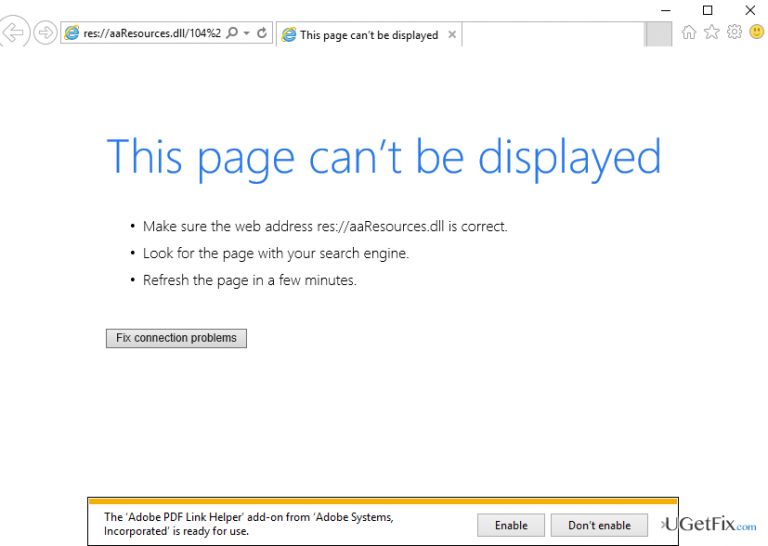
What causes How to Fix “Page can’t be displayed” res://aaResources.dll/104 error on Internet Explorer?
- Installation of Amazon Assistant plug-in
- Recent Windows updates
- Presence of res://aaResources.dll/104 process in Task Manager
- Unintentional installation via software bundle
- Assumption of virus infection
Repairs Windows system files, removes malware, and restores a clean OS state — without reinstalling.
I’ve installed available Windows updates this morning, and then strange things started to happen with the Internet Explorer. When I open the web browser, I receive the message "page cannot be displayed, res://aaResources.dll/104." It’s strange as I did not even enter the URL into the address bar. The res://aaResources.dll/104 error keeps reappearing randomly and makes web browsing an irritating experience. Could you please tell me what this .dll file is and why I receive this pop-up?
At the end of 2016, people started complaining about an irritating error message saying "Page can’t be displayed. Make sure the web address res://aaResources.dll/104 is correct." The pop-up is Internet Explorer specific, and typically harass people who use IE version 11. The problem can be troublesome if the PC’s user does not know the reason behind it. Many people found Res://aaResources.dll/104 process running in Task Manager, but could not terminate it permanently as it starts automatically after some time. That’s why they assumed that the bug may be related to a virus infection. To check that, they initiated a full system scan with a professional anti-malware, but the results did not show any virus. Other people reported that the pop-up emerged soon after the installation of Windows updates and was considering undoing the updates. However, undoing the Windows updates will not fix Res://aaResources.dll/104 error, but instead of that, may reduce your PC’s performance and security.
It has been found that the culprit of the "Page can’t be displayed. Make sure the web address res://aaResources.dll/104 is correct" pop-up is related to the Amazon Assistant plug-in for Internet Explorer 11. Even if you do not remember installing it, you might have installed it unintentionally via software bundle. To check if the Amazon Assistant is running on your PC, open Control Panel and look for the application on the Applications list. We are pretty sure that the app will be running, so to fix res://aaResources.dll/104 error on Internet Explorer, remove Amazon Assistant completely.
How to Fix "Page can’t be displayed” res://aaResources.dll/104 error on Internet Explorer?
The only way to remove the "Page can’t be displayed. Make sure the web address res://aaResources.dll/104 is correct" screen from Internet Explorer is to uninstall Amazon Assistant completely. To do so, perform the following steps:
- Log on to your PC as administrator.
- Then right-click on Windows key and select Control Panel.
- Click Uninstall a Program under Programs.
- Find Amazon Assistant, click it, and select Uninstall.
- After that, go to System and Security and open Administrative Tools.
- Check if Amazon Assistant service is still there. If you found it, then right-click on it to open Properties and change startup type from Automatic to Disabled.
- Finally, right-click on Win key and select Command Prompt (Admin).
- Type sc delete Amazon Assistant Service command and press Enter.
- If Amazon Assistant has injected a plug-in into your web browser, disable it and reset your web browser's settings
- Finally, reboot the system.
You may also try to delete Amazon Assistant automatically using [rev id="Perfect Uninstaller"]. This tool has been developed to uninstall programs on Windows OS along with all the file leftovers.
Once you uninstall Amazon Assistant and fix the res://aaResources.dll/104 error, run a scan with [d1] to ensure PC's optimization properly.
Bottom line
To fix the 'Page can’t be displayed' error, remove the Amazon Assistant plug-in from your PC. Additionally, ensure that no other conflicting applications are running. If these solutions do not work, consider seeking further technical support.
Frequently asked questions
This error typically occurs due to incorrect Internet settings, corrupted cache, or network connectivity issues on Windows 10.
To reset Internet Explorer on Windows 11, go to Internet Options, navigate to the Advanced tab, and click on 'Reset' under the Reset Internet Explorer settings section.
Yes, you can try clearing your browser cache, checking your network connection, and ensuring your Internet settings are correctly configured to resolve the error on Windows 10.




Report an issue
What's wrong with this guide? We review every report and update or remove content.
Report received — thank you. We'll review and fix it.
You need a free account to submit a report.
Be the first to comment