How to fix
Paint 3D crashes after opening
on Windows
Resolving Paint 3D crashes in Windows 10 or Windows 11 is easy with our expert-tested solutions. Get back to creating with zero traces left!

What causes How to fix Paint 3D crashes after opening in Windows?
- Software conflicts
- Outdated drivers
- Insufficient system resources
- Corrupt application files
Repairs Windows system files, removes malware, and restores a clean OS state — without reinstalling.
Hello. When I try to open the Paint 3D app in Windows it crashes almost immediately. Is there a way to fix this?
Paint 3D is a graphics editing program developed by Microsoft that is available for Windows-based computers. It is an enhanced version of the classic Microsoft Paint application, with the ability to create and manipulate 3D objects in addition to 2D drawings. Paint 3D has an easy-to-use interface and a variety of tools for creating, editing, and sharing both 2D and 3D content.
Users may find the reported issue of Paint 3D crashing after opening to be a frustrating experience. When an application crashes, it means that it shuts down or stops working unexpectedly shortly after being launched. This can happen for a variety of reasons, including software conflicts, outdated drivers, insufficient system resources, or corrupt application files.
This problem may have a significant impact on users who rely on Paint 3D for creative projects or work. It can disrupt their workflow, result in data loss if unsaved work is not recovered, and lead to frustration and wasted time while attempting to resolve the problem. Furthermore, if Paint 3D crashes frequently, users may become discouraged from using the application entirely, forcing them to seek alternative software solutions or compromise the quality of their work.
There are several possible solutions to the Paint 3D crashing problem. Users can try updating their graphics drivers, making sure their system meets the minimum requirements for running Paint 3D, and freeing up system resources by closing unnecessary applications. Furthermore, running the app in compatibility mode, resetting the app settings, or reinstalling the app may help to resolve the crashing issue.
In this guide, you will find 6 steps that should help you fix Paint 3D crashing after opening in Windows. You can also try a system repair tool like [d1]. It can fix most system errors, BSODs,[ref en-1] corrupted files, registry[ref en-2] issues, or clear cookies and cache.[ref en-3] Otherwise, follow the step-by-step instructions below.
Solution 1. Fix Corrupted System Files
Use Command Prompt commands to repair system file corruption:
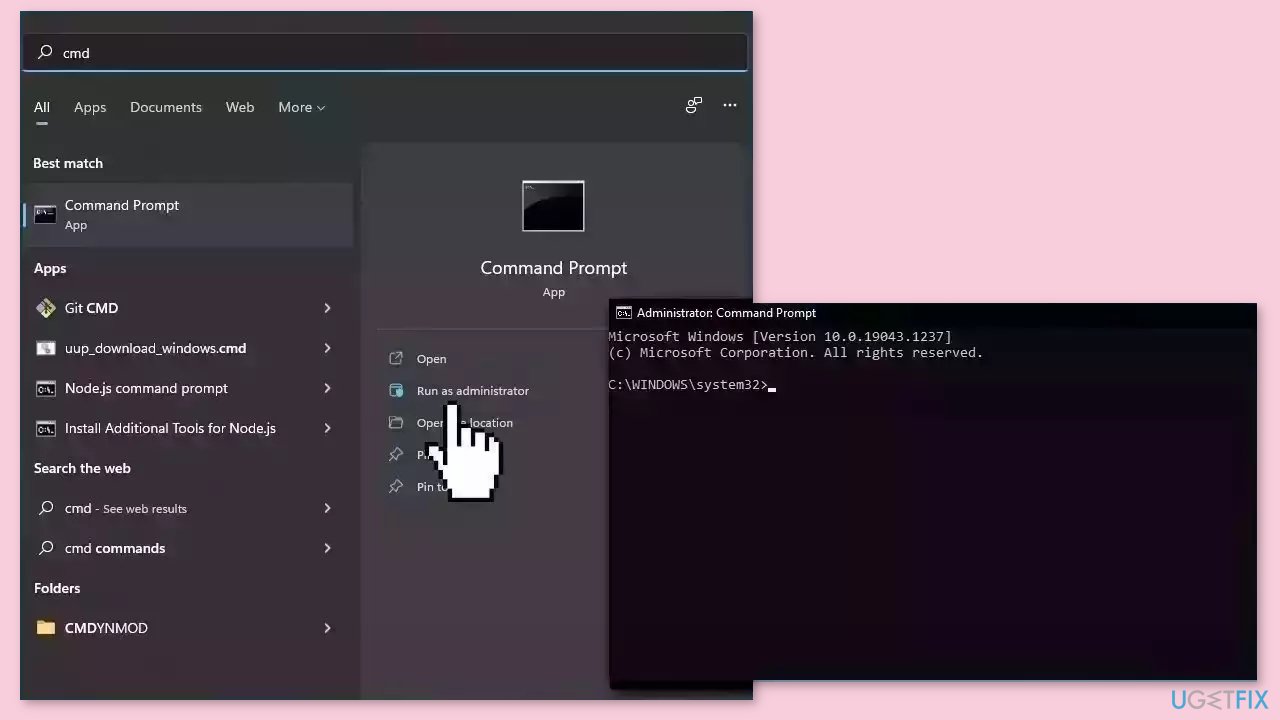
- Open Command Prompt as administrator
- Use the following command and press Enter:
sfc /scannow
- Reboot your system
- If SFC returned an error, then use the following command lines, pressing Enter after each:
DISM /Online /Cleanup-Image /CheckHealth
DISM /Online /Cleanup-Image /ScanHealth
DISM /Online /Cleanup-Image /RestoreHealth
Solution 2. Install Windows Updates
- Press the Windows key + I on your keyboard to open the Settings window.
- From the left sidebar, click on the Windows Update tab.
- Click on the Check for updates button.
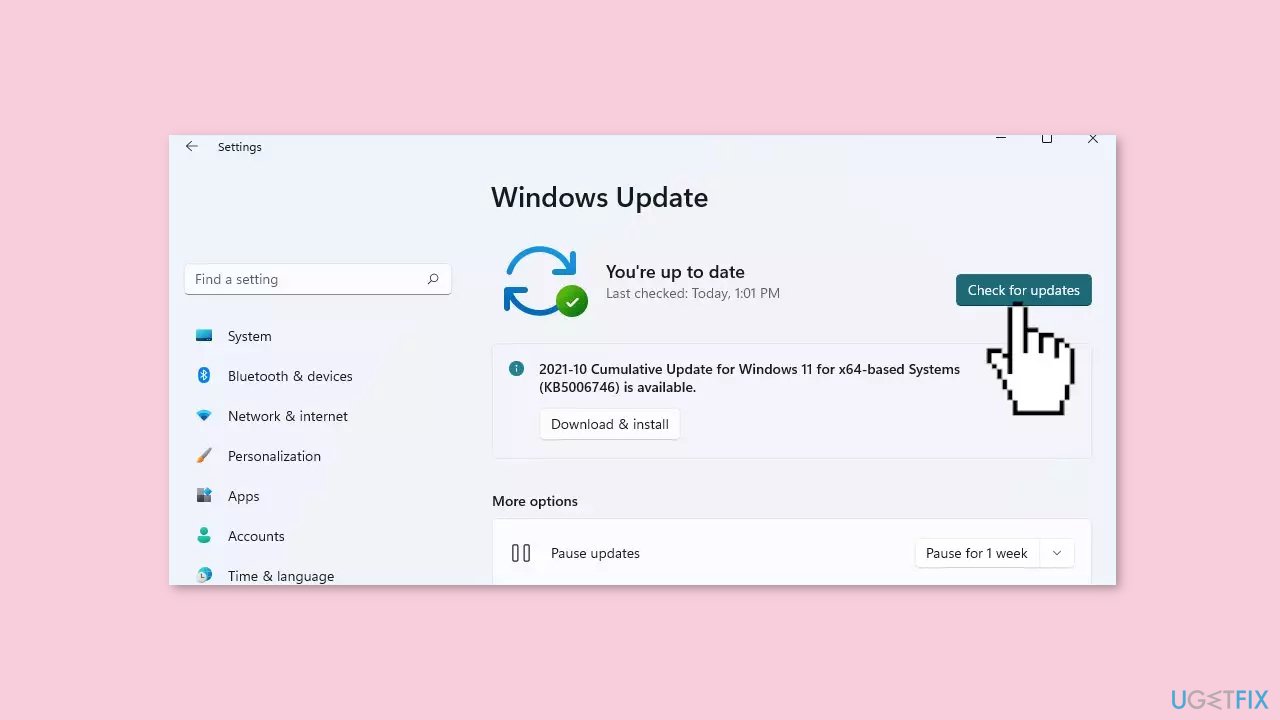
- Wait while Windows checks for available updates.
- If new updates are found, download and install them.
- Follow the on-screen instructions to complete the update process.
Solution 3. Run the Microsoft Store Apps Troubleshooter
- Open the Start menu.
- Click the gear-shaped icon to launch the Settings app.
- In the Settings app, click on the System tab.
- Click on Troubleshoot.
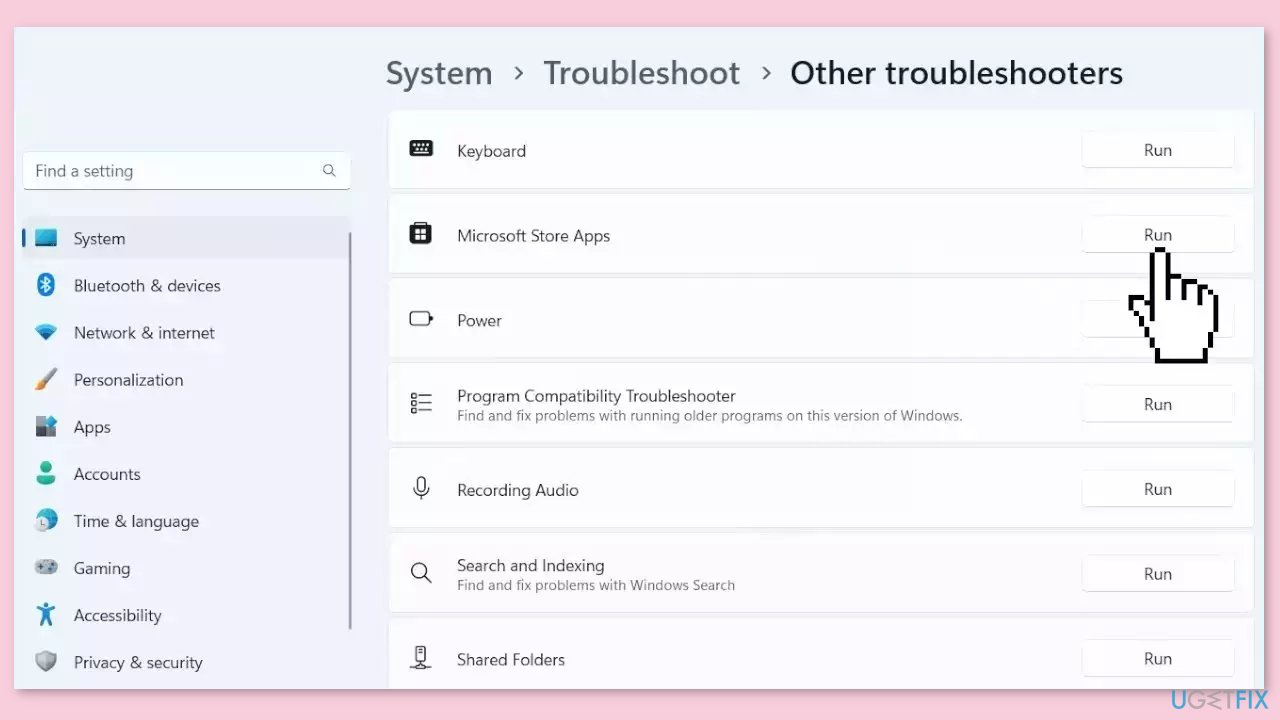
- Select Other troubleshooters.
- Look for Microsoft Store Apps and click the Run button next to it.
- Follow the on-screen prompts to run the troubleshooter.
Solution 4. Repair or Reset the App
- Click on the Start button.
- Scroll down and click on Settings.
- Click on Apps.
- Scroll down and select the Paint 3D option.
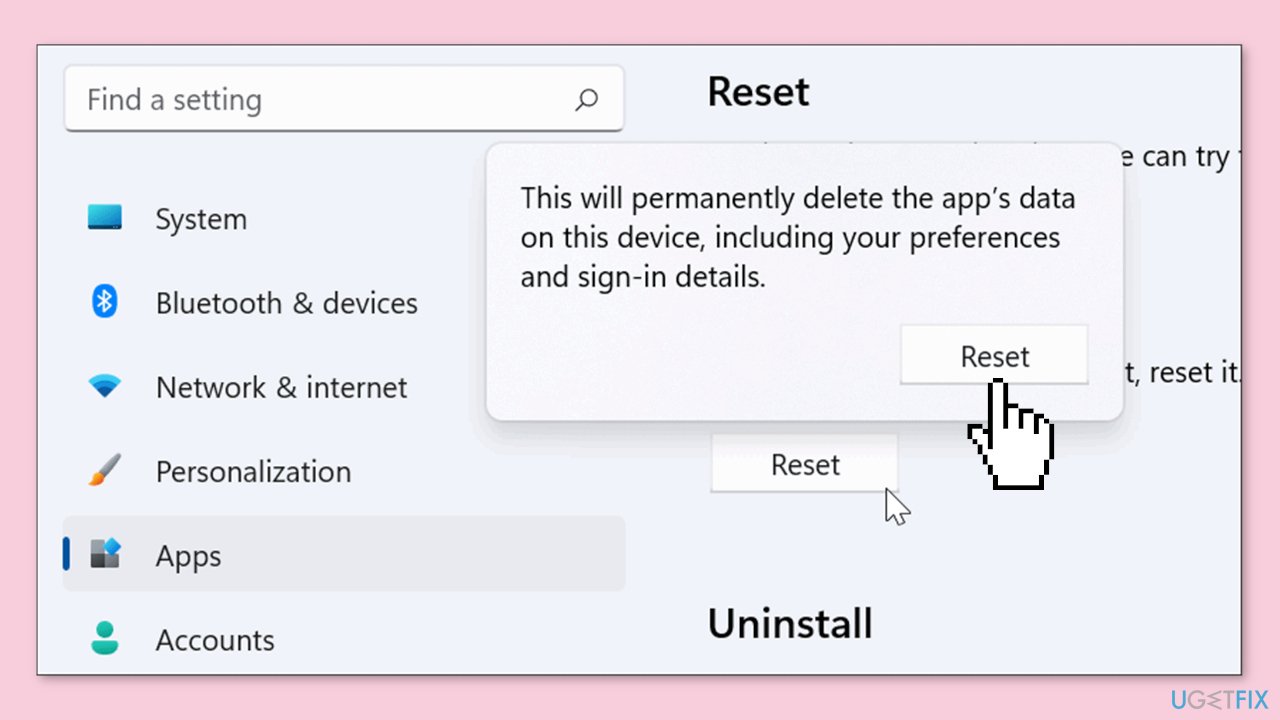
- Click on the Advanced options button.
- Click on the Repair button.
- Choose Repair again in the pop-up window to delete the app's data permanently.
- Wait for the repair process to finish.
- If the issue persists, go back and press Reset instead.
Solution 5. Reinstall Paint 3D
- Click on the Start button.
- Scroll down and click on Settings.
- Click on Apps.
- Scroll down and select the Paint 3D option.
- Click on the Uninstall button.
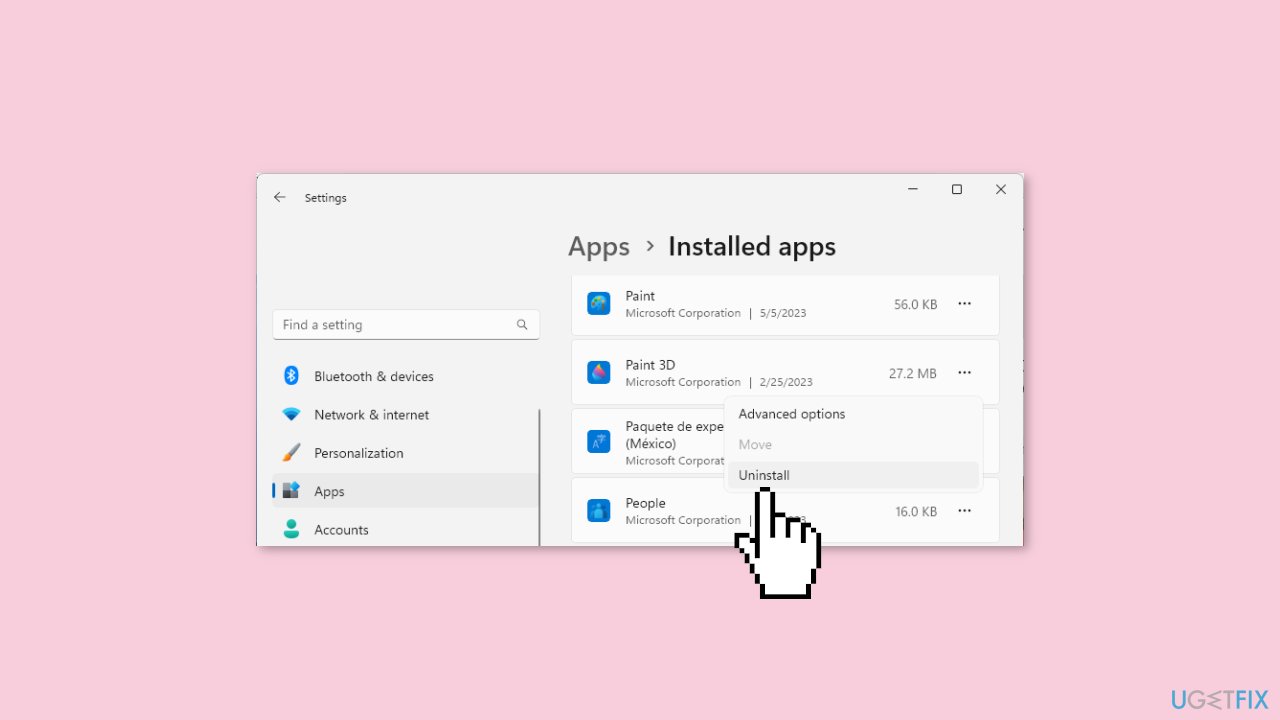
- Follow any prompts or confirmation messages to complete the uninstallation process.
- Open the Microsoft Store application.
- Click on the search bar and type Paint 3D.
- Select the Paint 3D app from the search results.
- Click on the Install button to initiate the reinstallation process.
- Wait for the installation to complete.
- Once the installation is finished, you can launch Paint 3D.
Solution 6. Perform an in-place Upgrade
- Download the Windows ISO file from the official Microsoft website.
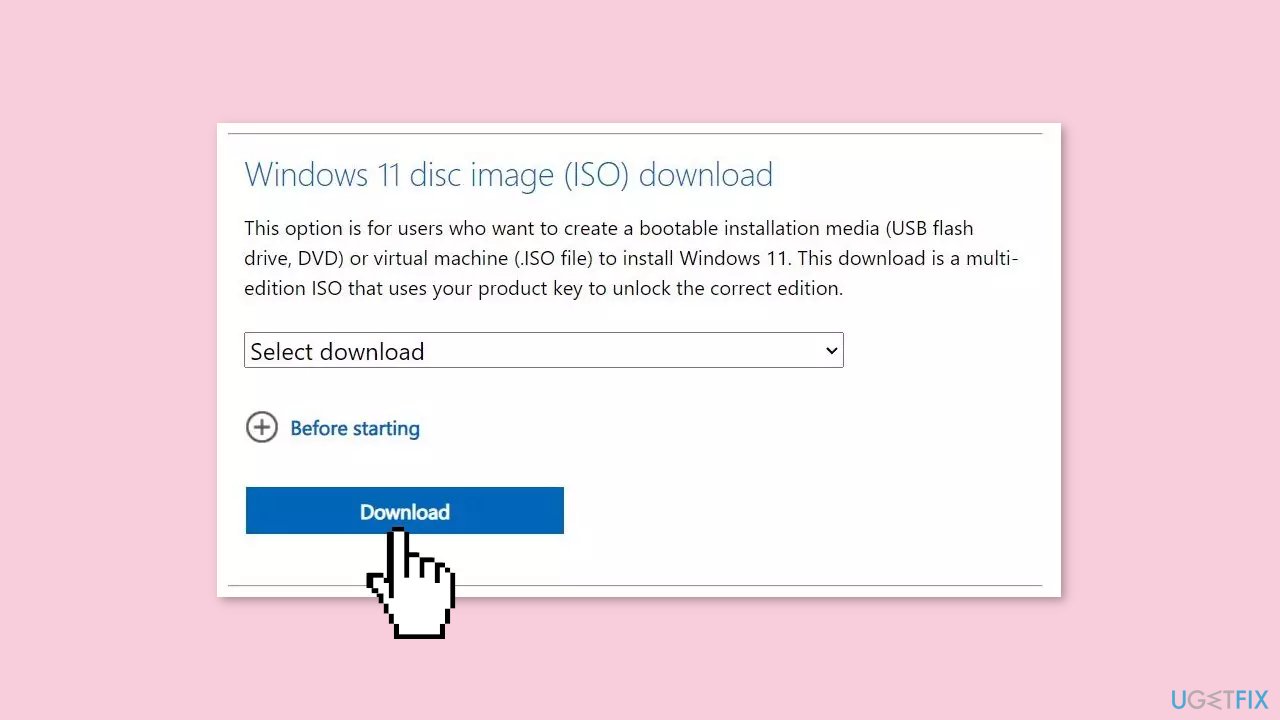
- Open File Explorer and navigate to the location where the Windows image file was downloaded.
- Right-click on the downloaded file and select the Mount option from the context menu.
- In File Explorer's navigation pane, click on the ISO drive that appears after mounting the file.
- Locate and click on the setup.exe file to initiate the Windows setup.
- A User Account Control (UAC) prompt will appear. Click on Yes to proceed.
- In the Windows setup window, click on the Change how Setup downloads updates option.
- Select the Not right now radio button and click on the Next button.
- Read the End User License Agreement (EULA) page and click on the Accept button.
- On the Choose what to keep page, select the Keep personal files and apps option.
- Click on the Next button, and then click on the Install button to begin the installation process.
- The setup will start installing a new copy of Windows. If you have an SSD, the installation should not take more than 15 minutes.
- Your system will restart multiple times during the installation process.
- After the setup finishes installing updates, it will redirect you to the login screen.
- Enter your password and press the Enter key to continue.
- Wait for the setup to prepare your system for the first boot, and you will automatically enter the desktop.
Bottom line
To fix Paint 3D crashes after opening, you can try updating your graphics drivers, ensuring your system meets the minimum requirements, and freeing up system resources by closing unnecessary applications. If these solutions do not work, consider running the app in compatibility mode, resetting the app settings, or reinstalling the app.
Frequently asked questions
Paint 3D may crash due to corrupted files or outdated graphics drivers. Updating your graphics drivers or repairing the app through Windows settings can often resolve this issue.
To prevent crashes, ensure that your Windows 11 is up to date and that Paint 3D has the latest updates installed. Additionally, consider resetting the app if crashes persist.
If Paint 3D crashes when opening a specific file, the file may be corrupted. Try opening other files to check if the issue is with the app or the specific file.




Report an issue
What's wrong with this guide? We review every report and update or remove content.
Report received — thank you. We'll review and fix it.
You need a free account to submit a report.
Be the first to comment