How to fix
Paint missing or disappeared
on Windows
Resolve the missing Paint issue in Windows 10 and 11 effortlessly. Follow our expert-tested tips to restore functionality quickly and painlessly.


What causes How to fix Paint missing or disappeared in Windows?
- Windows updates may unintentionally remove applications
- System problems or corruption within the Windows operating system
- Paint may have been relocated and not actually missing
- Pending Windows updates may restore missing applications
- Issues with the Windows Store could affect app accessibility
Repairs Windows system files, removes malware, and restores a clean OS state — without reinstalling.
Hi. I just noticed that Paint has disappeared from my Windows. I can't find it in Programs, and I can't find it via search. What is going on and why is my Paint missing?
Microsoft Paint, sometimes known as Paint, is a basic graphics and drawing program that has been a fundamental feature of the Windows operating system for decades. Paint is well-known for its simplicity and ease of use, giving users the tools they need to swiftly create and edit images. Despite its simple nature, Paint occasionally goes missing or disappears from a Windows PC, leaving users perplexed and in need of a remedy.
Paint might go missing for a number of reasons for it. While Windows updates are critical for security and performance improvements, they can occasionally result in the unintended removal of applications, such as Paint. Another possible explanation is system problems or corruption inside the Windows operating system, which could influence the visibility or accessibility of specific apps.
If you discover that Paint is missing from your Windows PC, there are numerous methods you can use to fix it. Initially, use the Windows search feature to confirm that Paint has not been relocated. If the application is actually gone, looking for and installing any pending Windows updates may help to restore it.
Additionally, exploring the Windows Store to download or reinstall Paint could provide a straightforward solution, as well as using Command Prompt to install the app may also help in some cases.
For those seeking a more comprehensive solution to underlying Windows issues that may be causing Paint to disappear, using a PC repair tool [d1] can offer an effective resolution. Such tools are designed to automatically detect and fix any problems within the Windows operating system, potentially restoring missing applications like Paint with minimal effort on your part.
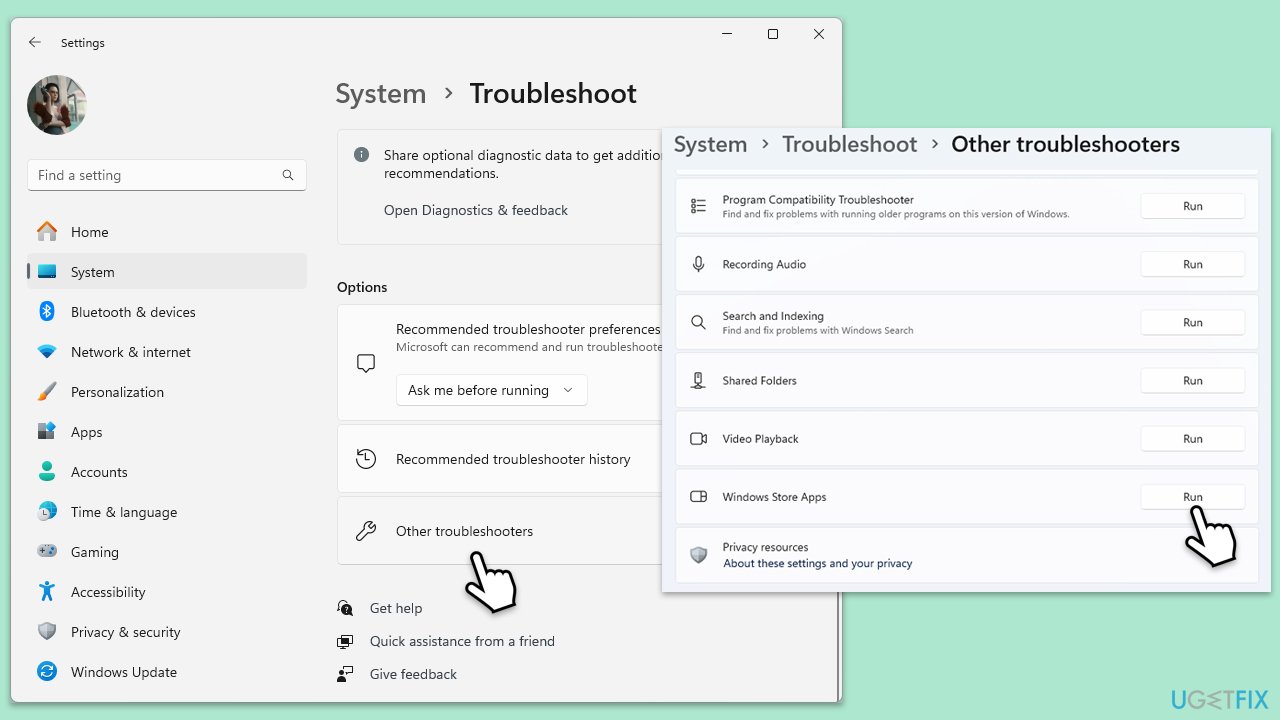
Fix 1. Run Windows Store App troubleshooter
The Windows Store App troubleshooter is a utility designed to identify and fix common problems with Windows apps, including the disappearance of Microsoft Paint. It scans the system for specific issues related to Windows Store apps and tries to fix them automatically.
- Type Troubleshoot in Windows search and press Enter.
- On the right side, click Additional troubleshooters/Other troubleshooters.
- Scroll down to find the Windows Store Apps entry.
- Select it and click Run the troubleshooter/Run.
- Wait till the scan finishes and apply the suggested fixes, then reboot your system.
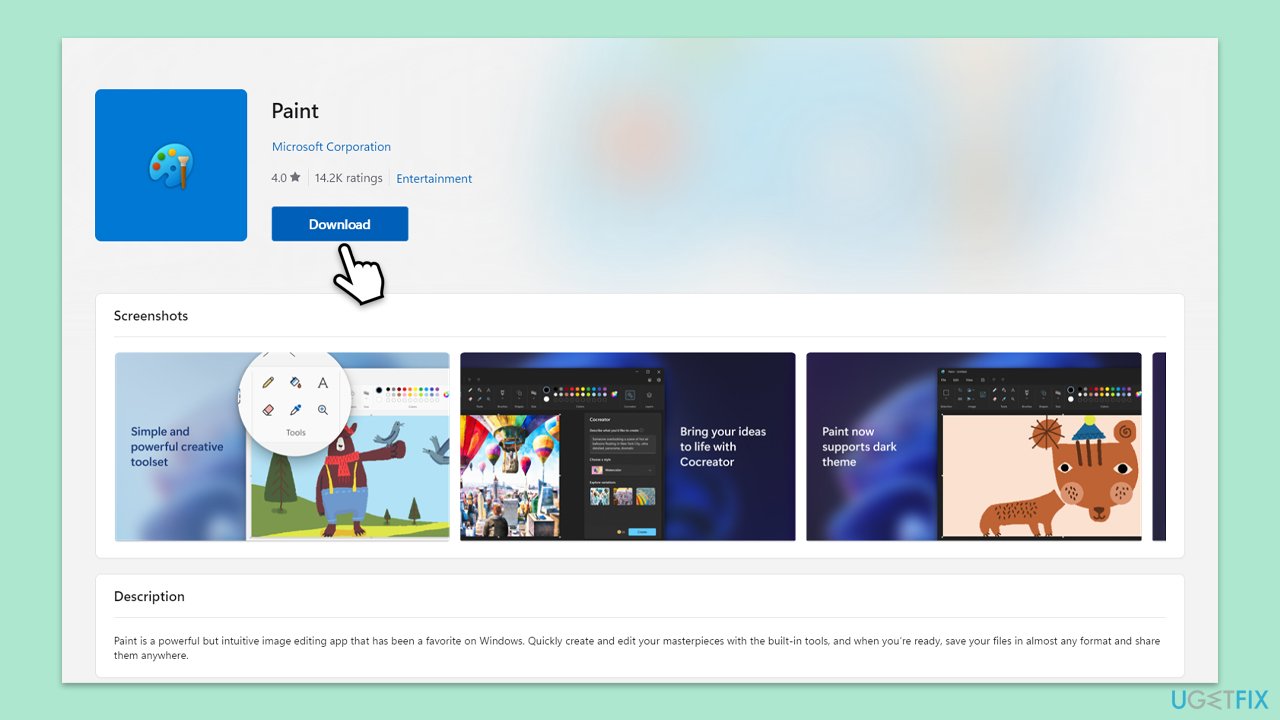
Fix 2. Download the app from the Microsoft Store
If Paint is missing, downloading it again from the Microsoft Store could be the solution. This method is straightforward and ensures you get the latest version of the app.
- Open the Microsoft Store by clicking on its icon in the taskbar or searching for it in the Start menu.
- Use the search bar at the top to search for Microsoft Paint.
- Select Microsoft Paint from the search results, then click Get or Install to download and install the app.
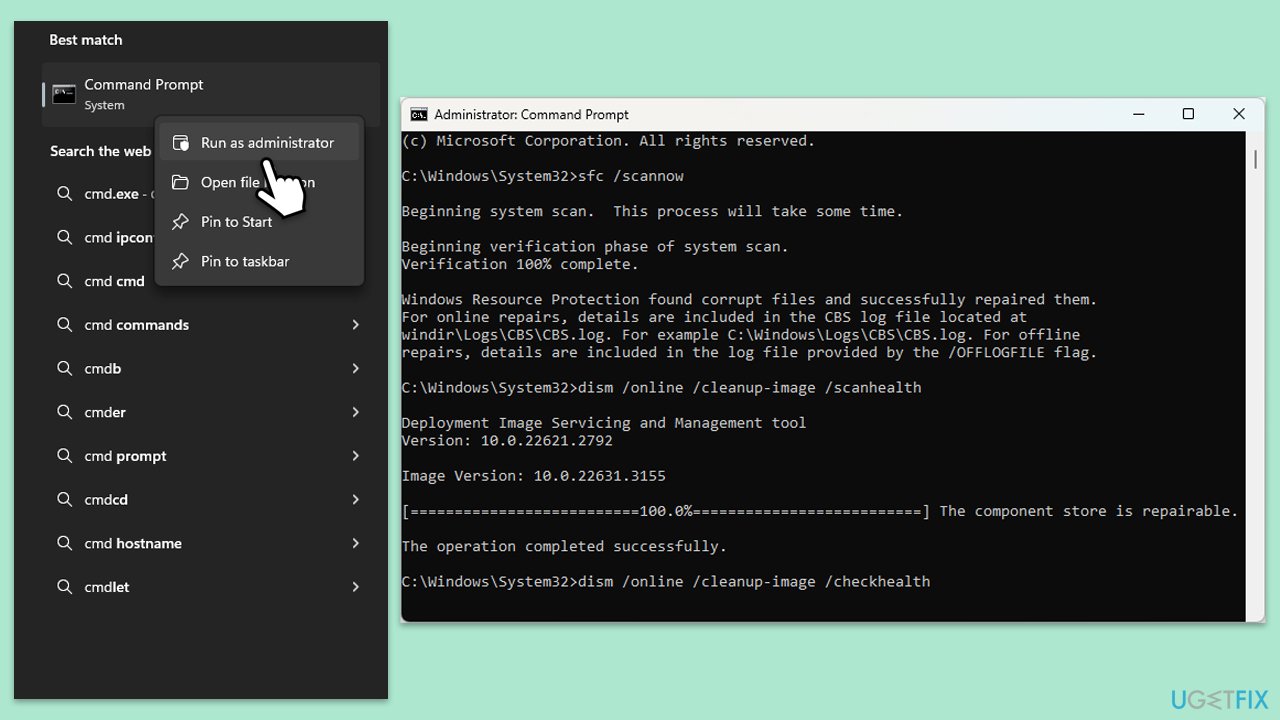
Fix 3. Repair system file corruption
Corrupted system files can lead to various issues, including missing applications. SFC and DISM tools can help repair corrupted system files and restore Windows functionality.
- Type cmd in Windows search.
- Right-click on Command Prompt and select Run as administrator.
- User Account Control window will ask to allow changes - click Yes.
- In the Command Prompt window, paste the following command and hit Enter:
sfc /scannow - Next, use the following commands, pressing Enter each time:
Dism /Online /Cleanup-Image /CheckHealth
Dism /Online /Cleanup-Image /ScanHealth
Dism /Online /Cleanup-Image /RestoreHealth
(Note: if you get an error executing this last command, add /Source:C:\RepairSource\Windows /LimitAccess to it and try again). - Reboot your device.
Fix 4. Install the app using elevated Command Prompt
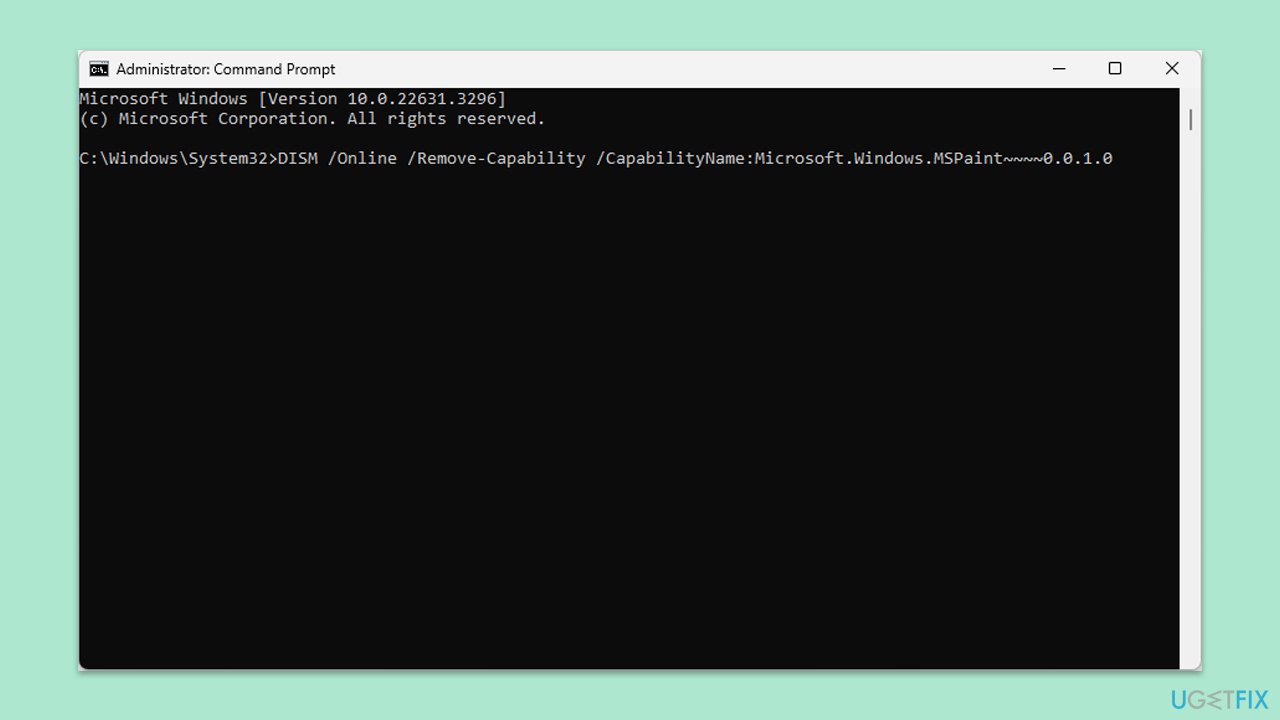
Installing Paint through Command Prompt commands can be an effective method for advanced users to bypass issues with the Windows Store or other system limitations.
- Open Command Prompt as administrator.
- Copy and paste the following command and press Enter:
DISM /Online /Remove-Capability /CapabilityName:Microsoft.Windows.MSPaint~~~~0.0.1.0 - Restart your PC.
- After a reboot open Command Prompt again and use the following command:
DISM /Online /Add-Capability /CapabilityName:Microsoft.Windows.MSPaint~~~~0.0.1.0 - Restart your computer and see if Paint is back.
Fix 5. Update Windows
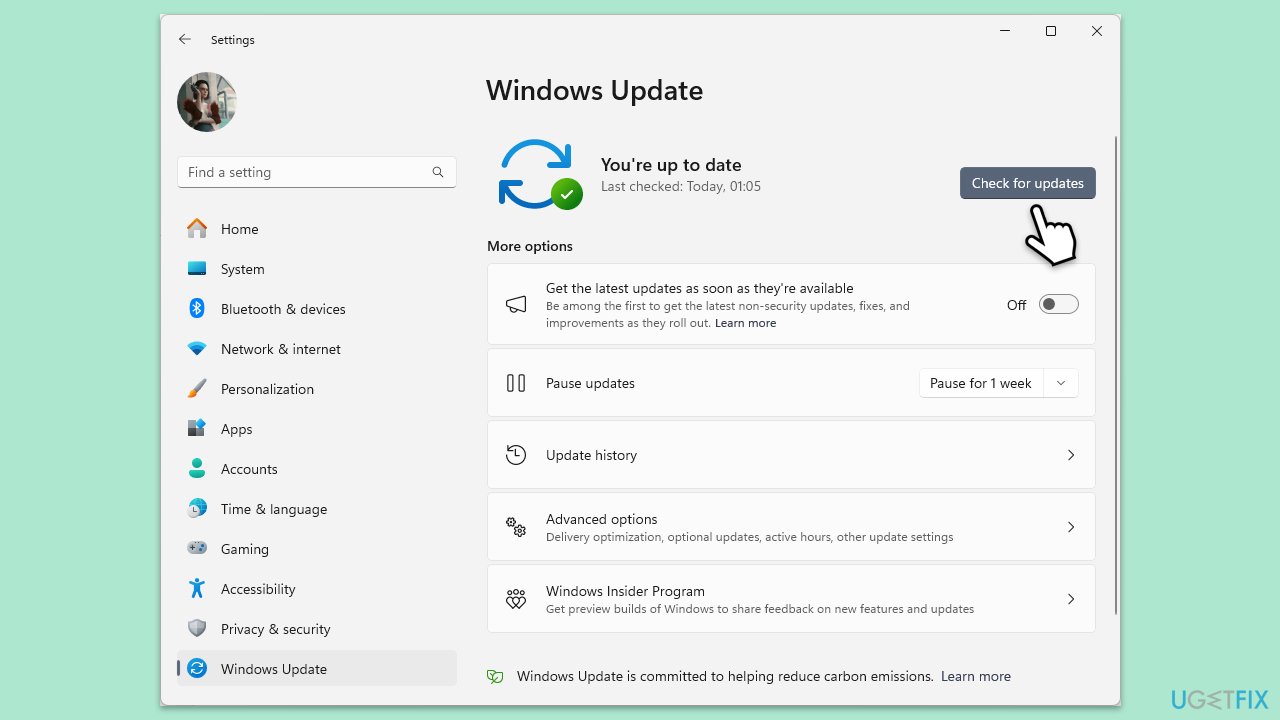
Keeping Windows up to date can solve compatibility issues and restore missing applications, including Paint.
- Type Updates in Windows search and press Enter.
- Here, click Check for updates.
- Wait till Windows downloads and installs all the files.
- If optional updates are available, install them as well.
- Reboot your device.
Fix 6. Use System Restore
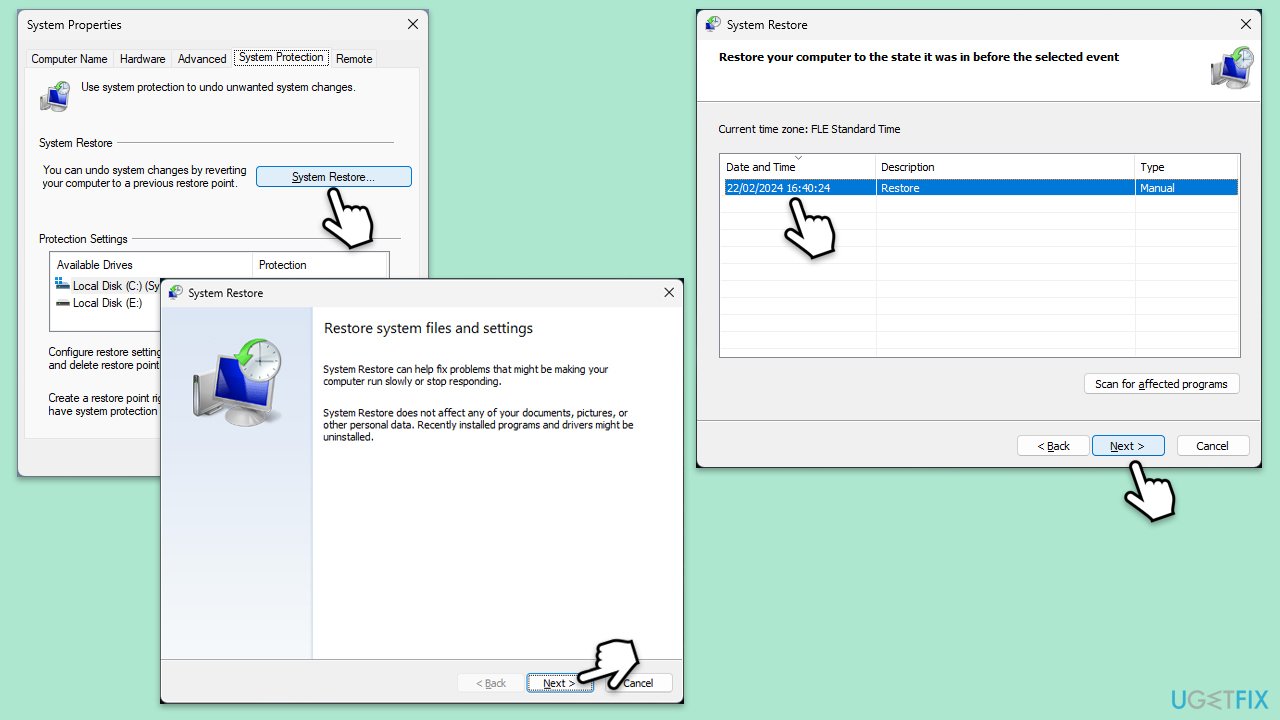
System Restore can revert your computer to a previous state where Paint was available, without affecting personal files.
- Type in Create a Restore point in Windows search and hit Enter.
- Go to the System Protection tab and pick System Restore.
- Click Next.
- Click Show more restore points (if available).
- Pick the time before the problem occurred and click Next.
- Follow the prompts to finish the process.
Fix 7. Perform in-place upgrade
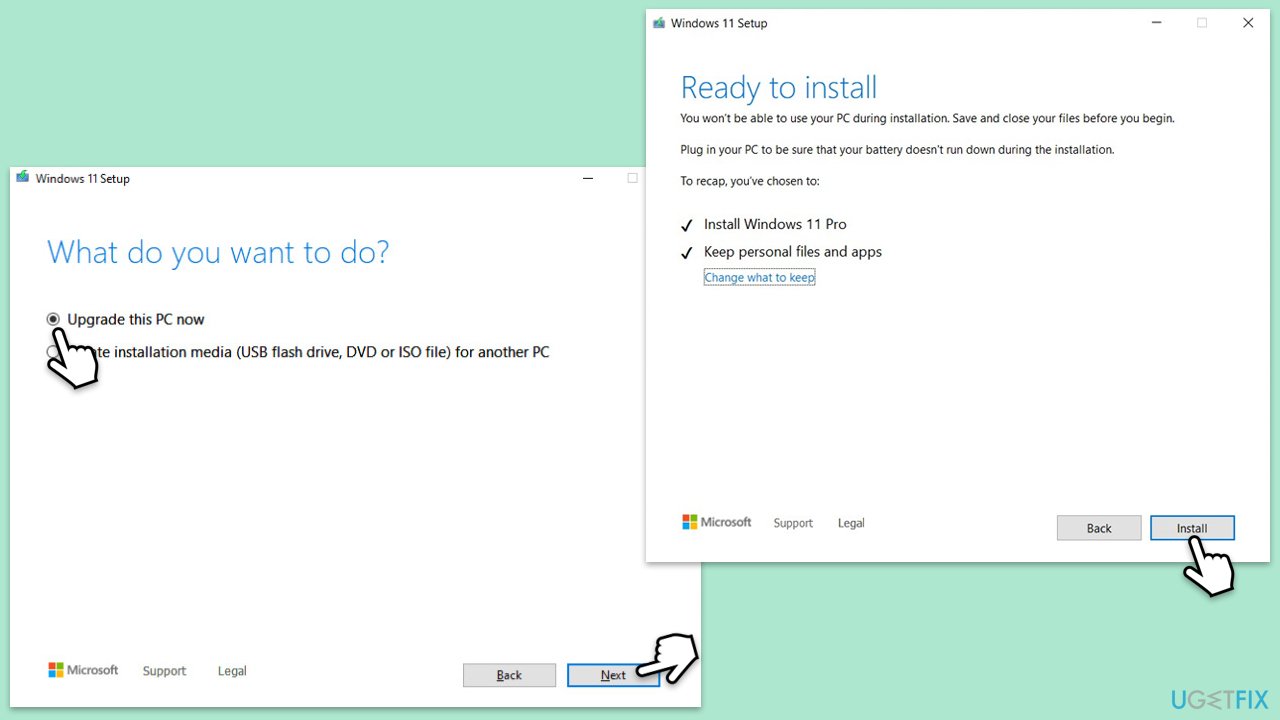
If none of the above solutions work, try performing an in-place upgrade, which will allow you to repair a damaged Windows system without losing files and apps.
- Visit the official Microsoft website and download Windows 10 installation media (Windows 11 version).
- Double-click the installer, select Yes when UAC shows up, and agree to the terms.
- Select Upgrade this PC now and click Next.
- Windows will start downloading the needed files.
- Agree to the terms once again and click Next.
- Before installing, make sure that you are happy with your choices (otherwise, you can click Change what to keep option).
- Finally, click Install to begin the upgrade process.
Bottom line
To fix the issue of Paint missing, you can run the Windows search feature, check for pending Windows updates, explore the Windows Store for reinstallation, or use Command Prompt to install the app. If these methods do not resolve the problem, consider using a PC repair tool to detect and fix underlying issues.
Frequently asked questions
You can try reinstalling Paint through the Microsoft Store or using PowerShell commands to restore it if it's missing from the Start menu.
If Paint disappears after an update, check the optional features in Settings to see if it's been disabled, and re-enable it from there.
Ensure that your Windows is up to date, and check for any conflicting third-party applications that might be preventing Paint from launching.




Report an issue
What's wrong with this guide? We review every report and update or remove content.
Report received — thank you. We'll review and fix it.
You need a free account to submit a report.
Be the first to comment