How to fix
Password hint is not showing up
on Windows
Resolve the password hint issue in Windows 11 effortlessly. Get expert solutions and tips to ensure your hints work perfectly, fixed in minutes.

What causes How to fix password hint is not showing up in Windows 11?
- Hint never saving properly
- System update issues
- Corrupted user profile
- Security settings blocking hint
- Other system file or configuration issues
Repairs Windows system files, removes malware, and restores a clean OS state — without reinstalling.
Hey there, I’ve been trying to log into my Windows 11 laptop all morning, but I forgot my password, and the hint I set up isn’t appearing on the screen. I’m stuck because I can’t see the password hint - it’s just not there! Why is the password hint not showing, and how can I fix this to get back in?
Logging into your Windows 11 PC should be a smooth process, especially with features like the password hint there to jog your memory when you hit a blank. That little nudge can be a lifesaver - unless it’s gone missing. If you’re staring at the login screen and realizing you can’t see the password hint even though you set one, you’re not the only one facing this glitch. The password hint not showing in Windows 11 is a quirk that’s tripped up plenty of users, and it’s worth digging into why it happens and how to fix it.
What does this issue look like? Normally, after entering a wrong password, your hint - like “first pet’s name” - pops up below the entry field to guide you. But when the password hint isn’t displaying, that spot stays blank, leaving you without a clue and possibly locked out. It’s frustrating, especially if you rely on that hint to get back into your system.
Why does the password hint not showing happen in Windows 11? It could be a simple oversight - like the hint never saving properly when you set it. More often, though, it’s tied to a system update gone slightly off track, a corrupted user profile, or even a security setting blocking it for some reason. Whatever the cause, it’s a hiccup that throws off the usual login flow.
There are ways to tackle this. You might need to reset your password to set a new hint, tweak some account settings, or check if a recent update left things scrambled. If the can’t see password hint problem runs deeper into system files or configurations, a repair tool like [d1] could help sort out the underlying issues, bringing that handy hint back where it belongs.
Fix 1. Verify hint was set
Sometimes the hint might not have saved correctly when you created it, so checking or resetting it can resolve the can’t see password hint issue.
- Log in using an alternate method (e.g., PIN or another account) if possible.
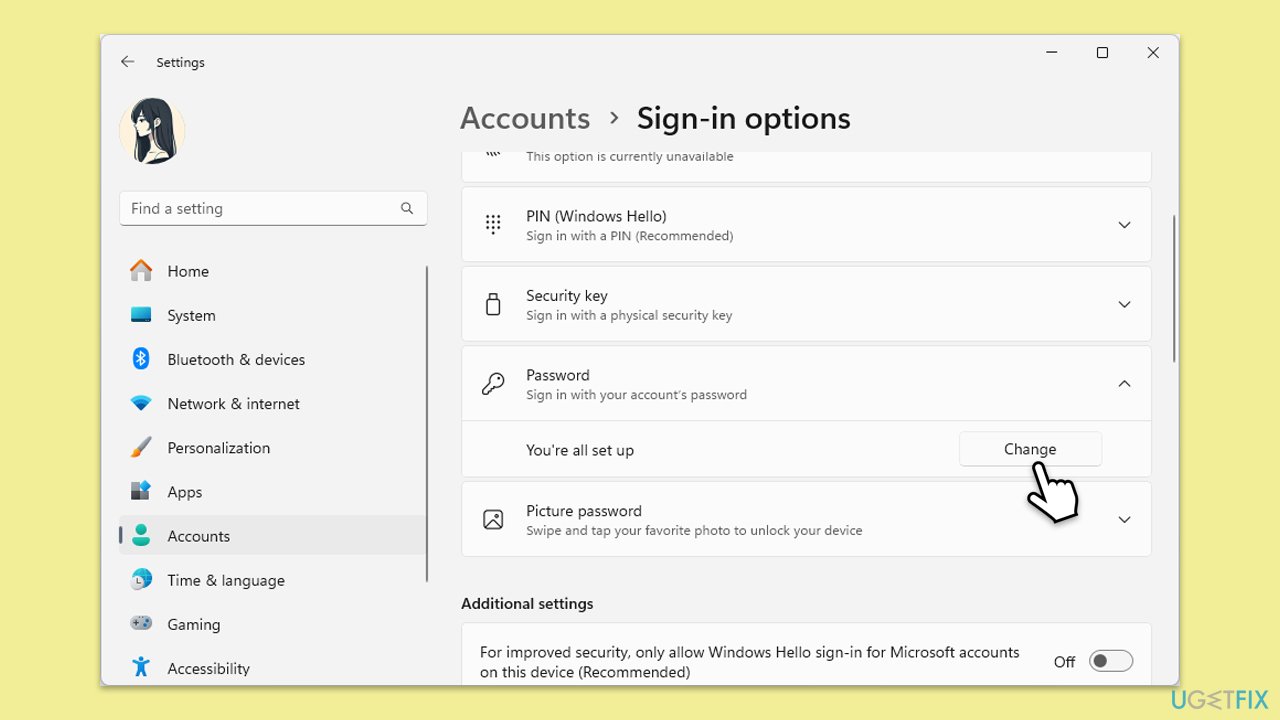
- Right-click on Start and pick Settings.
- Go to Accounts, then Sign-in options.
- Under Password, click Change and check if a hint is listed.
- If missing or blank, enter a new hint and save it.
Fix 2. Switch to local account temporarily
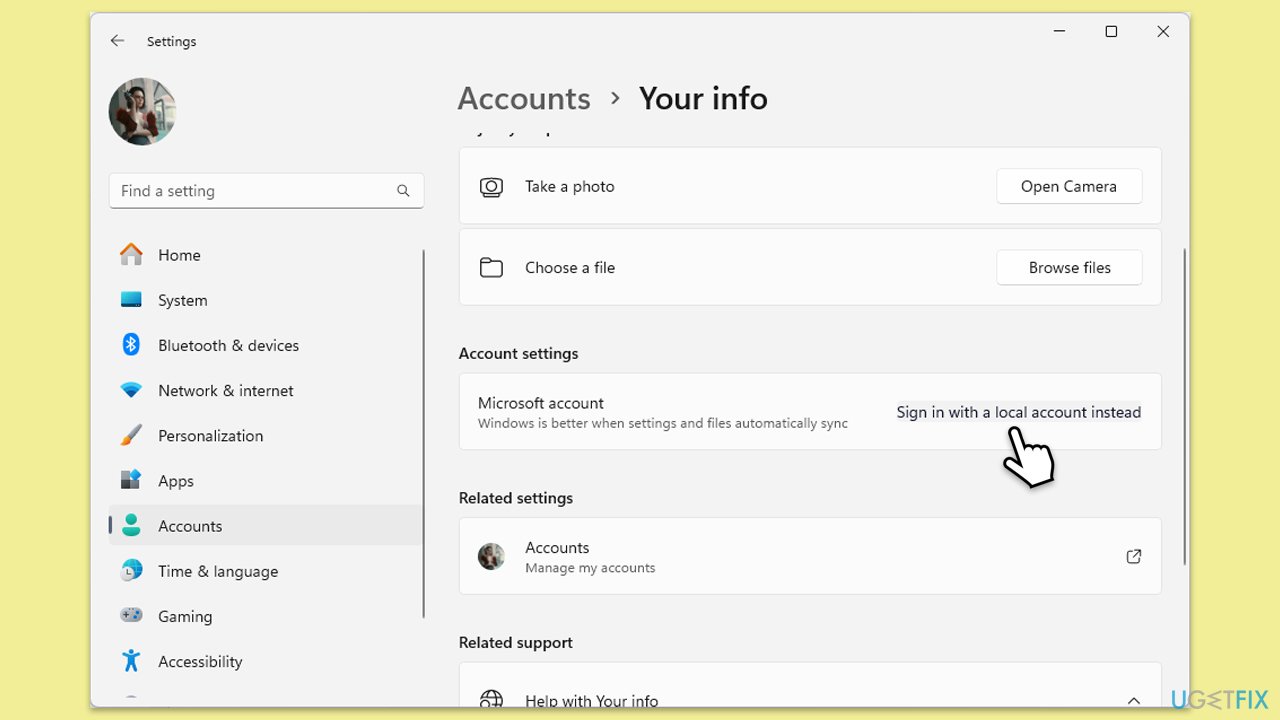
A Microsoft account sync glitch might hide the hint, and switching to a local account can bypass this, letting you reset the hint.
- Open Settings and go to Accounts.
- Select Your info.
- Under Account Settings, click on Sign in with a local account instead and follow the steps.
- After converting to a local account, restart your computer.
Fix 3. Reset password via Microsoft account
If you’re locked out and the password hint isn’t displaying, resetting your password online can let you set a new hint.
- From the login screen, click I forgot my password.
- Follow the prompts to verify your identity (e.g., via email or phone).
- Enter a new password and add a new hint when prompted.
- Complete the reset process.
- Log in with the new password to check if the hint appears.
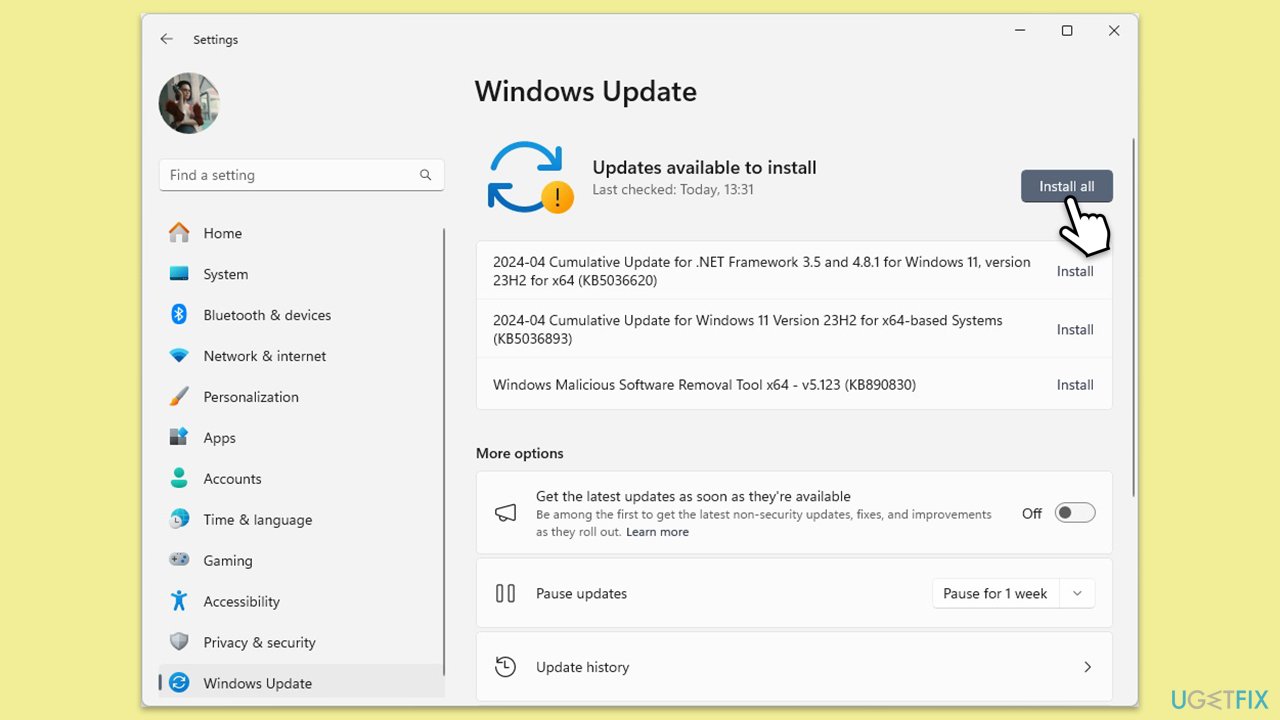
Fix 4. Update Windows
A system update might have caused the password hint not showing glitch, and installing the latest patches could fix it.
- Type Updates in Windows search and hit Enter.
- If updates are available, click Install updates.
- Otherwise, click Check for updates.
- If optional updates are available, install them as well.
- When all the update processes are complete, restart your computer.
Fix 5. Check registry for hint settings
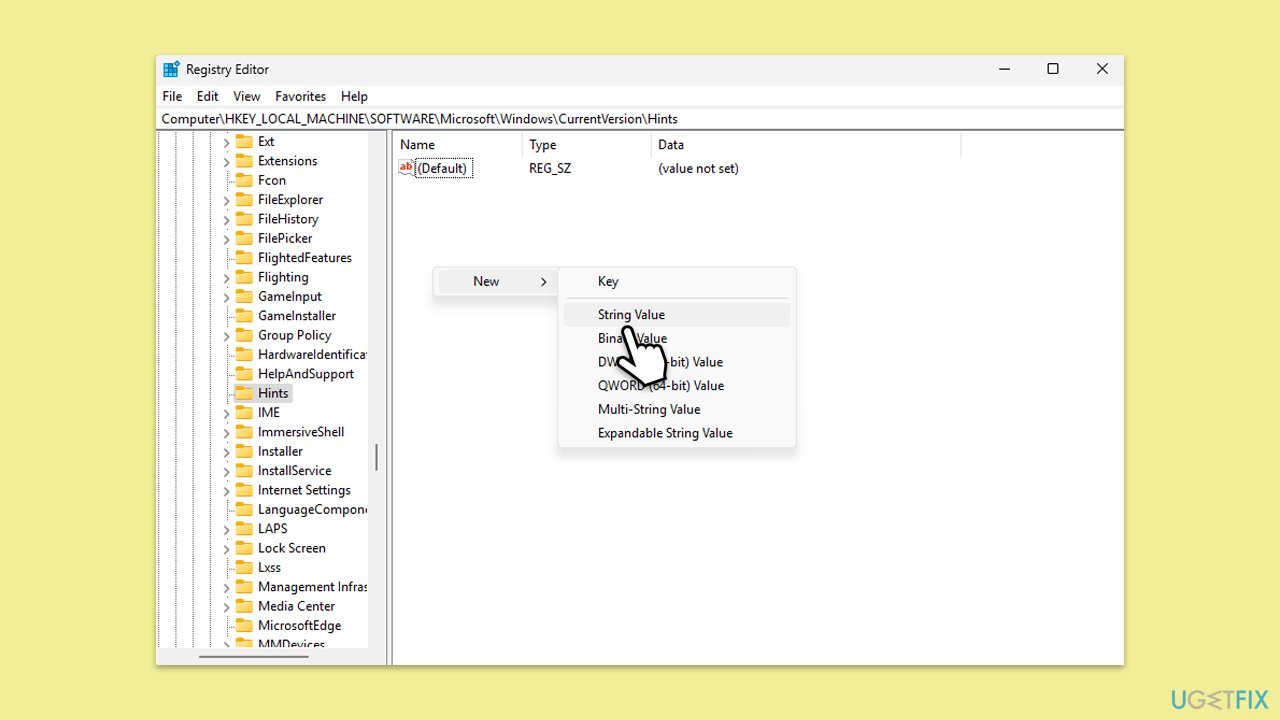
A corrupted registry entry might prevent the hint from showing, and verifying or fixing it can restore the can’t see password hint feature.
- Log in with an alternate account or method.
- Type regedit in Windows search and press Enter.
Navigate to the following location:
HKEY_LOCAL_MACHINE\SOFTWARE\Microsoft\Windows\CurrentVersion\Hints - Find your username, right-click it, and ensure a Hint string value exists.
- If missing, right-click, select New > String Value, name it Hint, and enter your hint text.
Fix 6. Repair corrupted files
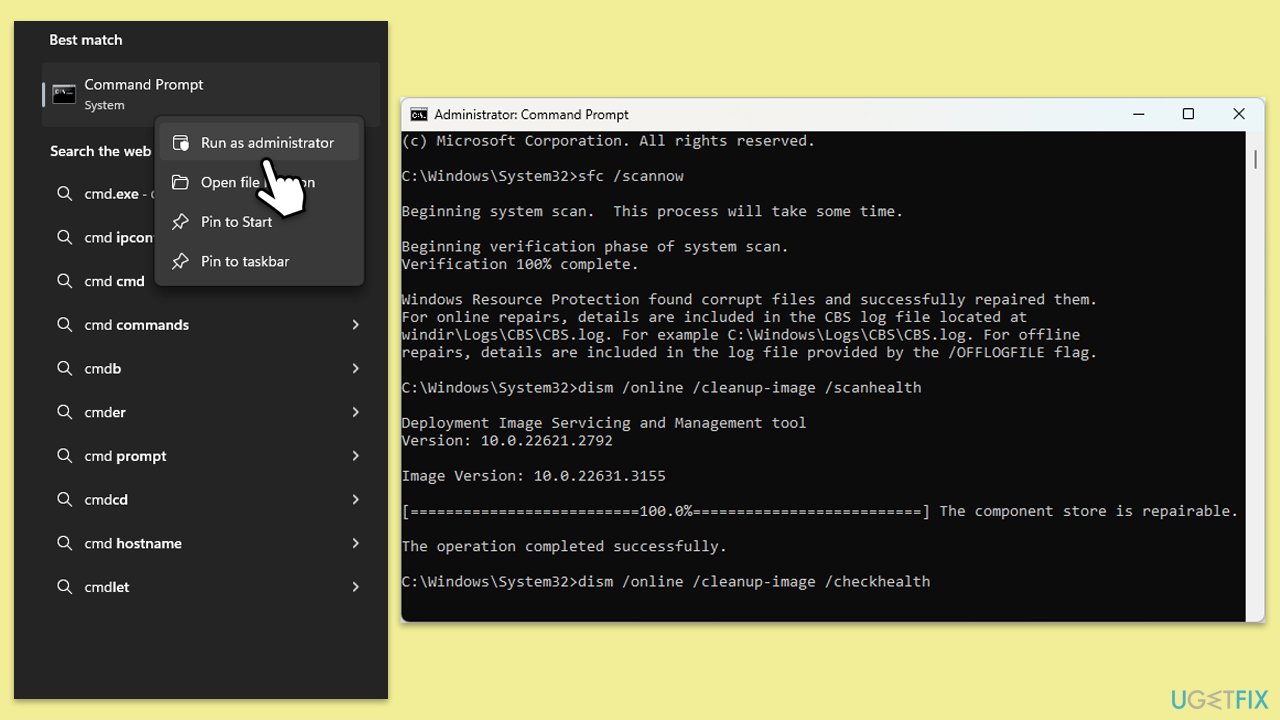
Corrupted system files could disrupt the login screen, causing the password hint not showing issue. SFC can repair these files.
- Type cmd in Windows search.
- Right-click on Command Prompt and select Run as administrator.
- When User Account Control shows up, click Yes.
- In the Command Prompt window, paste the following command and press Enter:
sfc /scannow - Wait for the scan to complete.
- Once the SFC scan is finished, run the following set of DISM commands, pressing Enter after each one:
DISM /Online /Cleanup-Image /CheckHealth
DISM /Online /Cleanup-Image /ScanHealth
DISM /Online /Cleanup-Image /RestoreHealth
(Note: if you get an error executing this last command, add /Source:C:\RepairSource\Windows /LimitAccess to it and try again). - After completing the DISM commands, restart your system.
Fix 7. Create a new user profile
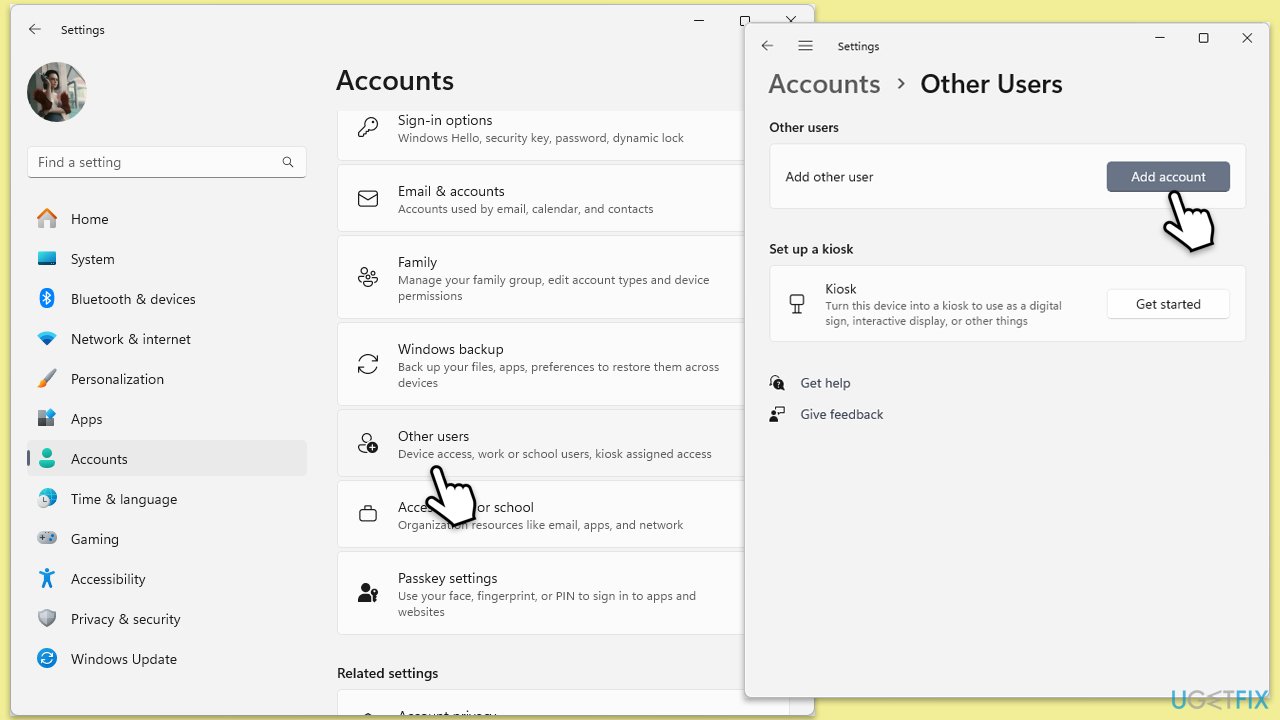
A corrupted user profile might block the hint, and setting up a new profile can work around the can’t see password hint problem.
- Log in with an admin account or alternate method.
- Open Windows Settings.
- Go to Accounts then Family/Family & other users.
- Under Other users, click Add account/Add someone else to this PC.
- Follow the prompts to create a new user account. If you don't have Microsoft account details, you can choose I don't have this person's sign-in information followed by Add a user without a Microsoft account.
- Assign a username and password for the new account and complete the setup.
- Then go back to the Accounts section. Under Family/Family & other users, select the newly created account and click Change account type.
- Under Account type, pick Administrator and click OK.
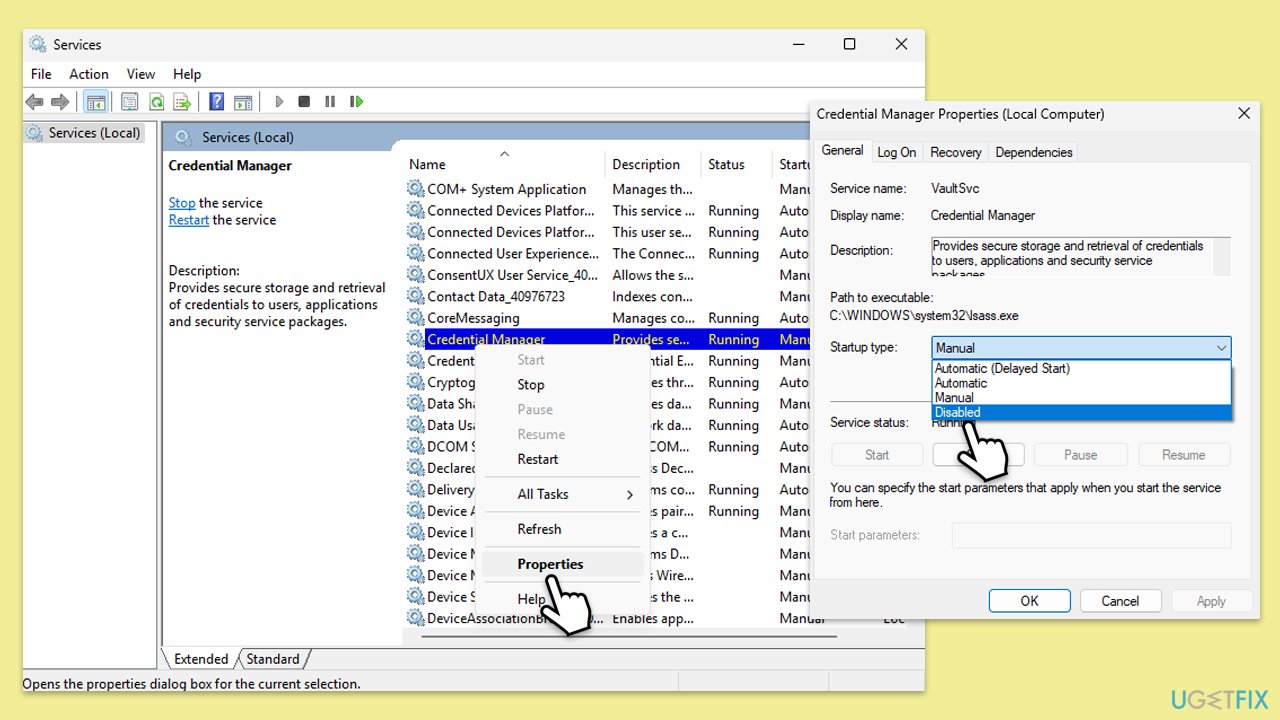
Fix 8. Disable credential manager service temporarily
The Credential Manager service might interfere with hint display, and disabling it briefly can test if it’s causing the password hint not showing issue.
- Type Services in Windows search and press Enter.
- Find Credential Manager, right-click it, and select Properties.
- Set Startup type to Disabled, click Stop, then click OK.
- Log out and check if the hint appears (re-enable service afterward).
Bottom line
To resolve the issue of the password hint not showing, you may need to reset your password to set a new hint, adjust account settings, or check for problems caused by recent updates. If these solutions do not work, consider using a repair tool to address deeper system issues.
Frequently asked questions
This issue may occur due to incorrect user settings or corrupted system files. You can try resetting your password hint in the Settings app or running the System File Checker to resolve the problem.
To reset your password hint, go to Settings > Accounts > Sign-in options, and then click on 'Change' under the Password section. Follow the prompts to set a new hint.
If the hint still doesn't show, consider creating a new user account to see if the issue persists, or perform a Windows 11 repair installation to fix any underlying problems.




Report an issue
What's wrong with this guide? We review every report and update or remove content.
Report received — thank you. We'll review and fix it.
You need a free account to submit a report.
Be the first to comment