How to fix
PayDay 3 Nebula Data Error
on Windows
Resolve the PayDay 3 Nebula Data Error on Windows 10 and 11 quickly with our expert-tested solutions. Get back to gaming in minutes!

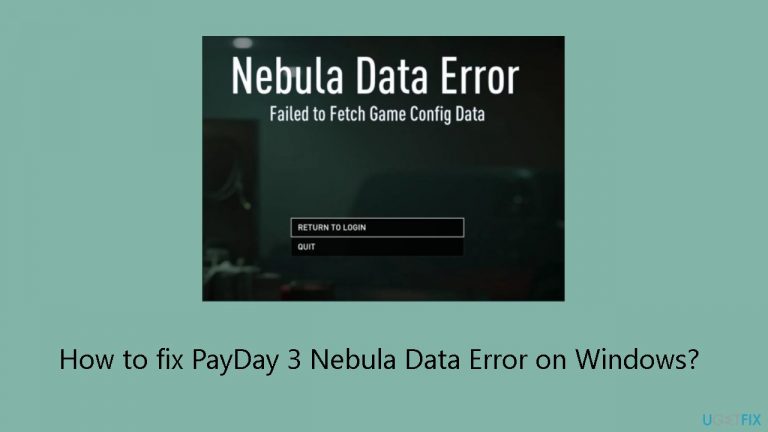
What causes How to fix PayDay 3 Nebula Data Error on Windows?
- Server overload due to high player demand
- Unanticipated bugs in the gaming system
- Technical problems on the player's end
- Issues with account linking
- Corrupted files or registry issues
Repairs Windows system files, removes malware, and restores a clean OS state — without reinstalling.
Hello. When I try to join a PayDay 3 game, I get the Nebula Data Error: Failed To Fetch Game Config Data. How can I fix this?
When a large number of players attempt to enter the game at once, server overload is usually the cause of the PayDay 3 Nebula Data Error on Windows. The server's capacity may be strained by this spike in demand, making it more difficult to process the requests effectively. Although server overload is the main culprit, it's important to remember that there may be other causes of this issue as well.
This problem may significantly affect users who try to interact with PayDay 3. The Nebula Data Error prevents the player's machine from communicating with the game server, which is the most direct effect on gameplay. The players who are looking forward to an uninterrupted gaming experience may become frustrated and unhappy as a result of this disruption.
Apart from the short-term disruption, such errors could potentially affect the entire gaming community by impeding the developers' capacity to uphold a dependable and steady gaming environment. The problem can cause delays, damage the game's reputation, and possibly deter players from sticking around.
The PayDay 3 Nebula Data Error must be addressed by taking into account several options. Although server saturation is frequently the cause, players may also get this error as a result of unanticipated bugs in the gaming system or other technical problems on their end. Putting troubleshooting procedures into practice or contacting customer support may be able to address these problems and bring back seamless PayDay 3 connectivity.
In this guide, you will find 4 steps that should help you fix PayDay 3 Nebula Data Error on Windows. You can also run a maintenance tool like [d1] that can fix most system errors, BSODs, corrupted files, and registry issues. Otherwise, follow the step-by-step instructions below.
Method 1. Login using the Starbreeze Account
If your game is currently linked to your Steam account, the first step is to log out from the Steam account. After logging out, enter the username and password associated with your Starbreeze account. Following this, attempt to play the game to see if the issue is resolved.
On the other hand, if you find yourself logged in through the Starbreeze Nebula account, consider logging out from it. Instead, link your game to your Steam account and then check if this adjustment resolves any existing problems with gameplay.
If the above steps do not prove effective and the issue persists, you may want to explore creating a new Starbreeze account. This option is particularly relevant if you haven't played the game yet, and it might provide a fresh start to access the game without the complications you've encountered.
Method 2. Whitelist PayDay 3 in Windows Firewall
- Type control panel in the search box.
- Click Open.
- Select View by category.
- Click System and Security.
- Navigate to Windows Defender Firewall.
- Choose Allow an app through Windows Firewall.
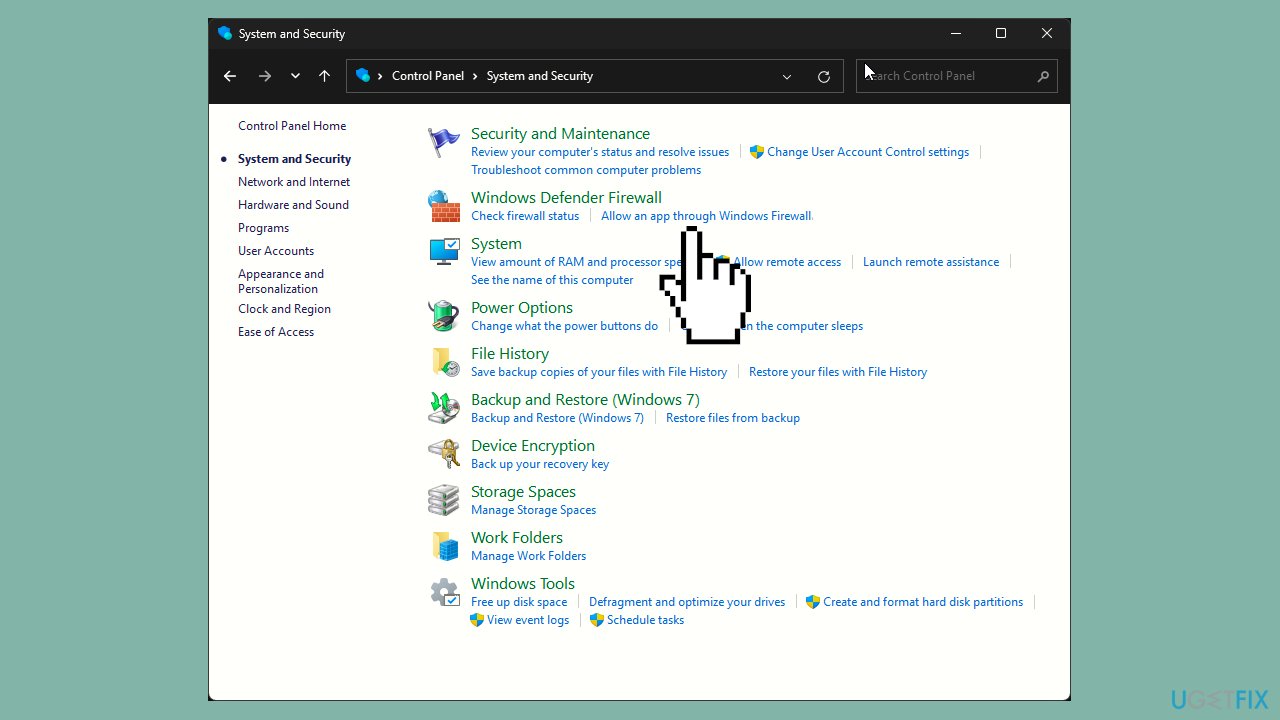
- Adjust Allowed apps settings.
- Click the Change settings button.
- Select Allow another app.
- Click Browse.
- Find the PayDay 3 executable file on your computer.
- Click Add.
- In the Allowed apps window, find PayDay 3 in the list.
- Place a checkmark next to Private and Public.
- Click OK to confirm the changes.
Method 3. Reset Network Settings
- Press the Windows key + I to open the Settings app.
- Click Network & Internet in the left pane.
- Select Advanced network settings.
- Under More settings, locate and click Network reset.
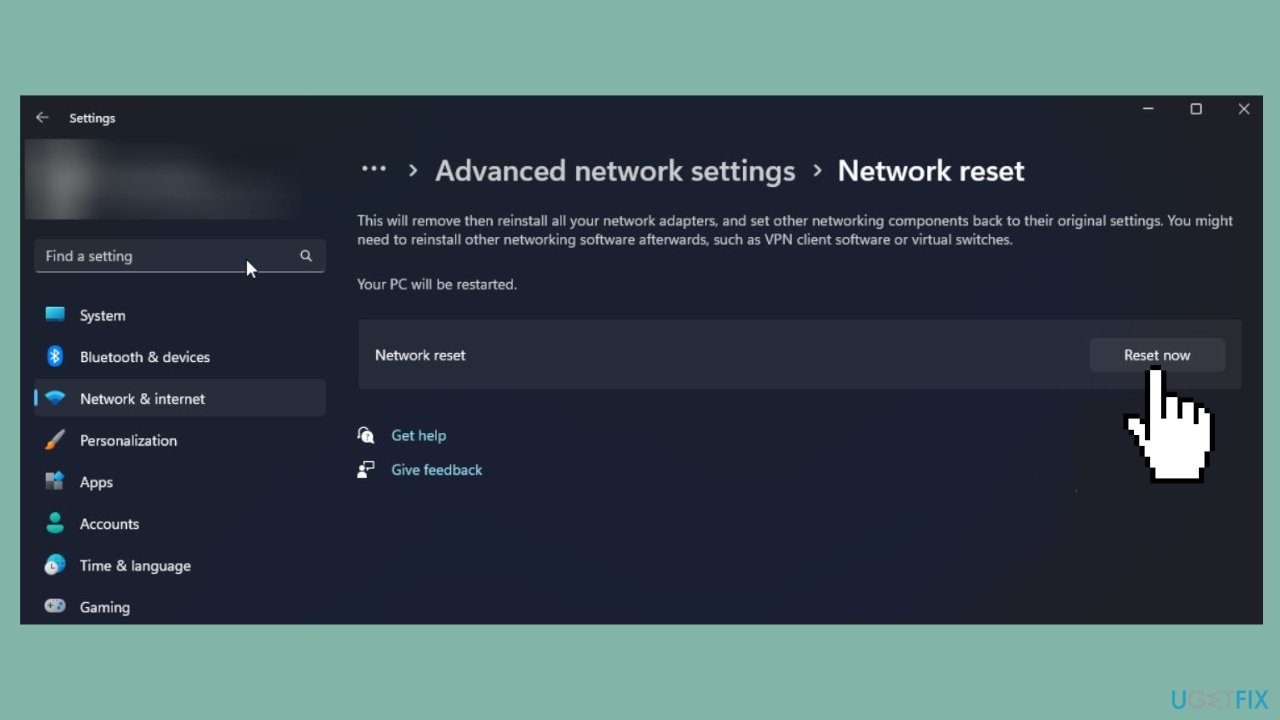
- On the next page, click the Reset now button.
- Click Yes to confirm the selection.
Method 4. Verify Integrity of Game Files
- Press the Windows key.
- Type steam and click Open.
- Locate and right-click on PayDay 3.
- Select Properties.
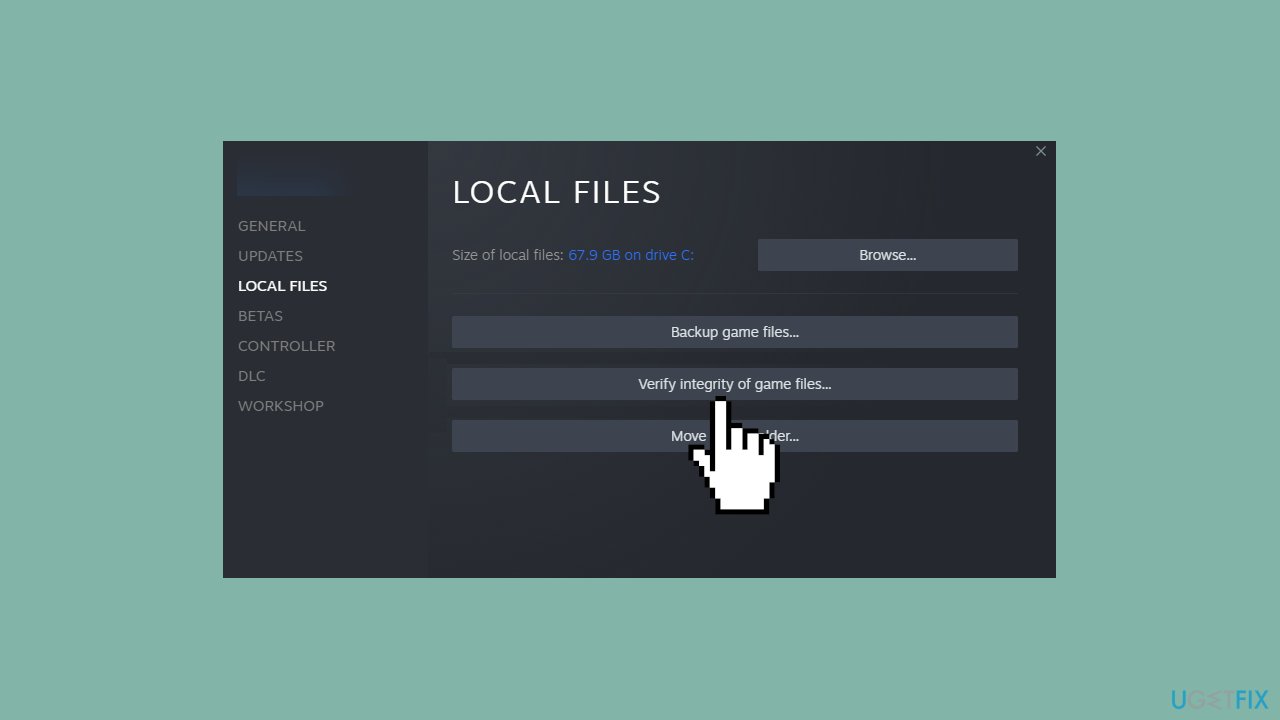
- Select the Local files tab.
- Click Verify integrity of game files.
- If issues are found, click Repair to fix the broken files.
Bottom line
To fix the PayDay 3 Nebula Data Error on Windows, you can try logging out of your Steam account and logging in with your Starbreeze account. Additionally, running a maintenance tool may help resolve system errors. If these solutions do not work, consider contacting customer support for further assistance.
Frequently asked questions
The Nebula Data Error in PayDay 3 is typically caused by server connectivity issues or corrupted game files on your Windows system.
To verify the integrity of game files, open the Steam client, go to your Library, right-click on PayDay 3, select Properties, then navigate to the 'Local Files' tab and click 'Verify integrity of game files'.
Ensure that your Windows 10 or Windows 11 firewall and antivirus settings allow PayDay 3 to access the internet, as restrictions can lead to the Nebula Data Error.




Report an issue
What's wrong with this guide? We review every report and update or remove content.
Report received — thank you. We'll review and fix it.
You need a free account to submit a report.
Be the first to comment