How to fix
Pbid.exe – Application Error
on Windows
Resolve the Pbid.exe application error in Windows 10 and 11 easily. Get expert-tested solutions to fix it in minutes with clear screenshots.

What causes How to fix Pbid.exe – Application Error in Windows?
- Conflict between the Pbid.exe process and other processes
- Corrupted or outdated files related to Garena software
- Incompatibility between the Pbid.exe process and the current system configuration
- Corrupted or missing files within the Garena software
- Registry errors
- Corrupted system files
Repairs Windows system files, removes malware, and restores a clean OS state — without reinstalling.
Often, when I launch my PC, I receive a Pbid.exe - Application Error pop-up, which I then close, and nothing else happens. Should I be concerned about it?
Windows application errors are glitches that occur when a software program fails to perform an expected function or process. These errors can appear in a variety of ways, often in the form of error messages, software crashes, or the inability of the application to start properly. These errors are usually caused by problems with the software itself, conflicts with other programs, or underlying problems with the Windows operating system.
One such error is “Pbid.exe – Application Error”. This is particularly relevant to software developed by Garena Online Pvt Ltd, an online game developer from Singapore. This error can occur if you install a game or application from Garena. This issue is often caused by a conflict between the Pbid.exe process and other processes running on the system. Additionally, it can be caused by corrupted or outdated files related to Garena software.
If you receive a Pbid.exe error, it's a sign that there's a problem that needs your attention. This error may be caused by an incompatibility between the Pbid.exe process and the current system configuration. Alternatively, the error may be caused by corrupted or missing files within the Garena software. This error can also be a symptom of a broader problem with the Windows operating system, such as registry errors, corrupted system files, and other software conflicts.
To fix Pbid.exe application errors, check for Garena software updates to ensure your system is up to date, and consider scanning your system for potential conflicts or issues. Although these measures often resolve the problem, it is important to remember that each situation is different and a solution that works in one case may not work in another.
If the Pbid.exe application error persists or you're not sure how to proceed, using a PC repair tool like [d1] is a viable option. These tools are designed to automatically diagnose and fix many fundamental Windows problems and potentially resolve errors without the need for extensive troubleshooting.
Fix 1. Check for corrupted files
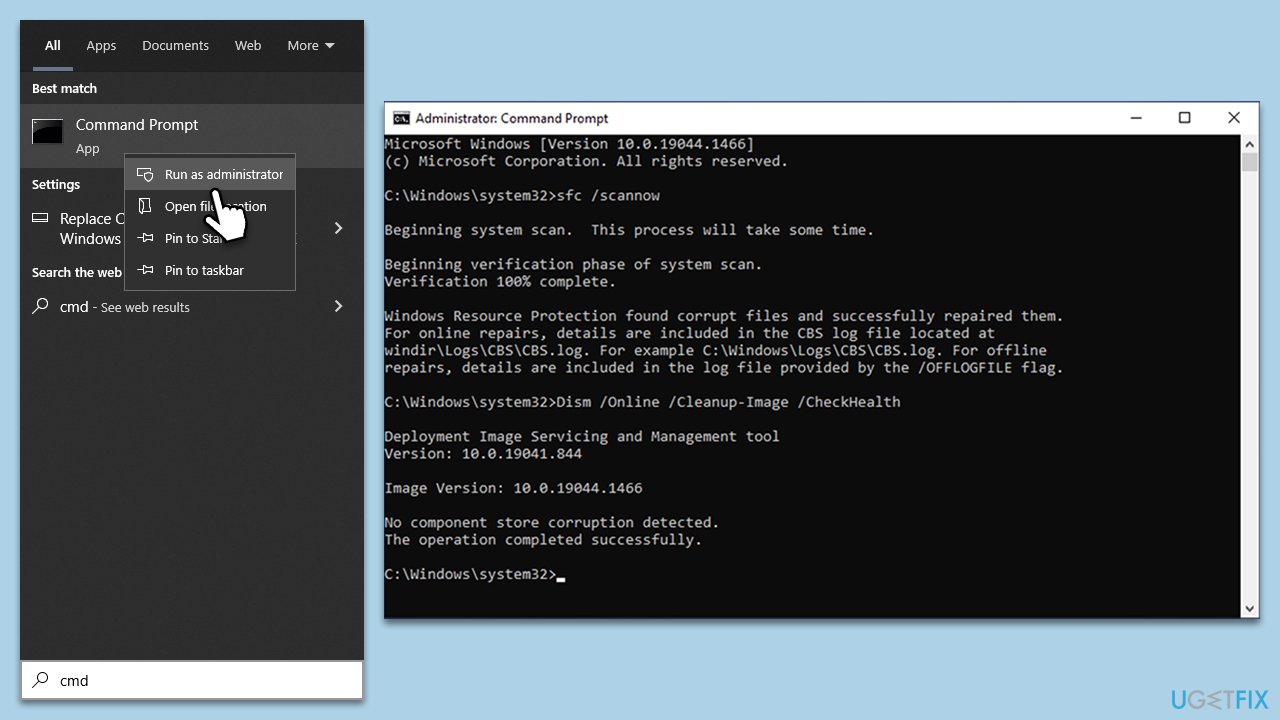
System File Checker (SFC) and Deployment Image Servicing and Management (DISM) are Windows tools that help repair corrupted system files and restore system health. The SFC scan searches for corrupt or missing system files and replaces them while DISM repairs the Windows system image. Running these scans can resolve various system issues, including errors related to specific applications.
- Type in cmd in Windows search.
- Right-click the Command Prompt result and pick Run as administrator.
- User Account Control will ask whether you want to allow changes - click Yes.
- Type this command and press Enter:
sfc /scannow - Wait for the scan to finish.
- Then, use the following commands, pressing Enter after each:
Dism /Online /Cleanup-Image /CheckHealth
Dism /Online /Cleanup-Image /ScanHealth
Dism /Online /Cleanup-Image /RestoreHealth - Restart your device.
Fix 2. Perform Clean Boot
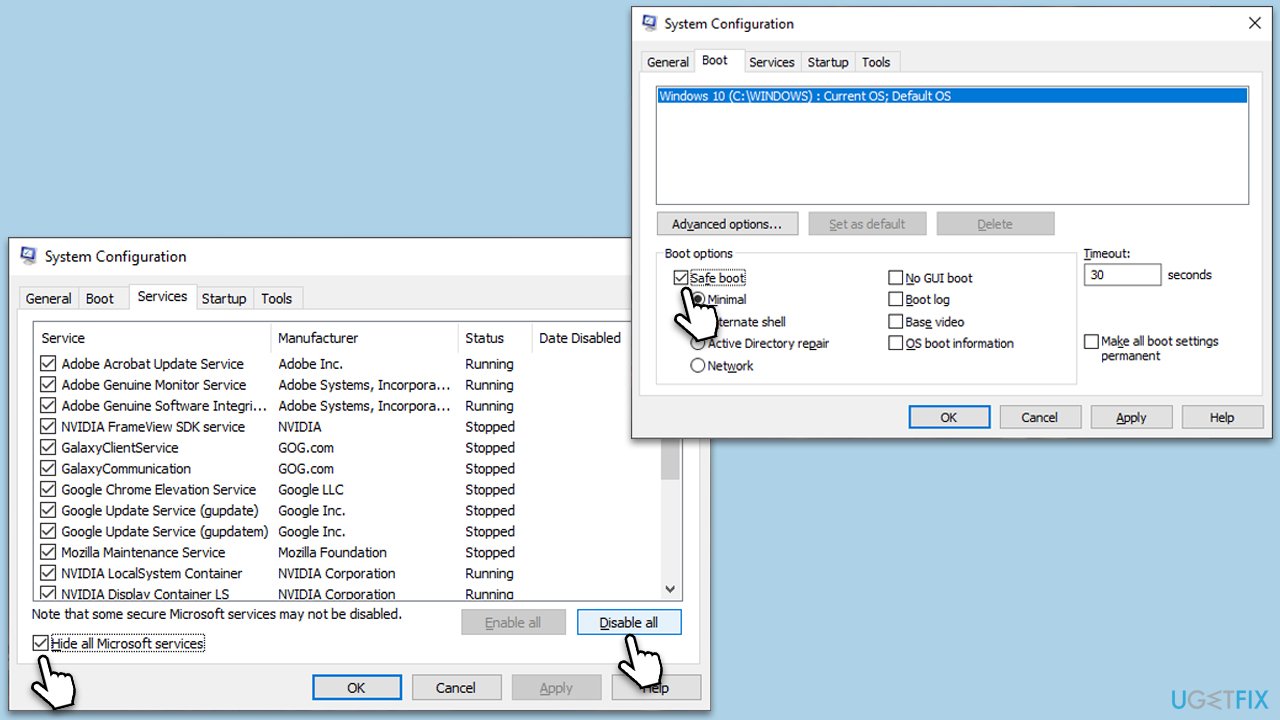
A clean boot starts Windows with a minimal set of drivers and startup programs. This helps prevent software conflicts that occur when you install programs or updates, or when you run programs in Windows. This is especially useful for diagnosing and troubleshooting application errors.
- Press the Win + R to open the Run dialog.
- Type msconfig and press Enter.
- In the System Configuration window, select Selective Startup, and uncheck Load startup items.
- Go to the Services tab and check the box Hide all Microsoft services, then click Disable all.
- Click on the Startup tab and open Task Manager.
- Disable all the startup items in the Task Manager.
- Click OK, and restart the computer.
- Once the computer is restarted, try the action that was causing the error.
- If resolved, you can start enabling services and startup items one by one to identify the culprit.
Fix 3. Reinstall the affected application
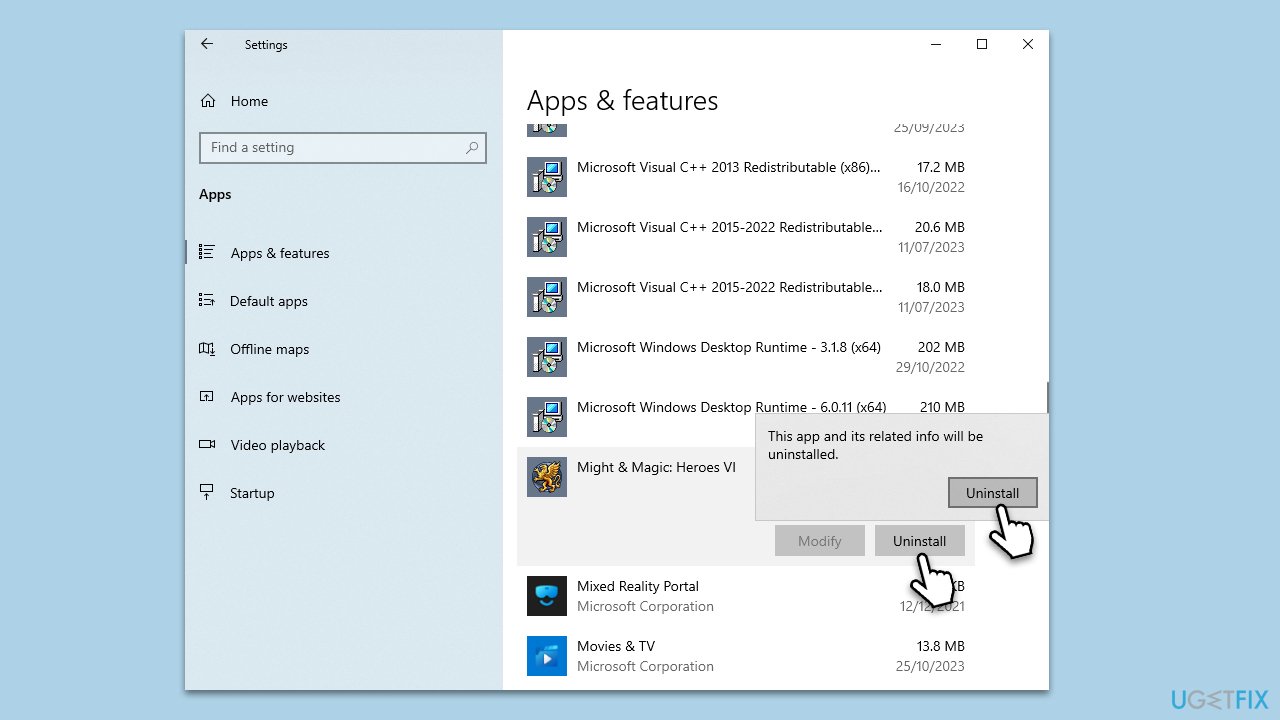
Reinstalling the application that is causing the error may resolve issues related to corrupted installation files, outdated versions, or configuration issues. This process uninstalls and reinstalls the current version of the software.
- Open the Start menu and go to Settings.
- Click on Apps.
- Find the affected application in the list and click on it.
- Click Uninstall and follow the prompts to remove the application.
- After uninstallation, restart your computer.
- Visit the official website of the application and download the latest version.
- Install the application by following the on-screen instructions.
Fix 4. Scan your system for malware
Malware can often cause various errors by interfering with system processes or damaging files. Scanning your system with an antivirus program can detect and remove malicious software, potentially resolving the error. You can use Microsoft Safety Scanner or the built-in Windows Defender:
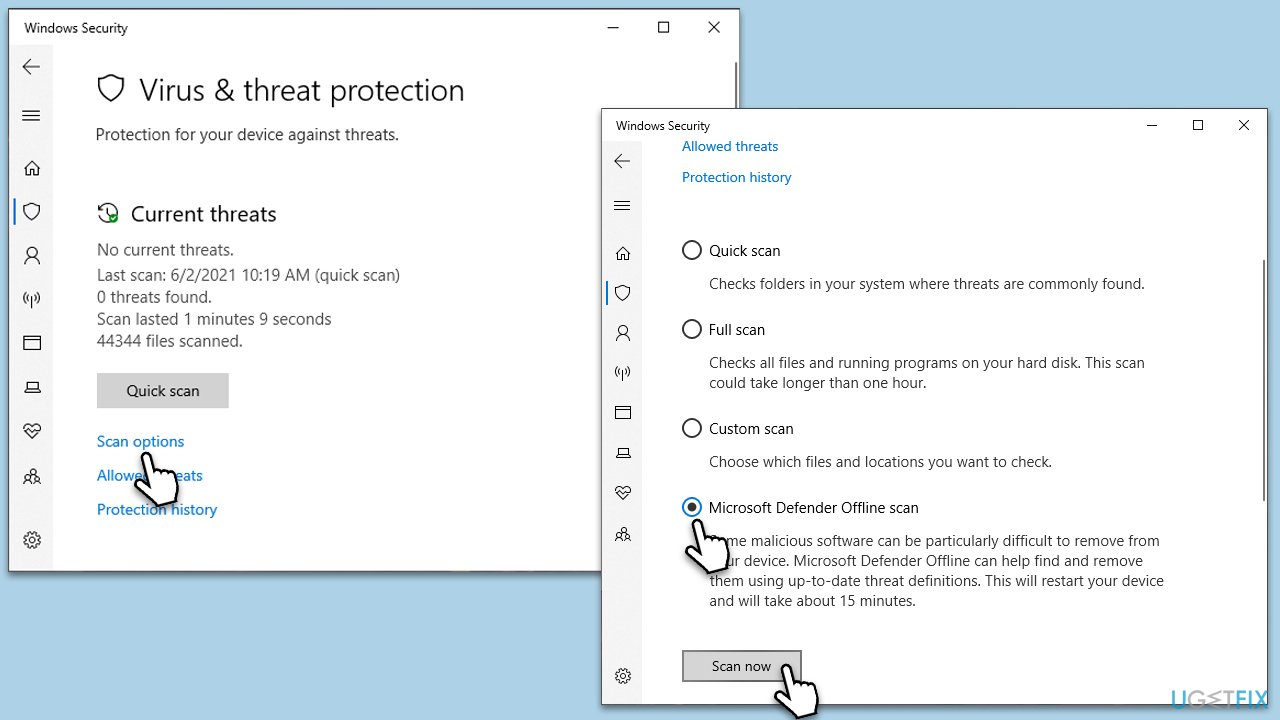
- Type Windows Security in the Windows search bar and hit Enter.
- Select Virus & threat protection.
- Pick Scan options.
- Choose Microsoft Defender Offline scan and click Scan now.
- Your computer will immediately reboot and begin a deep scan.
Fix 5. Update Windows
Updating Windows ensures that you have the latest security patches, system improvements, and drivers that can resolve compatibility issues and errors that can cause application failures.
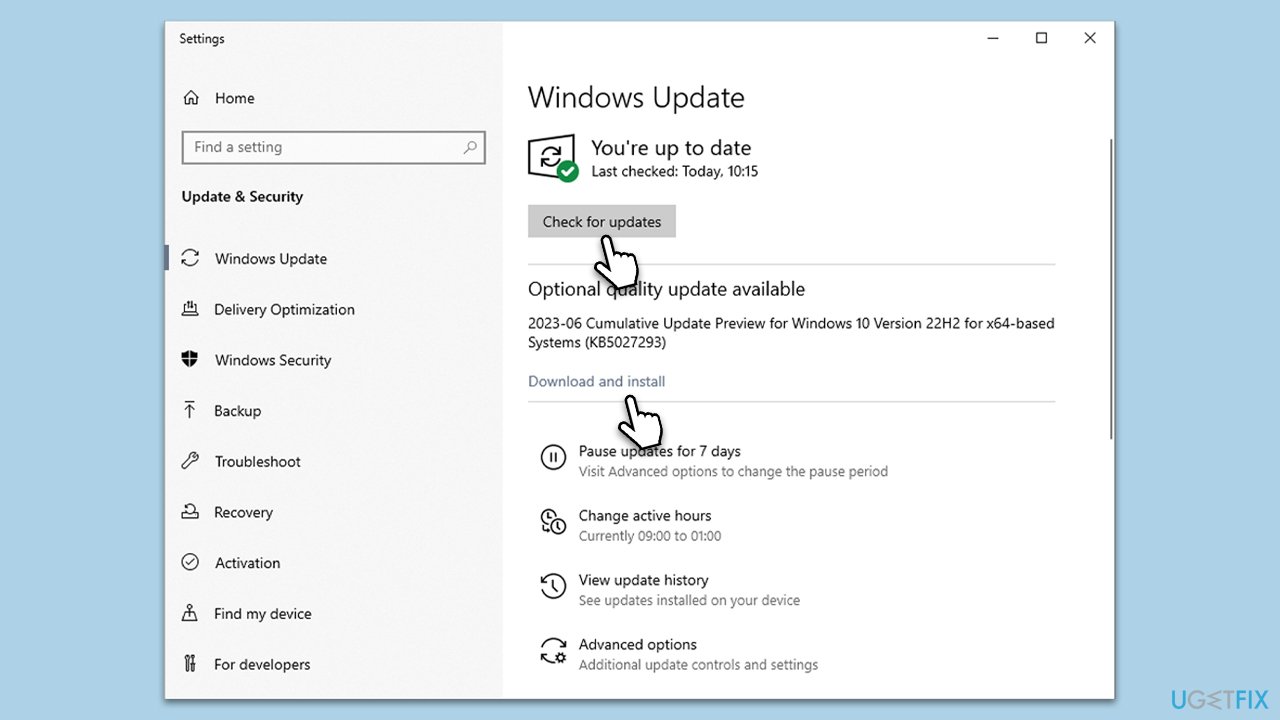
- Type Updates in the Windows search box and hit Enter.
- Click Check for Updates and wait till all the needed files are downloaded.
- If optional updates come up, install them too.
- When all is done, restart your system to implement the changes.
Fix 6. Restore the system to an earlier point
System Restore can take your PC back to an earlier point in time when everything was working correctly. This can be helpful if the error started occurring after a recent change in your system like a software installation or a significant update.
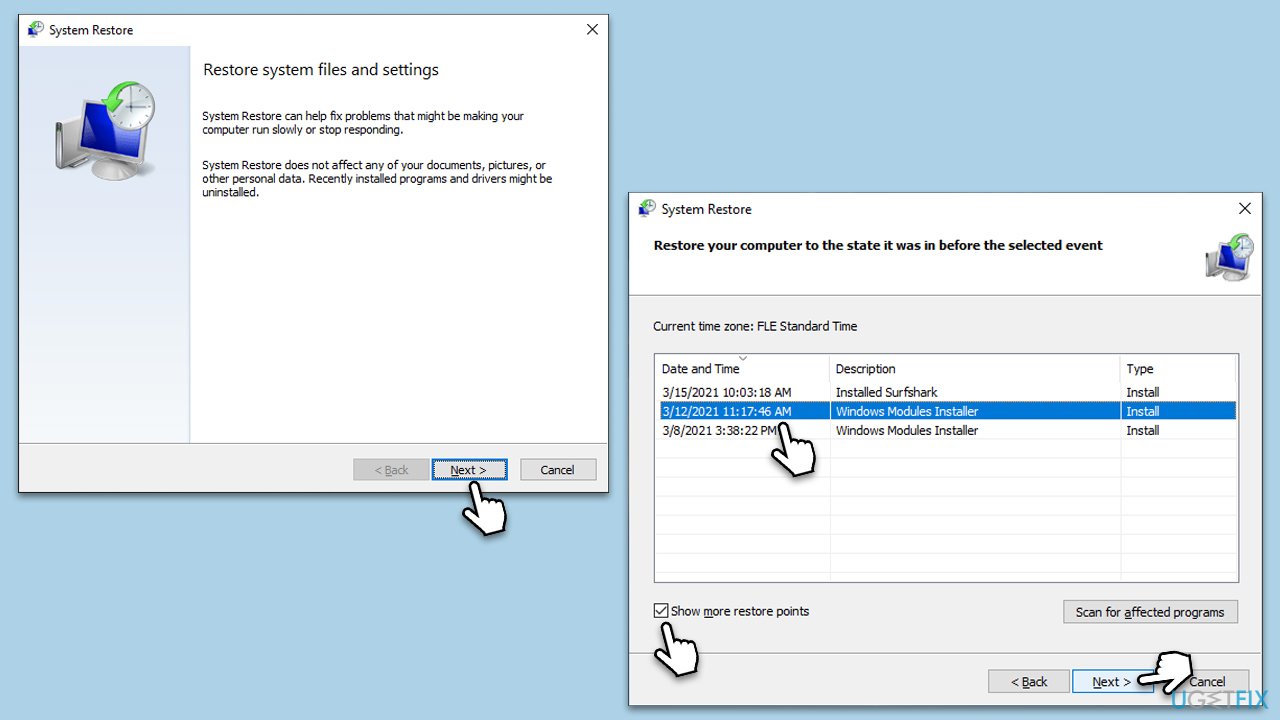
- Type in Create a Restore point in Windows search and press Enter.
- In the System Protection tab, pick System restore.
- Click Next.
- Click Show more restore points (if available).
- Pick the time before the problem occurred and click Next.
- Your computer will reboot.
Bottom line
To fix the Pbid.exe application error, check for Garena software updates and scan your system for potential conflicts or issues. If the error persists or you're unsure how to proceed, consider using a PC repair tool designed to diagnose and fix Windows problems.
Frequently asked questions
The Pbid.exe application error often occurs due to corrupted system files, incompatible software, or issues with the Windows registry. These factors can prevent the application from running correctly.
You can use the System File Checker tool by running the command 'sfc /scannow' in the Command Prompt with administrator privileges on Windows 10 or Windows 11. This will scan and repair any corrupted system files that may be causing the error.
Yes, uninstalling and then reinstalling the application associated with Pbid.exe can resolve the error, especially if it is due to a corrupted installation. Make sure to download the latest version compatible with your Windows 10 or Windows 11 system.




Report an issue
What's wrong with this guide? We review every report and update or remove content.
Report received — thank you. We'll review and fix it.
You need a free account to submit a report.
Be the first to comment