
How to fix the pdc.sys BSOD error in Windows

Prefer to fix it yourself? The manual steps follow.
- 7methods
- 15 to 60 minutes
- Intermediate
Applies to Windows 11 and Windows 10 laptops, tablets and PCs that use Modern Standby
7 methods in this guide
Hello. Whenever my PC goes to sleep and then wakes up, I receive a PDC.sys Blue Screen of Death crash. This only happens when coming back from sleep. Any idea how to resolve this?
pdc.sys is the Power Dependency Coordinator, the Windows driver that runs Modern Standby. A blue screen that names it almost always comes while the PC goes to sleep or wakes up, because a driver or service did not answer in time. Update the display and Wi-Fi drivers first.
pdc.sys is a Microsoft driver, not a virus, and it is rarely broken itself. It crashes the PC on purpose when another component fails to answer during sleep or wake, usually with the stop code PDC_WATCHDOG_TIMEOUT. Update the graphics driver from your PC or GPU maker first (Fix 1), then the Wi-Fi or mobile broadband driver (Fix 2) and the BIOS (Fix 3).
| Error | A stop screen (blue, or black on Windows 11 24H2 and later) with What failed: pdc.sys, most often with Stop code: PDC_WATCHDOG_TIMEOUT (0x0000014F). |
|---|---|
| Where it appears | When the PC goes to sleep, when you open the lid or press the power button to wake it, or a few seconds after the screen comes back. |
| Main cause | A driver or service that does not answer the Power Dependency Coordinator in time: most often the display driver or the Wi-Fi or mobile broadband driver. |
| Fastest fix | Update the graphics driver from the PC or GPU maker (Fix 1), then the network driver (Fix 2). |
| Also written as | pdc sys, PDC.sys, pdc.sys bsod, pdc.sys blue screen, PDC_WATCHDOG_TIMEOUT, bug check 0x14F, stop 0x14F, PDC_LOCK_WATCHDOG (0x17C). |
| Who makes it | Microsoft. The file properties read Power Dependency Coordinator Driver, Microsoft Windows Operating System. It sits in C:\Windows\System32\drivers. |
| Affects | PCs whose firmware supports Modern Standby, shown as Standby (S0 Low Power Idle): most thin laptops, Surface devices and tablets. Desktops with classic S3 sleep rarely see it. |
| Where the cause is logged | C:\Windows\Minidump, Event Viewer (Windows Logs > System, source BugCheck, event ID 1001) and the report from powercfg /sleepstudy. |
| Time to fix | 15 minutes for driver updates, up to an hour with a BIOS update and a sleep study. |
Facts checked on 15 October 2026. Steps written for Windows 11 (25H2 and 26H2) and Windows 10 22H2.
What pdc.sys is and what PDC_WATCHDOG_TIMEOUT means
pdc.sys is the Power Dependency Coordinator Driver, part of the Microsoft Windows Operating System. Microsoft's own documentation calls it the system-supplied power dependency coordinator. It runs Modern Standby, the phone-like sleep mode in which a laptop stays in a very low power state and wakes almost at once.
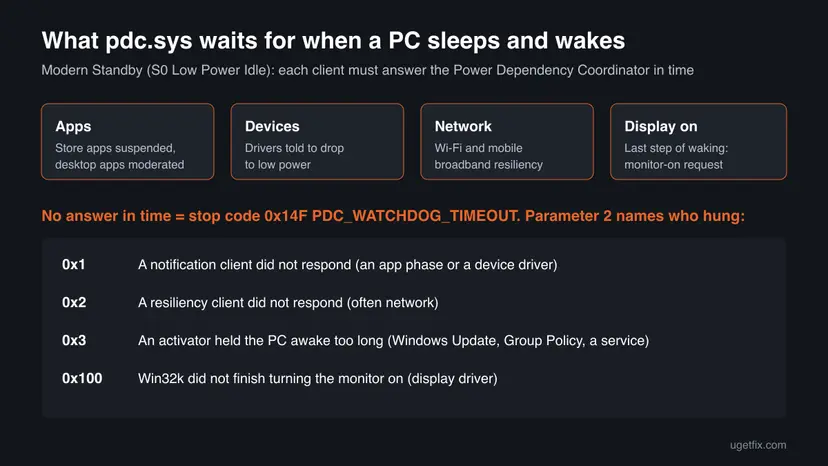
Every time the PC goes to sleep or wakes up, pdc.sys walks through a fixed list of phases in order. Apps are suspended, devices are told to drop to low power and network adapters are notified. On resume the monitor is turned on last. Each component that takes part has a deadline. When one of them does not answer, pdc.sys stops Windows on purpose, so the stop screen names pdc.sys even though the real culprit is somewhere else.
| What you see | What it means |
|---|---|
| What failed: pdc.sys on the stop screen | The Power Dependency Coordinator stopped Windows because a sleep or wake step did not finish |
| Stop code: PDC_WATCHDOG_TIMEOUT (0x0000014F) | Microsoft: a system component failed to respond within the allotted time, preventing the system from exiting connected standby |
| PDC_LOCK_WATCHDOG (0x17C) | A related pdc.sys timeout on an internal lock. Same area, same fixes |
| kmpdc.sys | We could not confirm a Windows file with this name. The Windows driver is pdc.sys; check the exact name in the dump |
| Any other stop code with pdc.sys as the failing module | The crash still happened in the sleep or wake path. Read the dump as shown below |
The genuine pdc.sys is a signed part of Windows and is updated by Windows Update. Do not download pdc.sys from DLL or driver sites, and do not delete or rename it.
Why pdc.sys crashes: the causes, most common first
Microsoft names the two most common causes of slow Modern Standby resume: turning on the display and bringing back network devices, mobile broadband radios in particular. A slow answer becomes a crash when it passes the watchdog's deadline, so the same two drivers lead the list.
| How often | Cause | Sign | Fix |
|---|---|---|---|
| Most often | Graphics driver too slow to turn the screen back on | Black screen on wake, then the stop screen; parameter 2 is 0x100 | Fix 1 |
| Often | Wi-Fi or mobile broadband (LTE, 5G) driver hangs while waking | No network after a wake that did not crash; parameter 2 is 0x2 | Fix 2 |
| Often | Old BIOS or chipset and power packages on a laptop | Every sleep or lid close ends in a crash; BIOS is years old | Fix 3 |
| Less often | An app or service that keeps the PC awake or does not suspend | Parameter 2 is 0x1 or 0x3; sleep study names a program | Fix 4 |
| Less often | A Windows update that changed the sleep path or a driver | Crashes began right after an update | Fix 5 |
| Rarely | Damaged Windows files | SFC reports files it could not repair | Fix 6 |
If powercfg /availablesleepstates lists Standby (S3) as available and Standby (S0 Low Power Idle) as not available, your PC does not use Modern Standby. A crash naming pdc.sys is then unusual: start with Fixes 3 and 6.
Read the crash: which component pdc.sys was waiting for
The stop code alone does not say which driver hung, but its second parameter does. Two minutes here tell you which fix to start with.
- Right-click Start, select Terminal (Admin) and run
powercfg /availablesleepstates. If Standby (S0 Low Power Idle) is listed as available, your PC uses Modern Standby. - Press Win + R, type
eventvwr.mscand press Enter. Open Windows Logs > System and find the newest BugCheck event, ID 1001. It shows the stop code and its four parameters. - Read the second parameter. 0x1: a notification client did not respond. 0x2: a resiliency client did not respond. 0x3: an activator held the PC awake too long. 0x100: Win32k did not finish turning the monitor on.
- In the same Terminal run
powercfg /sleepstudy. It prints the path ofsleepstudy-report.html, usually inC:\WINDOWS\system32. - Open the report in a browser and look at the sessions just before the crash for the top offenders: devices or programs that kept the PC from its low power state.
- For full detail, install WinDbg with
winget install Microsoft.WinDbg, open the newest file inC:\Windows\Minidumpand run!analyze -v.
If C:\Windows\Minidump is empty, the BugCheck event in Event Viewer still holds the parameters. Write them down before you start the fixes.
How to fix the pdc.sys blue screen
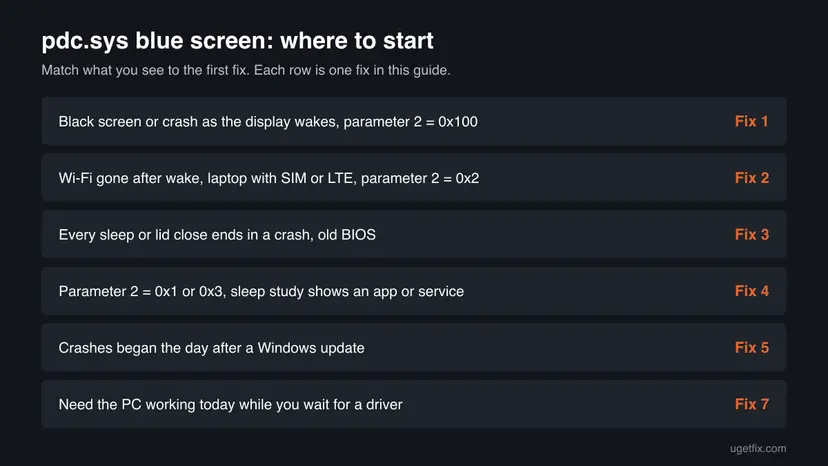
Fixes 1 to 3 update the drivers and firmware that most often miss the pdc.sys deadline. Fix 4 finds a program that blocks sleep. Fix 5 is for crashes that began with an update, Fix 6 is the generic repair, and Fix 7 keeps the PC usable while you wait for a driver.
| What you see or what your PC has | Start with | Then |
|---|---|---|
| Black screen on wake, or parameter 2 is 0x100 | Fix 1 | Fix 3 |
| Wi-Fi missing after wake, an LTE or 5G modem, or parameter 2 is 0x2 | Fix 2 | Fix 3 |
| Every sleep or lid close crashes, BIOS older than a year | Fix 3 | Fix 1 |
| Parameter 2 is 0x1 or 0x3, or the sleep study names a program | Fix 4 | Fix 2 |
| Crashes began right after a Windows update | Fix 5 | Fix 1 |
| You need the PC working today | Fix 7 | Fix 1 |
Fix 1. Update the graphics driver from the PC or GPU maker
15 minutesLow riskThe screen stays black when you wake the PC, the crash comes as the display turns on, or parameter 2 is 0x100.
Turning the monitor on is the last step of waking, and Microsoft names it the most common cause of slow resume. When the display driver does not finish the monitor-on request in time, pdc.sys raises PDC_WATCHDOG_TIMEOUT with parameter 0x100.
- Press Win + R, type
msinfo32and press Enter. Note System Model and, under Components > Display, the graphics adapter name. - On a laptop, open the PC maker's support page for that model and download the newest graphics driver. Makers often ship a tuned version for their power settings.
- If the maker's driver is old, use the current driver from Intel, AMD or NVIDIA for your graphics chip.
- Install it and restart the PC.
- If the crashes started right after a new graphics driver, roll that driver back instead: Update, roll back or reinstall a driver
- Test: put the PC to sleep, wait five minutes and wake it. Repeat a few times.

It worked if: The screen comes back within a second or two after waking, and no new BugCheck event appears in Event Viewer.
If not: If the screen comes back but the network does not, go to Fix 2. If nothing changed, go to Fix 3.
Fix 2. Update or roll back the Wi-Fi and mobile broadband drivers
15 minutesLow riskWi-Fi is missing after a wake that did not crash, the laptop has an LTE or 5G modem, or parameter 2 is 0x2.
During resume Windows waits for the Wi-Fi adapter, or the mobile broadband modem when there is no Wi-Fi, to power back up before it moves on. Microsoft says mobile broadband roughly doubles the resume time, so a slow network driver is the second common way to miss the deadline.
- Right-click Start and select Device Manager.
- Expand Network adapters and note the Wi-Fi adapter and any mobile broadband or WWAN modem.
- Download the newest driver for each from the PC maker's support page, or from the Wi-Fi chip maker such as Intel, Realtek, MediaTek or Qualcomm.
- Install the drivers and restart. If a driver arrived just before the crashes, roll it back on its Driver tab instead: Update, roll back or reinstall a driver
- As a test on a laptop with a SIM card, remove the SIM or turn on Airplane mode before sleep and see whether the crashes stop.
If the crashes stop with the modem off, the mobile broadband driver or its firmware is the cause. Send that result to the PC maker with the dump files.
It worked if: Wi-Fi reconnects right after waking, and the PC survives several sleep and wake cycles.
If not: Go to Fix 3. The BIOS and the PC maker's chipset packages control how these devices power down.
Fix 3. Update the BIOS, chipset and the PC maker's power packages
30 minutesRead the warningEvery sleep or lid close ends in a crash, the BIOS is more than a year old, or Fixes 1 and 2 changed nothing.
Modern Standby only works when the firmware declares low power idle support and the processor's power engine driver cooperates. Laptop makers fix sleep and wake bugs in BIOS, chipset and power management updates that Windows Update does not always deliver.
A BIOS update that is interrupted can leave the PC unable to start. Plug the laptop into power, do not close the lid or switch off during the update, and note any custom BIOS settings first. Your files are not touched.
- Press Win + R, type
msinfo32and press Enter. Note System Model and BIOS Version/Date. - Open the PC maker's support page for that exact model and list the BIOS, chipset and power management downloads.
- Install the chipset package first, then the power or platform packages, in the order the maker gives.
- Install the newest BIOS with the maker's own tool or instructions.
- Restart, then test several sleep and wake cycles, on battery and on power.
It worked if: msinfo32 shows the new BIOS date, and the PC sleeps and wakes for a day without a stop screen.
If not: Read the sleep study in Fix 4 to find a program or service that still blocks sleep.
Fix 4. Find the app or service that blocks sleep with a sleep study and a clean boot
30 minutesLow riskParameter 2 is 0x1 or 0x3, the sleep study names a program or service, or the drivers are already current.
Activators are services that can hold the PC awake, such as Windows Update or Group Policy, and desktop apps can ask Windows not to sleep. If one holds on past the deadline, pdc.sys crashes with parameter 0x3 or 0x1. A clean boot shows whether a third-party program is the one.
- Open the
sleepstudy-report.htmlyou made in the section above, and note the top offenders in the sessions before the crash. - If a third-party program or its service is listed, update it or uninstall it: Uninstall a program or app in Windows
- If nothing clear is listed, start Windows with only Microsoft services and no startup apps. Step by step: How to perform a clean boot in Windows
- Test sleep and wake several times in the clean boot state.
- If the crashes stop, turn the services back on in halves until the crash returns, to find the one program.

When the test is over, return System Configuration to Normal startup and turn your startup apps back on, except the one you found.
It worked if: The PC sleeps and wakes without a crash in the clean boot state, and the program you removed was the cause.
If not: If it crashes even in a clean boot, the cause is a driver or Windows itself: go to Fix 5.
Fix 5. Remove the Windows update that started the crashes
15 minutesLow riskThe pdc.sys blue screens began the day after a Windows update or a driver delivered through Windows Update.
pdc.sys and many device drivers are serviced by Windows Update. If the first BugCheck event comes right after an update, removing it is the fastest way to prove the link.
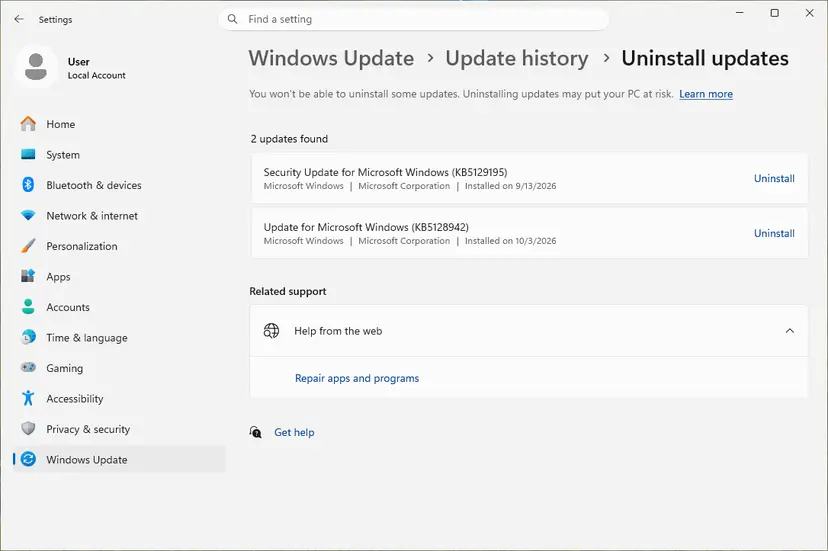
- Open Settings > Windows Update > Update history and note the KB number and date of the newest updates and driver updates.
- Compare those dates with the first BugCheck event in Event Viewer.
- If they match, uninstall that update. Step by step: How to uninstall a Windows update
- If a driver came through Windows Update, roll it back in Device Manager instead.
- Pause updates for one or two weeks and test sleep and wake.
It worked if: Sleep and wake work again for several days.
If not: Install the update again later, since it carries security fixes. If crashes continue without it, go to Fix 6.
Fix 6. Repair Windows system files
20 minutesNo riskThe crashes continue after the driver and BIOS updates, or SFC has never run on this PC.
pdc.sys is a protected Windows file, so DISM and SFC can replace a damaged copy and the other power management files it depends on. It rarely fixes this crash alone, but it rules out a broken Windows.
- Right-click Start and select Terminal (Admin).
- Run
DISM.exe /Online /Cleanup-Image /RestoreHealth, thensfc /scannow. Step by step with screenshots: Run DISM and SFC to repair Windows system files - Restart the PC when SFC is done and test sleep and wake.
It worked if: SFC reports that it found no integrity violations, or that it repaired them.
If not: Collect the dump files and send them to the PC maker, as described in the section on still crashing.
Fix 7. Use hibernate instead of sleep until a fixed driver arrives
5 minutesLow riskYou need the PC working today, or the PC maker has no fixed driver yet.
Hibernate saves the session to disk and powers the PC off, so the Modern Standby phases that pdc.sys coordinates do not run. It is a workaround, not a fix: waking takes longer, but the crash path is skipped.
- Right-click Start, select Terminal (Admin) and run
powercfg /hibernate on. - Press Win + R, type
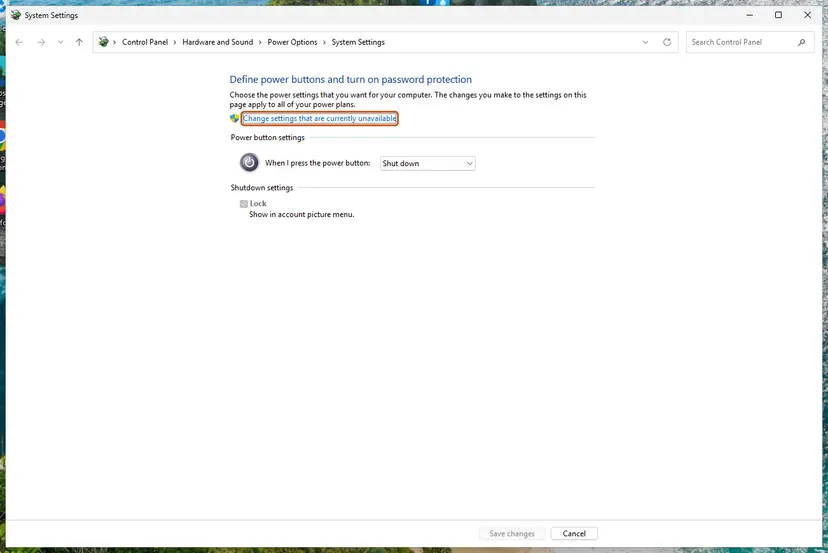
controland press Enter. Open Power Options. - Select Choose what the power buttons do, then Change settings that are currently unavailable.
- Set When I press the power button and When I close the lid to Hibernate for both battery and plugged in.
- Tick Hibernate under the shutdown settings to add it to the power menu, and select Save changes.
It worked if: Closing the lid or pressing the power button hibernates the PC, and it resumes without a pdc.sys stop screen.
If not: If even hibernate or a full shutdown crashes, the cause is not Modern Standby: run the memory test with How to test your RAM with Windows Memory Diagnostic and contact the PC maker.
Still crashing: what to collect and where to send it
pdc.sys is a Microsoft file, but the fix usually comes from the maker of the driver that did not answer. Collect the facts once and send them to the right place.
- The three newest
.dmpfiles fromC:\Windows\Minidump, zipped. - The four parameters of the BugCheck event, especially parameter 2.
- The
sleepstudy-report.htmlfrompowercfg /sleepstudy. - The model, BIOS version and Windows build from
msinfo32. - When it crashes: entering sleep, waking, lid open, on battery or on power.
| Where to report | When |
|---|---|
| Your laptop or PC maker | Most cases: they ship the BIOS, chipset, graphics and network drivers for Modern Standby |
| The graphics or Wi-Fi chip maker | Parameter 2 is 0x100 or 0x2 and the maker's own newest driver still crashes |
| Microsoft Q&A or Feedback Hub | Crashes start with one Windows build and stop when it is removed |
If the crashes also happen in a full shutdown or with hibernate, or the stop codes change from crash to crash, suspect RAM, the SSD or the mainboard rather than pdc.sys. Test the memory and contact the maker under warranty.
How to keep the pdc.sys blue screen from coming back
- Check the PC maker's support page for BIOS, chipset and driver updates twice a year.
- Install graphics and network drivers made for your model.
- Run
powercfg /sleepstudywhen the battery drains in sleep: it shows the same blockers before they crash the PC. - Keep Windows Update on and read the update history when a new problem starts.
- Delete, rename or replace pdc.sys.
- Download driver files from DLL or driver sites.
- Leave a clean boot in place for good.
- Turn off Windows security features to stop a crash: they are not the cause.
Windows 10 left support on 14 October 2025, so its sleep bugs are no longer fixed by Microsoft. A Windows 11 laptop with a current BIOS is the setup that still gets fixes.
Frequently asked questions
What is pdc.sys?
pdc.sys is the Power Dependency Coordinator Driver of Windows, made by Microsoft and stored in C:\Windows\System32\drivers. It manages Modern Standby: it tells apps, devices and network adapters to go to low power when the PC sleeps and brings them back in order when it wakes. Windows installs and updates it. You never need to download it yourself.
Is pdc.sys a virus?
No. The genuine file is a signed Microsoft driver. Right-click C:\Windows\System32\drivers\pdc.sys, select Properties and open the Details tab: it should read Power Dependency Coordinator Driver and Microsoft Windows Operating System. A file with that name somewhere else deserves a scan with Microsoft Defender. The blue screen itself is caused by a driver timing out, not by malware.
What does PDC_WATCHDOG_TIMEOUT mean?
PDC_WATCHDOG_TIMEOUT is bug check 0x14F. Microsoft describes it as a system component that failed to respond within the allotted time, preventing the system from exiting connected standby. pdc.sys gives every part of the sleep and wake process a deadline, and when one part misses it, Windows stops. Parameter 2 tells you which kind of component hung, as shown in the section on reading the crash.
Why does pdc.sys crash only when waking from sleep?
Because sleep and wake are the only moments pdc.sys coordinates. While you use the PC normally it has nothing to wait for. On wake it waits for the network adapter and then for the display to turn on, the two steps Microsoft names as the most common causes of slow resume. That is why Fixes 1 and 2 update exactly those drivers.
How do I resolve the pdc.sys blue screen?
Read the BugCheck event in Event Viewer first, then follow the chooser table. For most laptops the order is the graphics driver from the PC maker (Fix 1), the Wi-Fi or mobile broadband driver (Fix 2) and the BIOS with chipset packages (Fix 3). If those are current, a sleep study and a clean boot find a program that blocks sleep (Fix 4).
What is kmpdc.sys?
We could not confirm a Windows file named kmpdc.sys. The Windows driver that coordinates Modern Standby is pdc.sys, and PDC_WATCHDOG_TIMEOUT is its stop code. If a dump or a tool shows kmpdc.sys, check the exact name and its file properties: a file that is not signed by Microsoft or a known hardware maker should be scanned with Microsoft Defender.
Can I turn off Modern Standby to stop the crash?
On many laptops the BIOS has no option for it, and Windows does not offer a simple switch. Some PCs let you choose classic S3 sleep in the BIOS, but that depends on the maker. The safe workaround is hibernate (Fix 7), which skips the Modern Standby phases. Registry tricks found online are not documented by Microsoft for this purpose, so we do not recommend them.
Does turning off fast startup fix pdc.sys crashes?
Usually not. Fast startup changes how Windows shuts down and starts, while pdc.sys crashes happen during sleep and wake, which fast startup does not touch. It is a common tip in older guides, but it targets a different power path. Turn it off only if your crashes also happen after shutdown, and look at hardware then.
My PC will not start at all after the blue screen. What now?
If Windows crashes again on every start (Turkish searchers write this as hiç açılmıyor), the problem is no longer sleep. Hold the power button to switch off, start again, and use the recovery screen to repair startup: Run Startup Repair. Then start in Safe Mode, roll back the newest driver and work through the fixes above.
Sources
- Microsoft Learn: Bug Check 0x14F PDC_WATCHDOG_TIMEOUT (parameters and meaning) (learn.microsoft.com)
- Microsoft Learn: Modern Standby resume performance (PDC phases, display and network as the common causes) (learn.microsoft.com)
- Sysnative: The Complete Debugging Guide to Stop 0x14F (PDC clients, activators, sleep study) (sysnative.com)
Did this fix work?
One click, no account. It tells the next reader which guides are worth their time.
Questions and experiences: fix the pdc.sys BSOD error in Windows
Still broken, or found a fix we did not cover? Ask here: members and our editors answer. Reading is open; writing needs a free account.
…