How to fix
PDF opening error
on Windows
Resolve PDF opening errors on Windows 10 effortlessly with our expert-tested solutions. Get back to work in minutes, zero traces left!

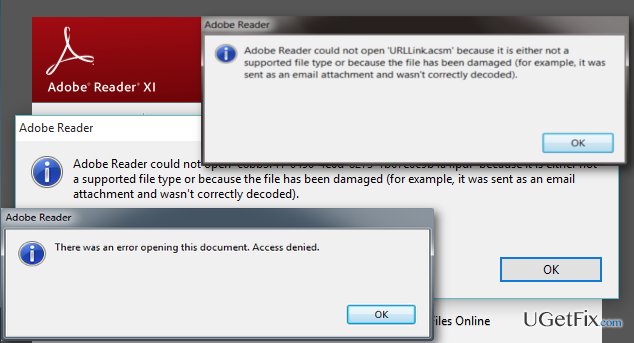
What causes How to fix PDF opening error on Windows 10?
- Software is out of date
- Installed version is incompatible with Windows 10
- Software may be damaged
- Documents may not be compatible with the software
- Files may be corrupted or suspicious
Repairs Windows system files, removes malware, and restores a clean OS state — without reinstalling.
Just like most Windows users, I upgraded my old OS (Windows 7) to Windows 10. It all seemed to work just fine until I installed the Anniversary Update. Now, none of the PDF files open. When I try to open them I get the Acrobat Reader load screen but then it suddenly closes and nothing happens. How should I approach this problem?
Surprisingly, the crashing PDF readers is a common error among the new Windows 10 users. There have been reports about the PDF opening errors on Adobe Reader, Acrobat, Foxit and some other, less popular software. It is can be especially irritating when instead of quickly accessing your data, you are stuck in the loop of errors with no idea why they occur or how to fix them. In this article, we will discuss the main reasons for the PDF opening errors on Windows 10 and provide you with a list tips which you will be able apply when fixing your computer.
There might be numerous reasons why the PDF documents won’t open, and you definitely cannot blame Microsoft alone for this. First of all, the problem may lay in the software itself. If it is out of date or the installed version is incompatible with your OS, the program will simply fail to operate. There is also a high possibility that the software you are using is damaged, so you may have to reinstall it to get it working. Moreover, the documents you are trying to open may not be compatible with the software as well. For instance, you may not be able to open a file on Adobe Reader if it has been created using non-Adobe programs. Likewise, the files you are opening may be corrupted or suspicious. Thus, it is advisable to run an additional scan of the file with antivirus tools like [d1], especially if this document has been downloaded from the Internet.
Talking about the world wide web, it is important to note that interestingly enough, PDF files seem to open perfectly via the web-based readers. This might be a temporary solution to your problem. Other methods to repair your computer are listed below.
How to fix PDF opening error on Windows 10?
When some software is not working properly, it is always useful to take a look at its settings. You can solve major issues by sparing some time to adjust just a couple of things in the settings panel. It might also work for the PDF opening error on Windows 10. The steps indicated below helped numerous computer users to fix their Adobe and Acrobat readers so that they may work for you as well:
- Click the Reader shortcut on your desktop or navigate to it through the Windows menu
- When the program opens, click Edit on the toolbar above
- In the Edit menu, go to Preferences
- Click Security enhances
- In the new window navigate to Sandbox protections and unmark the pre-marked Protected mode at startup option.
Reload the Reader.
It might also be that your Reader is not working properly simply because it is out of date. You can check for these updates manually through the official Adobe website or enable automatic update by navigating to Help and clicking Check for updates in the Reader’s upper toolbar. When the updates are ready to be installed click download and follow the instructions indicated on the download and installation wizards.
In the same Help section, you can also automatically fix your Reader in case it has been damaged and missing some essential components to operate. Click “Repair program installation” and follow the instructions.
Bottom line
To fix the PDF opening error, ensure your software is updated, reinstall it if necessary, and check the compatibility of the documents. Additionally, run an antivirus scan on the files, especially if they were downloaded from the Internet. If none of these solutions work, consider using web-based PDF readers as a temporary workaround.
Frequently asked questions
Try repairing the Adobe Reader installation by going to Help > Repair Installation. If that doesn't work, consider reinstalling the program.
To resolve this, ensure the PDF file is not corrupted by trying to open it on another device or using a different PDF reader. If it's confirmed to be corrupted, you may need to obtain a new copy of the file.
This could be due to outdated Edge settings or extensions interfering with PDF viewing; try disabling extensions or updating Edge. Alternatively, you can set a different PDF reader as your default application.




Report an issue
What's wrong with this guide? We review every report and update or remove content.
Report received — thank you. We'll review and fix it.
You need a free account to submit a report.
Be the first to comment