How to fix
Peer Networking Grouping Error Code 1068
on Windows
Resolve the Peer Networking Grouping Error Code 1068 in Windows 10 or 11 effortlessly. Follow our expert-tested solutions for quick fixes.


What causes How to Fix Peer Networking Grouping Error Code 1068?
- Peer Networking services not running
- Dependency service or group failed to start
- Corrupted idstore.sst file
- Hidden AppData folder not visible
- Improper configuration of Peer Networking services
Repairs Windows system files, removes malware, and restores a clean OS state — without reinstalling.
HomeGroup fails with an error 1068, which says that to "Windows could not start the Peer Networking Grouping service on local computer." I desperately need to transmit some files, so I would highly appreciate your help!
Windows offer its users a HomeGroup feature, which has been developed to make file sharing experience much easier than before. The feature hasn’t been available on the older Windows versions like XP, Vista or 7, but in Windows 8, 8.1 or 10 people can use it freely. But what HomeGroup actually is? It’s a feature allowing people to share files and printers with few other Windows PCs that are connected on the same local network. The entire HomeGroup feature is based on the Peer Networking Grouping service, which enabled the multi-party communication using peer-to-peer grouping. Therefore, if the Peer Networking Grouping service fails to work properly, people may get the Error Code 1068, which says that "Windows could not start the Peer Networking Grouping service on local computer." It means that the HomeGroup feature is not working completely and you’ll have to fix it manually.
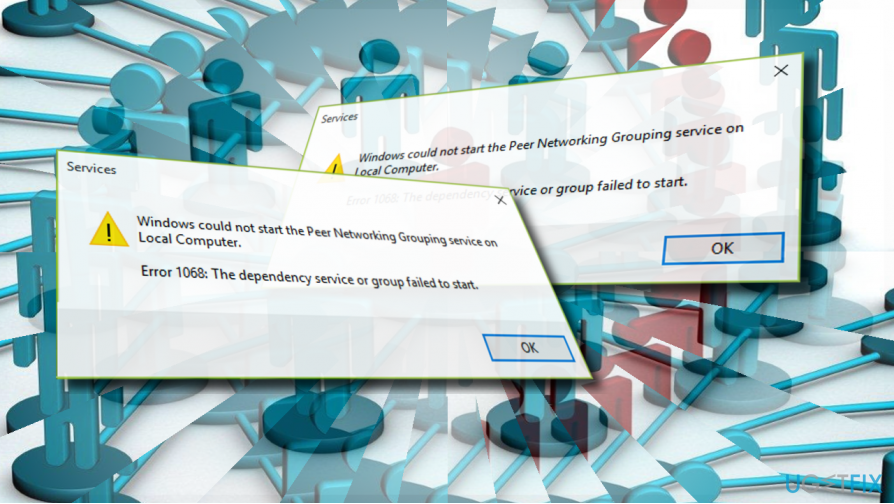
Windows could not start the Peer Networking Grouping service on Local Computer.
Error 1068: The dependency service or group failed to start.
Fixing the “Windows could not start the Peer Networking Grouping” with an Error Code 1068
Check the Peer networking services
If Peer networking service is not running properly, the Peer networking error 1068 can occur. To check that, please follow these steps:
- Press Windows key + R, type services.msc, and press Enter.
- On the list of services, find the Peer Name Resolution Protocol, Peer Networking Identity Manager, Peer Networking
- Grouping and PNRP Machine Name Publication services.
- Make sure that all these processes are enabled. For this purpose, right-click on each of them and select Enable.
Remove the idstore.sst
Most of Windows users managed to fix Error 1068 on Peer Networking by following these steps:
- Navigate to the C:\\Windows\\ServiceProfiles\\LocalService directory and open the AppData folder.
- If you cannot see this folder, click View and mark the Hidden items.
- Now open the Roaming\\PeerNetworking folder and find the idstore.sst file.
- Right-click it and select Remove.
Modify registry entries
- Press Windows key + R, type regedit, and press Enter.
- Navigate to the HKEY_LOCAL_MACHINE\\SOFTWARE\\Policies\\Microsoft\\Peernet key.
- On the right pane find and double click the Disabled DWORD.
- Set its value to 0 and click OK.
Use Local Group Policy
- Press Windows key + R, type gpedit.msc, and press Enter.
- Navigate to the Computer Configuration > Administrative Templates > Network > Microsoft Peer-to-Peer Networking Services.
- Double-click the Turn off Microsoft Peer-to-Peer Networking Services option.
- Click Apply and OK to save the changes.
Run Homegroup troubleshooter
- Press Windows Key + S, type homegroup, and double-click on the search results.
- Select the HomeGroup troubleshooter and wait for the scan to be completed.
Modify MachineKeys security permission
- Open the C:\\ProgramData\\Microsoft\\Crypto\\RSA\\ folder and right-click the MachineKeys folder.
- Select Properties and open Security tab.
- Click Edit and mark the Everyone option.
- Now check the Full control option and click Apply > OK.
Bottom line
To fix the Peer Networking Grouping Error Code 1068, check that the Peer Networking services are enabled and running. Additionally, removing the corrupted idstore.sst file may resolve the issue. If these steps do not work, further troubleshooting may be necessary.
Frequently asked questions
This error typically occurs due to issues with the Peer Networking grouping service not running or being disabled, often caused by corrupted system files or misconfigurations.
To restart the Peer Networking services, open the Services app, locate 'Peer Networking Grouping' and 'Peer Name Resolution Protocol', and ensure both are set to 'Automatic' and running.
Yes, you can use Command Prompt to run 'net stop p2pimsvc' followed by 'net start p2pimsvc' to restart the Peer Networking service, which may resolve the error.




Report an issue
What's wrong with this guide? We review every report and update or remove content.
Report received — thank you. We'll review and fix it.
You need a free account to submit a report.
Be the first to comment