How to fix
Phone Link app not working or not opening
on Windows
Resolve the Phone Link app issues on Windows 10 or 11 quickly and easily. Enjoy seamless connectivity with expert-tested solutions for your device.


What causes How to fix Phone Link app not working or not opening in Windows?
- Corrupted app files
- Third-party software interference
- Outdated app versions
- Misconfigured settings
- Corrupted Windows components
Repairs Windows system files, removes malware, and restores a clean OS state — without reinstalling.
Hi, I've been attempting to use the Phone Link app on my Windows PC to link up with my phone and it just isn't happening at all. When I double-click the icon, nothing happens - no splash screen, no error message, nothing. I've also tried restarting my computer, but that doesn't work either. What's happening, and how can I fix this?
The Phone Link utility is a handy tool from Microsoft that enables you to connect your smartphone to your Windows laptop, allowing you to sync messages, notifications, and even photos without having to get up and grab your device. It's a bridge between your phone and PC, enabling you to stay connected without the hassle.
But for others, this bridge seems closed - Phone Link simply won't launch. You double-click the icon, and nothing happens - there isn't even an error to go with it. If this sounds familiar, you’re not alone.
Phone Link app not launching can be caused due to various reasons. One potential cause could be corrupted app files, which can happen after a Windows update or an interrupted installation. Another option is third-party software interference, such as an overly aggressive antivirus program that's preventing the app from launching.
Outdated app versions or misconfigured settings - such as background permissions disabled - can also be the problem here. Even more fundamental system problems, like Windows components that are corrupted, may silently keep Phone Link from launching.
The good news? There are solutions to this. Potential solutions are checking for app updates in the Microsoft Store to ensure you have the latest version, or uninstalling and reinstalling Phone Link to refresh its files. You might also consider checking to see if disabling any interfering programs temporarily will help you determine if that is the issue. To fix Phone Link not opening issue, please check for manual instructions below.
For more serious situations relating to the underlying Windows problems, the installation of a repair and maintenance app like [d1] would help to resolve system glitches that can be keeping Phone Link stumbling. Some troubleshooting would have the link back in operation.
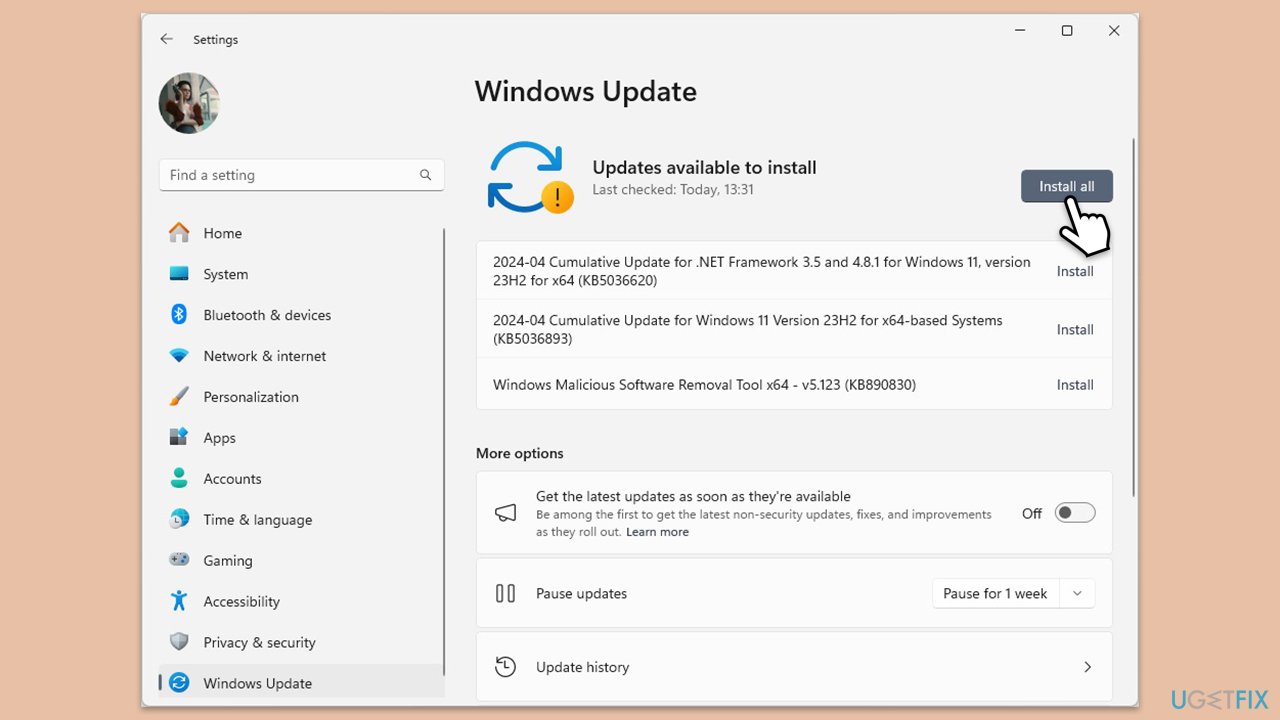
Fix 1. Update Windows
An outdated or buggy Windows version can create compatibility issues with apps like Phone Link.
- Type Updates in Windows search and hit Enter.
- If updates are available, click Install updates.
- Otherwise, click Check for updates.
- If optional updates are available, install them as well.
- When all the update processes are complete, restart your computer.
- Attempt to launch Phone Link after the restart.
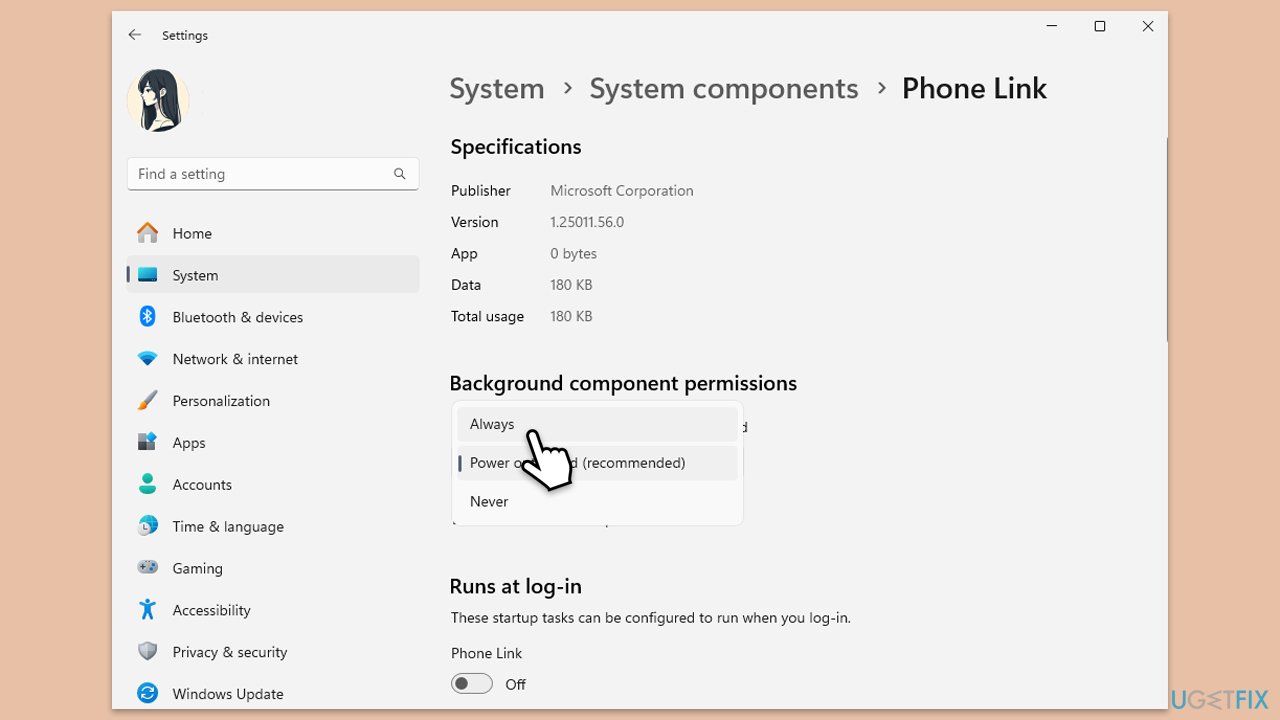
Fix 2. Check background app permissions
Phone Link needs permission to run in the background to function properly. If this is disabled, it might not launch when you click the icon.
- Type Phone Link in Windows search.
- Right-click on Phone Link option and select App Settings.
- Under Background apps permissions, ensure Let this app run in the background is set to Always.
- Save changes and try opening the app again.
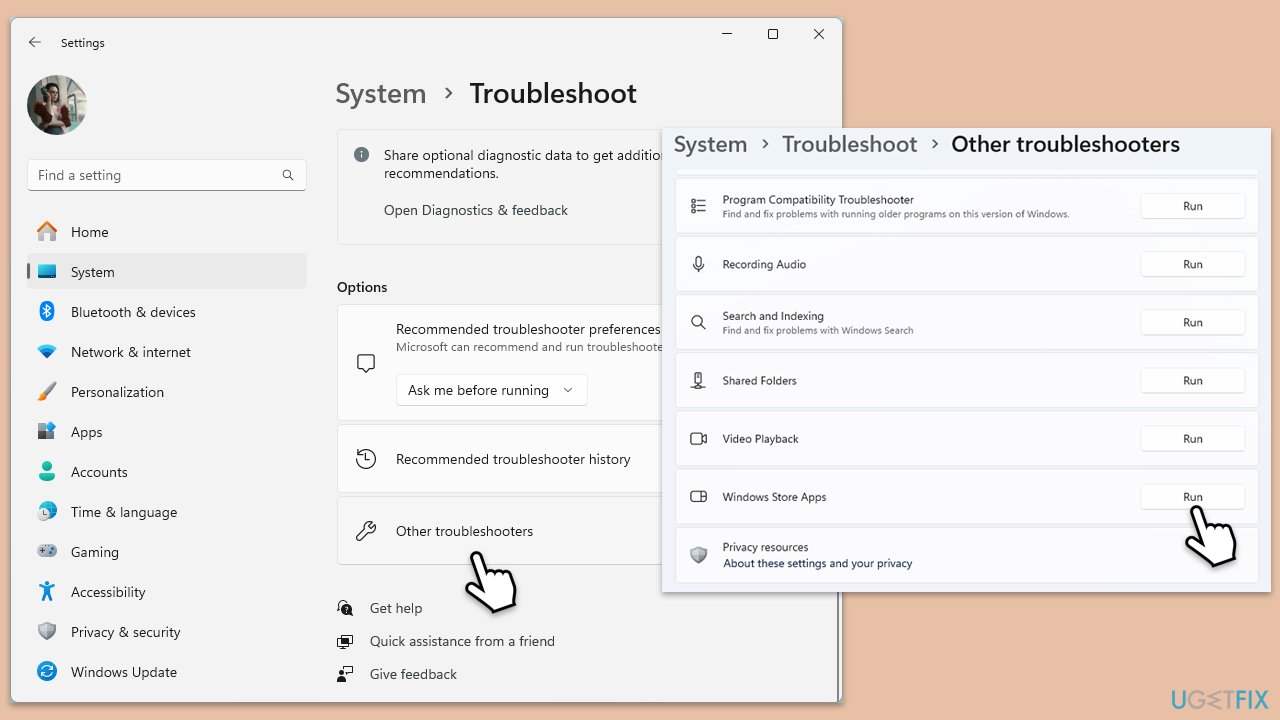
Fix 3. Run the Windows Store apps troubleshooter
Since Phone Link is a Microsoft Store app, built-in Windows tools can detect and fix common issues tied to its operation. This troubleshooter targets app-specific problems.
- Type Troubleshoot in Windows search and hit Enter.
- Click Additional troubleshooters/Other troubleshooters.
- Scroll down to find Windows store apps and select it.
- Click Run the troubleshooter/Run.
- Wait till the process is finished.
Fix 4. Reset the app
Corrupted settings or cached data within Phone Link can cause it to stop responding. Resetting clears out these glitches while keeping your core system intact.
- Type Phone Link in Windows search.
- Right-click on Phone Link option and select App Settings.
- Scroll down and click Terminate.
- Click Reset to reset the app.
- Try launching Phone Link again.
Fix 5. Update Phone Link
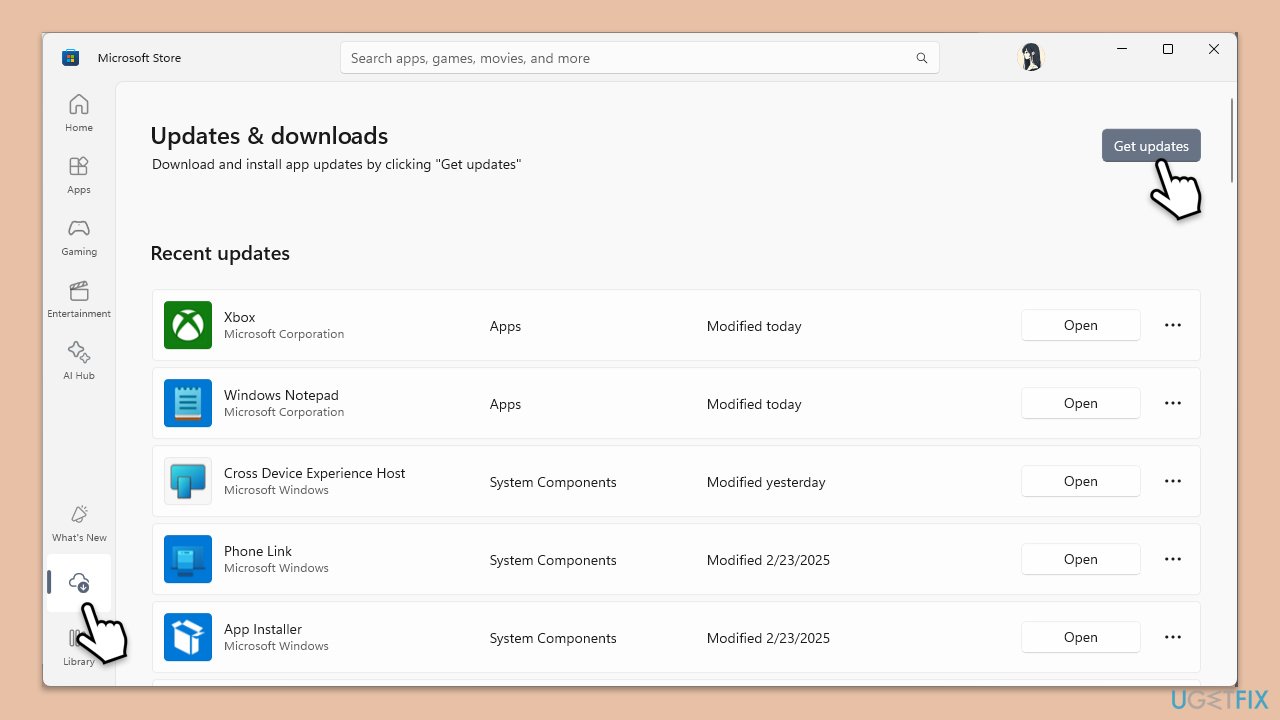
Keeping Phone Link updated ensures you have the latest bug fixes and compatibility improvements from Microsoft. An outdated version might fail to launch due to conflicts with your current Windows setup.
- Open the Microsoft Store, then go to Downloads section on the left.
- Click on Get updates and wait till all apps are updated.
- Restart your computer and try opening Phone Link again.
Fix 6. Reinstall the app
Sometimes app files get corrupted or incomplete during installation, which can stop Phone Link from opening. Reinstalling gives you a fresh start with clean files.
- Type PowerShell in Windows search.
- Right-click on PowerShell and select Run as administrator.
- When UAC shows up, click Yes.
- Now type in the following command and press Enter:
Get-AppxPackage Microsoft.YourPhone -AllUsers | Remove-AppxPackage - Open Microsoft Store, search for Phone Link, and click Install.
- Launch the app after installation finishes.

Fix 7. Disable conflicting software
Overprotective antivirus or firewall programs might mistakenly block Phone Link from running. Temporarily turning them off can help identify if they’re the issue.
- Open your antivirus or firewall and temporarily pause the real-time protection.
- Try launching Phone Link while the software is disabled.
- Add Phone Link to your security software's Exceptions list.
Bottom line
To fix the Phone Link app not opening, check for app updates in the Microsoft Store, or uninstall and reinstall the app to refresh its files. Additionally, consider disabling any interfering programs temporarily. If these solutions do not work, you may need to address underlying Windows issues with a repair and maintenance app.
Frequently asked questions
Try restarting your computer first; if that doesn't work, ensure that both your Windows 10 and Phone Link app are updated to the latest versions.
You can try resetting the app by going to Settings > Apps > Apps & features, finding Phone Link, and selecting 'Advanced options' to reset it.
Check your internet connection and ensure that the Phone Link app has the necessary permissions to access your phone settings.




Report an issue
What's wrong with this guide? We review every report and update or remove content.
Report received — thank you. We'll review and fix it.
You need a free account to submit a report.
Be the first to comment