How to fix
Phone Link notifications not working
on Windows
Resolve Phone Link notifications issues in Windows 10 and Windows 11 effortlessly with our expert-tested solutions. Get back on track in minutes!

What causes How to fix Phone Link notifications not working in Windows?
- Notification settings not properly configured on mobile device
- Notification settings not properly configured on Windows app
- Outdated Phone Link app or related services
- Lack of necessary permissions for the Phone Link app
- Connection issues between mobile device and Windows computer
- System errors or corrupted files affecting app functionality
Repairs Windows system files, removes malware, and restores a clean OS state — without reinstalling.
Hello. I do not receive Phone Link app notifications on my Windows PC. How do I fix this?
The Phone Link app is a software application that allows users to connect and synchronize their mobile phones with their Windows computers. This app allows users to receive and manage notifications from their mobile devices directly on their Windows desktops, increasing convenience and productivity by keeping them informed without having to check their phones constantly.
However, some users may encounter problems with Phone Link notifications in Windows not working properly. This can be a frustrating issue because it interferes with the app's intended functionality. Users may miss important messages, calls, reminders, or other critical information if notifications fail to appear on the Windows desktop.
The impact of this issue varies depending on the specific use case. Missing notifications can cause delays in responding to time-sensitive messages or missing important updates from mobile apps for some users. Professionals who rely heavily on their mobile devices for work-related communications may experience workflow disruptions, potentially affecting productivity and responsiveness.
Several potential solutions to this problem can be looked into. Checking the app's notification settings on both the mobile device and the Windows app to ensure they are properly configured is one possible solution. Additionally, keeping the Phone Link app and related services up to date can aid in the resolution of compatibility issues that may cause notification issues.
Users can also try restarting their mobile devices as well as their Windows computers to refresh the connection between the two. It may also be beneficial to grant the Phone Link app all relevant permissions, both on the mobile device and in the Windows settings, to ensure that notifications are properly received and displayed.
In this guide, you will find 6 steps that should help you fix Phone Link notifications not working in Windows. You can also use a maintenance tool like [d1] that can fix most system errors, BSODs,[ref en-1] corrupted files, and registry[ref en-2] issues. Otherwise, follow the step-by-step instructions below.
Method 1. Enable Notifications
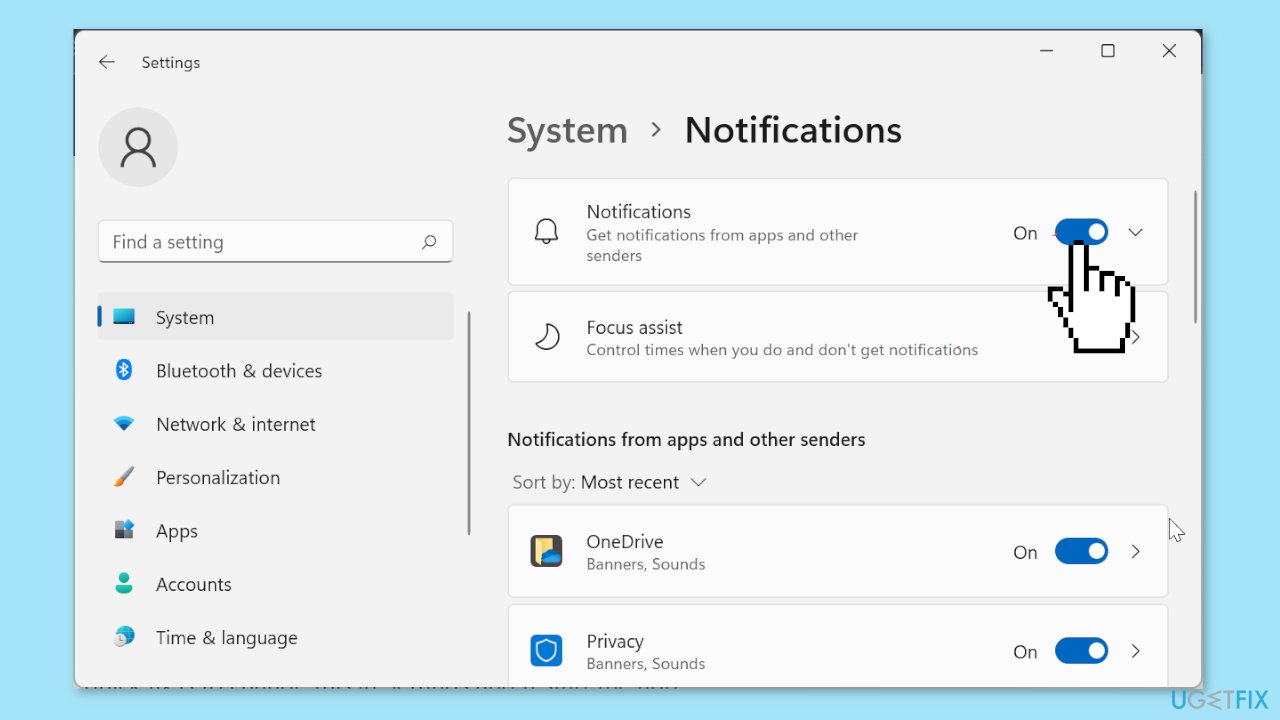
- Press the Windows key + I to open the Settings app.
- In the Settings app, select Notifications in the right pane.
- Toggle the switch for Notifications forward to enable it.
- Scroll down to the Notifications from apps and other senders section.
- Choose the Phone Link app.
- Toggle the switch under Notifications forward to enable it.
- Check the checkbox for Show notification banners.
- Finally, check the box for Show notifications in the notification center.
Method 2. Disable Focus Assist
- Press the Windows key + I to open the Settings app.
- In the Settings app, select Focus Assist in the right pane.
- Tick the Off radio button.
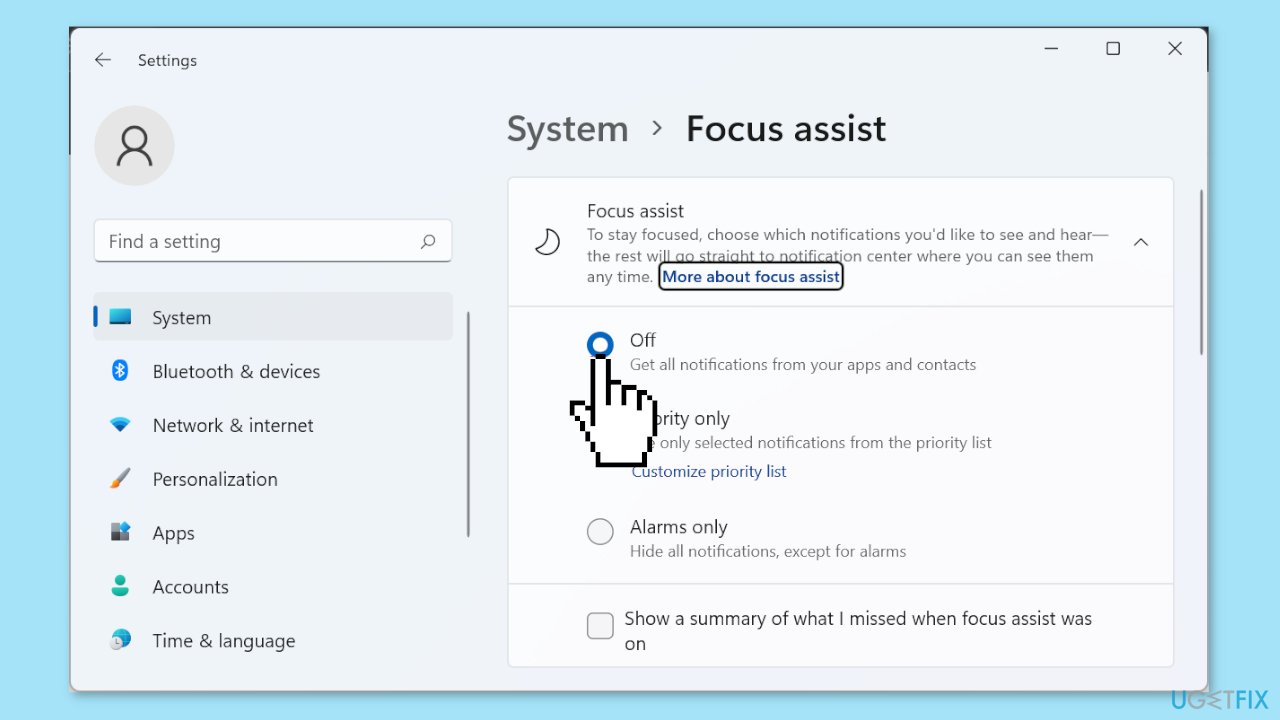
- Finally, restart the app to apply the changes.
Method 3. Disable Battery Saver Mode
- Press the Windows key + I to open the Settings app.
- In the Settings app, select Power & battery in the right pane.
- Select the Battery saver option.
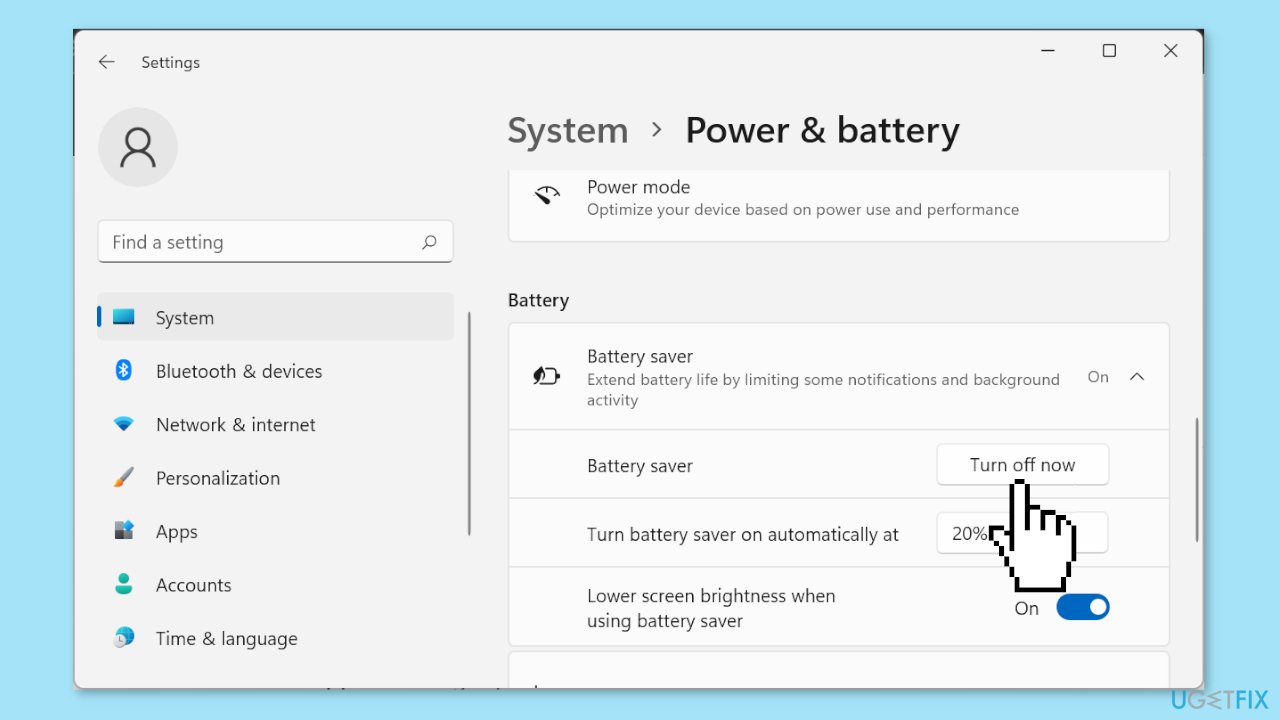
- Finally, click the Turn off now button to disable the feature.
Method 4. Allow the App to Run in the Background
- Open the Settings app.
- Choose the Apps option in the left pane.
- Select Apps & features in the right pane.
- Locate the Phone Link app and click the three vertical dots before it.
- Select Advanced options.
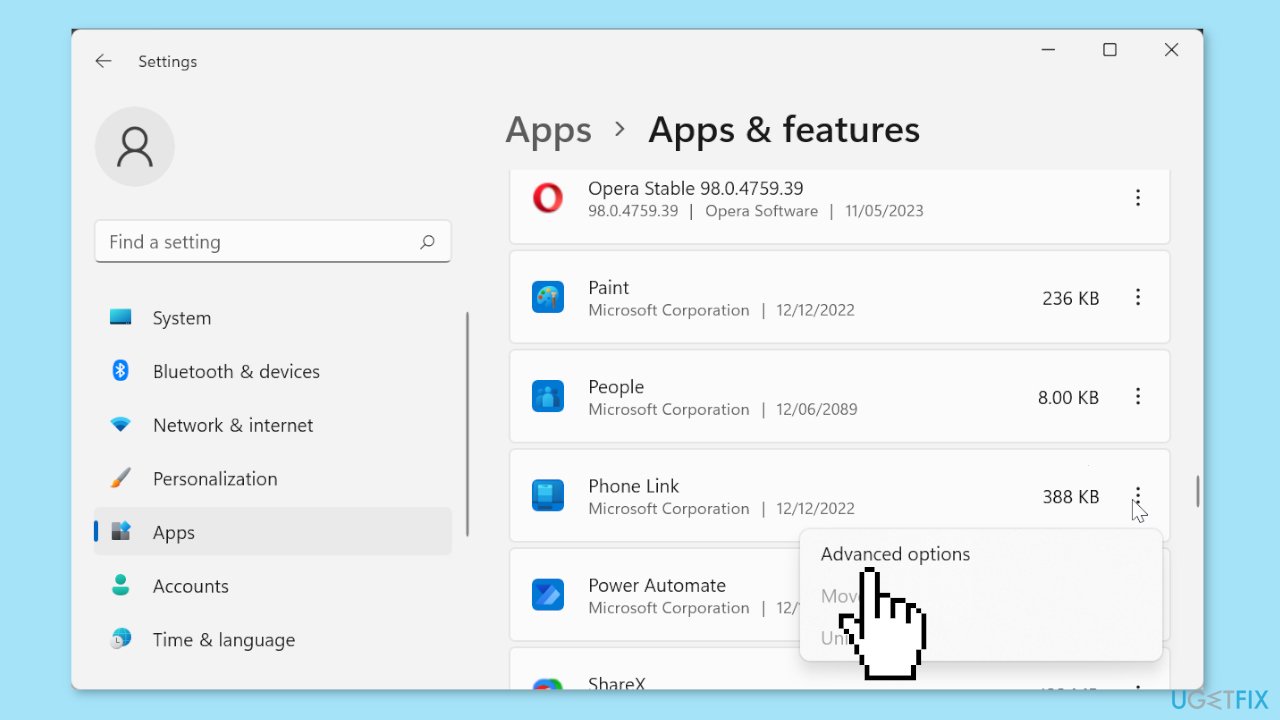
- Click the Background apps permissions dropdown.
- Finally, select the Always option.
Method 5. Change App Settings
- Launch the Phone Link app.
- Click the gear icon in the top right corner.
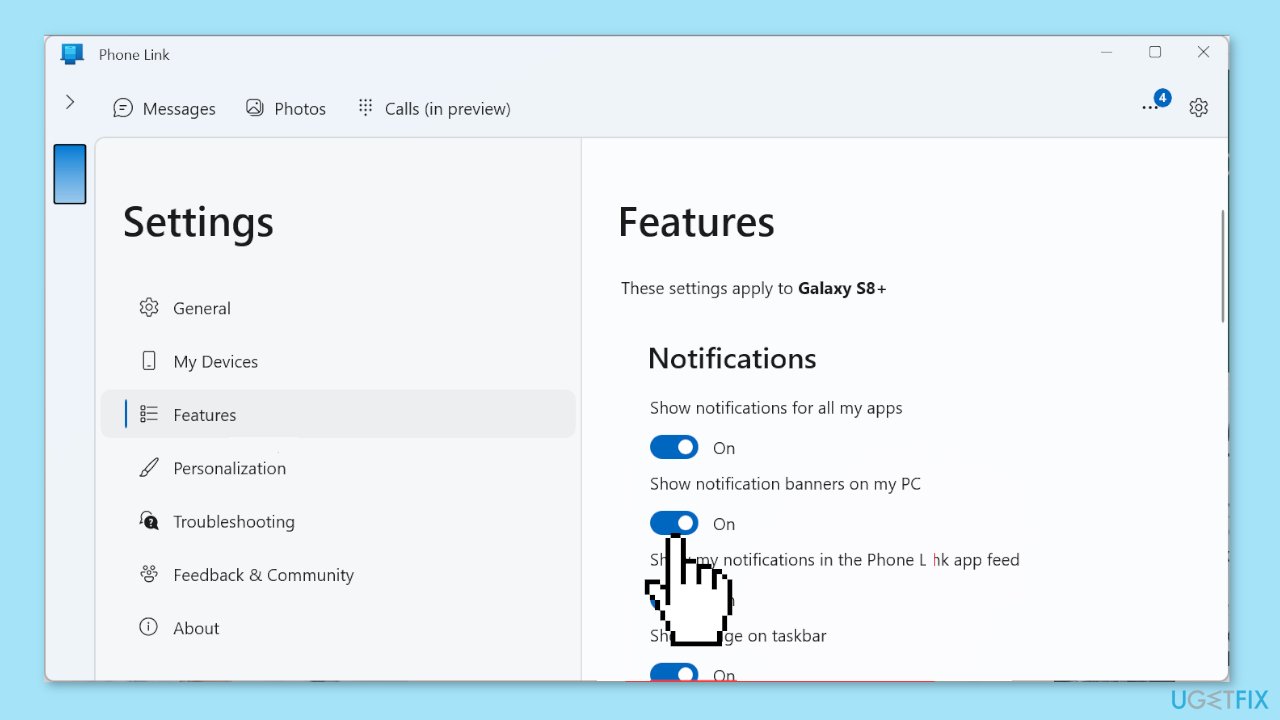
- Click the Features option in the left pane.
- Toggle all the switches under the Notifications section.
Method 6. Re-link your Phone
- Launch the Phone Link app.
- Click the Settings icon in the top right corner.
- Select My Devices in the left pane menu.
- Click the three horizontal dots before your phone.
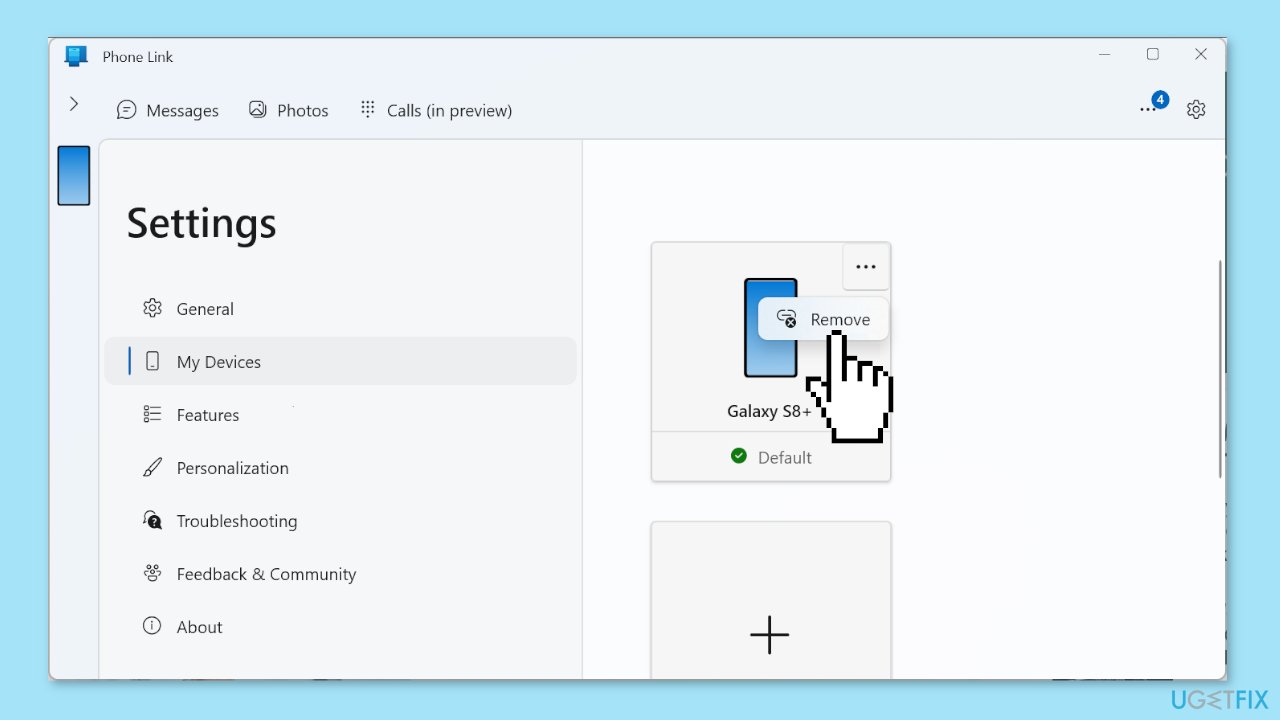
- Select the Remove option and follow the onscreen instructions.
- Finally, relink your mobile phone to the app.
Bottom line
To fix Phone Link notifications not working in Windows, ensure that notification settings are correctly configured on both the mobile device and the Windows app. Additionally, keep the app updated, grant necessary permissions, and restart both devices. If these steps do not resolve the issue, consider using a maintenance tool to address potential system errors.
Frequently asked questions
Check if the Phone Link app is updated and properly configured in Windows 10 settings. Additionally, ensure that notification permissions are enabled for the app.
In Windows 11, try resetting the Phone Link app via the settings menu, and verify that your phone is connected and syncing properly with your PC.
If notifications are still missing, consider reinstalling the Phone Link app and checking for any pending Windows updates that may resolve compatibility issues.




Report an issue
What's wrong with this guide? We review every report and update or remove content.
Report received — thank you. We'll review and fix it.
You need a free account to submit a report.
Be the first to comment