How to fix
PhoneExperienceHost.exe high CPU usage
on Windows
Resolve high CPU usage by PhoneExperienceHost.exe on Windows 10 or 11 with our expert-tested solutions. Get your PC running smoothly again, fixed in min…

What causes How to fix PhoneExperienceHost.exe high CPU usage in Windows?
- High CPU consumption from PhoneExperienceHost.exe process
- Synchronization problems with the Phone Link app
- Outdated Phone Link app
- Incompatibility between the Phone Link app and Windows OS
- Disruptions in user experience due to increased resource use
Repairs Windows system files, removes malware, and restores a clean OS state — without reinstalling.
Hello. I noticed that the PhoneExperienceHost.exe process in Task Manager is using high amounts of CPU. My computer is getting slow. Is there a way to fix this?
When Windows users utilize the Phone Link app, they may see significant CPU[ref en-1] consumption associated with the PhoneExperienceHost.exe process. This executable file and process are essential parts of the Windows Phone Link application, which is meant to make smooth synchronization between smartphones and PCs possible. Enabling customers to handle conversations via the Your Phone app, access multiple apps, media files, messages, and receive notifications straight on their desktops is the main goal of this synchronization.
The user experience is significantly disrupted when the PhoneExperienceHost.exe process shows increased CPU use. The system may become slower, less responsive, and take longer to complete tasks as a result of the increased resource use. These performance problems might negatively impact the computer's overall effectiveness and functionality, which will irritate users who depend on the Phone Link app to seamlessly integrate their devices.
The Phone Link app's primary features are impacted by this high CPU usage. The Your Phone app may not work as intended, making it difficult for users to access synchronized media files and apps, make and take calls, or get timely notifications. As a result, the app's goal of facilitating seamless connection between cellphones and PCs is undermined, and users might experience disruptions to their everyday routine.
Resolving the high CPU use of PhoneExperienceHost.exe becomes essential for users who want to get their computers back to normal. Identifying and fixing synchronization problems through troubleshooting procedures, making sure the Phone Link app is up to date, and confirming updates for compatibility between the app and Windows OS are some potential solutions.
In this guide, you will find 5 steps that should help you fix PhoneExperienceHost.exe high CPU usage in Windows. You can also run a maintenance tool like [d1] that can fix most system errors, BSODs,[ref en-2] corrupted files, and registry[ref en-3] issues. Otherwise, follow the step-by-step instructions below.
Solution 1. Stop the PhoneExperienceHost.exe Process
- Press the Windows key + R to launch the Run dialog.
- Type taskmgr and hit Enter to open Task Manager.
- In Task Manager, navigate to the Details tab.
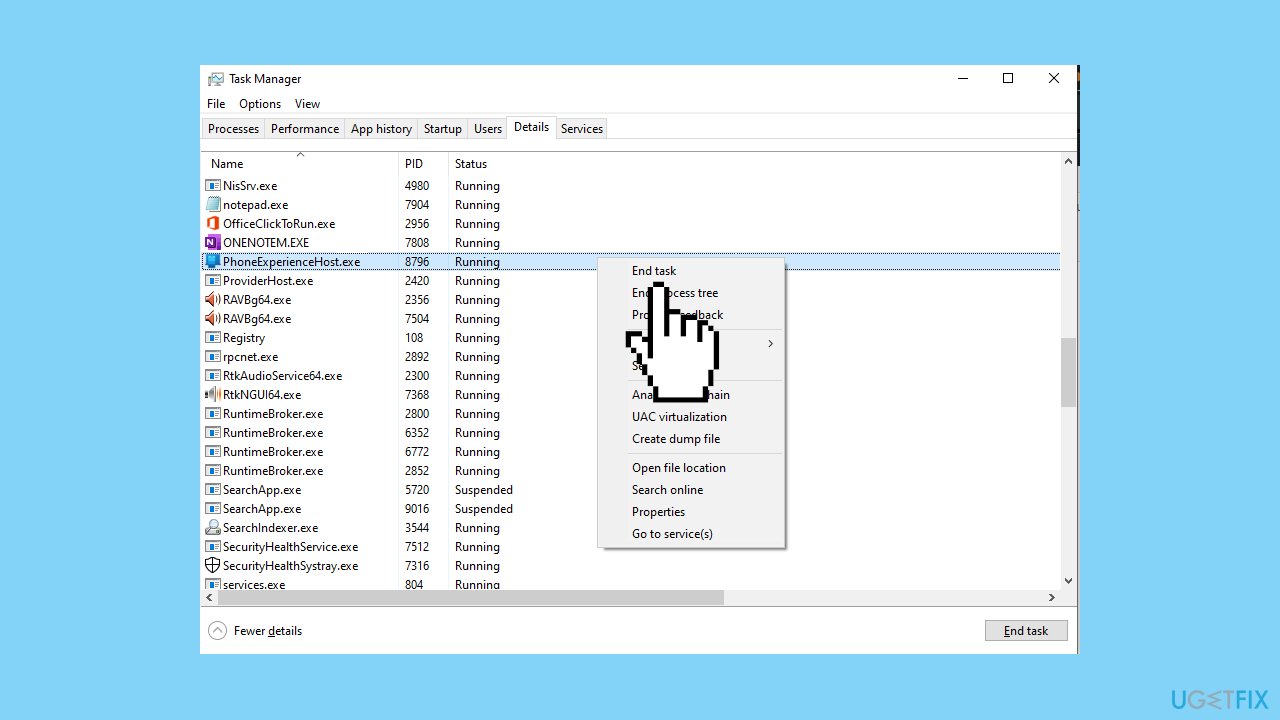
- Find the PhoneExperienceHost.exe process in the list.
- Right-click on the PhoneExperienceHost.exe process.
- Choose End task from the context menu to terminate the process.
Solution 2. Fix Corrupted System Files
Use Command Prompt commands to repair system file corruption:
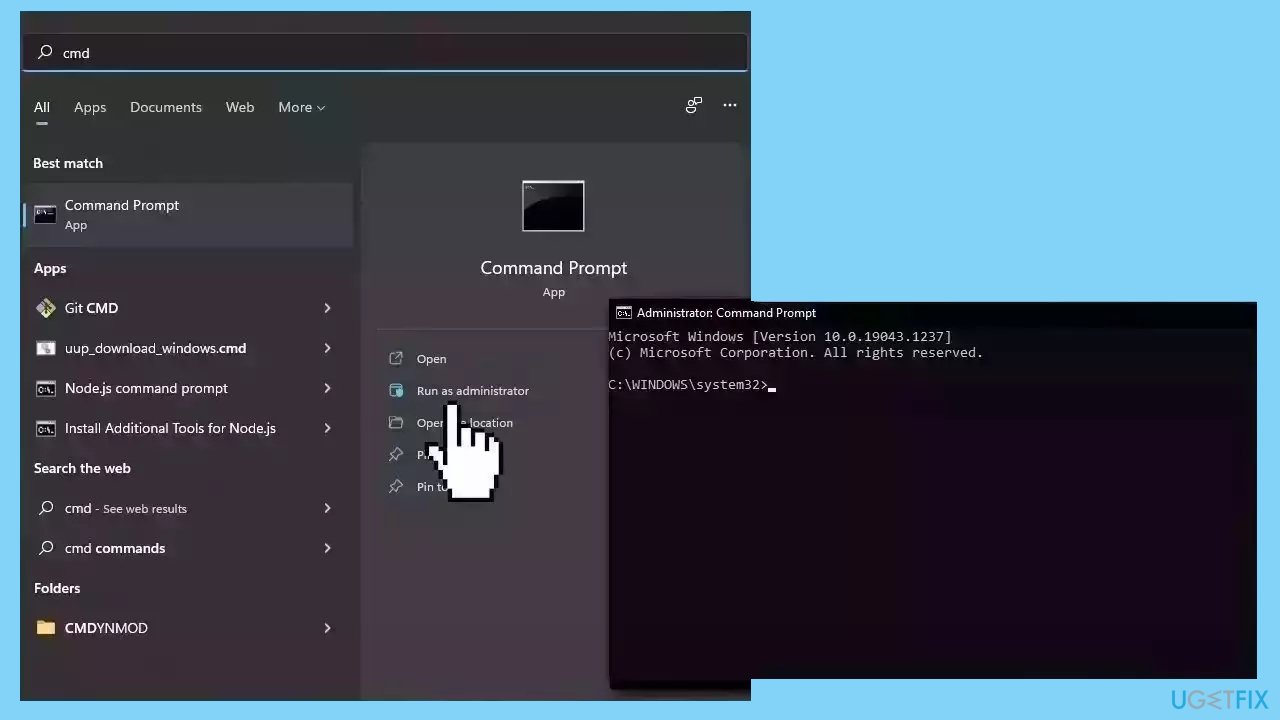
- Open Command Prompt as administrator
- Use the following command and press Enter:
sfc /scannow
- Reboot your system
- If SFC returned an error, then use the following command lines, pressing Enter after each:
DISM /Online /Cleanup-Image /CheckHealth
DISM /Online /Cleanup-Image /ScanHealth
DISM /Online /Cleanup-Image /RestoreHealth
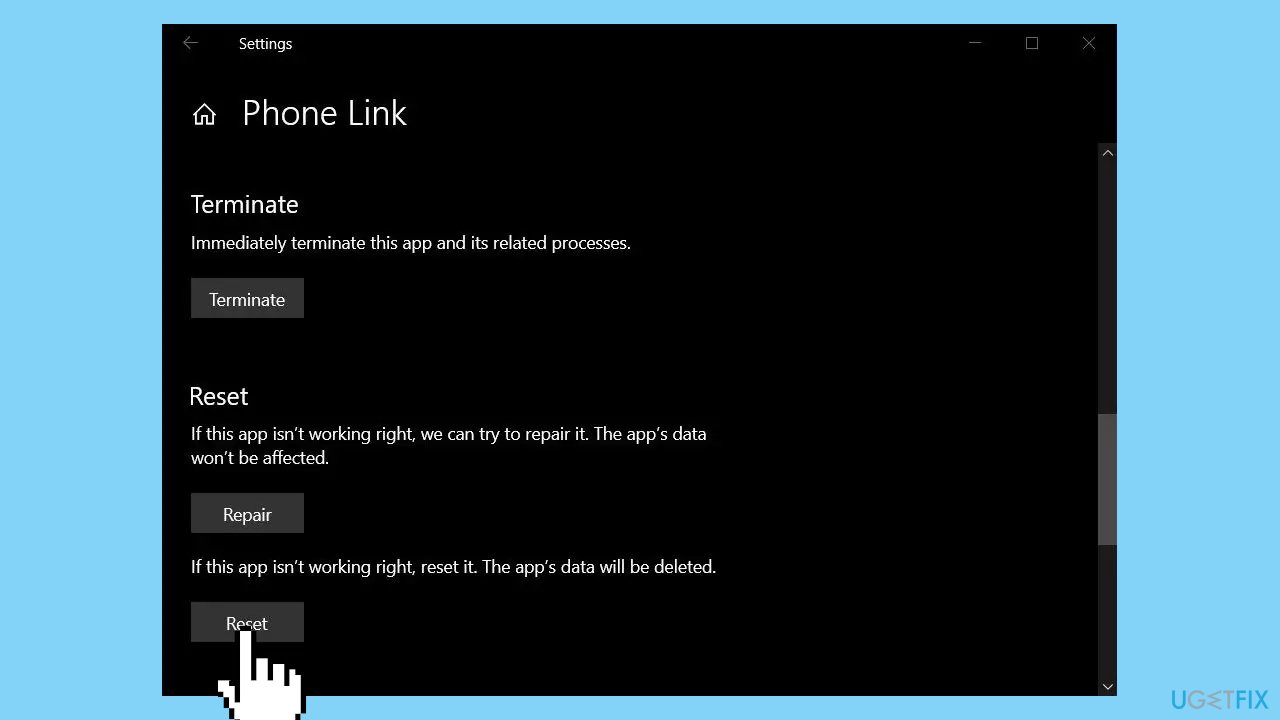
Solution 3. Repair or Reset Phone Link
- Open the Settings app on your Windows device.
- Click on the Apps option.
- Locate the Phone Link app from the list of installed apps and click on it.
- Click on the Advanced options link.
- Scroll down to the Repair section and click on the Repair button.
- Wait for the repair process to complete.
- If this does not help, press the Reset button.
Solution 4. Disable Phone Link in the Background
- Open the Settings app on your device.
- Navigate to the Privacy section.
- Look for the Background apps option.
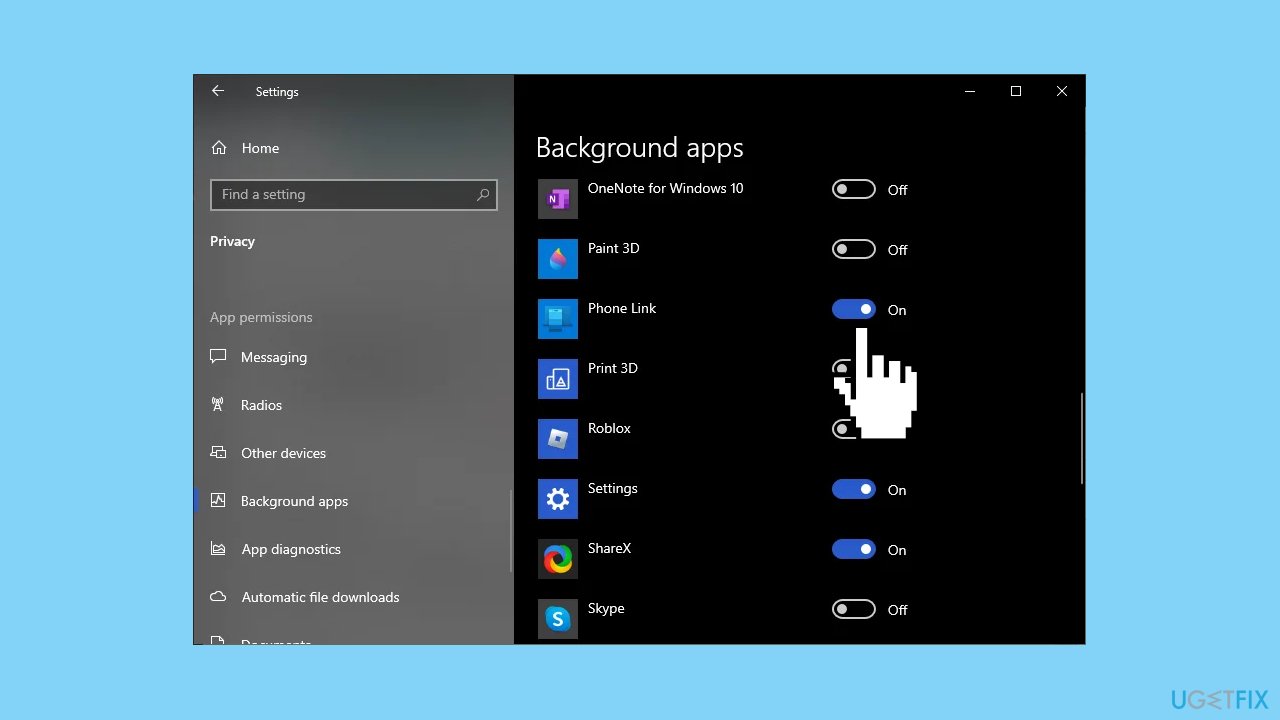
- Find the Phone Link app within the Background apps list.
- Toggle off the button next to Phone Link to disable it.
Solution 5. Reinstall Phone Link
- Open the Windows search box by clicking on the Windows logo on your taskbar or pressing the Windows key on your keyboard.
- Type PowerShell in the search box.
- Right-click on Windows PowerShell in the search results and select Run as administrator.
- Enter the following command in the PowerShell window:
Get-AppxPackage Microsoft.YourPhone -AllUsers | Remove-AppxPackage
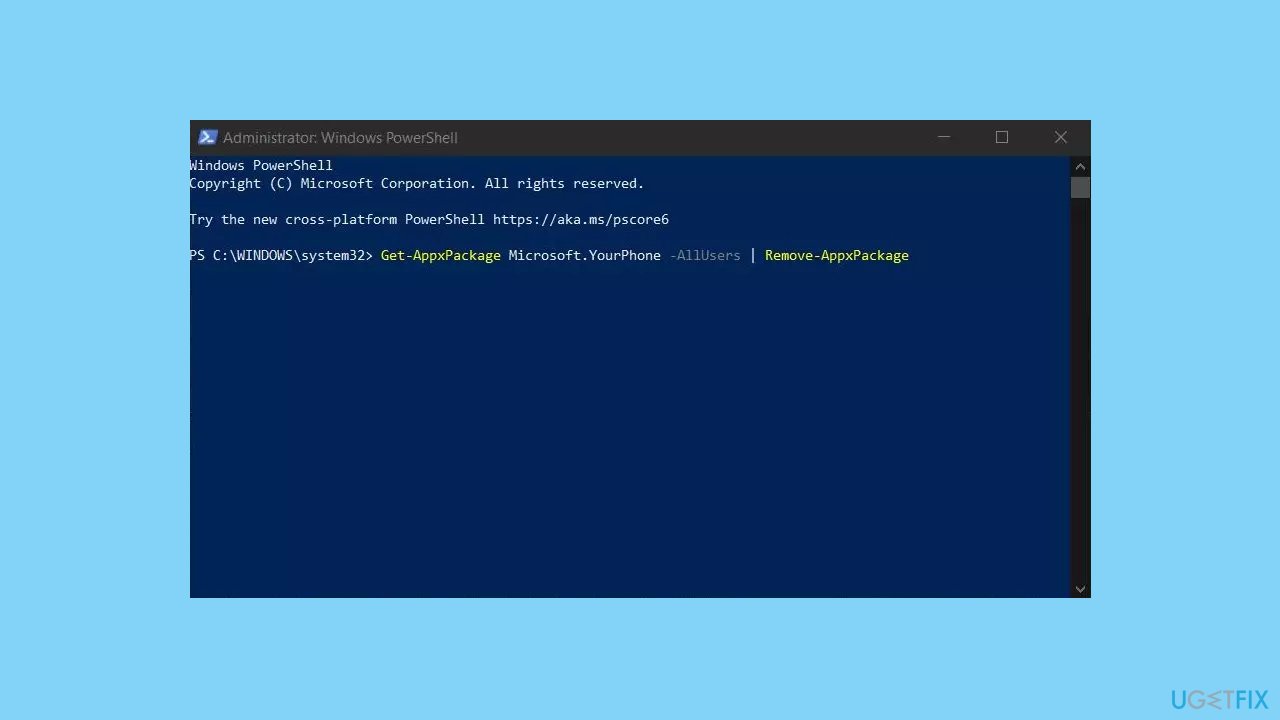
- This will uninstall the Phone Link app from your device.
- Open the Microsoft Store.
- Search for the Phone Link app and select it from the search results.
- Click on the Install button to reinstall the Phone Link app.
- Wait for the installation to complete and then close the Microsoft Store.
Bottom line
To fix the high CPU usage of PhoneExperienceHost.exe, you can stop the process, troubleshoot synchronization issues, ensure the Phone Link app is updated, and check for compatibility with the Windows OS. If these solutions do not resolve the issue, consider running a maintenance tool to fix system errors.
Frequently asked questions
High CPU usage by PhoneExperienceHost.exe is often caused by background processes related to the Phone Link app or syncing issues with your mobile device. This can happen after a Windows update or changes in phone settings.
You can reduce CPU usage by disabling the Phone Link app or adjusting its settings to limit background activity. Additionally, ensure that your Windows is updated, and consider resetting the app through the settings.
Yes, terminating the PhoneExperienceHost.exe process is generally safe as it will restart automatically; however, this may temporarily disable some phone features until you reopen the app.




Report an issue
What's wrong with this guide? We review every report and update or remove content.
Report received — thank you. We'll review and fix it.
You need a free account to submit a report.
Be the first to comment