How to fix
Photos App not zooming images to fit screen
on Windows
Fix the Photos App not zooming images on Windows 10 or 11 effortlessly. Follow our expert-tested guide for a quick solution with screenshots.

What causes How to fix Photos App not zooming images to fit screen in Windows?
- Recent Windows update causing bugs
- Corrupted system files
- Issues with the Photos App settings
- Previous app version not functioning correctly
Repairs Windows system files, removes malware, and restores a clean OS state — without reinstalling.
Hello. Lately, the Photos App has been acting strangely on my Windows computer. Previously, I always used the zoom-to-fit function but now it does not work properly. The app shows the photos zoomed out. Even if I go and change the setting, it reverts back. What should I do? Any tips would be highly appreciated.
Windows has a free built-in Photos App. It lets people view, edit, compare, create albums and movies. It also has a multi-view mode which let's compare photos and videos in the same window as well as import multiple photos at once. Users can choose how they want to view their photos, the cropping mode.
Unfortunately, recently users started experiencing issues when trying to view pictures. People report that the Photos App does not zoom images to fit the screen. Even if they try to change the mode back to the way it was before, it quickly reverts if users go back to the previously viewed image.
It was found that the bug was caused by a recent Windows update. This is not the first time that Windows updates have caused issues. Back in 2021, we wrote about the network printing error 0x0000011b that paralyzed small businesses. Most likely, the problem will be fixed when Microsoft releases a new update but in this guide, you will find 4 steps that may help you fix Photos App not zooming images to fit screen in Windows.
It is possible that the issue appeared even if you have not installed the Windows updates. In that case, it could be caused by corrupted files. You can use a maintenance tool like [d1] that can fix most system errors, corrupted system files, BSODs,[ref en-1] and registry[ref en-2] issues. Otherwise, follow the instructions below.
Solution 1. Repair the Windows Photos App
- Press the Windows key + I to open Settings
- Click on Apps and choose Apps & features
- Locate Microsoft Photos, and click on the three dots
- Choose Advanced options
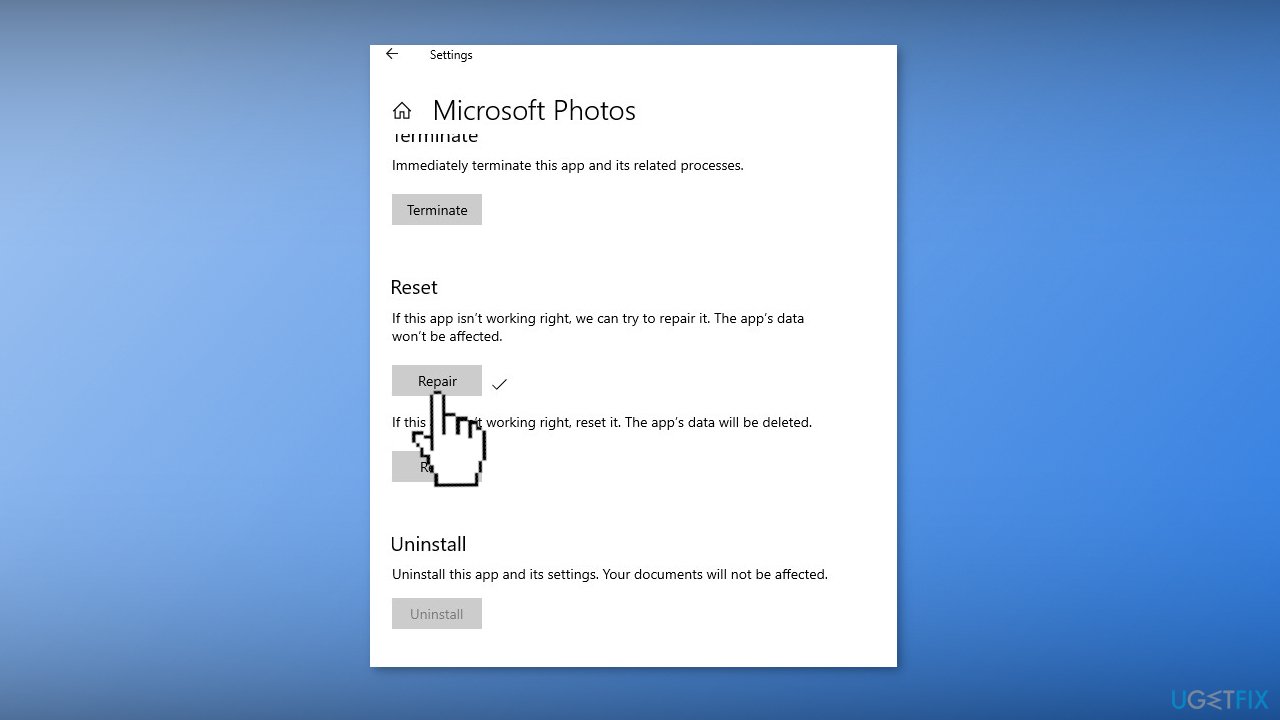
- Click on Repair under the Reset section
Solution 2. Uninstall the Latest Windows Update
- In Settings, from the left sidebar, select Windows Update
- On the Windows Update page, click Update History
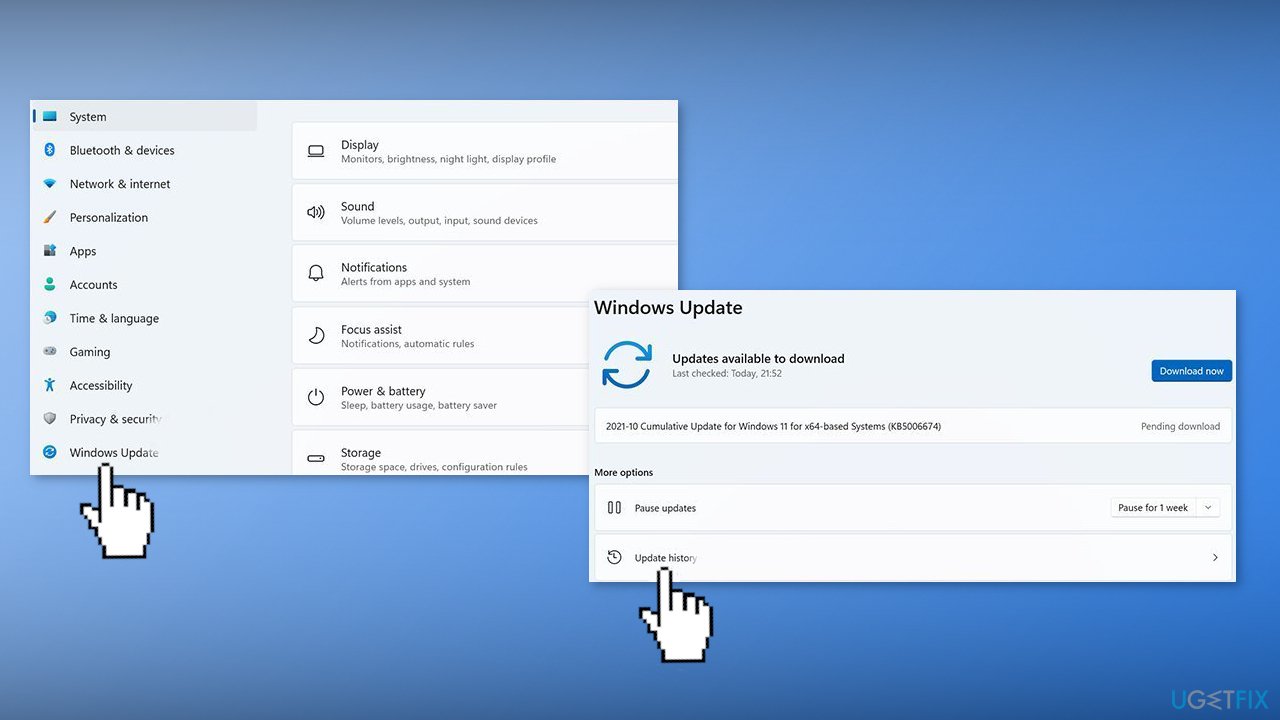
- From the Related Settings section, choose Uninstall Updates
- To remove an update, select it in the list and then click Uninstall
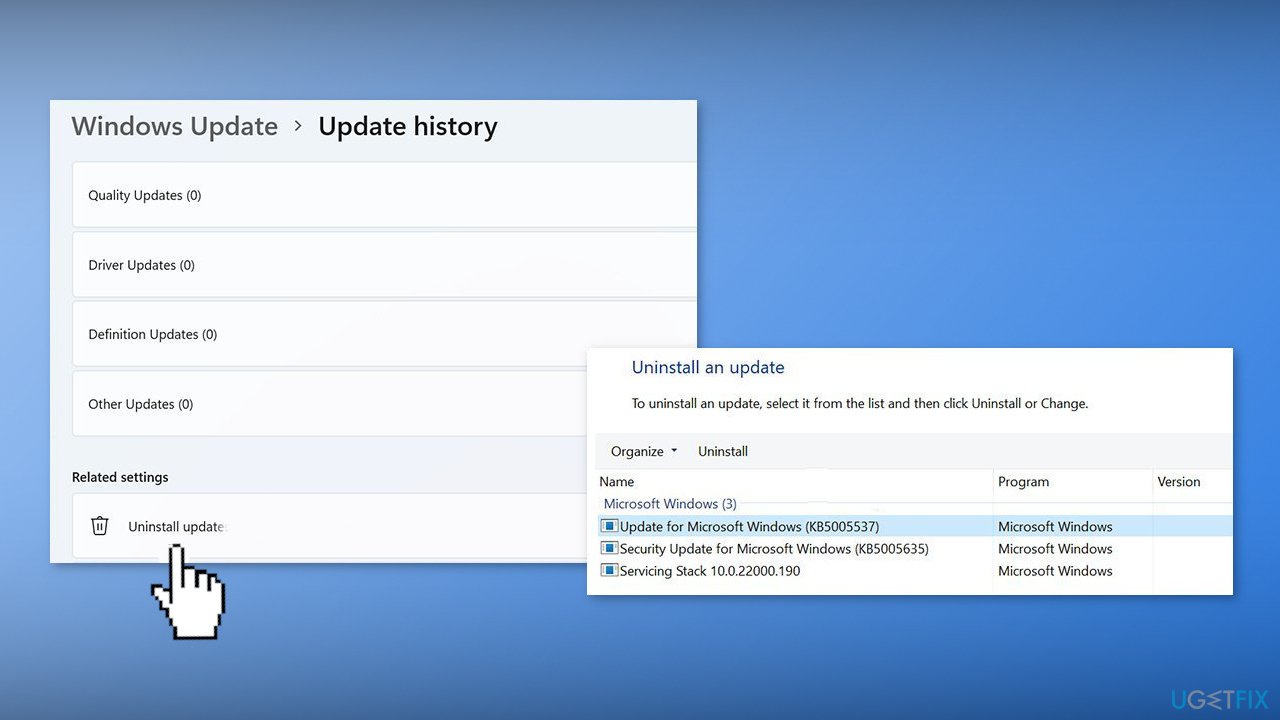
- Click Yes in the prompt to continue
Solution 3. Perform a System Restore
- Go to the Start menu, type
restore, and click on Create a restore point - Click System Restore, then follow the prompts until you can select a restore point
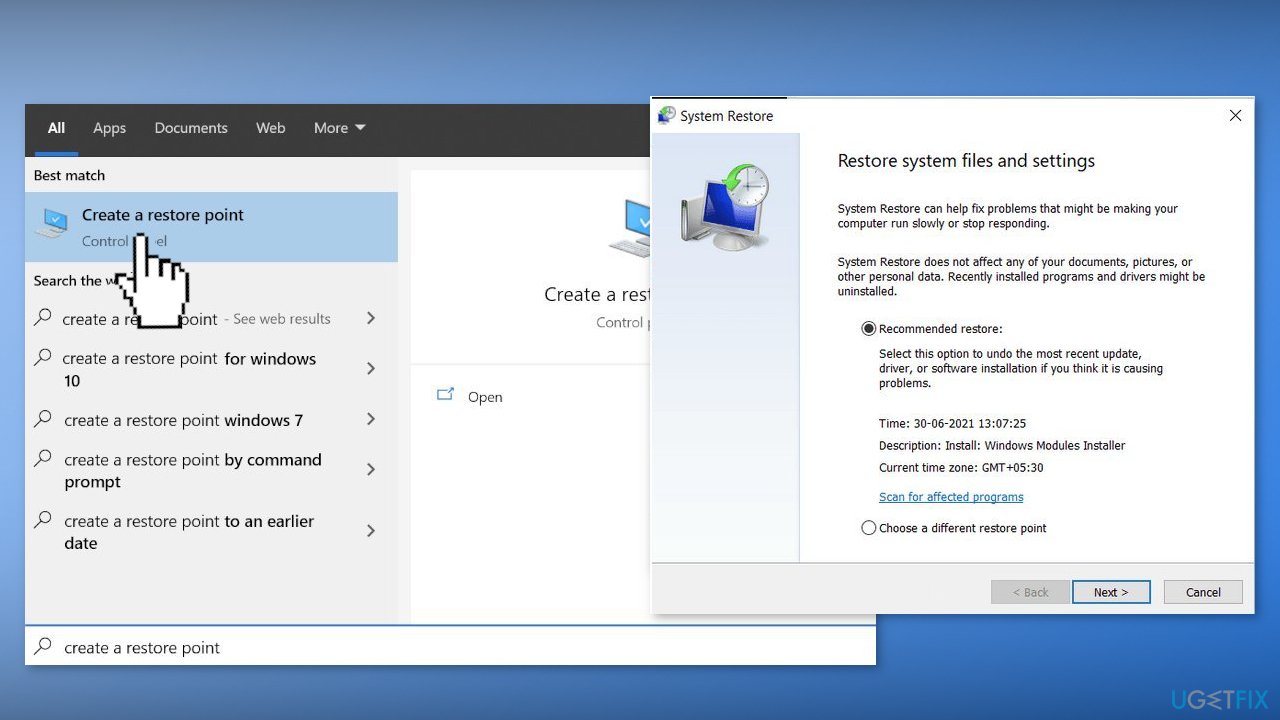
- Select the one you want (ideally before the Photos App issue appeared) and go ahead with the process
Solution 4. Create a New User Account
- Go to Settings and choose Accounts
- Select Family & other users
- Select Add someone else to this PC
- Click on I don't have this person's sign-in information, and on the next page, select Add a user without a Microsoft account
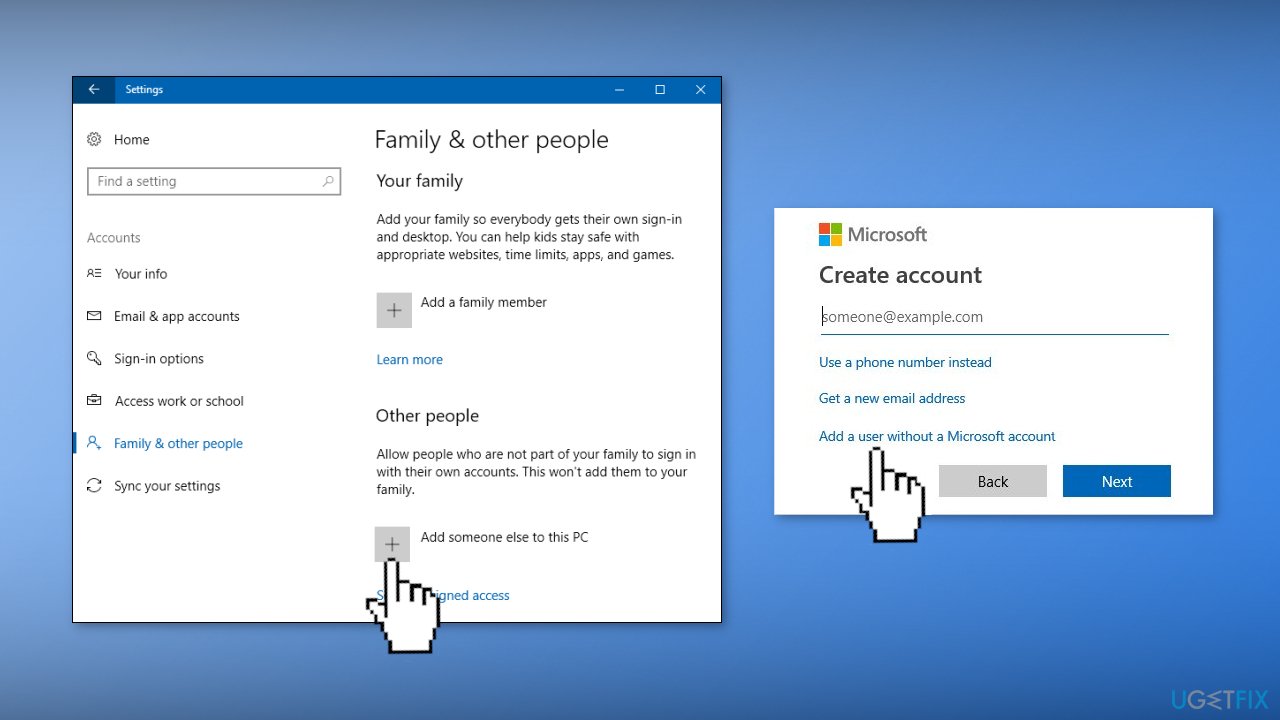
- Enter a user name, password, or password hint, and then select Next
- Follow the on-screen instructions
Bottom line
To fix the Photos App not zooming images to fit the screen, you can repair the app through the Settings menu or uninstall and reinstall it. If these solutions do not resolve the issue, consider using a maintenance tool to address system errors.
Frequently asked questions
This issue can occur due to app settings or a glitch in the Photos App. Try resetting the app through the Settings menu to resolve it.
You can fix this by updating the Photos App through the Microsoft Store or checking for Windows updates that may address compatibility issues.
If troubleshooting doesn't work, consider reinstalling the Photos App or using an alternative image viewer until the issue is resolved.




Report an issue
What's wrong with this guide? We review every report and update or remove content.
Report received — thank you. We'll review and fix it.
You need a free account to submit a report.
Be the first to comment