How to fix
Pixelated Cursor
on Windows
Fix your pixelated cursor in Windows 10 or 11 with simple solutions that restore clarity. Expert-tested methods ensure quick results.

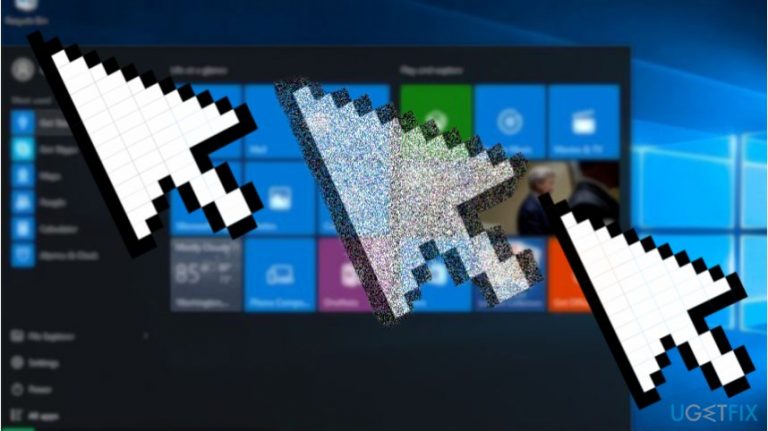
What causes How to Fix Pixelated Cursor in Windows?
- Pixelated cursor due to driver issues
- Malware presence affecting cursor performance
- Dual monitor setup causing cursor malfunction
- Mismatching RAM cards
- Uninstalled or outdated mouse drivers
Repairs Windows system files, removes malware, and restores a clean OS state — without reinstalling.
Hello, the cursor gets pixelated at times or starts twitching. Moving it back and forth restores it to normal. Updating the driver did not work. Any ideas where is the problem and how to fix it?
Pixelated, twitching or malfunctioning cursor is quite a common issue among Windows users. Nonetheless, the exact reasons are still unknown. Such performance failure also appears for users, who tend to use dual monitors.[ref en-1]
Alternatively, the pixelated, lagging or otherwise malfunctioning cursor evokes doubts about the possible presence of malware[ref en-2] on the operating system. In that case, you might also notice misbehaving anti-virus program: it turns off several shields automatically.
If there are no other signs of system failure and after changing the mouses, the issue remains, it would be wise to check whether all Windows updates are installed. Make sure the installation of Build 16273[ref en-3] is installed correctly.
Lastly, it is possible that the cause of pixelated cursor may lie in the mismatching RAM cards. Check them as well. Now let us review methods to solve malfunctioning cursor issue.
Option 1. Run System File Checker
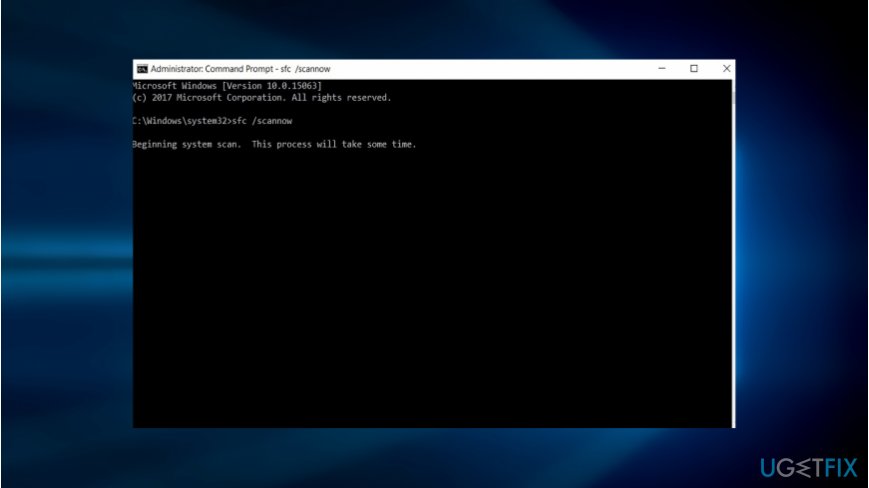
Running the scan with this tool might help you determine the cause of the problem.
- Press Windows key+R, type cmd and hit Enter. Note that unless you are logged in as administrator or run Command Prompt as administrator, you will not be able to launch this command.
- Type sfc /scannow and press Enter again.
- Wait for the process to end.
Option 2. Check drivers
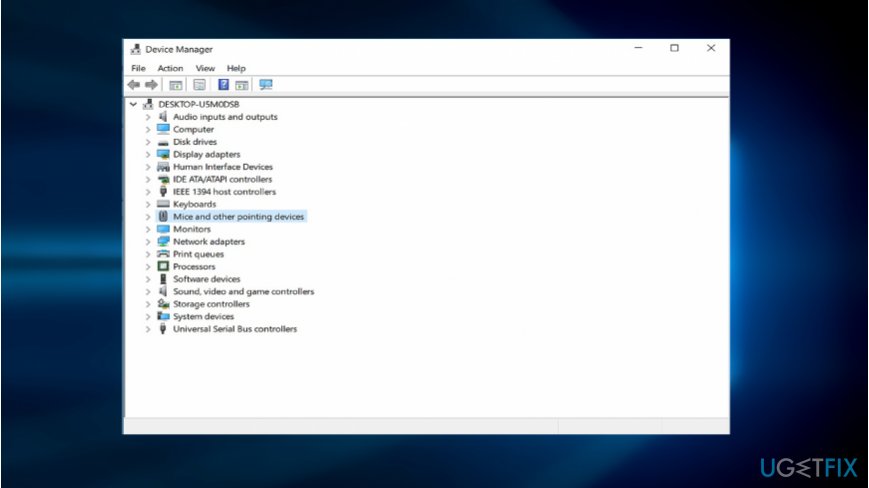
In case some of you, who encountered this problem, did not check the update status of mouse drivers, you might do so now.
- Click on the Start button and type drivers. Launch Device Manager.
- Then find Mice and other pointing devices.
- Expand the option, right-click on the mouse model and choose Update driver. You might also choose Uninstall. After rebooting the PC, Windows 10 automatically downloads the missing drivers.
Option 4. Scan the computer for malware
In case, you notice other unusual system behavior and processes related to your anti-virus program; it would be useful to perform a scan with a different malware elimination tool. In case an elaborate virus resides on a system, it might prevent the program from launching. In that case, renaming the executable file of the program might do the trick.
Scanning the operating system in Safe Mode is also recommended. Likewise, you determine whether the pixelated cursor appears only in normal or both modes.
Option 4. Reset PC
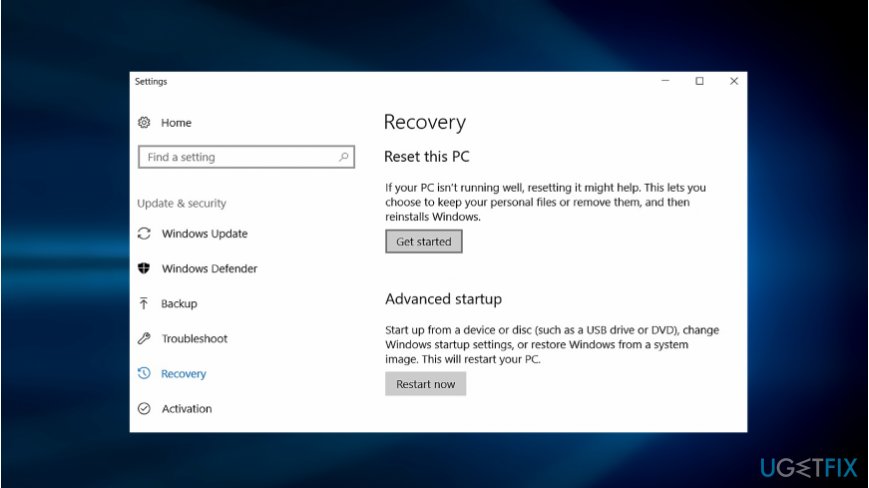
This is the last option to try in case the above methods failed. Note that Windows 10 allows you to keep personal files, but this action will delete third-party programs available in the main C disc.
Bottom line
To fix a pixelated cursor, you can run the System File Checker, check and update mouse drivers, and scan for malware. If these methods do not resolve the issue, consider checking for Windows updates or inspecting hardware components.
Frequently asked questions
A pixelated cursor can be caused by display driver issues, incorrect display settings, or high DPI scaling settings in Windows 10 or Windows 11.
You can update your display drivers by going to Device Manager, expanding the Display adapters section, right-clicking your graphics card, and selecting 'Update driver'.
You should check your DPI settings by right-clicking on the desktop, selecting 'Display settings', and adjusting the Scale and layout options for optimal cursor display.




Report an issue
What's wrong with this guide? We review every report and update or remove content.
Report received — thank you. We'll review and fix it.
You need a free account to submit a report.
Be the first to comment