How to fix
“Please update device’s setting to enable media transfer” error
on Windows
Resolve the "Please update device's setting to enable media transfer" error on Windows 10 and 11 quickly and effectively with expert-tested solutions.

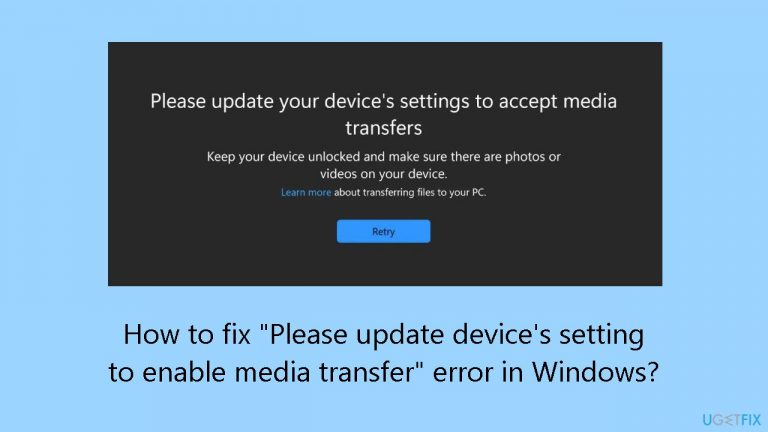
What causes How to fix “Please update device’s setting to enable media transfer” error in Windows?
- Communication issue between the operating system and the device
- System unable to recognize the connected phone in the correct mode
- Phone's USB connection settings not set to File Transfer
- Outdated PC device drivers
- Pending system updates
Repairs Windows system files, removes malware, and restores a clean OS state — without reinstalling.
Hello. When I connect my phone via USB to the Windows PC, I get the "Please update device's setting to enable media transfer" error and it is not letting me transfer files. Is there a way to fix this?
When connecting their phones to Windows for file transfer, some users receive the "Please update device's setting to enable media transfer" error, which suggests a communication issue between the operating system and the device. This issue typically arises when the system is unable to recognize the connected phone in the correct mode required for media transfer.
Because it prevents users' phones and Windows PCs from transferring media files seamlessly, this error might be annoying for many users. This may make it more difficult to manage and arrange media content, such as images, videos, and music efficiently. In addition, if this problem is not fixed, people who depend on frequent file transfers may become even more irritated and impacted.
Changing the phone's USB connection settings, updating the PC's device drivers, or checking for system updates are some potential fixes for this problem. It's crucial to remember that the efficiency of these fixes may differ based on the particular device and Windows version. It might be necessary for users to experiment with various troubleshooting techniques before settling on one that works for their specific configuration.
In this guide, you will find 2 steps that should help you fix "Please update device's setting to enable media transfer" error in Windows. You can also run a maintenance tool like [d1] that can fix most system errors, BSODs, corrupted files, and registry issues. Otherwise, follow the step-by-step instructions provided below.
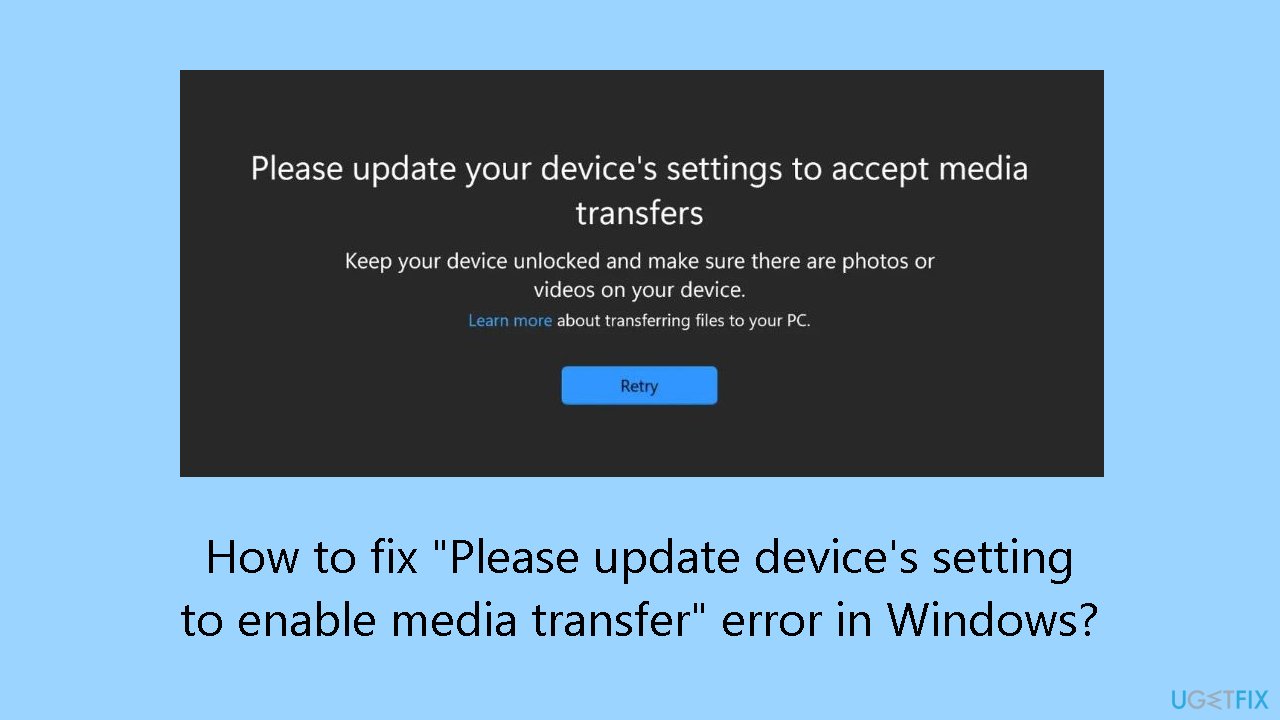
Solution 1. Select File Transfer Mode
This solution guides users through the process of explicitly setting the USB connection mode to File Transfer, addressing the error by ensuring that the phone is in the appropriate mode for media transfer and facilitating a smooth file transfer experience between the phone and the PC.
- Connect your phone to the PC using a USB cable.
- Ensure that the phone is unlocked and the screen is active.
- On your phone, swipe down from the top of the screen to access the notification panel.
- Look for the USB connection notification. Tap on it to expand the options.
- Select File Transfer or Transfer Files from the available USB connection modes.
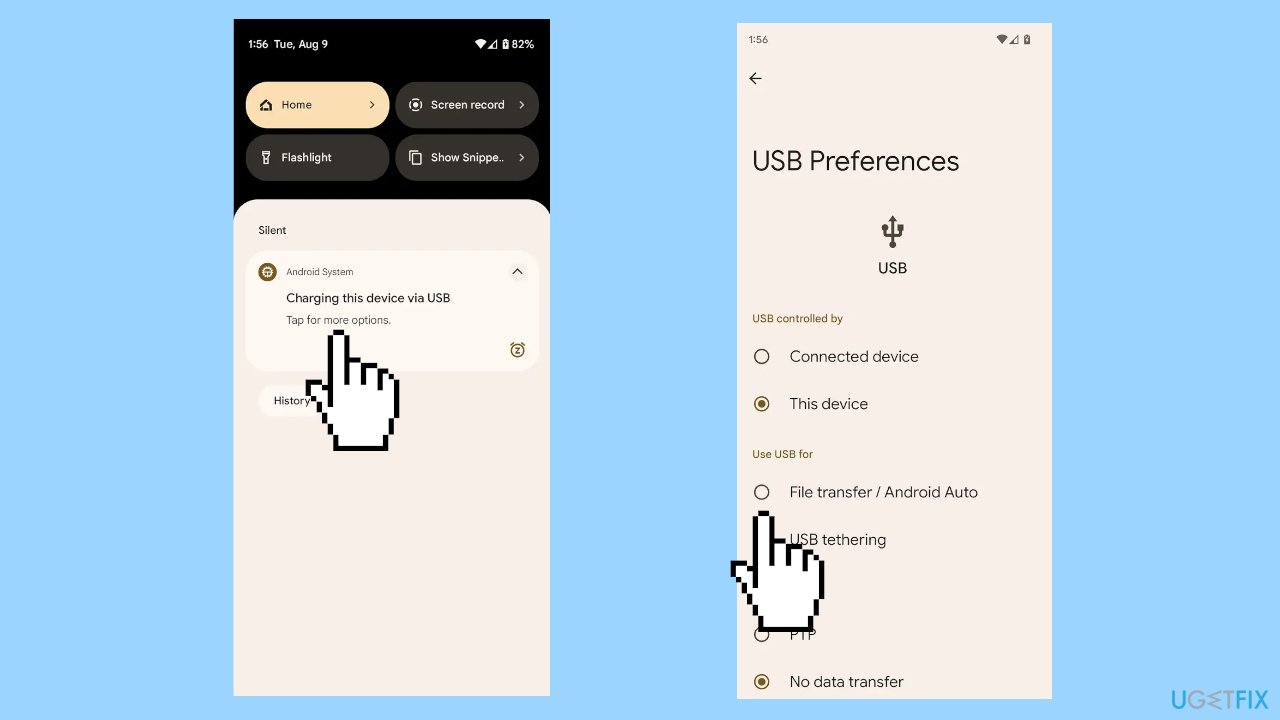
- If prompted, choose the File Transfer mode again to confirm your selection.
- On the PC, open File Explorer.
- Locate and access your connected phone under the list of available drives or devices.
- You can now copy, paste, or move files between your phone and the PC as needed.
- Once file transfer is complete, safely eject or disconnect your phone from the PC before unplugging the USB cable.
Solution 2. Install the Old Version of the Photos App
- Open the Photos app.
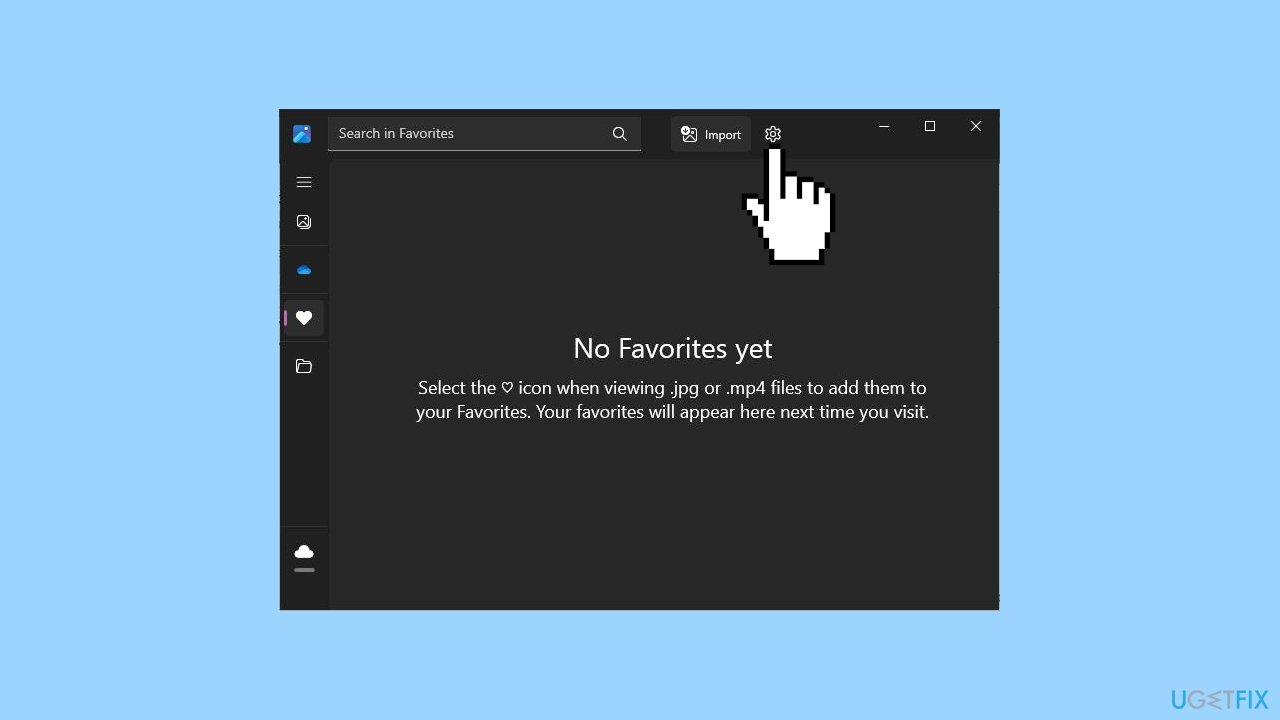
- Tap the Settings button located in the upper right corner of the interface.
- Select the Get Old Photos option to install the old version of the Photos app.
- Test the functionality to ensure it works properly in the old version.
Bottom line
To fix the 'Please update device's setting to enable media transfer' error in Windows, users can change the phone's USB connection settings to File Transfer mode, update the PC's device drivers, or check for system updates. If these solutions do not resolve the issue, users may need to experiment with various troubleshooting techniques or consider using a maintenance tool.
Frequently asked questions
To enable media transfer on Windows 10, connect your device via USB, then navigate to 'Settings' > 'Devices' > 'Connected devices' and ensure the media transfer option is selected.
This error typically occurs when the connected device is not set to the correct USB mode; check your device's settings and switch to MTP (Media Transfer Protocol) mode.
You can troubleshoot USB connection issues by updating your USB drivers through Device Manager, ensuring the cable is functional, and trying different USB ports.




Report an issue
What's wrong with this guide? We review every report and update or remove content.
Report received — thank you. We'll review and fix it.
You need a free account to submit a report.
Be the first to comment