How to fix
Please wait until the current program is finished uninstalling or being changed error
on Windows
Resolve the "Please wait until the current program is finished" error on Windows 10 and 11 with our expert-tested solutions for seamless uninstallation.…

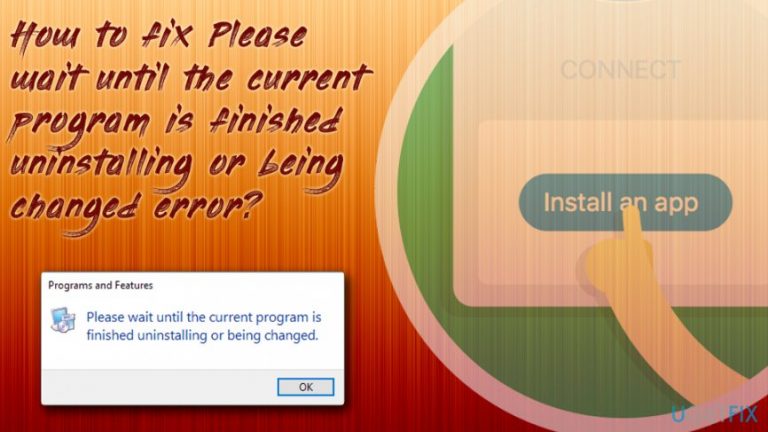
What causes How to fix Please wait until the current program is finished uninstalling or being changed error?
- Windows Installer process is being used by another program
- Incomplete installation of an application
- Potentially unwanted program (PUP) interfering with uninstallation
- Malware affecting system performance
- Registry issues causing conflicts
Repairs Windows system files, removes malware, and restores a clean OS state — without reinstalling.
I have encountered Please wait until the current program is finished uninstalling or being changed many times. It shows up if I want to uninstall another program and the message does not go away, no matter how long I wait. This is really annoying me, and it keeps happening. Is there something wrong with Windows 10? Please help me.
Please wait until the current program is finished uninstalling or being changed notification appears when you are trying to modify (install or uninstall) the application via Programs and Features on Windows operating system. This occurs because Windows uses a system process - Windows Installer[ref en-1] - to handle installation, uninstallation, repair, and maintenance of any software that is used.
It can be a quite serious issue because it prevents users from installation or uninstallation of programs, and the error sometimes does not go away, even after the computer is restarted. Nevertheless, our experts prepared an array of solutions that can be used in order to fix Please wait until the current program is finished uninstalling or being changed error.
The reason users see this message is because the process is already used by another program. The operating system displays this messages in order to prevent any damage to programs or files, as the incomplete installation of the application might lead to several conflicts and more errors.
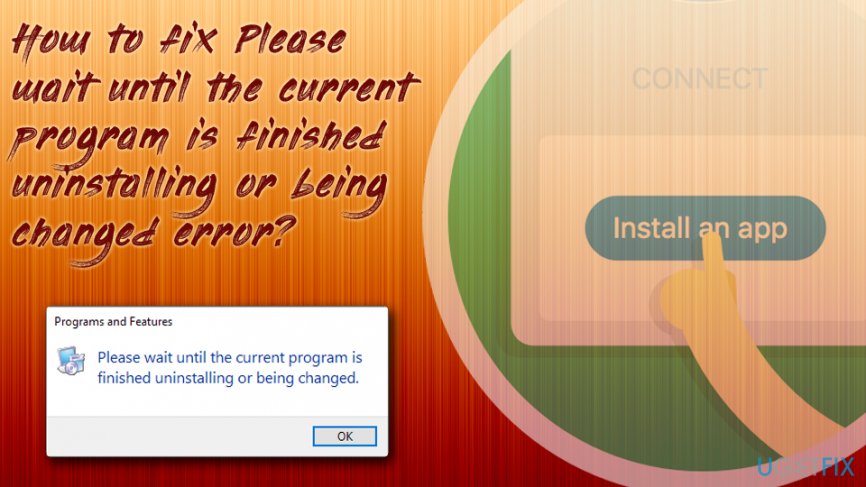
In some cases, the error may be induced by a potentially unwanted program[ref en-2] that could have gotten into your PC without you noticing. PUPs are sometimes problematic to delete manually. Therefore, we recommend scanning your system with a reputable anti-malware software, such as [d1]. This tool will protect your computer from malware,[ref en-3] as well as repair various Windows errors and fix the registry.[ref en-4]
If the scan has been performed and you are still encountering Please wait until the current program is finished uninstalling or being changed errors, you should proceed with solutions explained below.
Here is a video with methods to help you eliminate this problem:
[youtube BQQBj1ECan8]
Fix 1. Restart your computer
The easiest fix to this problem is by restarting your PC. In some cases, the installation or uninstallation process may "hang" as Windows fails to execute it properly. Therefore, everything could be back to normal as soon as the operating system restart kills the failed process.
Fix 2. Uninstall or install the program in the safe mode
Safe Mode is a function in Windows which allows the operating system to start with limited functionality but is capable of fixing various issues. Safe Mode is also handy when malware is blocking a normal operation of your security software (Note that you might have to print out the instruction as the computer will be restarted).
- Press Windows key + I
- On the left pane, click on Recovery
- Then, pick the Restart now option
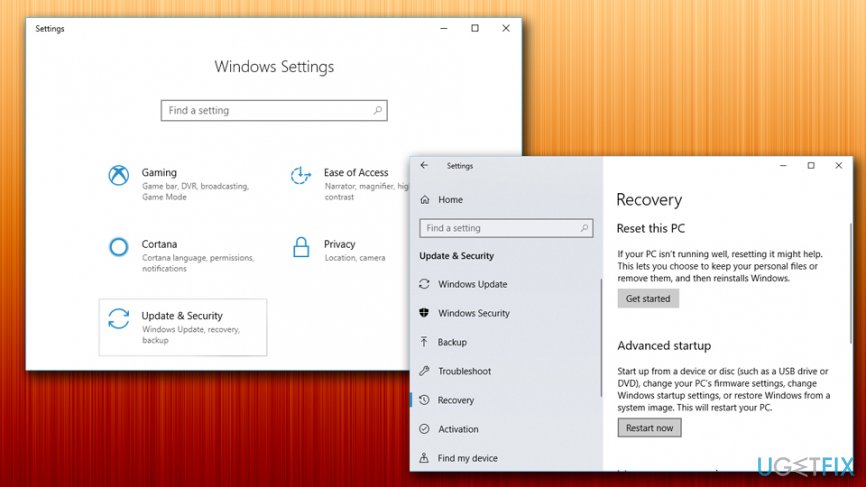
Please wait until the current program is finished uninstalling or being changed error start in safe mode - After the PC restarts select the following: Troubleshoot > Advanced options > Startup Settings
- Click Restart and then select the Safe Mode from the available options
Fix 3. Restart explorer.exe
The solution to Please wait until the current program is finished uninstalling or being changed problem might lay in simple restart explorer.exe:
- Press Ctrl + Shift + Esc simultaneously to open Task Manager
- Find Windows Explorer process
- Right-click on it and pick Restart
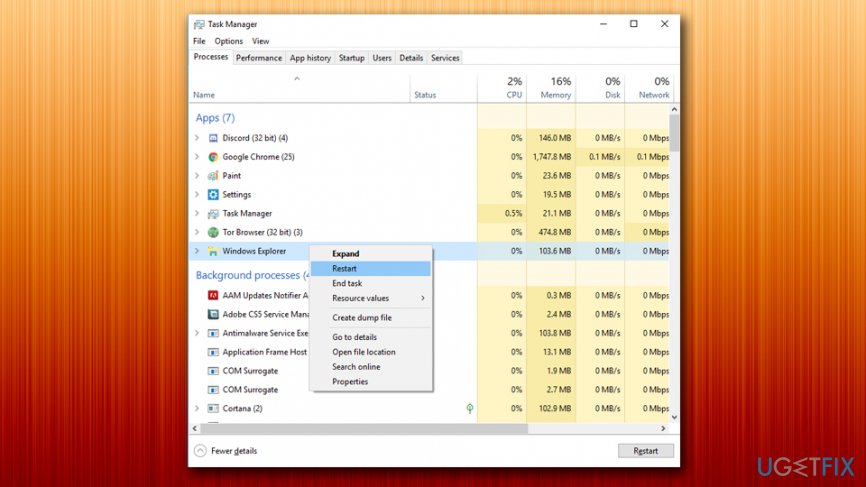
Please wait until the current program is finished uninstalling or being changed restart windows explorer
Fix 4. Carry out a System Restore
System Restore will bring your device to the state in which the problem was absent. To perform System Restore, do the following:
- Type in Control Panel in taskbar's search bar and pick it
- Then select Recovery > System Restore
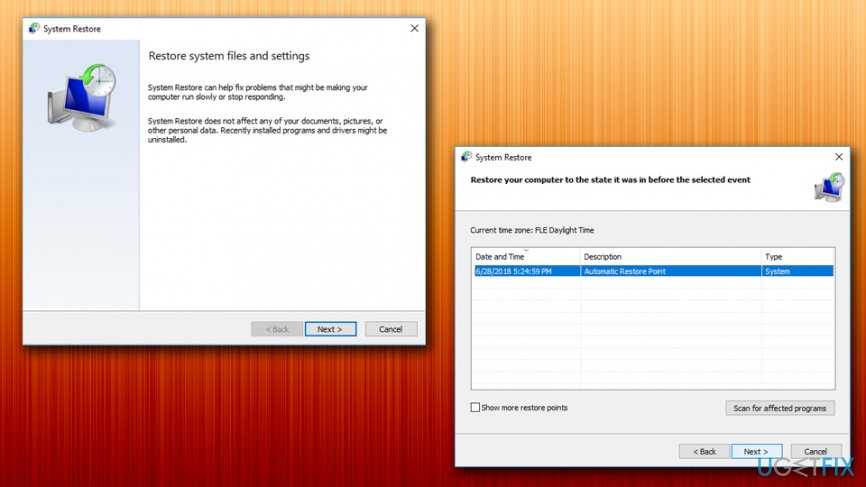
Please wait until the current program is finished uninstalling or being changeduse system restore - Choose a restore point and follow on-screen instructions
- Wait till the process is finished and then check if the problem persists
Fix 5. Use Program Install and Uninstall troubleshooter
Troubleshooters are great programs by Microsoft that can diagnose and repair problems automatically. While some of them are built-in, others need to be downloaded. Download Program Install and Uninstall troubleshooter from here and follow these steps:
- Once troubleshooter opens, click Next
- Then, select whether you have a problem with installation or uninstallation in the next step
- Next, select the program you are having troubles with and click Next
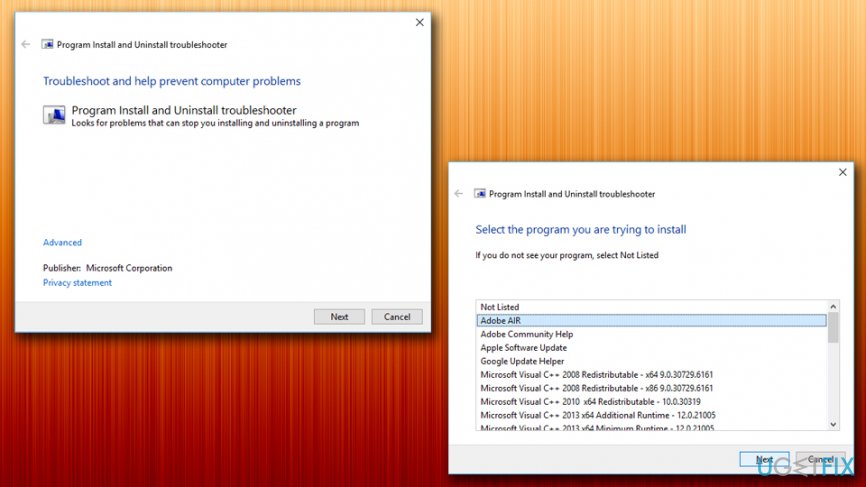
Please wait until the current program is finished uninstalling or being changed run troubleshooter - If you want to uninstall the program, proceed with Yes, try uninstall
Bottom line
To fix the error, you can try restarting your computer, scanning for malware with reputable anti-malware software, or checking for registry issues. If these solutions do not resolve the problem, consider seeking further assistance or exploring additional troubleshooting methods.
Frequently asked questions
This error typically occurs when an installation or uninstallation process is still running or has become stuck in the background. It may also happen if the Windows Installer service is not functioning properly.
To fix this error, try restarting your computer to clear any stuck processes, and then run the Windows Installer service again. You can do this by opening the Services app, locating 'Windows Installer', and restarting it.
Yes, you can open the Task Manager, find any processes related to the installation, and end them. This should allow you to proceed with your intended uninstallation or installation.




Report an issue
What's wrong with this guide? We review every report and update or remove content.
Report received — thank you. We'll review and fix it.
You need a free account to submit a report.
Be the first to comment